
Download PDF files (multi-language)
xTool F1 Ultra unboxing and first use
Note: Save the packaging material including the outer box, accessory boxes, and foam, for moving or shipping xTool F1 Ultra in the future.
Ensure that the inner space of xTool F1 Ultra is filled with the foam boxes for accessories during movement or shipping. Otherwise, the laser module may shift or deviate from its original position, and thus affect its processing capabilities.
List of items
Unbox xTool F1 Ultra and check the items inside the pack. If you find items missing or broken, please contact us for after-sales support.
xTool F1 Ultra | |
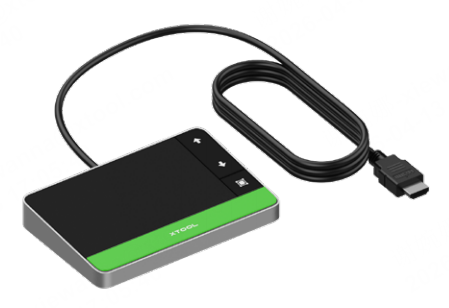
| Touchscreen controller |
Pipe | |
Power adapter | |
Power cable | |
USB cable | |
Slatted panel | |
L-shaped positioning piece | |
| Key |
Lint-free cloth | |
Screwdriver | |
Example project material | |
| Quick Start Guide |
| Safety Instructions |
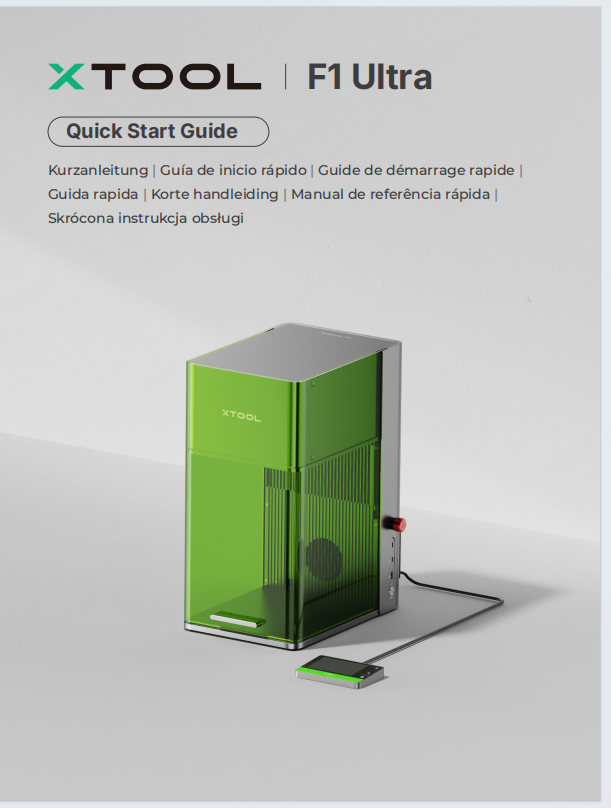

Note: Some packs may come with only one User Manual, which is a combination of the Quick Start Guide and Safety Instructions.
Meet your xTool F1 Ultra
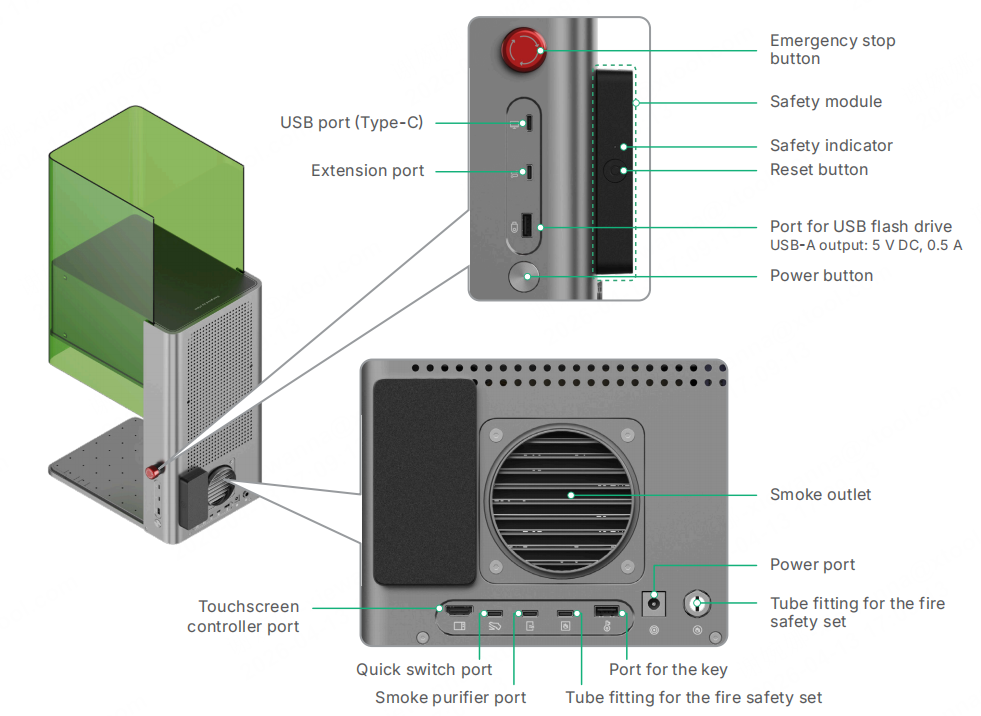
Product structure
Touchscreen controller
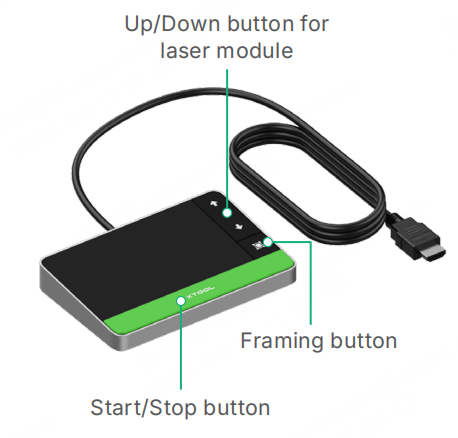
■ Up/Down button for laser module: Lifts or lowers the laser module during manual focusing.
■ Framing button: Starts or stops framing.
■ Start/Stop button: Starts or stops material processing.
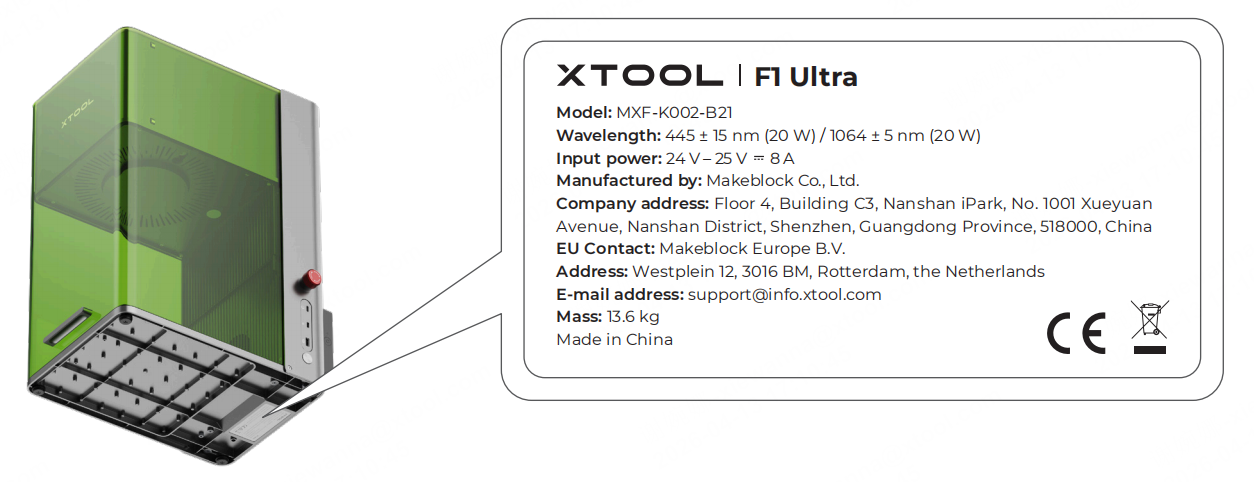
Nameplate
Indicator description
Logo indicator:
Safety indicator:
Understand the buzzer
Buzzer | Machine state |
Buzzing once | Working or connection status changed, which includes: · Connected to or disconnected from xTool software · Switched between STA and AP modes · Network configuration in AP mode succeeded (connected to a Wi-Fi network) ·Connected to or disconnected from the fire safety set · Access-control key inserted or removed · Ready for processing · Processing ended · Processing paused due to machine movement |
Keeping buzzing | Flames detected |
Specifications
Product name | xTool F1 Ultra |
Size | 493 mm × 253 mm × 373 mm |
Internal working area | 220 mm × 220 mm × 145 mm (W × D × H) |
Maximum processing speed | 10,000 mm/s |
Input power | 24 V – 25 V ⎓ 8 A |
Laser module | 445 ± 15 nm blue-light laser 1064 ± 5 nm fiber infrared laser |
Laser power | 20 W (445 ± 15 nm) 20 W (1064 ± 5 nm) |
Connection mode | Wi-Fi, USB, IP |
Get the machine ready
- Pull down the field lens protector to remove it.
Note: If you won't use the machine for a long period of time, you can install the protector back to prevent the field lens from getting dusty. Ensure that the protector is removed every time before you use the machine.
- Insert the key.
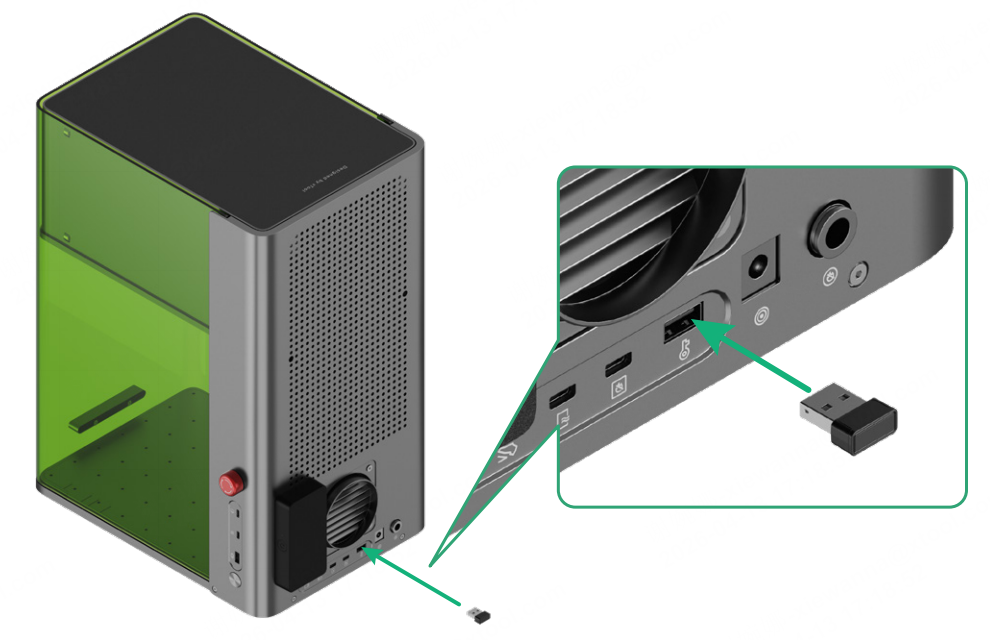
Note: The key is used to control the processing and related functions of the machine. For more information on how to use the key, see Operation Access Control and xTool Access-Control Key.
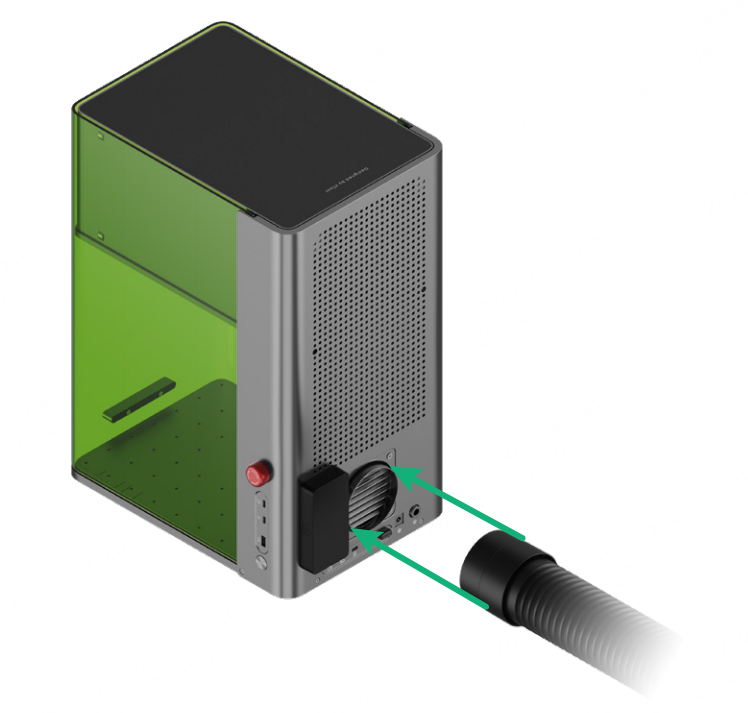
- Install the pipe.
- Connect the touchscreen controller.
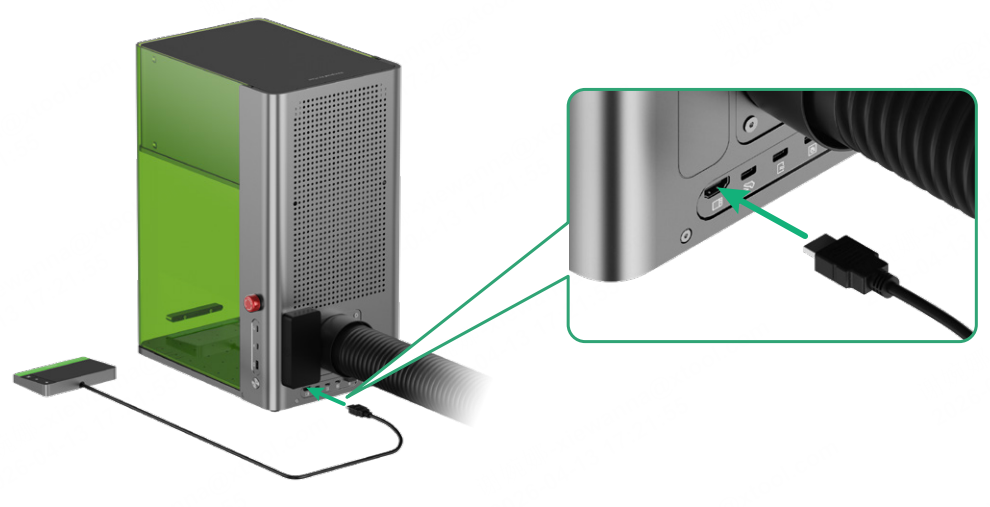
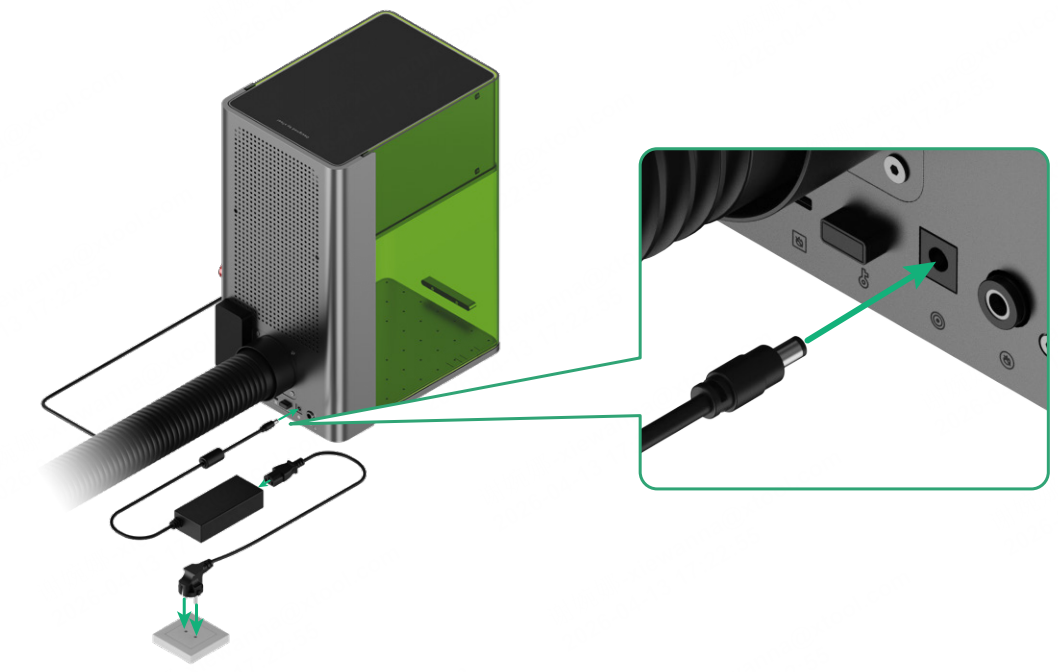
- Connect to a power supply.
- Press the power button to turn on xTool F1 Ultra. The safety indicator will light up red.
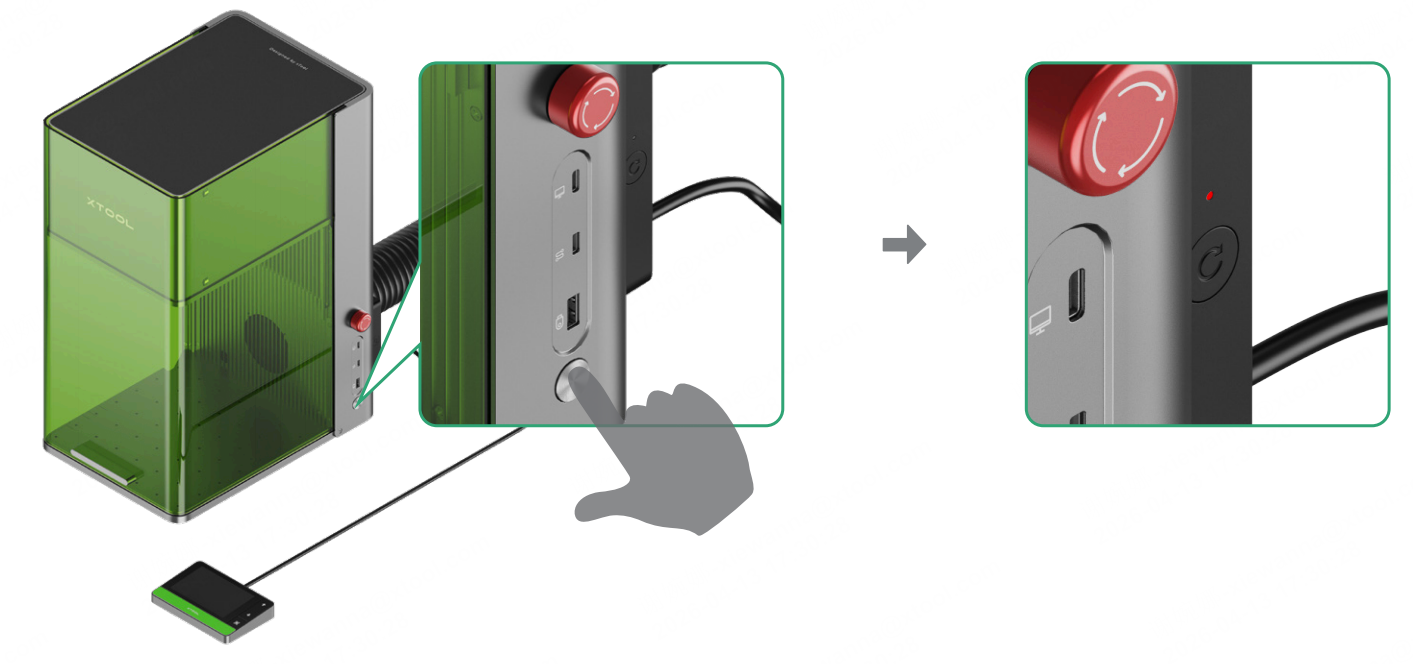
Caution: Do not use the emergency stop switch as a power switch.
Use the emergency stop switch only when an emergency occurs. Using it as a power switch to turn the machine on and off may damage it.
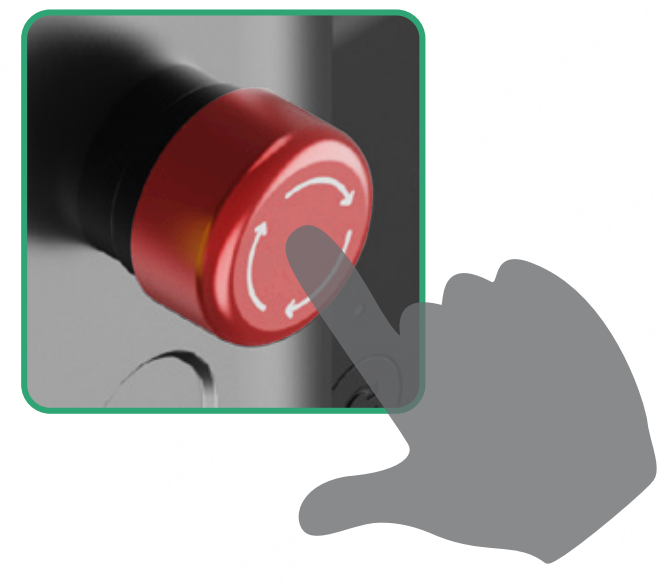
- Rotate the emergency stop button clockwise to release it. The safety indicator will first turn white and then green.
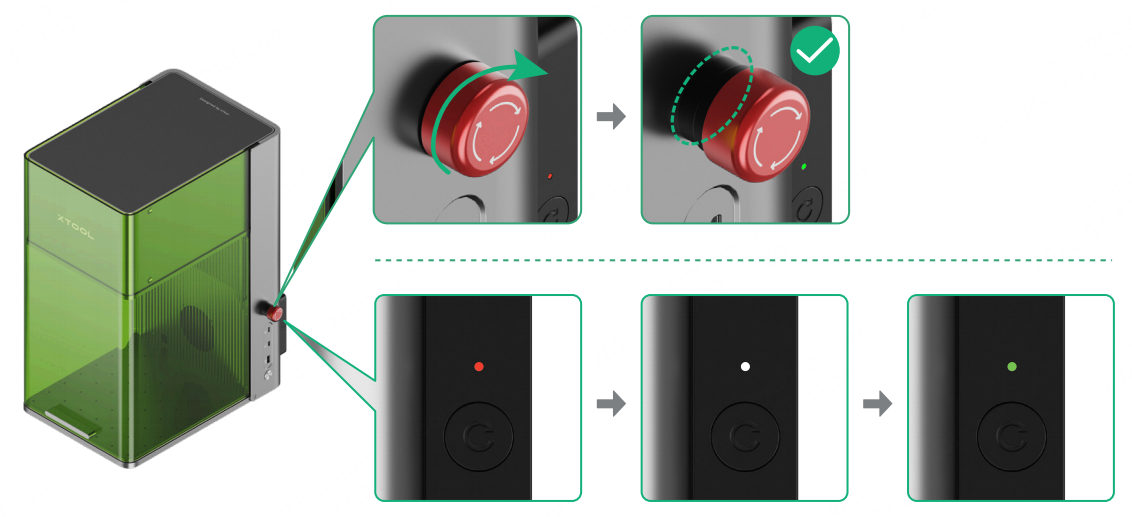
Note 1: Emergency stop button
If an emergency occurs, you can press the emergency stop button to shut off the machine.
After dealing with the emergency, you can turn the emergency stop button to reset it.
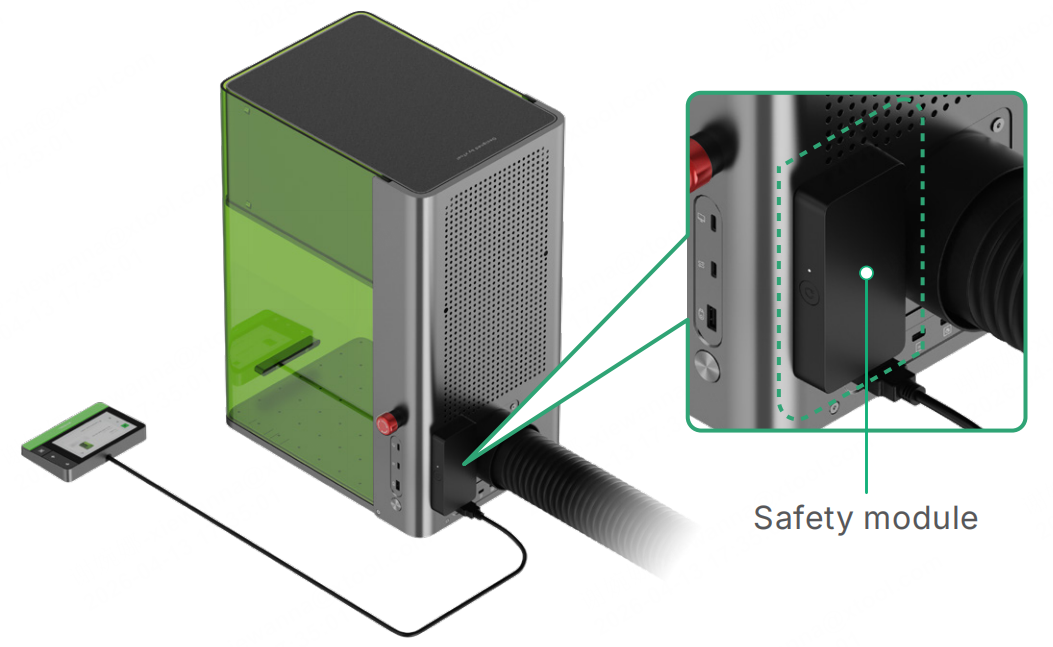
Note 2: If the safety indicator does not change from white to green automatically, the safety module is activated. Please visit support.xtool.com/article/3173 and follow the instructions to continue.
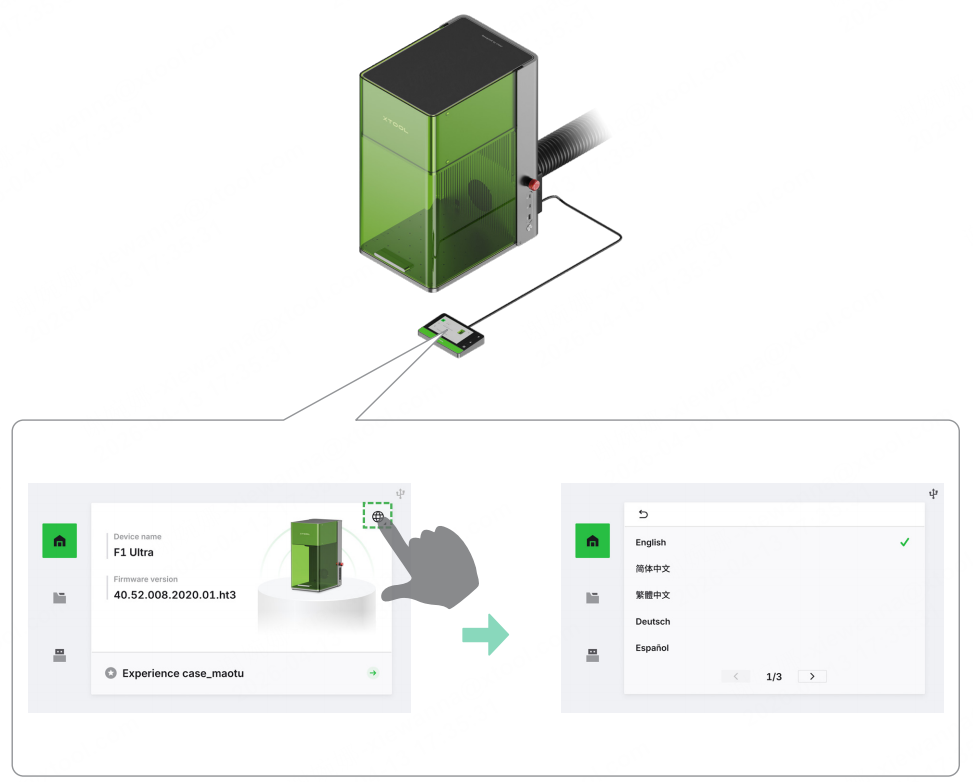
- Set the UI language of the touchscreen controller.
Operate xTool F1 Ultra through XCS
For more information on how to operate xTool F1 Ultra by using xTool Creative Space (XCS), refer to the following articles.
For XCS desktop
- Connect xTool F1 Ultra to XCS on the Computer
- Set up xTool F1 Ultra with XCS on the Computer
- Process on Flat Surface with XCS on the Computer
- Start Laser Embossing with XCS on the Computer
- Process a Curved Material with XCS on the Computer
For XCS mobile
For offline processing
For accessories
- Use the Rotary Attachment with xTool F1 Ultra
- Use the Conveyor to Process a Large Material
- Use the Conveyor for Batch Processing
Operate xTool F1 Ultra through xTool Studio
For more information on how to operate xTool F1 Ultra by using xTool Studio, refer to the following articles.
Use xTool F1 Ultra:
- Connect and Set up xTool F1 Ultra via xTool Studio
- Upgrade the Firmware for xTool F1 Ultra
- (xTool Studio) How to Process on Flat Surface with xTool F1 Ultra
- (xTool Studio) How to Start Laser Embossing with xTool F1 Ultra
- (xTool Studio) How to Process a Curved Material with xTool F1 Ultra
Use xTool F1 Ultra with accessories:

