
xTool Creative Space (XCS) is an all-in-one software for graphic designing and editing, laser process setting, and machine controlling.
Download XCS
Minimum and recommended PC requirements
Item | Minimum configuration | Recommended configuration |
Processor | Intel Core i5-6200U | Intel Core i5-11600 |
Operating system | Win 10 (64 bit)/macOS 10.14 or later | |
RAM | 8 GB | 16 GB |
Display resolution | 1280 × 720 (pixels) | 1920 × 1080 (pixels) or higher |
Hard drive | 8 GB | 12 GB |
- With the minimum configurations, all the functions of XCS can be used properly. When you import a complex image, such as an image larger than 50,000,000 pixels or an SVG image larger than 1 MB, however, XCS may fail to run smoothly.
- With the recommended configurations, XCS can run more smoothly when you import and edit a complex image, the software delay may be shorter, and the performance is better.
Download and install XCS
(1) Download the xTool Creative Space software applicable to the operating system that runs on your PC from xtool.com/pages/software.
(2) Double-click the software you've downloaded to install it.
Note: Click Yes if you are asked "Do you want to allow this app to make changes to your device?" and then continue the installation as prompted.
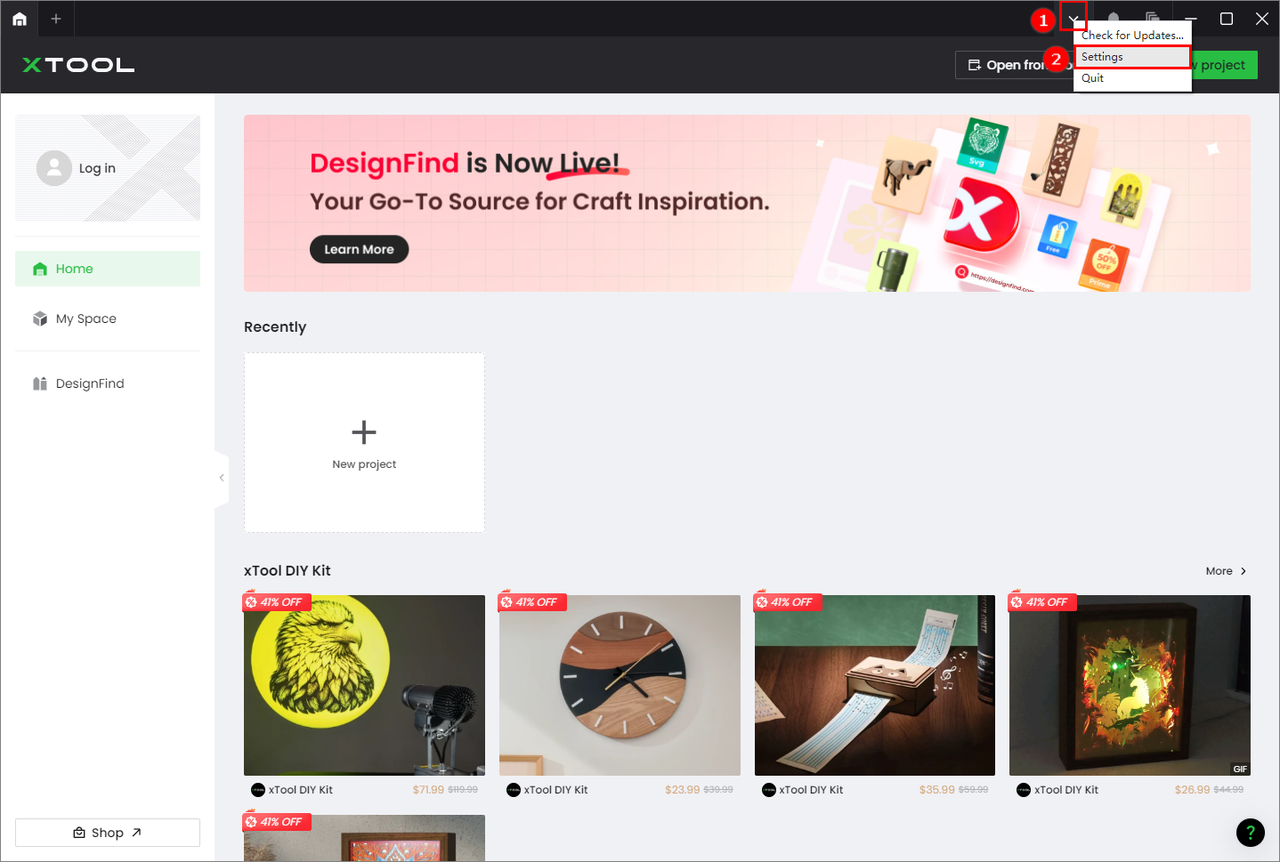
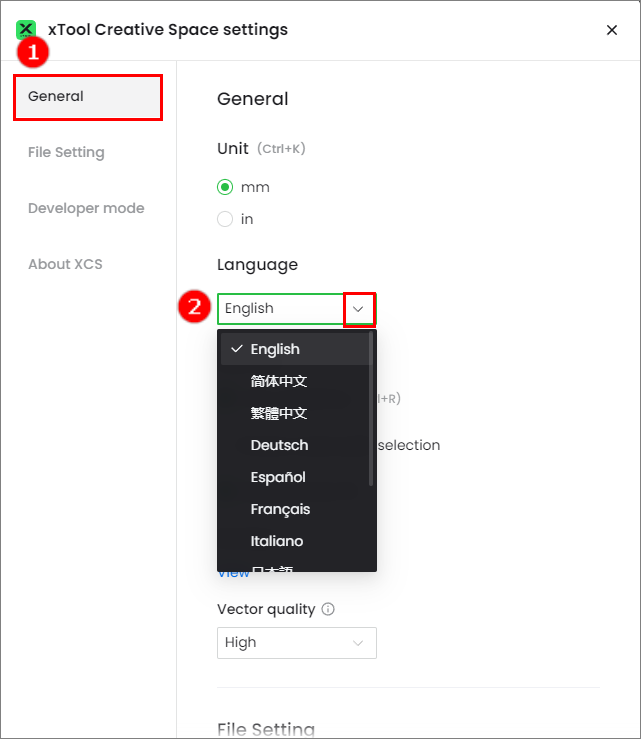
(3) Open XCS. On the top-right corner, click the icon > Settings, and set the display language for XCS.
|
|
Connect the device to XCS
Connect to XCS via USB cable
(1) Use the USB cable to connect xToolMetalFab to your computer. And turn on the device.
(2) Open XCS on your computer. On the top-right corner of XCS, click the + New project button.
(3) On the top of the project editing page, click Please connect a device.
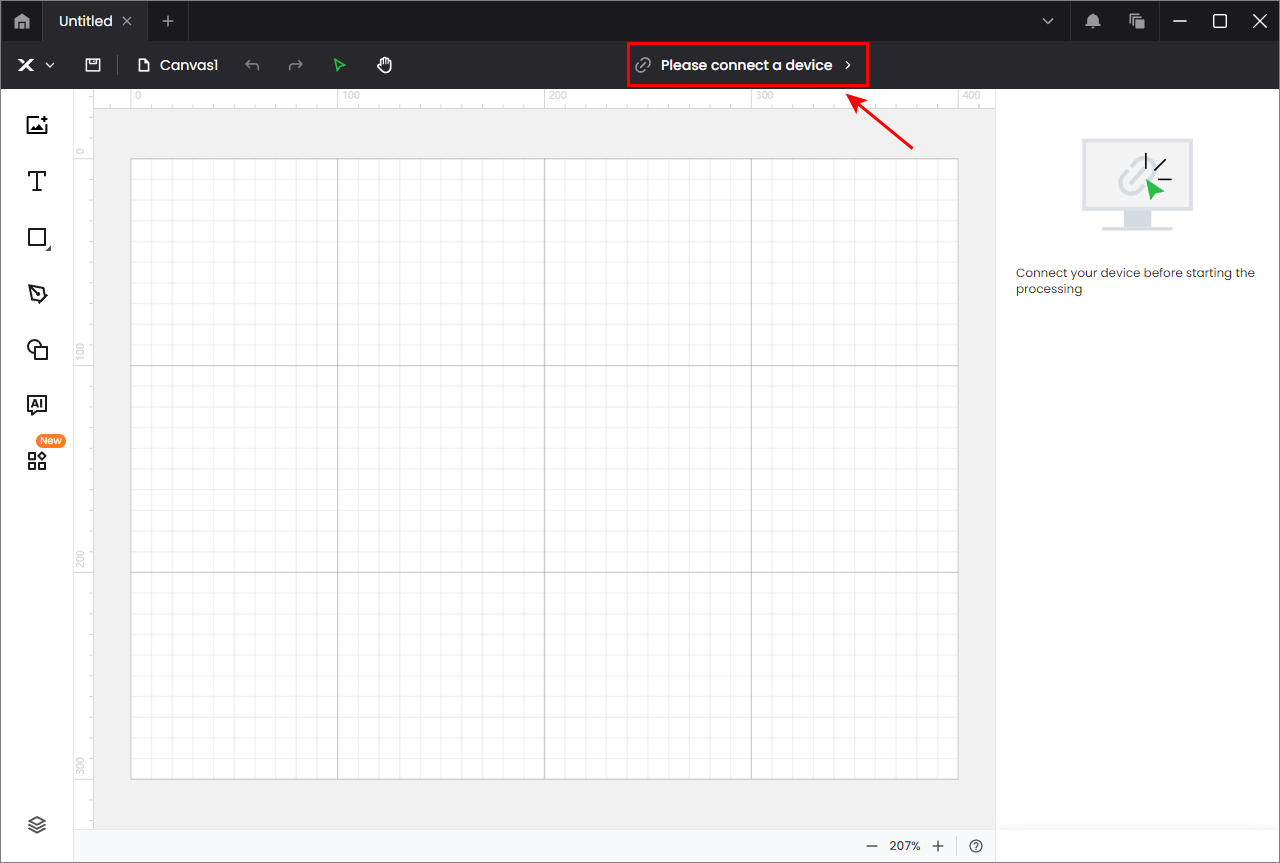
Note: If you have connected an xTool device in XCS before, click the name of the device > select Connect device.
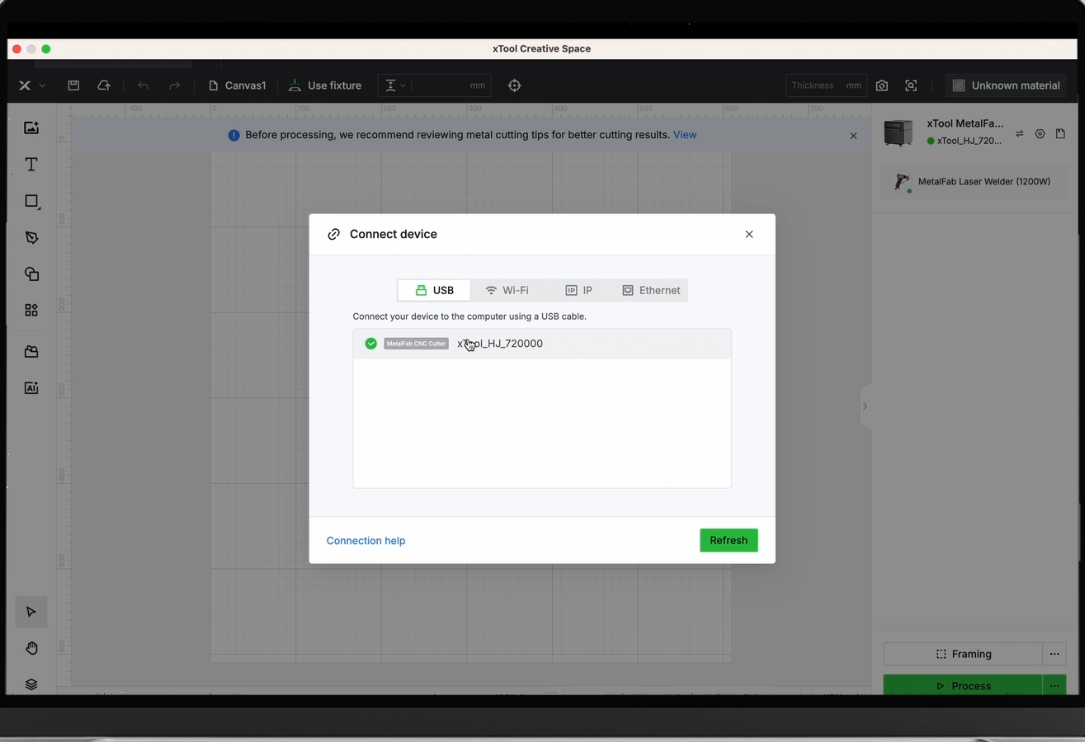
(4) On the pop-up window, click the name of your device to connect to it.
Connect to XCS via Wi-Fi/IP address
1. Connect xTool MetalFab to a Wi-Fi network
(1) Following the instructions in Connect to XCS via USB cable, connect xTool MetalFab to XCS by using the USB cable.
(2) In the top-right corner of XCS, click the setting icon next to the image of xTool MetalFab.
(3) On the Device settings window, find Wi-Fi settings in Basic info tab. Click Setting, select a Wi-Fi network and enter its password, and click Next.
Note: You should select the Wi-Fi 2.4G to join and the password should be less than or equal to 31 characters.
|
|
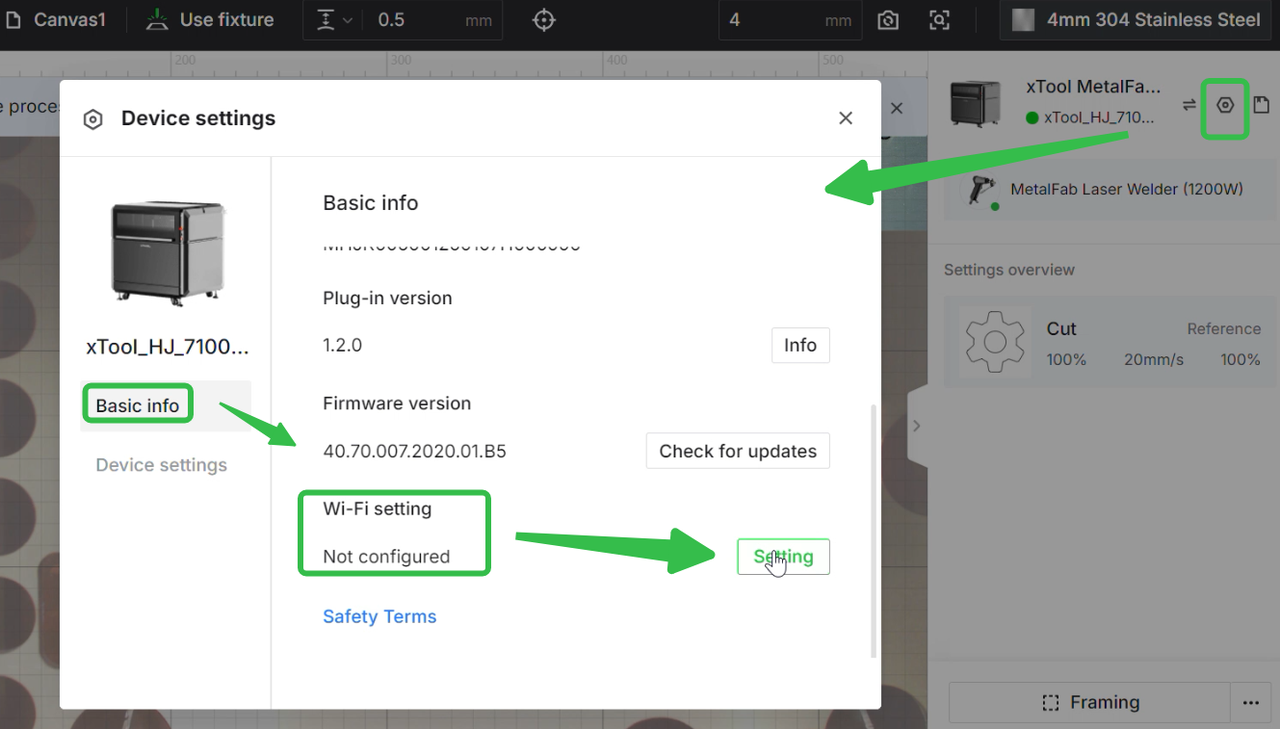
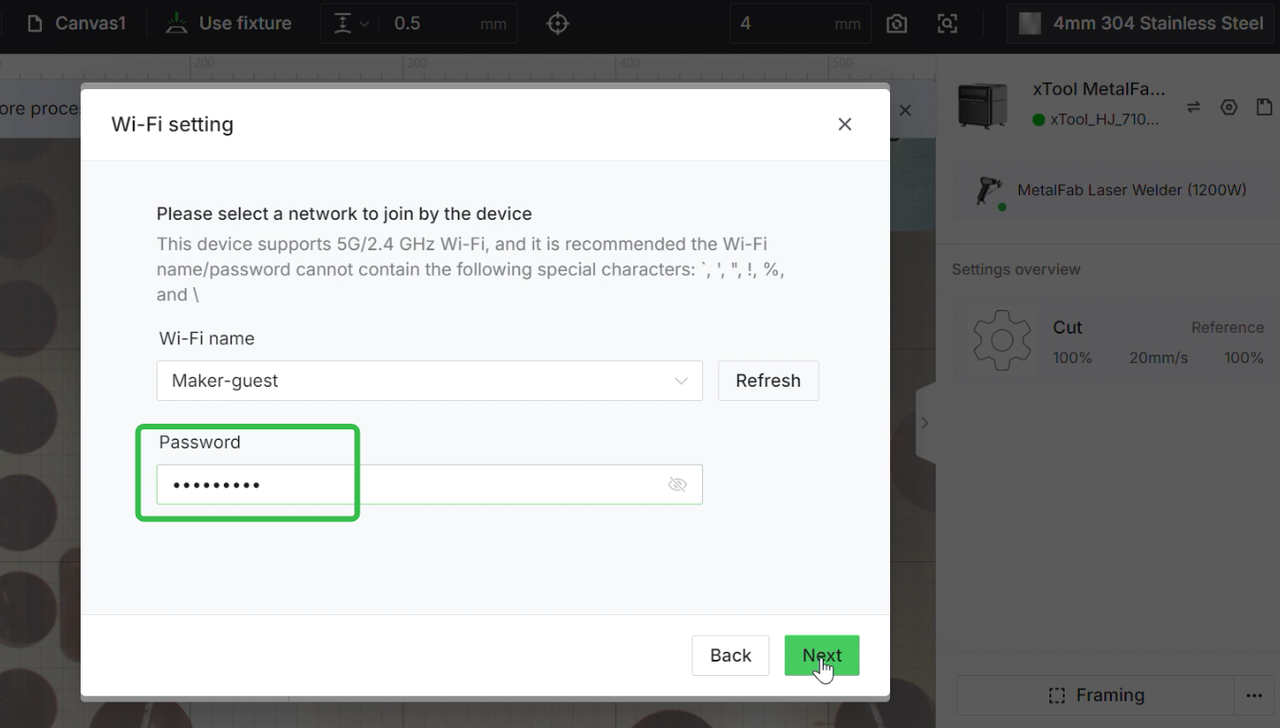
(4) Click Complete, and then you can see the IP address of xTool MeatlFab under Wi-Fi setting. Take down the IP address.
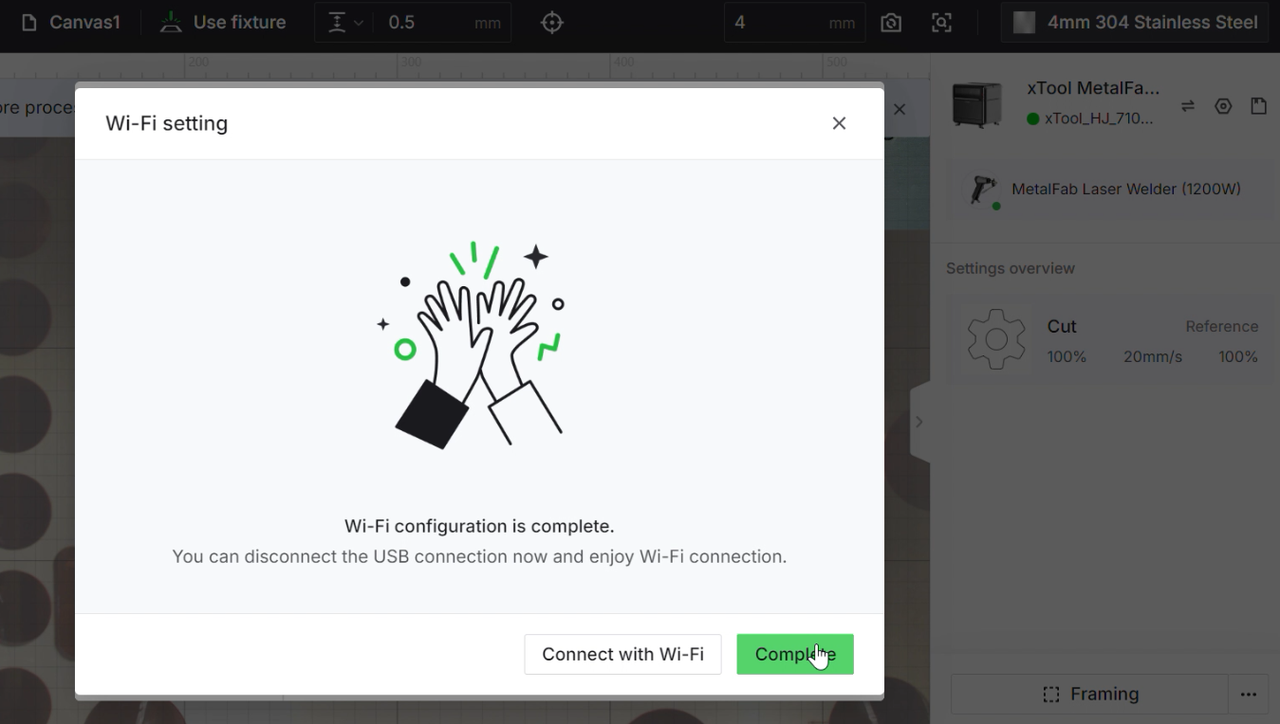
Note: If you change the Wi-Fi setting, the IP address changes accordingly.
(5) Unplug the USB cable to disconnect xTool MetalFab from XCS.
2. Connect xTool MetalFab to XCS via IP address
Assume that you have connected your device to XCS in Wi-Fi mode.
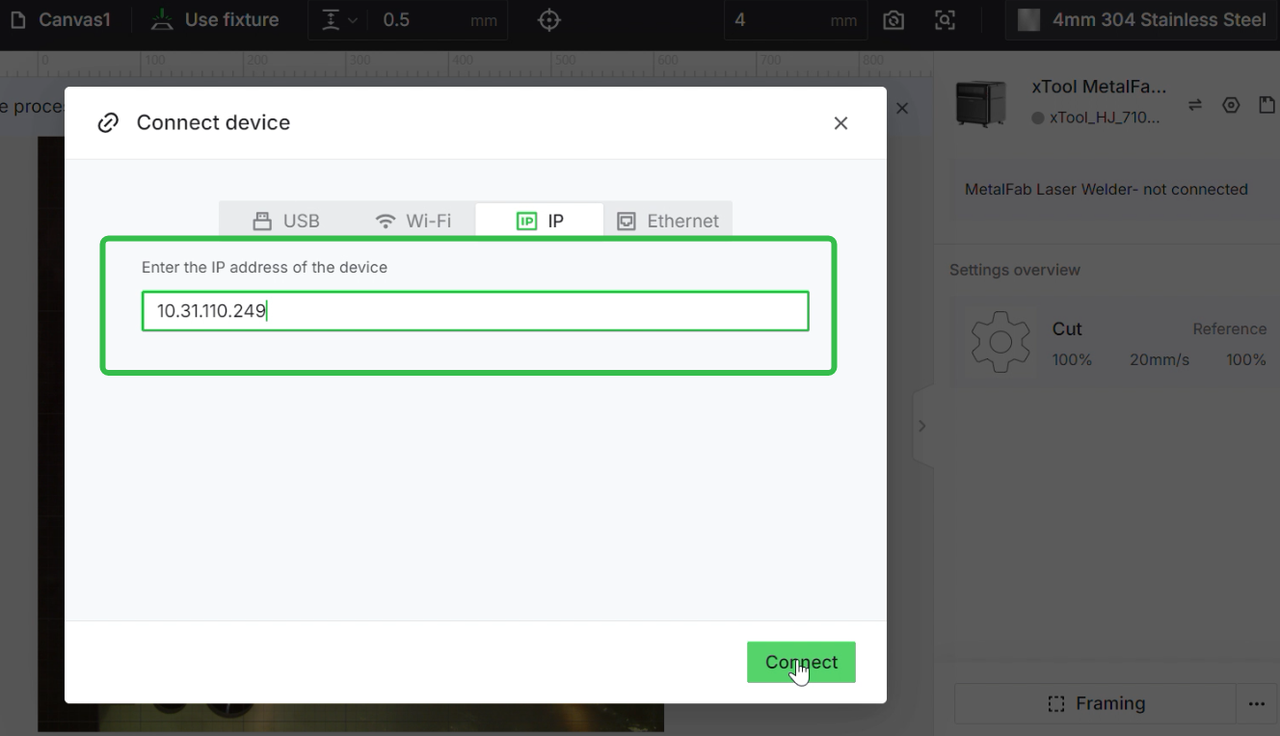
(1) Ensure that your computer connects to the same Wi-Fi as xTool MetalFab. Then, on the top of XCS, click the device name > Connect device.
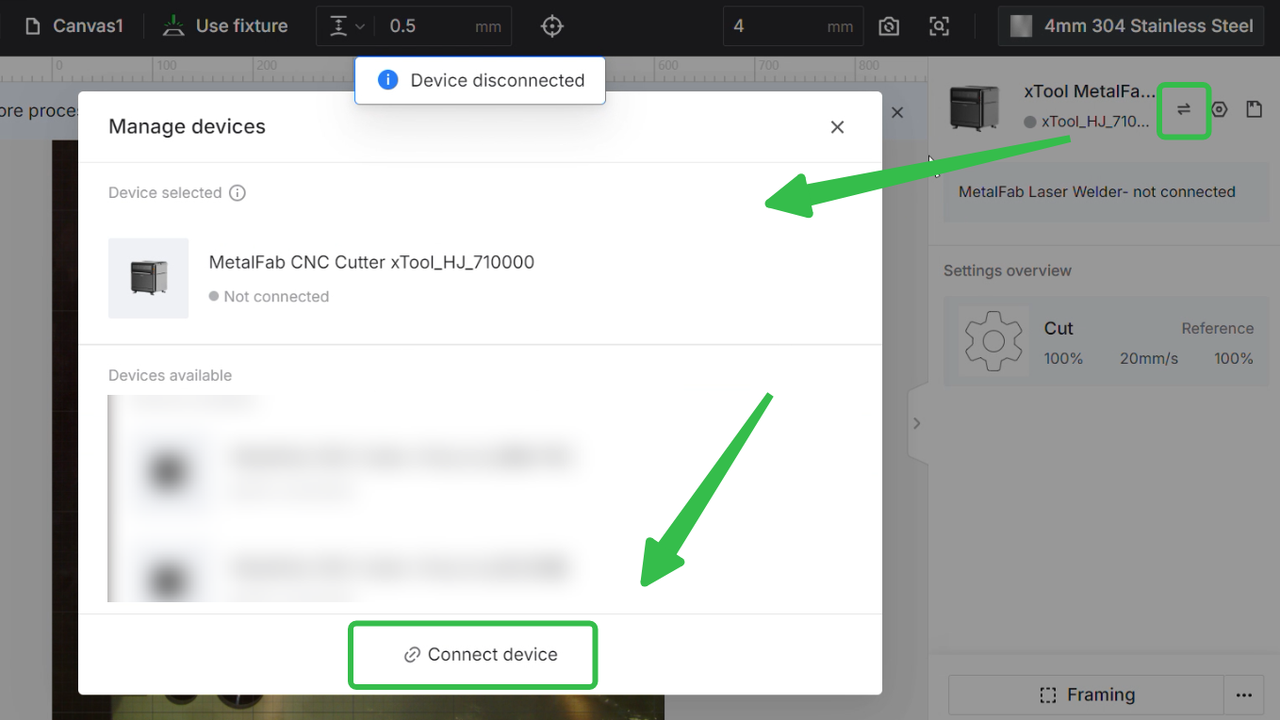
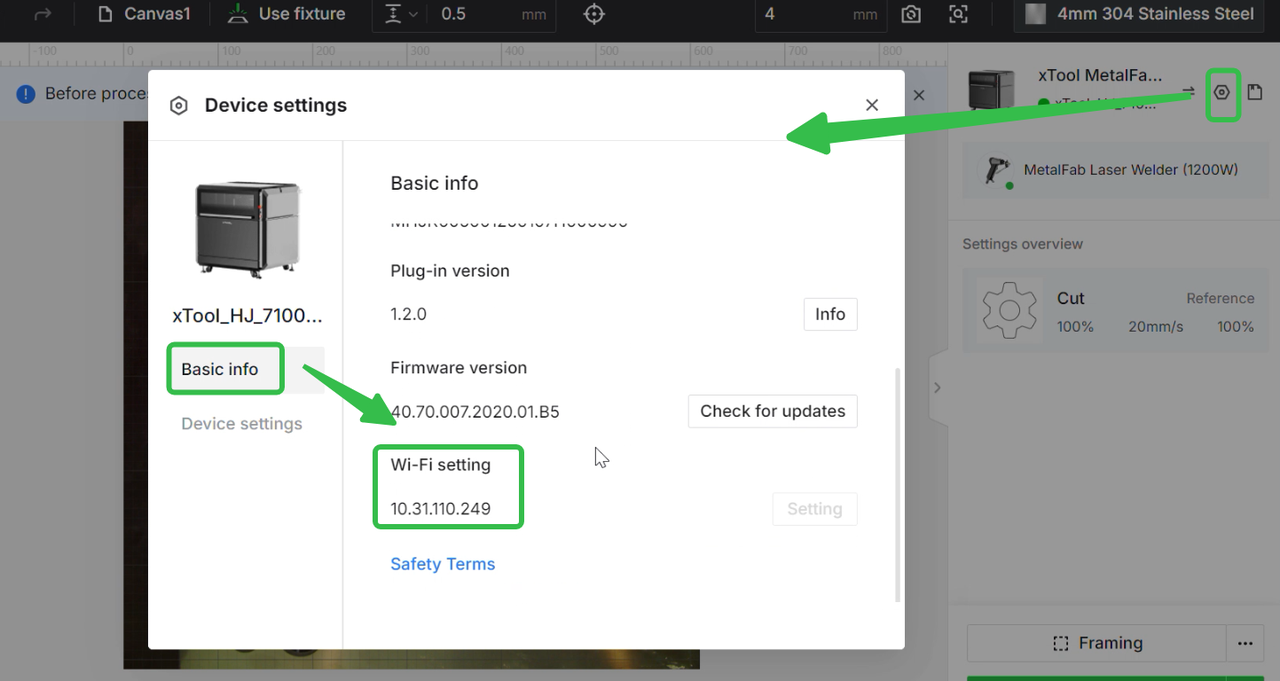
(2) Under the Basic info tab, find the IP address of the device.
Go back to Connect device page, select IP, and then enter the IP address of your device to connect it.
Note: If you cannot find your device through Wi-Fi, try IP connection instead.
|
|
Set up xTool MetalFab in XCS
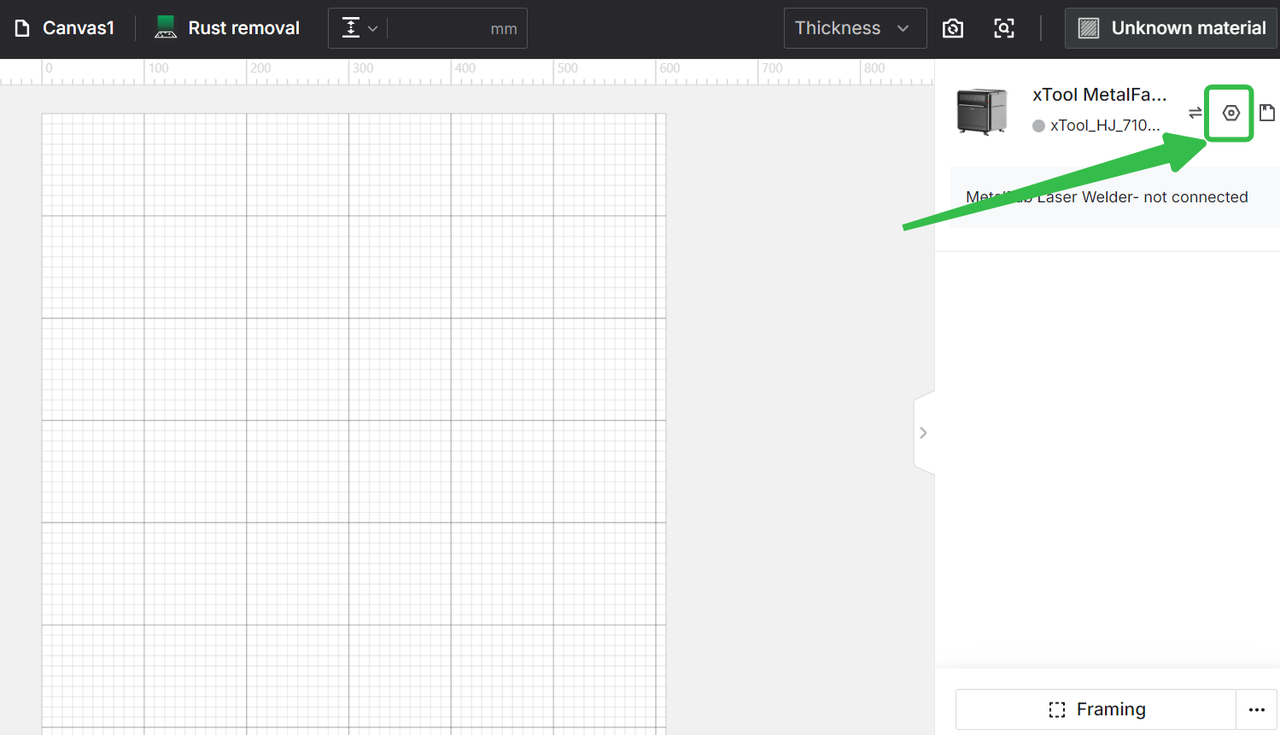
(1) In the top-right corner of XCS, click the Setting icon next to the image of xTool MetalFab.
(2) In the Basic info tab, you can view:
- Device name: Changes the device name in the textbox.
|
|
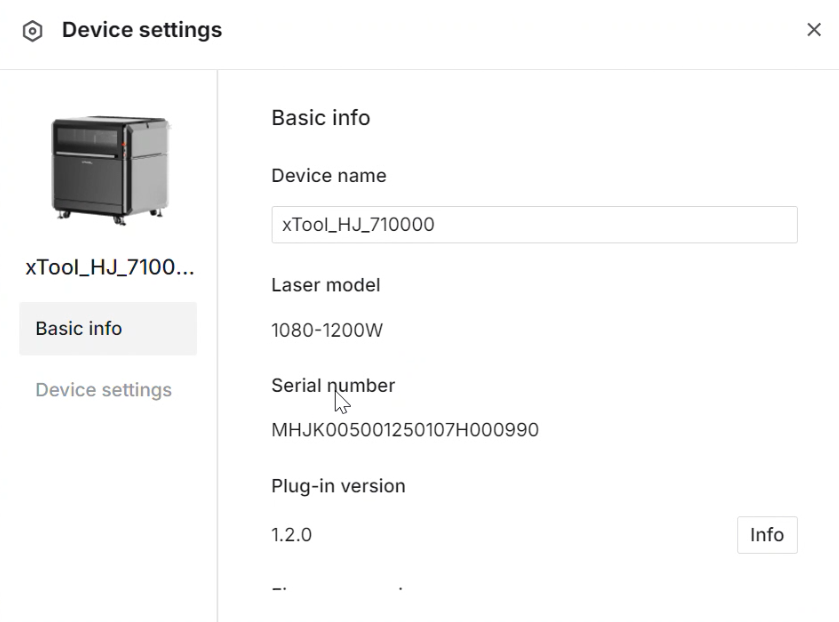
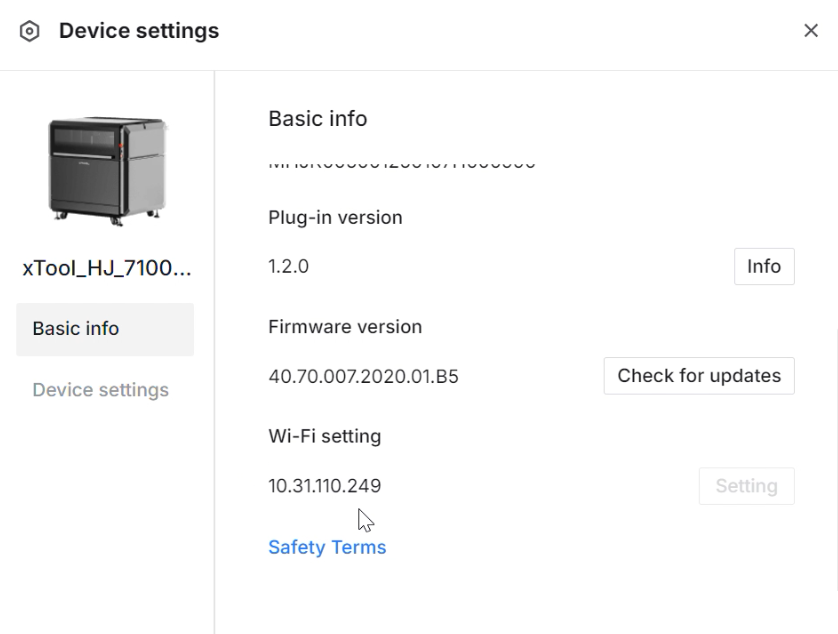
- Laser model: See Your machine power
- Serial number: The only identity for your machine.
- Plug-in version: Used for updating functions of XCS.
- Firmware version: Checks for updates and update the firmware if a new version is available.
- Wi-Fi setting: Connects the device to a Wi-Fi network.
(3) In the Device settings tab, you can set up the device and export files or logs as needed.
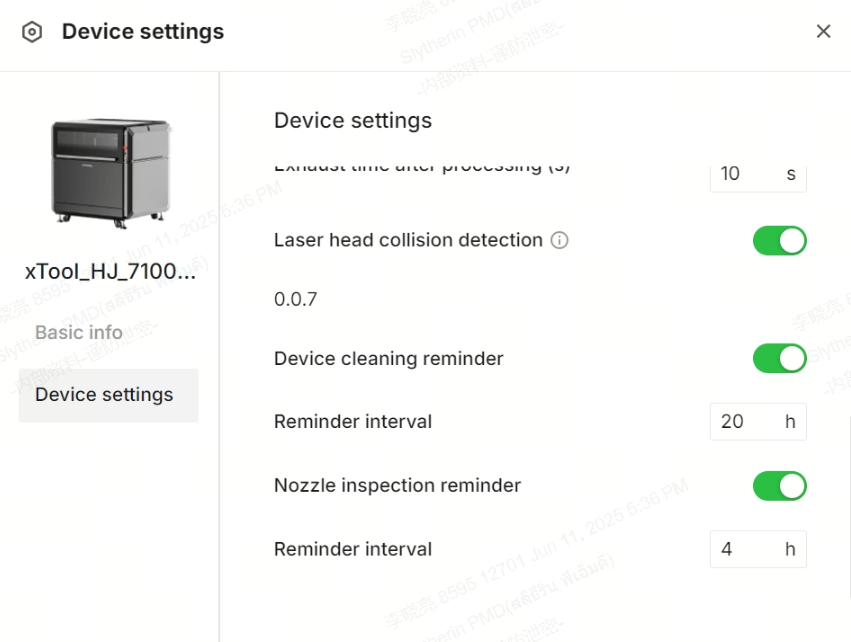
(4)In the Device settings tab, you can set up the device, export files or logs as needed or carlibrate the cameras, focus position, welding gun light position, and more.
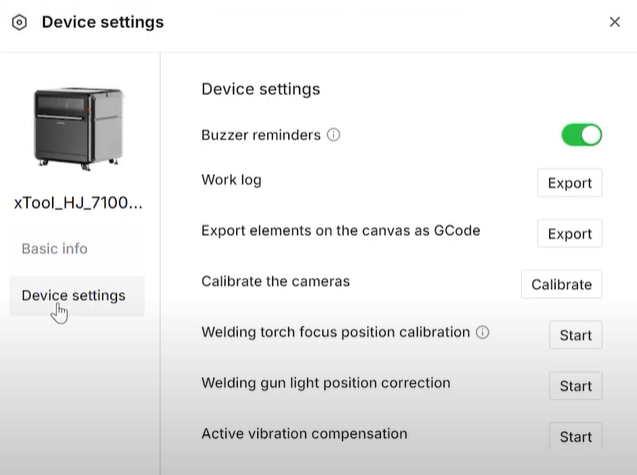
Active vibration compensation
Calibrate the camera
Calibrate the welding gun light position
Calibrate the welding torch focus position
Processing modes
XCS supports multiple processing modes for xTool MetalFab.
- Use fixture: processes flat materials by using laser beams. With this function, you can cut common flat metals, such as stainless steel, carbon steel, and more.
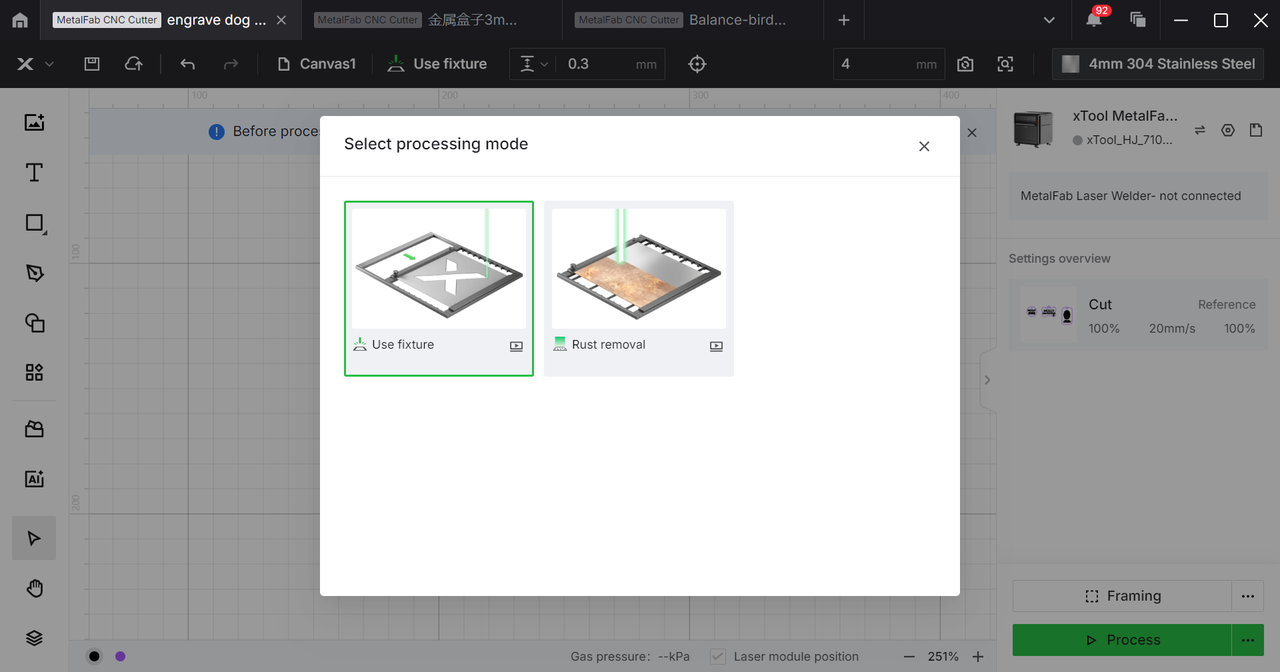
Processing material size | 610 mm * 610 mm |
Maximum cutting thickness | 5mm Stainless Steel, 4mm Aluminum, 3mm Brass, 10mm Carbon Steel & Galvanized Sheet |
Supported processing modes | Cut, Engrave (under testing) |
Supported image types | Vector |
- Rust Removal: Clean the rust or paint on the metal surface with laser beams.
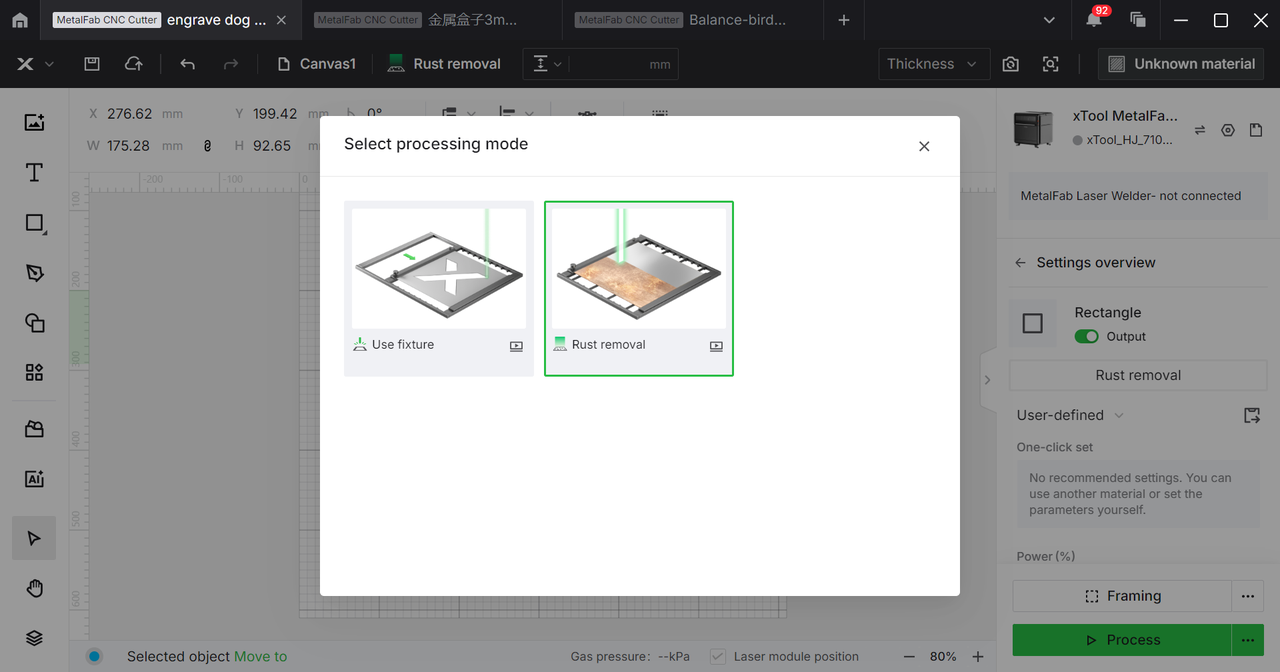
Processing material size | 610 mm * 610 mm |
Maximum processing height | Clean rust or paint on the metal of max. thickness of 80mm with slats |
Supported processing modes | Clean |
Supported image types | Vector |
To cut flat metals with xTool MetalFab CNC cutter, go to>>How to Cut Metals with xTool MetalFab CNC Cutter?
To clean rust/paint with xTool MetalFab CNC cutter, go to>>How to Remove Rust/Paint with xTool MetalFab CNC Cleaning Nozzle
Note: The engraving fucntion is still under testing, and it will be opened in XCS in the future.

