
Download PDF files (multi-language)
|
|
|
|
|
|
|
|
|
|
|
|


List of items
xTool SafetyPro™ AP2
Pipe connector 1
Pipe connector 2
Pipe clamp
Smoke exhaust pipe
Bluetooth dongle
Power cable
Quick start guide
Safety instructions
Note:
1. The power cable varies according to the region in which the product is delivered.
2. Pipe connector 1 is applicable to xTool S1, F1 Ultra, F2 Ultra series.
3. Pipe connector 2 is applicable to xTool M1 Ultra, M1, F1, F2, P2, P2S, D1, D1 Pro, and OS1 Shaker Oven.
Meet xTool SafetyPro™ AP2
Product specifications
Product model | MAX-S300-P01 |
|---|---|
Input power |
|
Airflow volume | 150 m3/h |
Filter system |
|
Cyclone quantity | 36 |
Airflow control | 4-level control |
Noise | 55 dB |
Dimensions | 290 x 491 x 542 mm |
Compatibility | xTool O1 Omni Printer, M2, P2S, P2, S1, M1, M1 Ultra, F1, F1 Ultra, F2, F2 Ultra series, D1, D1 Pro, and OS1 Shaker Oven |
Product structure
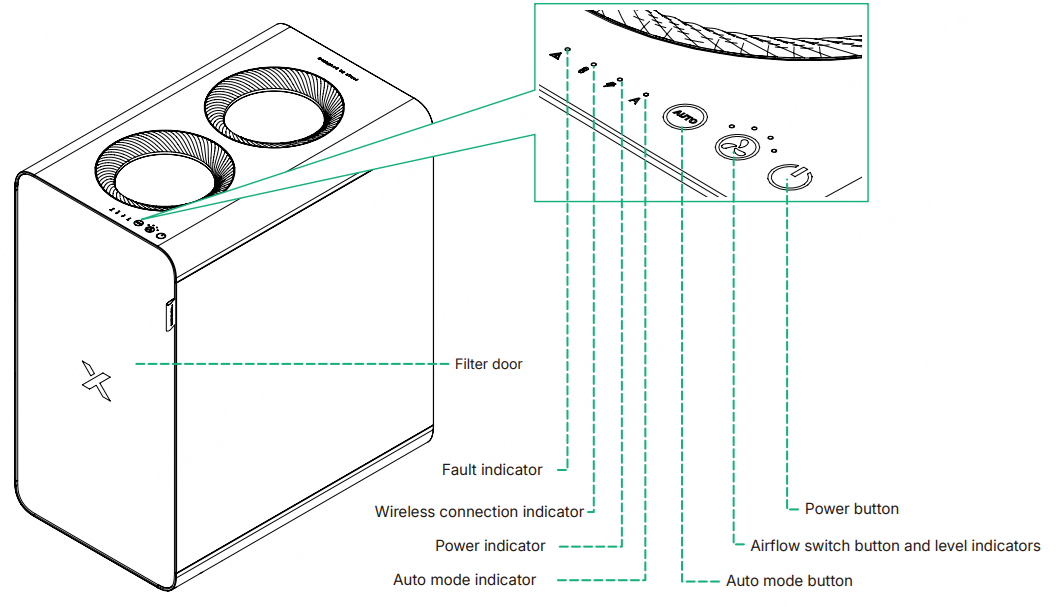

Indicator description
Indicator | Indicator status | Device status |
|---|---|---|
| Solid blue | Connected to power |
| Blinking blue | Connecting to the machine ... |
Solid blue | Connected to the machine | |
| Solid red |
|
| Solid blue | Working in AUTO mode |




Install xTool SafetyPro™ AP2
1. Install the filters
1) Open the door by pulling the handle.
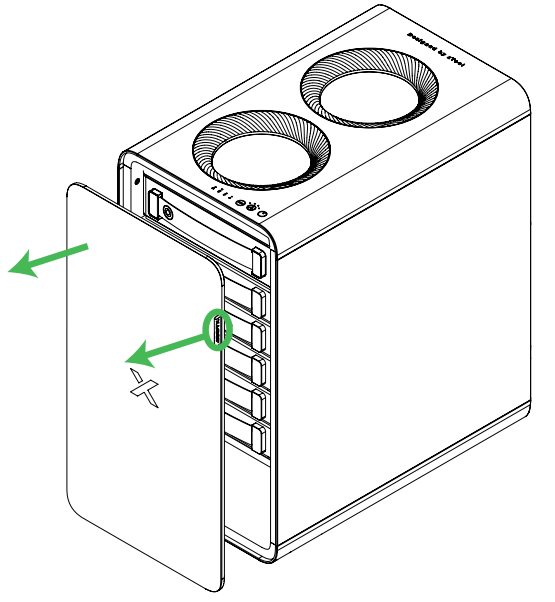
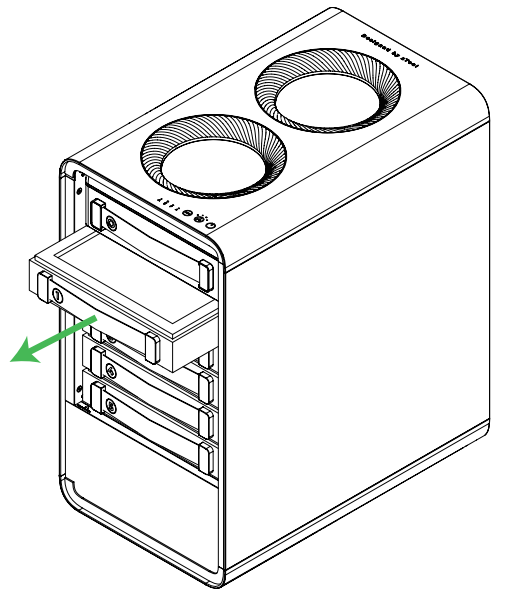
2) Take out the filters one by one. Do not remove the cyclone above filter 1.
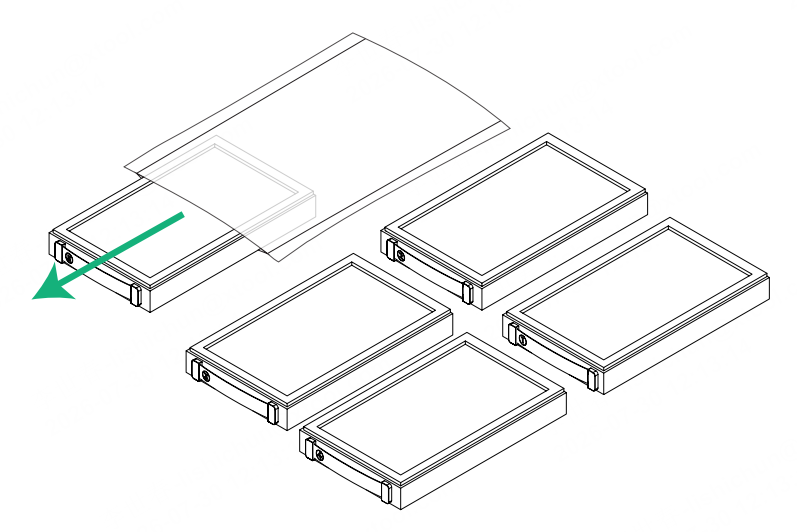
3) Remove the plastic bags of all the filters.
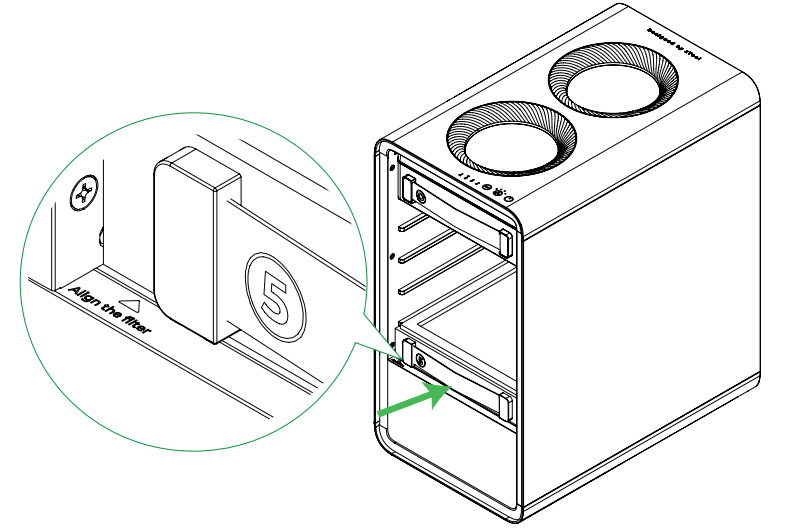
4) Put filter 5 back first. Ensure that you push it all the way in and that you see the filter alignment line.
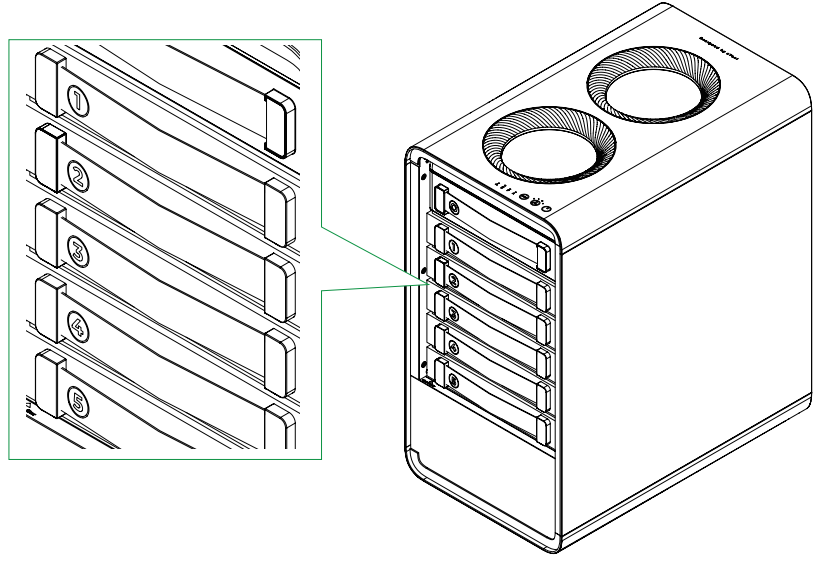
5) Put the other four filters back in sequence. Ensure that you push them all the way in and that they align with filter 5.
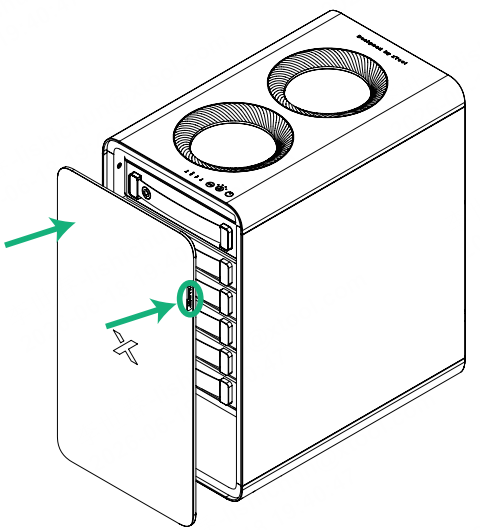
6) Close the door.
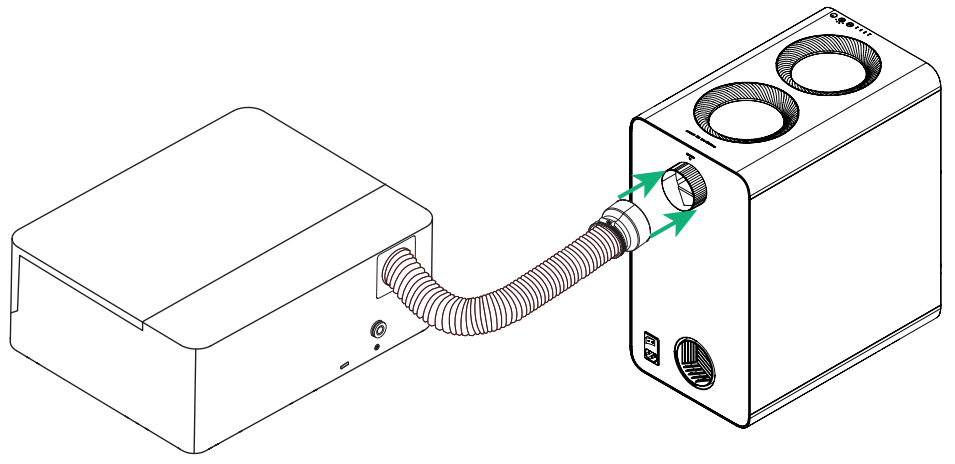
2. Connect the smoke exhaust pipe of the laser machine
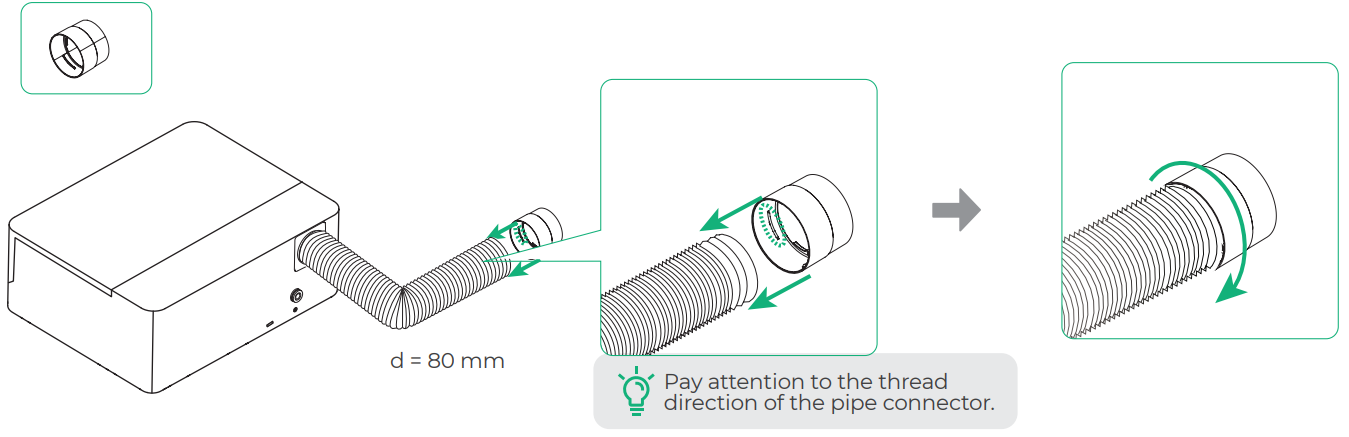
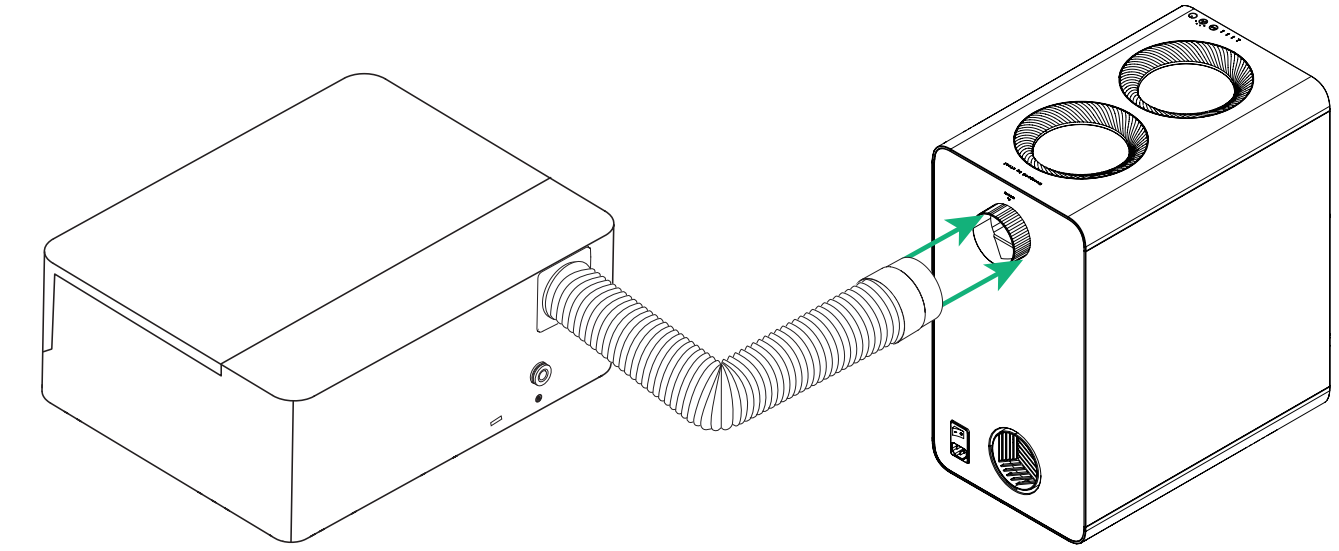
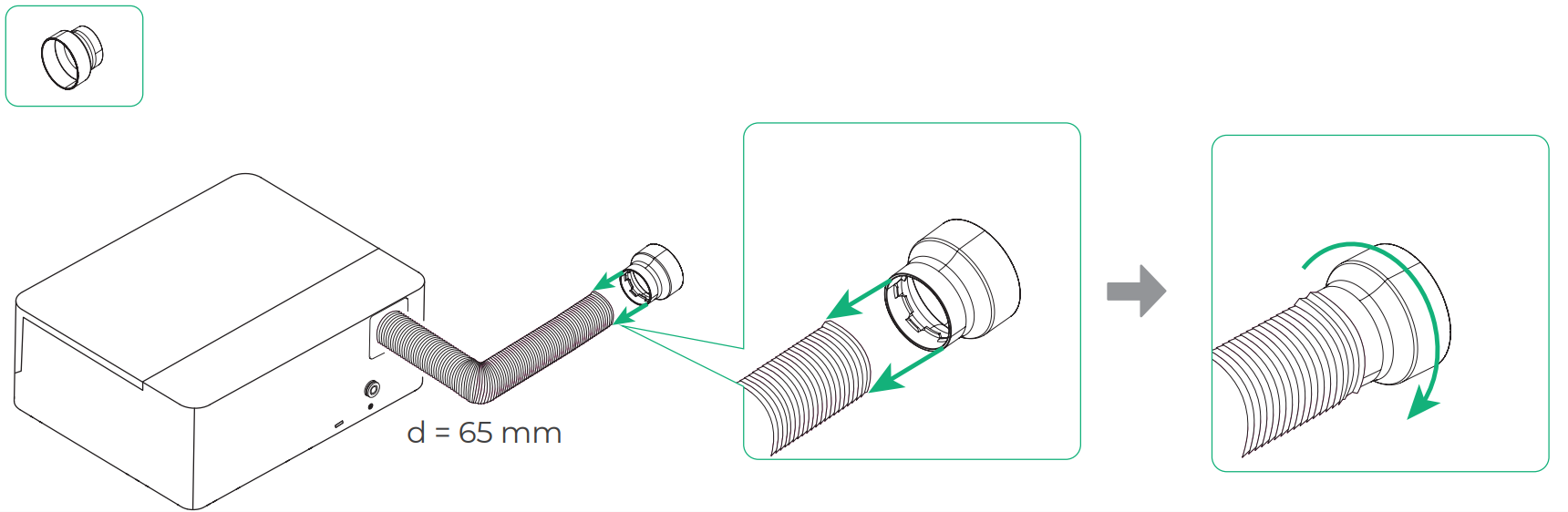
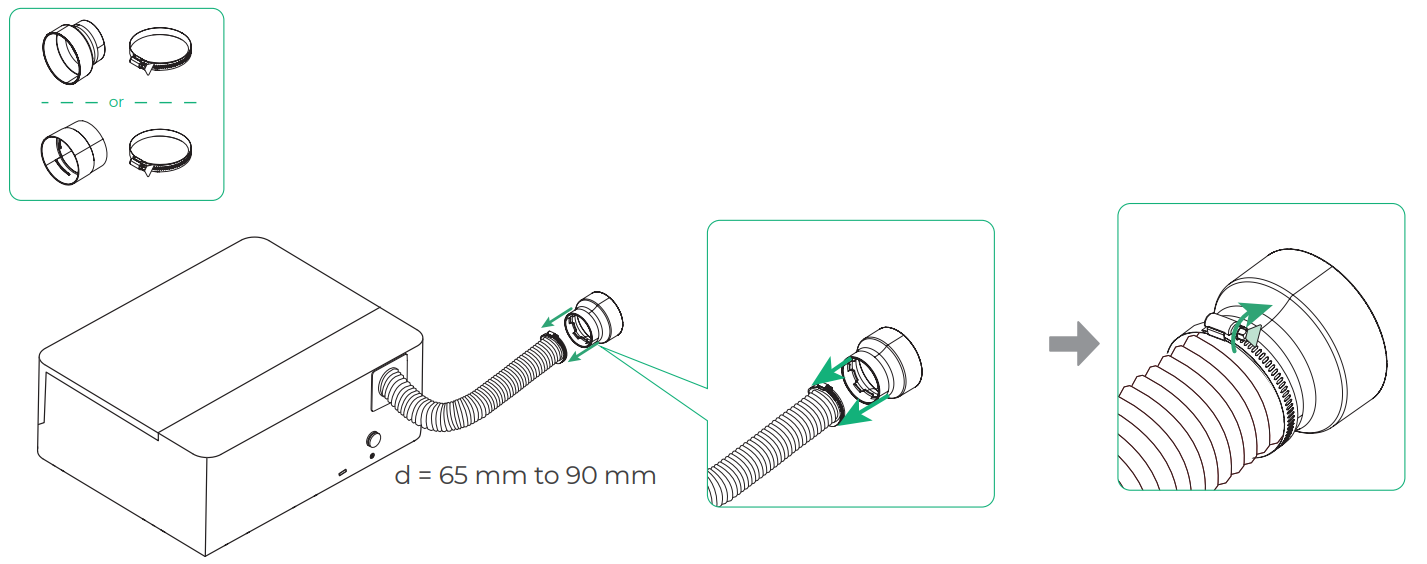
Use the exhaust pipe connector to the machine's exhaust pipe to the air inlet of AP2
Scenario 1: Diameter of the machine's exhaust pipe = 80 mm, applicable to xTool S1, F1 Ultra, and F2 Ultra series
Scenario 2: Diameter of the smoke exhaust pipe of the xTool laser machine = 65 mm, applicable to xTool O1 Omni Printer, M2, M1 Ultra, F1, F2, and OS1 Shaker Oven
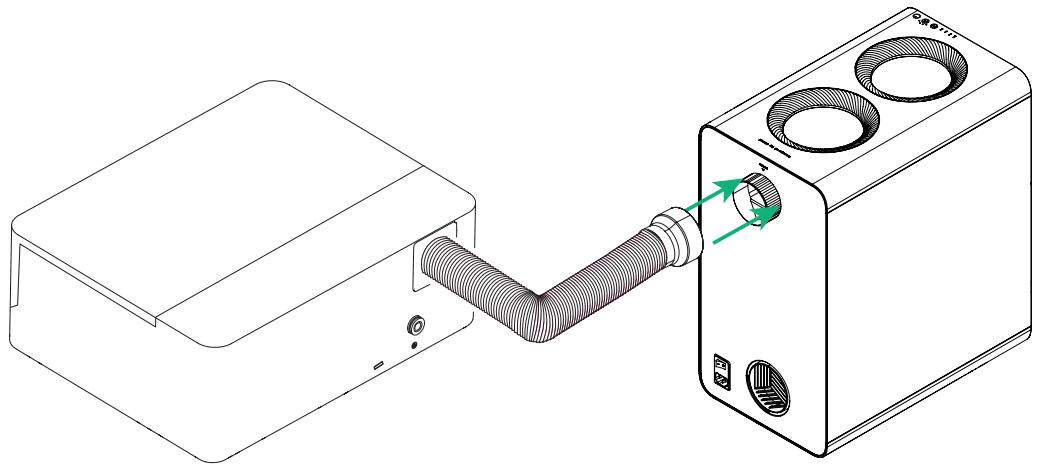
Note: When using AP2 with xTool M1 Ultra, you need to remove the filter and fan of M1 Ultra. Otherwise, you may encounter a fan blocking alarm. For details, see Resolve False Alarm of Fan Blocking When Using AP2 with M1 Ultra.
Scenario 3: Diameter of the machine's exhaust pipe = 65 to 90 mm, applicable to xTool M1, P2, P2S, D1, and D1 Pro
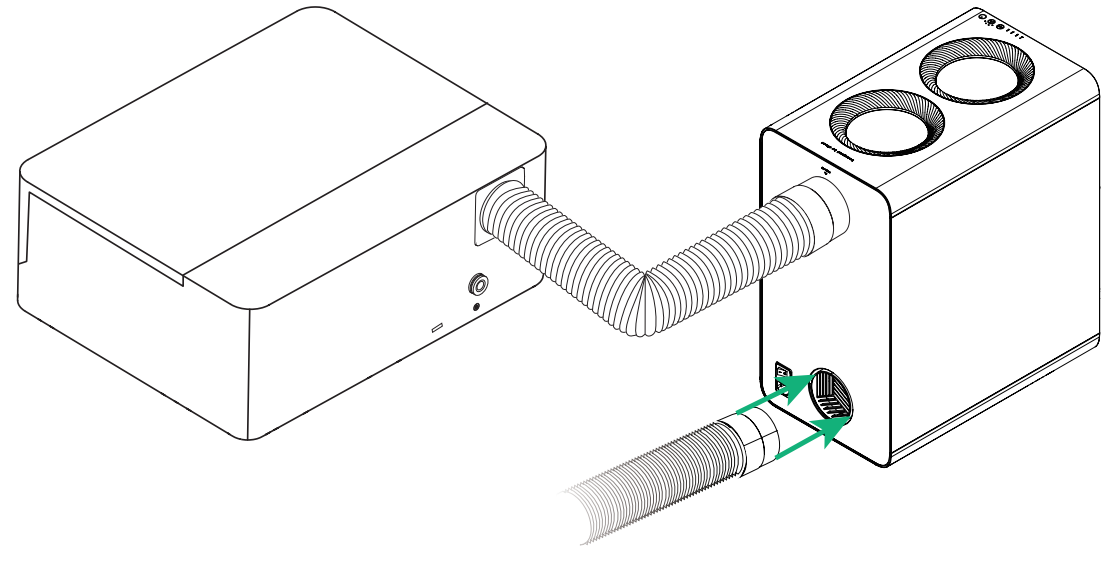
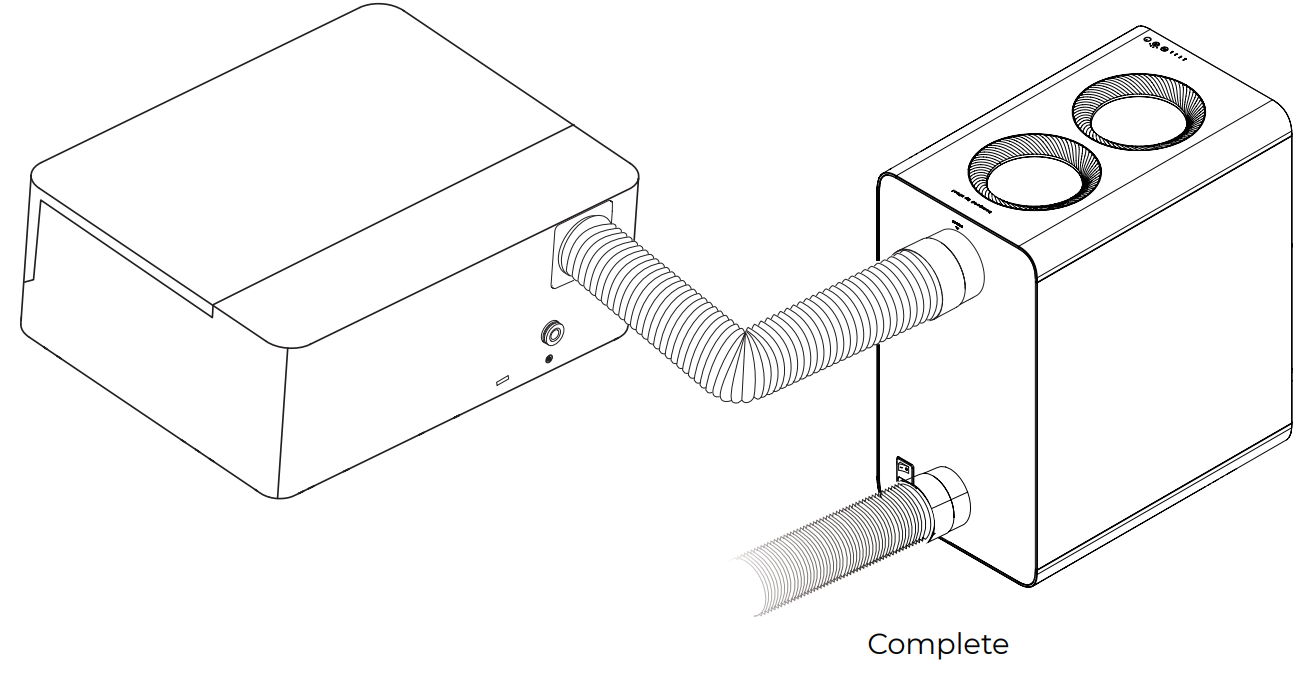
3. (Optional) Connect the smoke exhaust pipe at outlet
Perform this step if you need to exhaust the smoke of the purifier to outdoors.
4. Connect to a power supply


5. Set up wireless connection
Note:
AP2 can establish a wireless connection only with xTool laser machines that support Bluetooth.
Scenario 1: Bluetooth dongle not required
Applicable to xTool F2, F2 Ultra series, and OS1 Shaker Oven
Step 1. Long press AP2's power button for at least 5 seconds until the Bluetooth status indicator blinks. At this time, AP2 enters pairing mode.
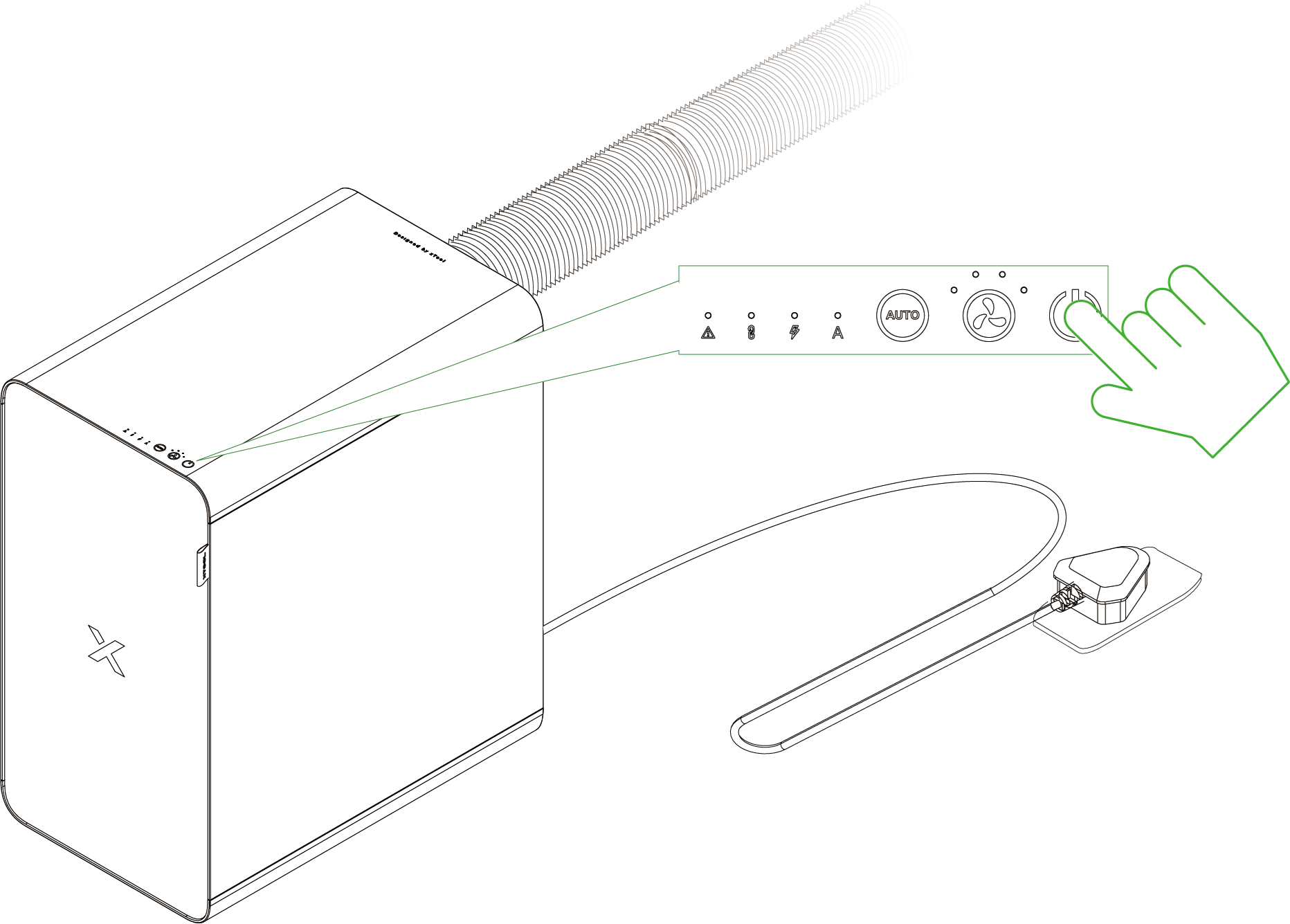
Step 2. Start the xTool software and connect AP2.
Scenario 2: Bluetooth dongle required
Applicable to xTool S1, F1, F1 Ultra, M1 Ultra, P2, and P2S

■ Insert the Bluetooth dongle into the extension port of the xTool machine. The preceding figure is for reference only.
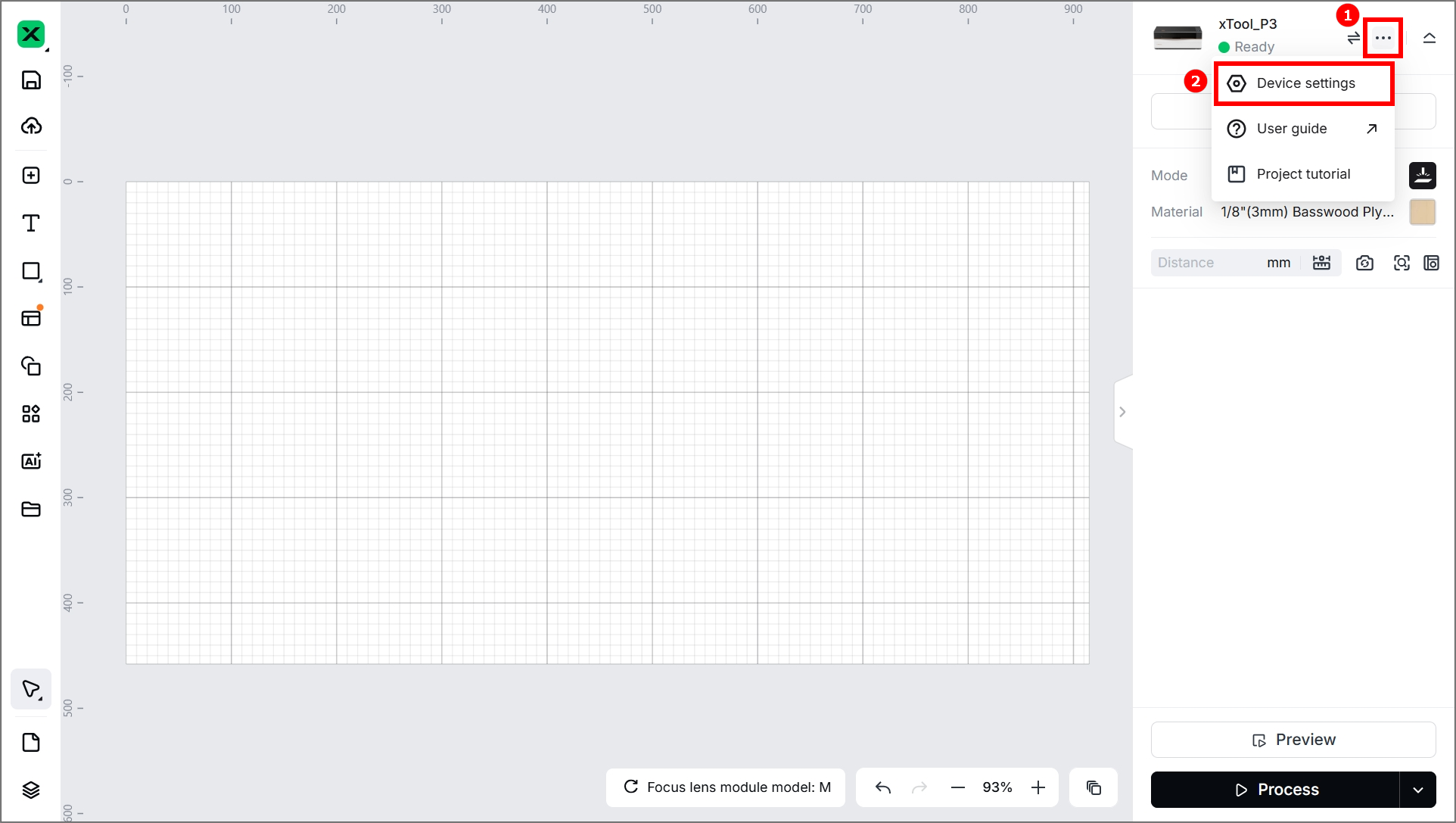
■ After the Bluetooth dongle is connected, the connection between the purifier and the xTool machine is automatically established. The machine's Device settings page on XCS displays information about the purifier. For more details, see "Use with XCS."
Use xTool SafetyPro™ AP2


- Press the power button to start AP2.
- Select AUTO mode or manual mode.
In AUTO mode, the purifier adjusts the airflow level based on processing materials. You can also press to switch between the four levels.
Note that AUTO mode is available only for xTool S1, M1 Ultra, F1 Ultra, F2, F2 Ultra series, P2S, and OS1 Shaker Oven.
Use with the xTool Software
Use xTool SafetyPro™ AP2 with the xTool Software
Maintenance
1. Replace the filters
When a filter is reaching its end of life, XCS prompts you to purchase a new one for replacement. For steps about how to replace a filter, see “Install the filters.”
Note:
You must disconnect the power cable before replacing any filter.
2. Clean the cyclone
Safety precautions
Read the following warnings and suggestions carefully:
- Unplug the device from the power supply before servicing.
- Do not operate any fan with a damaged cord or plug. Discard the fan or return it to an authorized service facility for examination and/or repair.
- Do not run cord under carpeting. Do not cover cord with throw rugs, runners, or similar coverings. Do not route cord under furniture or appliances. Arrange cord away from traffic area and where it will not be tripped over.
- WARNING-To Reduce The Risk Of Fire, Electric Shock Or Injury To Persons, Do Not Use Replacement Parts That Have Not Been Recommended By The Manufacturer (e.g. Parts Made At Home Using A 3D Printer).
- Do not use the smoke purifier in places where the temperature is high (over 60℃), fire or explosion is likely to happen, or there is liquid or oil.
- Ensure that earthing is done before operation.
- Only professionals can open the rear panel to examine or repair the purifier as the voltage inside it reaches 310V.
- Do not move any filter or cyclone during operation.
- Do not touch the rotating impeller with your hands or other objects.
- To clean or maintain this product, disconnect the power supply first.
- Ensure that the purifier operates in the specified voltage range (subject to the power information labelled on the machine). Turn off the purifier and disconnect it from the power supply when the voltage is unstable.
- The operating humidity ranges from 40% to 80%. Do not use the machine outside this humidity range. Otherwise, the filters may fail to work soon, and the interior circuit may be damaged.
- The filters come with protective packaging. Remove the packaging before use. Filters are disposable and should not be washed and reused. Purchase filters from Makeblock for replacement regularly.
- Place filters in the purifier before operation. Without filters, smoke or dust particles may enter the van and control system and thus damage them. When this happens, you have to fix it at your own expense.
- Stop using the purifier when filters are heavily blocked. Otherwise, the purifier may become less durable and even be damaged. Regularly clean and maintain it, and routinely change filters to ensure the proper operation of the purifier.
- Ensure that all the filters are set properly before operation. When the filters are blocked, poor at filtering, or fail to work, purchase filters from Makeblock to replace them.

