
Troubleshoot Slow File Transfer to xTool Apparel Printer
Issue description
When transferring files to your xTool Apparel Printer via USB or Wi-Fi in xTool Creative Space (XCS), you experience unusually slow transfer speeds. This can manifest as:
- Frequent pauses or interruptions during printing;
- Extended wait times (e.g., 10 minutes or more) for small files when using the "Upload before print" feature; or
- Sudden interruptions midway through file transfer when using the "Upload before print" feature.
Follow this guide to diagnose and resolve the issue.
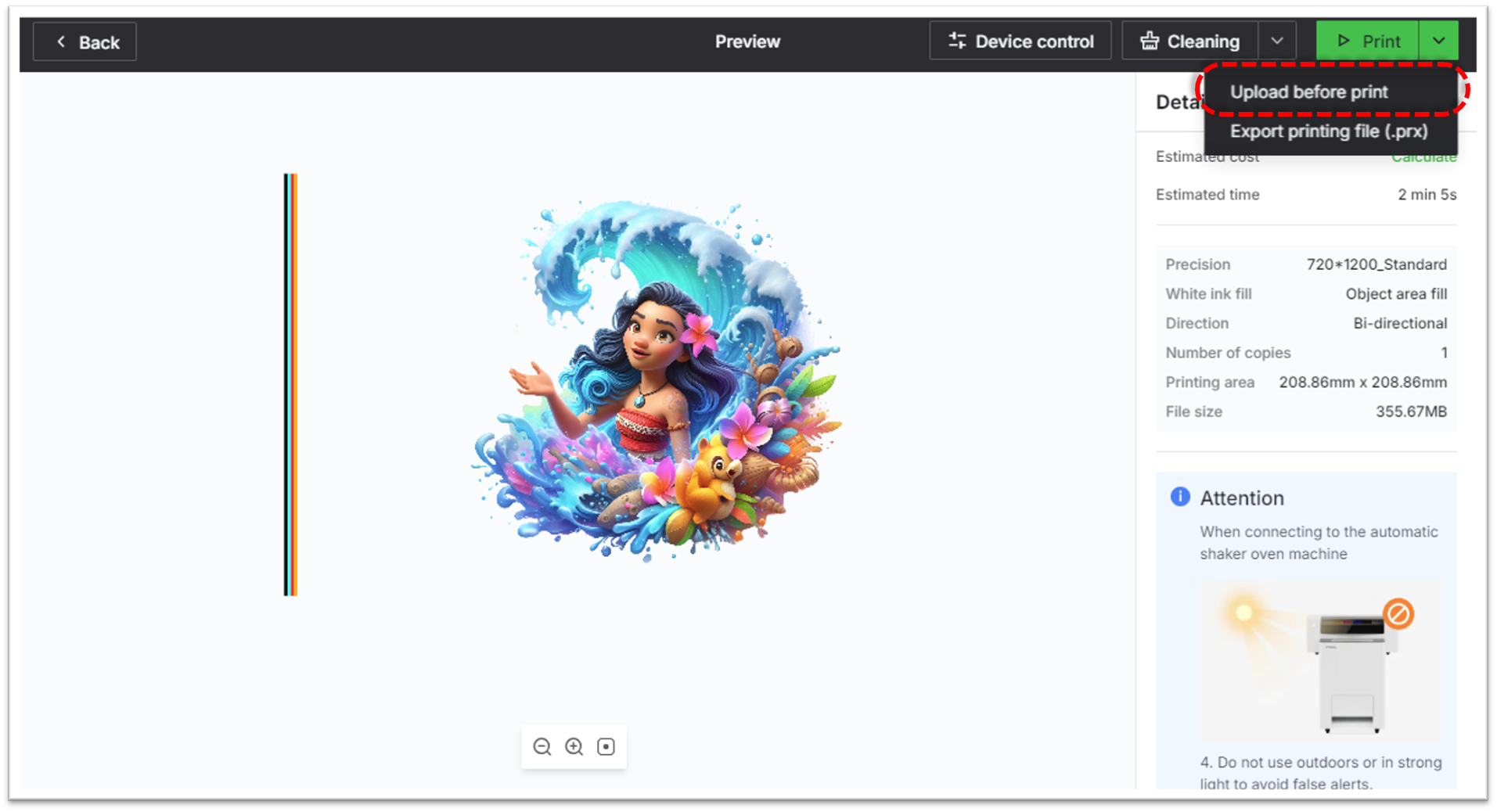
Prerequisite
- Start by testing an alternative connection method (e.g., if you are using Wi-Fi, try USB) to determine if the issue affects all connection types or just one.
- Proceed to the relevant section based on your conditions.
Possible causes
Wi-Fi-specific issues
- Inherently slower transfer speed compared to USB
- Weak or unstable network connection
USB-specific issues
- Incompatible or low‑speed USB port
- Failed USB data cable
Issues affecting both USB & Wi-Fi
- Excessively large file sizes
- Full internal disk storage on the printer
Scenario A: Slow transfer on Wi-Fi
If the file transfer is slow over Wi-Fi but works normally with a USB cable, follow these steps.
Step 1: Switch to a USB connection for large files
- A wired USB connection is inherently faster and more stable than a Wi-Fi connection.
- For large or complex design files, we strongly recommend using a USB cable for the most efficient and reliable file transfer.
- If even very small files transfer much more slowly than expected over Wi-Fi, proceed to the next step.
Step 2: Check your network quality
A weak network signal can cause slow transfer speeds. You can test this using a "ping" command.
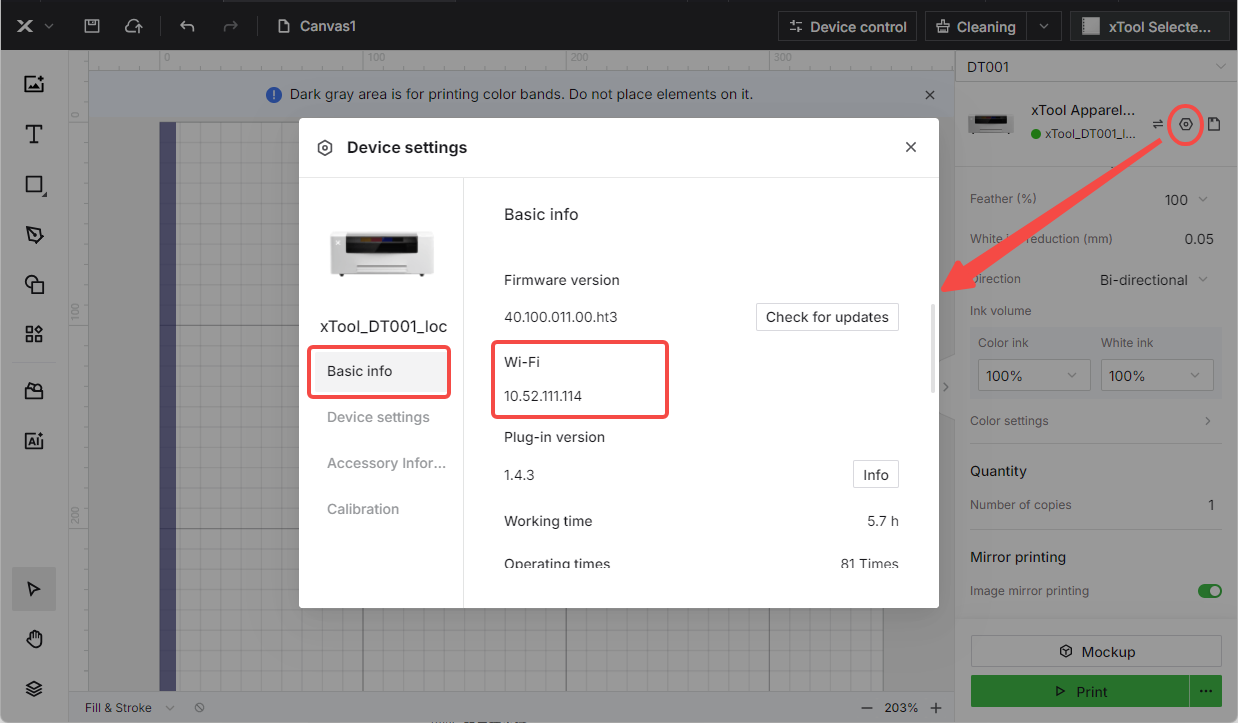
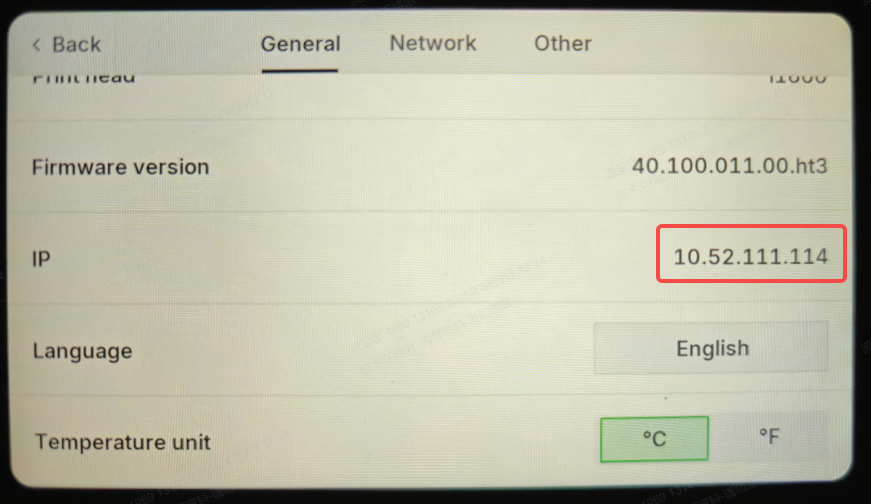
- Find your printer's IP address:
- Check the LCD screen on your printer, or view the IP address in xTool Creative Space software.
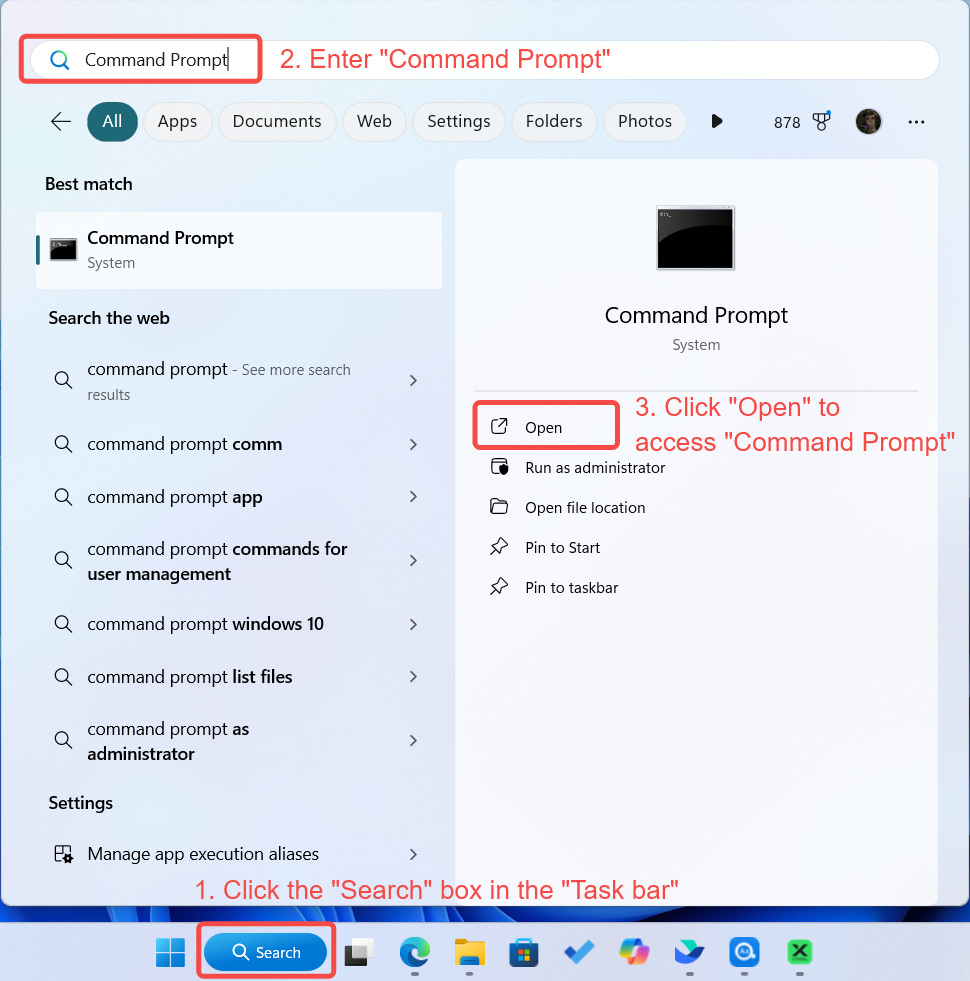
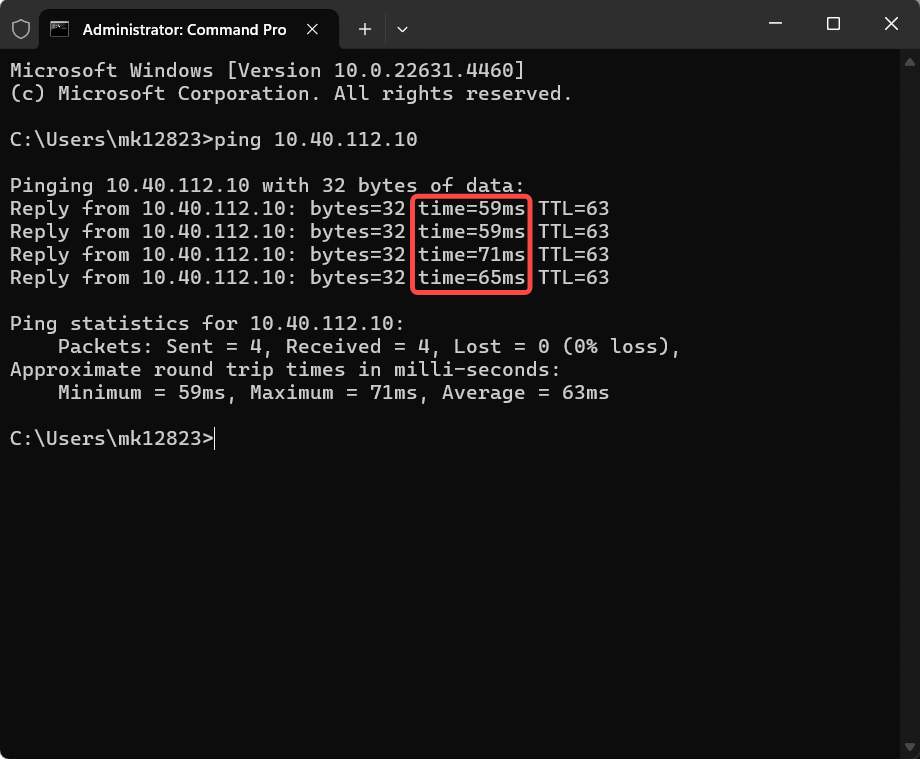
- Test network connection (Windows):
- Open Command Prompt.
- Type:
ping [IP address](replace with your printer's IP). - Press Enter to run the test.
- Result interpretation:
- Response time over 150ms = weak connection.
- If weak: switch to a different WiFi network.
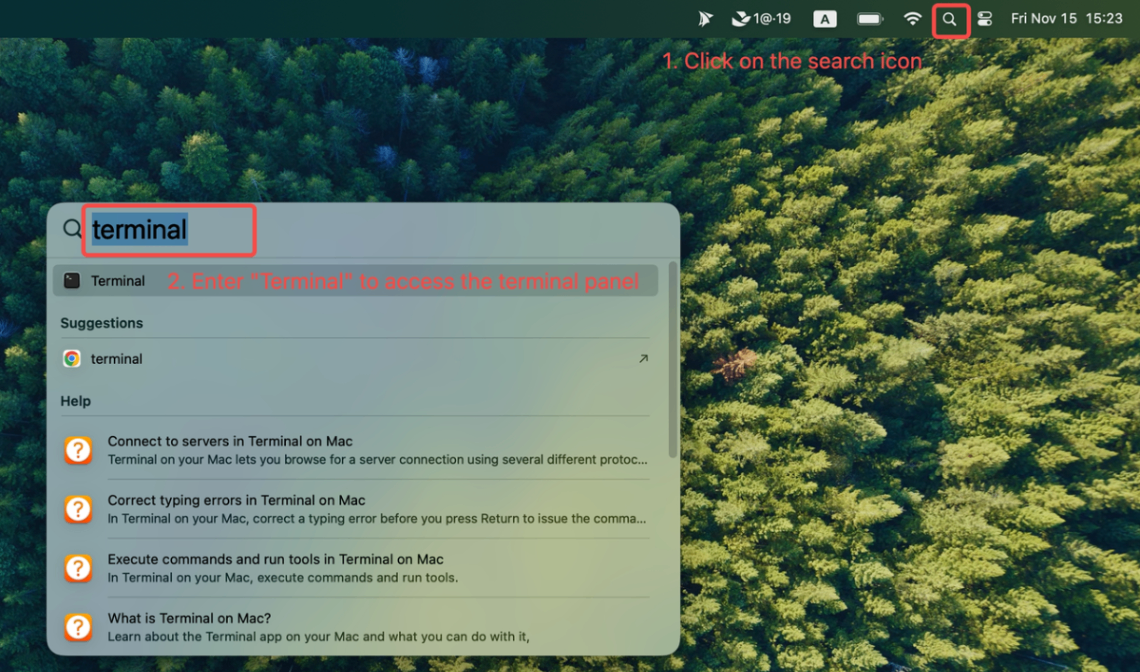
- Test network connection (macOS):
- Open Terminal.
- Type:
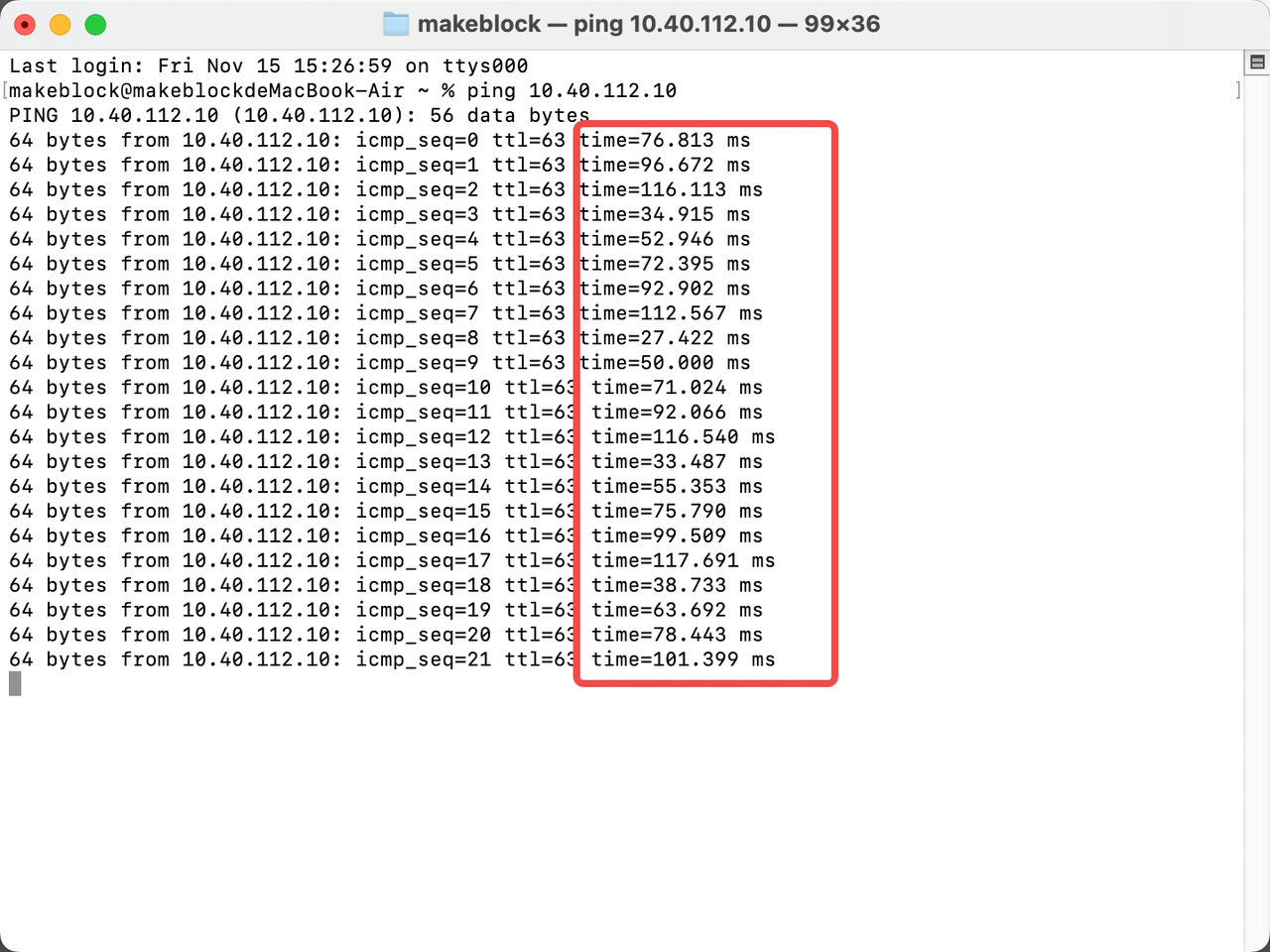
ping [IP address](replace with your printer's IP). - Press Enter to run the test.
- Result interpretation:
- Response time over 150ms = weak connection.
- If weak: switch to a different WiFi network.
- If network testing doesn't resolve the issue: Continue to other solutions.
Scenario B: Slow transfer on USB
If the file transfer is slow over USB but works normally with Wi-Fi, follow these steps.
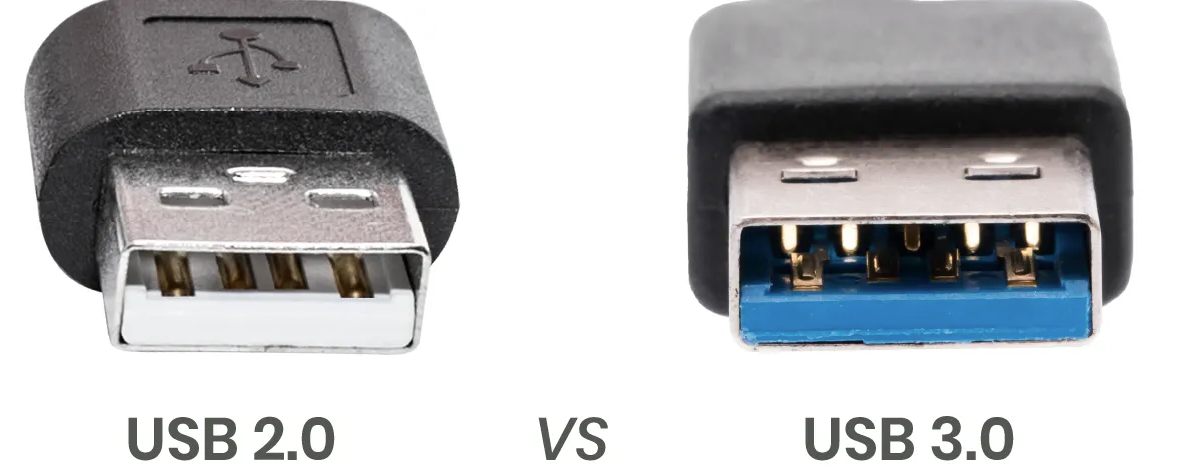
Step 1: Switch to a high-speed USB port (USB 3.0 or higher)
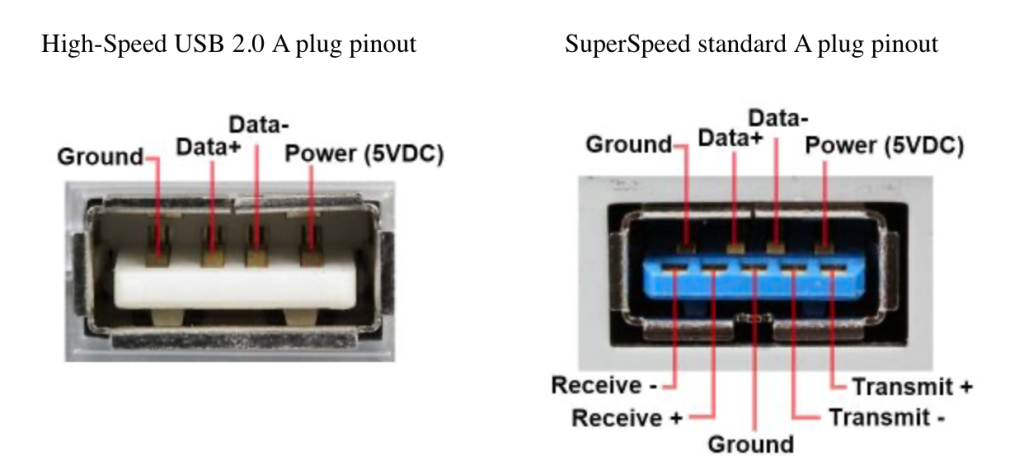
- Identify USB port types by color:
- Blue ports: USB 3.0 or higher (high-speed)
- Black or white ports: USB 2.0 (slower)
- Switch to USB 3.0+ port if currently using USB 2.0.
- Note: Some outdated computers may only have 1-2 high-speed USB ports.
- If you are already using a high-speed port: Continue to the next solution.
Step 2: Test with a different USB cable
- xTool recommends using the xTool data cable. If you are already using it, try a different high-speed USB cable to rule out a failed cable.
- High-speed USB 3.0 cables often have blue connectors.
- If a different cable resolves the issue, the original cable may fail. Please contact xTool Customer Service for a replacement.
- If this is not the cause, please consider the solutions in the other sections.
Scenario C: Slow transfer on both USB & Wi-Fi
If the file transfer is slow regardless of the connection method, the issue may be related to the file itself or the printer's internal storage.
Step 1: Check file size
Large files can cause slow transfers.
- Transfer a small-capacity file to test.
- If small files transfer normally, the issue is likely due to file size. Optimize or split large files if possible.
- If both small and large files are slow, proceed to the next step.
Step 2: Check printer's internal disk space
The printer's internal storage may be full, which can cause slow performance.
- Connect the printer to your computer via USB.
- Download the appropriate disk space check tool:
- For Windows OS: DiskSpaceCheck Win.zip
- Unzip the file and double-click to run "RunDiskSpaceCheckByUsb".
- Wait for the tool to finish. It will automatically save a file with the results.
- Please send this result file to xTool Customer Support for analysis.
Still experiencing issues?
Should the issue persist after completing the preceding steps, submit a ticket via the "Submit a Ticket" button in the "Help Ticket" section below. The standard response time for xTool Customer Service is one business day.
For a prompt resolution, please include the following details:
- Issue description: A detailed explanation of the observed problem.
- Video evidence: Attach a video demonstrating the issue, where applicable.
- Troubleshooting performed: Any troubleshooting steps you have already attempted, along with their results.
This information is crucial for xTool technical support engineers to provide timely assistance.
Documentation feedback
Help improve this content by providing feedback. If this content did not meet your requirements, select "No" in the "Was this page helpful?" section below. Include specific details about what was unclear or missing in the pop-up suggestion box. Feedback submissions are reviewed by xTool technical writers to enhance future documentation.

