Essential Troubleshooting Information for xTool Apparel Printer
About this guide
This document is designed to assist users in efficiently resolving issues with their xTool Apparel Printer by providing essential information required for technical support. By following the instructions in this guide, you will learn how to garner critical data and information.
This information will enable our technical support team to diagnose and address problems more effectively, ensuring a smoother and faster resolution process.
Device log export
When contacting technical support, you may be asked to provide device logs. Exporting logs is essential for technical support to analyze system performance and detect failures. Follow these steps to export log files:
- Connect your device to xTool Creative Space (XCS) software
- In XCS, click the "Device settings" icon (the gear symbol) located in the top-right corner of the interface.
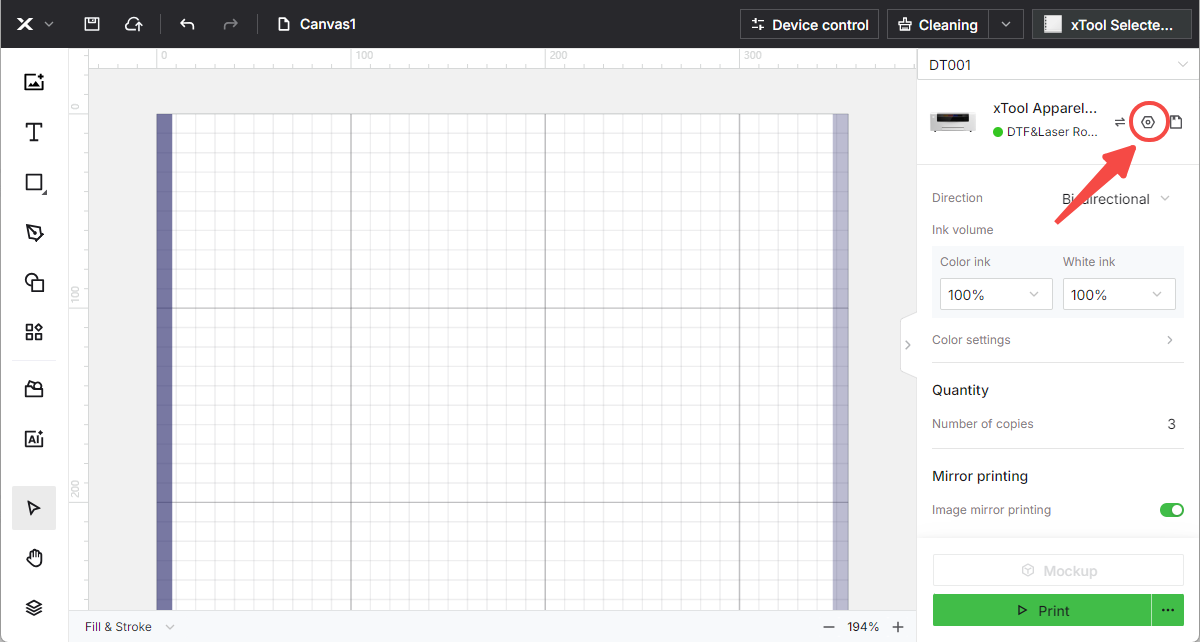
- Navigate to log export:
- In the "Device settings" panel, select the "Basic info" tab, where you can scroll down until you see "Export log".
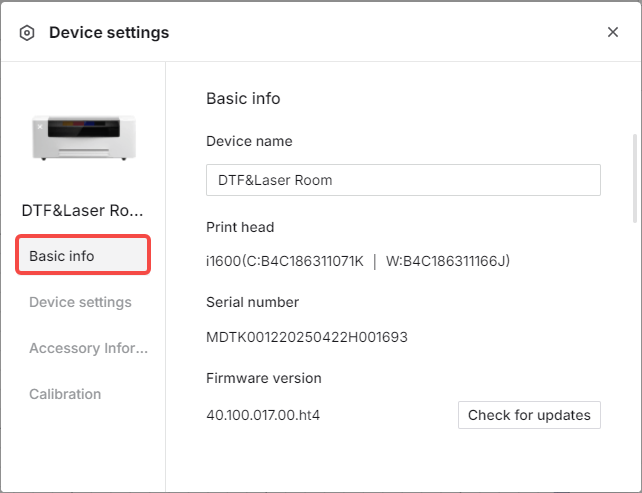
- Click "Export".
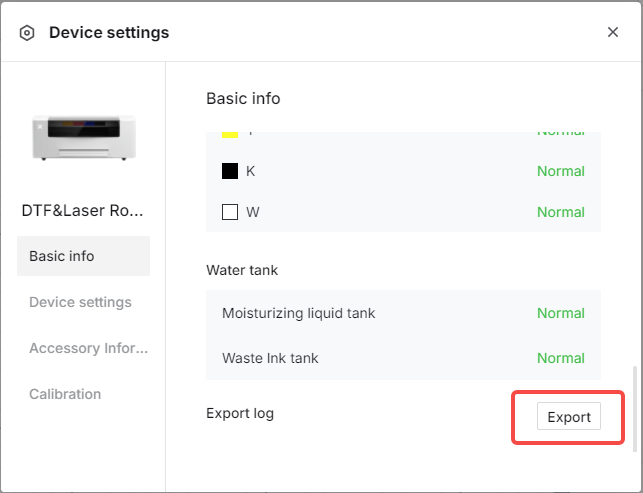
- In the "Device settings" panel, select the "Basic info" tab, where you can scroll down until you see "Export log".
- Send log files:
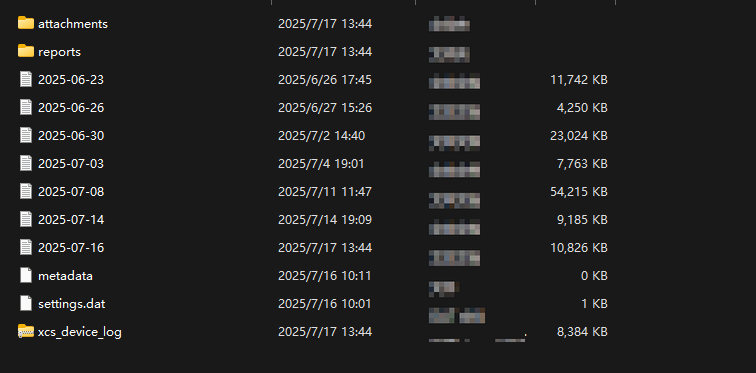
- A folder containing the log files will be saved to your computer.
- Please compress this entire folder into a single .zip file before sending it to xTool Customer Service.
Export an XCS project file
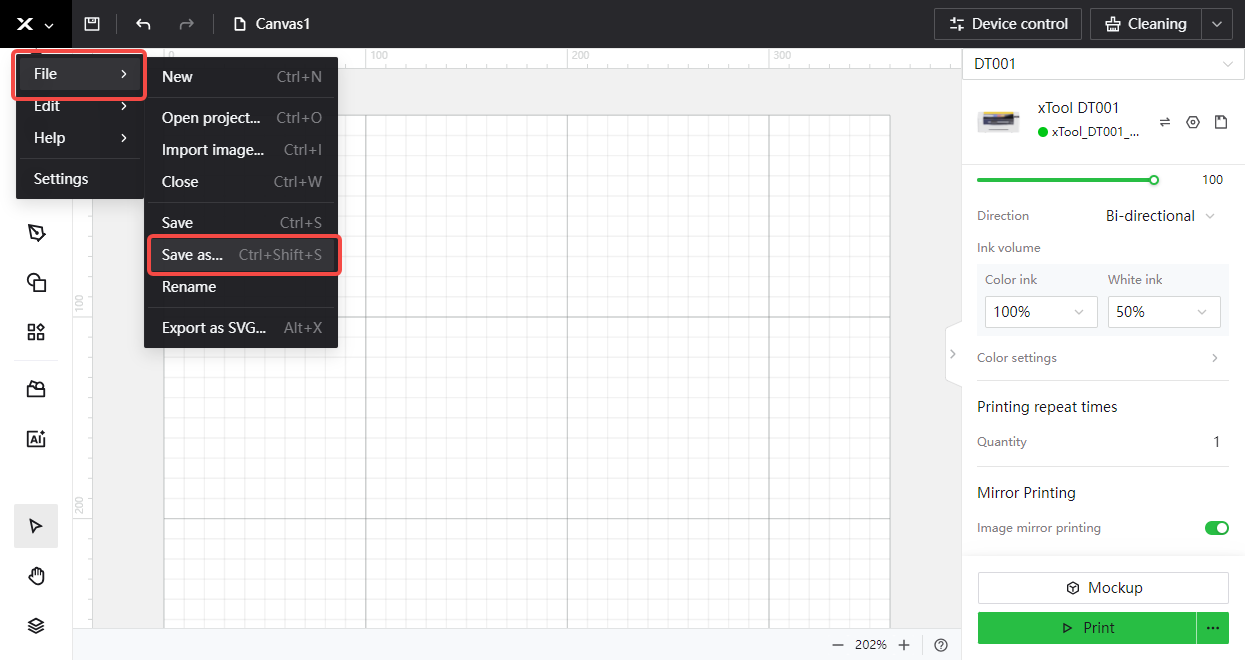
- In xTool Creative Space (XCS), click the X icon in the top-left corner.
- Select File → Save As…
- In the save dialog, choose your destination folder, enter a file name, and click Save.
View firmware version
In XCS Software
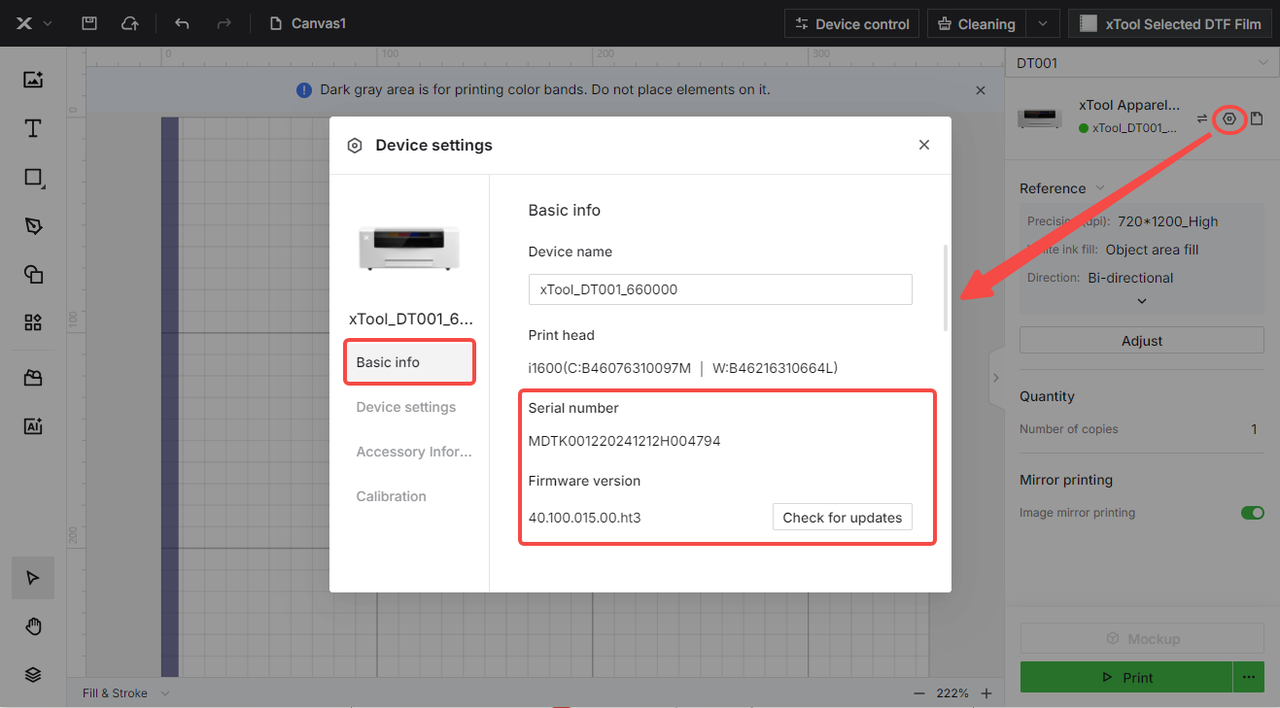
- Click the Gear icon (Settings) in the upper-right corner.
- Select Basic Info.
- Scroll down until you see Firmware Version.
On the Printer’s LCD Screen
- From the Home screen, tap Settings.
- In the General menu, scroll down to locate Firmware Version.
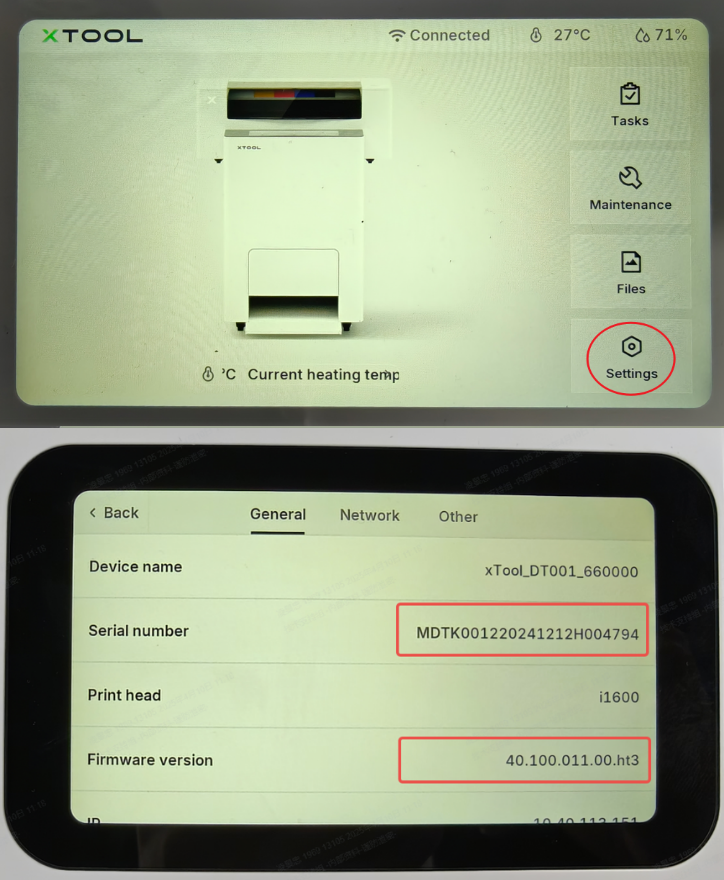
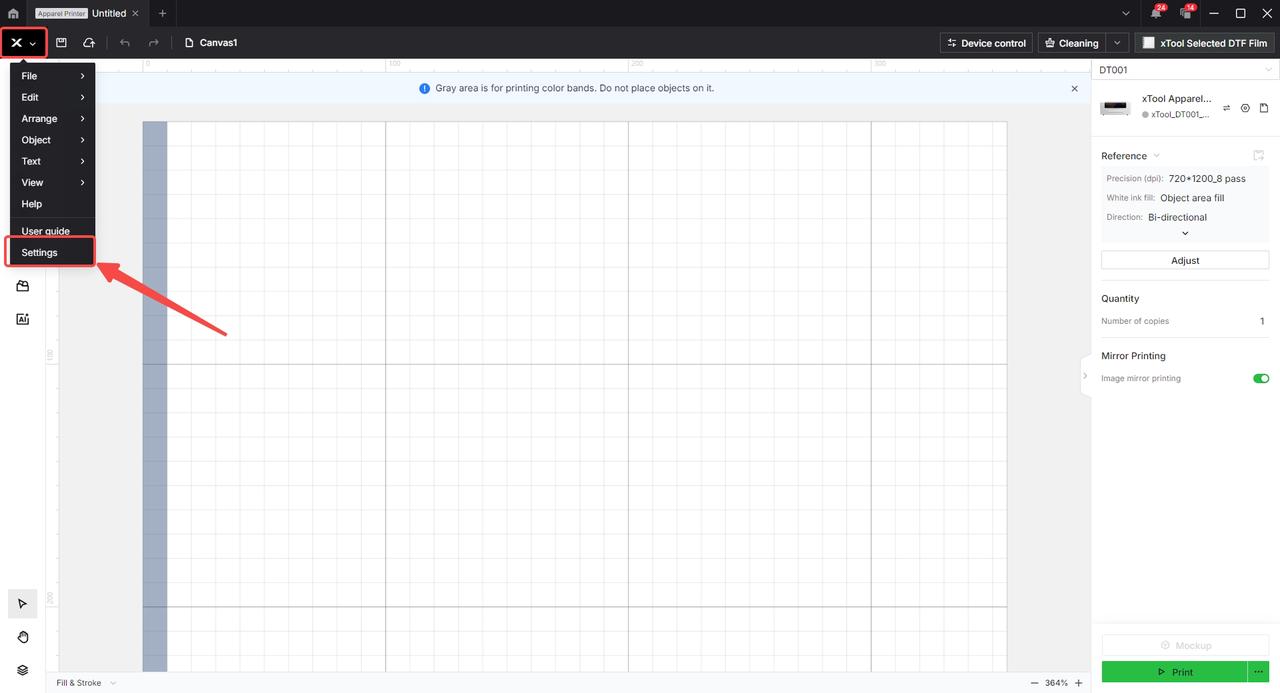
View XCS software version
- Click the X icon in the top-left corner of XCS.
- Select Settings.
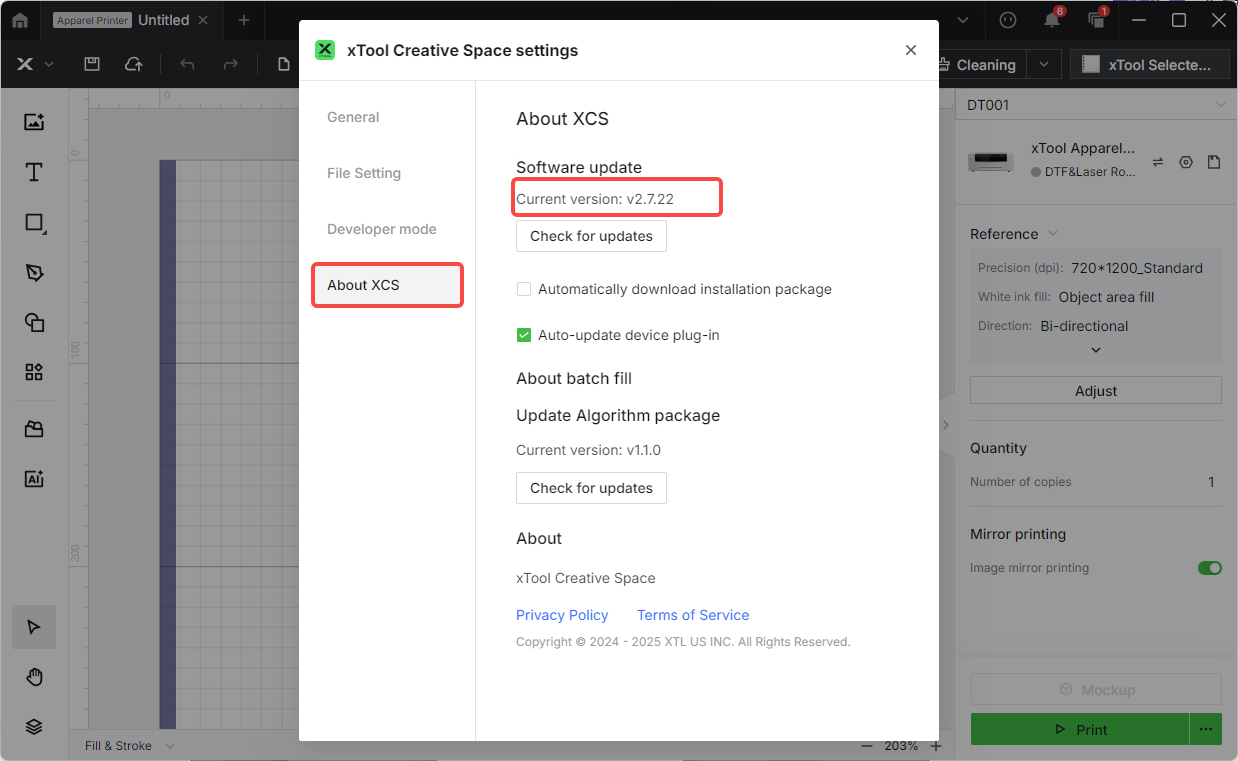
- Choose About XCS to display the software version number.
Product SN location
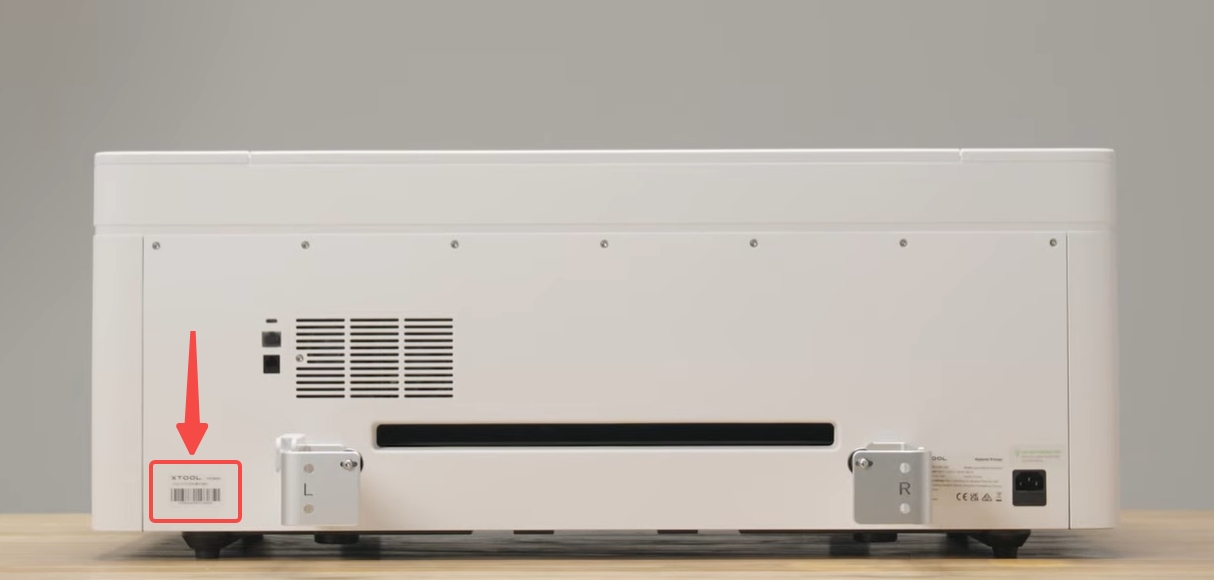
The product serial number (SN) is typically located on a label in the lower left corner of the rear panel, as shown in the reference image below.
To locate your serial number:
- Locate the rear panel of the printer.
- Look for the label in the lower left corner.
- Record the complete serial number for reference.
Quick access guide to key functions
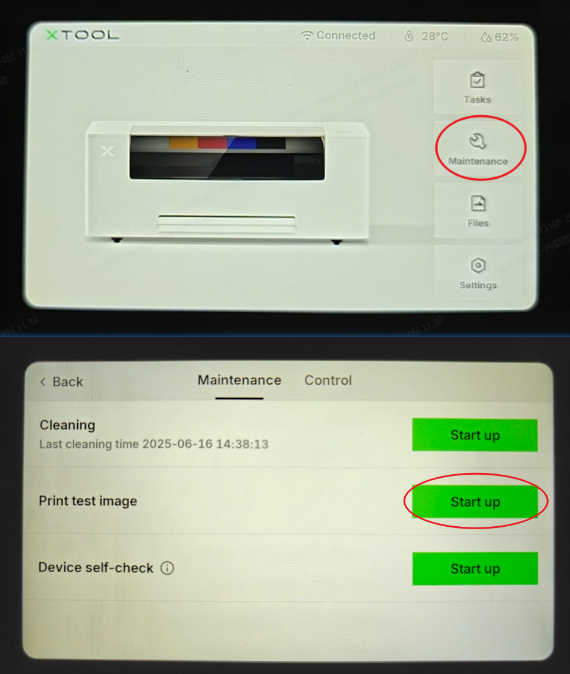
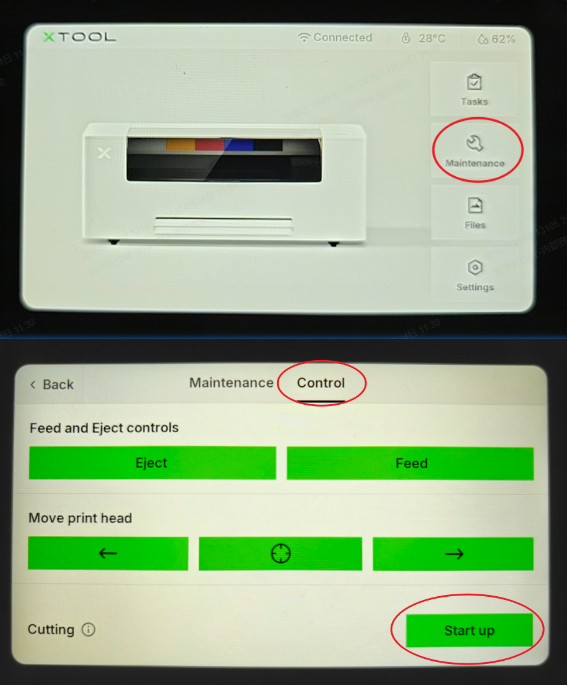
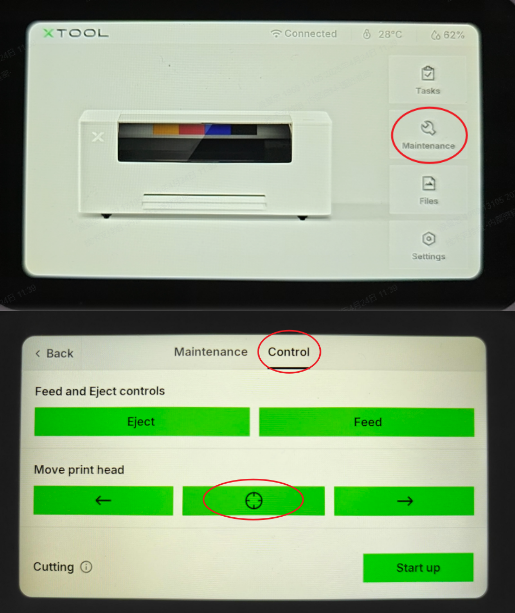
This section provides the navigation paths to frequently used maintenance and control functions on the printer's LCD control panel.
Function | Menu Path | Reference Image |
Print Test Image | Maintenance > Print Test Image |
|
Cutting | Maintenance > Control > Cutting |
|
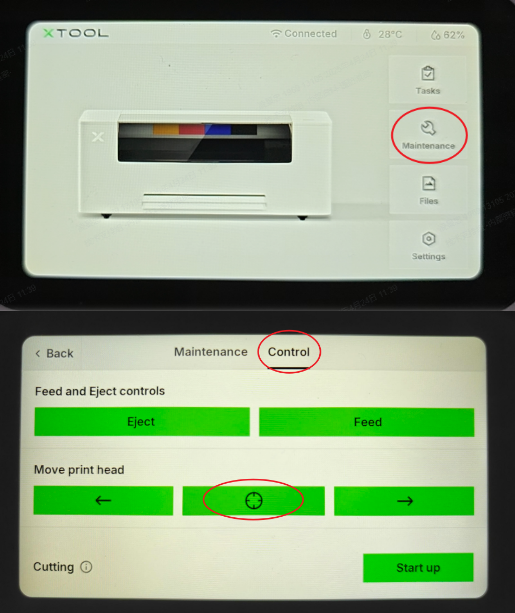
Print Carriage/Head Reset | Maintenance > Control > Move print head (Tap the "Crosshair" icon) |
|
White Ink Circulation | Settings > Other > More > White ink circulation |
|
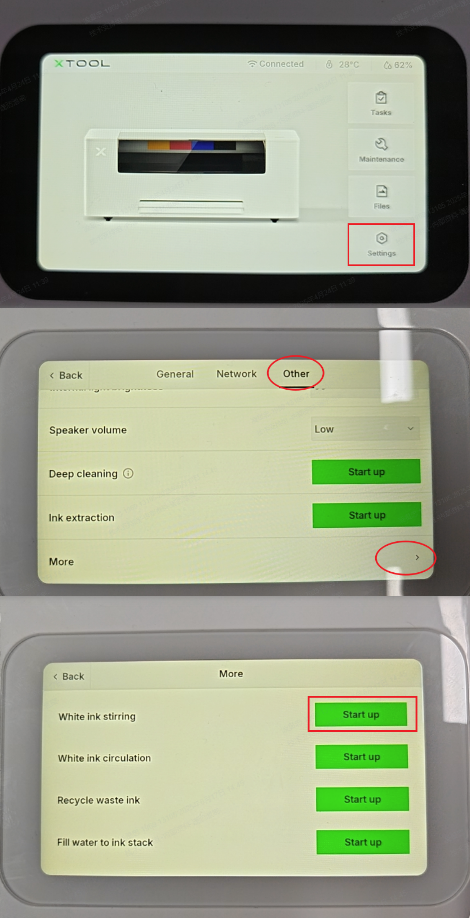
White Ink Stirring | Settings > Other > More > White ink stirring |
|
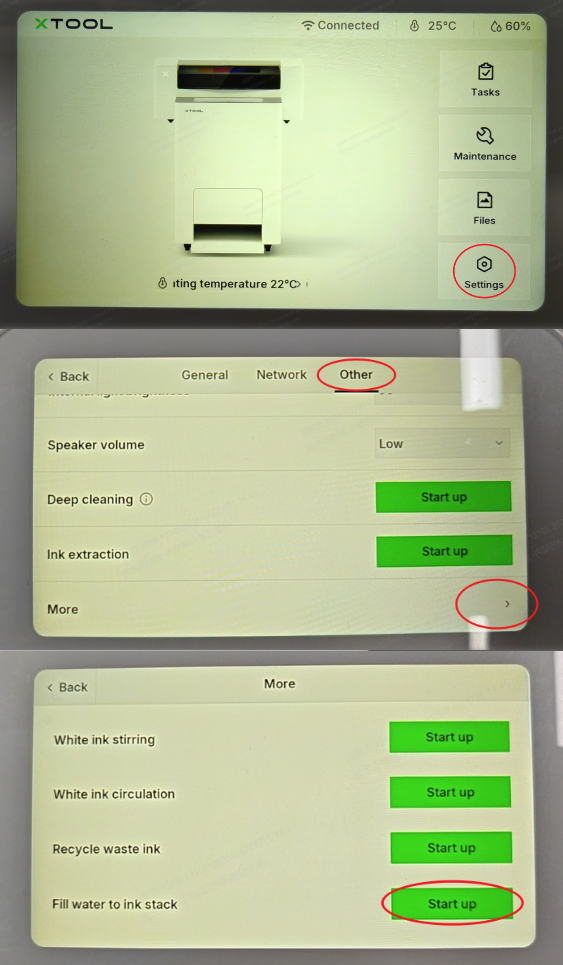
Fill Water to Ink Stack | Settings > Other > More > Fill water to ink stack |
|
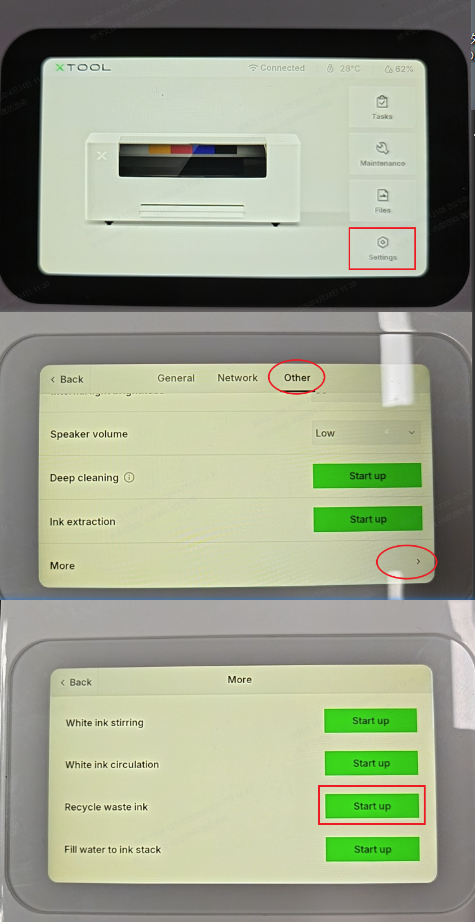
Recycle Waste Ink | Settings > Other > More > Recycle waste ink |
|
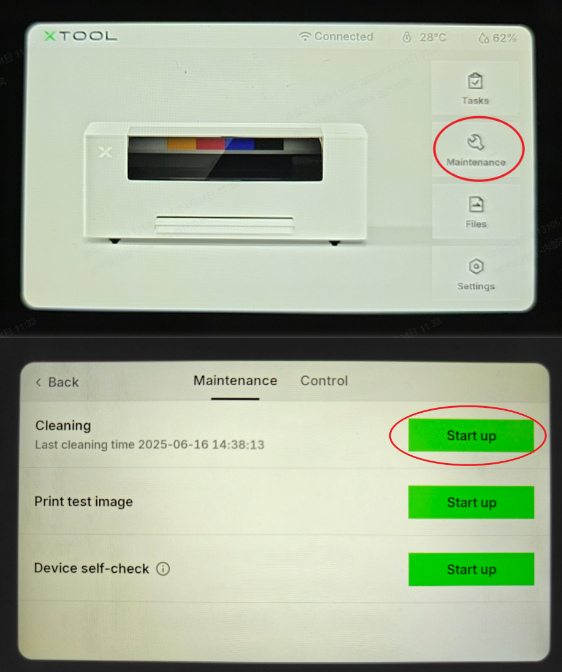
Standard Automatic Cleaning | Maintenance > Cleaning |
|
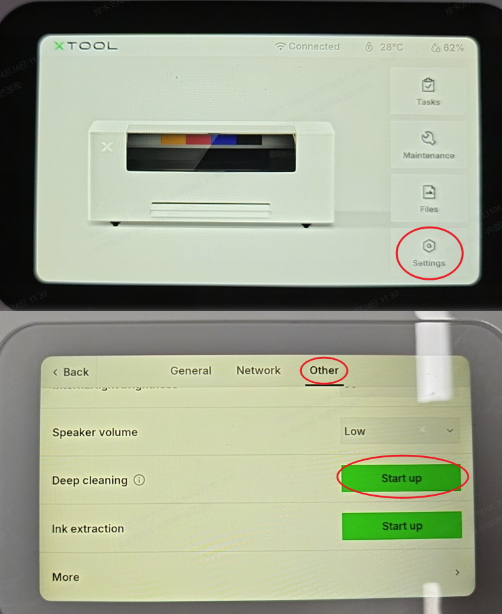
Deep Cleaning | Settings > Other > More > Deep cleaning |
|
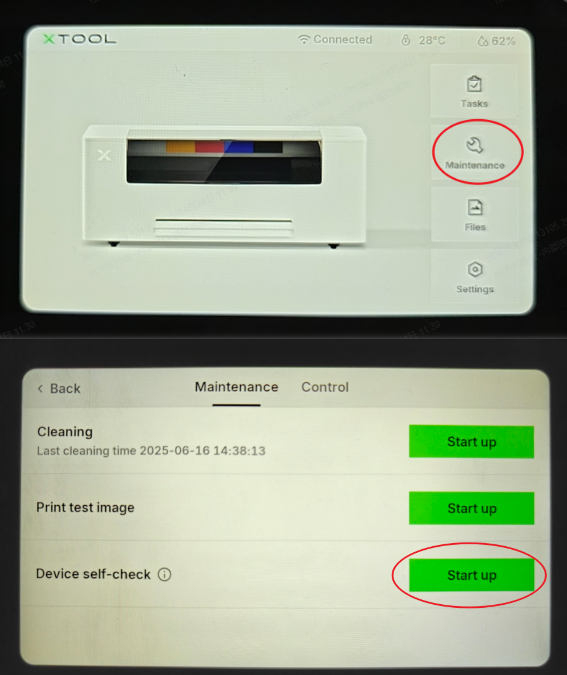
Device Self-Check | Maintenance > Device self-check |
|