
F2 Ultra Auto Focus Issue
Issue description
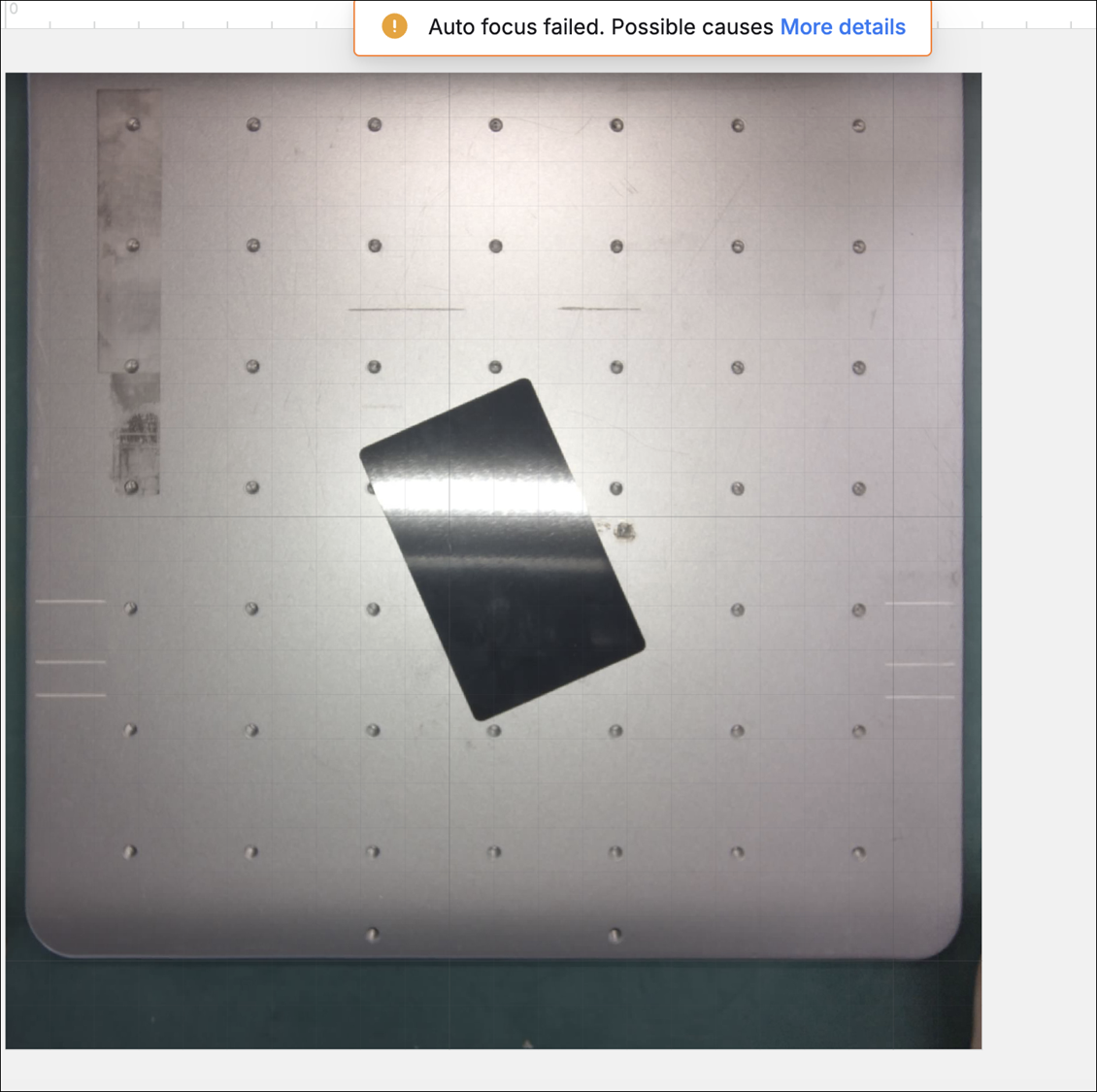
A pop-up message indicating that the auto-focus failed appears at the top of the screen, or the measured thickness of the material to be processed deviates by more than 0.5 mm from the actual one.
Troubleshooting
During the automatic distance measurement, the process will stop if you use the physical buttons to manually adjust the focus or click Reset in Device Settings. Therefore, do not press any buttons on the touchscreen controller during automatic distance measurement.
Step 1: Perform a second calibration
Refer to this guide to perform a second calibration.
Step 2: Place the material correctly
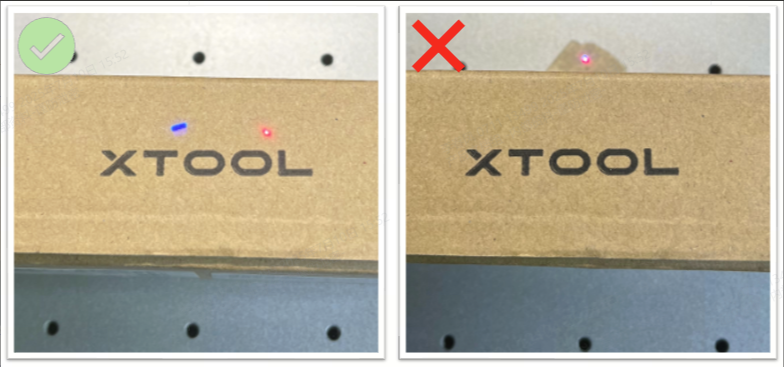
For automatic distance measurement, place the material at the blue light spot. If the material is not positioned correctly, automatic distance measurement may fail or produce inaccurate results.
Step 3: Use compatible materials
Automatic distance measurement is not suitable for transparent, translucent, highly reflective, fluffy (such as cotton), or light-absorbing materials (such as black acrylic). Make sure the material is compatible with automatic distance measurement.
Step 4: Maintain a stable connection
The device needs to capture images and send them to the xTool software for image processing. If the device is disconnected or the Wi-Fi connection is slow or unstable, image transmission may fail, causing automatic focusing to fail.
Step 5: Use manual focusing as a temporary solution
If auto focus still fails after following the steps above, use the buttons on the touchscreen controller to move the laser module up or down until the red and blue light spots overlap on the material surface, completing manual focusing.
Still experiencing issues?
Should the issue persist after completing the preceding steps, submit a ticket via the "Submit a Ticket" button in the "Help Ticket" section below. The standard response time for xTool Customer Service is one business day.
For a prompt resolution, please include the following details:
- Issue description: A detailed explanation of the observed problem.
- Video evidence: Attach a video demonstrating the issue, where applicable.
- Troubleshooting performed: Any troubleshooting steps you have already attempted, along with their results.
This information is crucial for xTool technical support engineers to provide timely assistance.
Documentation feedback
Help improve this content by providing feedback. If this content did not meet your requirements, select "No" in the "Was this page helpful?" section below. Include specific details about what was unclear or missing in the pop-up suggestion box. Feedback submissions are reviewed by xTool technical writers to enhance future documentation.

