
Issue Description
When this issue occurs, you may find the engraving performance of P2/P2S is not as expected:
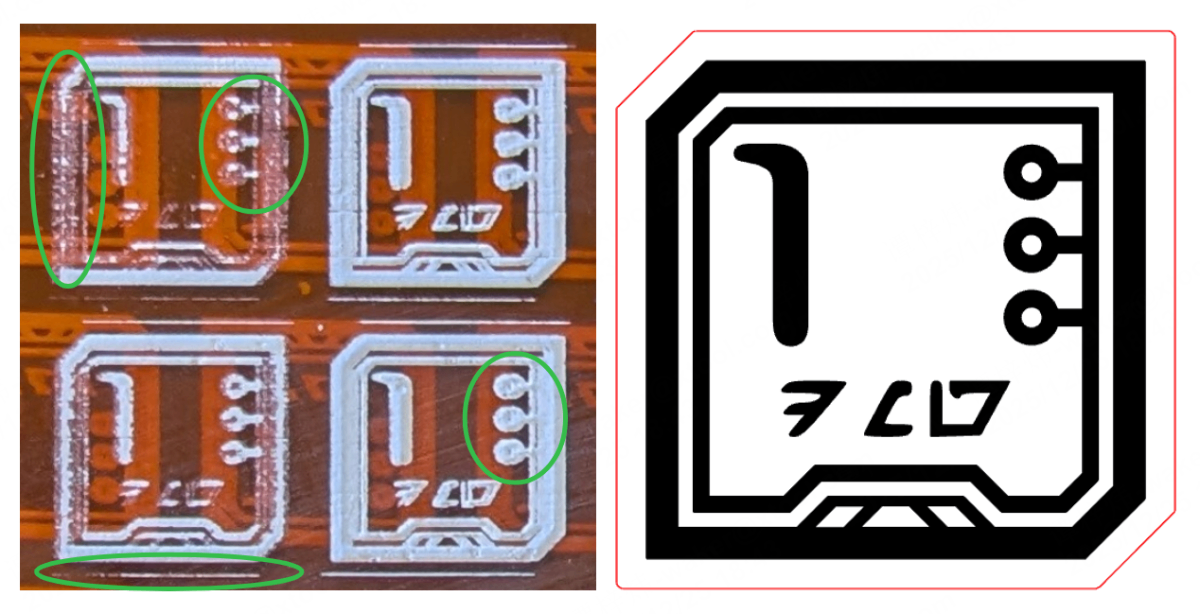
- The pattern appears blurry, and the engraving outcome is excessively darkening or too shallow to be identified.

- The fill effect is blurry with very poor precision; The engraving effect is shallow, and the interior of the round holes is not clear.
#1 Clean the Laser Lens and Focus Lens
Follow the video tutorial to clean the laser lens and focus lens.
#2 Calibrate the Laser Path
- When the laser path is deviated, the laser performance may vary significantly in different processing areas.
- Please follow the tutorial video below to calibrate the laser path: https://support.xtool.com/article/196
#3 Check the Processing Parameters
- For official materials, you can choose recommended processing parameters for cutting.
- For the unofficial ones, you can get the ideal parameters by the material test array with the XCS 1.4 version or later.

#4 Check the Material Distance/Thickness Value
- Check if the material thickness or distance with the corresponding mode in XCS is the same as the actual value.
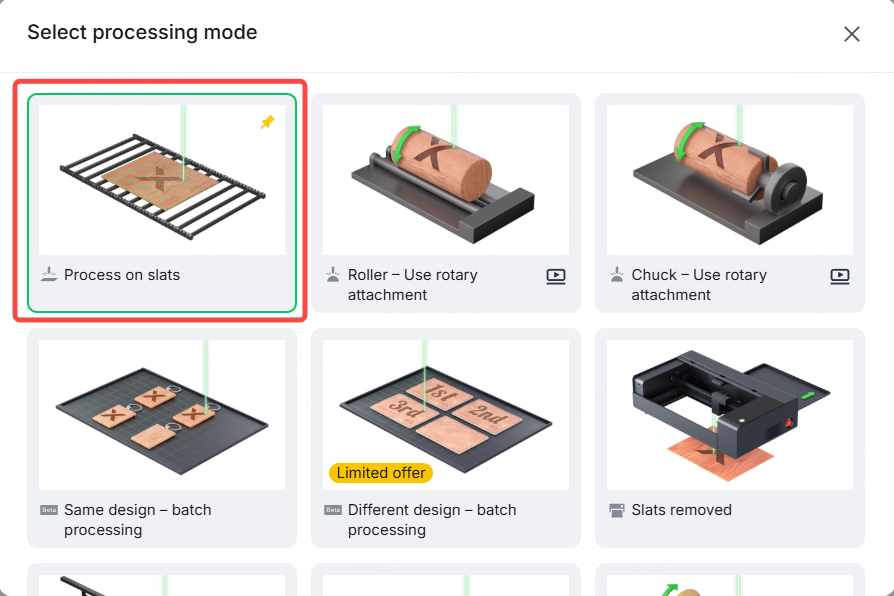
(1) Install the slats in the device. Select Process on slats for processing.
(2) Use a ruler to measure the thickness of the material to be processed.
(3) Click Quick measure or Aimed-measure on the software to measure the thickness of the material.
If the measurement value differs from the actual value by more than 1 to 2mm, it means the corresponding measured mode requires calibration. Go to Solutions for Large Errors in Aimed-Measure or Quick-Measure for more details.
- Or you can follow the link to measure the focal distance manually for P2/P2S.

#5 Set a Higher Sharpness Value
- Please enhance the sharpness of the bitmap images in XCS as shown below, or try engraving with a higher-resolution image.

#6 Set a Lower Airflow Value
- Please go to Settings to reduce the Airflow of the air pump in Engrave mode, such as lowering it to 30%.

#7 Check the Focal Lens
- When the focal lens is not installed properly, the laser spot will become larger, decreasing engraving performance.
- Please follow the tutorial video to install the focal lens properly with the convex side facing up:
https://support.xtool.com/article/46
#8 Check the Material
- Texture-dense materials can be harder to engrave by laser.
- To get better results, set a higher processing power or use less dense materials.
#9 Replace the Laser Tube
If the power remains too low to cut through the material after performing the above steps, the laser tube needs to be replaced.
If the image accuracy is too low or the image is blurry, the laser lens and focus lens need to be replaced.
xTool P2
Laser lens SKU: AS010036000
Focus lens SKU: M7020073000
Laser tube SKU: P5010260
xTool P2S
Primary laser lens SKU: AS010131000
Secondary laser lens SKU: AS010128000
Tertiary laser lens SKU: AS010036000
Focus lens SKU: M7020073000
Laser tube SKU: S1011224000
How to replace the laser tube:
How to replace the laser lens and focus lens:

