
This guide addresses common questions and issues you may encounter while operating your xTool OS1 Automatic Shaker Oven Machine.
General operation & maintenance
Q: What precautions should I take when restarting the oven?
A: After disconnecting power to the oven, you must wait until the device icon on the printer's LCD screen changes from the printer-oven combination icon to show only the printer icon. Once the oven icon disappears, you can safely power the oven back on.
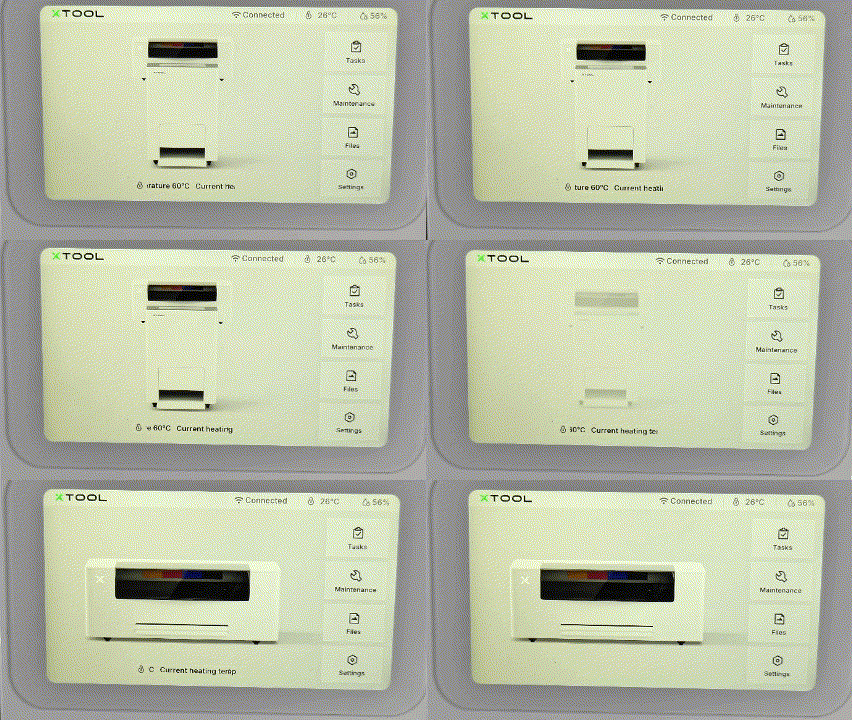
⚠️ Important: If you do not follow this power sequence, the system may generate a "Misalignment" error after reconnecting power.
If you encounter this error, refer to: Troubleshoot "Misalignment" Error on xTool Apparel Printer & xTool OS1
Q: Why does the printer wobble during operation?
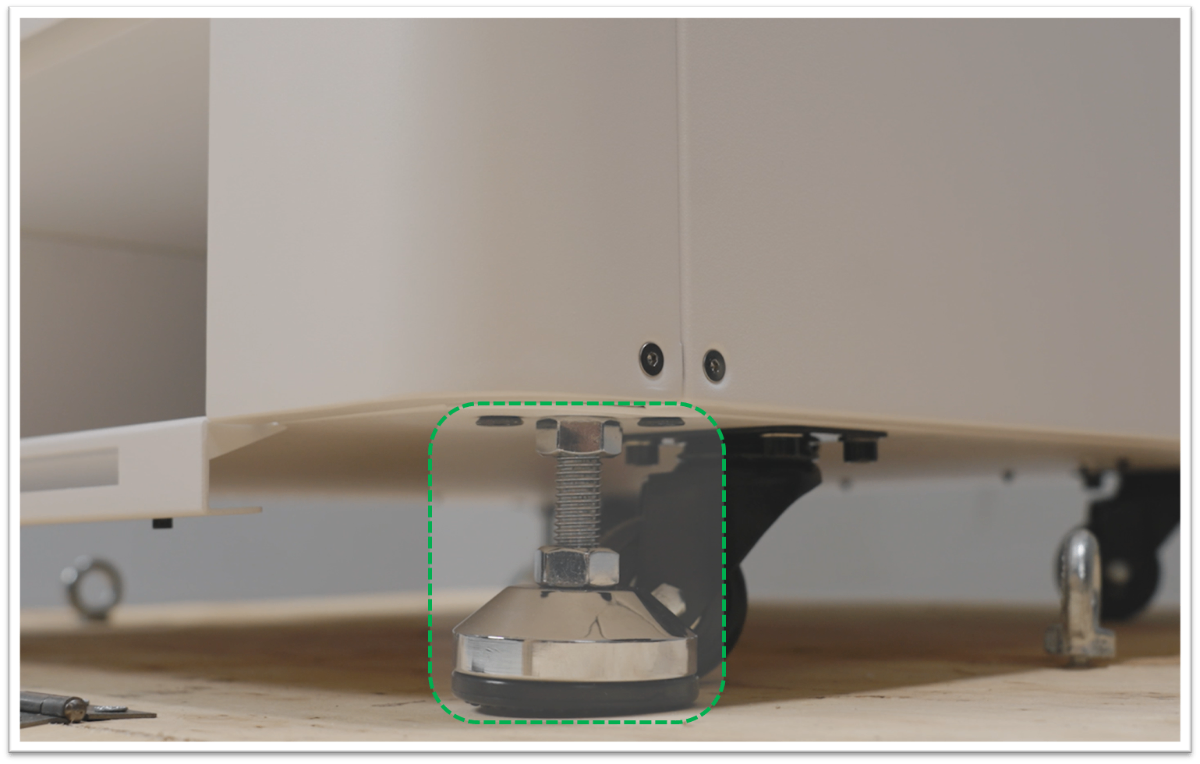
A: This is typically caused by improperly adjusted foot cups on the oven.
Solution: Adjust the oven's foot cups to their lowest position and ensure they are securely fixed for stable support.
For detailed instructions, see: Adjust the Foot Cups on xTool OS1 Shaker Oven Machine
Q: Why does the OS1 Shaker Oven's outer casing feel hot during use?
A: This is normal. The oven contains internal heating tubes that generate significant heat. Due to heat conduction, the outer casing temperature can reach up to 60°C (140°F) during prolonged use, which will feel warm or hot to the touch.
⚠️ Safety Warning:
- Do not open the maintenance door during processing to prevent burns.
- Wait until the machine has cooled to room temperature before opening the maintenance door.
Q: I hear an unusual clicking or "ka-ka-ka" sound when the film feeds into the oven. What's wrong?
A: This distinct sound usually indicates a film jam. You may also see a "Printer Film Jam" error on the screen or xTool Creative Space software. Do not continue processing. Please follow the instructions in this guide to safely remove the jammed film: Troubleshoot "Printer Film Jam" Exception on xTool Apparel Printer
Q: Why are there black dots in the powder compartment?
A: These are tiny ink particles.
Small amounts: No cleaning required; does not affect curing results.
Large amounts:
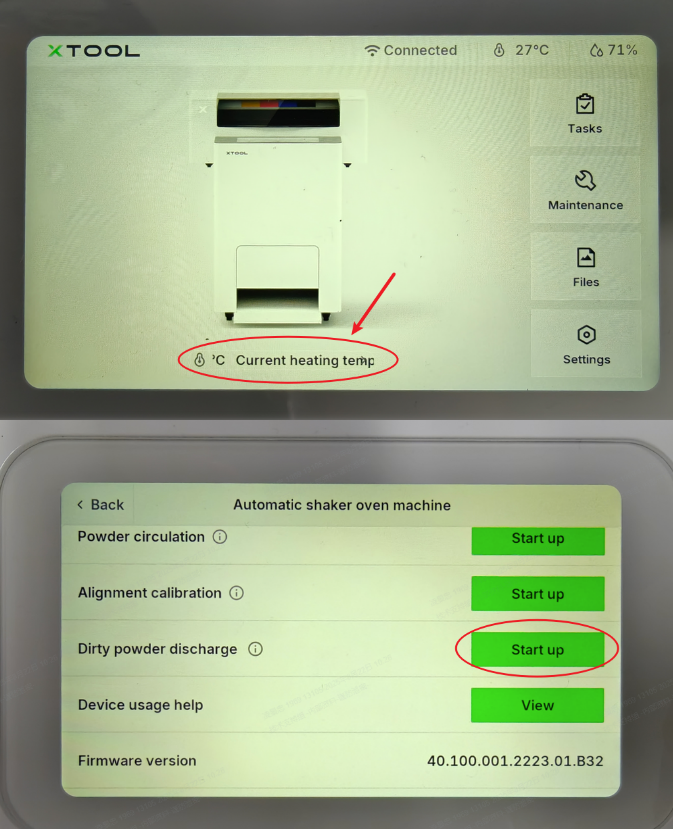
- Open the powder discharge switch.
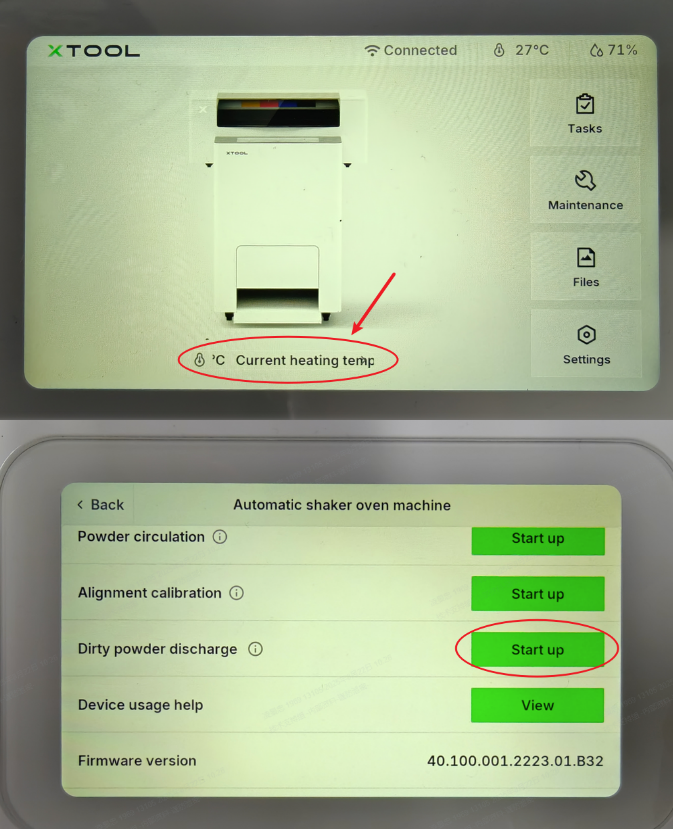
- Tap the Temperature icon on the main screen;
- Scroll down to find "Dirty powder discharge";
- Tap the "Start up" button;
- Empty the hot-melt adhesive powder.
- Replace with fresh powder.
Q: Does adhesive powder on the sensors affect the machine's use?
A: Yes. Powder buildup on sensors can cause false error readings and machine malfunctions.
Recommendation: Clean sensors regularly following the guide: Routine Cleaning & Care for xTool OS1 Shaker Oven
Q: How do I clean a dirty inspection window on the OS1 oven?
A: You will need to remove the magnetic cover to access and clean the window. For a step-by-step video, please see: Routine Cleaning & Care for xTool OS1 Shaker Oven
Q: What should I do when the Waste-Powder Bin is full?
A: Remove the Waste-Powder Bin, empty the waste powder, and reinstall the bin.
Reference: Routine Cleaning & Care for xTool OS1 Shaker Oven
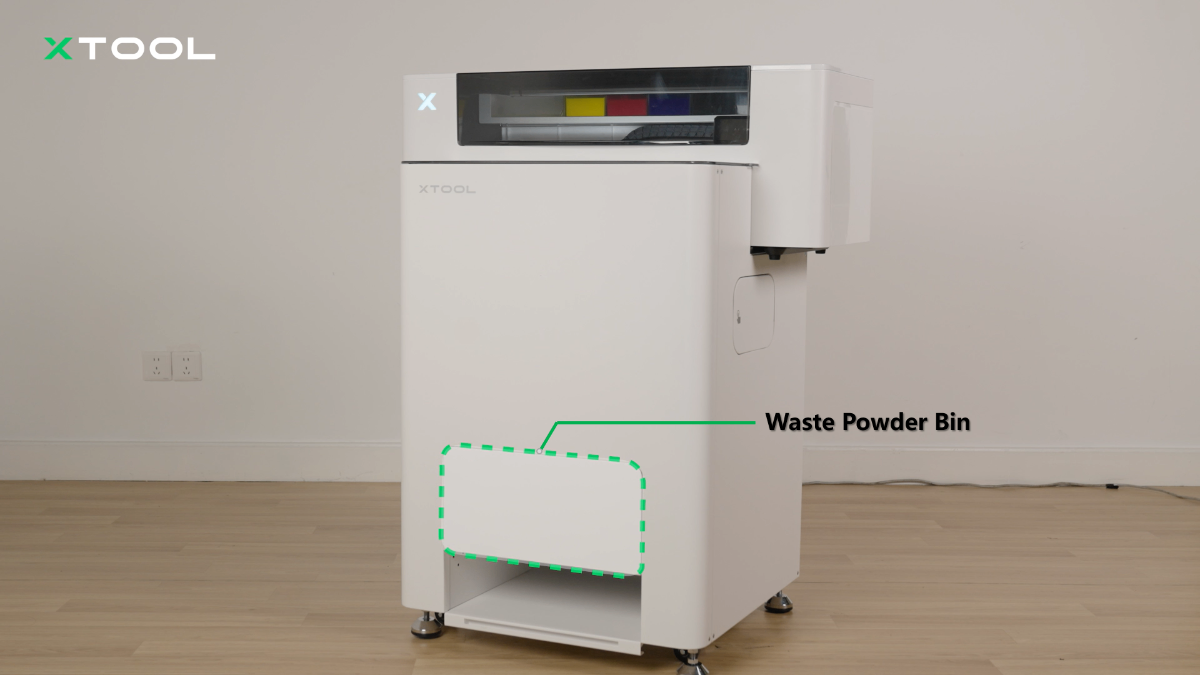
For discharging dirty powder:
- Tap the temperature icon on the main screen;
- Scroll down to find "Dirty powder discharge";
- Tap the "Start up" button;
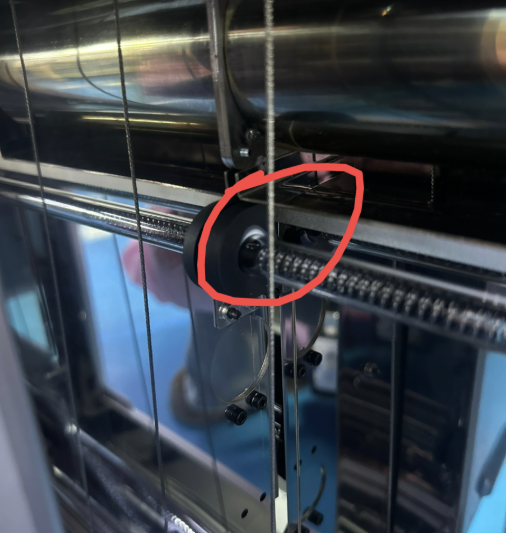
Q: Why are the silicone sleeves on some heating tubes turning white?
A: This is normal. The heating tubes operate at high temperatures, and silicone sleeves may turn white when they contact the heating tubes due to installation tolerances.
Reassurance: This is only a color change and does not affect the oven's functionality or performance in any way.
Air purification & ventilation
Q: Why is there smoke or a strange odor in the air during curing?
A: This happens when the exhaust fumes are not being properly purified. The OS1 Shaker Oven must be connected to a suitable air purification system.
Recommendation: Use xTool SafetyPro™ AP2 air purifier and set it to Level 2 (or "Auto" mode) operation.
Q: Why should I usexTool SafetyPro™ AP2?
A: An air purifier must be used whenever the oven is operating and curing transfers.
Convenience Feature: xTool SafetyPro™ AP2 can be paired with the oven via Bluetooth for automatic operation—when the oven starts working, the AP2 automatically activates.
Setup Reference: Connect an Air Purification System to xTool OS1 Shaker Oven
Q: Can I use a third-party purifier instead of xTool SafetyPro™ AP2?
A: While xTool strongly recommends xTool SafetyPro™ AP2 for its tested and proven performance, you may use a third-party purifier if it meets the following strict requirement: the airflow rate must be exactly 120 m³/h. An incorrect airflow rate will negatively impact the curing quality and may not effectively remove fumes.
Adhesive powder
Q: What is the maximum powder capacity for the oven?
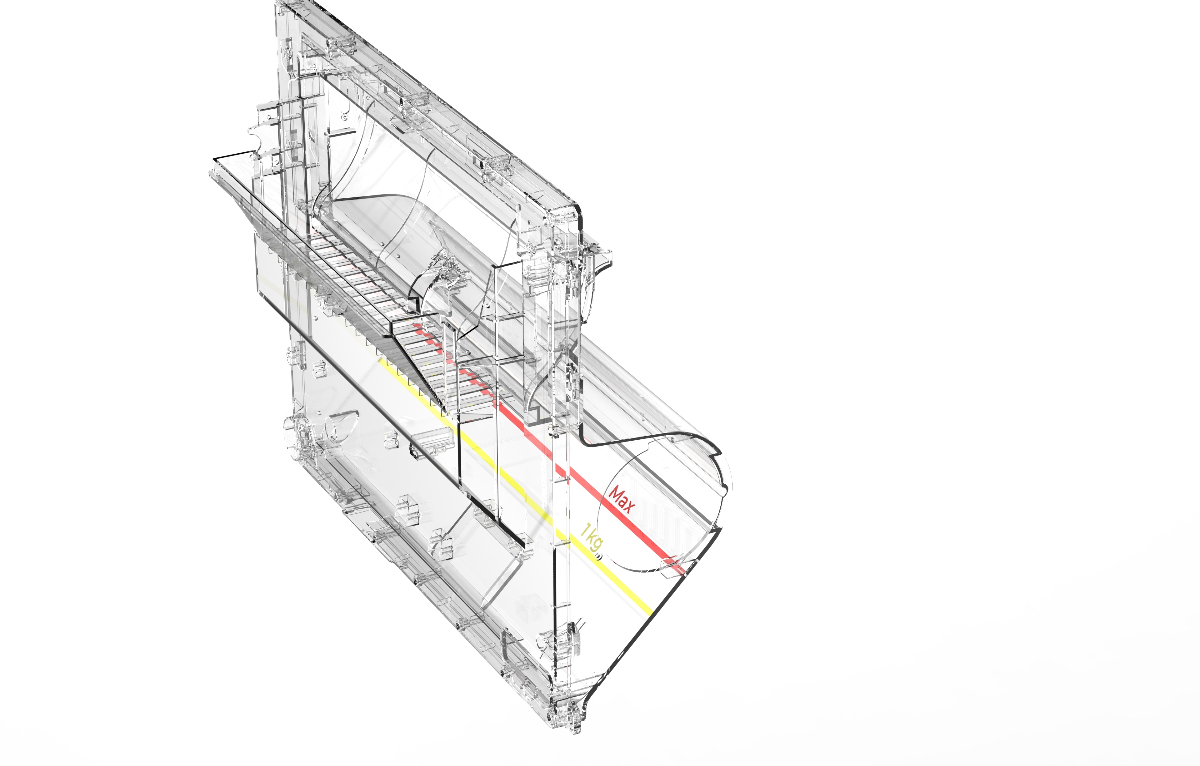
A: The oven chamber should not exceed 2 kg of hot-melt adhesive powder.
Exceeding 2 KG Causes:
- Powder accumulation
- Compromised shaking effectiveness
Safety Guideline: A red line in the powder chamber indicates the maximum fill level. Do not exceed this line. If exceeded, use a tool to remove excess powder to ensure optimal processing results.
Q: What should I do if the adhesive powder feels damp or clumpy?
A:
- Mildly Damp: Spread the powder out on a clean, dry surface in a sunny, low-humidity area to dry it out.
- Severely Damp/Clumped: The powder should be replaced with a fresh, dry batch for best results.
Q: What should I do if the adhesive powder turns yellow after curing?
A: This is caused by the over-temperature of the oven.
Solution:
- Reduce curing temperature by 5°C (9°F) increments;
- Observe curing results after each adjustment;
- Continue adjusting until results are satisfactory.
Q: How should I dispose of waste adhesive powder?
A: Hot-melt adhesive powder is made of TPU (thermoplastic polyurethane), an environmentally friendly, biodegradable material.
Disposal: Follow the regulations and requirements for waste disposal in your local area.
Curing & print quality issues
Q: Why are there areas unprinted or where ink won't adhere?
A: This can happen under two scenarios:
Scenario 1: Occurs only at the beginning of each film roll
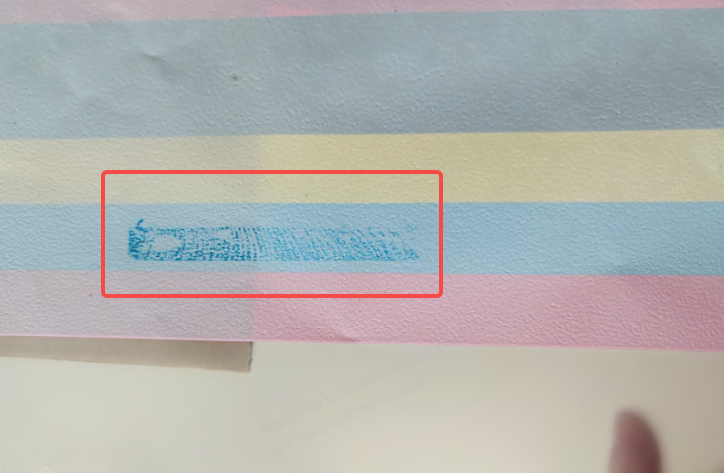
- Cause: The sticker used to secure the roll can sometimes lift the ink-absorbent coating off the film, leaving an area where ink cannot adhere.
- Assessment: This issue is isolated to the first few inches of the roll; subsequent areas are unaffected.
- Action: Continue normal use.
Scenario 2: Multiple thin lines with consistent spacing
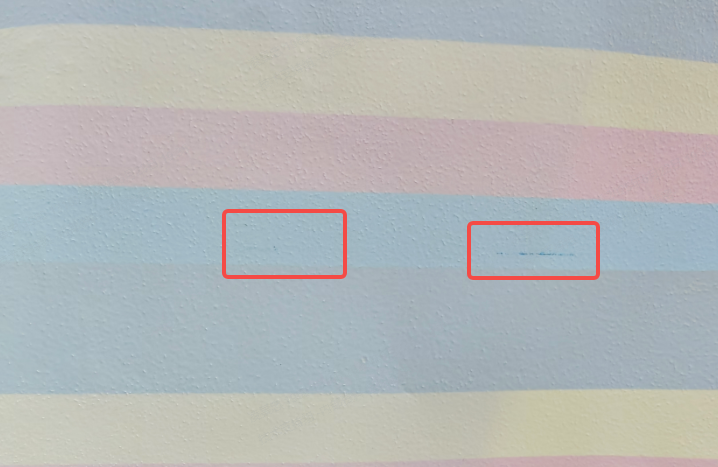
- Cause: These marks are caused by pressure rollers, typically when the environmental humidity is too high.
- Solutions:
- Maintain recommended humidity range: 50%–80% RH.
- If pinch rollers appear damp, wipe with a lint-free cloth.
Heat Pressing Issues
Q: How long can I store a cured PET film before pressing it?
A: A cured film can typically be stored for about 7 days, though this depends on environmental conditions.
- In high-humidity areas, the storage time will be shorter.
- For best results, store cured films in a sealed bag in a dark, dry place.
- For long-term storage, add a desiccant packet to the bag.
Q: What are the recommended heat press settings for xTool PET film?
A:
For 100% Cotton Garments:
- Recommended Temperature: 160°C (320°F).
- Recommended Pressing Time: 6 seconds.
- After cooling to 100°C (212°F), peel off the PET film.
- Important: After peeling, it is strongly recommended to press the design a second time (re-pressing) using the same parameters to ensure maximum durability.
For Other Fabric Types:
- Refer to: xTool Smart Press Settings on the xTool Atomm website.
Q: What should I consider when peeling off the xTool PET film after heat pressing?
A: After heat pressing:
- Wait until the temperature drops below 100°C (212°F).
- At this temperature, film removal is easier with minimal adhesion issues.
- After removing the film, re-press the design using the same parameters.
Q: Why is the design peeling off the garment?
A:
Heat press temperature too high:
- Excessive temperature causes over-melting of adhesive powder;
- An extended cooling time results in adhesive remaining on the film instead of the fabric;
- Solution: Reduce temperature;
Heat press temperature too low:
- Adhesive powder does not melt properly;
- Unable to bond to fabric;
- Solution: Increase temperature;
Heat press pad too soft:
- Solution: Use a thick magazine with two layers of towels as a firm base;
Insufficient heat press pressure:
- Not applying enough downward pressure during pressing;
- Adhesive doesn't fully penetrate the fabric;
- Solution: Apply more pressure during heat pressing;
Insufficient heat press time:
- Especially problematic for large designs;
- Edges or specific areas require adequate dwell time;
- Solution: Increase pressing time, ensure all areas receive sufficient heat;
Improper heat press technique:
- Large designs require multiple pressing passes;
- Edges must be re-pressed;
- Failure to do so causes peeling after washing;
- Reference: Heat Press Large Design Guide for Use with xTool Apparel Printer & OS1 Oven
Q: My designs are peeling off the garment after washing. What's wrong?
A: xTool products can withstand 50 normal temperature wash cycles when properly applied.
Common cause:
This is almost always due to insufficient heat or pressure, especially at the edges of the design. Most heat presses deliver less pressure at the edges of their platens. To solve this:
Solutions:
- Re-press the edges: After the initial press and peel, reposition the garment so that the edges of your design are in the center of the heat press and press them again.
- Avoid high-temperature washes: Do not wash the finished garments in hot water (above 60°C / 140°F).
- Review your technique: For large designs, proper technique is crucial. Refer to our guide: Heat Press Large Design Guide for Use with xTool Apparel Printer & OS1 Oven
Q: The surface of my pressed design looks oily or pitted. Why?
A: This indicates the curing temperature in the OS1 oven was set too low, and the ink was not fully dried.
Solution:
- Start with approximately 95°C (203°F);
- Adjust temperature in 5°C (41°F) increments;
- Continue until oily appearance and depressions are eliminated.
Q: Why do my designs peel or warp on coarse fabrics like canvas or linen?
A: These materials have large gaps between their fibers, making it difficult for the adhesive to form a strong, continuous bond with the surface. This can lead to poor adhesion and warping.
Recommendation: Use tightly woven fabric materials with smaller gaps.
Q: How can I improve adhesion for small letters and thin lines during heat pressing?
A: Insufficient pressing time or temperature may be the cause.
Solutions:
- Re-press with increased time or temperature.
- For precise processing parameters, refer to: xTool Smart Press Settings on the xTool Atomm website
Q: Should I use a protective sheet (like parchment or butcher paper) when heat pressing?
A: Yes, xTool recommends it.
Benefits:
- Ensures more uniform heat distribution.
- Protects garments from excessive temperature exposure.
Q: Why do the colors on the garment fade after washing?
A: The DTF printer uses water-based inks. Like many printed textiles, a certain degree of fading over multiple wash cycles is a normal phenomenon.
Note: This is characteristic of water-based ink technology, not a defect.
Q: Is longer heat press time always better?
A: No. Different fabric materials require different temperature and time combinations.
Recommendation: If using xTool heat press equipment, refer to: xTool Smart Press Settings on the xTool Atomm website for material-specific parameters.
Documentation feedback
Help improve this content by providing feedback. If this content did not meet your requirements, select "No" in the "Was this page helpful?" section below. Include specific details about what was unclear or missing in the pop-up suggestion box. Feedback submissions are reviewed by xTool technical writers to enhance future documentation.

Services & Help
Learn & Education

Copyright © 2025 xTool All Rights Reserved.