
1. Connect xTool F2 to xTool Studio
See Connect xTool F2 to xTool Studio on the Computer.
2. Select the processing mode and material name
In the top-right corner, click Unknown material, select the type and the name of your material, and click Apply.
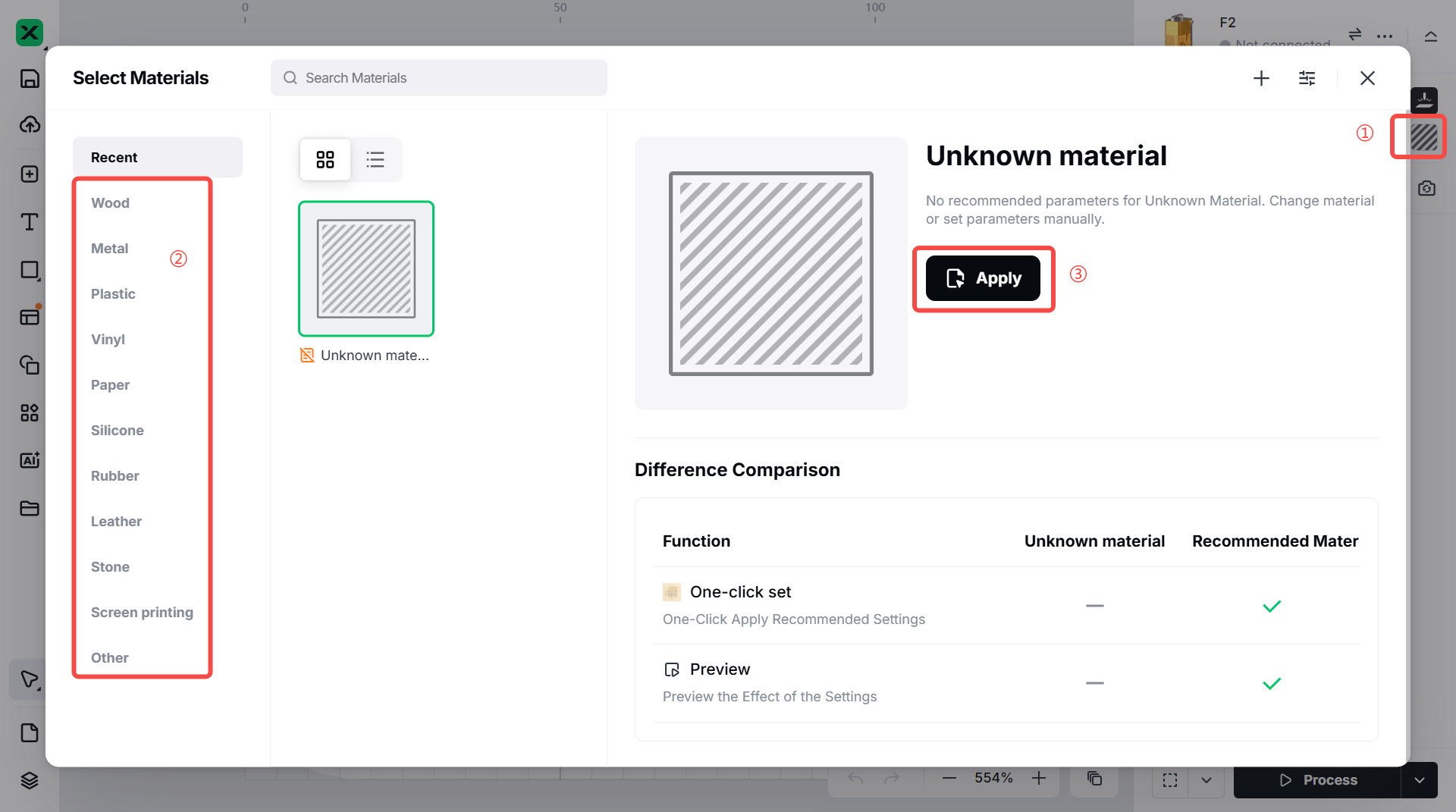
Note: After you select a material from the material list, the software will automatically set parameters for laser processing. The default settings apply to xTool materials. You can adjust the settings based on your needs.
3. Place the material and perform laser focusing
(1) Lift the protective enclosure, and place the material on the baseplate.
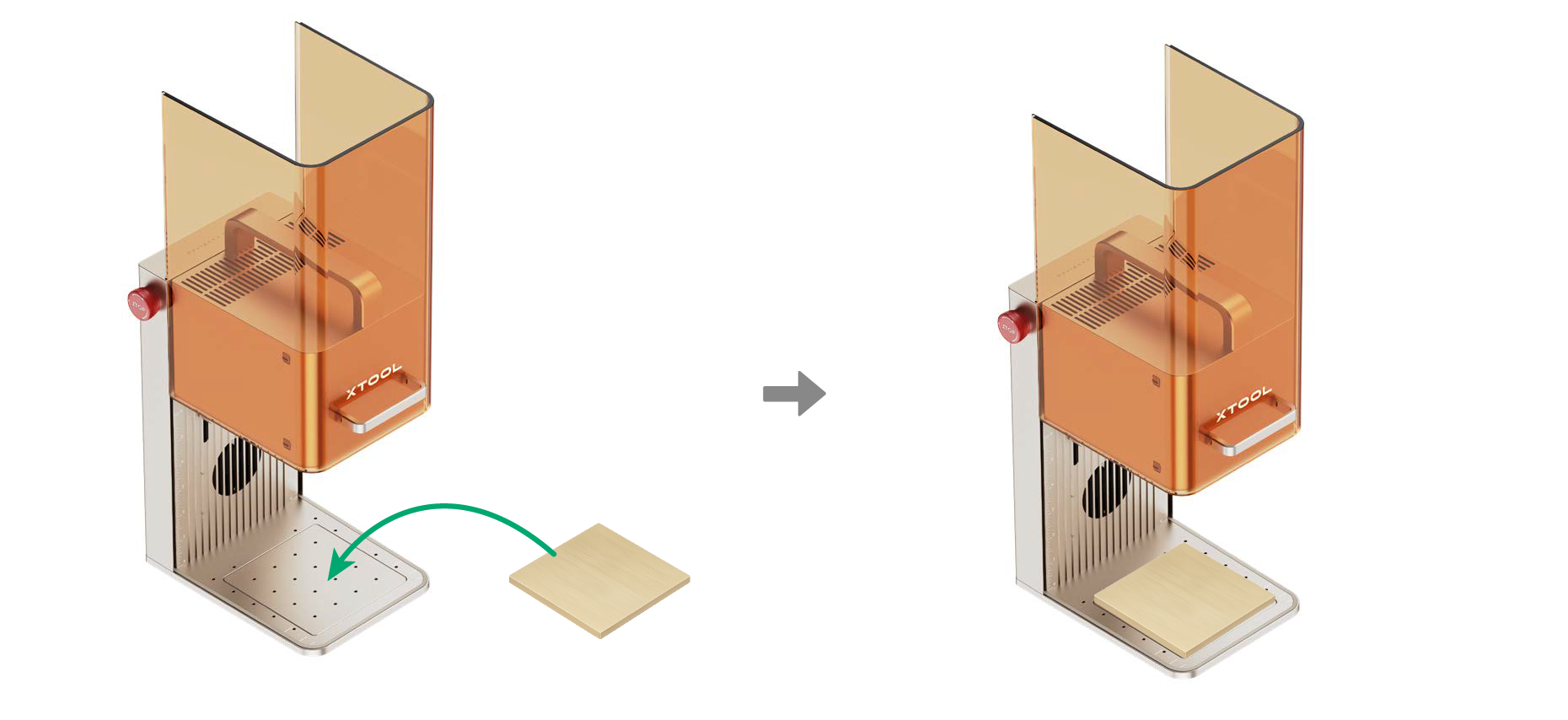
Note:
- To cut a material, you are advised to place the slatted panel under the material, so as to reduce the burned area on the back of the material and protect the baseplate.
- If the material is too light, you are advised to use tools such as tape to fix the material. Otherwise, the airflow of the exhaust fan may cause the material to move during processing.
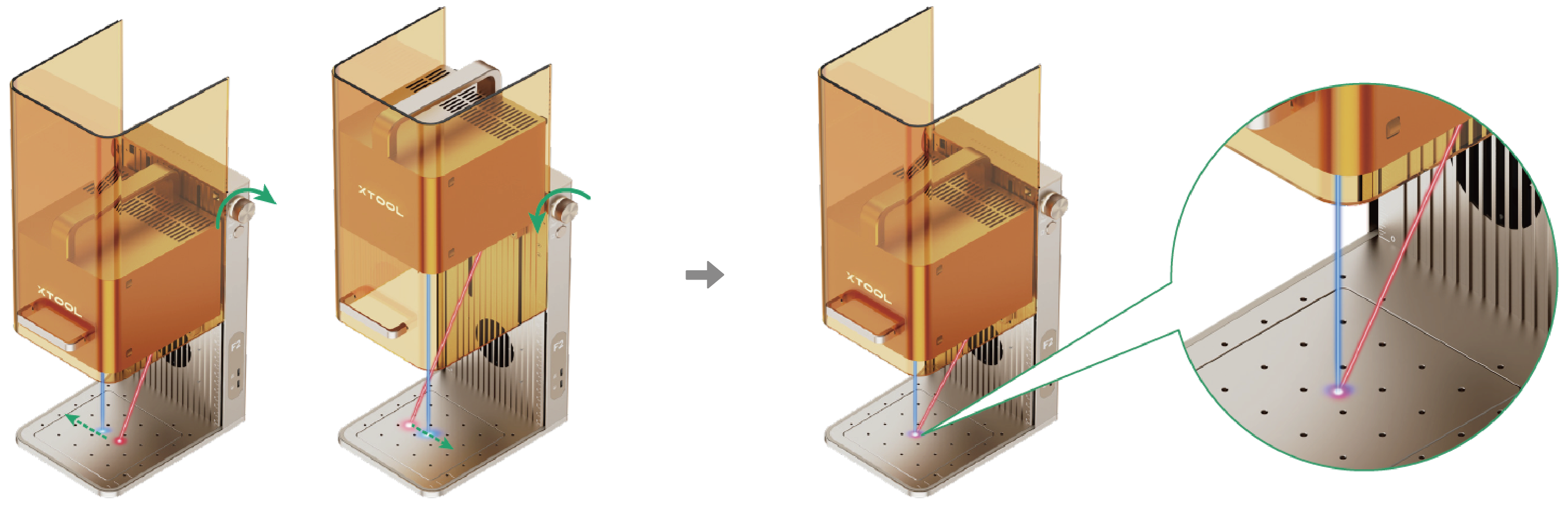
(2) Turn the knob to adjust the height of the laser module. When the red and blue light spots overlap, the focus is successfully set.
Note: The blue light spot does not move. If the laser module moves up, the red light spot moves towards the left. If the laser module moves down, the red light spot moves towards the right.
After you finish focusing, you can see the measured material thickness on the right side of xTool Studio.
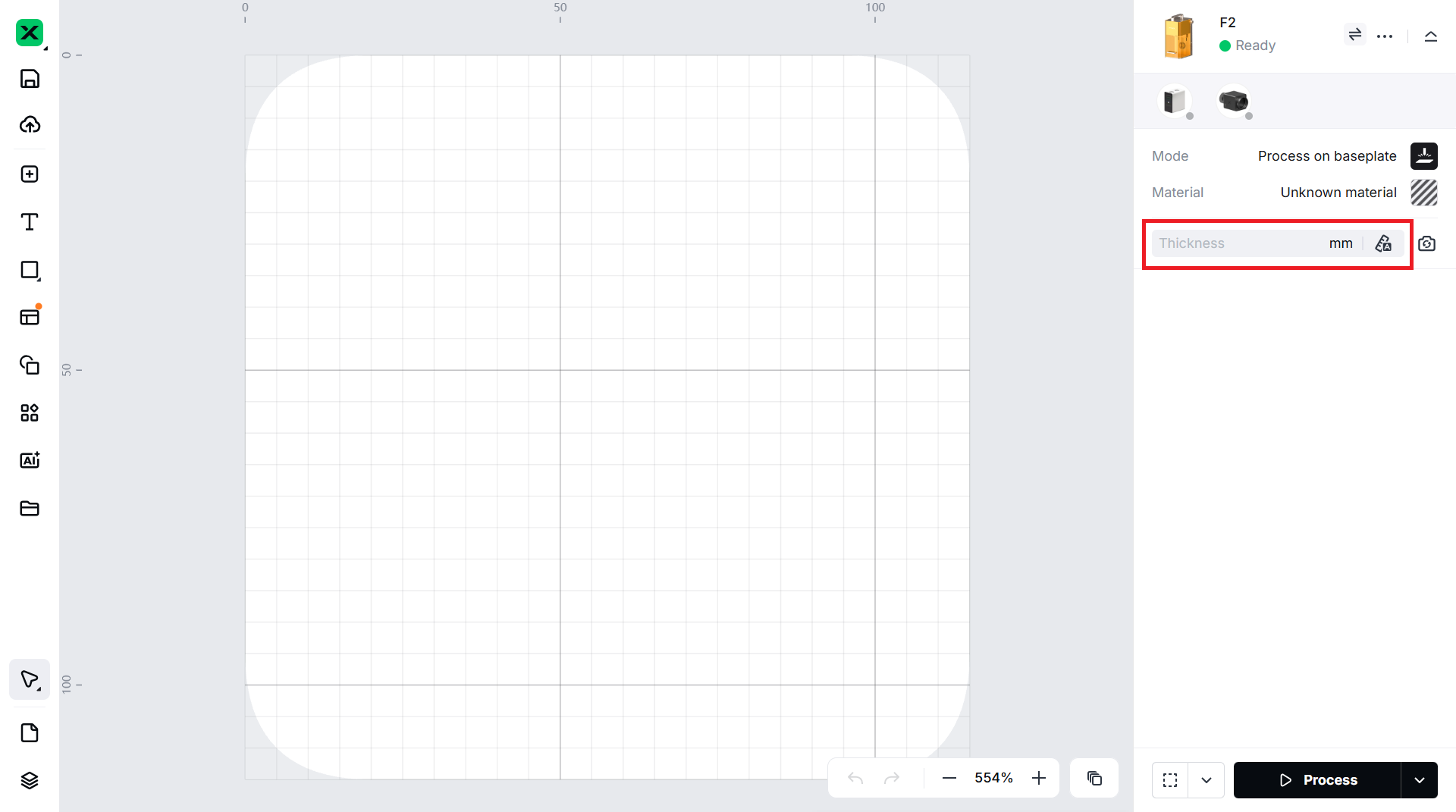
Note: xTool F2 supports auto-focus and manual-focus. Here we use manual-focus. If you want to use auto-focus, click the  icon.
icon.
4. Shoot background and design processing objects
(1) On the right of xTool Studio, click the icon.
icon.
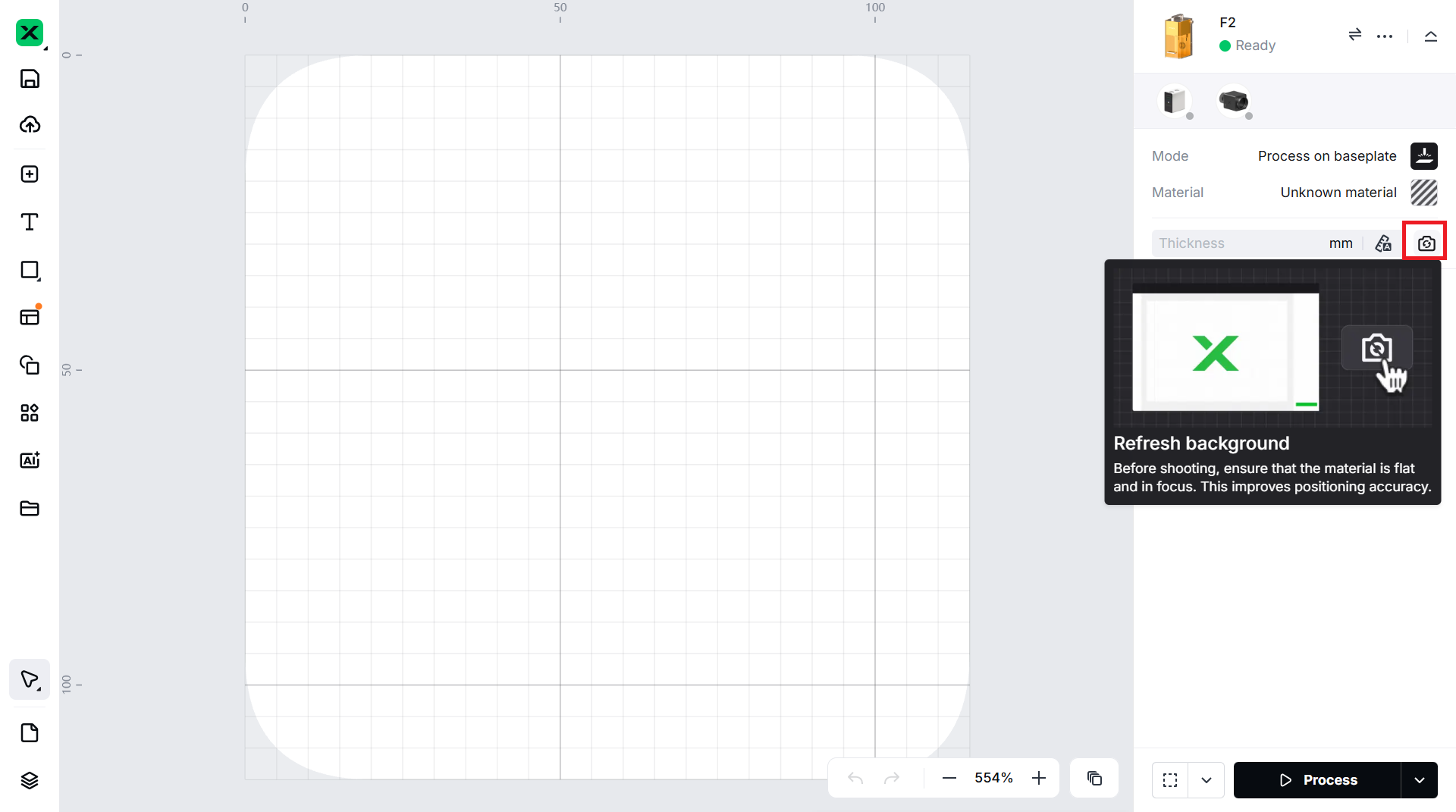
Note: xTool Studio takes a photo of xTool F2’s processing area and uses it as the canvas background. You can position processing objects based on the background.
(2) Use the left-side tools to create objects on the canvas.
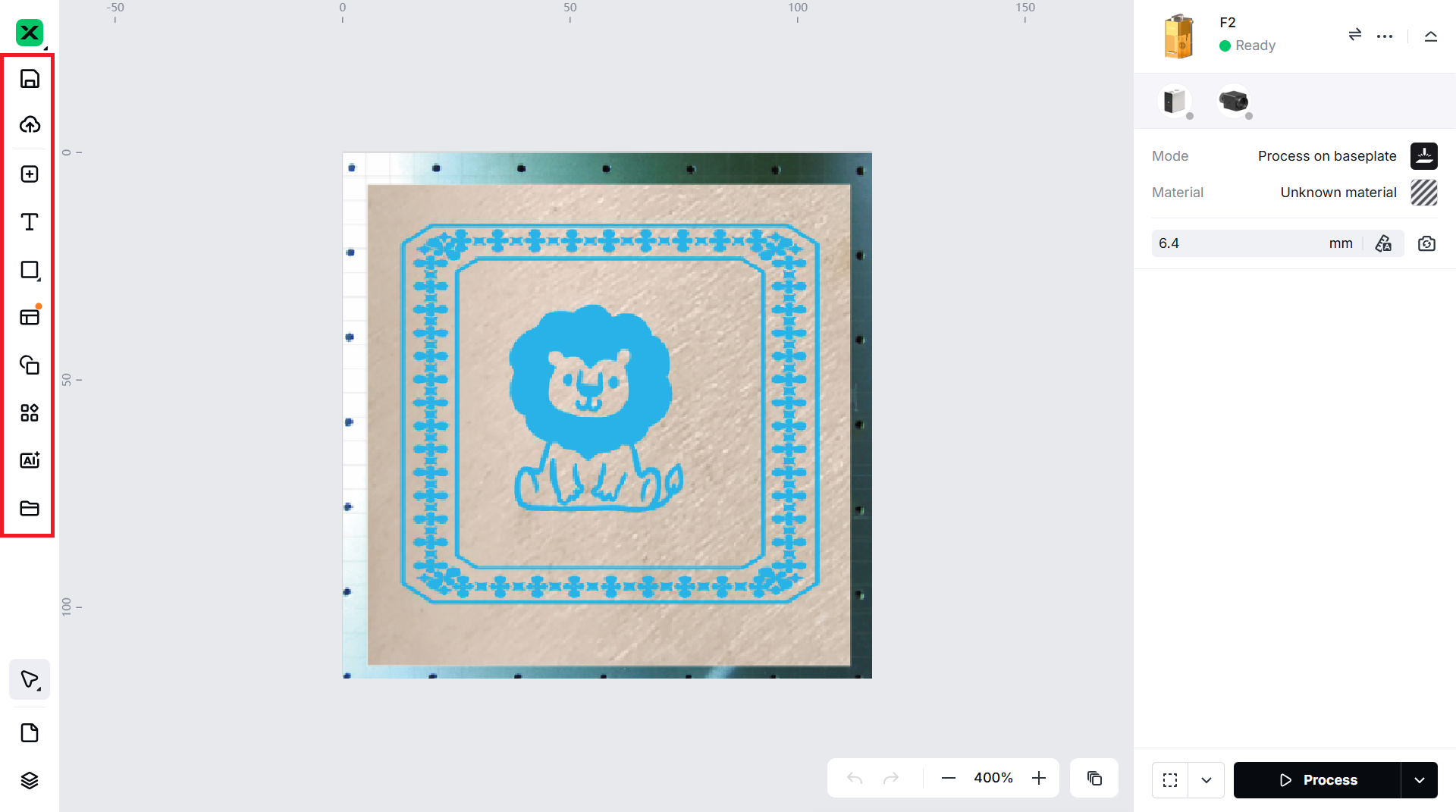
Note: You can import images, insert shapes, enter text, draw vector graphics, and so on.
(3) Select the objects to further edit them using the features on the upper bar.
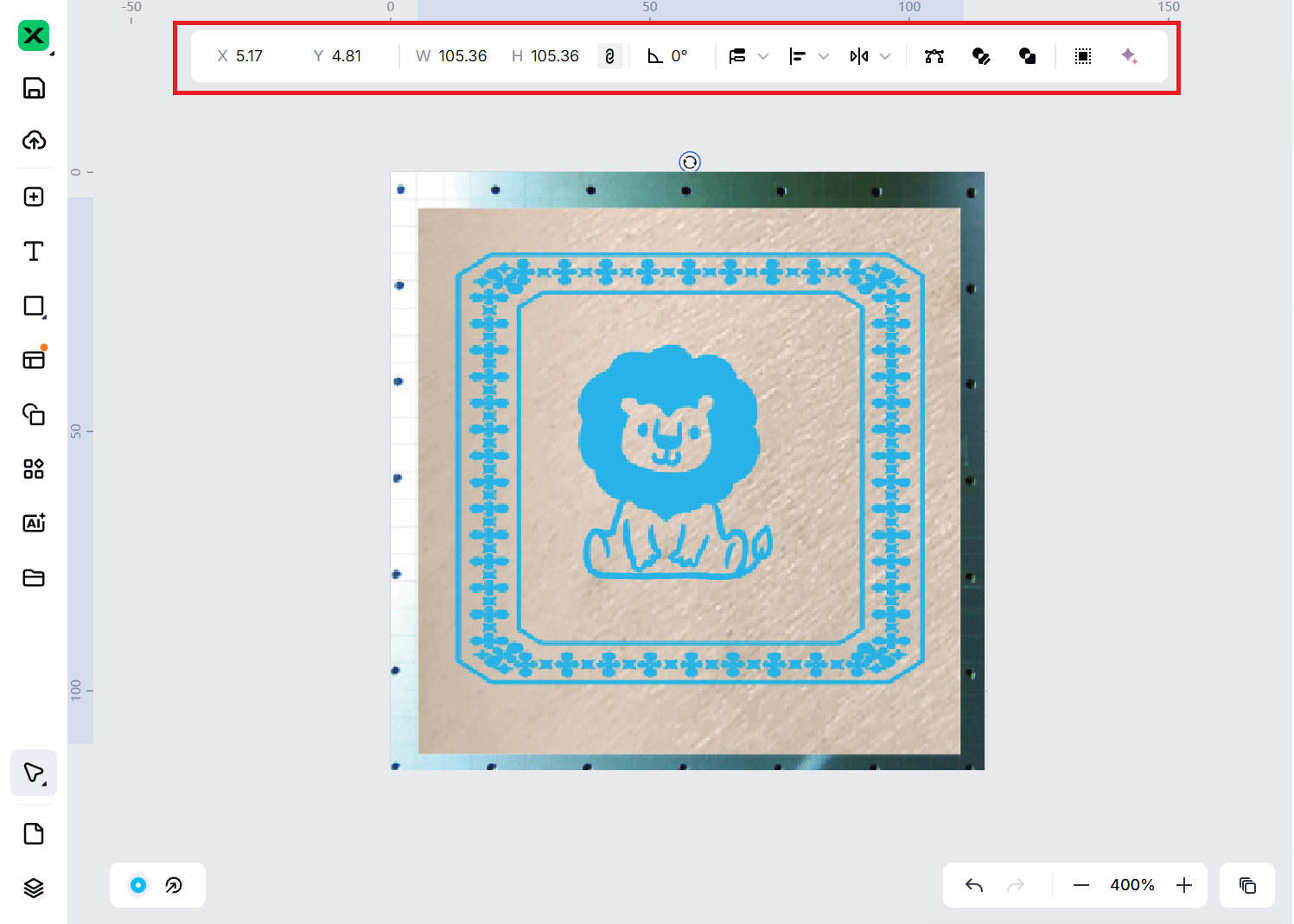
Note: For more information on how to use xTool Studio to design objects, see Software Learning Center.
5. Set the processing parameters
Select objects on the canvas and configure settings on the right panel.
Note:
You need to set parameters for every object. A missed object may fail to be processed.
The parameters that can be set for bitmap objects and vector objects are different. You can select multiple objects of the same type and set parameters for them at once.
Processing type
- Image - Engrave/C-engrave: Laser beams hit on the surface of the material to change the color of the surface. By creating different shades of color on the material surface, xTool F2 prints an image on the material.
- Vector - Score: Laser beams walk along the path of the vector graphic, drawing the vector on the material with lines.
- Vector - Engrave: Laser beams walk through the entire area enclosed by the vector path, engraving the vector on the material with monochromatic fillings.
- Vector - Cut: Laser beams cut the material along the path of the vector graphic.
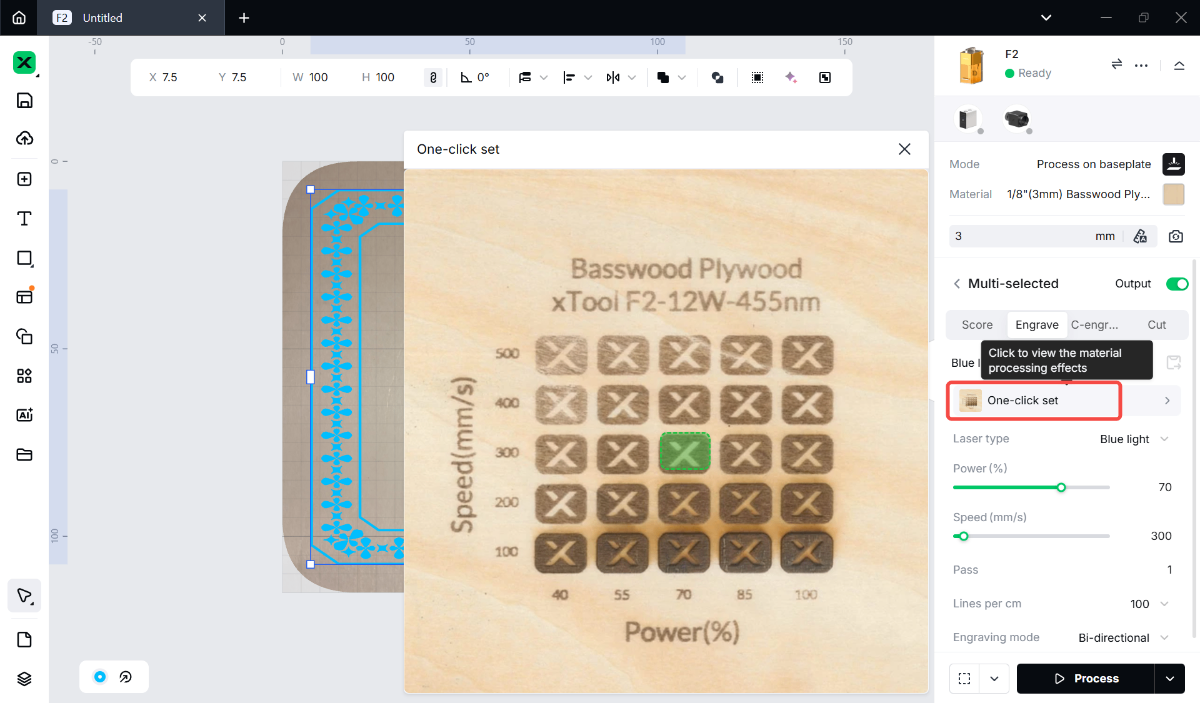
Setting
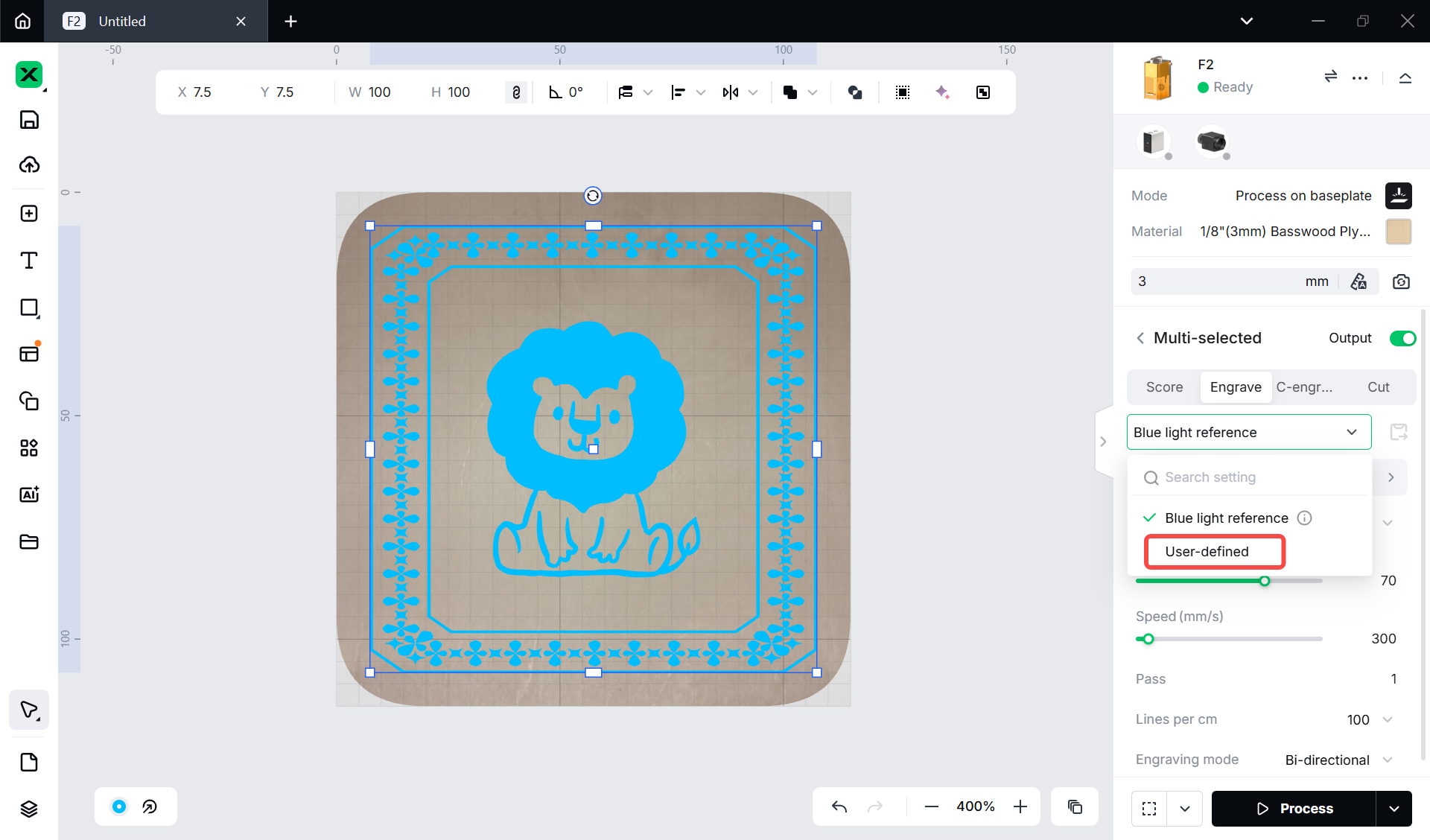
If you have saved settings for the same type of material before, you can use your saved settings.
If you want to manually set the parameters, select User-defined. Then, set the parameters below. After setting the parameters, you can click Save setting to save it for further use.
6. Set the processing path
On the bottom right side, set the processing path by clicking the  icon next to Process button.
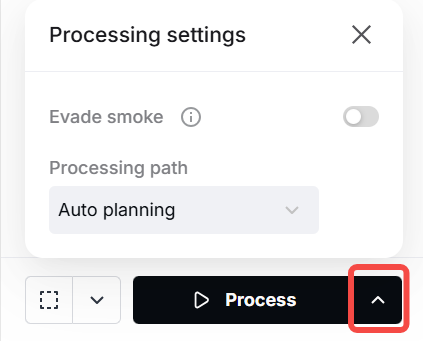
(1) Turn on or off the Evade smoke mode.
When this feature is enabled, the device follows a path less affected by the smoke to process the material.
(2) Set the Processing path.
- Auto planning: xTool Studio automatically plans the processing path based on intelligent algorithms.
- User defining: Manually set the processing paths for some objects.
7. Preview the processing area
You can preview the processing area on the material by framing. Framing means laser dots walk along the border of the processing objects on the material. Take the following steps to start framing:
(1) Click the icon  next to the Framing button
  to set the parameters for framing.
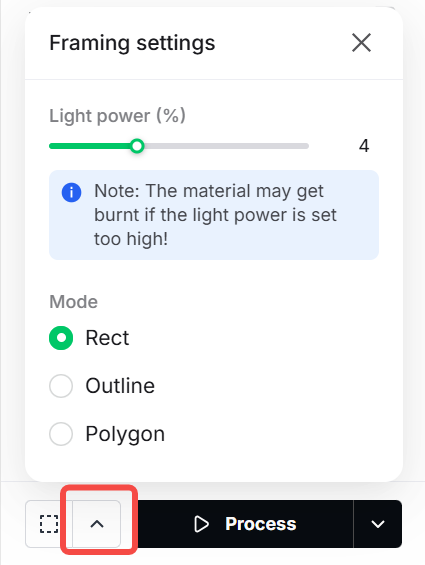
- Light power: Sets the laser power for framing.
- Mode:
In the Rect mode, laser dots walk along the rectangle border of the processing objects.
In the Outline mode, laser dots walk along the outline of the processing objects.
In the Polygon mode, laser dots walk along the polygonal path defined by the object's vertices.
(2) Click the Framing icon  in the software, the laser dots will move along the boundary of the processing objects on the material, allowing you to preview the processing area.
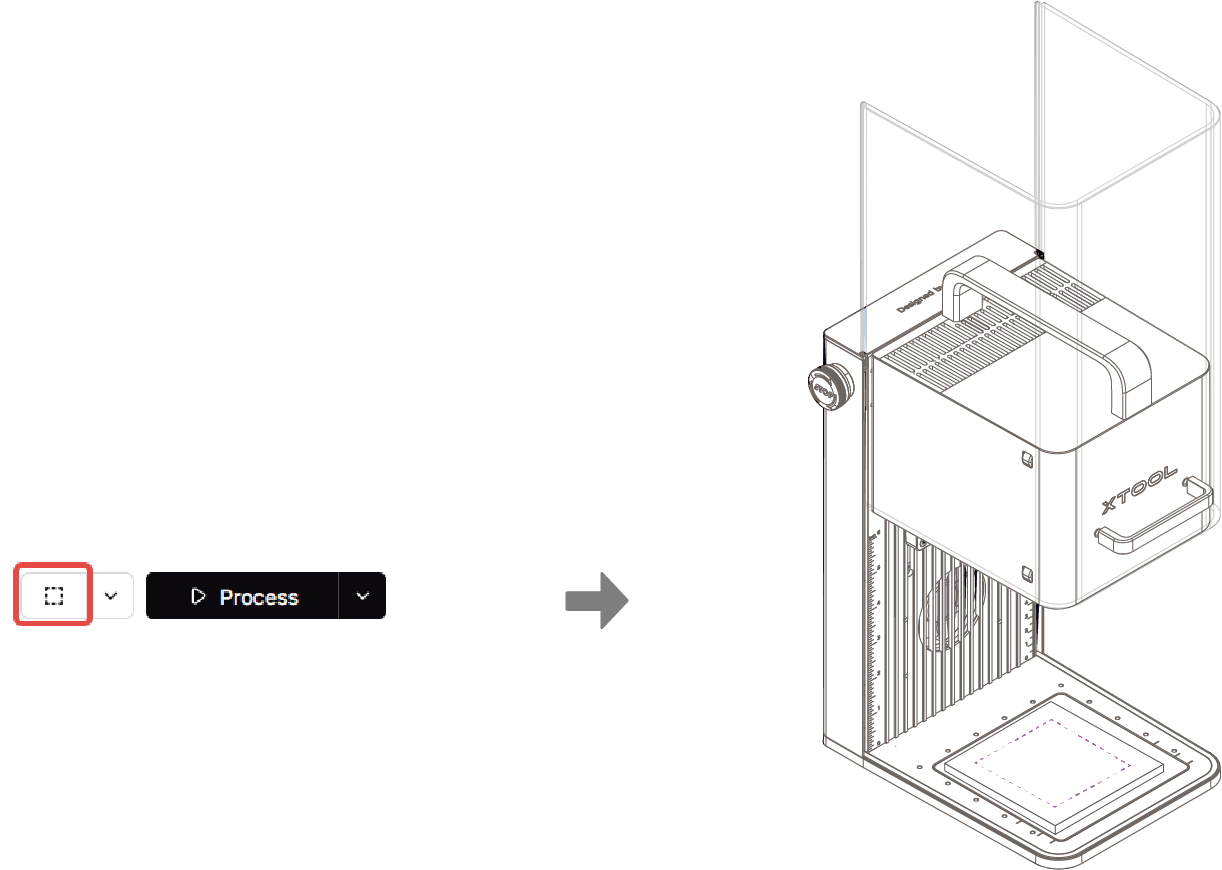
To stop framing, click the  button again.

8. Start processing
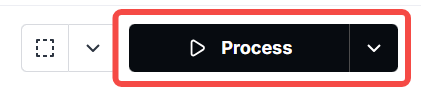
(1) In the bottom-right corner of the software, click Process.
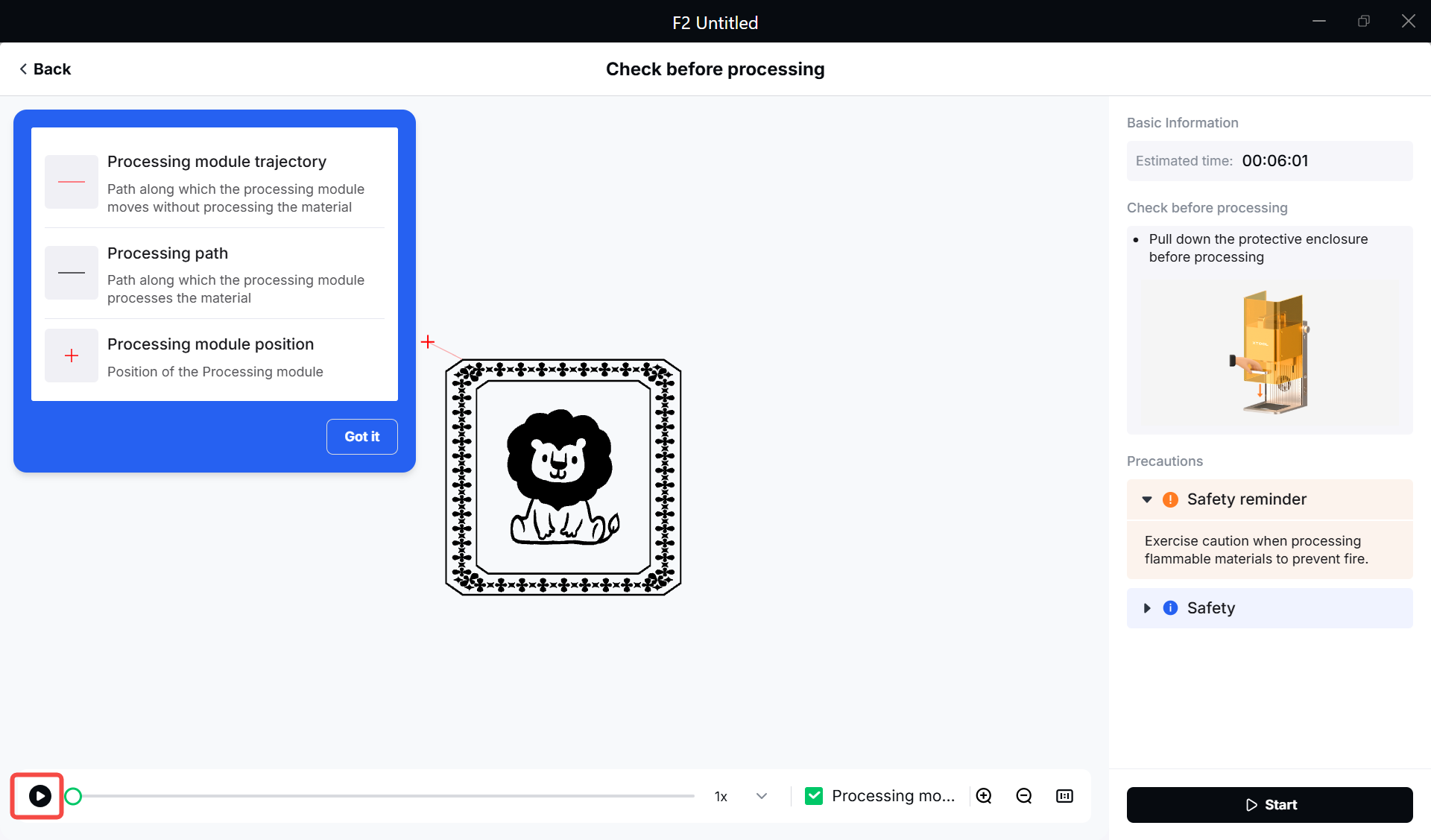
(2) Preview the processing pattern and path.
On the bottom-left corner, click the  button, and xTool Studio will show you the processing path.
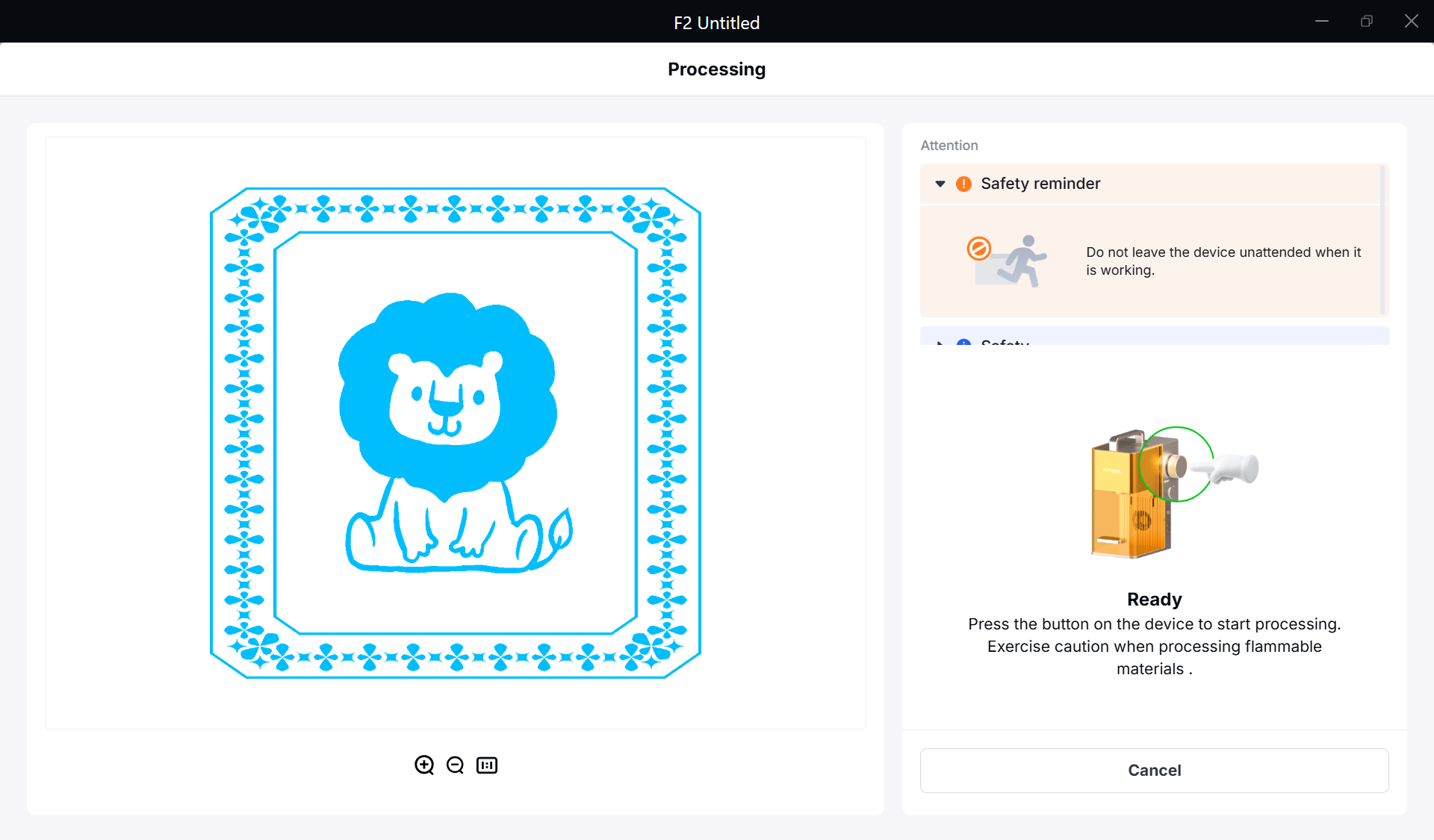
(3) Close the protective enclosure. In the bottom right corner of xTool Studio, click Start. When the software shows “Ready”, press the Start/Stop button on xTool F2 to start processing.

Services & Help
Learn & Education

Copyright © 2025 xTool All Rights Reserved.