Operate xTool Apparel Printer in xTool Studio
💡 Prerequisite: Before operating the printer with xTool Studio, ensure you have:
- Completed the initial hardware setup (refer to xTool Apparel Printer User Manual).
- Completed the beginner's guide on the printer's LCD control panel.
Download xTool Studio
Minimum & recommended PC requirements
Item | Minimum configuration | Recommended configuration |
Processor | Intel Core i5-6200U | Intel Core i5-11600 or higher |
Operating system | Win 10 (64-bit) macOS 11 (Big Sur) or later | |
RAM | 8 GB | 16 GB or larger |
Display resolution | 1280 × 720 (pixels) | 1920 × 1080 (pixels) or higher |
Hard drive | 8 GB | 12 GB or larger |
- Minimum Configuration: Supports all basic software functions. However, performance may lag when importing complex images (e.g., bitmaps larger than 50 million pixels or SVG files larger than 1 MB).
- Recommended Configuration: Ensures smoother performance, reduced latency, and better handling of complex image editing.
For more pertinent information on xTool Studio, visit: xTool Studio & Creative Space: Minimum and Recommended Specifications
Download and install the software
1. Download: Visit s.xtool.com/software and download the appropriate installer for your operating system.
2. Install: Double-click the downloaded installer file to initiate the installation process. Follow the on-screen instructions.
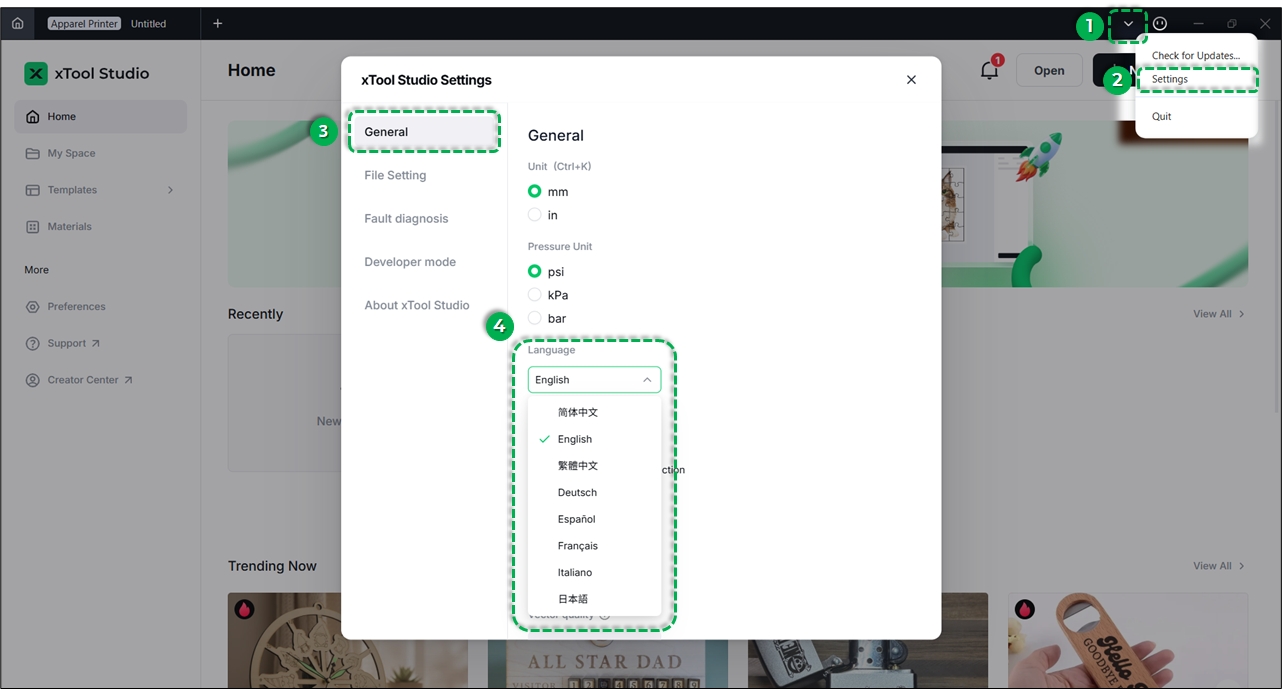
3. Launch & Configure:
- Once installation is complete, launch xTool Studio.
- Click the down arrow icon
 in the top-right corner.
 - Select Settings to set your preferred display language.
Connect xTool Apparel Printer
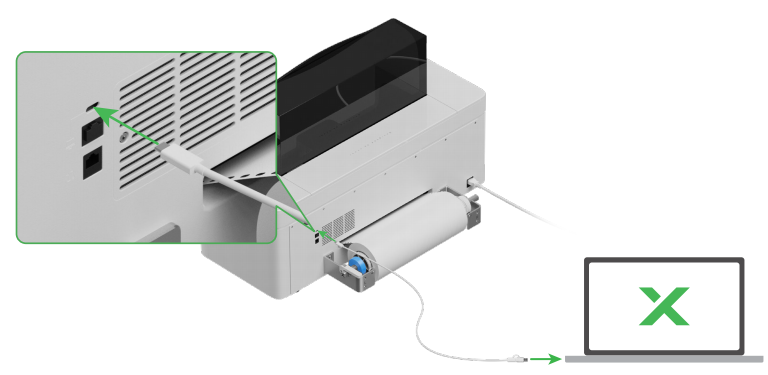
1. Connect your printer to your computer via USB.
2. In the top-right corner of the software, click + New project.
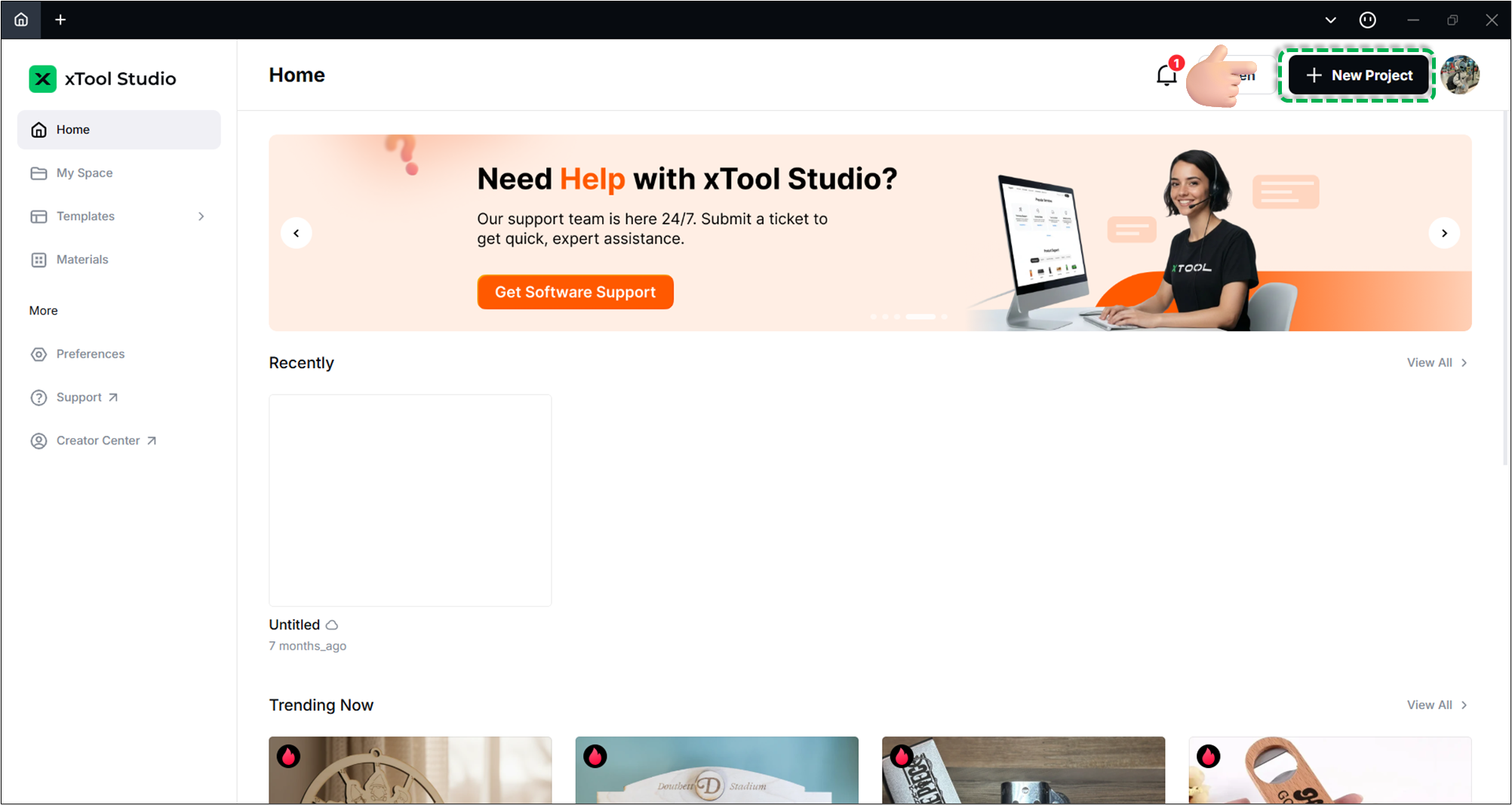
3. Watch the following video to learn how to connect the device to the software.
4. Ensure your device is connected successfully.
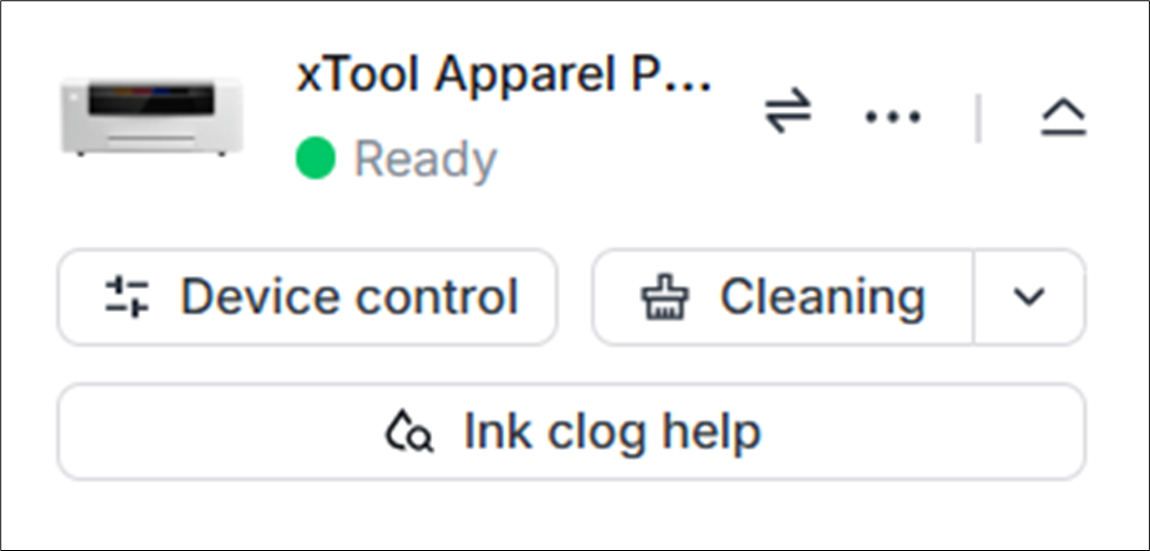
First-time calibration
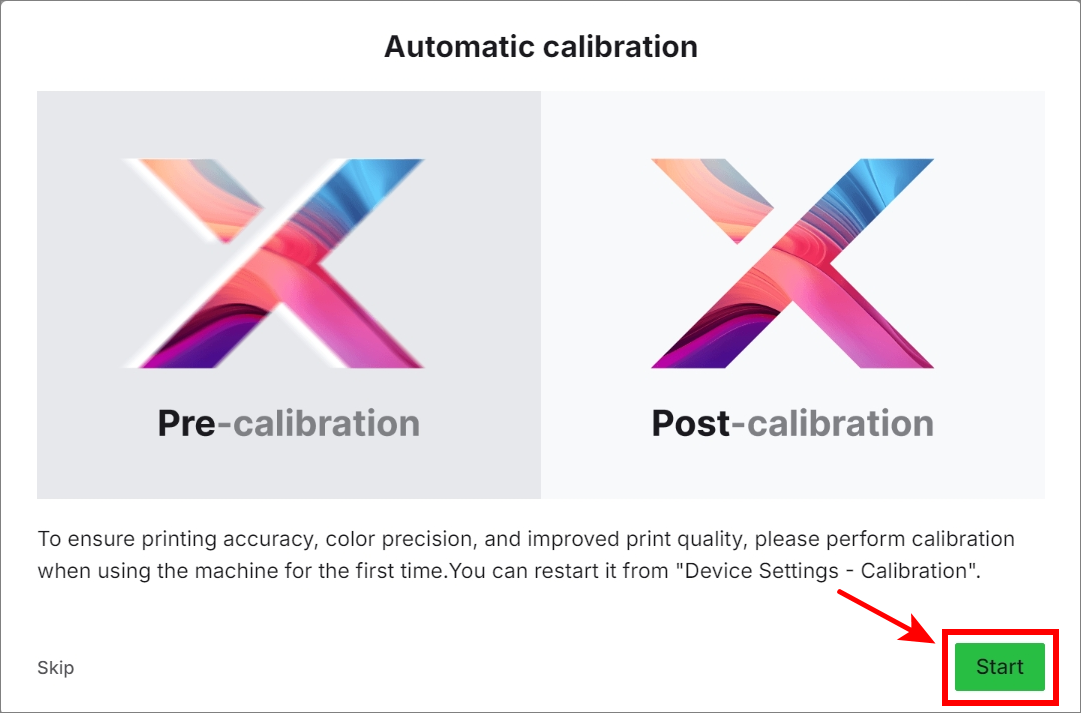
After connecting the printer to xTool Studio for the first time, you must perform calibration before use:
1. On the pop-up window displayed as below, click Start to start calibration.
2. Close the printer lid and click Next .
⚠️ Warning: DO NOT open the lid or disconnect the software during the calibration.
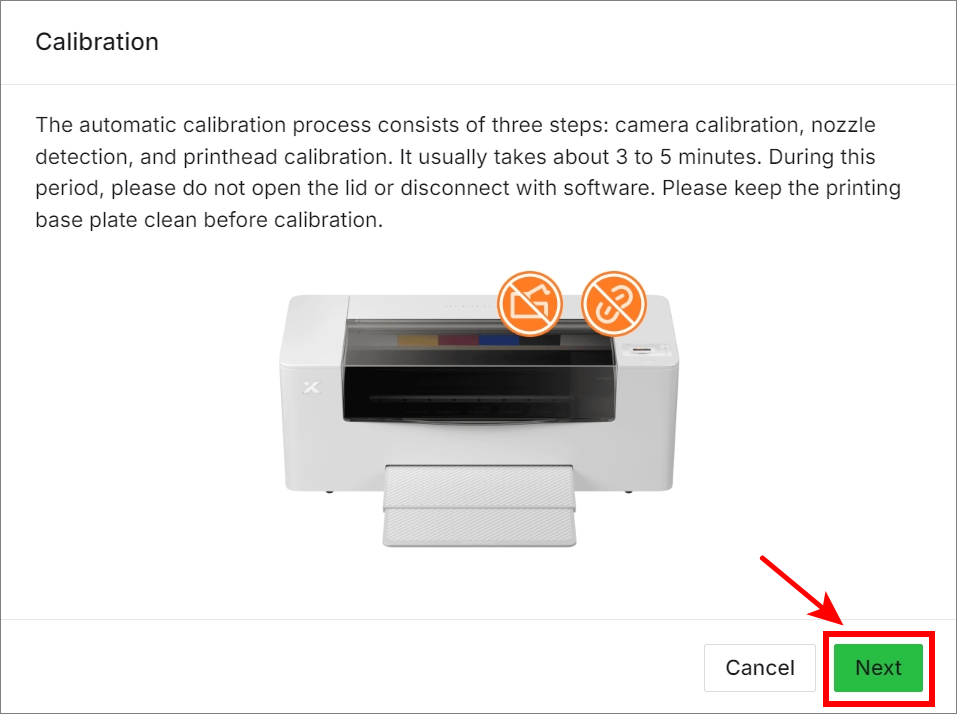
3. Wait for the device to complete the three calibration steps: camera calibration, nozzle detection, and printhead calibration.
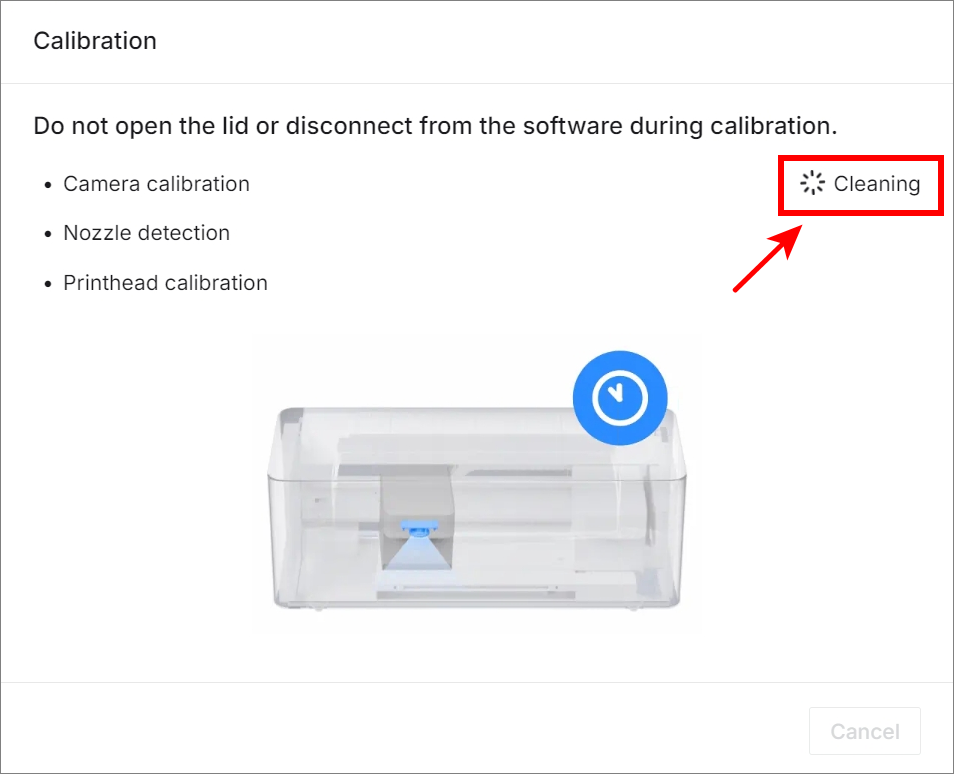

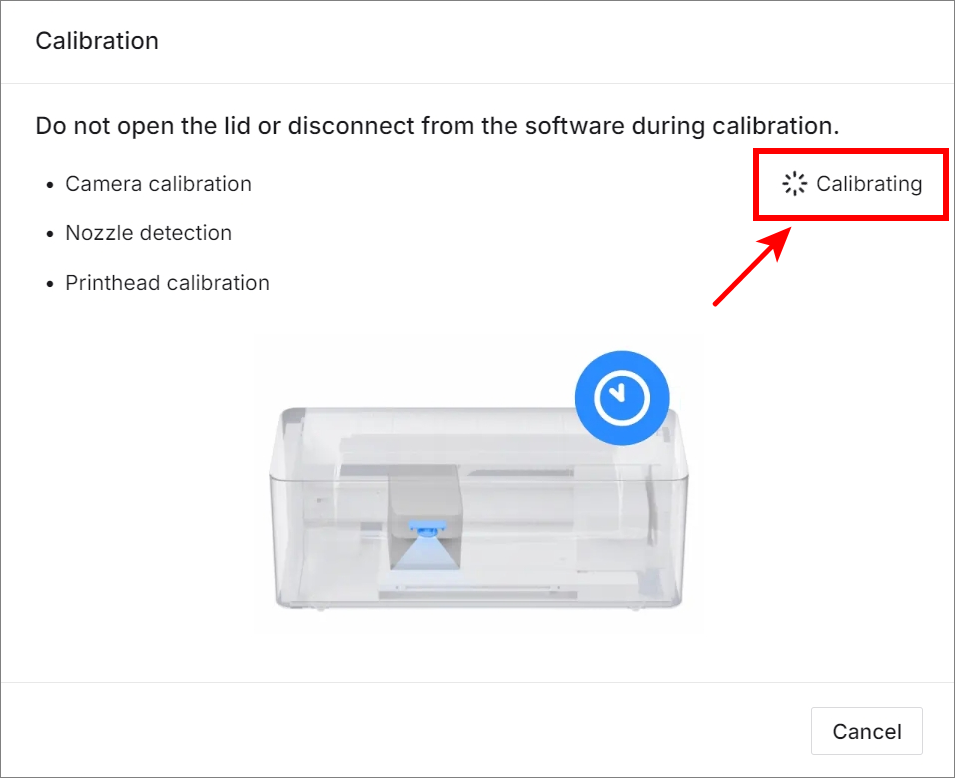

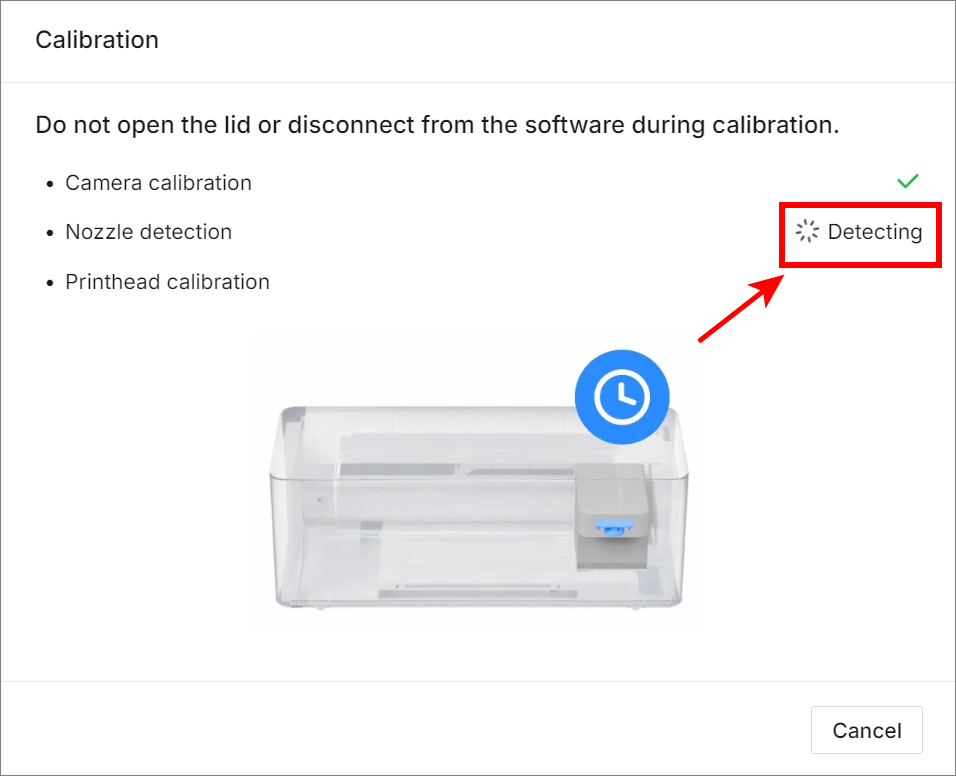

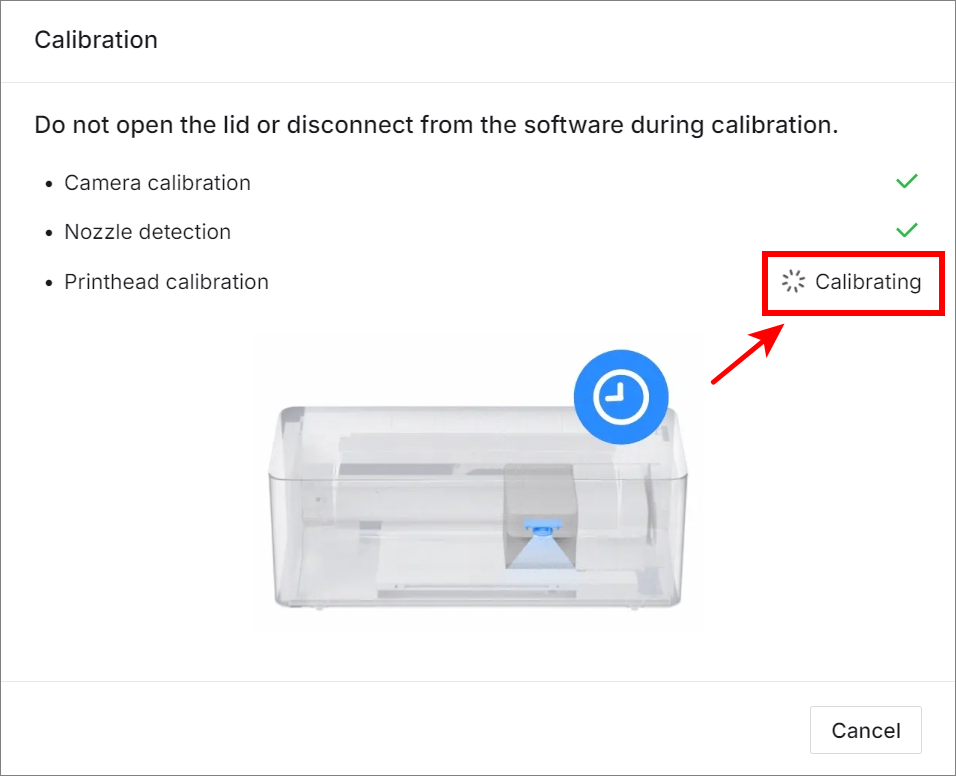
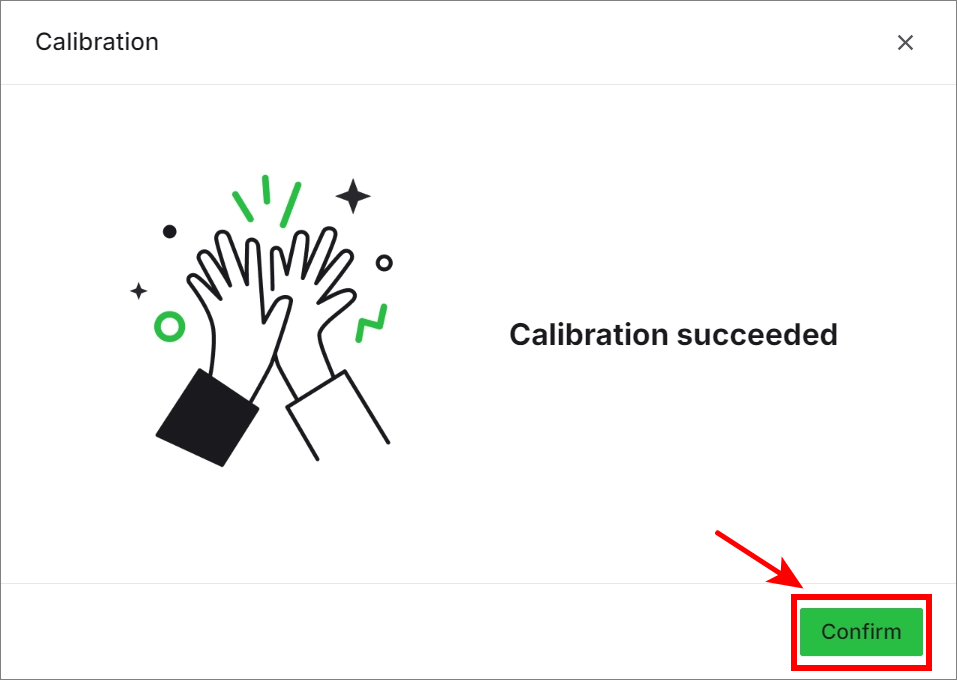
4. Once all steps are finished, click Confirm.
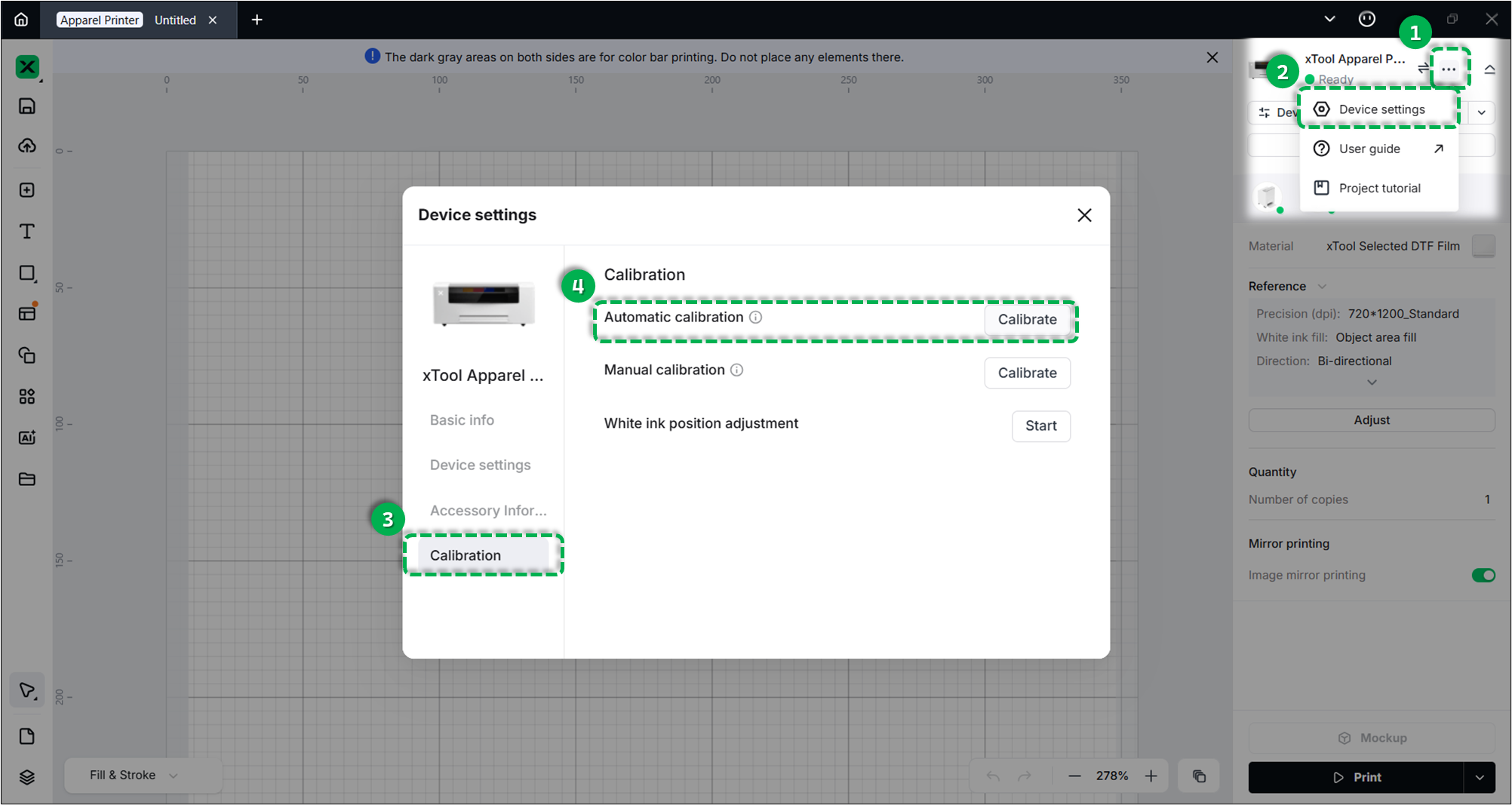
💡 Note: If you skipped the initial calibration accidentally, you can manually trigger the calibration later:
- Click the three dots icon next to the device image in the top-right corner.
- In the Calibration tab of the Device settings pop-up window, click the Calibrate button near the Automatic calibration.
Set up xTool Apparel Printer in the software
For detailed configuration settings, please refer to Set up xTool Apparel Printer in xTool Studio
Start a project
1. Design a processing object
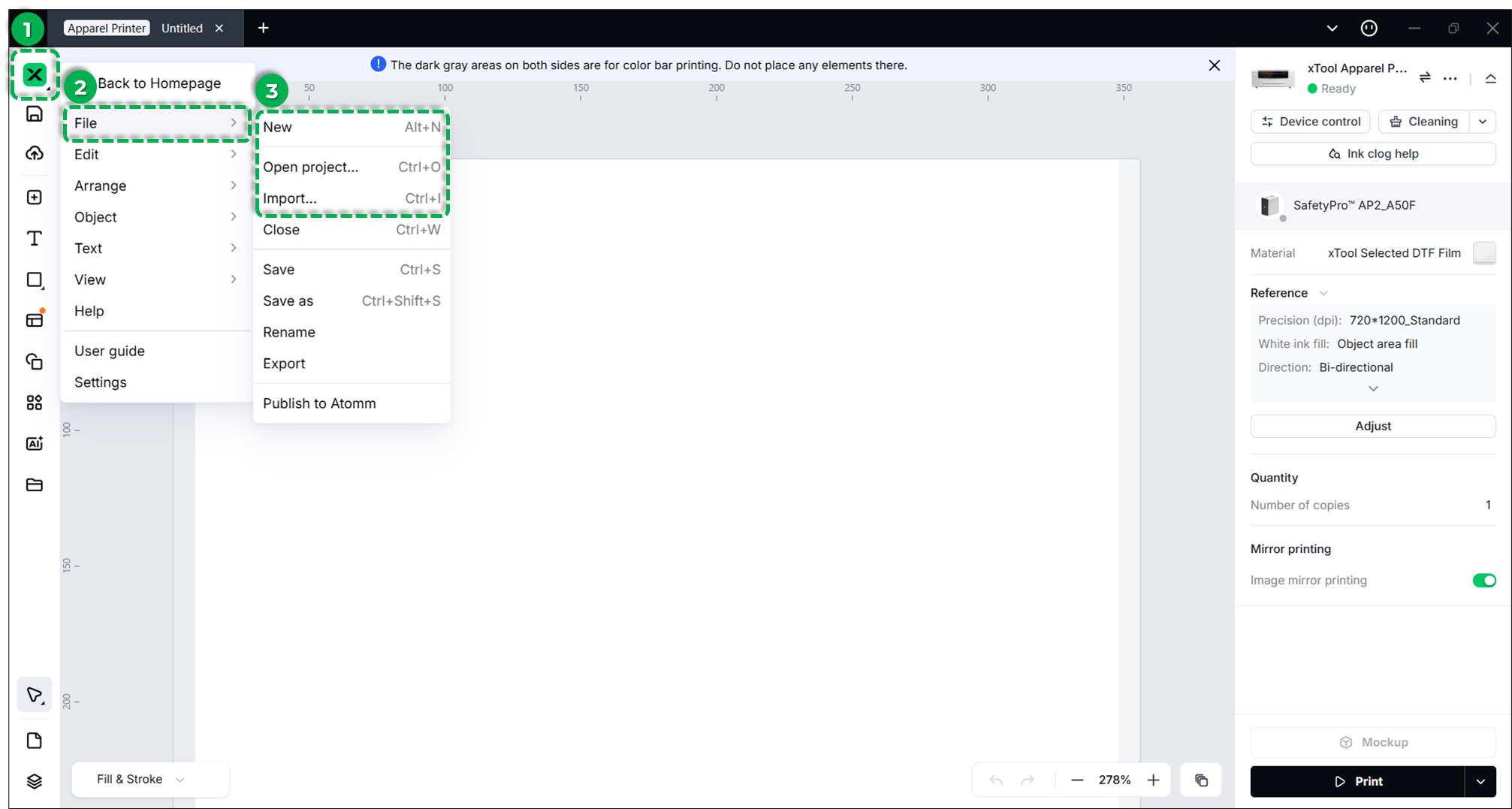
Click the X icon in the top-left corner and select:
- File > New: To create a blank canvas.
- File > Import Image: To bring in an existing design file.
2. Edit designs & set parameters
The default settings are optimized for xTool Selected DTF film. You may adjust these based on your specific material needs.
(1) Select & Configure: Click on your design object on the canvas. Use the drop-down menu to set the processing parameters.
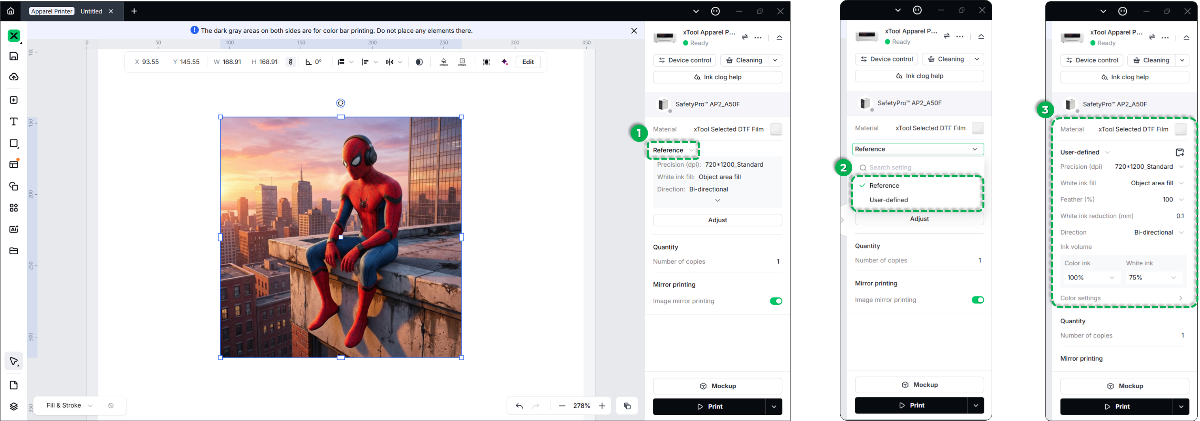
(2) Edit: After selecting your design, use the toolbar at the top to edit your design.
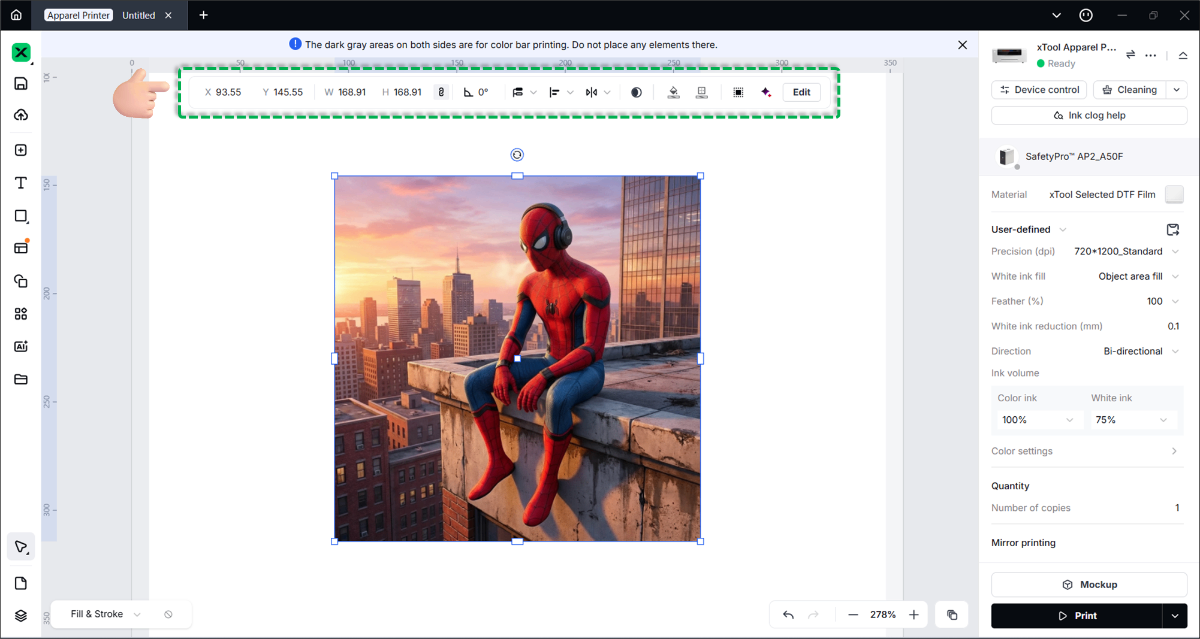
To learn more details, watch the video:
💡 Important: You must set parameters for every object on the canvas. Any object without assigned parameters may fail to print.
- Parameters differ for bitmap images vs. vector objects.
- You can select multiple objects of the same type to apply settings simultaneously.
3. Preview a mockup
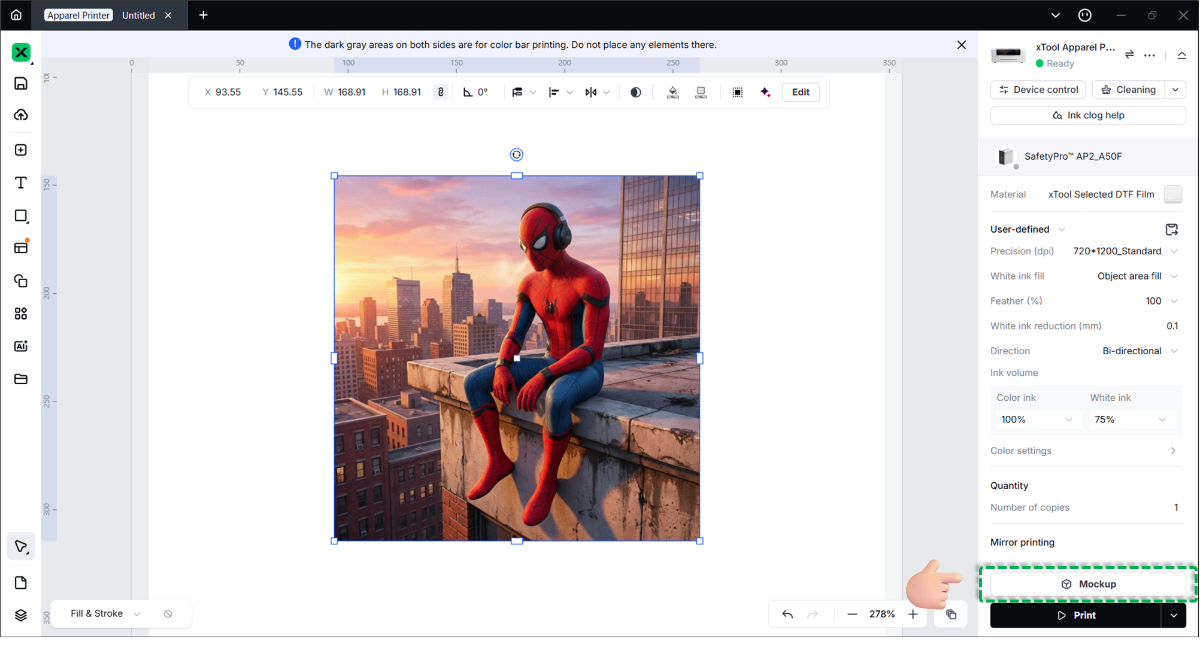
(1) Click Mockup in the bottom-right corner to enter the mockup pop-up window.
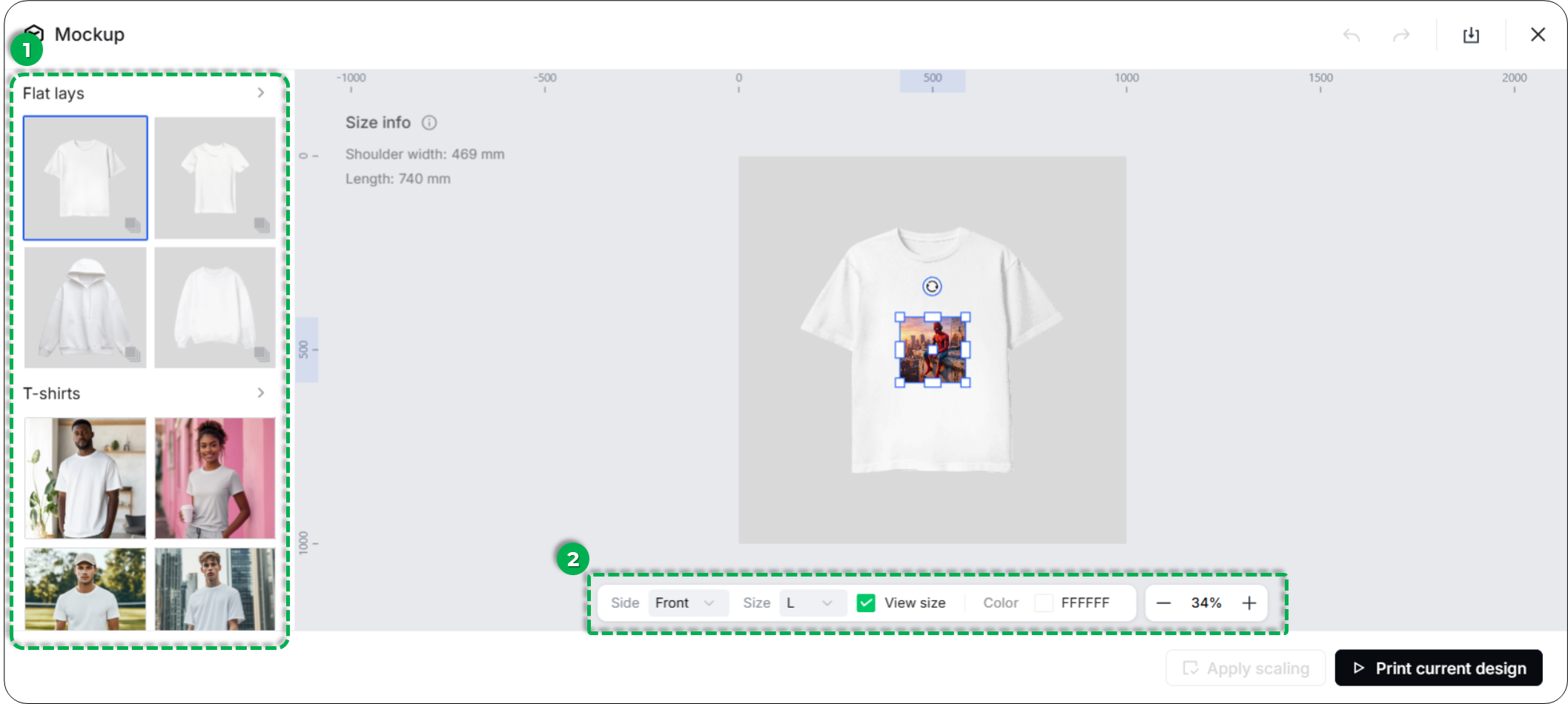
(2) Configure the mockup settings:
① Left Panel: Select the type of garment (e.g., T-shirt, Hoodie).
② Bottom Tools: Specify the print location (Front/Back), size, and color of the garment.
③ Click Apply scaling to finalize the settings.
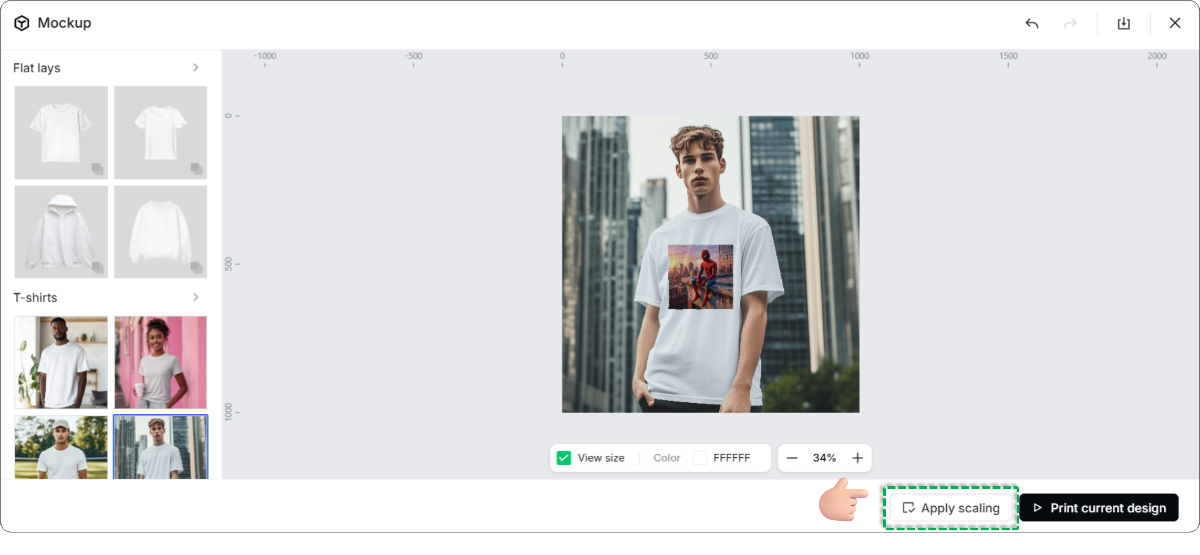
④ Click Print current design to proceed.
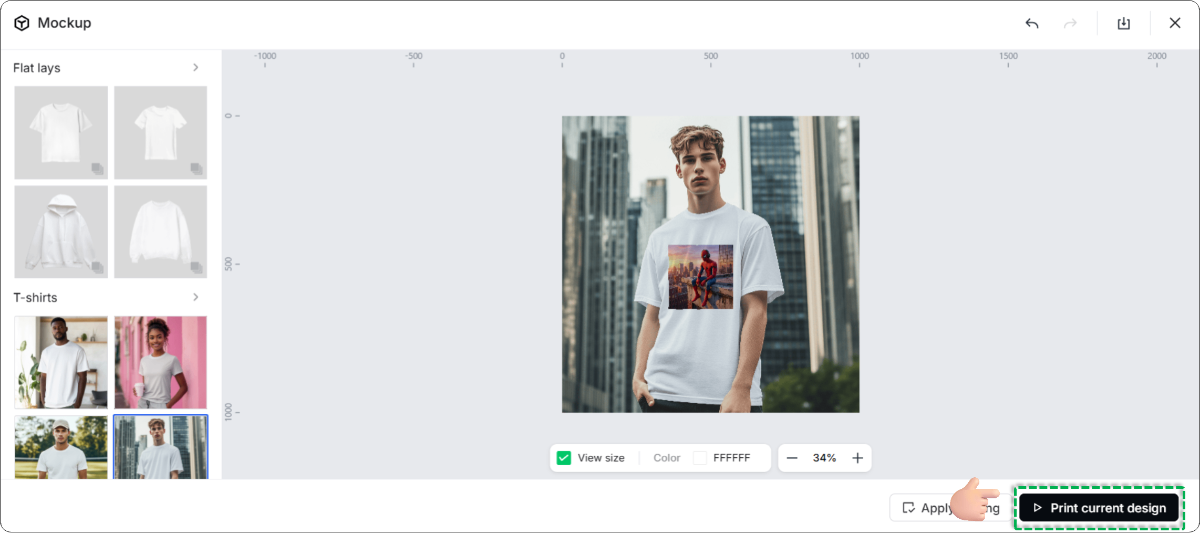
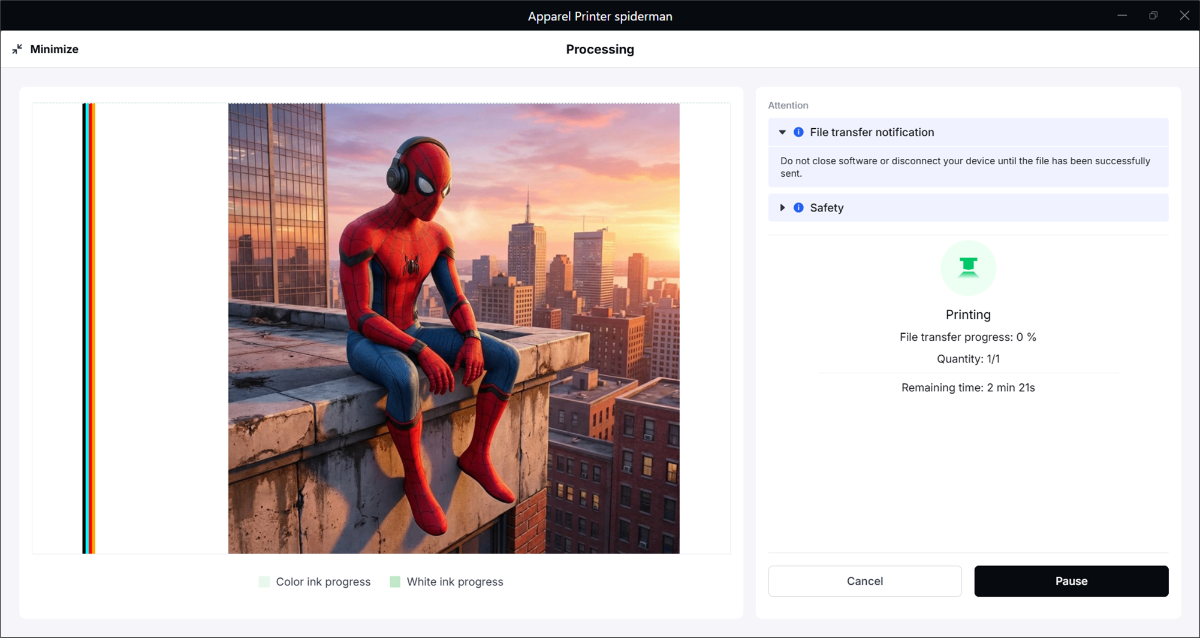
3. Start processing
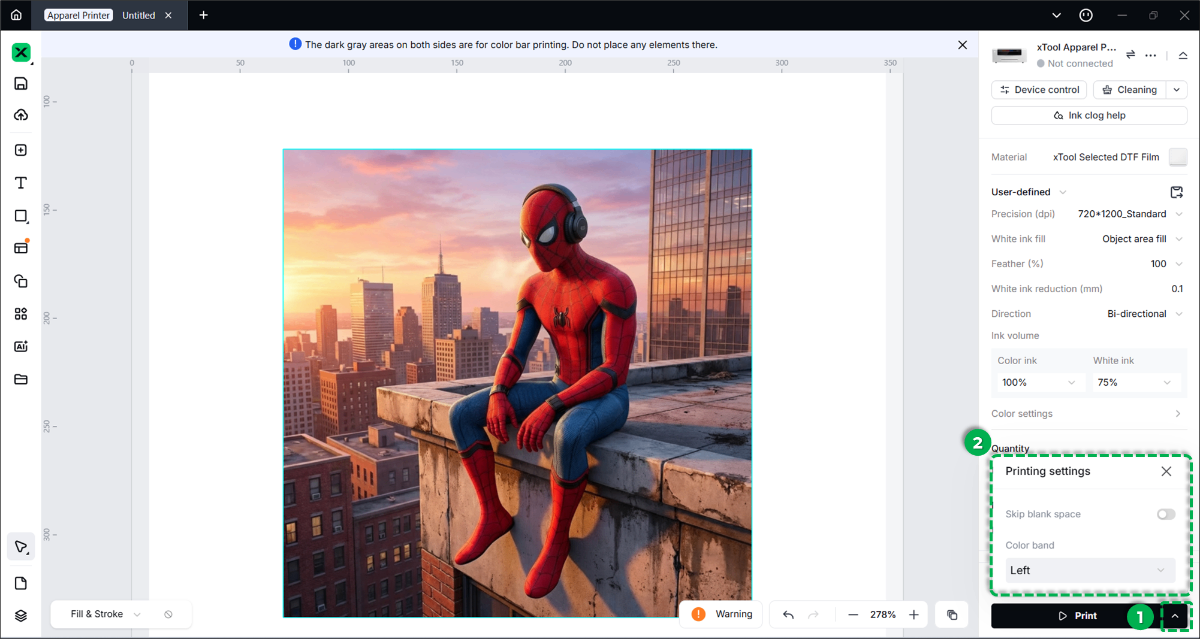
(1) Print Settings: Return to the canvas. Click the three dots icon next to the Print button in the bottom-right corner to adjust advanced printing settings if needed.
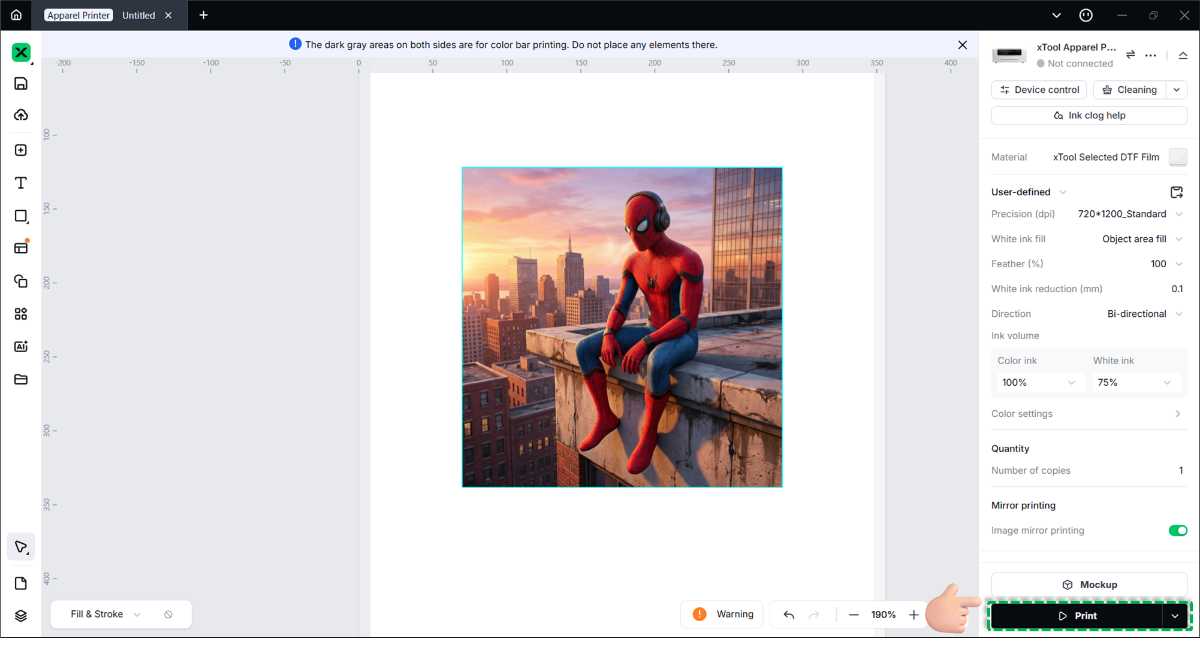
(2) Preview: Click Print to enter the final preview page. Verify the printing information displayed on the right.
(3) Start: Click Print in the bottom-right corner to begin the job.
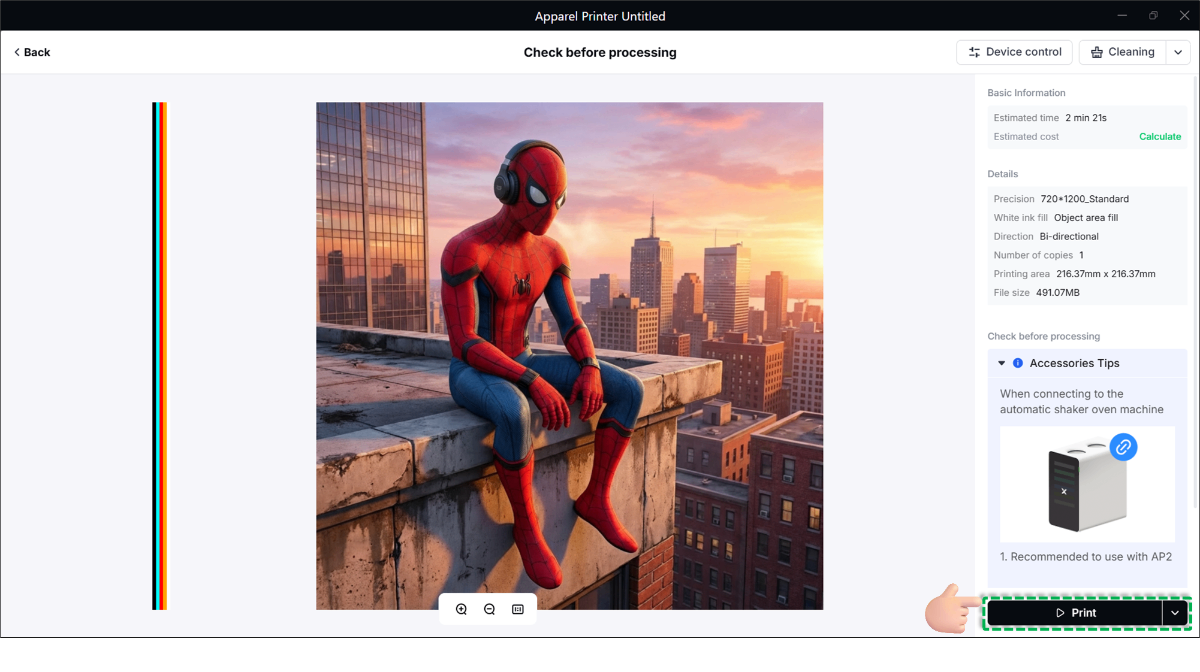
Next to the Print button, two options for you to set:
- Export printing file (.prx): Saves the processed file locally. You can store this on a USB flash drive or in "My Space" for direct processing later without re-slicing.
- Upload before print: The software fully uploads the file to the printer before printing begins. Use this option to prevent interruptions caused by unstable Wi-Fi or network conditions.
Finish: Wait for the printing to complete and retrieve the processed film from the printer.