
After performing the first-time calibration during your device setup phase, you can verify status information and configure specific settings for your xTool Apparel Printer within the software.
To access the settings menu, click the three dots icon next to the device image in the top-right corner of the software and select Device settings.
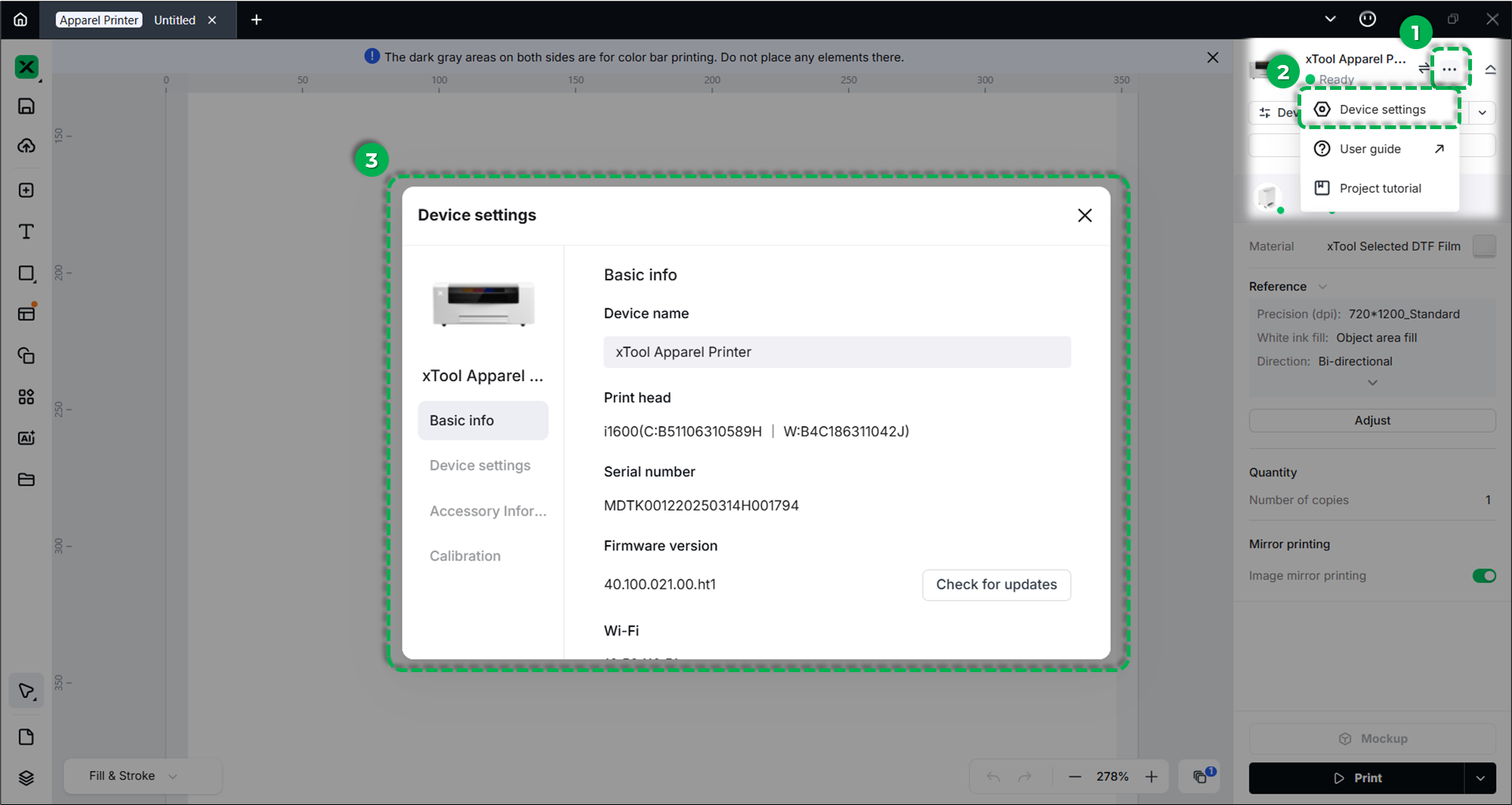
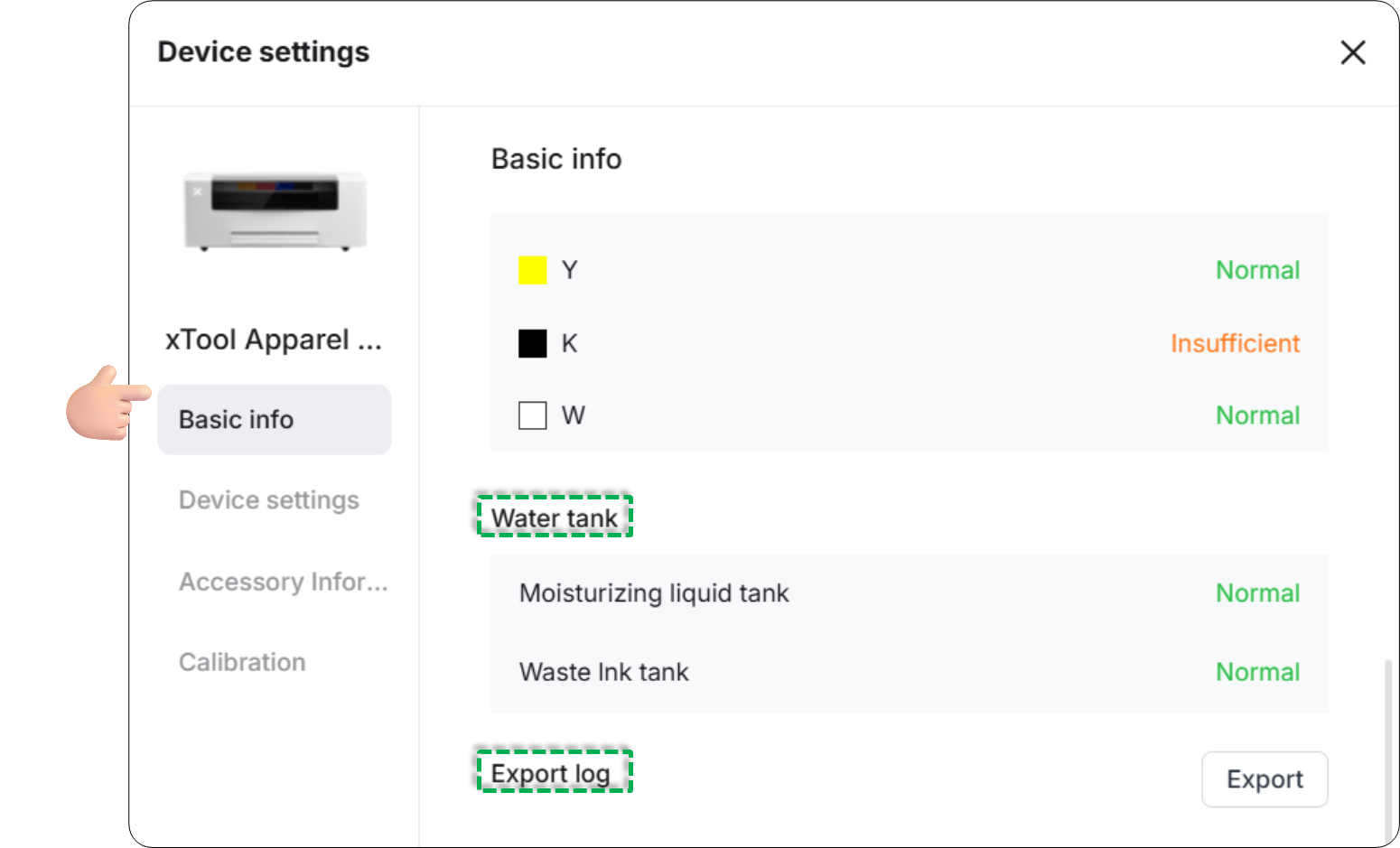
Basic info
The Basic info tab displays real-time status and hardware details of your printer.
- Device name: Displays the current name of the printer. Click the name to rename it.
- Print head: Displays the model of the installed print head.
- Serial number: Displays the unique serial number (SN) of your device.
- Firmware version: Shows the current firmware version. Click Check for updates to upgrade to the latest version if available.
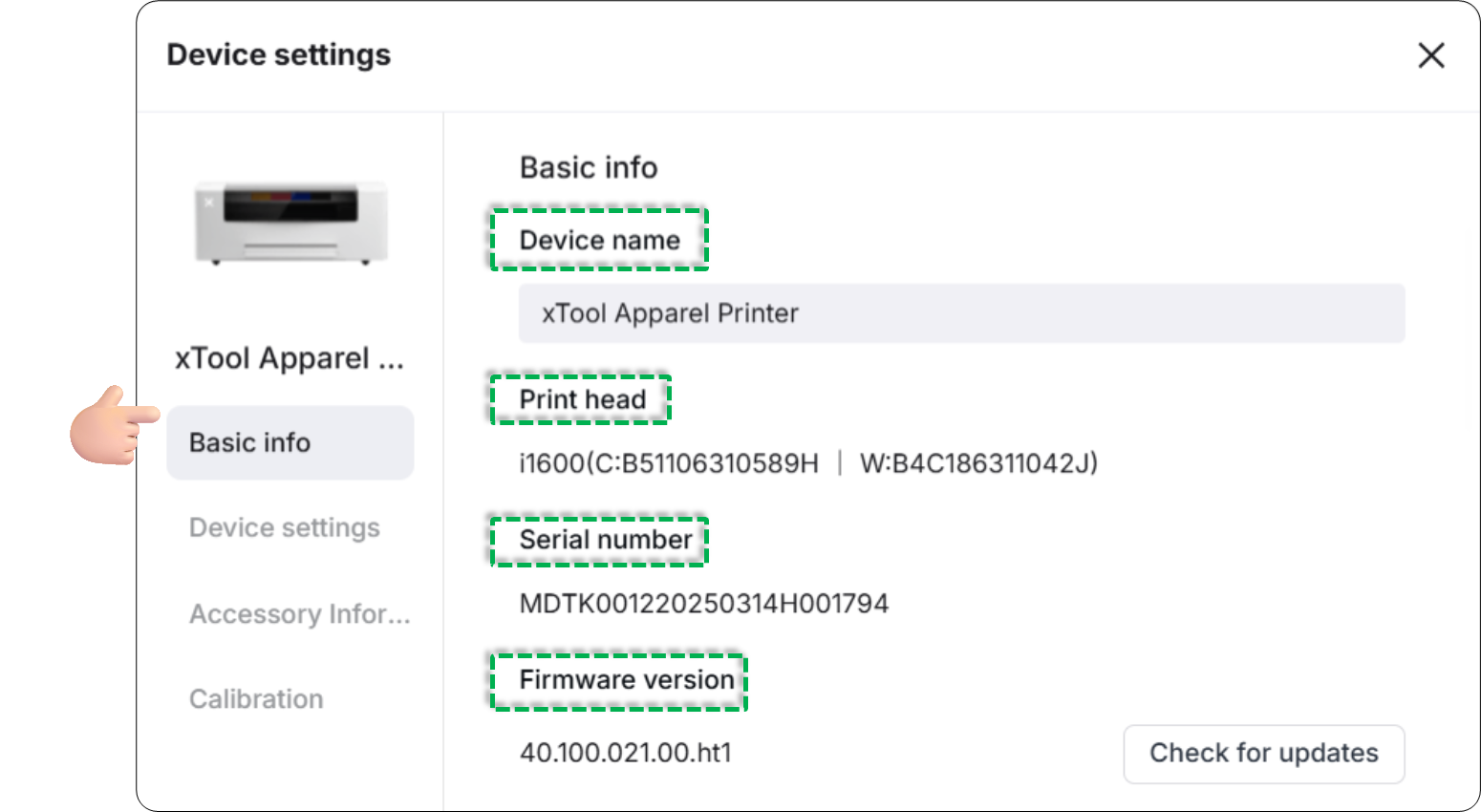
- Wi-Fi: Displays the IP address of the connected Wi-Fi network.
- Plug-in version: Shows the current software plug-in version. Keeping this updated ensures optimized processing workflows (Refer to How to Update xTool Creative Space Plug-In for details).
- Working time: Total time the device has spent processing jobs.
- Operating times: Total number of jobs processed.
- Running time: Total time the device has been powered on.
- Temperature: Internal temperature of the device.
- Humidity: Internal humidity of the device.
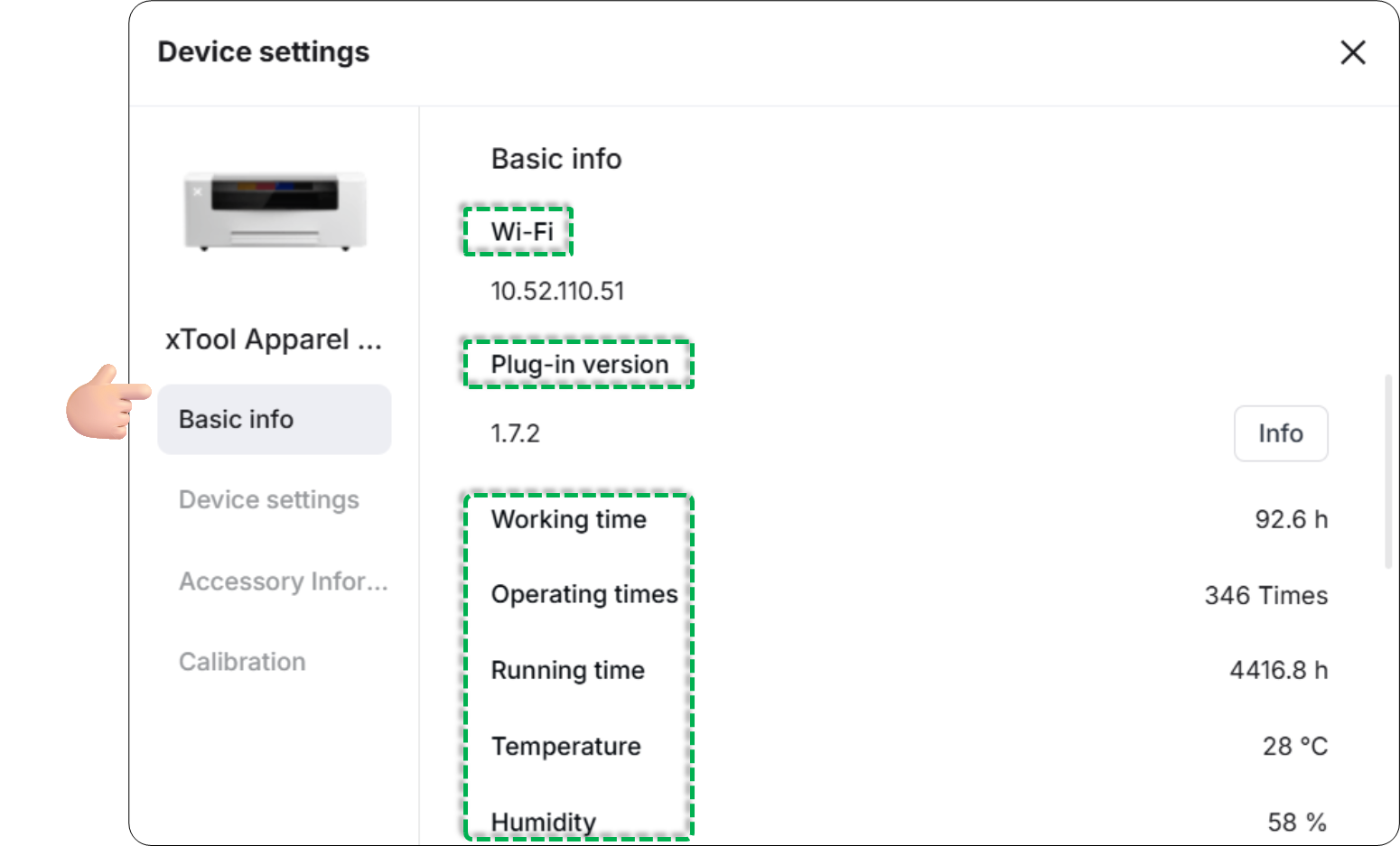
- Cutting count: Tracks the total number of cuts performed by the blade of the printer.
- Ink volume: Indicates current ink levels. If the status shows "Insufficient," refill the corresponding ink tank immediately.
- Water tank: Monitors liquid levels.
- Moisturizing liquid: If insufficient, refill the container immediately.
- Waste ink tank: If full, empty the waste ink tank immediately.
- Export log: Click Export to save the device's work log for troubleshooting or support purposes.
Device settings
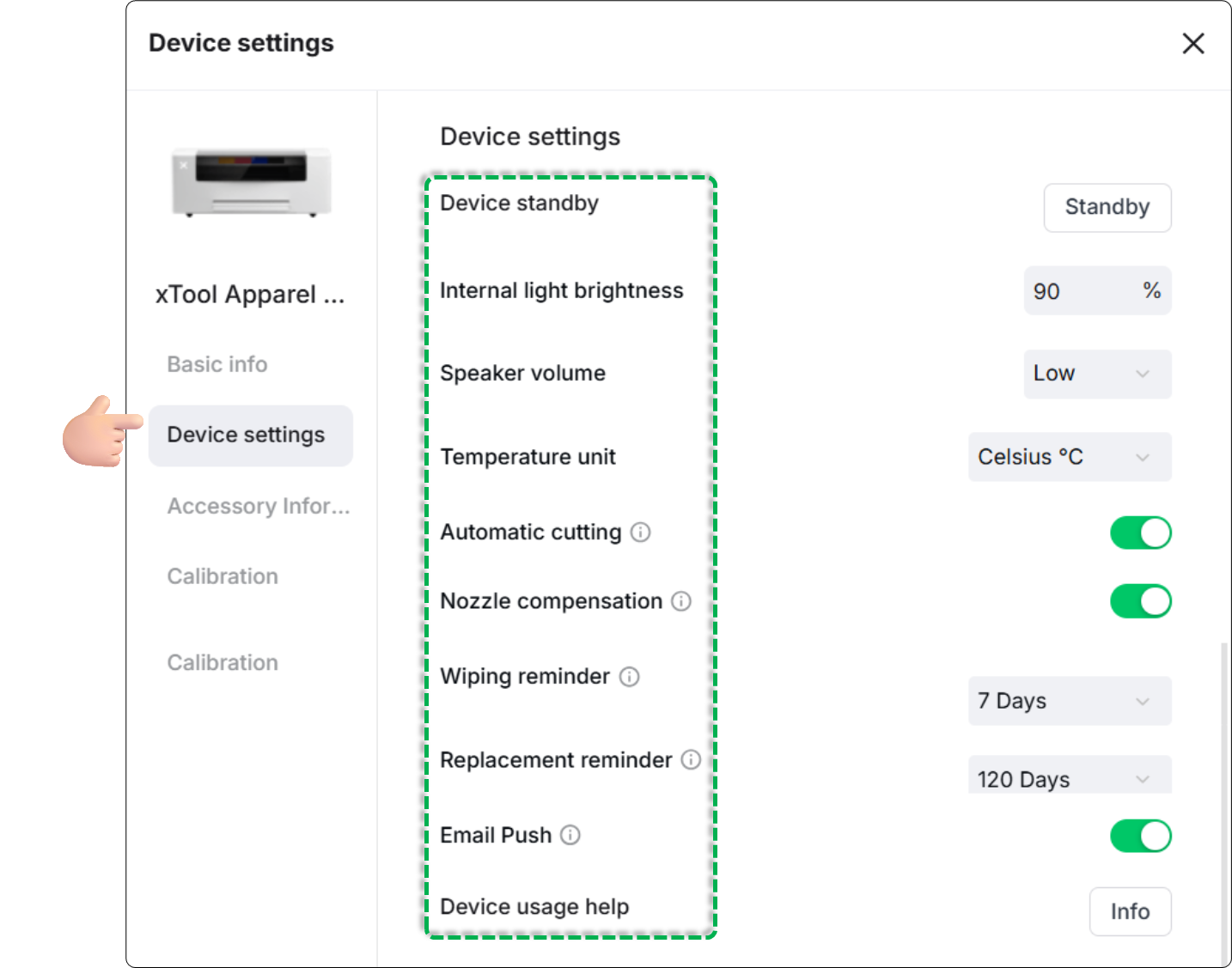
The Device settings tab allows you to customize operational parameters and maintenance reminders.
- Internal light brightness: Adjusts the intensity of the LED lighting in the processing area.
- Speaker volume: Sets the volume for device alerts and sounds. (Default: Medium)
- Temperature unit: Selects the temperature display between Celsius (°C) and Fahrenheit (°F). (Default: Celsius °C)
- Automatic cutting:
- Enabled (Default): The printer automatically cuts the film after printing is complete.
- Note: If the printer is connected to an xTool OS1 Shaker Oven, the film will be cut automatically regardless of this setting.
- Nozzle compensation: Toggles the switch of this feature on if a specific nozzle is clogged or malfunctioning. The software will adjust the inkjet algorithm to use adjacent nozzles, compensating for the missing dots to maintain print quality.
- Wiping reminder: Sets the interval for reminders to clean the print head and nozzles. (Default: 7 days)
- Replacement reminder: Sets the interval for reminders to replace consumable parts, such as the ink damper. (Default: 120 days)
- Email push: Toggles the switch on for real-time monitoring. When enabled, the software will alert you to exceptions such as low ink volume or insufficient film length. (Default: Enable)
- Device usage help: Click Info to access the link to xTool Support Center for comprehensive technical documentation, including starter guides, maintenance guides, troubleshooting instructions, and more.
Accessory information
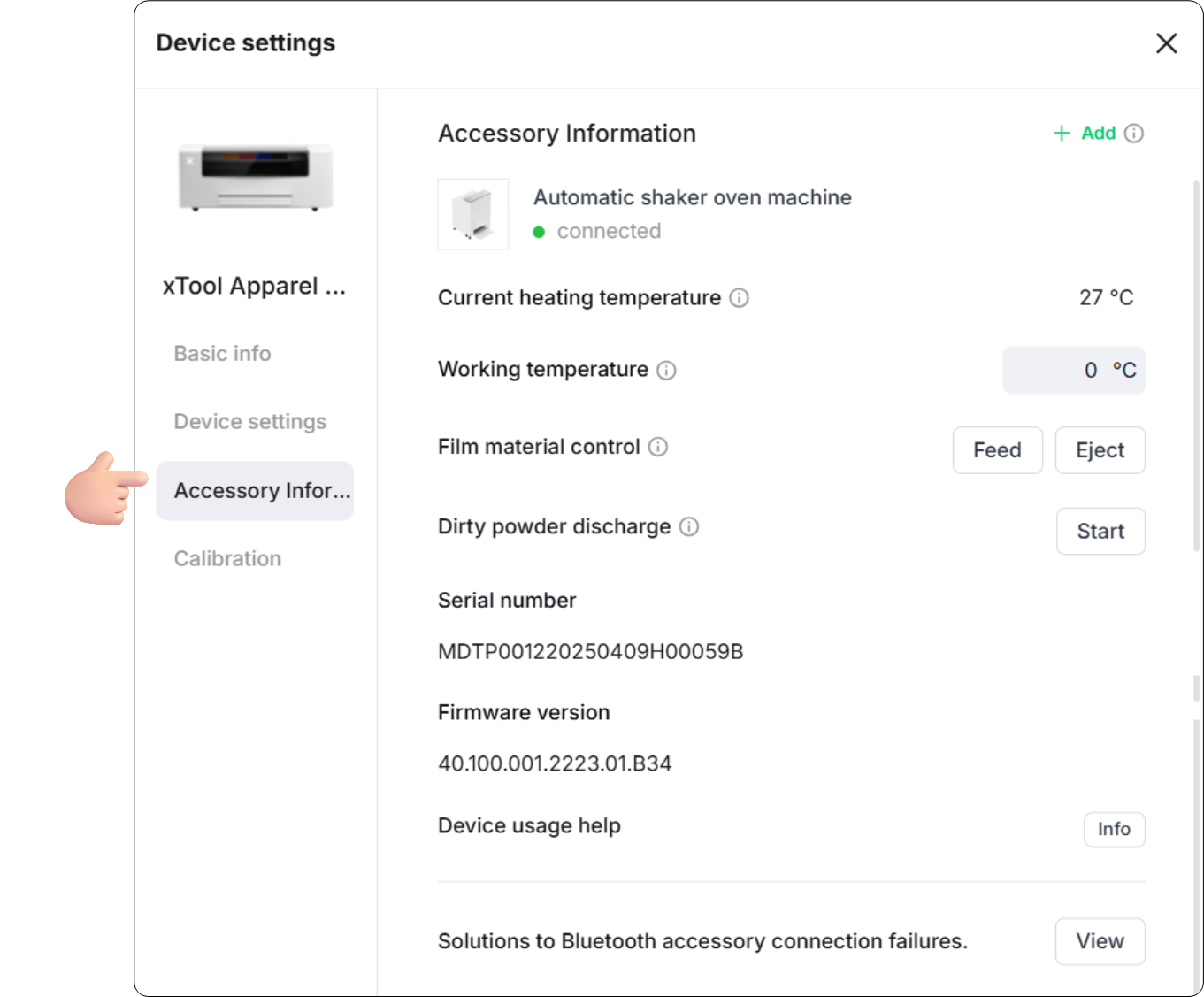
The Accessory information tab manages external devices connected to the printer.
- Accessory List: Displays currently connected accessories. Click +Add to pair new accessories.
- Bluetooth connection troubleshooting: Provides diagnostic instructions and solutions for Bluetooth connection failures.
Calibration
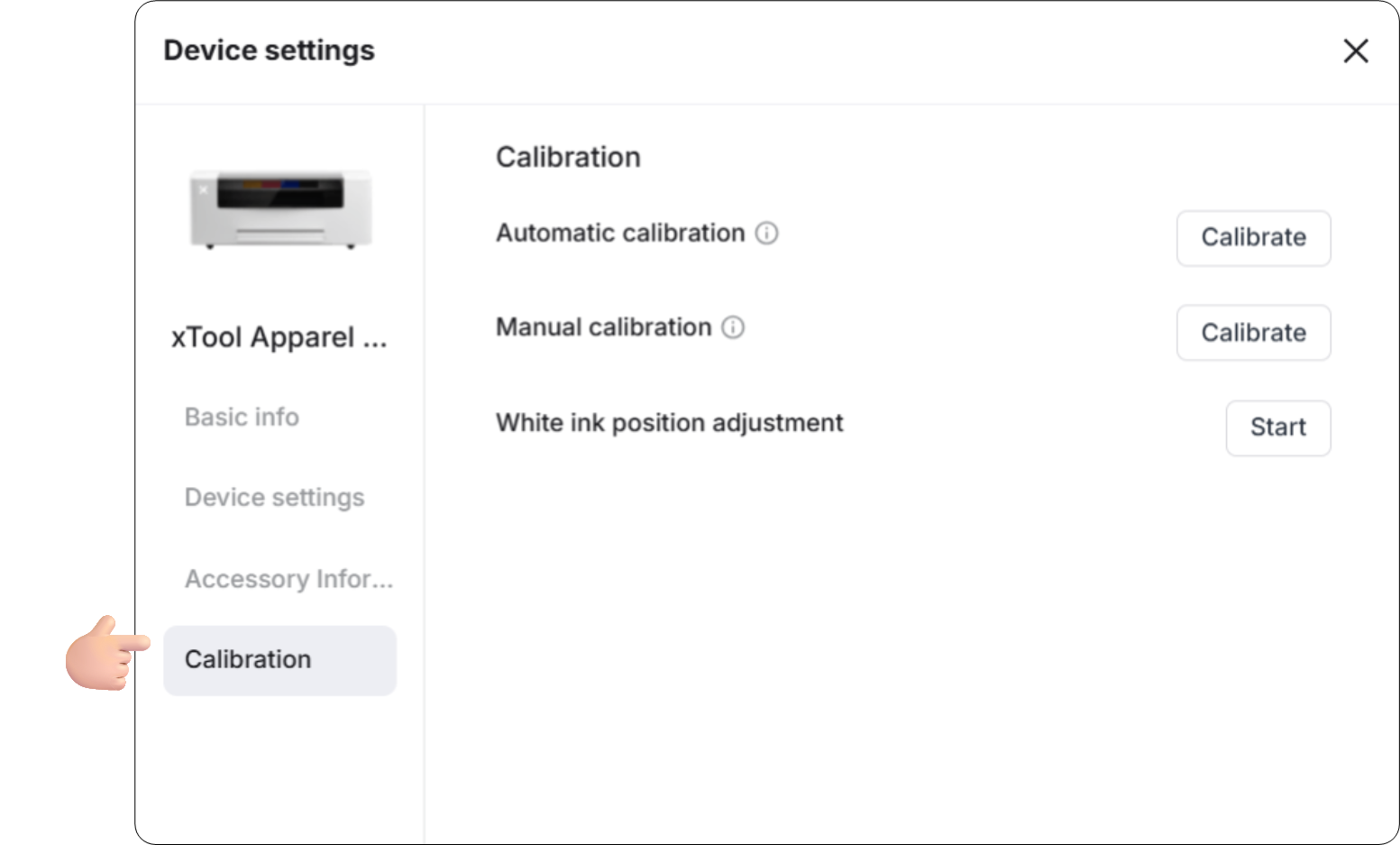
The Calibration tab allows you to align the hardware for optimal print quality. You can choose to perform calibration Automatically (recommended for first-time use) or Manually for fine-tuning.

Services & Help
Learn & Education

Copyright © 2025 xTool All Rights Reserved.