Troubleshoot "Device moved" for xTool F2
Issue description
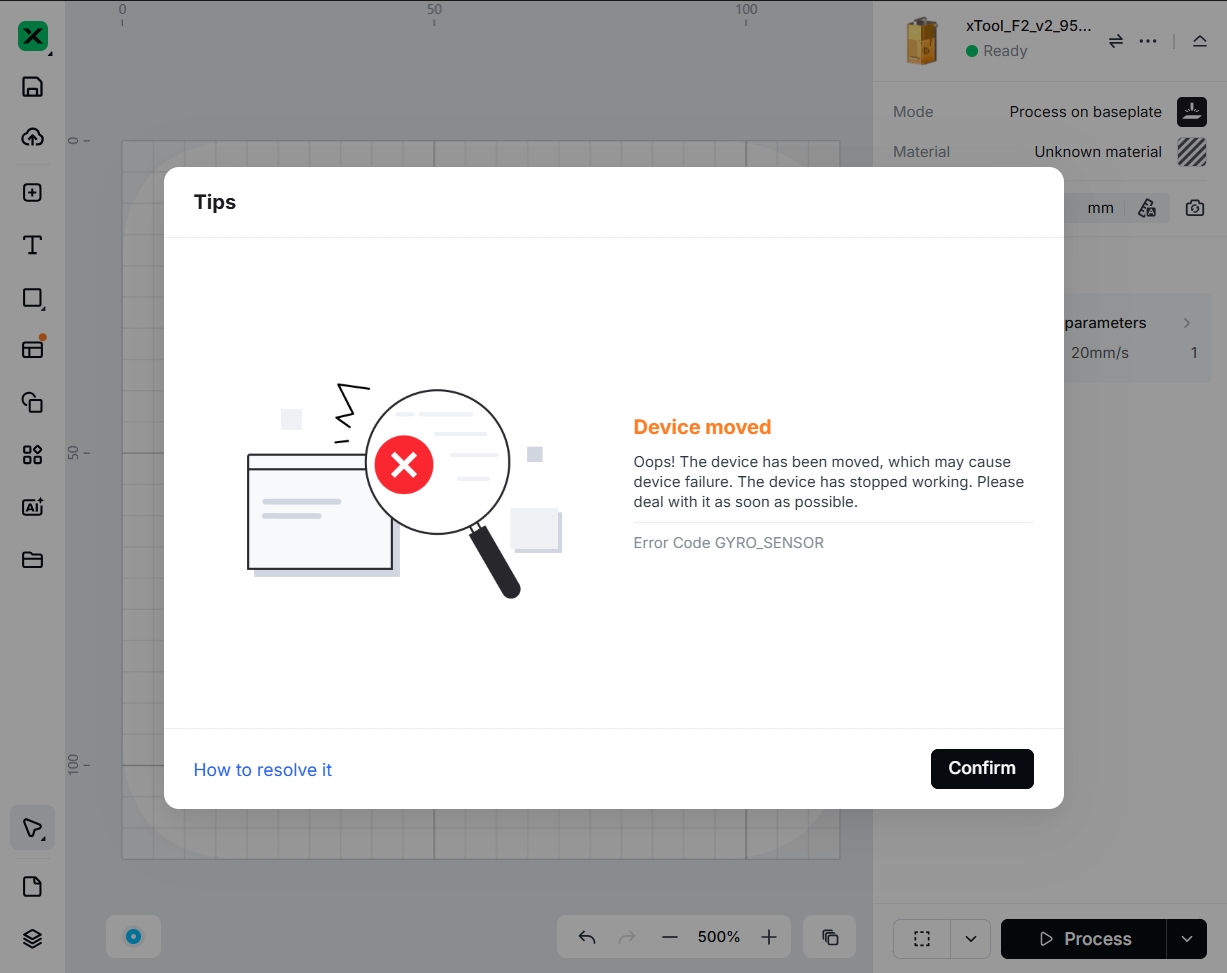
If an error message appears in xTool Studio stating "Device moved", please refer to this guide for troubleshooting.
Troubleshooting
Step 1: Check if the machine is level
The built-in sensor detects the movement status of the machine. If it's not placed level and still, the alarm will be triggered. Please place the machine at a level surface and ensure the machine stays steady during operation.
Step 2: Ensure the firmware is up-to-date
New firmware is released regularly to fix issues and deliver the latest functions. If it's not up-to-date, some issues may occur. Please make sure you are using the latest firmware for your machine.
1. Connect xTool F2 to xTool Studio
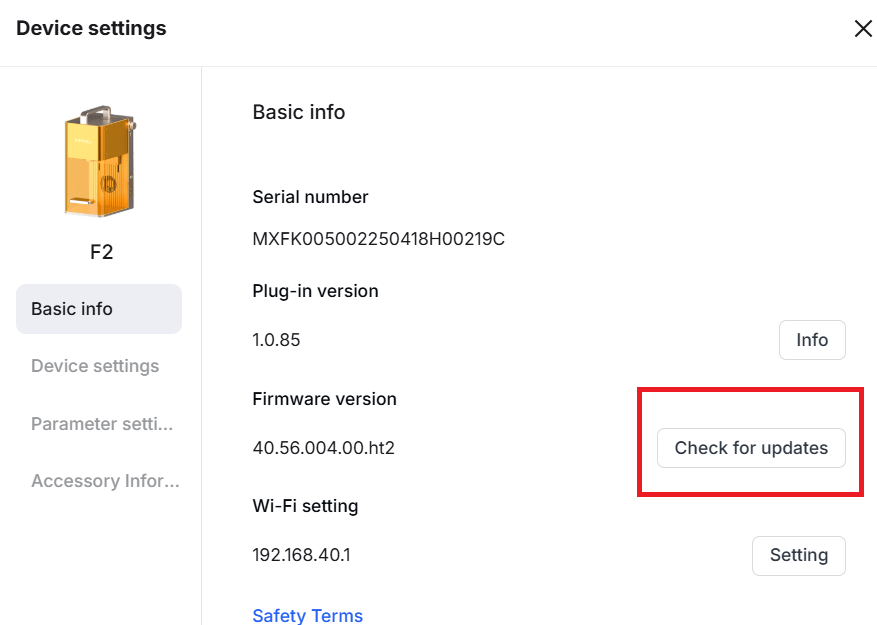
2. Click on Device settings > Basio info > Check for updates
3. If the firmware is not up-to-date, please update it.
Step 3: Contact support with info needed
If your machine is level and the firmware is up-to-date, the problem still persists. Please provide us with a video of the issue.
Turn off the machine and, follow the instructions in this guide to provide us with the logs from the xTool Studio software and the SD card for further analysis.
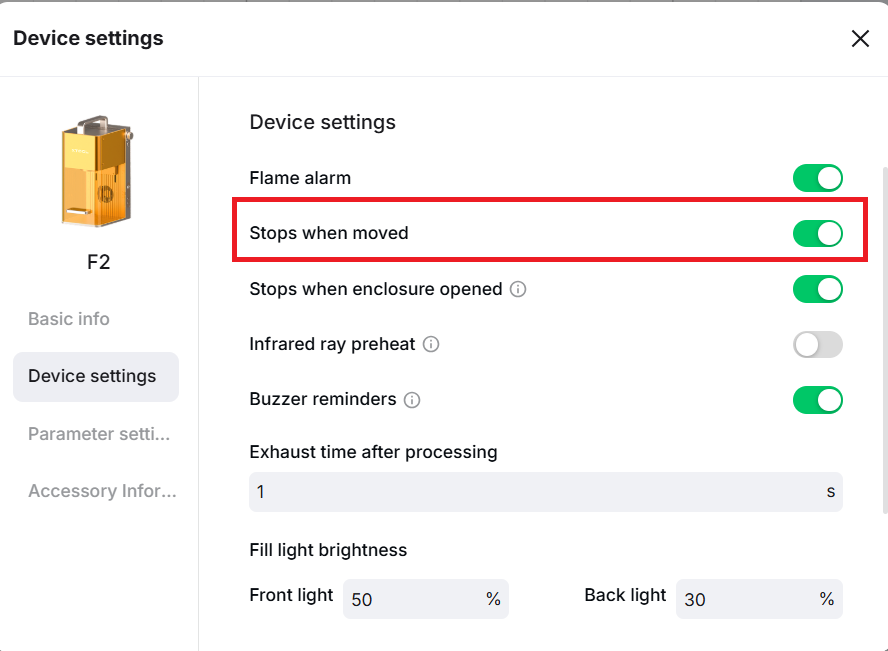
Step 4: Disable the alarm temporarily
As a temporary measure, you can turn off the "stops when moved" function in the device settings in xTool Studio. This will stop the machine from setting off the alarm. It's helpful if you need to work on your project before the support team finishes their analysis.