
Troubleshoot Unclosed Lid for xTool MetalFab CNC Cutter
Issue description
An error message in xTool software indicates that the protective lid is not closed and stops the machine from normal operation.
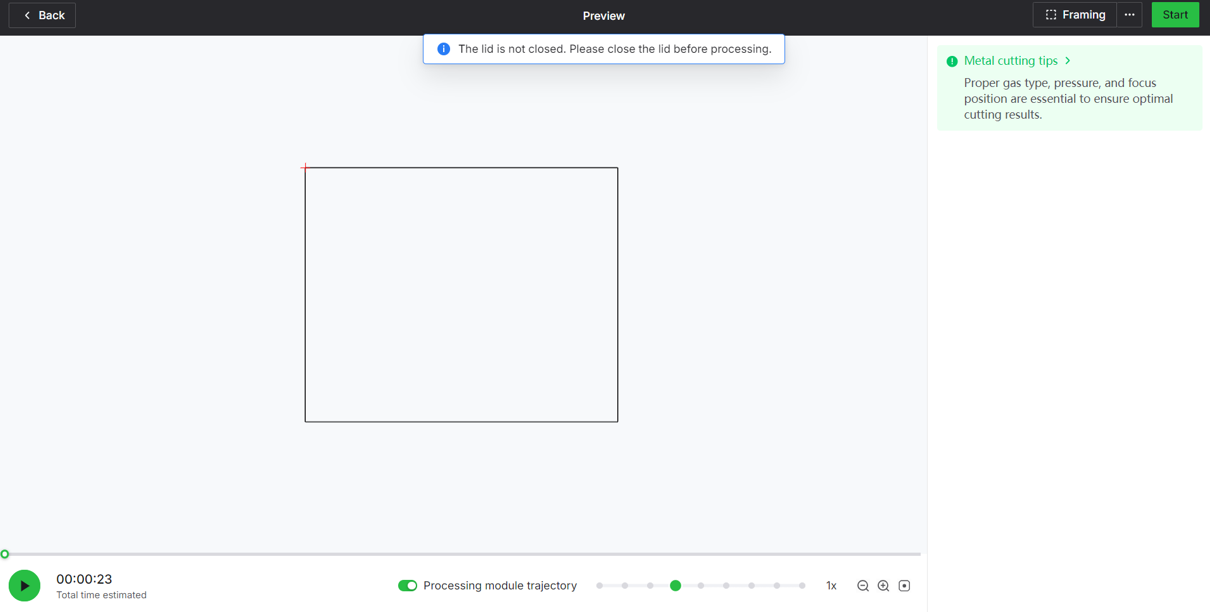
Possible causes
- Unclosed protective lid: The lid is not fully closed, and thus the corresponding sensor fails to work.
- Deformed metal plate: The metal plate, serving as a sensor trigger, on the protective lid is deformed, and thus cannot be detected by the sensor.
- Loose cables: The cables between the sensor and the main control board is loose.
- Malfunction: The sensor or its control board malfunctions.
Detailed procedure
Step 1: Check if the sensor works
- Ensure that the machine is on and connected to xTool software.
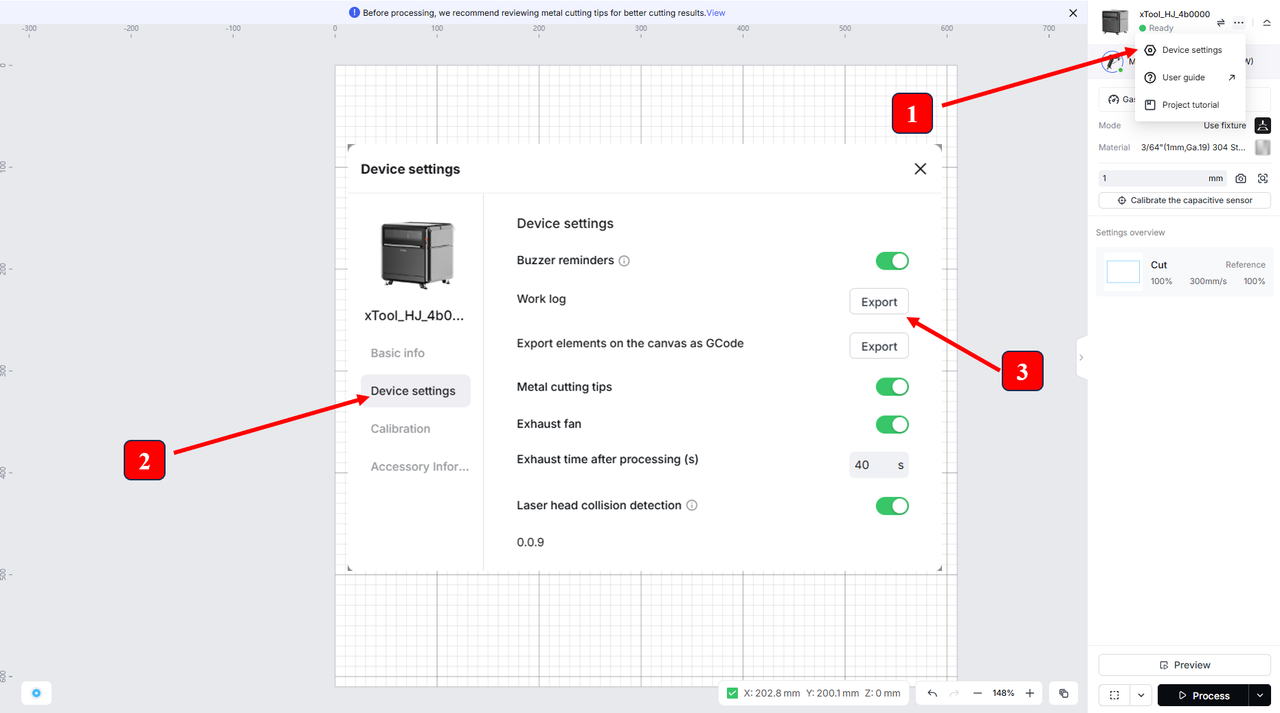
- Follow the instructions below to ensure that Buzzer reminders is enabled.
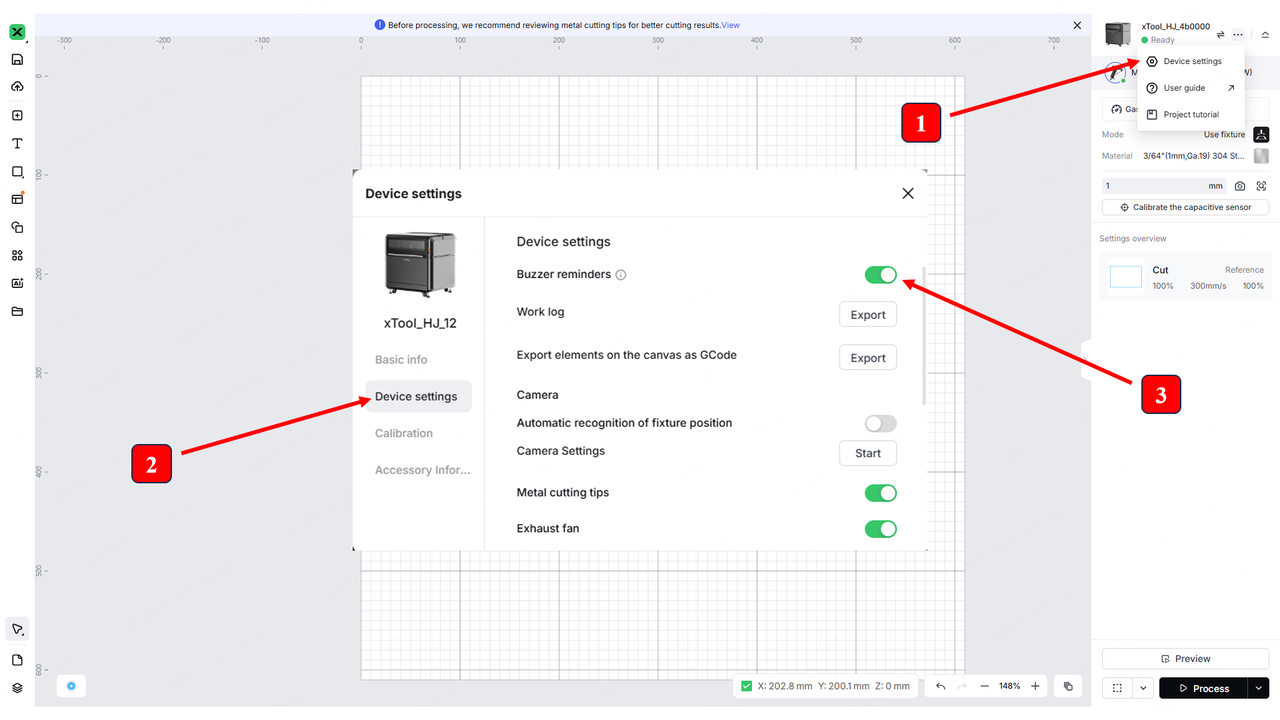
- Follow this video and place a sheet metal near or away from the sensor. Normally, the buzzer beeps when the metal is near the sensor.
- If the buzzer works, follow the steps mentioned in the table below for further troubleshooting.
Check... | Steps | Illustrations |
|---|---|---|
Whether the lid can be fully closed |
|
Fully closed
|
Whether the metal plate on the lid works | The metal plate on the lid is marked by the red arrow in the illustration.
|
Metal plate marked by the red arrow
|
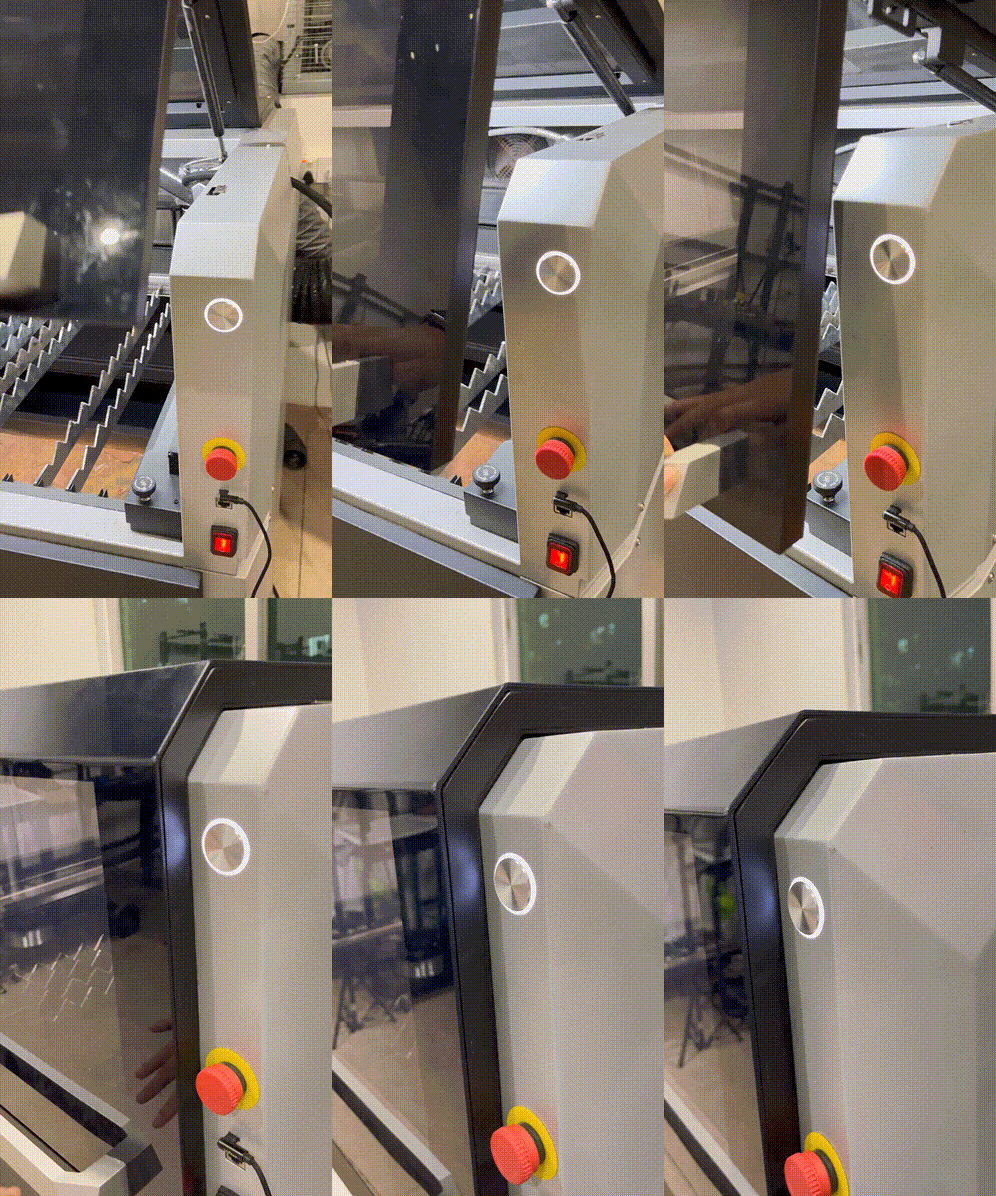
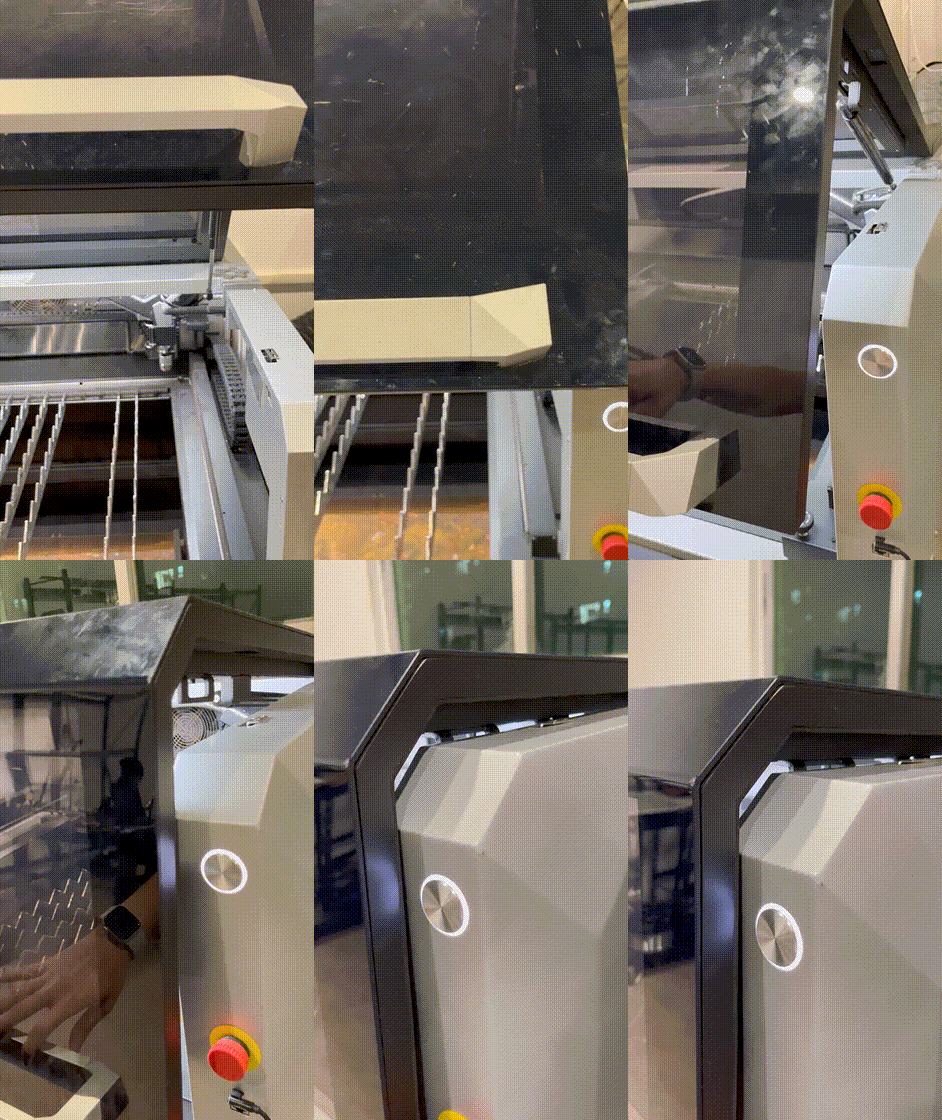
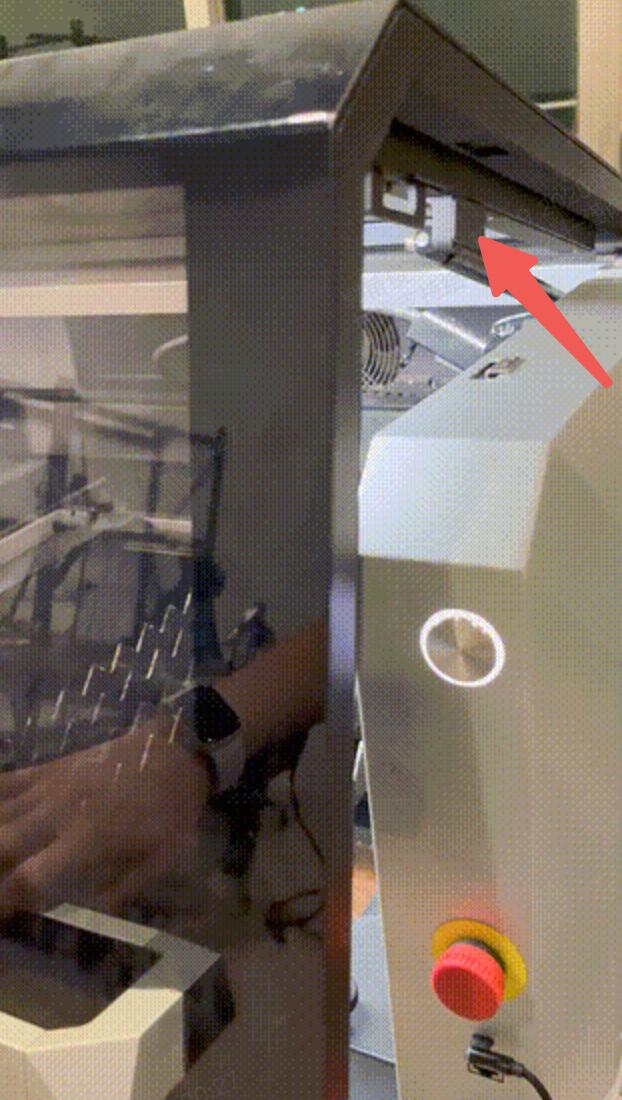
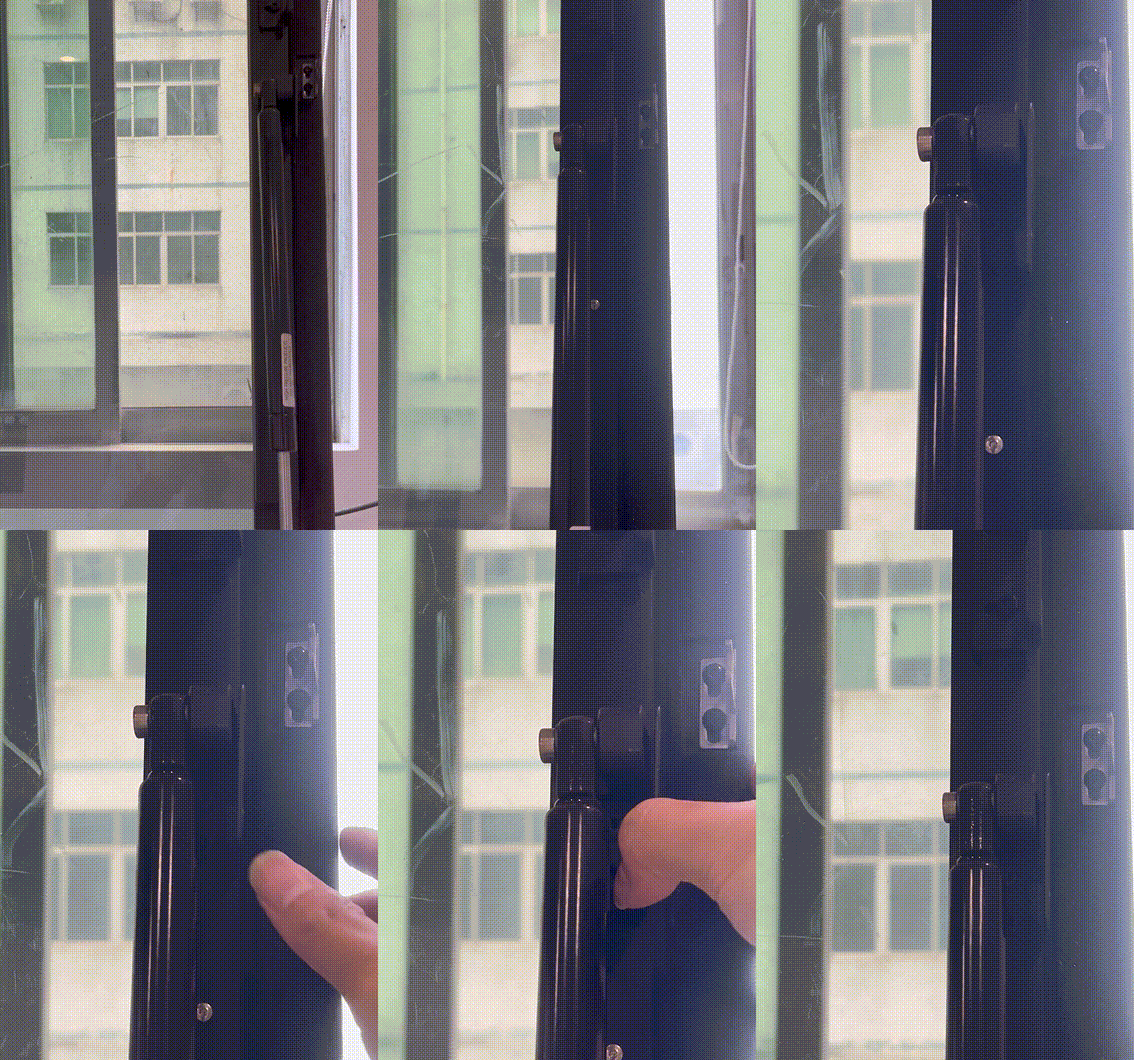
b. If the buzzer does not beeps as required, proceed to the next step.
Step 2: Check the sensor cables
- Power off the machine.
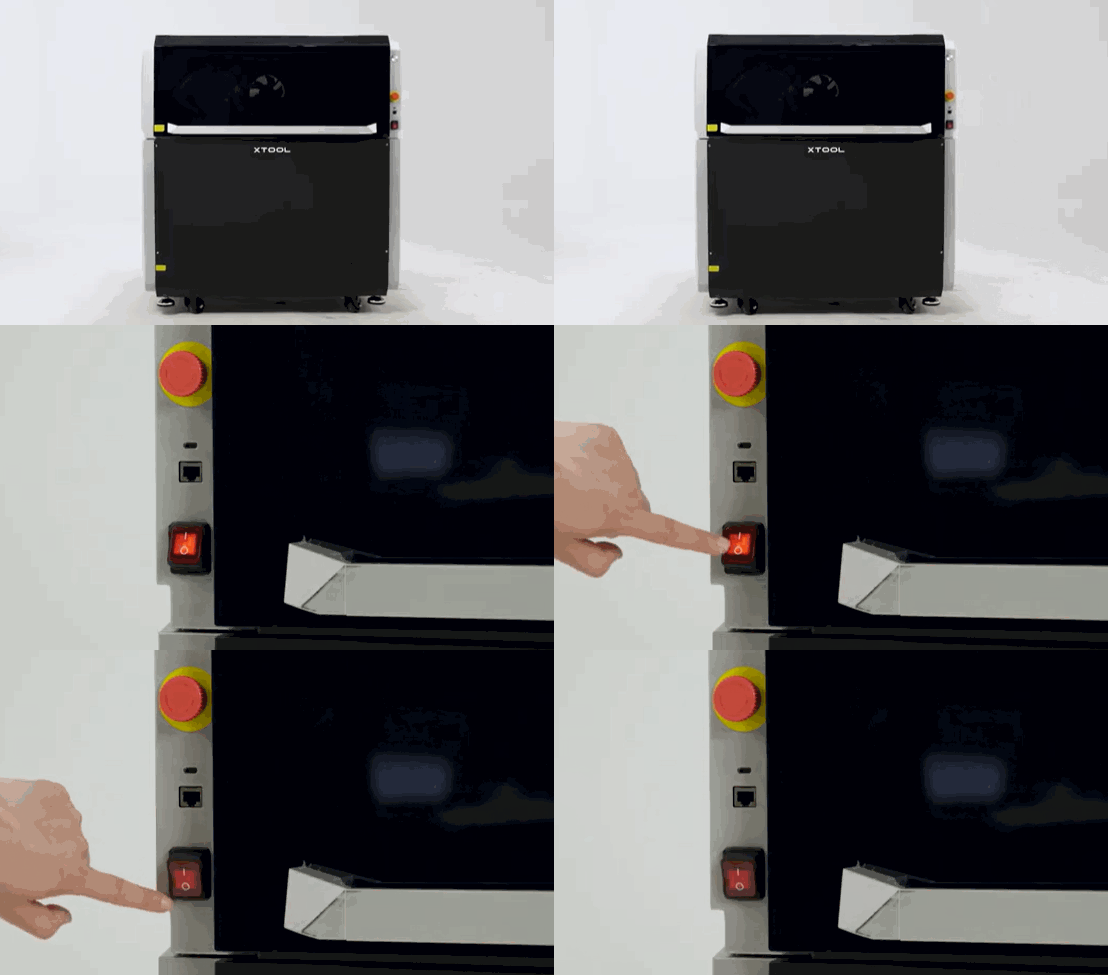
- Follow the video tutorial to remove the right plate.
- Reseat the blue terminal connector between the switch sensor and the control board.
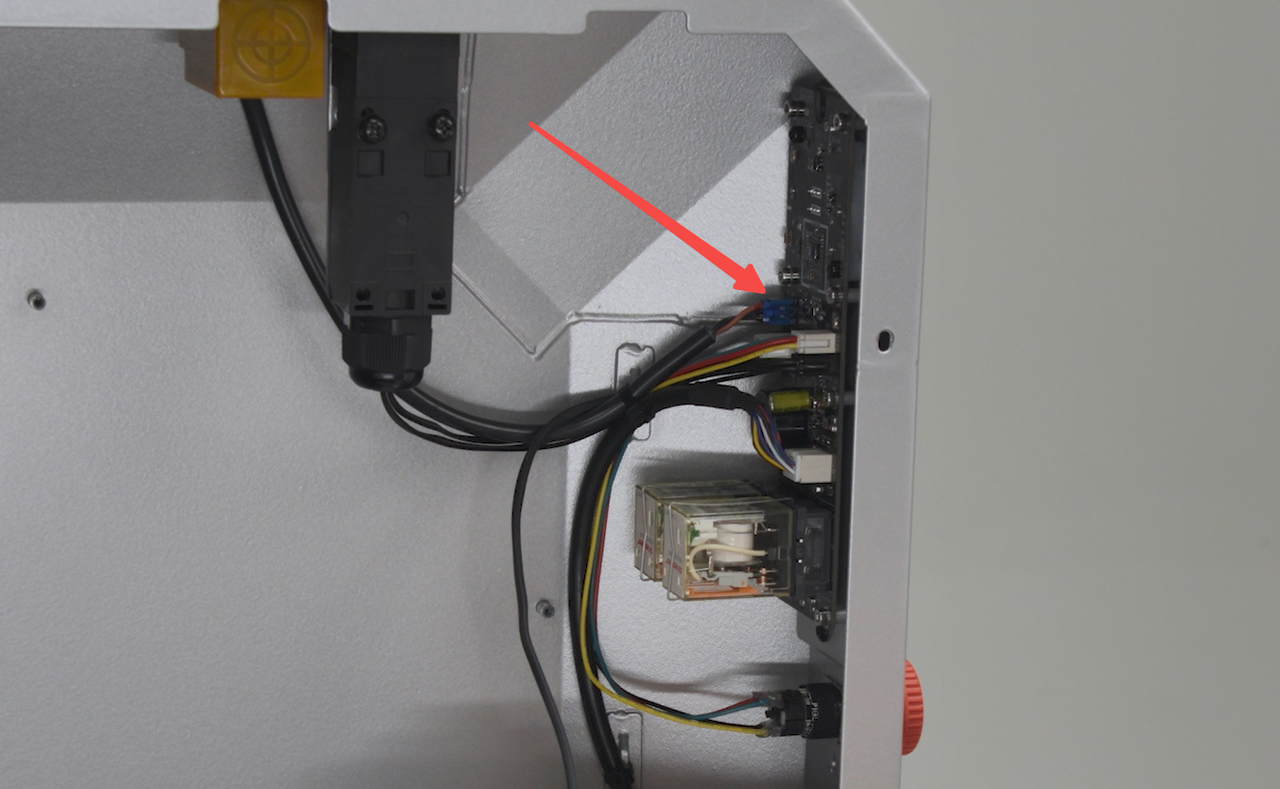
- Restart the machine.
- If the issue persists, please prepare a video recording your troubleshooting process and results, follow the figure below to extract the log from xTool software, then send these materials to xTool Customer Service for further assistance.
Help us improve
If this article or video doesn't effectively assist you in resolving the issue, please let us know by clicking the “No” button in the “Was this page helpful?” section below, and leave your feedback in the pop-up suggestion box. Our knowledge base team will review it and consider it for future updates.
Still need help?
If you need any human assistance, please create a ticket by clicking the “Submit a Ticket” button in the “Help Ticket” section below. Our service team will get back to you in 1 business day via E-mail.

