
Troubleshooting: USB Connection Issues with xTool P2/P2S
Issue description
Issue 1: Device not found
After connecting xTool P2/P2S with a connection cable and turning it on, the software reports Device not found.
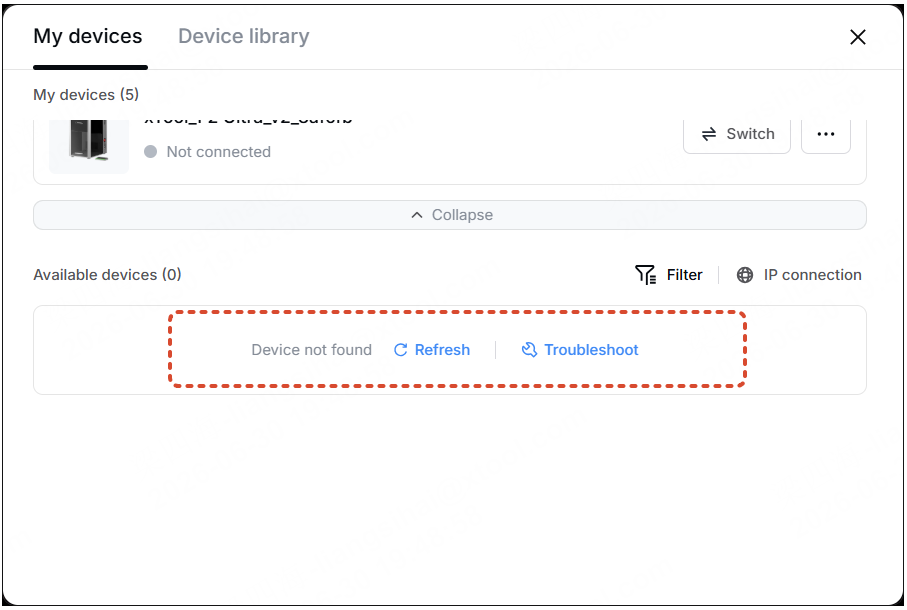
Issue 2: The device was found, but the connection failed
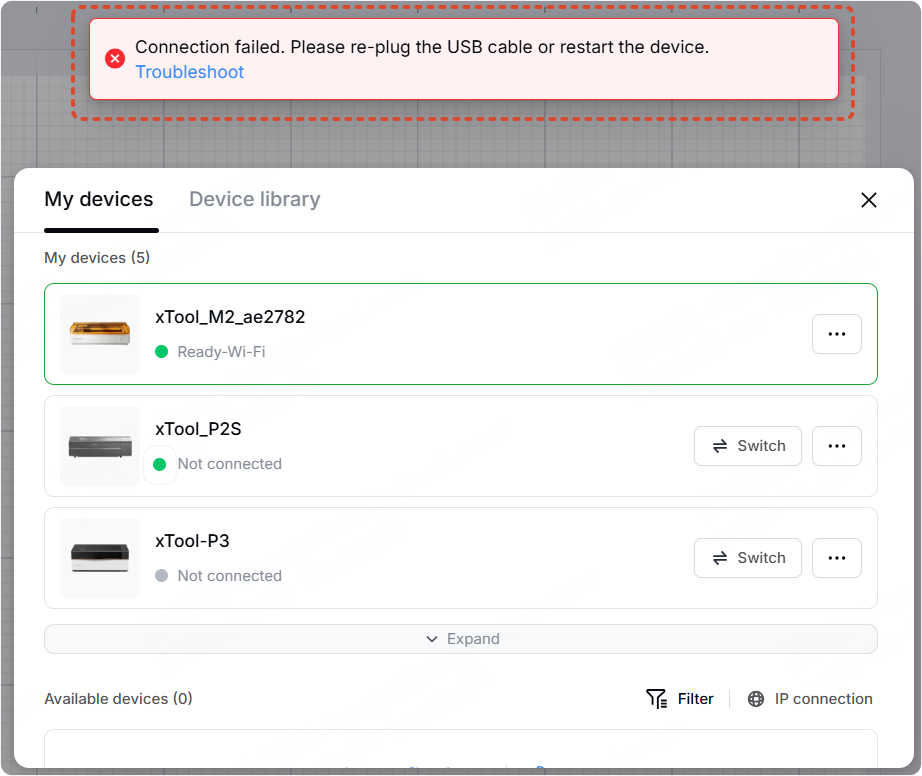
Possible causes
- The USB cable isn't plugged in securely
- Damaged USB cable
- The device's USB adapter cable is damaged
- Computer port error
- A VPN is enabled on the computer
- The driver files are not installed
- The firewall is enabled on the computer
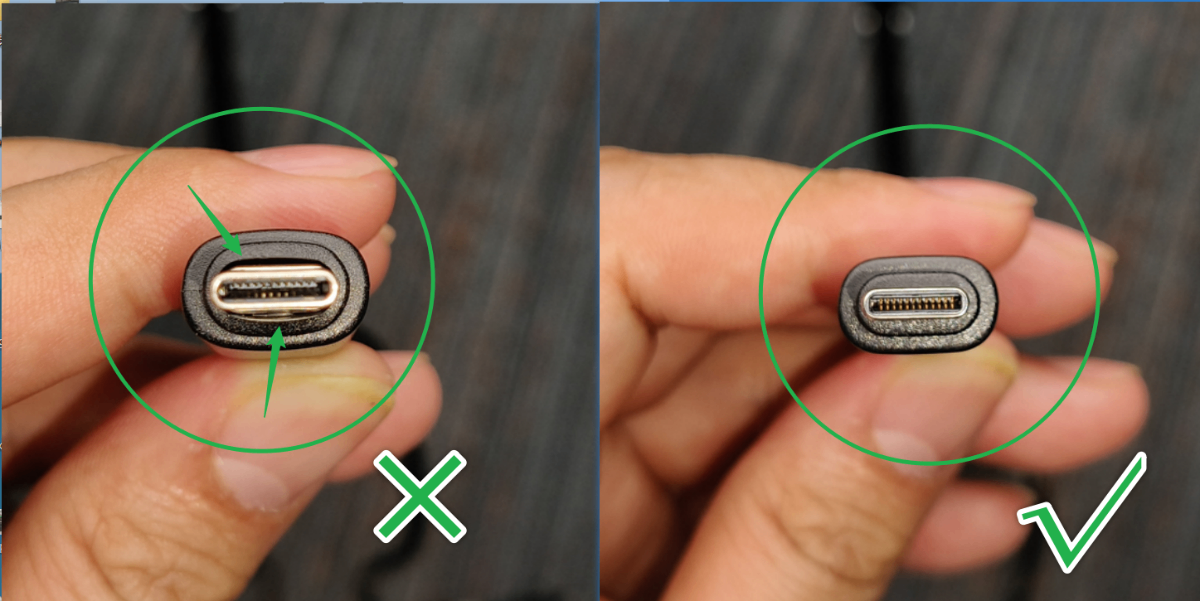
- A double-ended Type-C cable was used to connect
- Run the software with non-administrator privileges
- Software version issues
- Device's main control board malfunction
Special cases
If the connection issue occurs after replacing the main control board, it may be due to missing essential data on it. We can provide remote computer support to attempt to write this data. Please contact xTool after-sales service team and explain the situation.
You can verify by using the following methods:
(1) Keep the device connected via USB (even if the software cannot connect), then open the following link in a browser (It is recommended to use Google Chrome).
- For Windows: http://201.234.3.1:8080/device/machineInfo
- For macOS: http://201.234.4.1:8080/device/machineInfo
(2) The browser normally displays device information. If the SN field is empty or contains messy codes, it indicates that data for the main control board is missing.

Troubleshooting procedures for issue 1
1. Check the software version
The XCS software is no longer maintained. It is recommended that you download and use the latest version of xTool Studio.
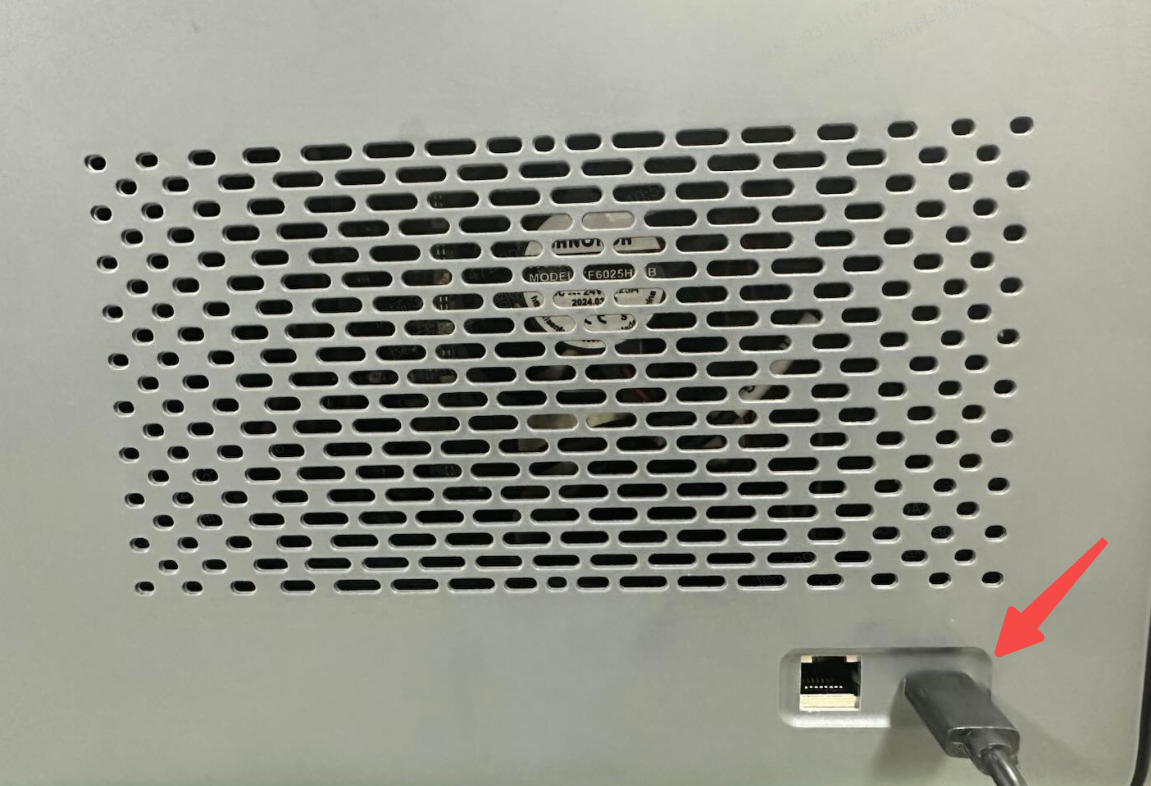
2. Check the port
Connect to the correct USB port on the left side.
3. Check the computer configuration
Read the tutorial and check whether the device meets the minimum configuration requirements.
- If it does not, use a different computer for testing.
- If it does, check for other issues.
- If your computer is running a newly released operating system, there is a small chance that some unknown compatibility issues may occur. Please use a different computer for testing.
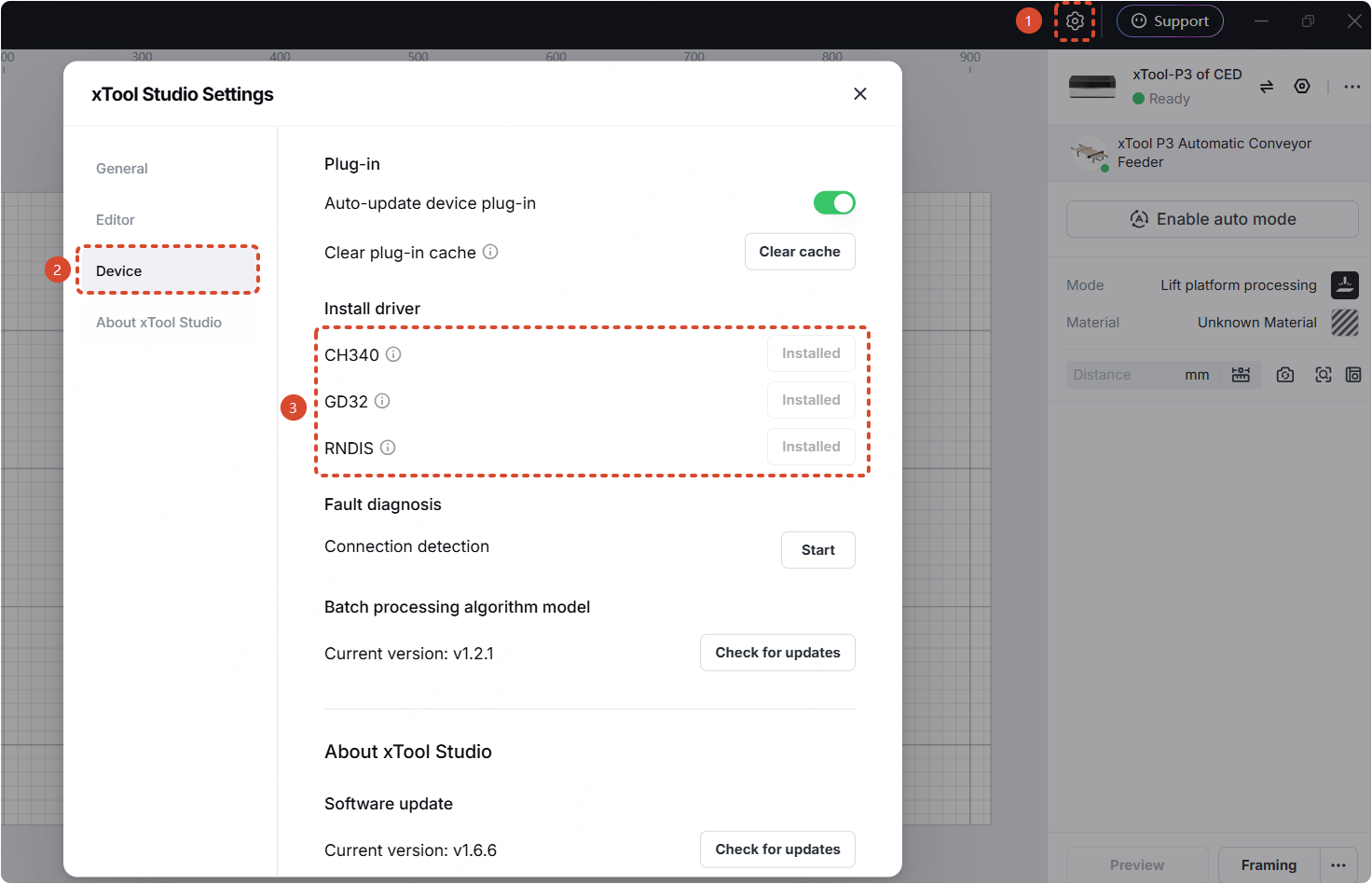
4. Check the driver
Go to Device settings > Device > Install driver. Make sure the drivers are installed.
5. Reconnect the connection cable
Restart the device. Then unplug and plug the connection cable back in.
6. Check the connection cable
Use the original connection cable and check the cable. If the cable is damaged or cannot be connected, replace it with another cable and connect again.
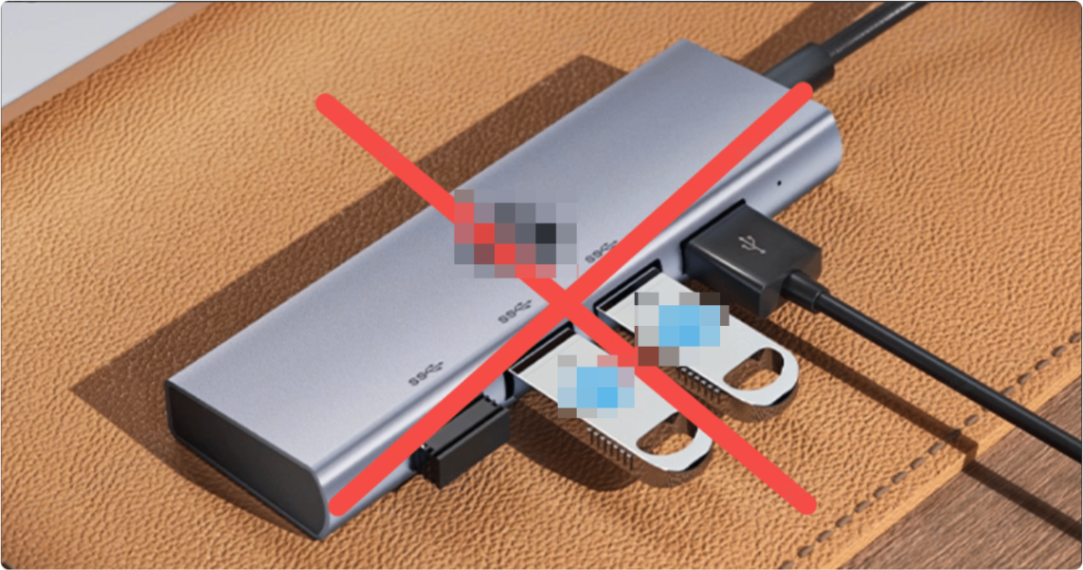
7. Not using a docking station
Some docking stations may experience communication issues; please try connecting without using the docking station.
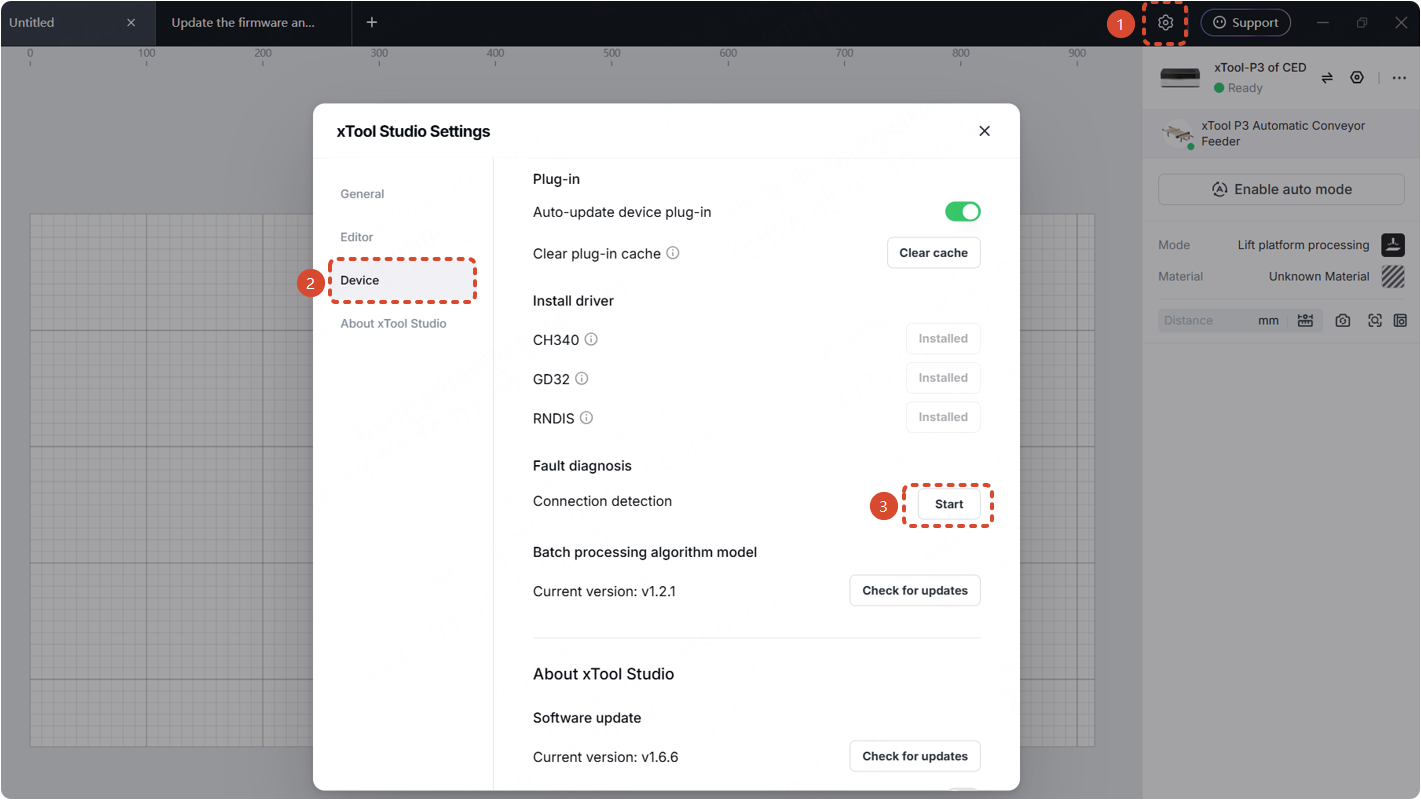
8. Perform the fault diagnosis
(1) Connect the device to the computer using a USB cable.
(2) Go to Device settings > Device > Fault diagnosis > Start, and follow the prompts to complete the connection check.
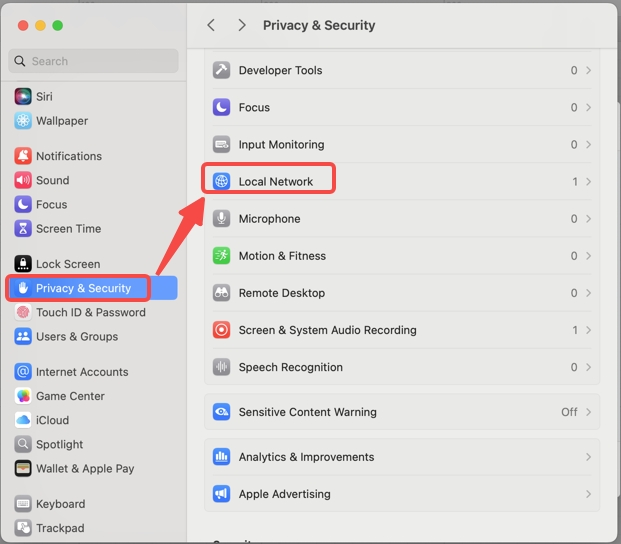
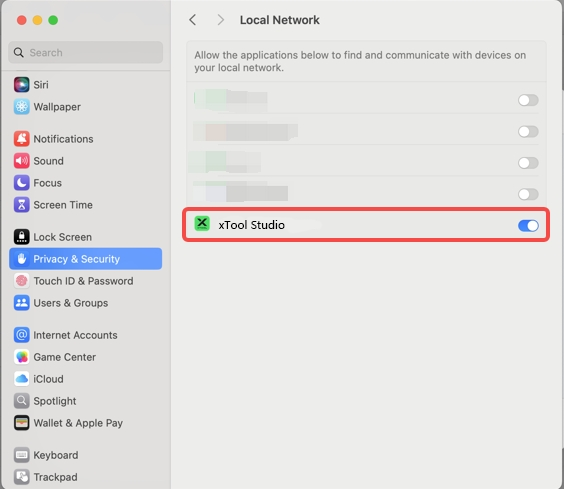
9. Check the network permissions
Go to Settings > Privacy & Security > Local Network. Enable the local network permission for xTool Studio.
10. Delete the network caches (for macOS only)
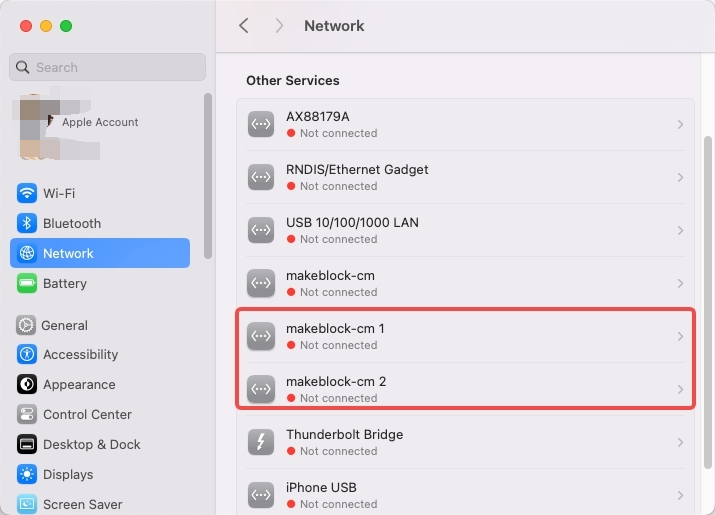
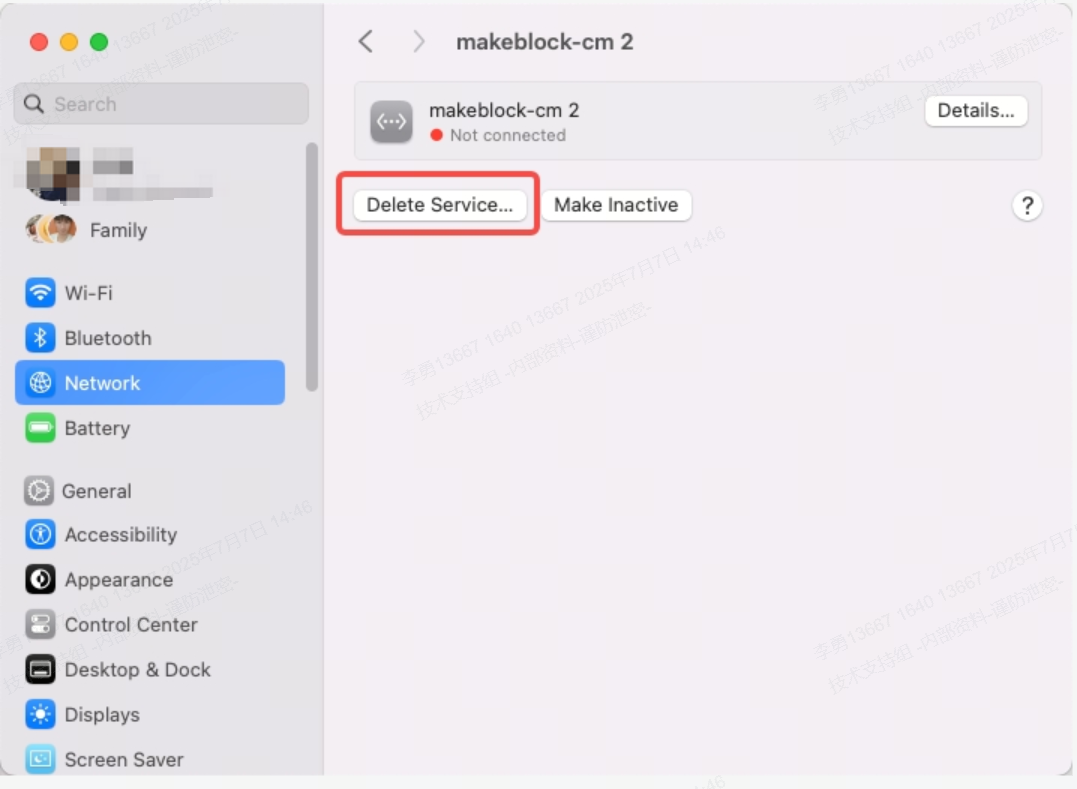
Go to Settings > Network > Select a network > Delete Service to delete all the caches.
The network cache is automatically created when the device reconnects to the computer.
11. Connect to the main control board directly
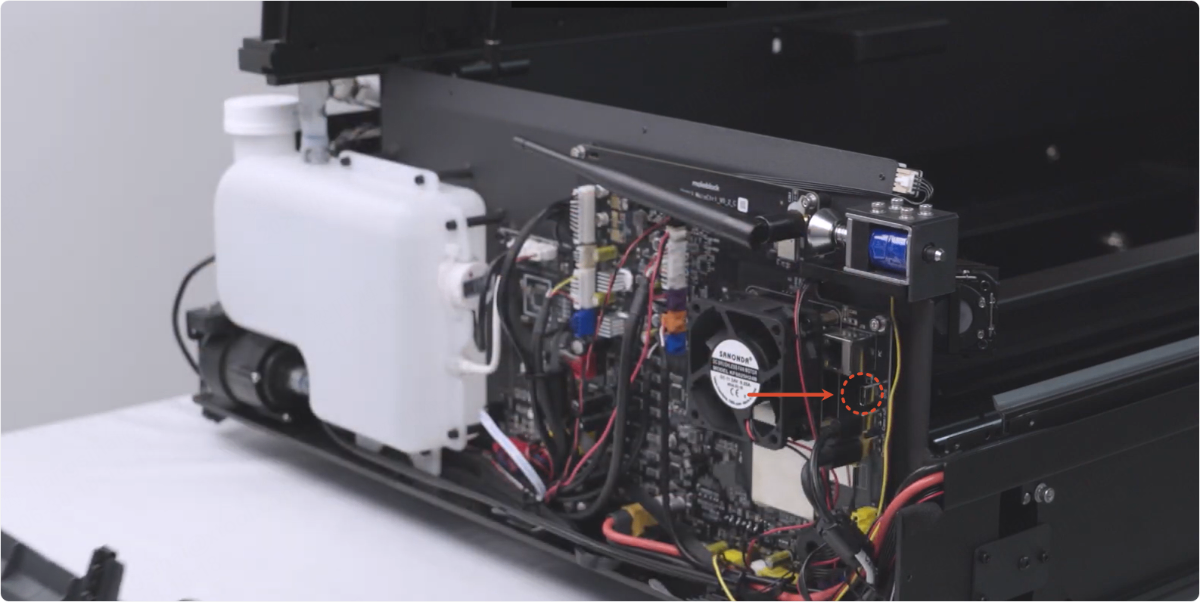
(1) Disconnect the power. Follow the tutorial in the link below to remove the left panel.
- xTool P2S: https://support.xtool.com/article/1692?from=xTool+P2+Series&url=/product/4
- xTool P2: https://support.xtool.com/article/949?from=xTool%20P2%20Series&url=%2Fproduct%2F4
(2) Unplug the USB adapter cable and use a Type-C cable to connect directly to the Type-C port.
If the first Type-C connector cannot be connected, you can unplug the next two Type-C plugs and insert the USB connection into the Type-C connectors below one by one.
There may be yellow soft glue on the plug. If the plug is too tight, you can use a tool to gently scrape it off before unplugging the plug.
- If the connection is restored, it indicates a fault with the USB extension cable. Please replace the extension cable.
- If it still cannot connect, check for other issues.
12. Check the device firmware abnormality
Observe whether the device's startup process is normal, such as the laser module resetting and the display functioning properly.
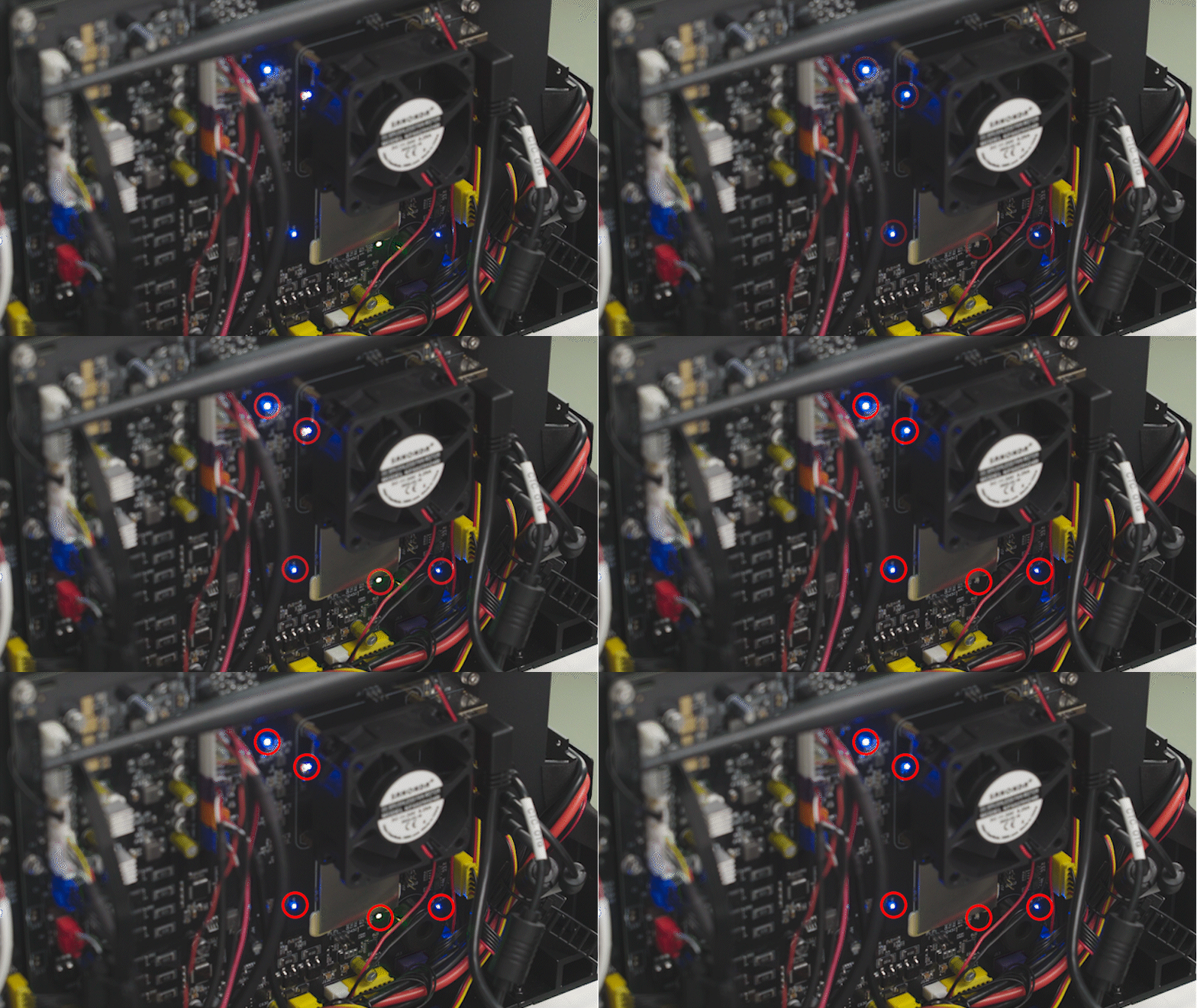
If any abnormalities occur, the device firmware may be abnormal. Please record a video of the startup abnormality and a video of the main control board indicator lights in operation, and send them to the xTool after-sales service team for analysis.
Troubleshooting procedures for issue 2
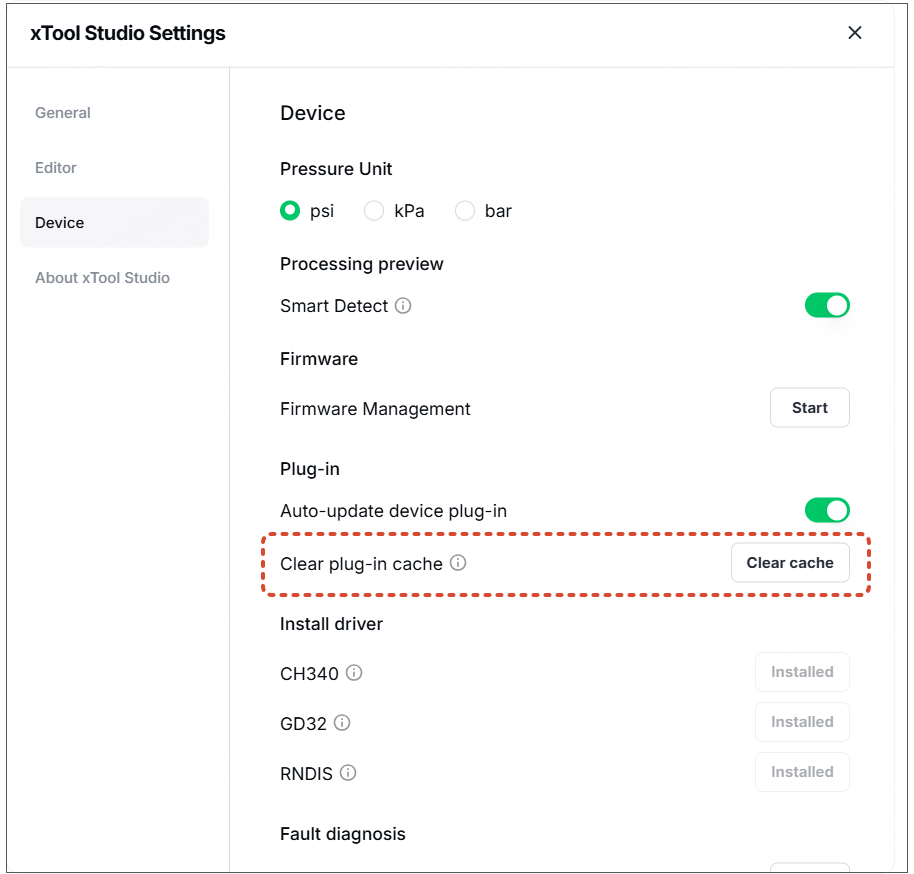
Delete the plug-in cache
Go to the software settings, clear the plug-in cache, and then try connecting again.
Still experiencing issues?
Should the issue persist after completing the preceding steps, submit a ticket via the "Submit a Ticket" button in the "Help Ticket" section below. The standard response time for xTool Customer Service is one business day.
For a prompt resolution, please include the following details:
- Issue description: A detailed explanation of the observed problem.
- Video evidence: Attach a video demonstrating the issue, where applicable.
- Troubleshooting performed: Any troubleshooting steps you have already attempted, along with their results.
This information is crucial for xTool technical support engineers to provide timely assistance.
Documentation feedback
Help improve this content by providing feedback. If this content did not meet your requirements, select "No" in the "Was this page helpful?" section below. Include specific details about what was unclear or missing in the pop-up suggestion box. Feedback submissions are reviewed by xTool technical writers to enhance future documentation.

