
Troubleshoot No Device Found Connected Through USB for xTool S1
This article applies to:
xTool S1 with all laser modules.
Issue description
When you are connecting xTool S1 to your computer via USB, xTool Creative Space (XCS) may display an error message stating that it "can't find device connected through USB", or the connection may be unstable with occasional disconnections.
Please follow the steps below to diagnose and resolve the issue.

Troubleshooting
Step 1: Verify firmware integrity
- Firmware Issue Check
- If the issue began after a firmware upgrade attempt—especially if the machine’s indicator is flashing purple—this may indicate a firmware failure.

- Upgrade firmware
- Connect your S1 via USB and use XCS’s Developer Mode to perform a forced firmware upgrade.
- If the forced upgrade fails, try using a different computer to complete the upgrade.
- Refer to the firmware upgrade guide: Firmware Upgrade via Developer Mode. Or follow the video tutorial below.
Step 2: Check USB cable & connection
- Ensure Proper Cable Usage:
- Ensure the cable is securely and fully inserted into both your S1 and your computer.
- Inspect the Cable:
- Examine for any visible damage (cuts, frayed wiring, bent connectors) and replace if necessary by contacting xTool Customer Service.
- Test Alternative Cable:
- If available, test with another high-quality USB data cable (DO NOT use a charging-only cable).

Step 3: Test computer's USB port
- Verify USB Port Functionality:
- Connect a smartphone to the same USB port and check if file transfer works.
- For Desktop PCs:
- Avoid using front panel ports. Instead, use the USB ports on the back of the computer that are directly connected to the motherboard.

Step 4: Verify system requirements
- Ensure your computer meets the minimum specifications below.
- If your computer does not meet these requirements, upgrade or use a compliant computer.
Component | Minimum | Recommended |
Processor | Intel Core i5-6200U | Intel Core i5-11600 or newer |
OS | Win 10 (64-bit) / macOS 10.15 | Latest OS version |
RAM | 8 GB | 16 GB |
Display Resolution | 1280 × 720 | 1920 × 1080 or higher |
Storage | 8 GB | 12 GB |
Step 5: Install/Verify drivers
Driver problems can disrupt communication between the device and the computer over USB.
For Windows 7 Users:
- Download the driver installation package and run the installer by clicking Install.
- Download link: Windows 7 Driver Installation Package

For Windows 8 Users:
- USB connection is not supported for xTool S1. Please upgrade your Windows system.
For Windows 10 (and above) & macOS Users:
- No additional drivers are required.
Confirming Connection Status:
On Windows:
- Open Device Manager → expand Ports (COM & LPT).
- Check for a COM port entry labeled as a USB Serial Device. Its presence indicates that the physical connection is normal.
 |  |
On macOS:
- Open Terminal and execute:
system_profiler SPUSBDataType - This should list the connected USB devices.
- Alternatively, run:
ls /dev/tty.* - If serial devices appear (typically beginning with
/dev/tty.such as/dev/tty.usbserial), the USB connection is normal.

Step 6: Check USB Hub (if applicable)
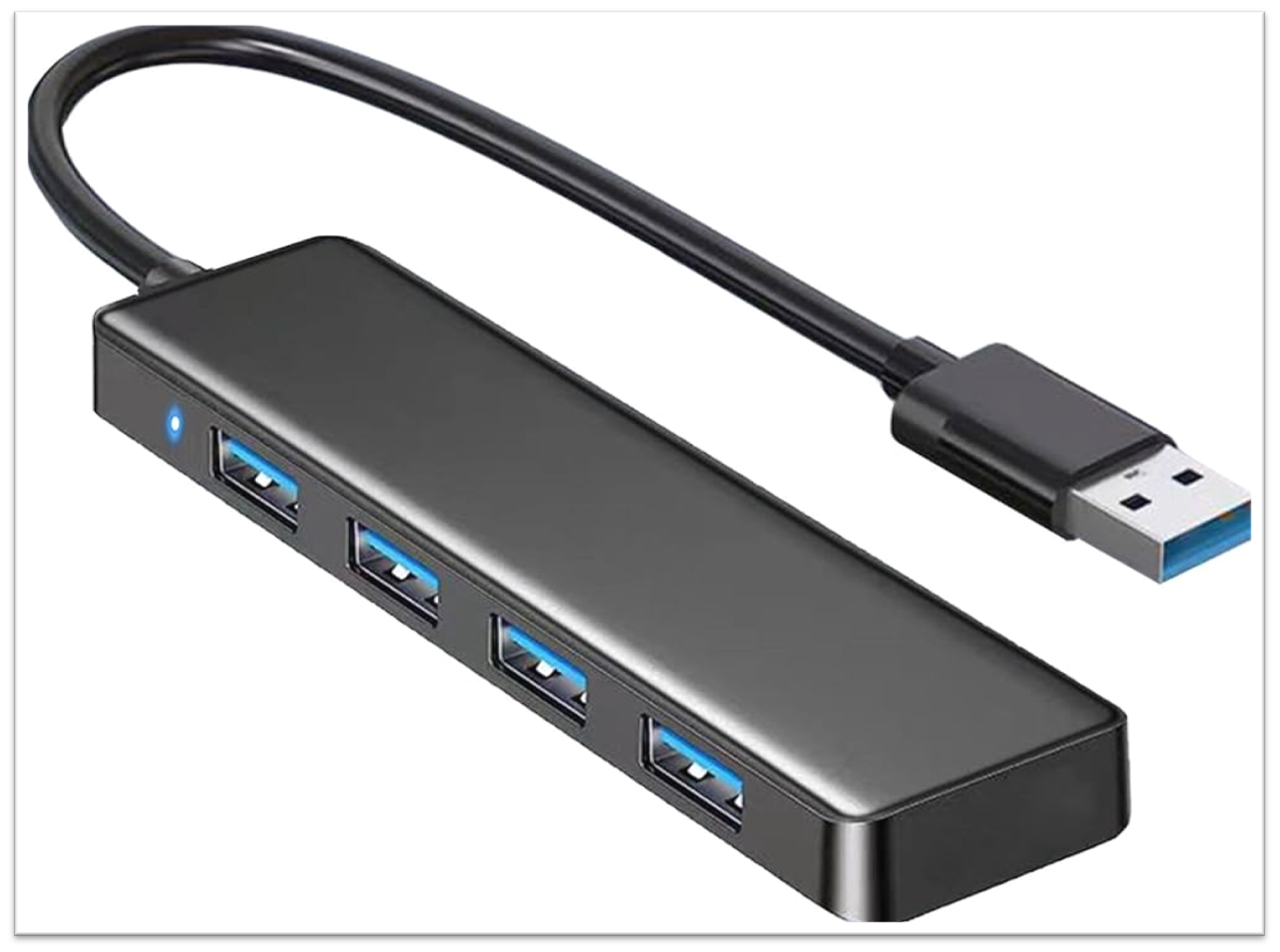
Using a USB HUB, especially with Mac computers, might cause communication conflicts between xTool S1 and the computer.
- Direct Connection: Try bypassing the USB hub entirely. Connect your xTool S1 directly to a USB port on your computer using an original cable.
- Power Issues: Some USB hubs have unstable power delivery, especially if other devices are connected. Ensure that no other devices are connected to the USB hub while troubleshooting.
Step 7: macOS system troubleshooting
This step delineates the most common macOS system troubleshooting procedures based on xTool Lab tests and applies to the macOS operating system ONLY.
a. Allow accessories to connect
- For macOS platforms with Apple chips, you may need to approve new USB, Thunderbolt devices, or SD cards after you connect them.
- After connecting your xTool hardware device to your macOS computer, click "Allow" in the "Allow accessory to connect?" pop-up notification to grant your xTool hardware device data access.
- For future convenience, navigate to System Settings > Privacy & Security > Allow Accessories to Connect, and select Always or Automatically After Unlock to prevent manual approval each time.

⚠️ Important Note
- For macOS 13.3 and later, you may also receive a separate prompt to approve SD card access.
- For security reasons, when connecting to public devices (like charging stations at an airport), you should generally choose "Don't Allow."
b. Allow XCS local network access
- To enable local network access for XCS, navigate to the Apple menu > System Settings > Privacy & Security > Local Network.
- Locate xTool Creative Space in the list of applications and ensure the toggle switch is turned ON to allow local network access.
 |  |
Step 8: Windows system troubleshooting
This step depicts the most common Windows system troubleshooting procedures based on xTool Lab tests and applies to the Windows operating system ONLY.
a. Check for DNS or network configuration issues:
Network configuration issues or DNS problems can sometimes prevent XCS from connecting.
- Open Command Prompt (Admin):
- Right-click the Windows Start button.
- Select "Terminal (Admin)" for Win 11 or "Windows PowerShell (Admin)" for Win 10.
 |  |
- Run the Command: In the command prompt window, type the following command exactly:
netsh winsock reset - Press Enter: Press the Enter key.
- Restart Computer: After the command completes, restart your computer.

b. Allow XCS through the Windows firewall:
Windows Firewall might be blocking XCS's communication.
- Temporarily Disable Third-Party Antivirus: If you are using third-party antivirus software (e.g., Norton, McAfee, etc.), temporarily disable it before adjusting firewall settings. This is because antivirus programs often manage firewall rules.
- Open Control Panel: Access the Control Panel (search for it in the Windows Start menu).
- Windows Defender Firewall: Navigate steps-by-steps
- Win 11: "Control Panel" > "Windows Defender Firewall"
- Win 10: "Control Panel" > "System and Security" > “Windows Defender Firewall”
 |  |
- Allow an app...: Click "Allow an app or feature through Windows Defender Firewall" (or a similarly worded option).
- Find and Allow XCS:
- You might need to click "Change settings" first.
- Scroll through the list of applications and find "xTool Creative Space" (or a similar entry).
- Ensure that the checkbox next to "xTool Creative Space" is checked for "Domain", "Private", and "Public" networks (unless you have a specific reason not to allow Public network access).
- Click OK: Click the "OK" button to save the changes.

Step 9: Check for VPN/proxy conflicts
VPN or proxy software may alter your network environment (changing IP addresses or routing), thereby interfering with XCS’s local network discovery mechanism.
- Disable all VPN/proxy software (e.g., V2ray, Clash).
- Restart your computer and try connecting the device again.
Step 10: Delete local storage
If connection problems start after updating XCS or installing a plugin, you might need to clear the software's cache.
- Exit XCS: Completely close the xTool Creative Space software.
- Access the Local Storage Folder:
- Windows: Open File Explorer and navigate to:
C:\Users\XXXX\AppData\Roaming\xTool Creative Space\Local Storage(Replace "XXXX" with your Windows username).- You can also type
%appdata%in the File Explorer address bar and then navigate to thexTool Creative Space\Local Storagefolder.
- You can also type
- macOS: Open Finder and navigate to:
/Users/XXXX/Library/Application Support/xTool Creative Space/Local Storage(Replace "XXXX" with your macOS username). You may need to enable viewing hidden folders to see the "Library" folder.
- Windows: Open File Explorer and navigate to:
- Delete Cache Files: Delete all files and folders within the
Local Storagefolder. - Restart XCS: Re-open xTool Creative Space.
Relevant resources
 |  |
Step 11: Avoid port occupation
Running multiple applications that use USB ports (e.g., LightBurn) can result in XCS being unable to recognize xTool S1.
- Restart your computer to force-close all applications.
- Then, launch XCS and attempt to reconnect the device.
Still experiencing issues?
If none of the above solutions resolve the problem, please collect the following information and contact xTool Customer Service at support@xtool.com.
To ensure an efficient resolution, please include:
- COM Port Status (for Windows users): A screenshot of your Device Manager showing the "Ports (COM & LPT)" section when xTool S1 is connected (similar to the verification screenshot in Step 5).
- Machine Indicator Light Status: Describe the color and behavior (solid, blinking, pulsing) of the indicator light on xTool S1 itself when the connection fails.
- Steps Already Tried: Briefly mention which troubleshooting steps from this guide you have already attempted.
Providing this information will help xTool technical support engineers resolve your request promptly.
Help us improve
If this article or video did not resolve your issue, please share your feedback by selecting "No" in the "Was this page helpful?" section below. Include specific details about what was unclear or missing in the pop-up suggestion box. xTool technical writers will review all submissions and consider your suggestion (s) for future content improvement.

