
We've received feedback about inaccurate calibration, as well as issues with the laser beam being too weak and inconsistent, which has caused frustration and even ruined their projects. Some users have reported difficulty in importing designs and have found the user interface to be unintuitive. Additionally, there have been complaints about the accuracy of the laser, which has been cutting at an angle and producing inconsistent results.
We understand how important it is to achieve precise cutting, which is why we're here to help. We found one of the reasons is that the cut pressure base value of the xTool M1 can be altered during transportation due to severe vibration and shaking, which might lead to errors in blade cutting.
Fortunately, XCS has a solution with the cut pressure calibration function, which allows you to calibrate the cut pressure or reset it to the factory setting. We hope that this solution will help to improve your overall experience with our product.
📢Please note: If your device cuts materials properly, you don't need to perform cut pressure calibration on it.
Preparation
- A computer with XCS installed
- xTool M1
- Light-grip cutting mat (blue)
- blank A4 paper (kraft paper recommended)
Instructions
1. Connect xTool M1 to XCS
(1) Use the USB cable to connect xTool M1 to the computer.
(2) Power on xTool M1.
(3) Open XCS, click Connect device, and click your xTool M1 in the device list.
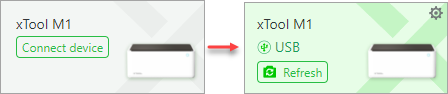
2. Start the cut pressure calibration function
(1) Click the settings icon in the upper right corner of XCS.
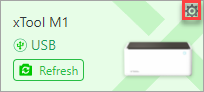
(2) Choose Setting and click Calibrate on the right of Cut pressure calibration.
The calibration starts.
3. Complete the calibration as prompted
(1) Place the blank A4 paper in the center of the light-grip cutting mat, align the cutting mat with the sides of the baseplate, and place it on the baseplate.
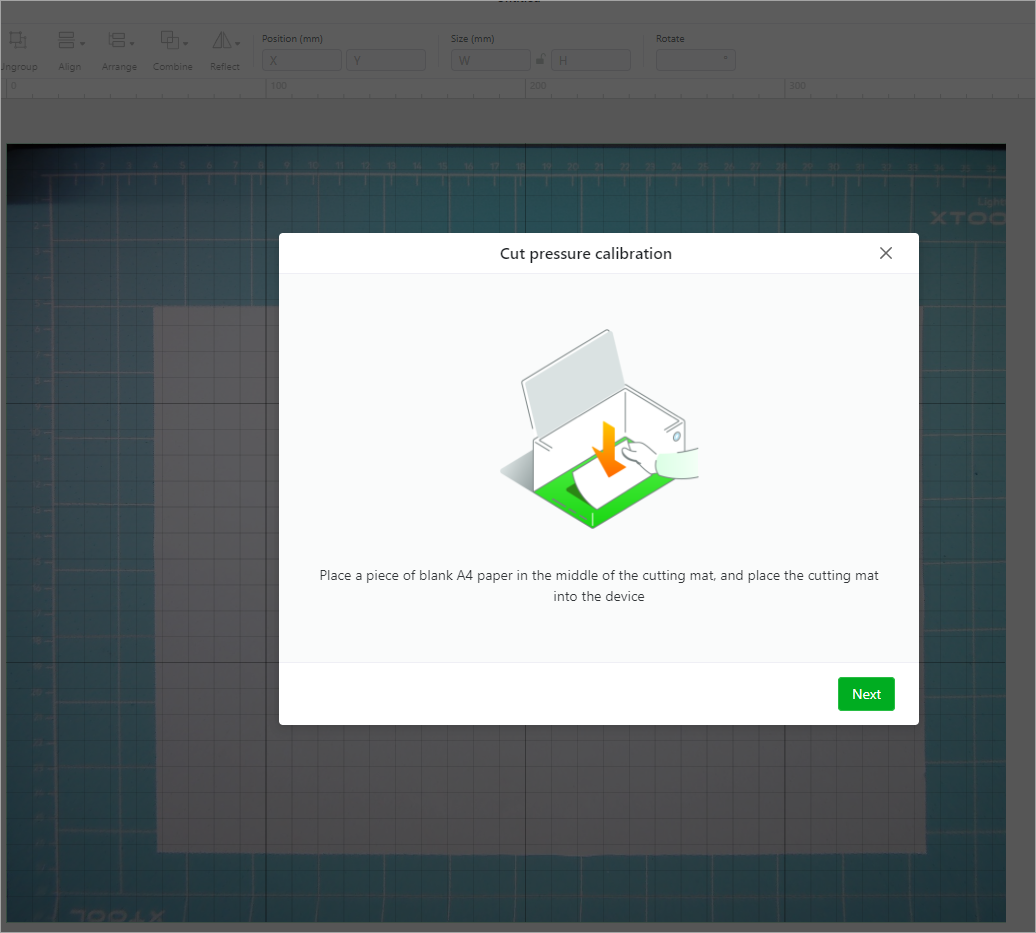
(2) Click Next and press the button on xTool M1 to start processing.
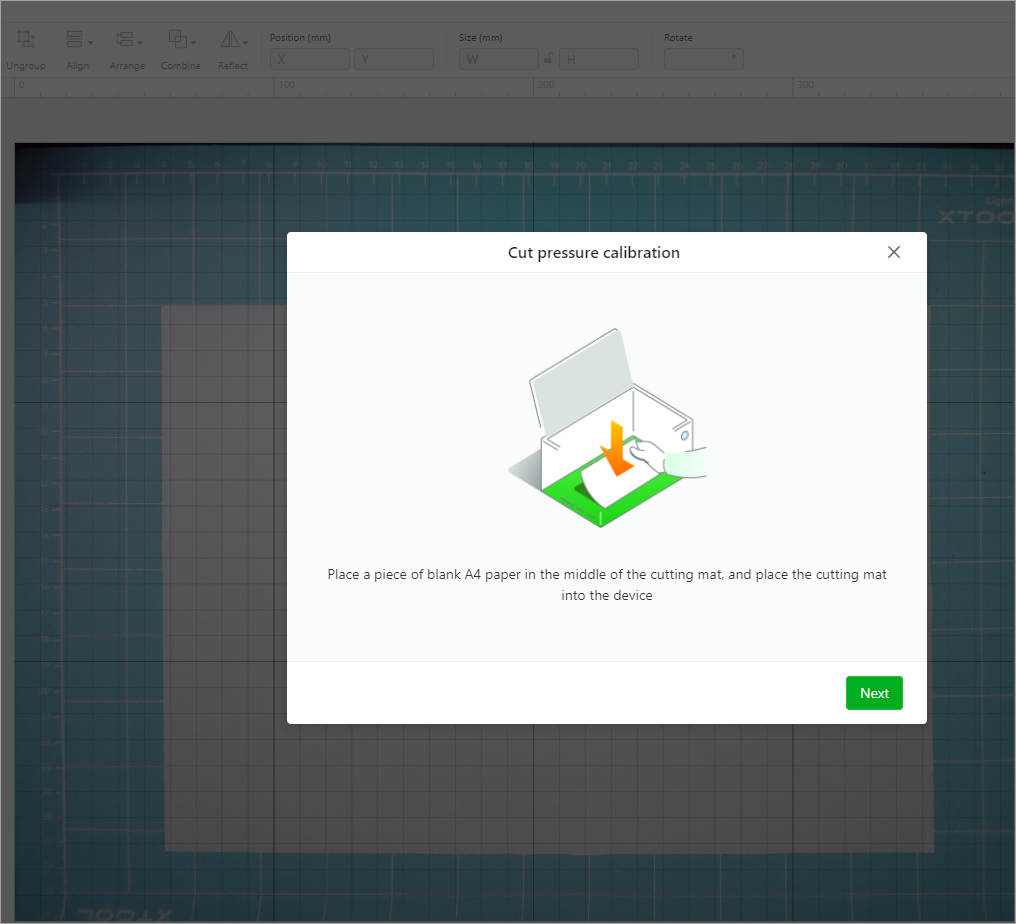
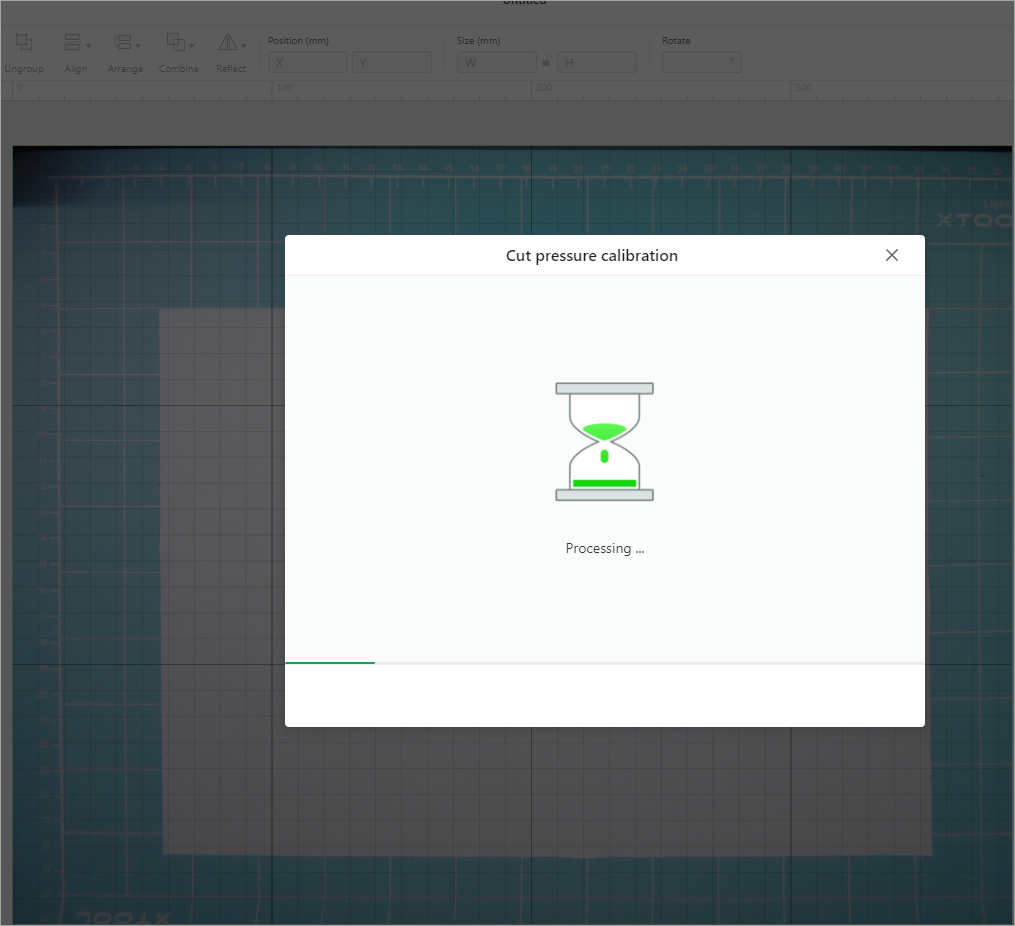
(3) Wait for the process to complete.
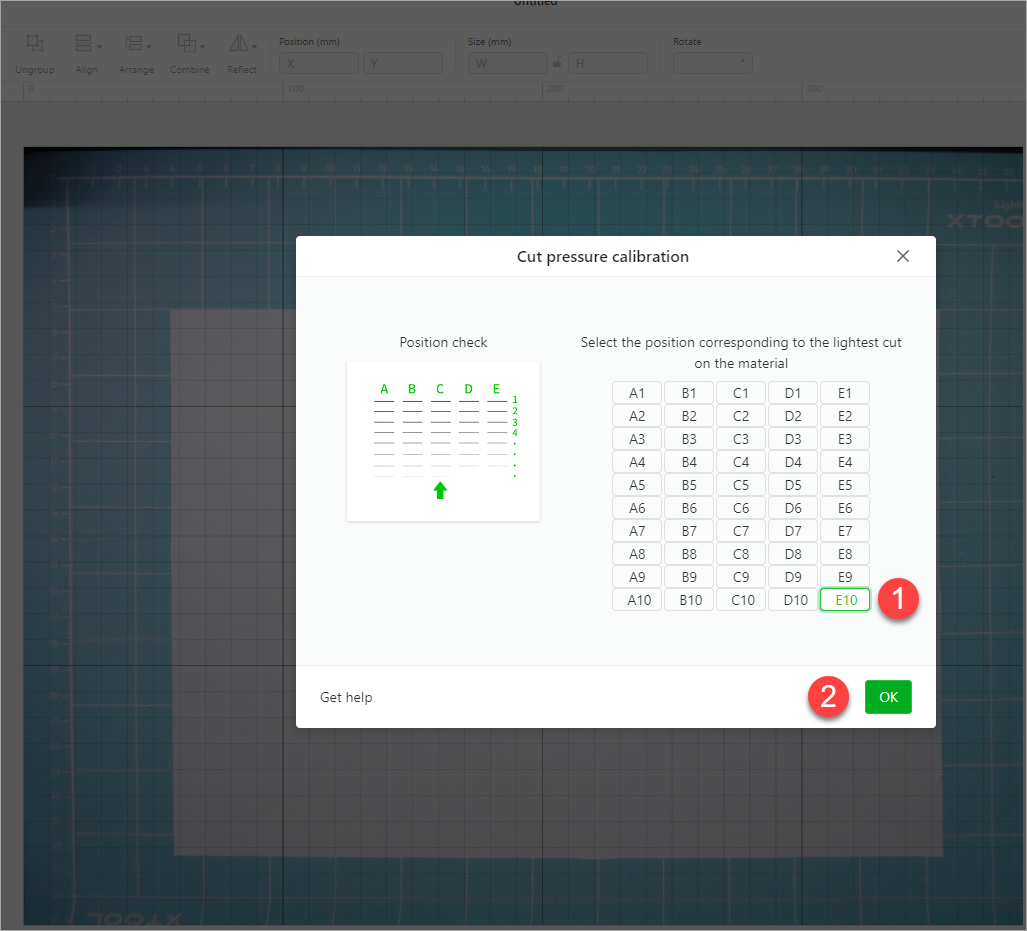
(4) Check the material's cuts, find the lightest cut, and click the position corresponding to it on XCS. For example, the lightest cut is in the lower right corner.
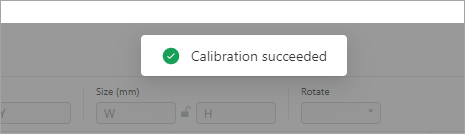
The calibration is complete.
Another solution that we offer to address any camera positioning errors is to use a 3mm basswood board on the M1 base plate for line engraving or laser cutting. This will help reduce any deviations that may appear after the fisheye image is converted into a normal flat image.
After processing, simply refresh the camera screen and send us a screenshot of the XCS interface or shoot a complete processing video for us to review. This will allow us to judge the camera positioning error, and if the error is too large, we will provide you with a suitable camera calibration solution.
We hope these tips help you avoid any future frustrations with your device's inaccuracies. If you still can't seem to solve the issue, don't hesitate to reach out to our friendly customer service team for assistance. We're always happy to help!
You can also refer to the articles linked below and the tutorials in the FAQ to improve the positioning accuracy:

Services & Help
Learn & Education

Copyright © 2025 xTool All Rights Reserved.