
Issue description
Yellow output appears greenish when printing with xTool M2 CMYK Inkjet Module.
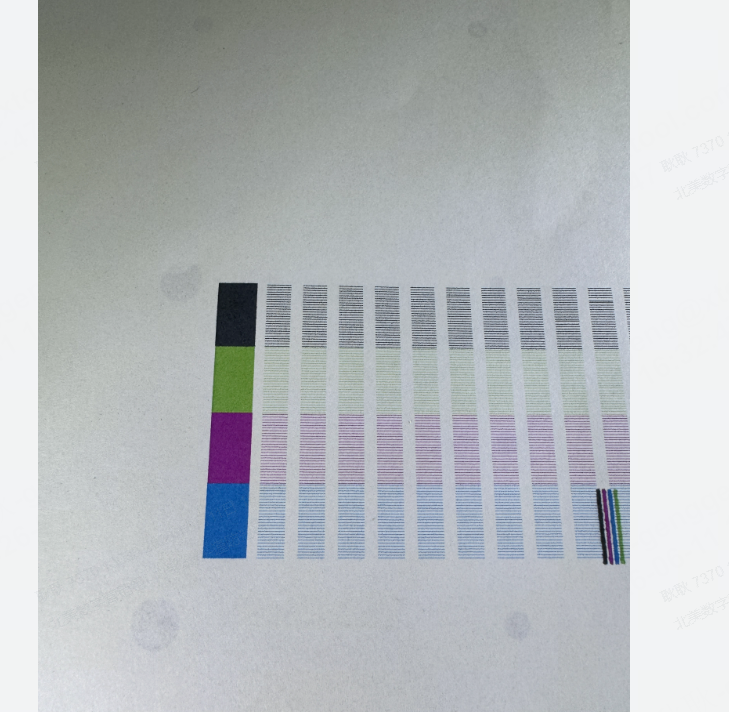
Possible causes
- Dry ink nozzle: Prolonged inactivity may cause ink to dry in the nozzles, resulting in poor print quality.
- Dirty ink nozzle
- Clogged ink nozzle
- Insufficient ink
- Ink cartridge not functioning properly
Troubleshooting procedure
Step 1: Apply moisturizing liquid to the sponge in the bottom cap after prolonged inactivity
- Turn off xTool M2.
- Remove the ink cartridge from the inkjet module.
- Add 1 to 2 drops of the moisturizing liquid to the built-in sponge of the inkjet module bottom cap.
Note: Avoid overfilling or accumulation of liquid, as this may cause color mixing or printing issues.
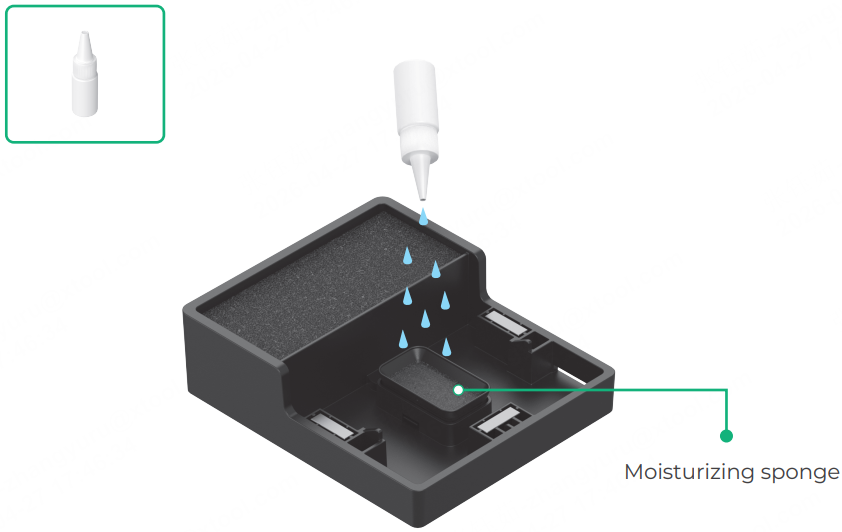
- Reinstall the ink cartridge into the inkjet module and ensure that it is securely seated.
- Turn on xTool M2 to run a print test. If the issue persists, move on to the next step.
Step 2: Clean the ink cartridge
- Turn off xTool M2, take out the ink nozzle, and then take out the ink cartridge.
- Use a lint-free cloth or cotton swab lightly moistened with nozzle cleaning solution (not included) or distilled water (not included). Do not use alcohol, which will cause nozzle damage.
- Gently wipe the nozzle area in the direction of ink flow as shown in the image below. Do not scratch the nozzle surface.
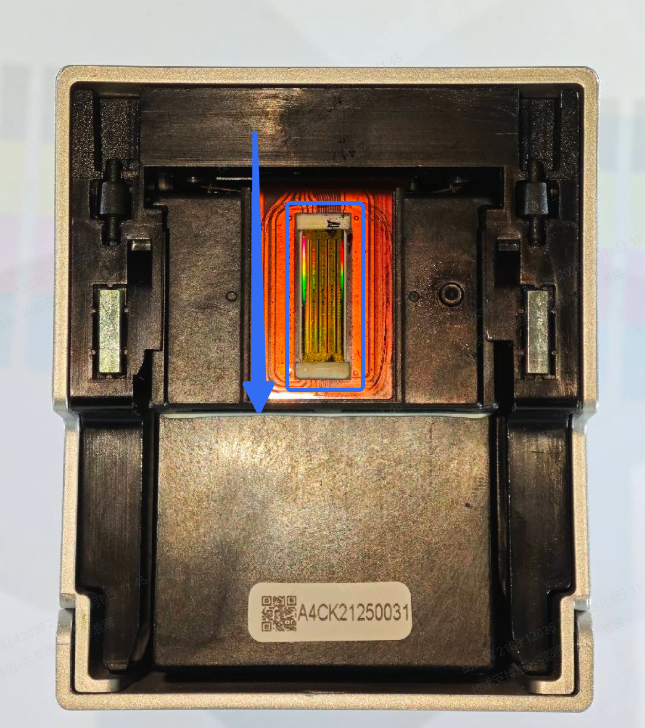
- For severe clogs, soak the nozzle in cleaning solution or distilled water for 10 seconds, then gently press the nozzle area against a moistened lint-free cloth for 1–2 seconds. For details, visit Cleaning Guide.
- Dry the nozzle area with a clean lint-free cloth.
4. Reinstall the ink cartridge into the inkjet module and ensure that it is securely seated.
5. Turn on xTool M2 and perform the nozzle status check to see if the yellow streaks have returned to normal.
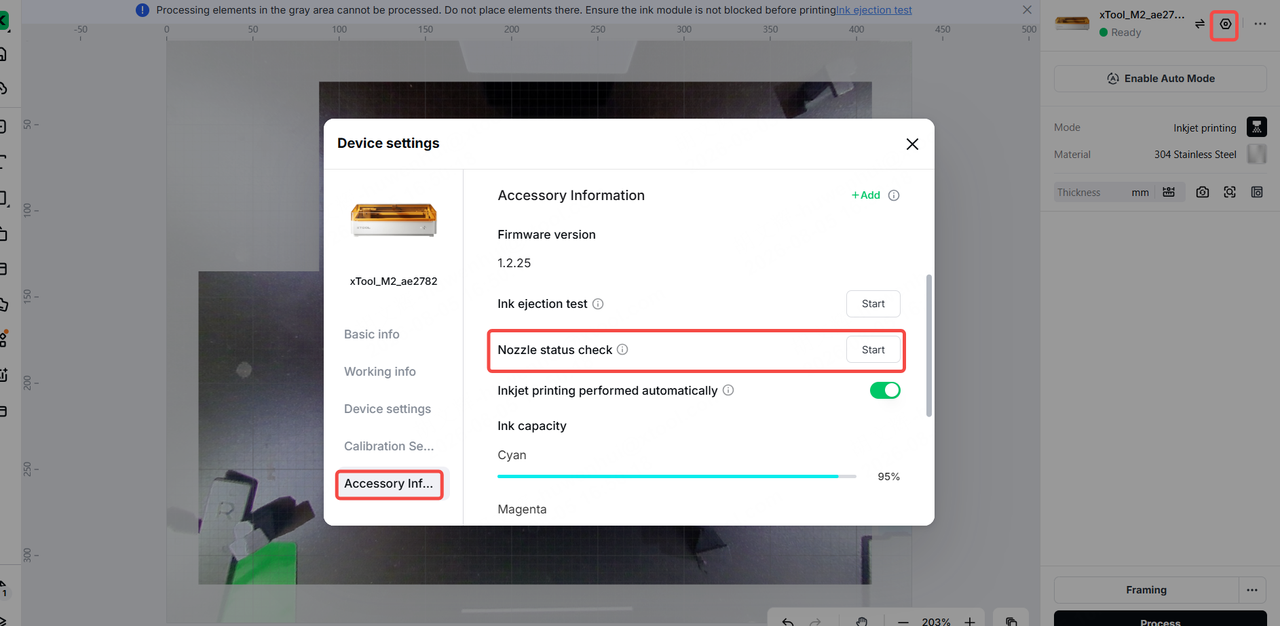
- If the yellow output returns to normal after cleaning, the issue has been resolved.
- If the yellow output displays a greenish tint after cleaning, proceed to the next step.
Note: For more information about the nozzle check pattern, visit Understanding Ink Nozzle Check Pattern for xTool M2 CMYK Inkjet Module.
Step 3: Check the remaining ink level
Follow the image below to check the remaining ink level in xTool software.
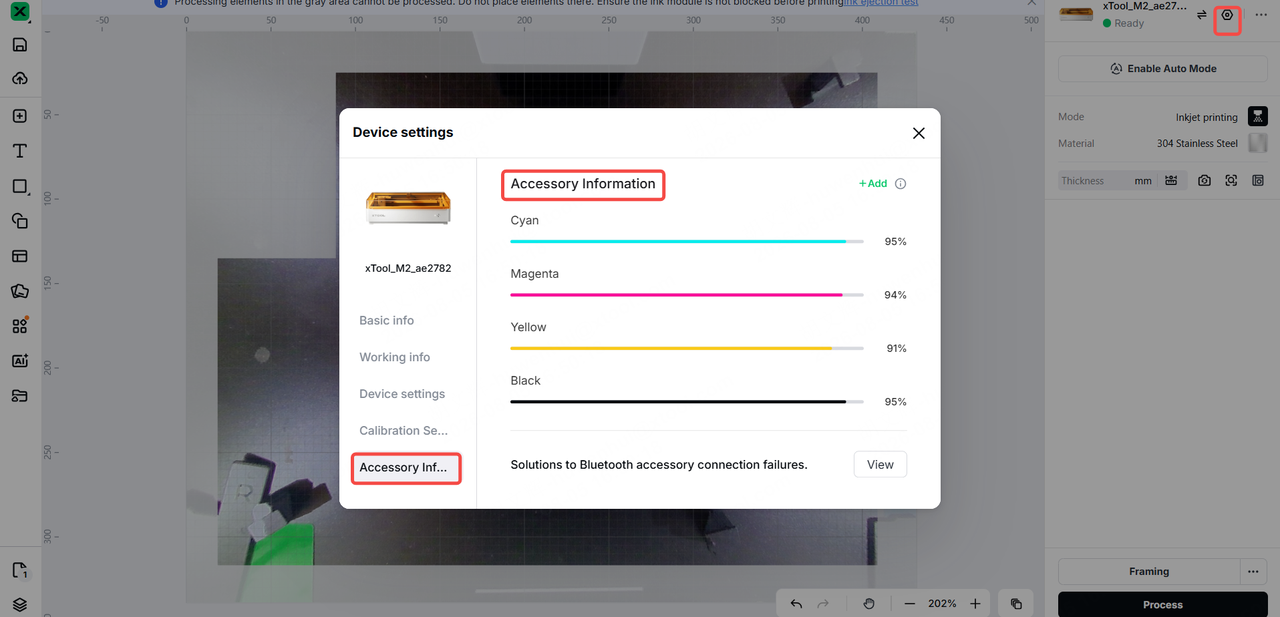
- If the yellow ink is running low or has run out, the printed yellow may appear greenish. Replace the inkjet module to resolve the issue.
Step 4: Contact xTool Support Team
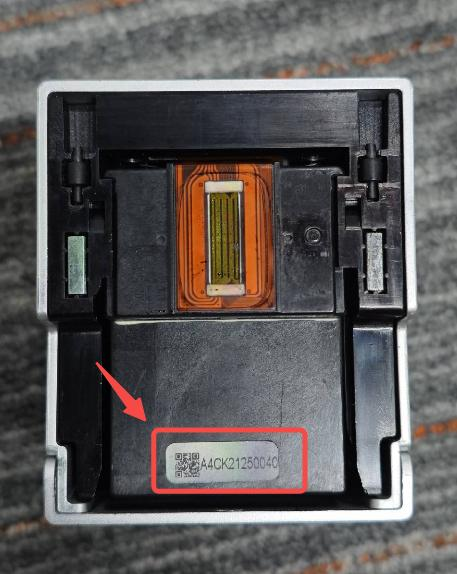
If the issue persists after you perform the previous steps, the ink cartridge may malfunction. In this case, please contact xTool Support Team with the following information and request a new inkjet module:
- Image of printing results
- Results of the nozzle status check
- Video of the whole troubleshooting process and results
- The code of the ink cartridge
Still experiencing issues?
Should the issue persist after completing the preceding steps, submit a ticket via the "Submit a Ticket" button in the "Help Ticket" section below. The standard response time for xTool Customer Service is one business day.
For a prompt resolution, please include the details mentioned in Step 4. The information is crucial for xTool technical support engineers to provide timely assistance.
Documentation feedback
Help improve this content by providing feedback. If this content did not meet your requirements, select "No" in the "Was this page helpful?" section below. Include specific details about what was unclear or missing in the pop-up suggestion box. Feedback submissions are reviewed by xTool technical writers to enhance future documentation.

