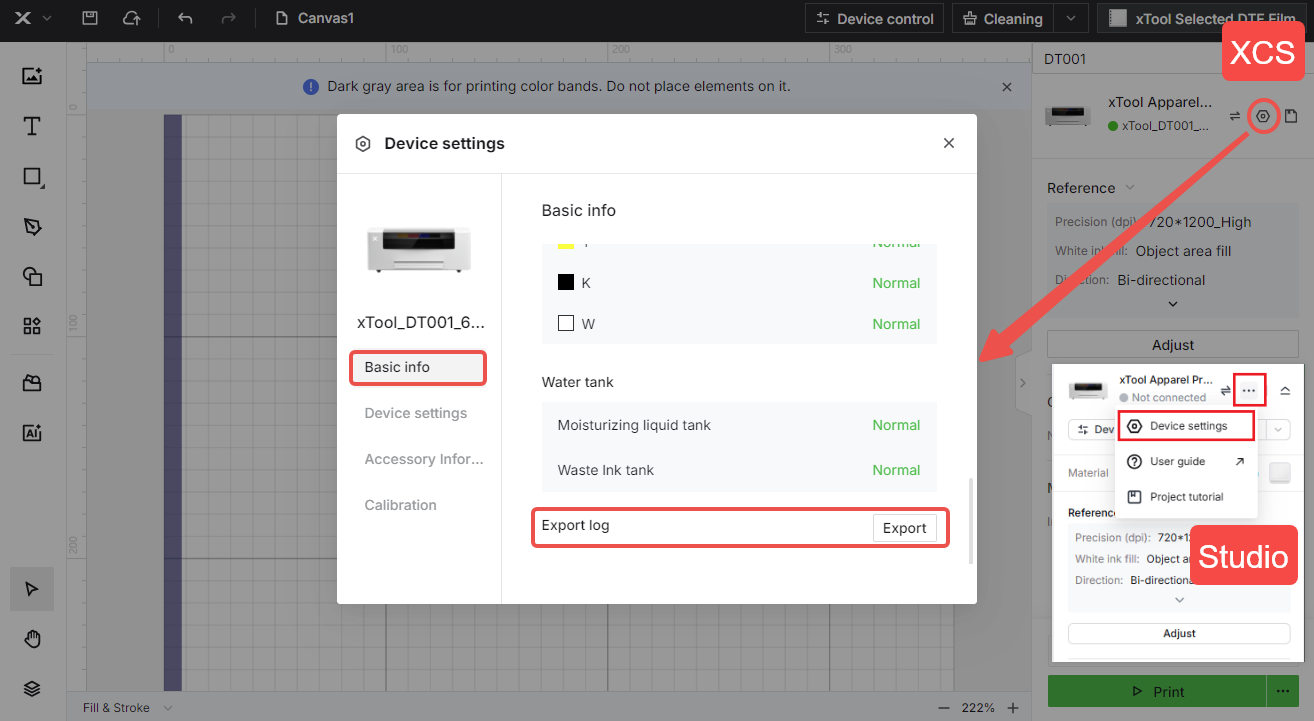
Note: If you are using the xTool Apparel Printer, this article does not apply to you. Please refer to the article: Troubleshoot No Print Output on xTool Apparel Printer.
Issue description
When you start a print task on your xTool Apparel Printer, the print carriage moves back and forth normally, but no ink is deposited onto the film. Both the intended design and the image printing test come out completely blank.
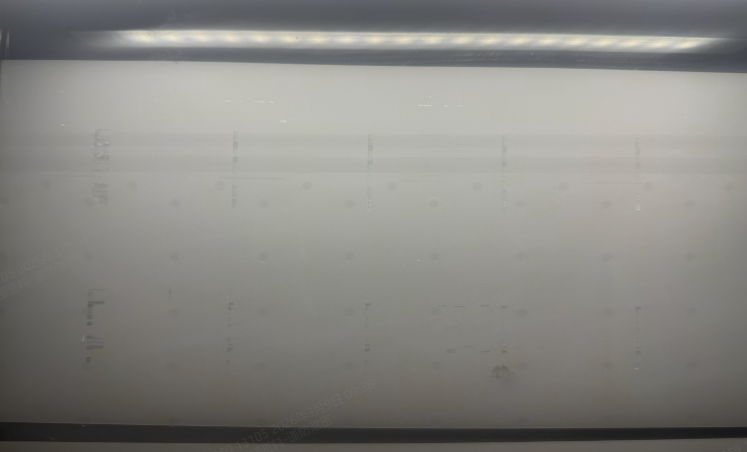
Abnormal - Empty output in sample print test
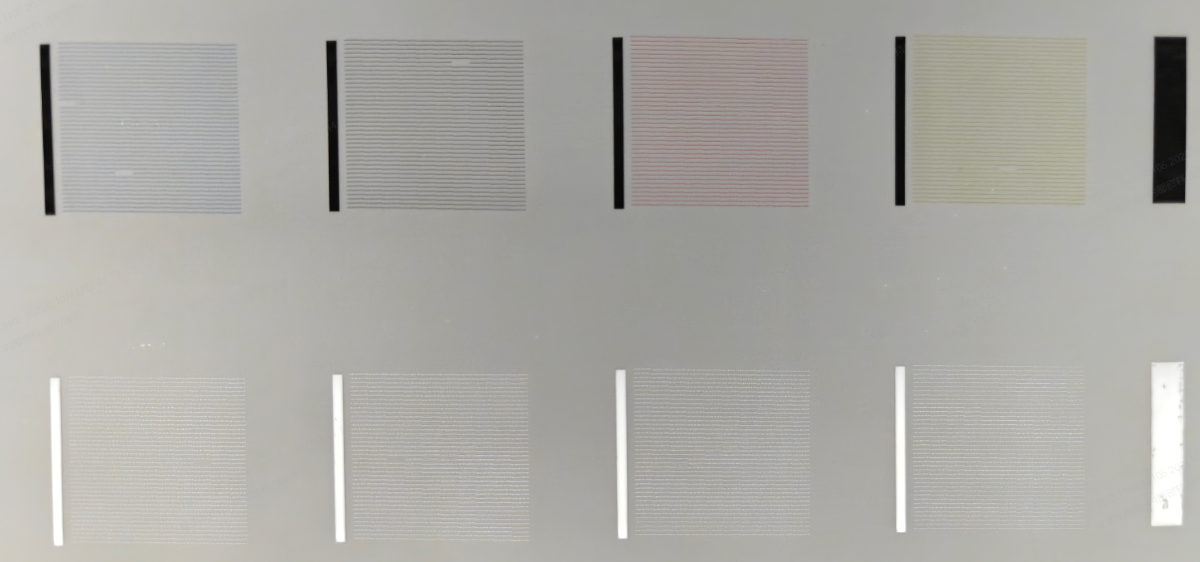
Normal - Both CMYK color and white color output in sample print test
Possible causes
- Problems caused by abnormal firmware system of the device
- Detached or faulty encoder strip
- Faulty carriage controller board
- Print head short circuit
Troubleshooting procedures
1. Problems may be caused by abnormal firmware system of the device
(1) Unplug the printer's power cable.
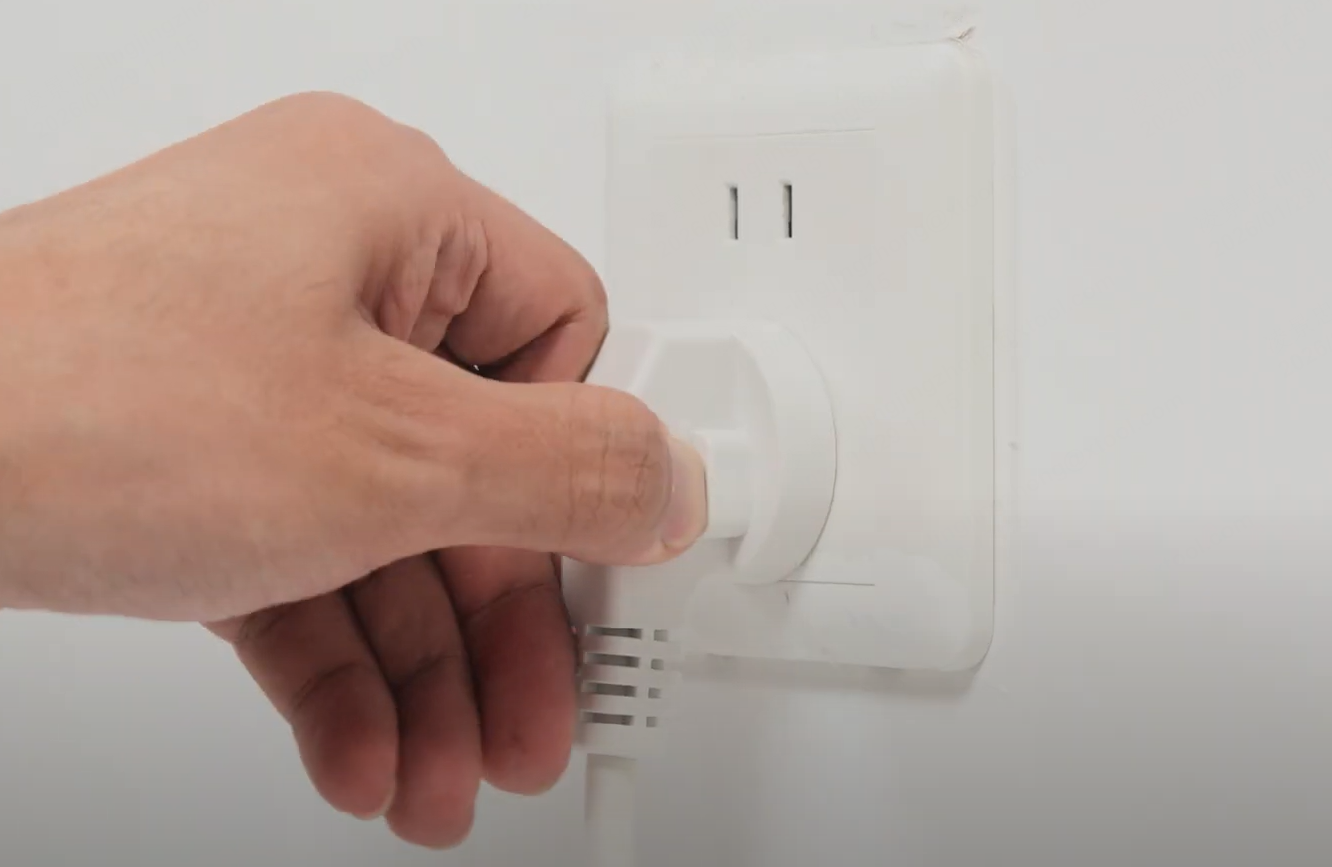
(2) Wait 10 minutes before plugging the power cable back in.
(3) Print a test image and check whether there are any ink marks.
- If there are, the issue is resolved.
- If there are still no marks at all, proceed to the next step.
2. Check ink level in the ink damper
- If there is ink in the ink damper but the problem persists, please proceed to Step 2.
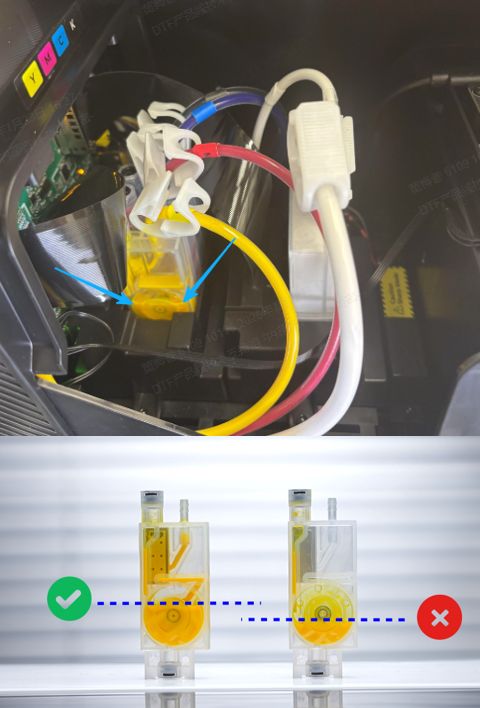
① Check CMYK ink
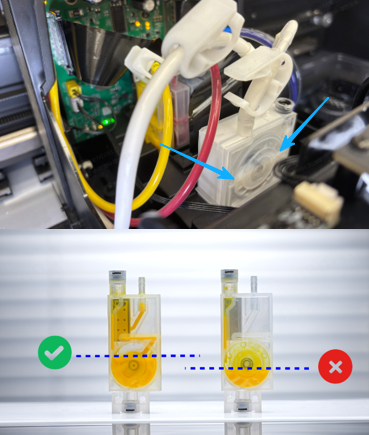
② Check white ink
- If there is no ink in the ink damper, please refer to the video (from 7:20 to 8:00) and use a syringe to extract sufficient ink into the ink damper.
- Check whether the encoder strip has come loose
(1) Check the encoder strip position: Watch this video (Replace the Encoder Strip for xTool Apparel Printer) to check the encoder strip position, but do not remove it.
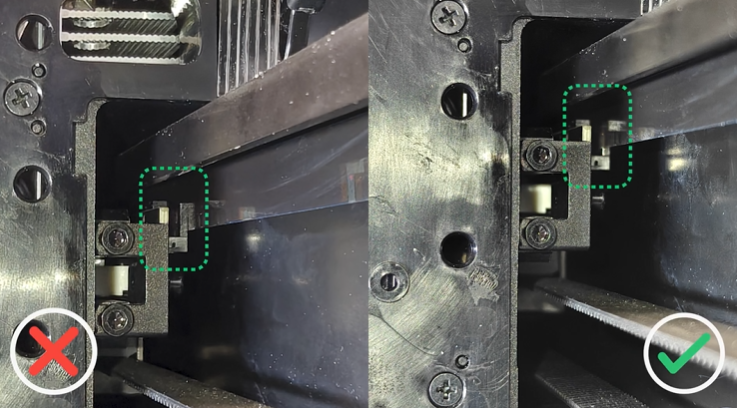
(2) Check whether the encoder strip is in the groove (has not fallen out): This groove is the sensor. If the encoder strip is not installed in the groove, its position information cannot be detected. You need to install the encoder strip in the groove (as shown below).
It is recommended to use your phone’s flashlight to illuminate the area for inspection, as it may be difficult to see clearly.
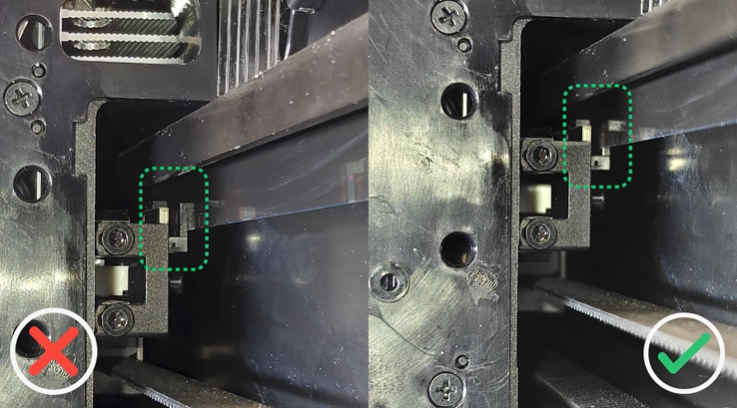
(3) Move the print head carriage to the far left and far right, respectively, then check again. It is possible that nothing has fallen off at the current position, but something may fall off when it is moved to either side. If the carriage is found to have come loose on either the left or right side, install the encoder strip into the groove.
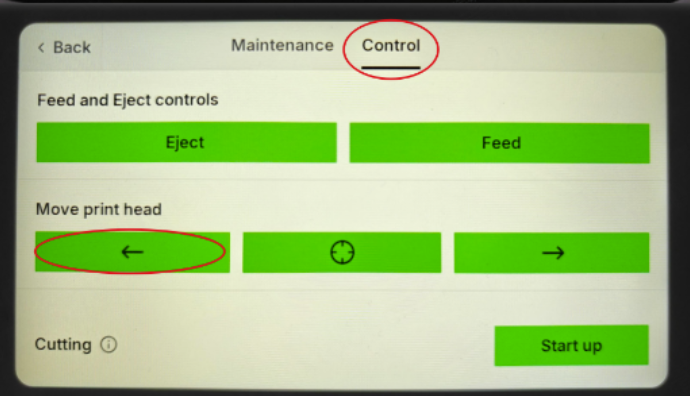
(4) If none have come loose but the problem persists, please perform a Device self-check and check for any encoder errors: Encoder Strip Check Error.
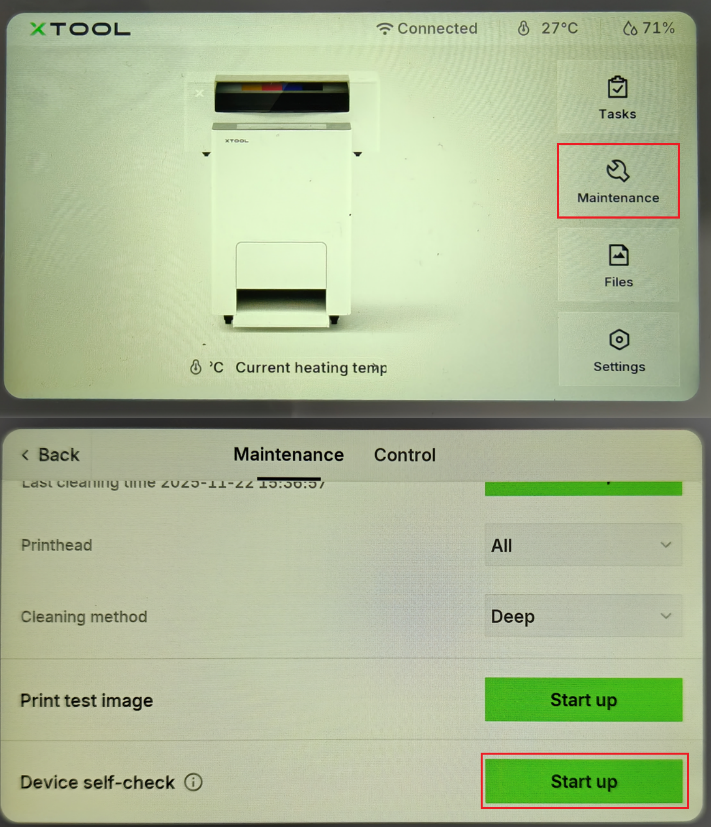
- If no error is reported, it indicates that the encoder strip and the encoder strip reader function properly. Please proceed to the next step.
- If the error message “Encoder Strip Check Error” appears, it indicates a fault with the encoder strip or the encoder strip sensor board. In this case, you can try replacing the encoder strip and encoder strip sensor board in order.
Replace the encoder strip: Replace the Encoder Strip for xTool Apparel Printer Series
- Check the indicator of the carriage controller board
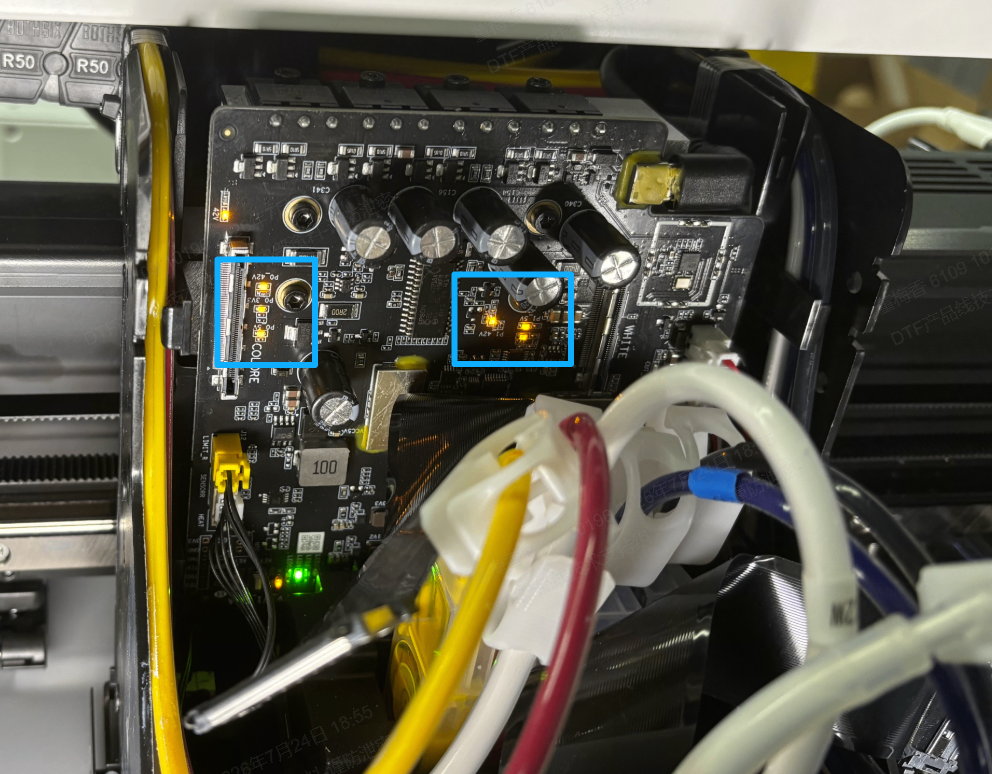
Check whether the six indicator lights shown on the carriage controller board are lit when powered on.
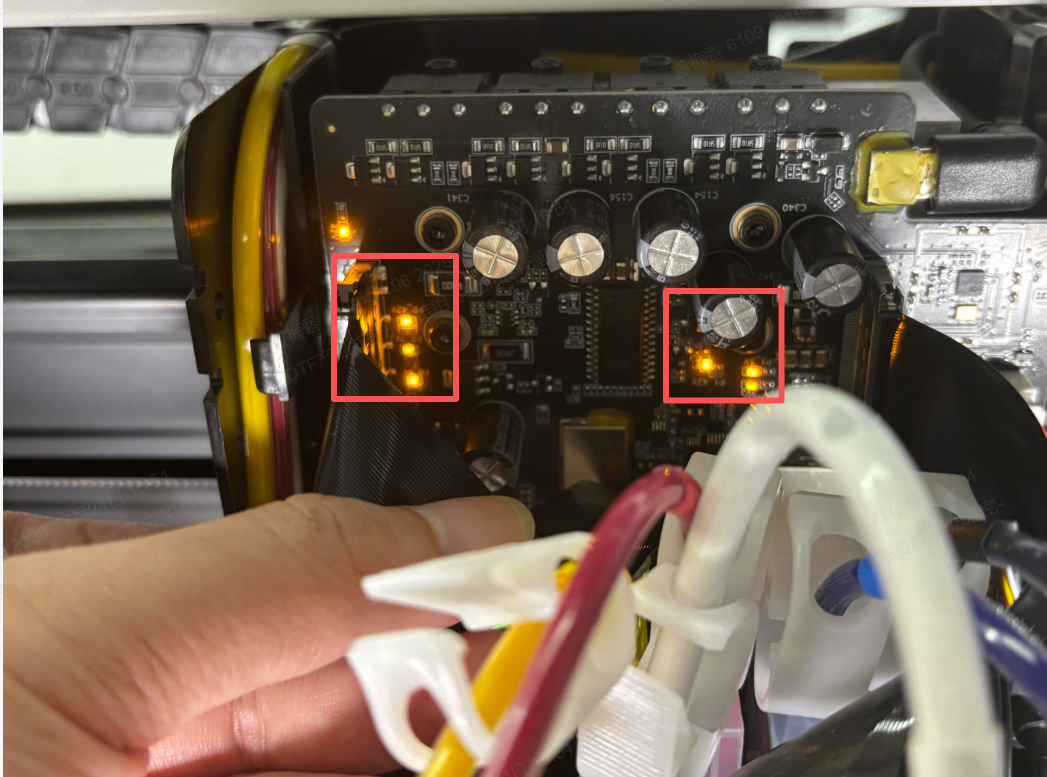
The diagram shows the positions of the six lights. All six lights being on is the normal state.
- If all 6 indicator lights are on, this indicates that both the carriage controller board and the print head function normally. Please contact xTool Customer Service and provide the relevant information for further investigation. For the required information, refer to the “Still experiencing issues?” section.
- If the 6 indicator lights are not on, but other lights on the carriage board are on, the problem should be with the carriage board or the print head. Please refer to Steps 2 and 3 in the troubleshooting steps in this article to determine whether the issue is with the carriage board or the print head: Troubleshoot "Print Head Carriage Board Power Exceptions" for xTool Apparel Printer Plus.
Still experiencing issues?
Should the issue persist after completing the preceding steps, submit a ticket via the "Submit a Ticket" button in the "Help Ticket" section below. The standard response time for xTool Customer Service is one business day.
For a prompt resolution, please include the following details:
- Issue description: A detailed explanation of the observed problem.
- Video evidence: Attach a video demonstrating the issue, where applicable.
- Troubleshooting performed: Any troubleshooting steps you have already attempted, along with their results.
This information is crucial for xTool technical support engineers to provide timely assistance.
Please provide photos of the following:
- Ink level in the ink damper
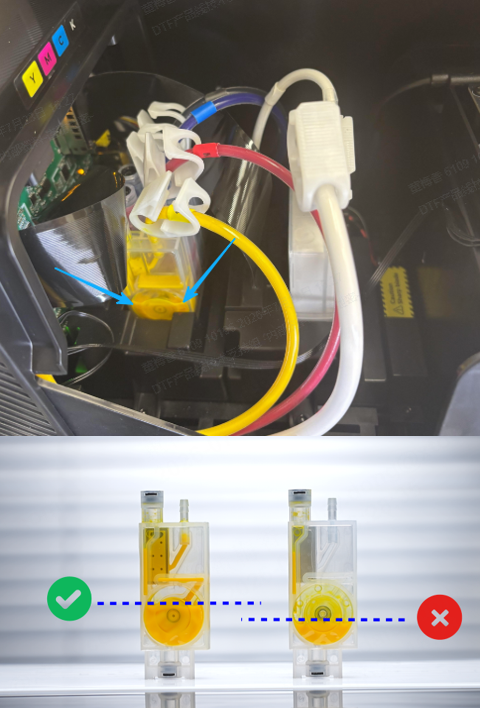
① CMYK ink damper
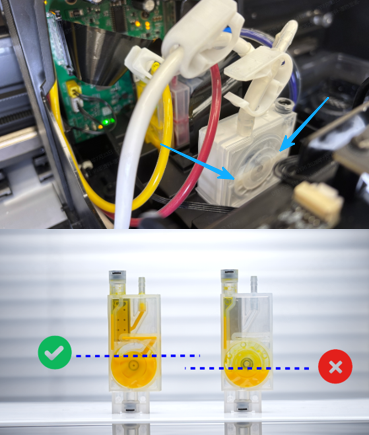
② White ink damper
- Whether the encoder strip is inside the groove.
- Indicators on the carriage controller board
- Work log