Issue description
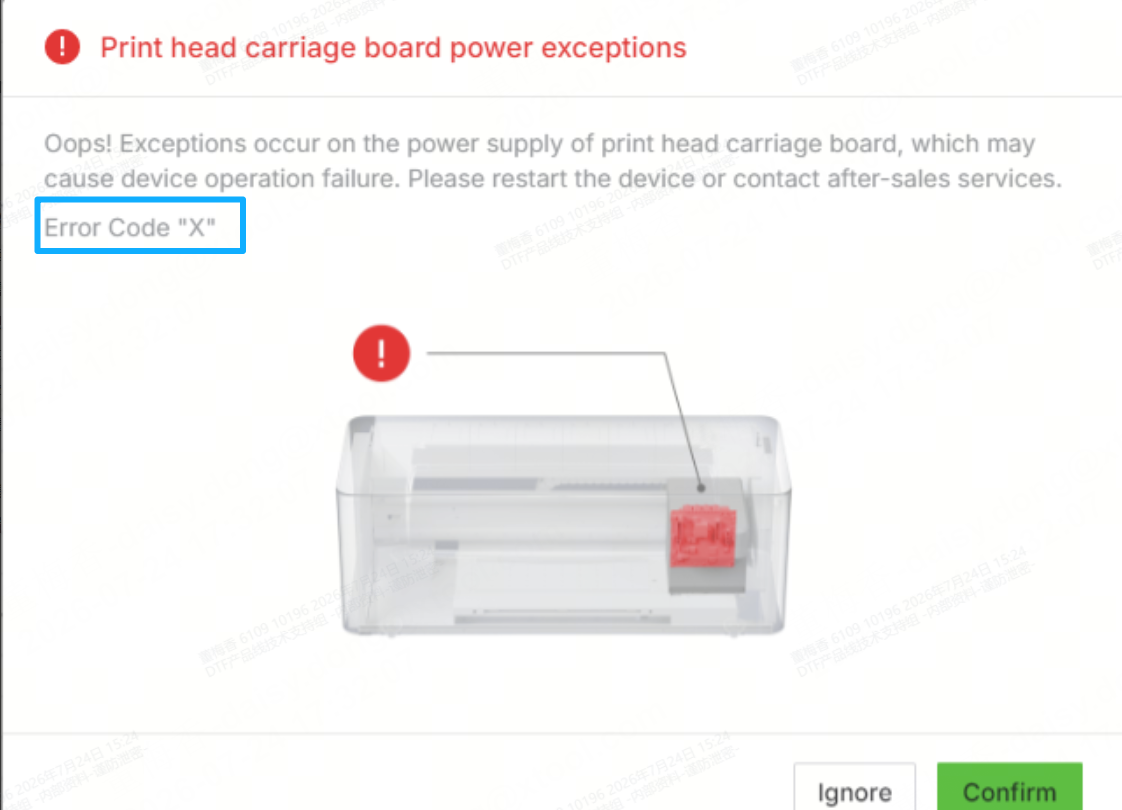
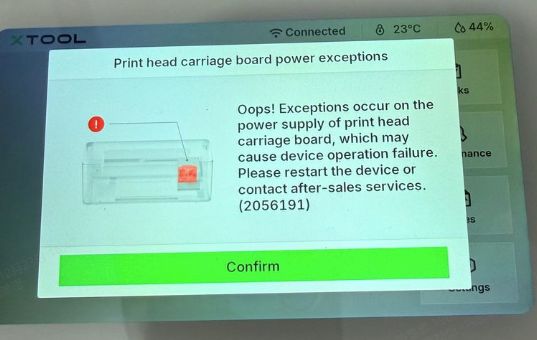
- An error message may appear in xTool software or on the printer's LCD control panel stating "print head carriage board power exceptions". The error code displayed with this message will be a string of numbers (e.g., "2047987") rather than the letter "X" shown in this reference image.
- The software or the printer's LCD control panel does not state the error code. However, the six lights on the carriage controller board are completely off (as below). In general, this situation is usually accompanied by the issue that the printer does not output any ink at all.
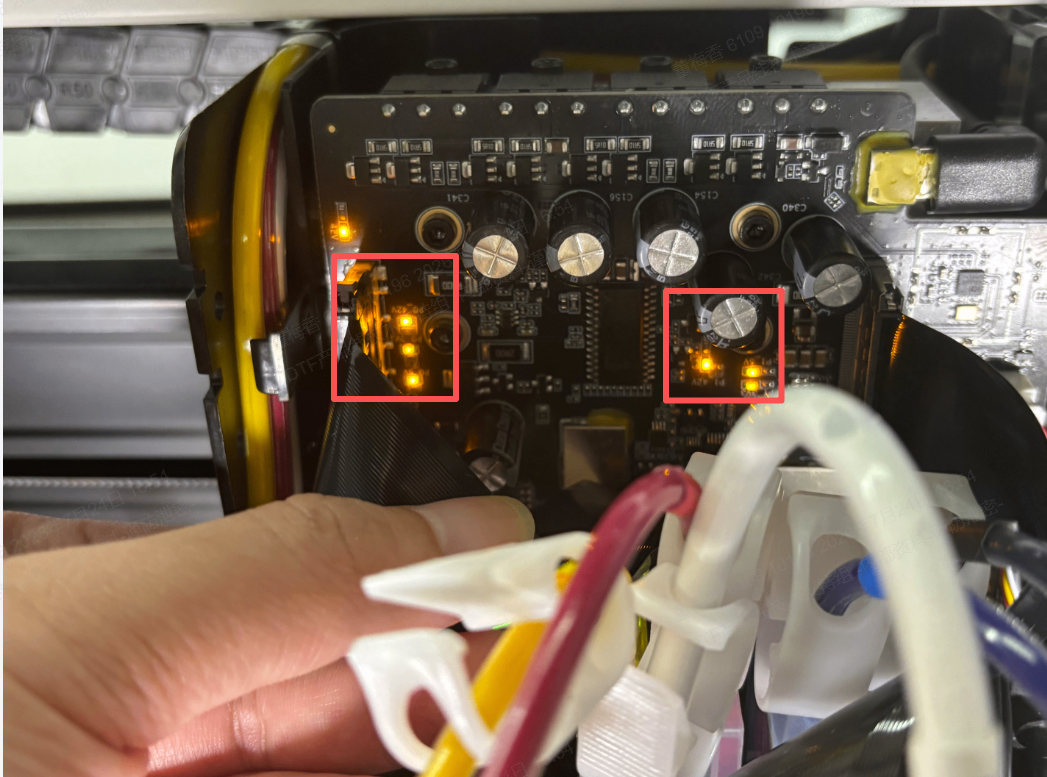
The diagram shows the positions of the six lights. All six lights being on is the normal state.
Possible causes
- Error caused by quickly unplugging and plugging in the power cable (usually accompanied by error code 4294901759) or by an abnormal device firmware system
- Carriage controller board or print head malfunction
Troubleshooting procedures
- The error may have been caused by the printer's power cable being plugged in or unplugged too quickly, or by an issue with the printer's firmware.
You can troubleshoot by following steps:
(1) Unplug the power cable.
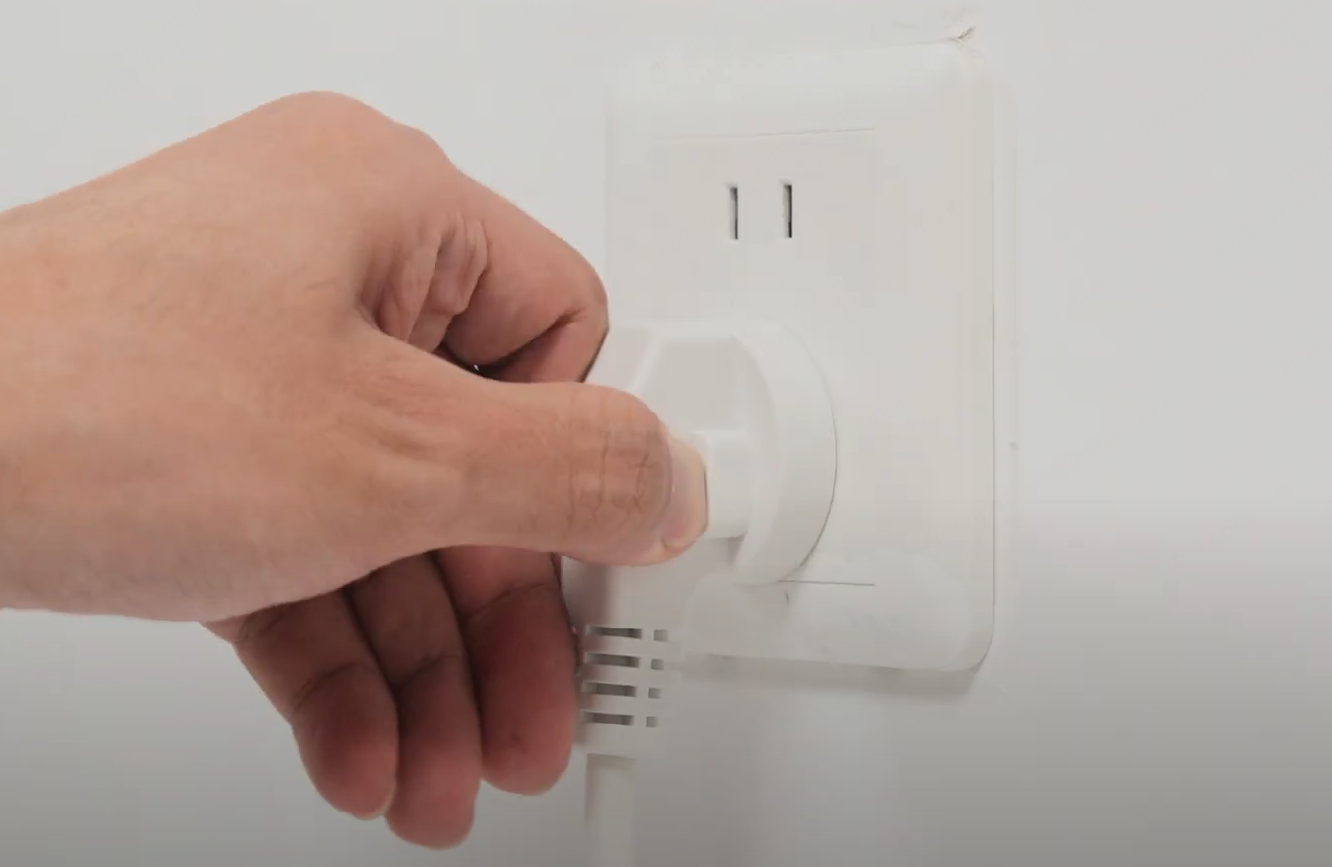
(2) Wait for at least 15 seconds before reconnecting.
(3) Observe whether the error code disappears.
- If the error disappears, the issue is solved.
- If the error persists, proceed to the next step.
- Check whether the carriage controller board is faulty.
(1) Unplug the power cable again.
(2) Disconnect the two cables connecting the print heads to the carriage controller board.
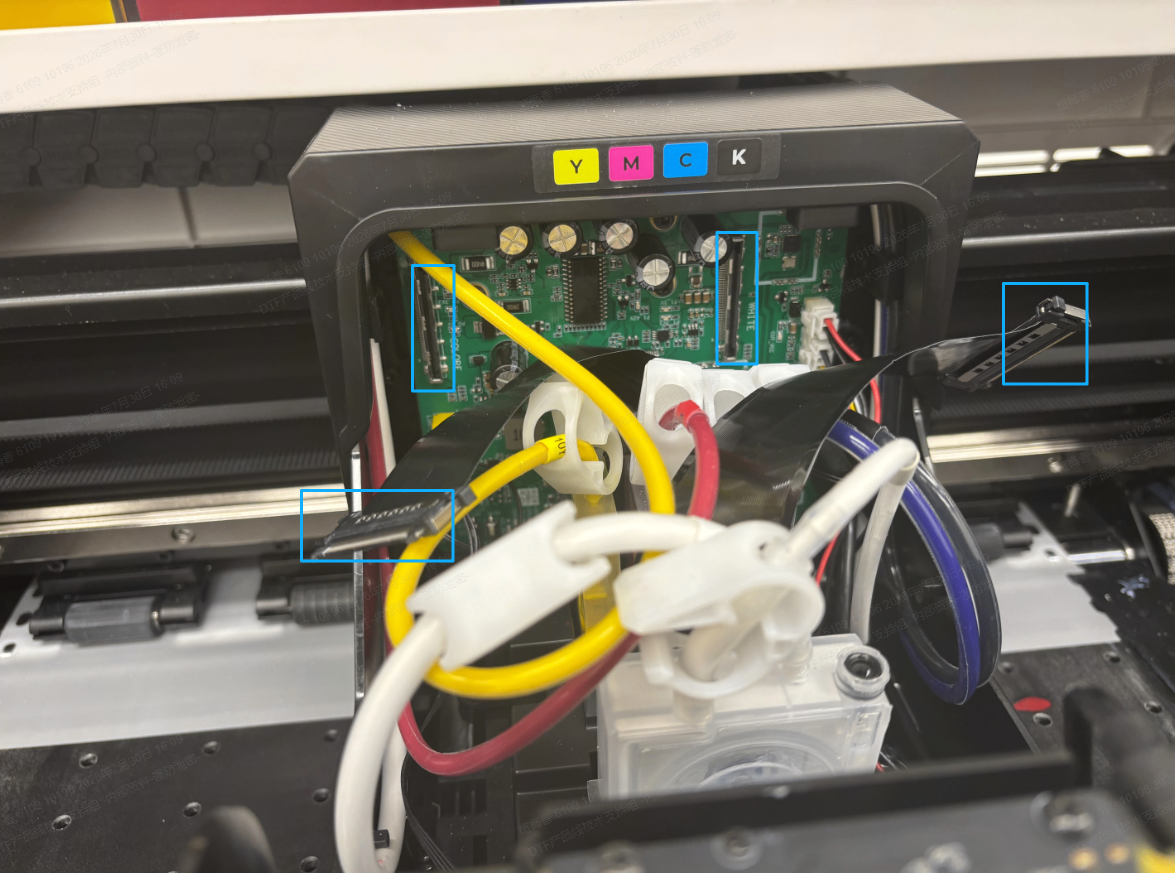
(3) Plug in the printer power cable.
(4) Check whether the 6 lights on the carriage controller board are on.
- If all 6 lights turn on normally, it indicates that the carriage controller board is functioning properly, and the issue should be with the print head. Please proceed to the next step.
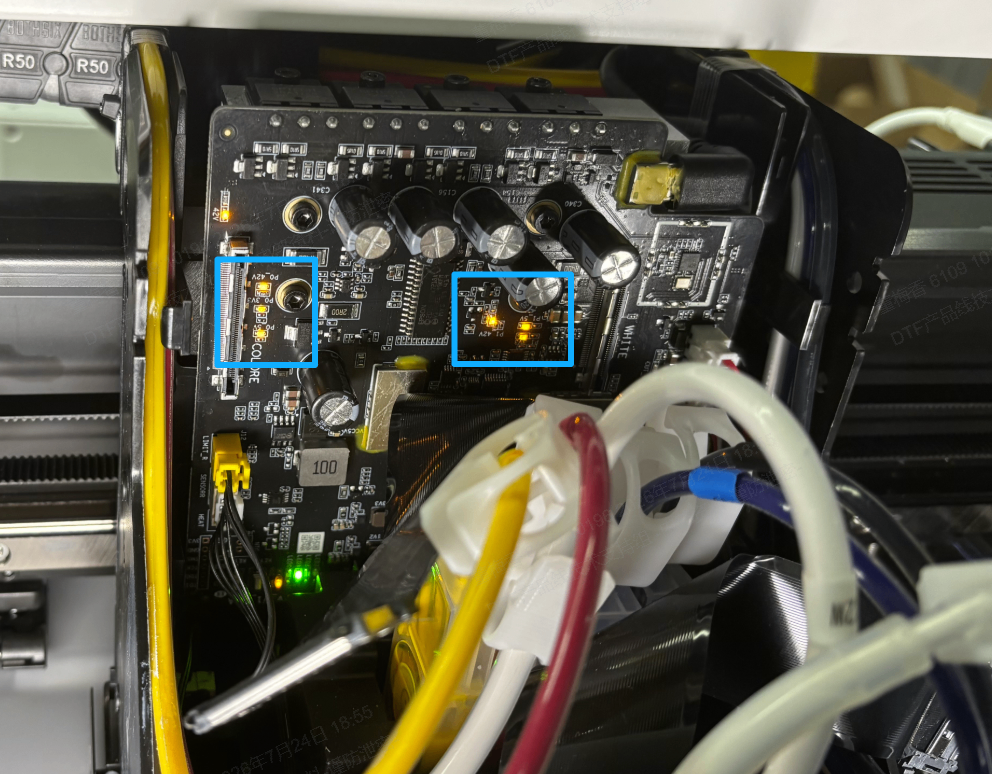
(The illustration shows all 6 lights turned on.)
- If none of the 6 indicator lights are on, this indicates a malfunction in the carriage controller board, which must be replaced to resolve the issue. Please take a clear photo of the carriage controller board’s indicator lights and send it to xTool customer service so they can arrange for a free replacement or provide guidance on purchasing a new one.
Note: Free replacement is available within the warranty period; outside the warranty period, you will need to purchase a new one.
①:Replace the carriage controller board: Replace the Carriage Controller Board for xTool Apparel Printer Series
- Check the print head's functionality
(1) Please take a clear photo of the error code displayed on the screen (if the error code disappeared after you previously clicked Ignore, please try to reproduce the error code and take a photo). As shown in the image below:
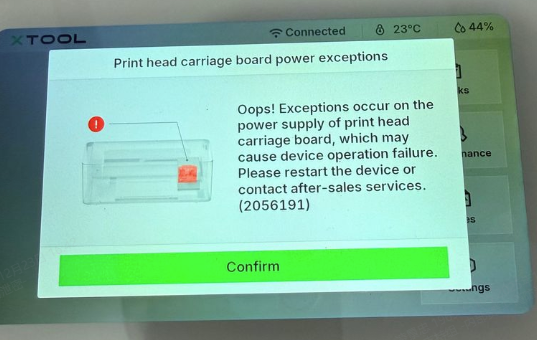
(2) Provide the photo to xTool after-sales customer service. xTool after-sales customer service will determine whether the malfunction is with the color ink print head or the white ink print head based on the numeric code in the error image.
(3) After receiving feedback from xTool after-sales customer service identifying the faulty print head, please replace the corresponding print head to resolve the issue.
Note: Free replacement is available within the warranty period; outside the warranty period, you will need to purchase a new one.
Still experiencing issues?
Should the issue persist after completing the preceding steps, submit a ticket via the "Submit a Ticket" button in the "Help Ticket" section below. The standard response time for xTool Customer Service is one business day.
For a prompt resolution, please include the following details:
- Issue description: A detailed explanation of the observed problem.
- Video evidence: Attach a video demonstrating the issue, where applicable.
- Troubleshooting performed: Any troubleshooting steps you have already attempted, along with their results.
This information is crucial for xTool technical support engineers to provide timely assistance.
Information that needs to be collected if the issue remains unresolved:
- The troubleshooting result for each step (required)
- Provide feedback on the troubleshooting results for Steps 1 and 2.
- Provide images showing the status of the 6 lights on the carriage controller board in the troubleshooting for Step 2.
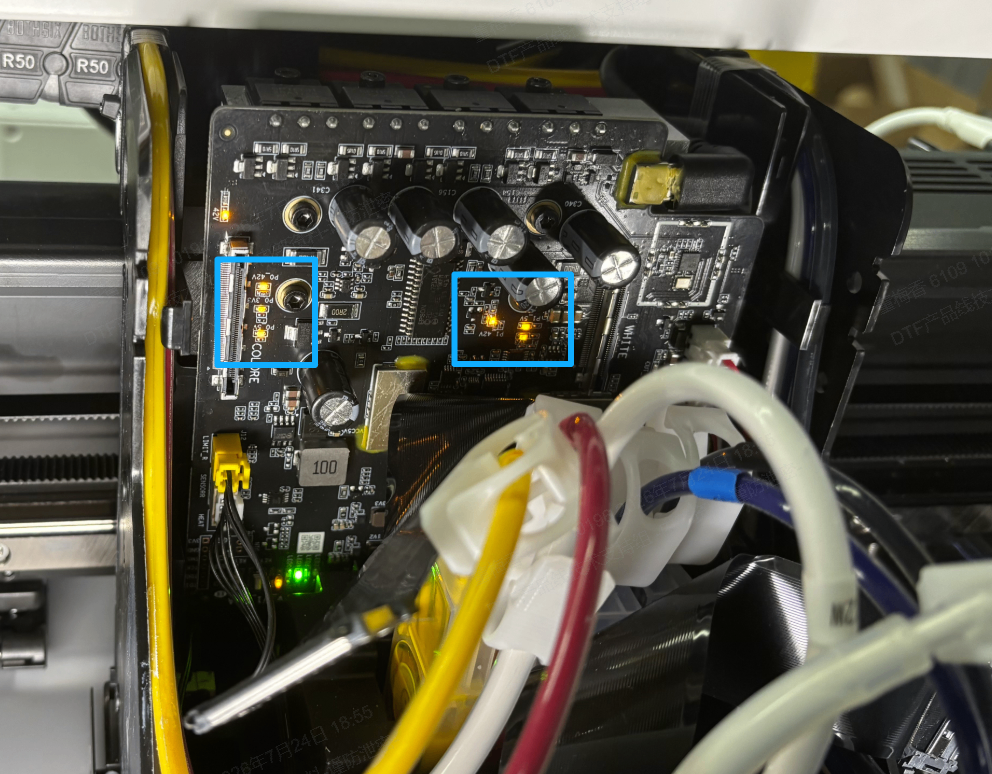
- A photo of the error code or work log (required)
- Provide a photo of the error code displayed on the screen, as shown below:
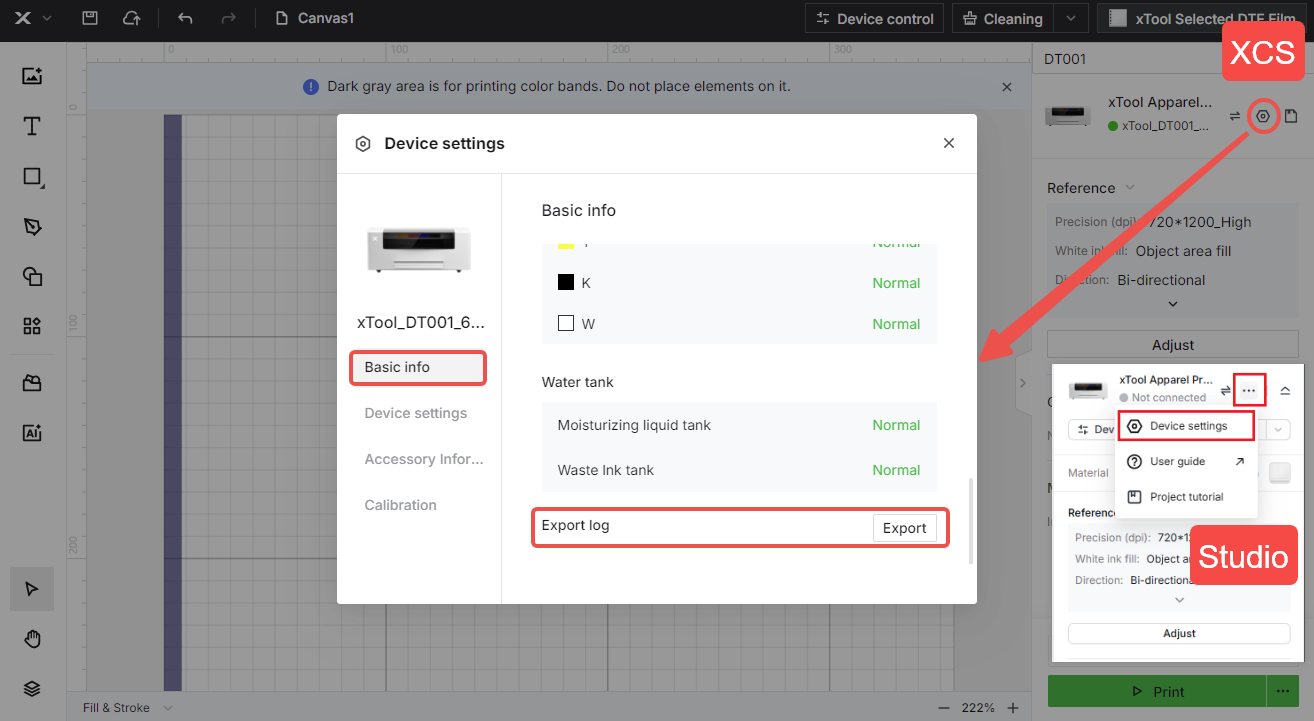
- Log information (if a photo of the error code displayed on the screen has already been collected, the log information does not need to be collected. Otherwise, it must be collected.)
- Firmware version
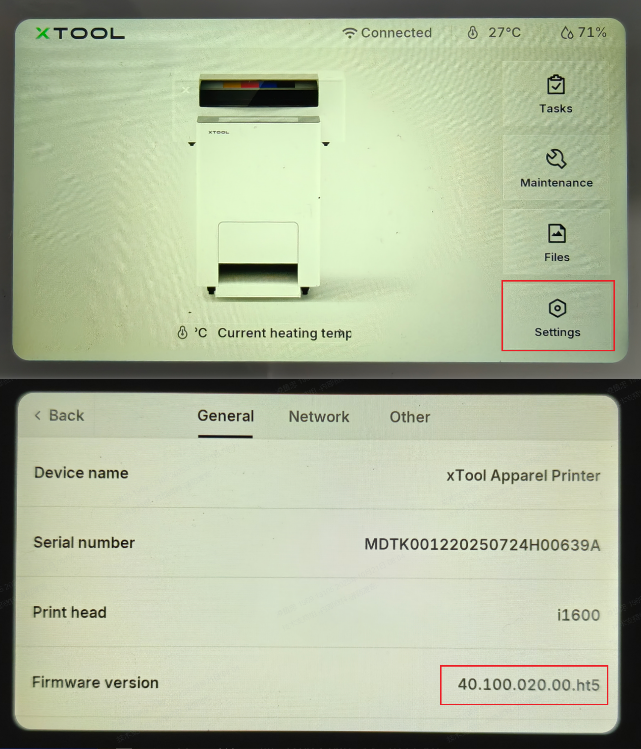
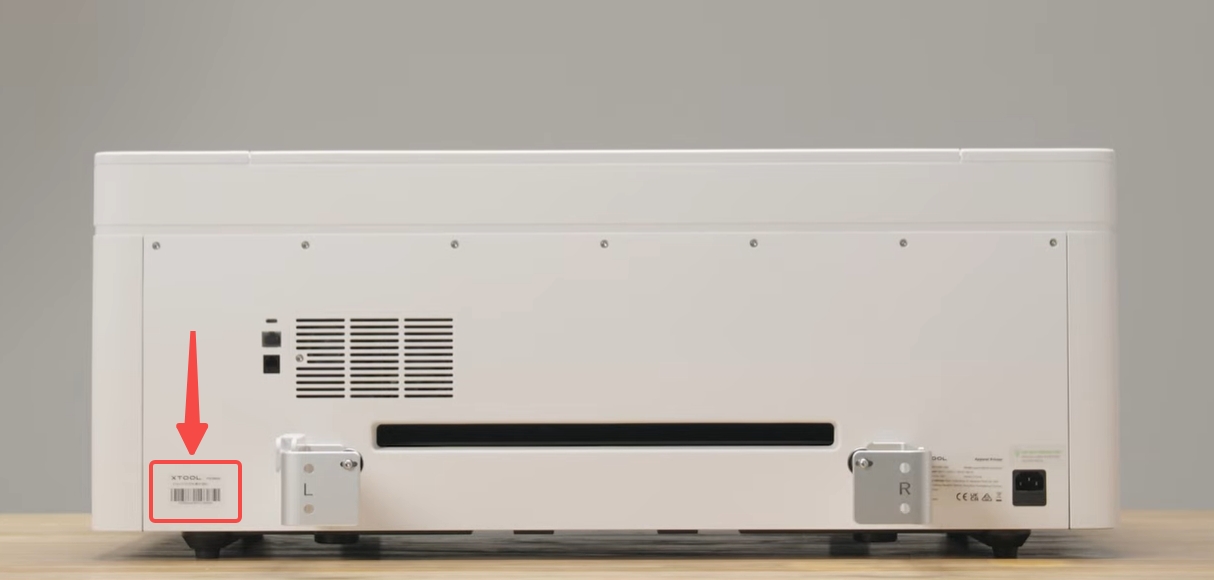
- SN