
1. Connect xTool M2 to the software
Go to Operate xTool M2 with xTool Software and follow the steps. Make sure the device is connected successfully.
2. Select a processing mode and material
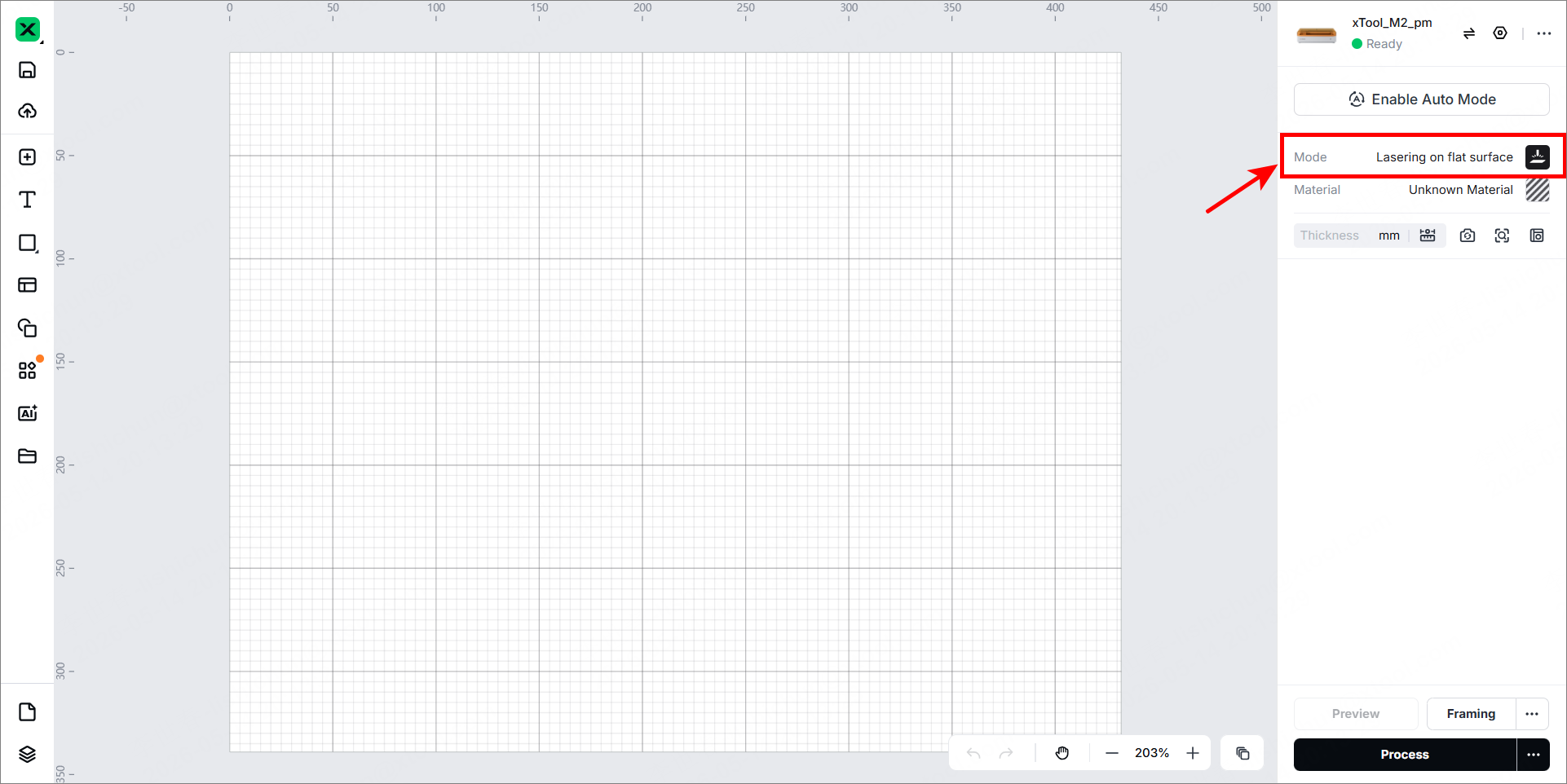
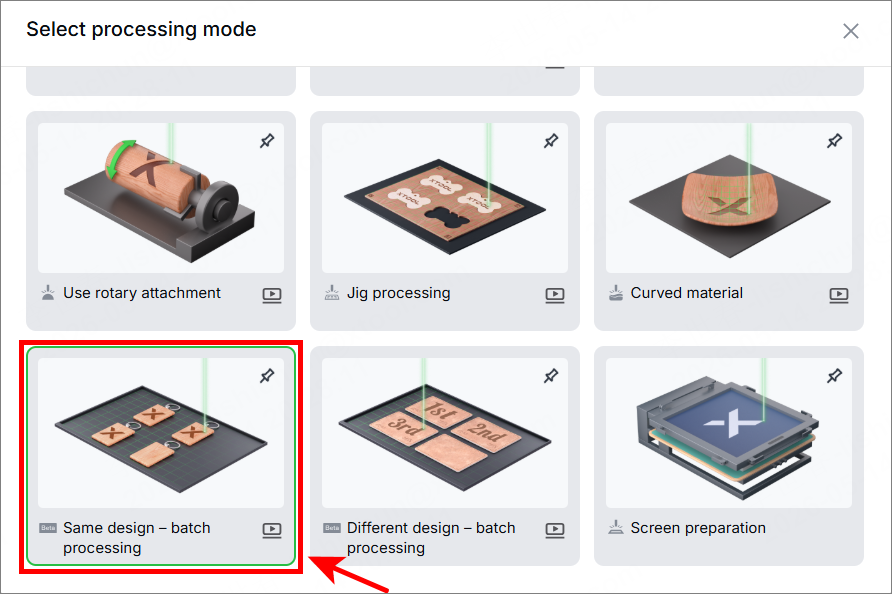
(1) On the right panel, select Same design - batch processing as the processing mode.
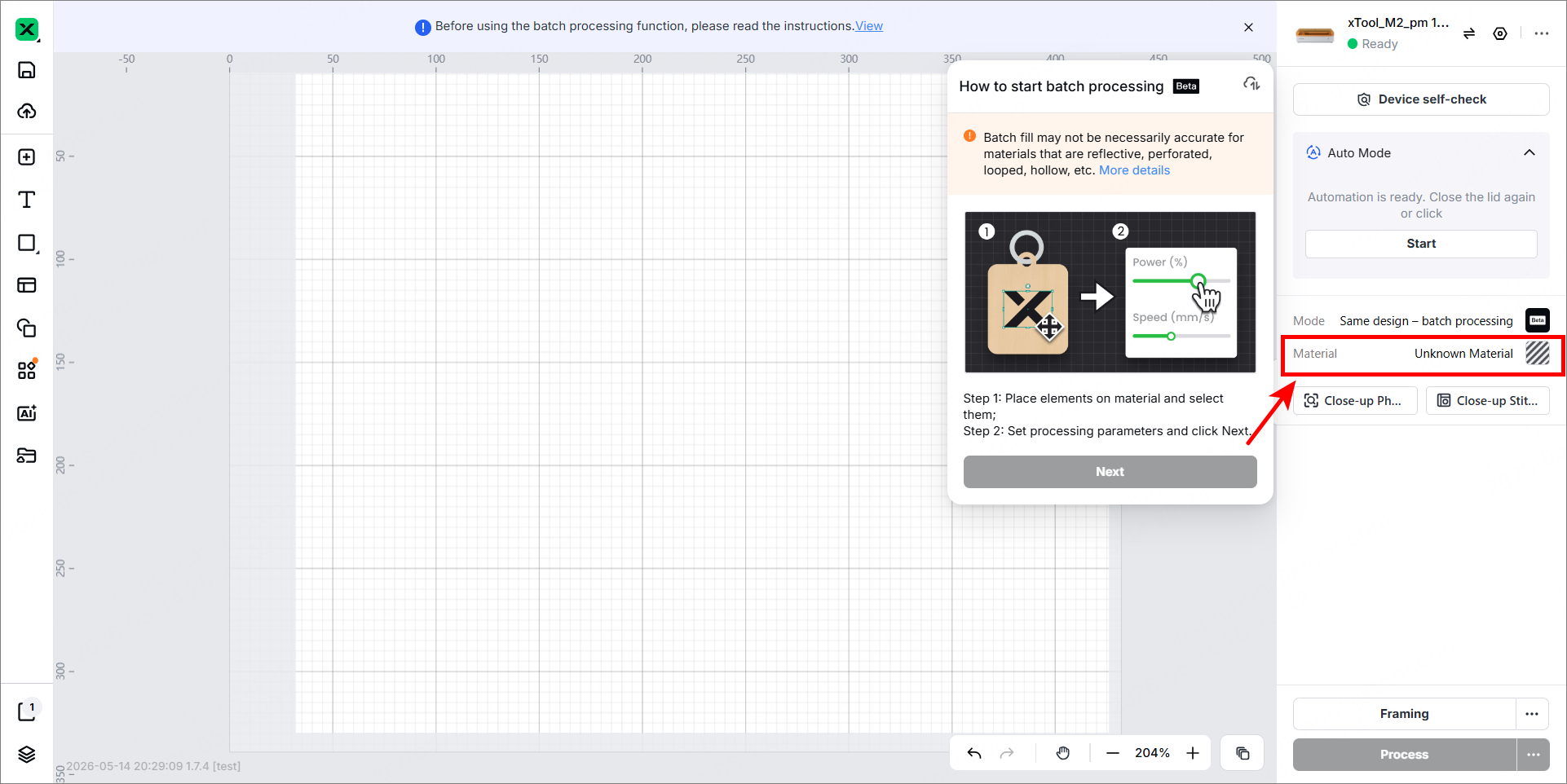
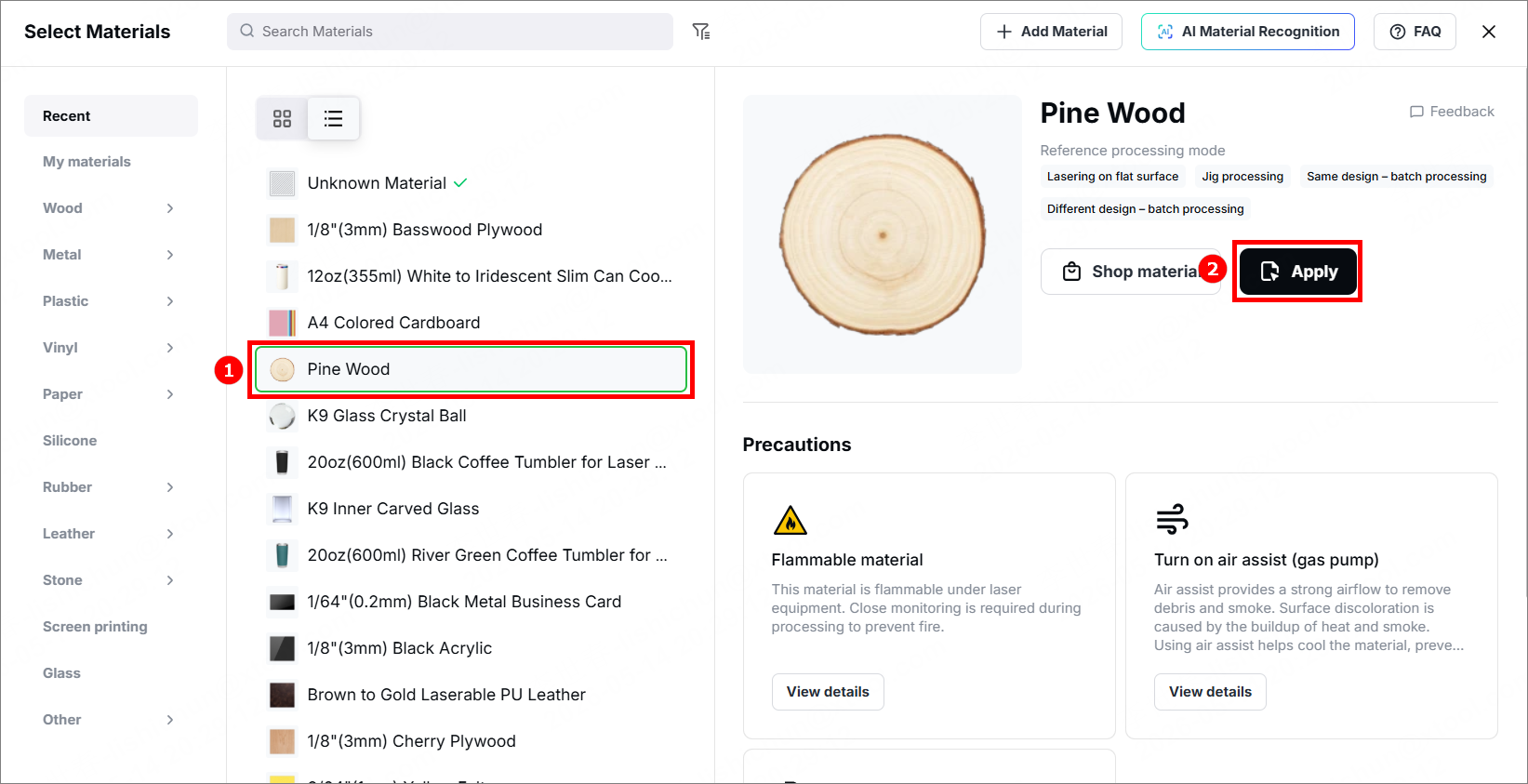
(2) Under Mode, select the material and click Apply.
3. Place the material
(1) Place the material to be processed on the baseplate.
(2) Close the lid, and the device automatically completes the automation. At this point, the processing background displays in the software.
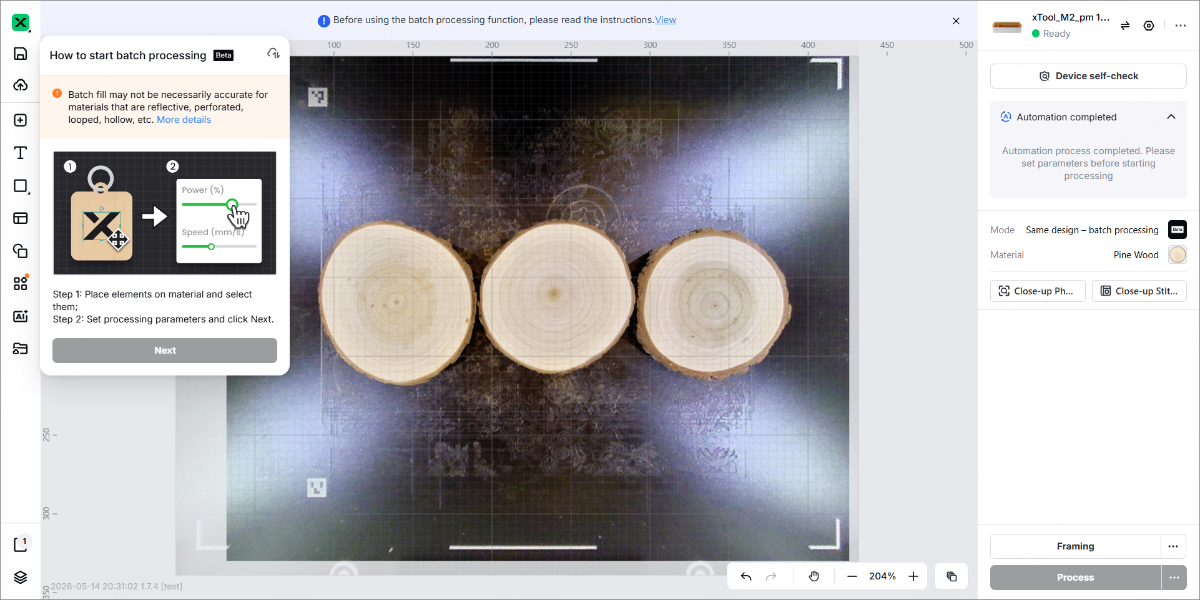
4. Design a processing object and set parameters
(1) Use the tools on the left side of the canvas to design one processing object on the material.
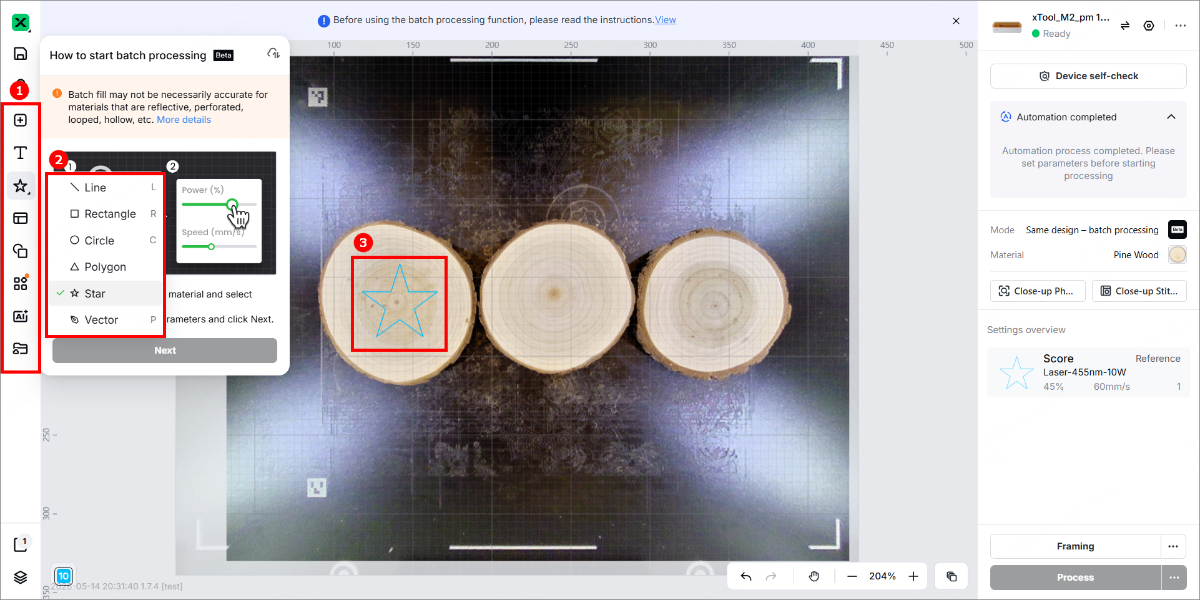
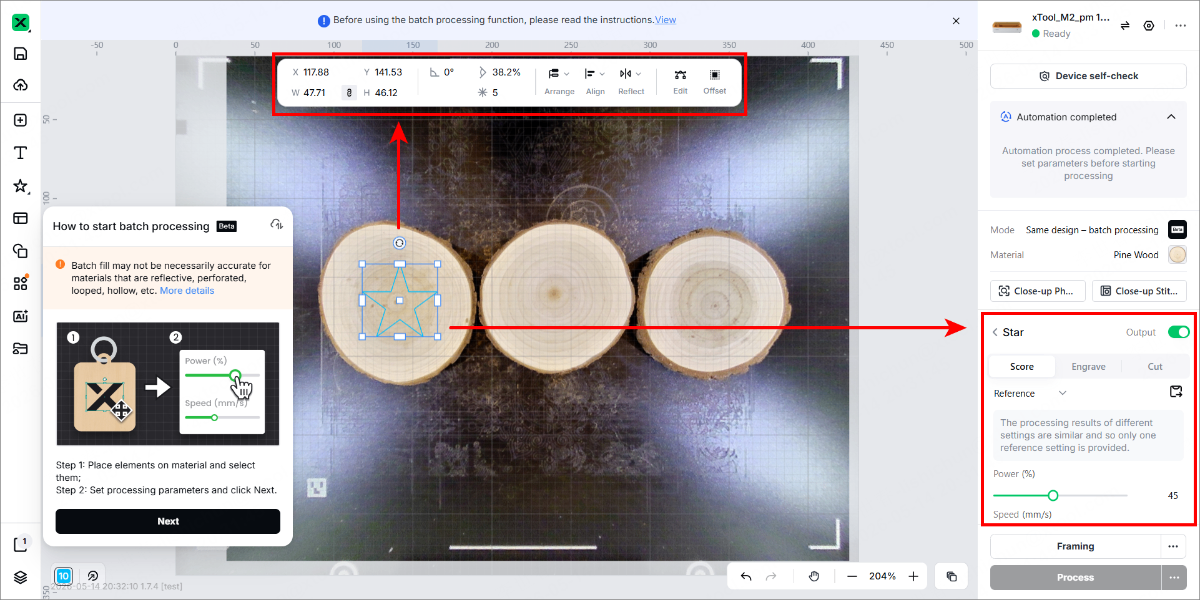
(2) Set parameters for them in the right panel, and further edit the objects by using the other features in the upper panel.
5. Start processing
(1) Click Next, and sign up or log in to the xTool account.
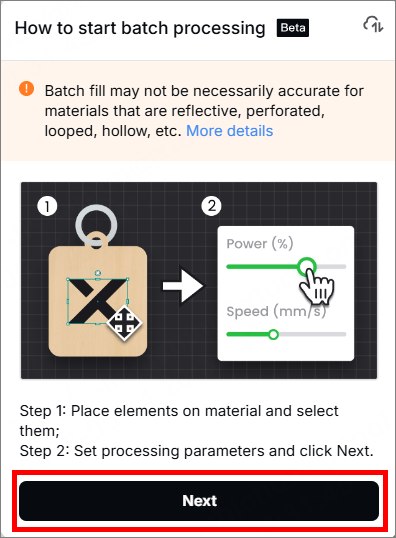
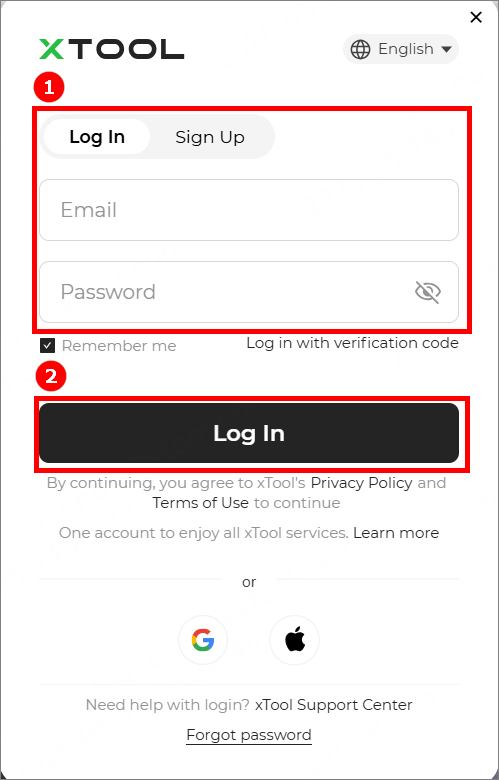
(2) When you log in, click Next again.
(3) Adjust the bounding box to make it cover the material to be processed. Click Process.
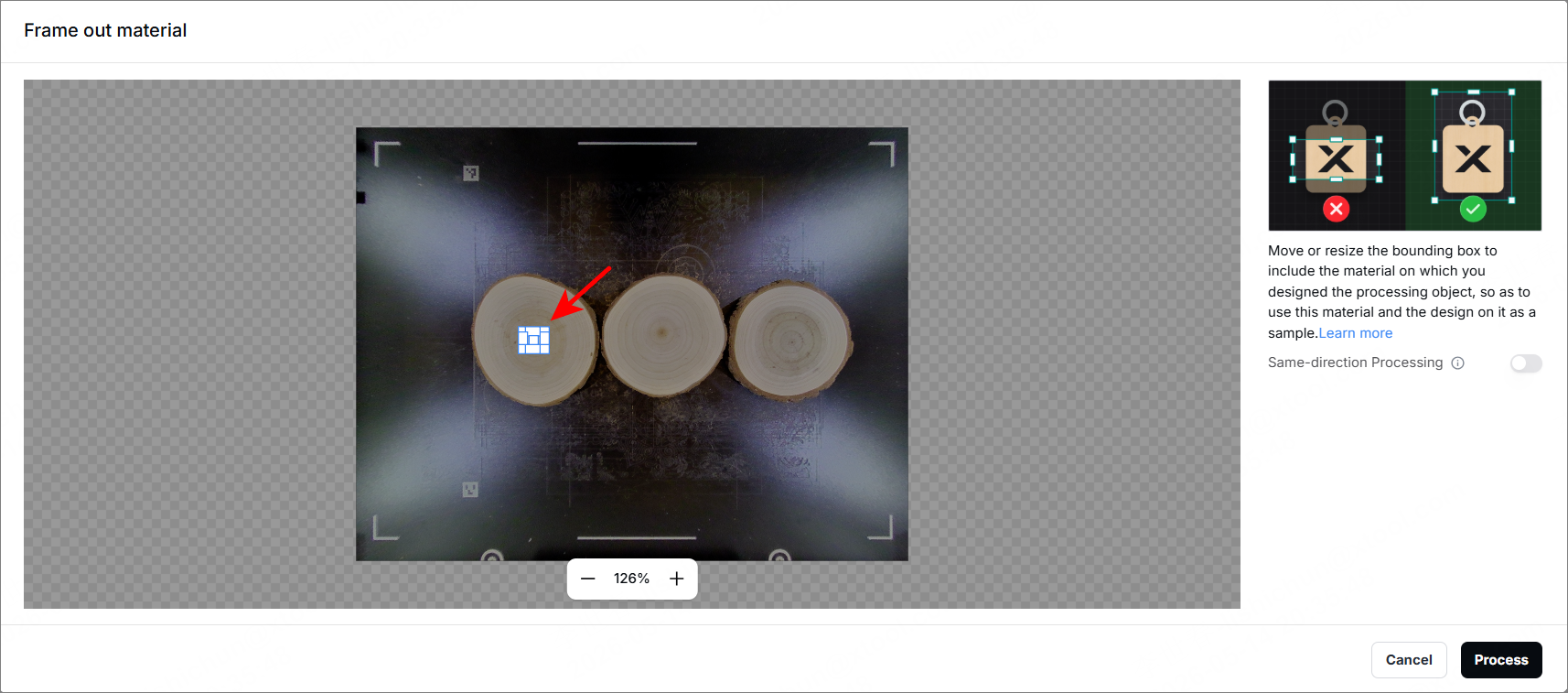
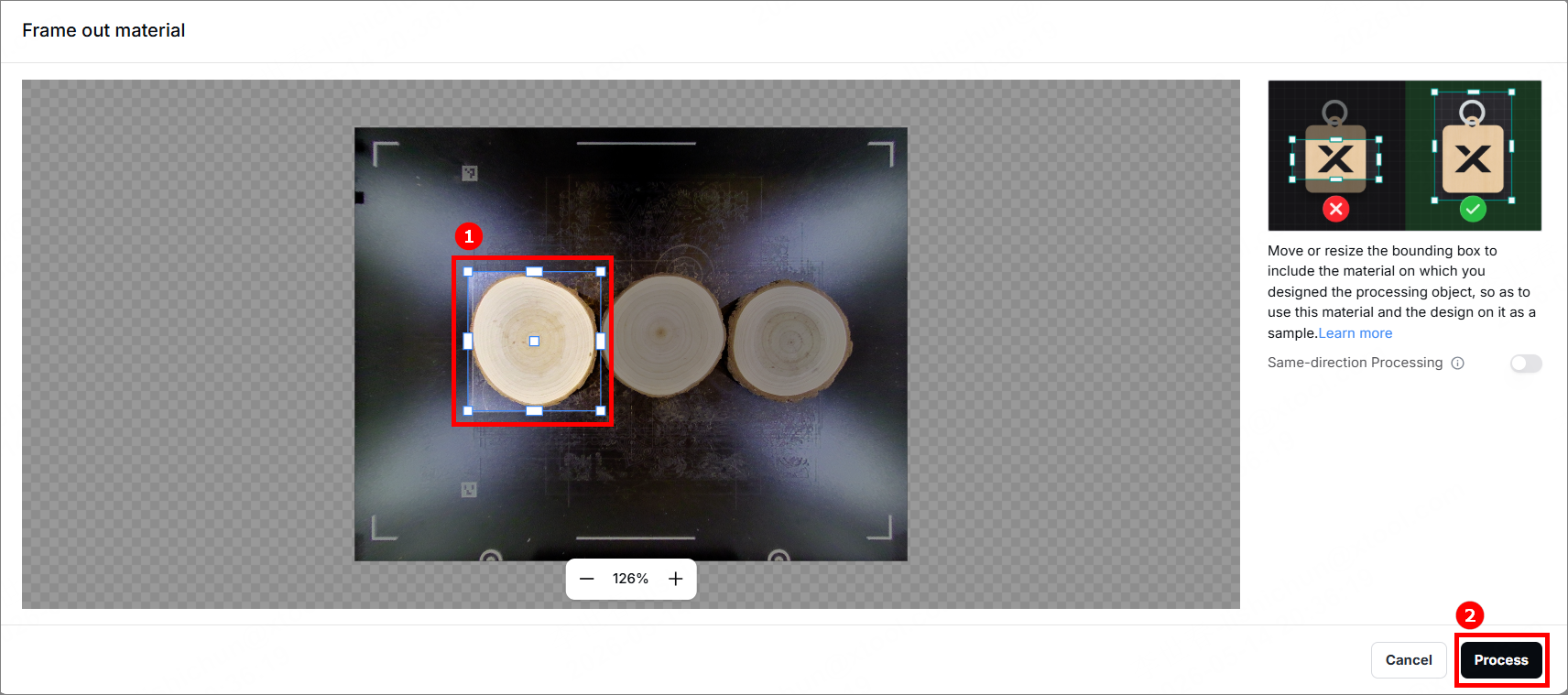
(4) The software starts the close-up puzzle automatically, and then starts the batch fill.
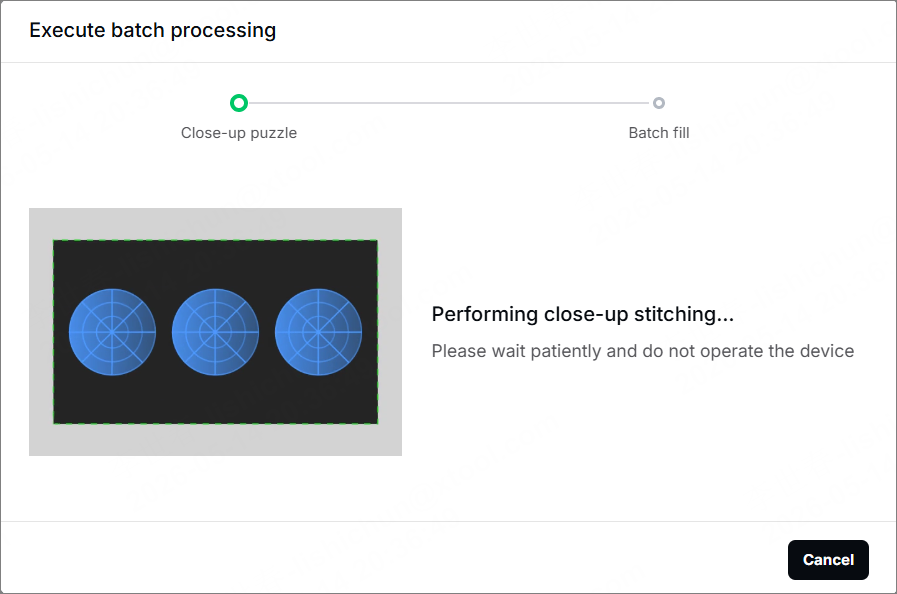
(5) When everything is ready, press the button on xTool M2 to start processing.
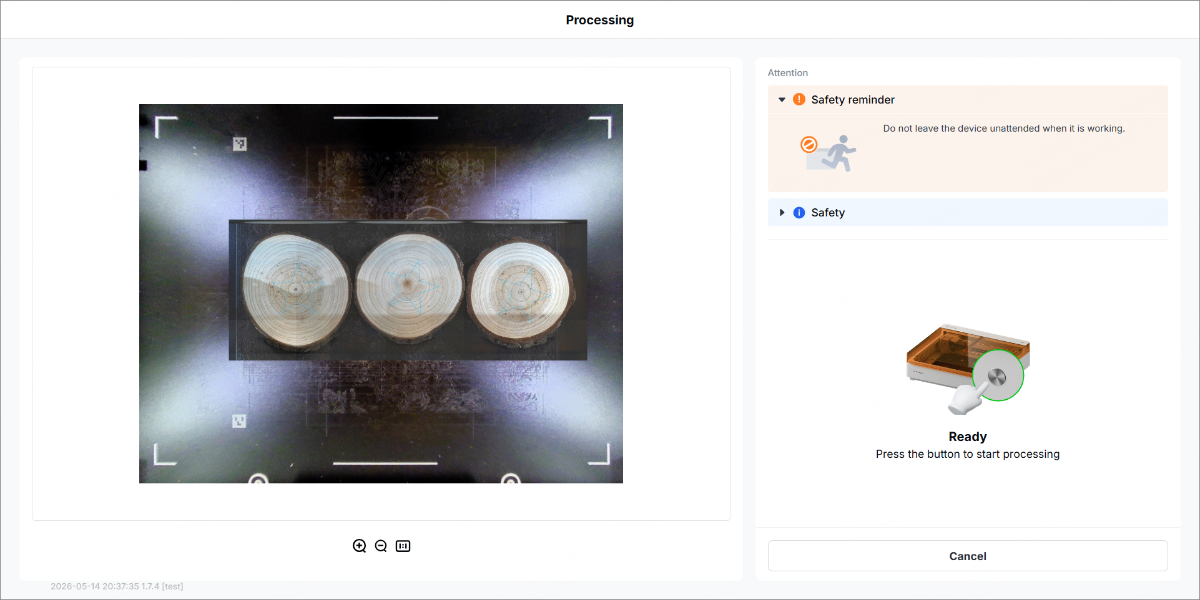
(6) Wait until the processing is completed.

