
Issue description
You have connected your xTool OS1 Shaker Oven to xTool Apparel Printer via the data cable, and the oven's power switch is turned to the "ON" position. However, the printer's LCD control panel still displays the standalone Printer icon (normally, when the oven is successfully connected and powered, this switches to a combined Printer + Oven icon).
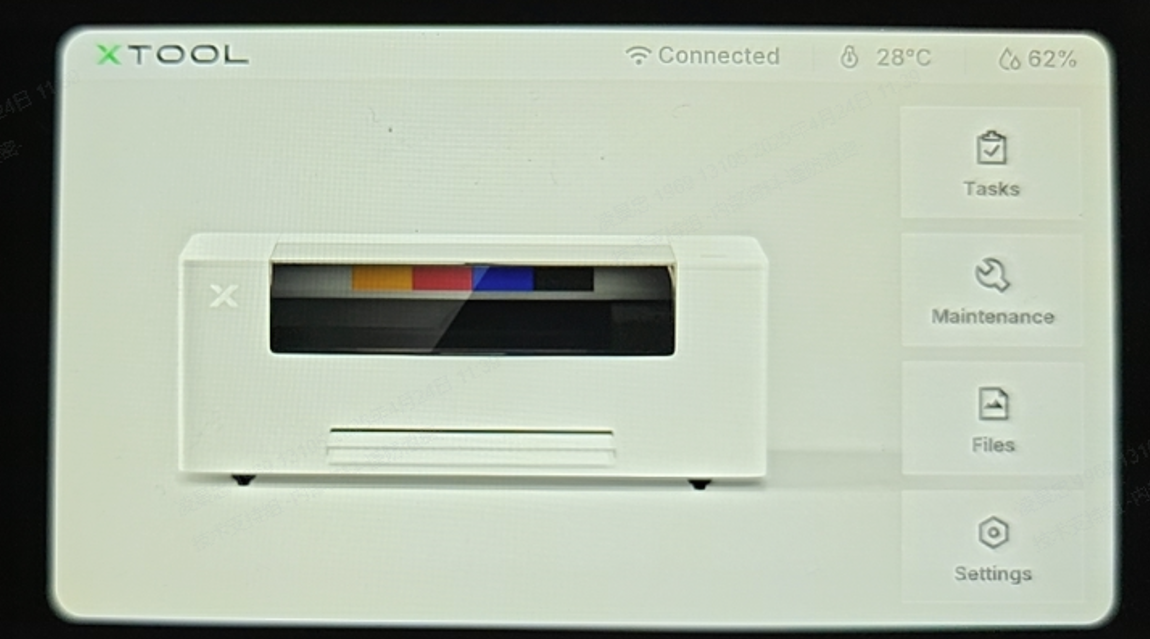
Key Identifying Symptom: The power switch on your xTool OS1 may or may not be illuminated, but when you look through the Inspection Window on top of the oven, the sensor in the bottom-left corner is NOT lit blue. This indicates that the oven has failed to boot up and is not receiving proper internal power.
Note: If the sensor inside the oven IS lit blue but the icon on the printer hasn't changed, the oven has power but is experiencing a communication error. Please refer to xTool Apparel Printer & OS1 Troubleshooting: Printer Cannot Recognize the Oven (Connection Failure) instead.
Potential causes
- Blown Rocker Switch Fuse: The fuse located in the main power switch has blown, stopping AC power from entering the machine.
- Switched-Mode Power Supply (SMPS) Failure: The internal power supply unit has failed to convert AC to DC power.
- Oven Mainboard Failure: The main control board is damaged or short-circuited.
Diagnostic logic
You can pinpoint the issue by checking which indicator lights are illuminated in sequence:
- Power Switch Light is OFF: The issue is likely the fuse or the power cord.
- Power Switch Light is ON: Power is entering the machine. The issue is either the internal SMPS or the oven's main control board.
- Internal SMPS Light is OFF: The SMPS has failed and needs replacement.
- Internal SMPS Light is ON: The SMPS is working. The issue is the oven's main control board (requires replacement and factory calibration data).
Troubleshooting steps
Step 1: Check the power switch indicator light
Observe the power rocker switch on the back of the oven.
If the power switch indicator light is OFF:
- Check the Power Cord: Swap the oven's power cord with the printer's power cord to rule out a failed cable. (Remember to switch them back after testing).
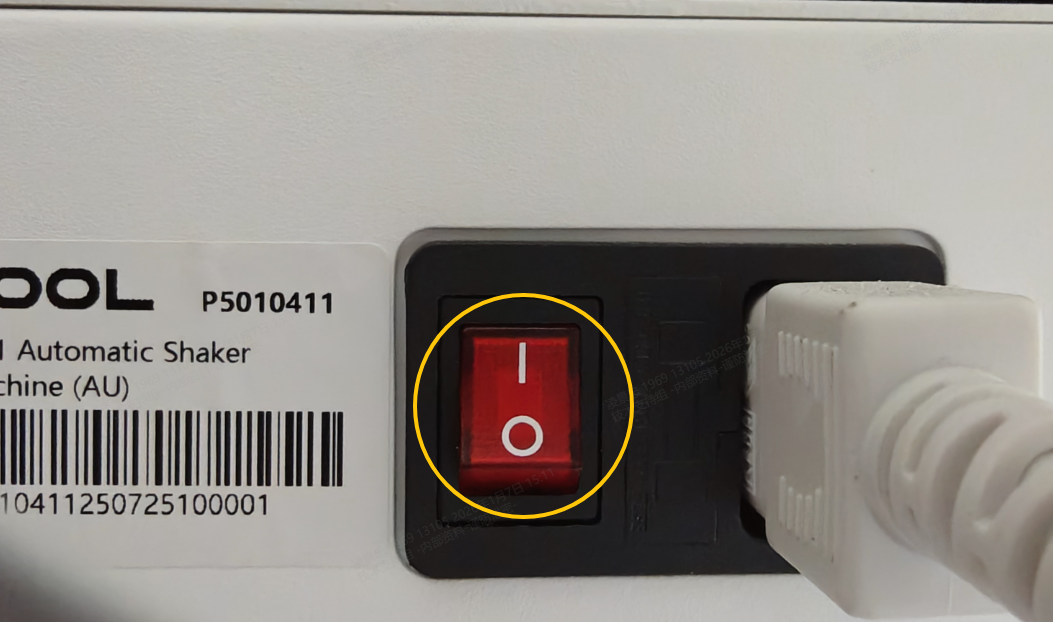
- Check/Replace the Fuse: If the cord is fine, the fuse inside the power switch assembly has likely blown.
- Use a flathead screwdriver to gently pry open the fuse compartment located right next to the power switch.
- Replace the blown fuse with the spare fuse provided in the compartment.
- Power on to test. If the switch now lights up, proceed to Step 2.
If the power switch indicator light is ON: Proceed directly to Step 2.
Step 2: Check the internal SMPS indicator
⚠️ DANGER: Electrical Safety WarningAC Voltage Risk. Do not touch any exposed wiring or circuit boards with your bare hands while the machine is plugged in. Proceed with extreme caution.
- Power Off: Turn off the oven and unplug the power cord.
- Remove Casing: Follow the official video tutorial to remove the oven's left outer casing: Replace the Switched-Mode Power Supply in xTool OS1 Shaker Oven
- Power On & Inspect: Plug the oven back in and turn on the power switch. Locate the Switched-Mode Power Supply (SMPS) metal box and check if its small internal indicator LED is lit.
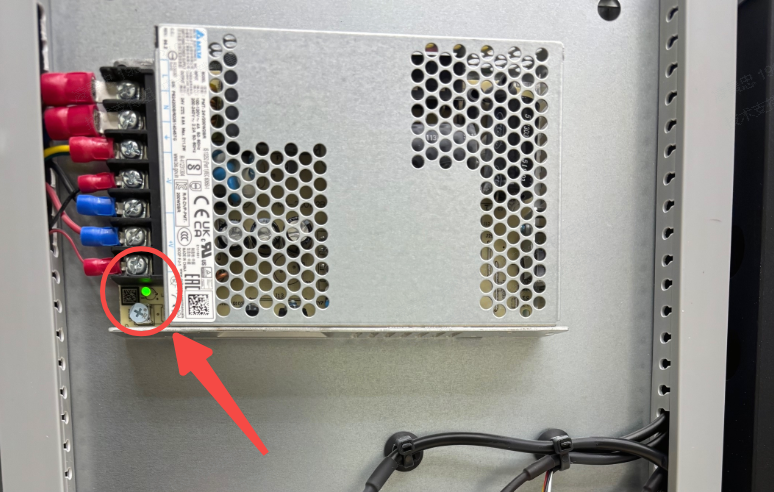
- If the SMPS indicator is OFF: The SMPS has failed.
- Take a clear photo showing the voltage selector switch (110V/220V) on the SMPS.
- Contact xTool Customer Service to request a replacement SMPS.
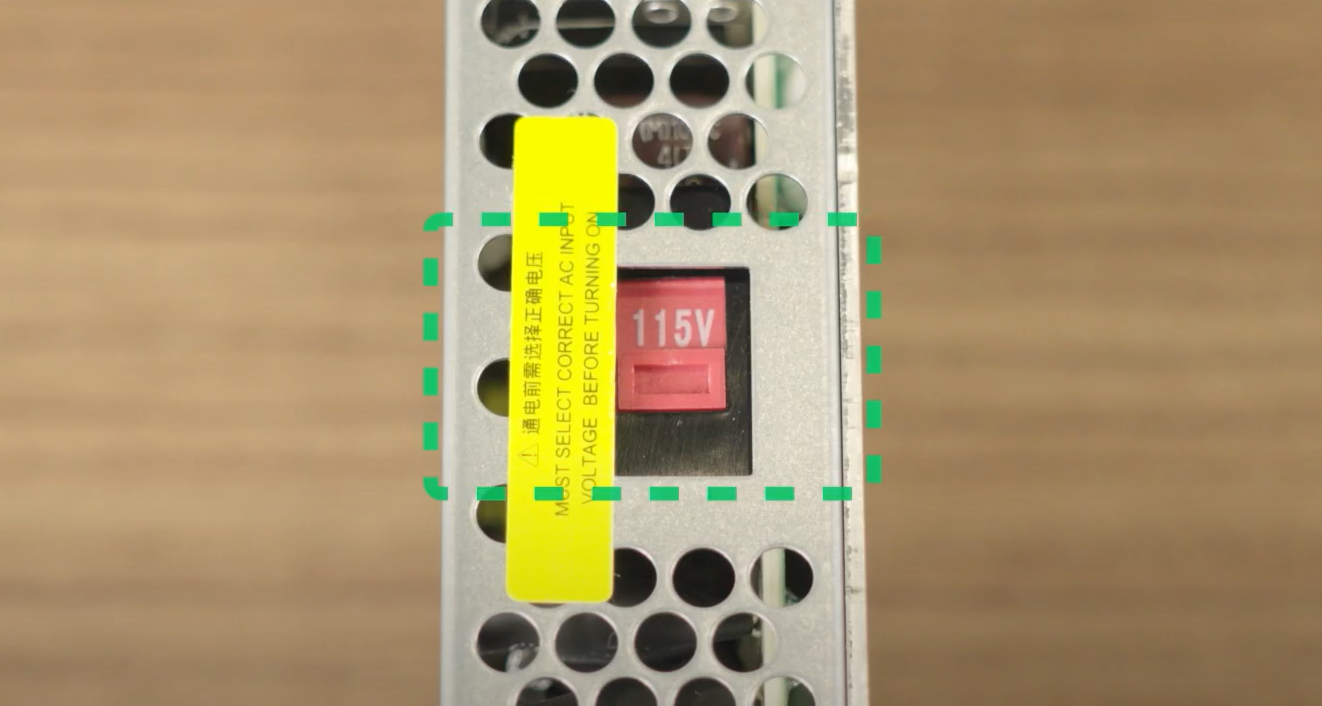
- If the SMPS indicator is ON: The power supply is working. Proceed to Step 3.
Step 3: Check the oven's main control board indicator
⚠️ DANGER: Electrical Safety Warning Continue to exercise extreme caution to avoid touching live AC components.
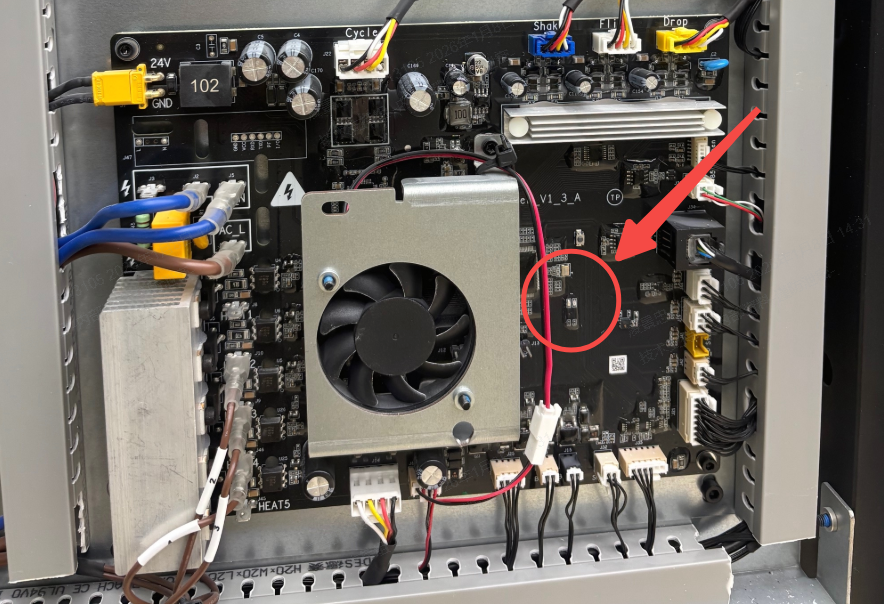
While the oven is still powered on and the left casing is removed, inspect the oven's main control mainboard.
Check if the LED indicator on the board itself is illuminated.
- If the indicator is OFF: The oven's main control mainboard has failed. Contact xTool Customer Service for a replacement.
- If the indicator is ON: The board is receiving power, but the system is still failing to boot. Please contact xTool Customer Service with the results of your troubleshooting for advanced analysis.
If the problem persists
Should the issue persist after completing the preceding steps, please submit a ticket via the "Submit a Ticket" button. The standard response time for xTool Customer Service is one business day.
Please include the following details to facilitate a quick diagnosis:
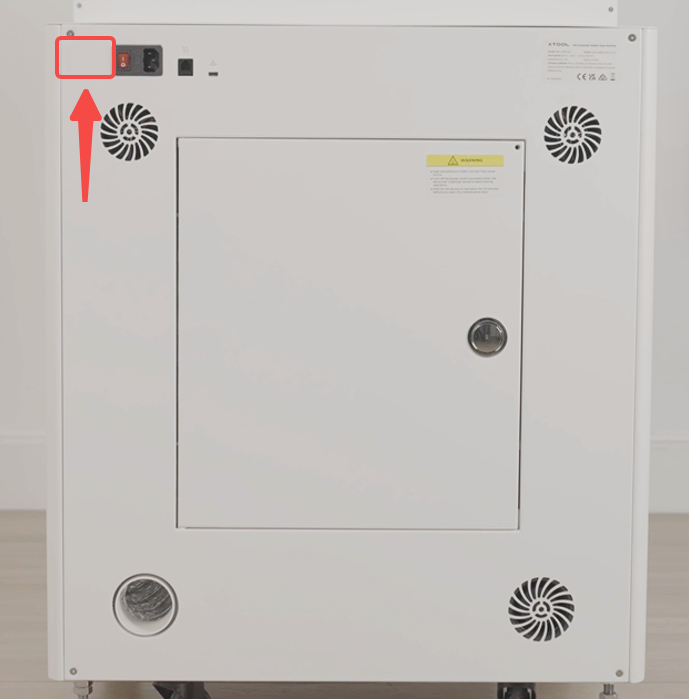
1 Serial Number (SN) - CRITICAL
Provide the Serial Number for your xTool OS1 Oven (located on the rear label). This is strictly required if a main control board replacement is necessary.
2 Visual Evidence (Photos/Videos)
- If the power switch light is OFF: Provide a video of you pressing the power switch. Let us know if you have already tried replacing the fuse and if it had any effect.
- If the SMPS light is OFF: Provide a clear photo of the SMPS unit, showing the unlit LED and the voltage switch setting.
- If the Mainboard light is OFF: Provide a photo of the mainboard showing the unlit LED.

Services & Help
Learn & Education

Copyright © 2025 xTool All Rights Reserved.