
1. Safety instructions
Strictly follow the safety instructions to ensure safe and proper use of ink and moisturizing liquid.
General precautions
■ Keep the ink and moisturizing liquid away from children. Do not allow children to drink ink or moisturizing liquid, or touch the cartridges. ■ Always wear rubber or plastic gloves and safety goggles when handling UV ink. ■ Wipe small stains with a clean cloth or paper towel. Residual ink can be removed with an alcohol-based cleaner. ■ When installing or replacing ink cartridges and moisturizing liquid cartridges, exercise caution to prevent ink from staining your clothing. DTG ink can be hard to clean, and UV ink may cause permanent stains or damage. ■ When the ink or moisturizing liquid level is low, the printer may get damaged if you continue using it. Please replace the ink cartridges or moisturizing liquid cartridges as soon as possible. ■ Keep the ink and moisturizing liquid cartridges in a cool and dark place. ■ Moisturizing liquid solution is classified as industrial waste. Dispose of the solution in accordance with local laws and regulations, such as by entrusting it to an authorized industrial waste disposal company.
Precautions for liquid spills
■ Immediately wear personal protective equipment, such as chemical-resistant gloves and a filtered mask. ■ Remove all ignition sources, ensure proper ventilation, and avoid contact with eyes, skin, or clothing. Prevent inhalation of vapors and dust. ■ Ensure that ink and moisturizing liquid do not enter drains or waterways. Use suitable materials to safely contain and clean up any spills.
Precautions for liquid exposure
■ During operation, avoid inhaling fumes and prevent contact with eyes, skin, or clothing. ■ If ink or moisturizing liquid gets on your skin, immediately wash the affected area with plenty of soap and water for at least 15 minutes. Remove contaminated clothing. If irritation persists, seek medical attention. ■ If ink or moisturizing liquid enters your eyes, immediately rinse them with clean water for at least 15 minutes, ensuring thorough flushing under the eyelids. Seek medical attention without delay. ■ If ink or moisturizing liquid is swallowed, do not induce vomiting. Seek immediate medical attention or contact a poison control center. Do not give anything by mouth to an unconscious person.
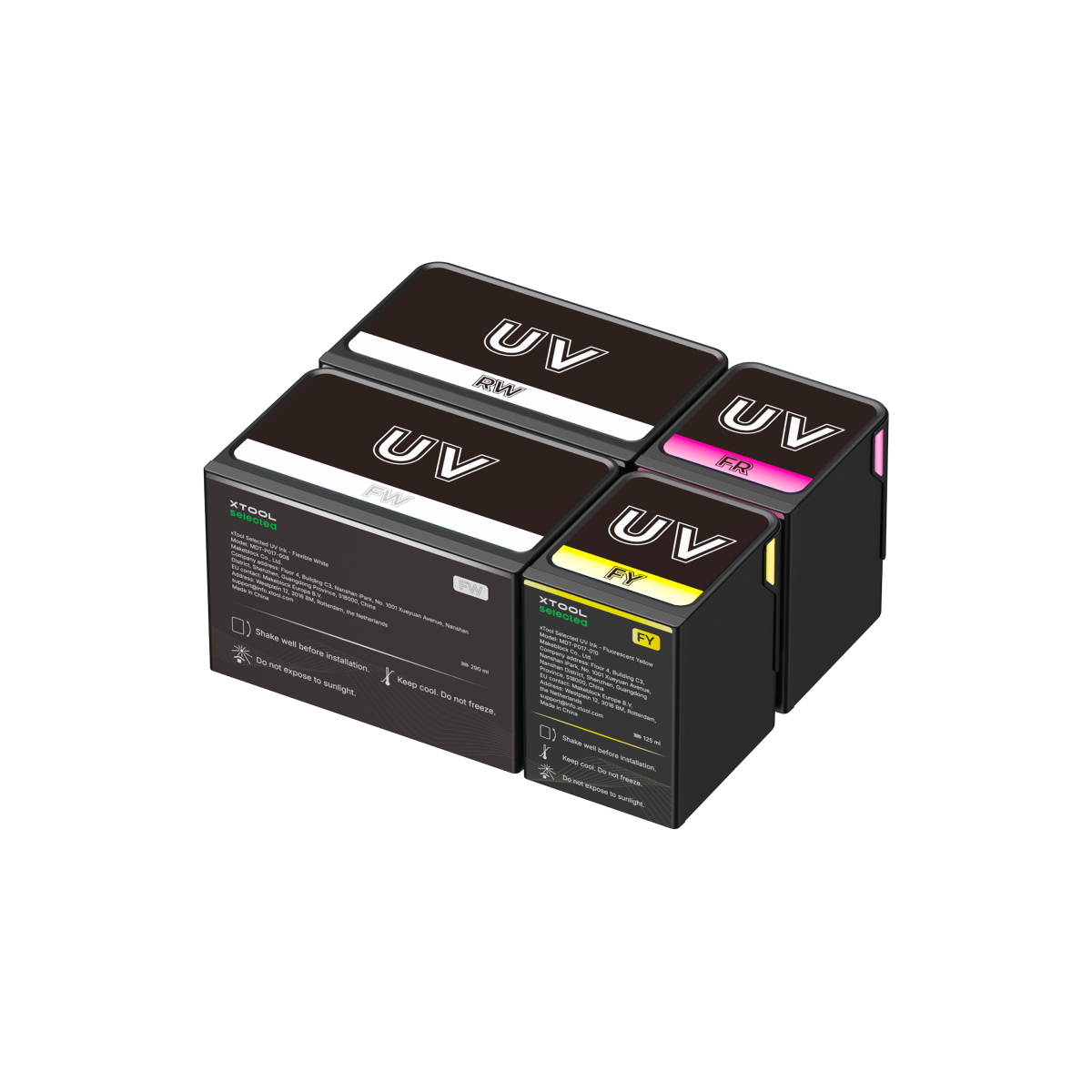
2. Cartridges included
Model | What's included | Illustration |
|---|---|---|
UV Ink Essential Set |
|
|
UV Ink Expansion Set |
|
|
DT Fabric Ink Essential Set |
|
|
UV Maintenance Tank |
|
|
DT Maintenance Tank |
|
|



3. Installation
Video tutorial
Refer to the steps in the replacement video for installation.
Step-by-step guide: Install the ink cartridges
Precautions
Warning: Shake the ink well before installation.
Warning: DO NOT remove the protective film under the ink cartridges.
Note: Wear the nitrile gloves.

Installation preview
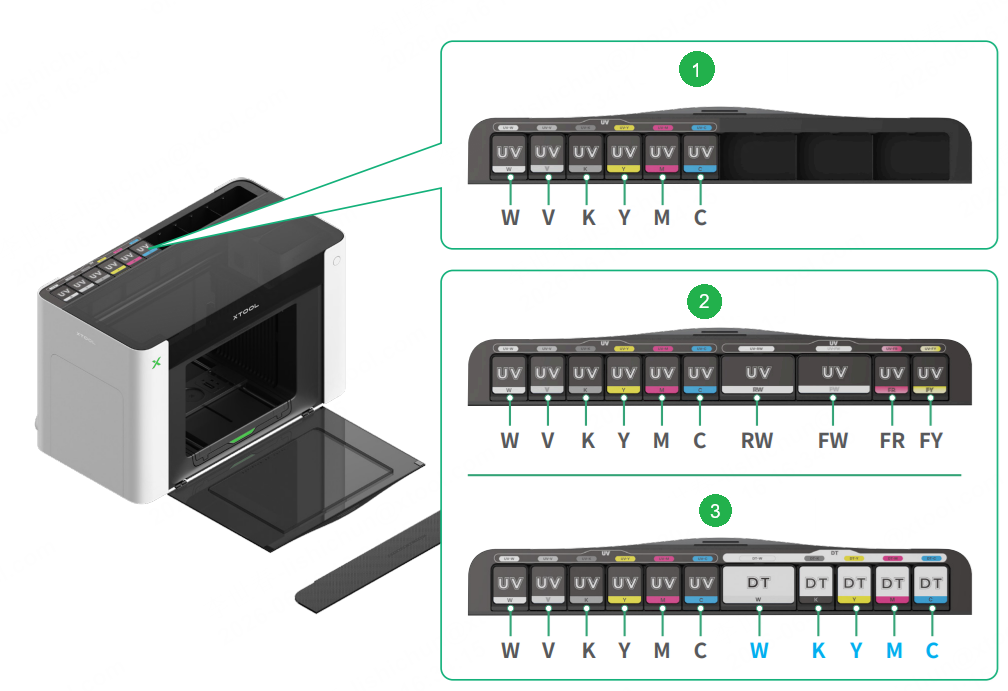
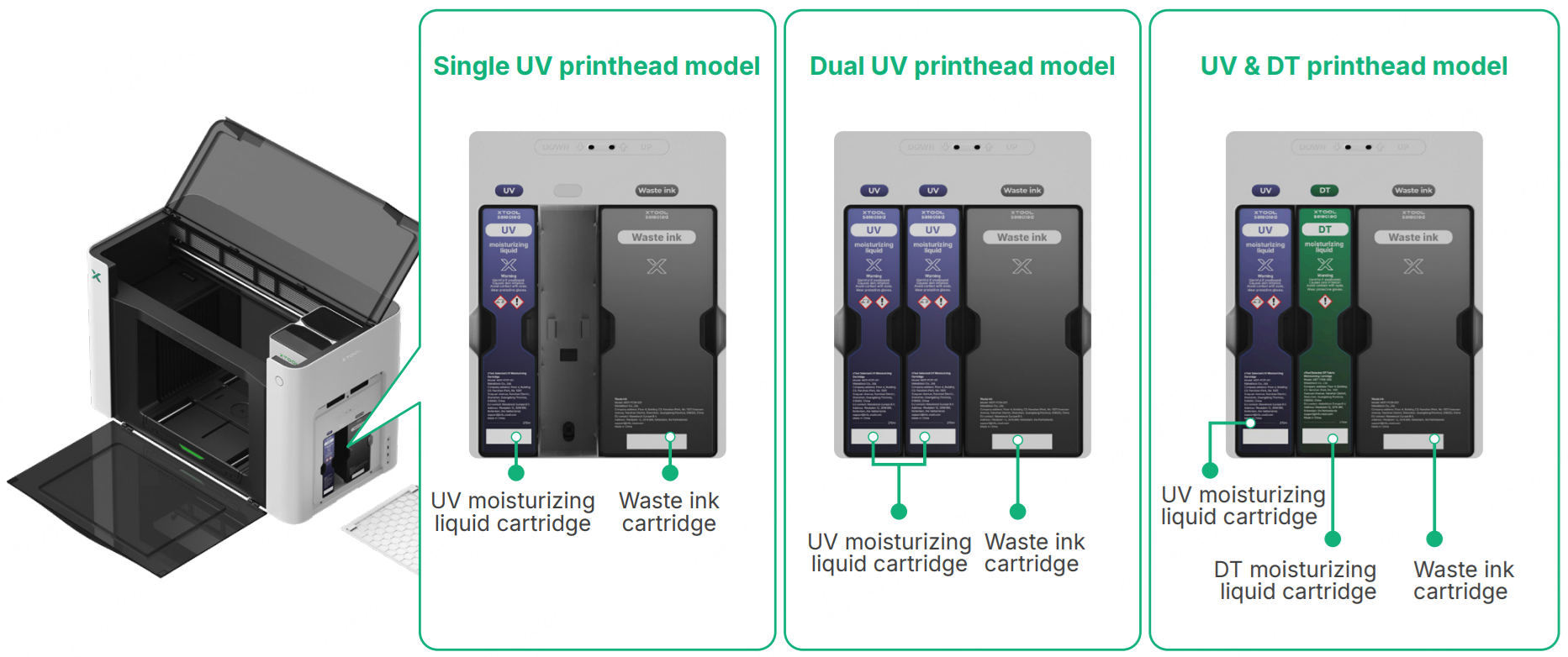
 Single UV printhead model
 Dual UV printhead model
 UV & DT printhead model
Installation steps
The installation of ink cartridges is similar across different models. This document exemplifies the installation for the single UV printhead model.
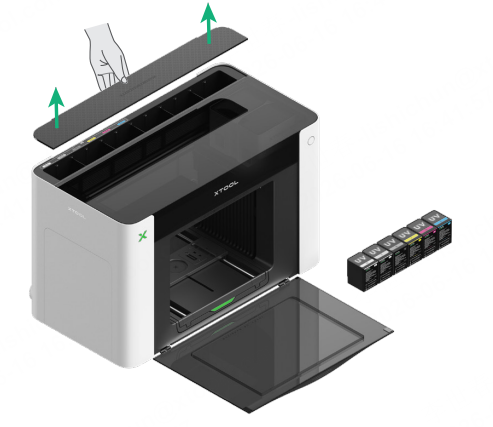
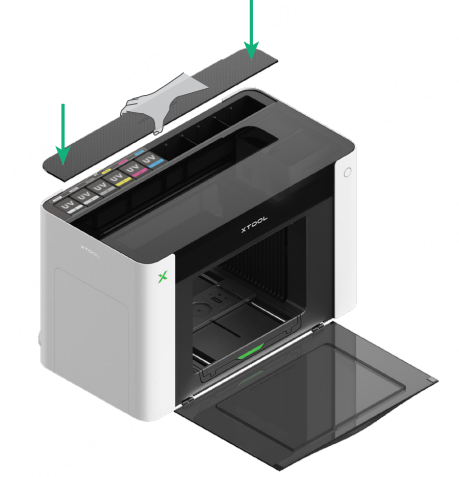
(1) Remove the ink cartridge cover.
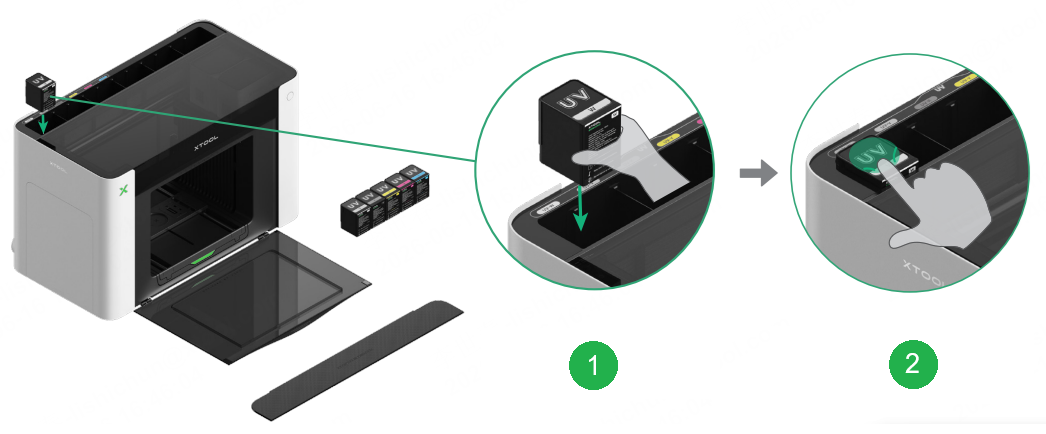
(2) Install the corresponding cartridges correctly according to your device model.
 Insert the ink cartridge, ensuring that the color marking on the cartridge matches that on the corresponding slot.
 Press the ink cartridge until you hear a click. Ensure that it stays in place and does not spring back.
(3) Reinstall the ink cartridge cover.
Important notes
Tip for installing the large white ink cartridge
Press with both hands as illustrated to properly install the UV rigid white ink cartridge, UV flexible white ink cartridge, and DT white ink cartridge.
Tip for taking out the ink cartridges
When removing an ink cartridge, remove it immediately after it is ejected. Do not leave the ejected cartridge in the cartridge slot, as this may cause ink leakage.
Step-by-step guide: Install the moisturizing liquid cartridges and waste ink cartridge
Precautions
Warning: DO NOT remove the protective film from the back of the moisturizing liquid cartridge(s).
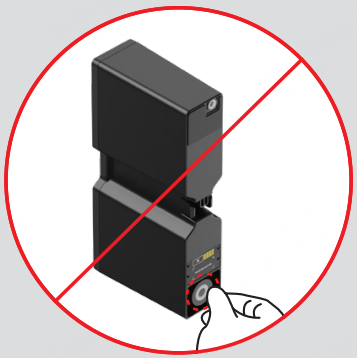
Note: Wear the nitrile gloves.
Installation preview
Installation steps
The installation of moisturizing liquid cartridges is similar across different models. This document exemplifies the installation for the single UV printhead model.
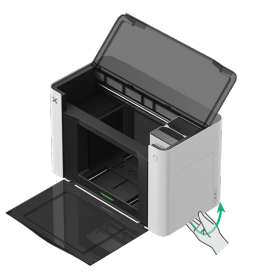
(1) Open the right-side panel.
(2) Install the moisturizing liquid cartridge. Note the marking on the cartridge should be the same as that on the printer.

You should see this after installation.

(4) Close the right-side panel.

4. Check the status of ink cartridges and moisturizing liquid cartridges
On the xTool software, choose Device health, and you can view the status of the moisturizing liquid cartridges and ink cartridges. Once any cartridge is at a low level, you will be notified to replace it with a new one.

