
Metals xTool MetalFab 1200w can cut
Gas Suggestions for xTool MetalFab | ||||
Processing Type | Material Type | Recommended Gas | Recommended Pressure | Recommended Nozzle |
CNC Cutting | Stainless Steel | 99.99% Nitrogen or | Over 0.6 MPa | Ordinary cutting nozzle |
Stainless Steel (2mm-5mm) | 99.99% Nitrogen or | Over 1.2 MPa | Ordinary cutting nozzle | |
Over 0.6 MPa | Savegas Nozzle | |||
Titanium Alloy TC4 (1mm) | 99.99% Argon | Over 1.2 MPa | Ordinary cutting nozzle | |
Titanium Alloy TC4 (2mm-5mm) | Savegas Nozzle | |||
Carbon Steel (2mm-10mm) | 99.99% Oxygen | 0.06 MPa-0.07 MPa | Double-layer Nozzle | |
Welding | Stainless Steel | 99.99% Nitrogen or | 0.1 MPa-0.2 MPa pressure | Welding Nozzles |
Handheld Cleaning | Cleaning Nozzle | |||
CNC Cleaning | 0.6 MPa | CNC Cleaning Nozzle | ||
Handheld Cutting | 99.99% Nitrogen or | Over 0.8 MPa | Handheld Cutting Tip | |
Safety Reminder: Don't use xTool MetalFab to process high-reflective materials like Au/Ag/Copper, or it will damage the laser device.
Use xTool air compressor & dryer & SaveGas nozzle (Telescopic nozzle) to cut 4mm stainless steel
If you use nitrogen or argon cylinders, refer to the chart above. Most steps are similar.
1. Preparation work
- Connect the air compressor & air dryer to the laser welder. Connect the CNC cutter to the laser welder.
- Turn on the xTool air dryer first, and then turn on the air compressor. Set the air pressure at 1.0MPa, and wait for the device to generate air.
- Install the SaveGas nozzle, turn on the laser welder and CNC cutter.
2. Place and secure the material
3. Connect the device with xTool Studio
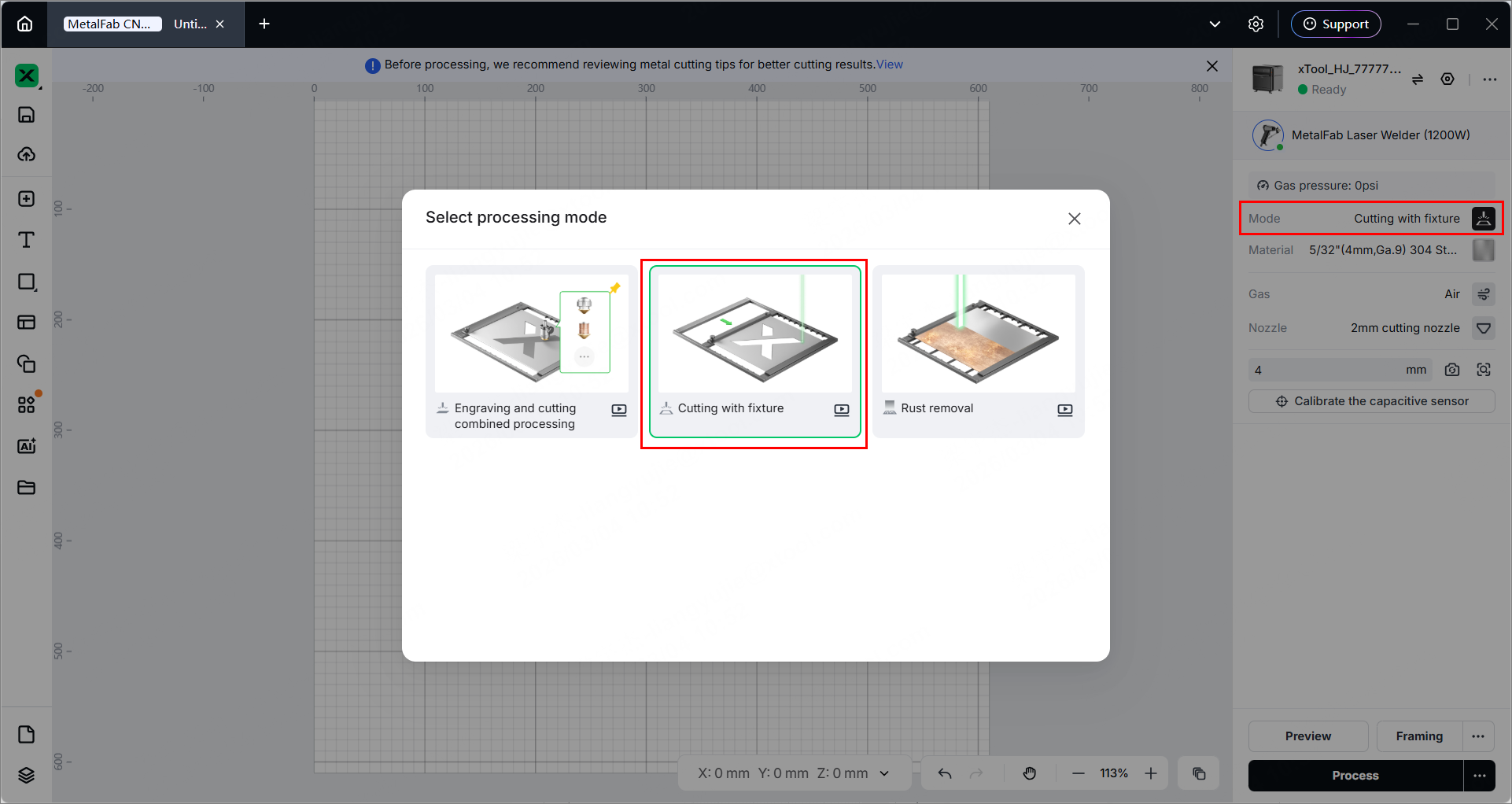
4. Select the processing mode
In the right panel, click the current processing mode, and then select Cutting with fixture.
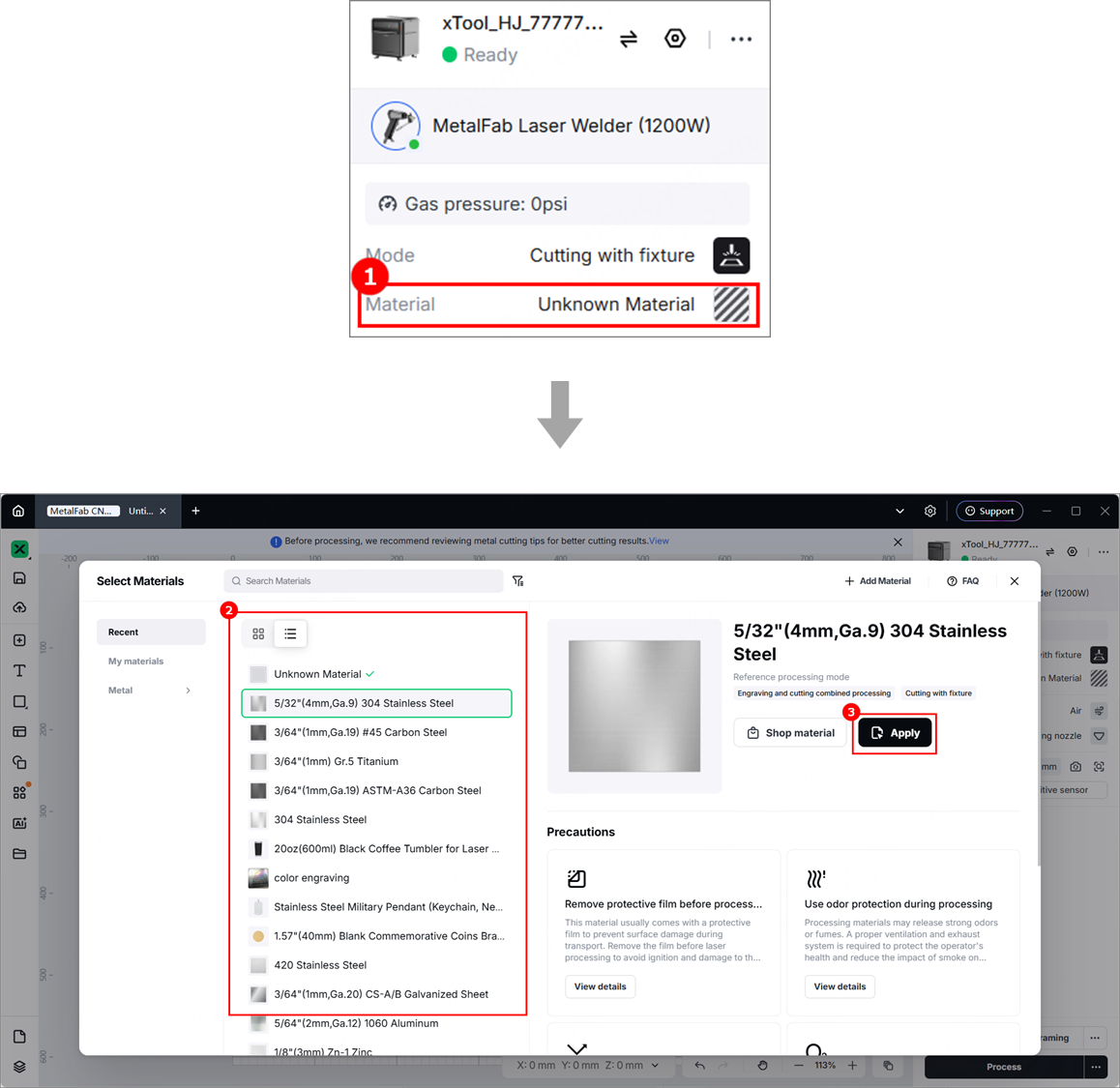
5. Select the material
Click Unknown material, select a desired material, and click Apply.
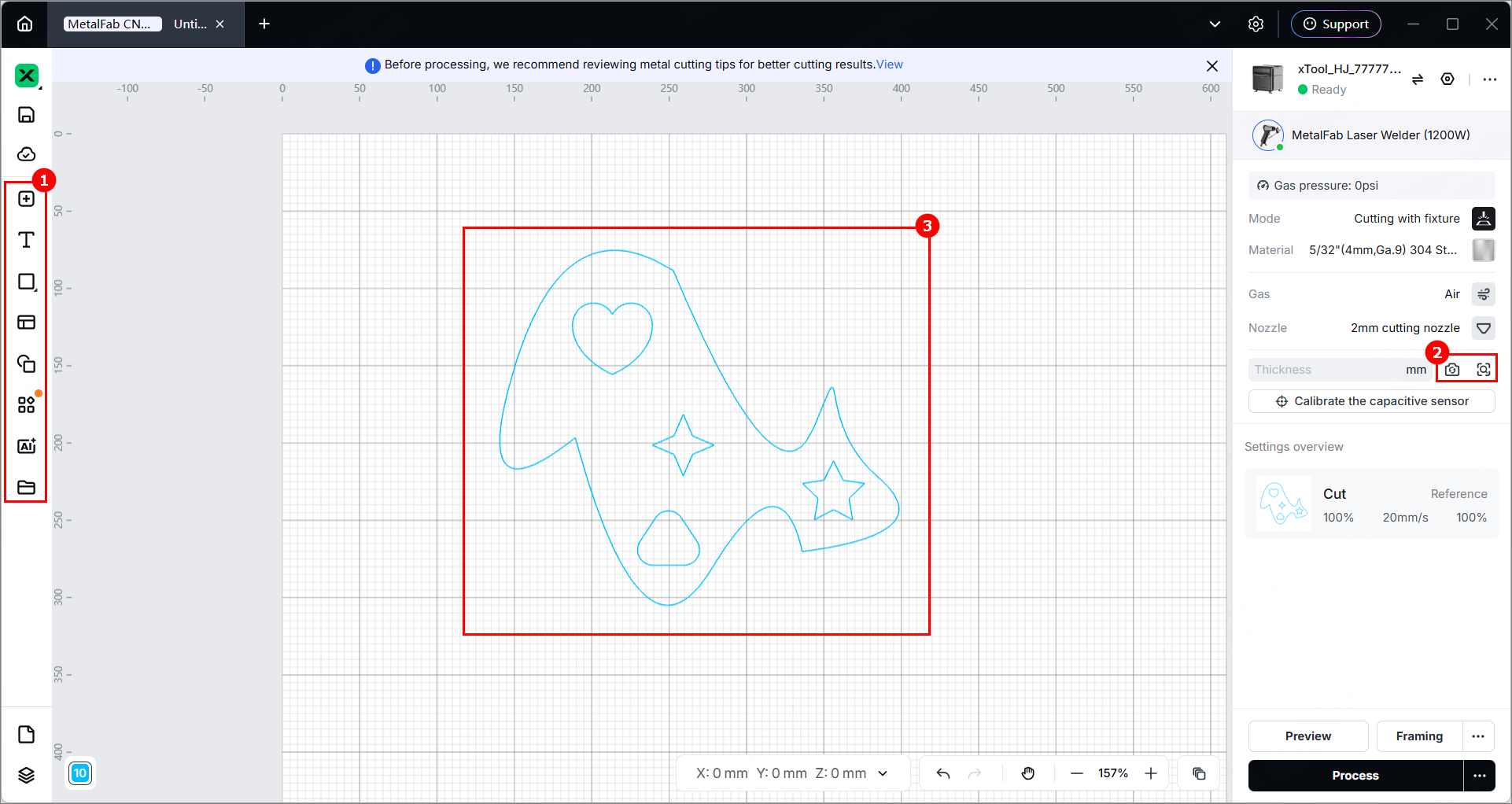
6. Insert files
Insert files, refresh the background, and adjust the position where you want to cut
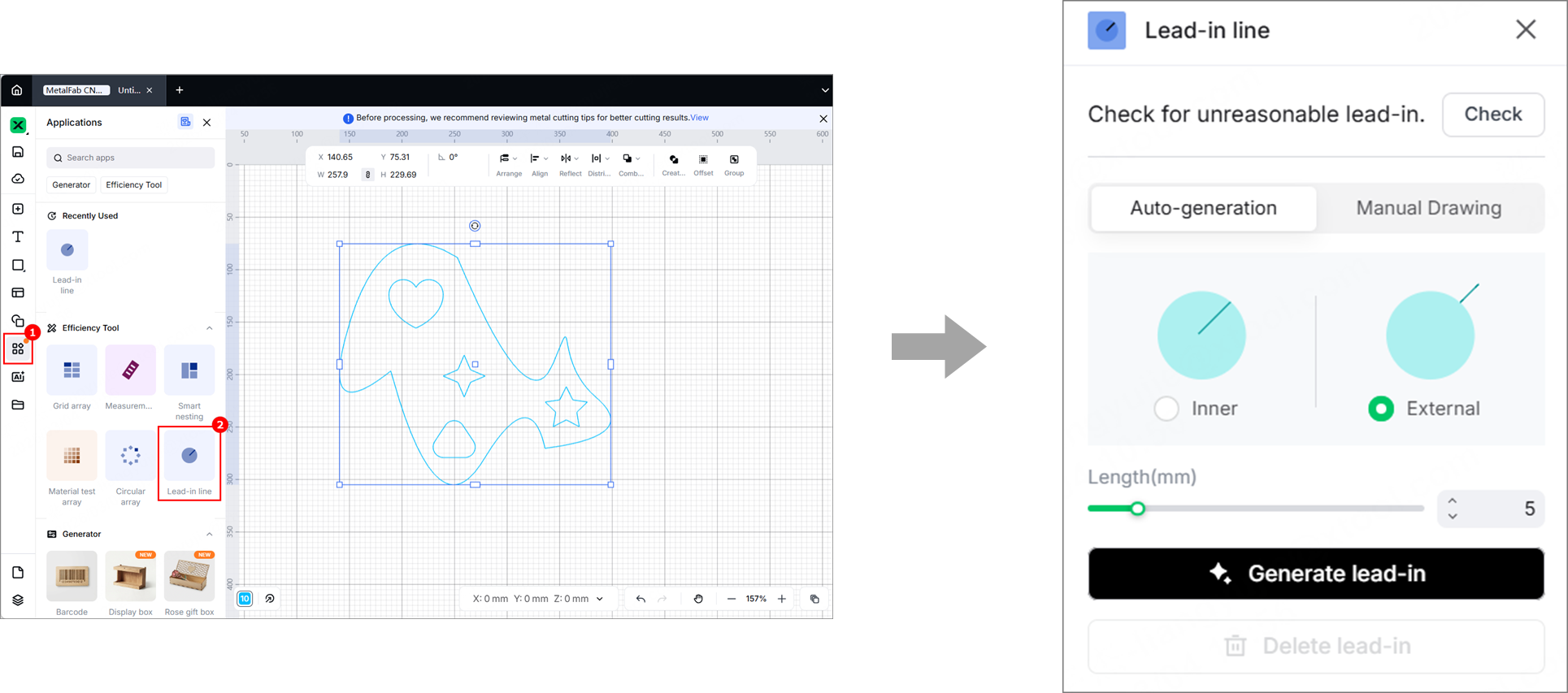
7. Add lead-in lines
For thick metals of 3mm and above, to achieve the best cutting results, it's recommended to add lead-in lines.
Click to see when you need to add lead-in lines and how>>
8. Choose cutting parameters
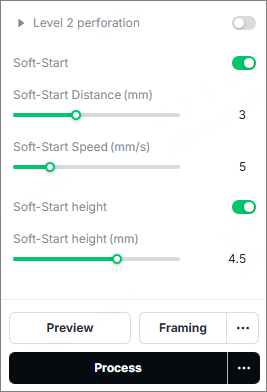
For stainless steel of 4mm and above, brass and aluminum of 3mm and above, after adding lead-in lines, the soft-start function will be enabled and the settings will be applied automatically.
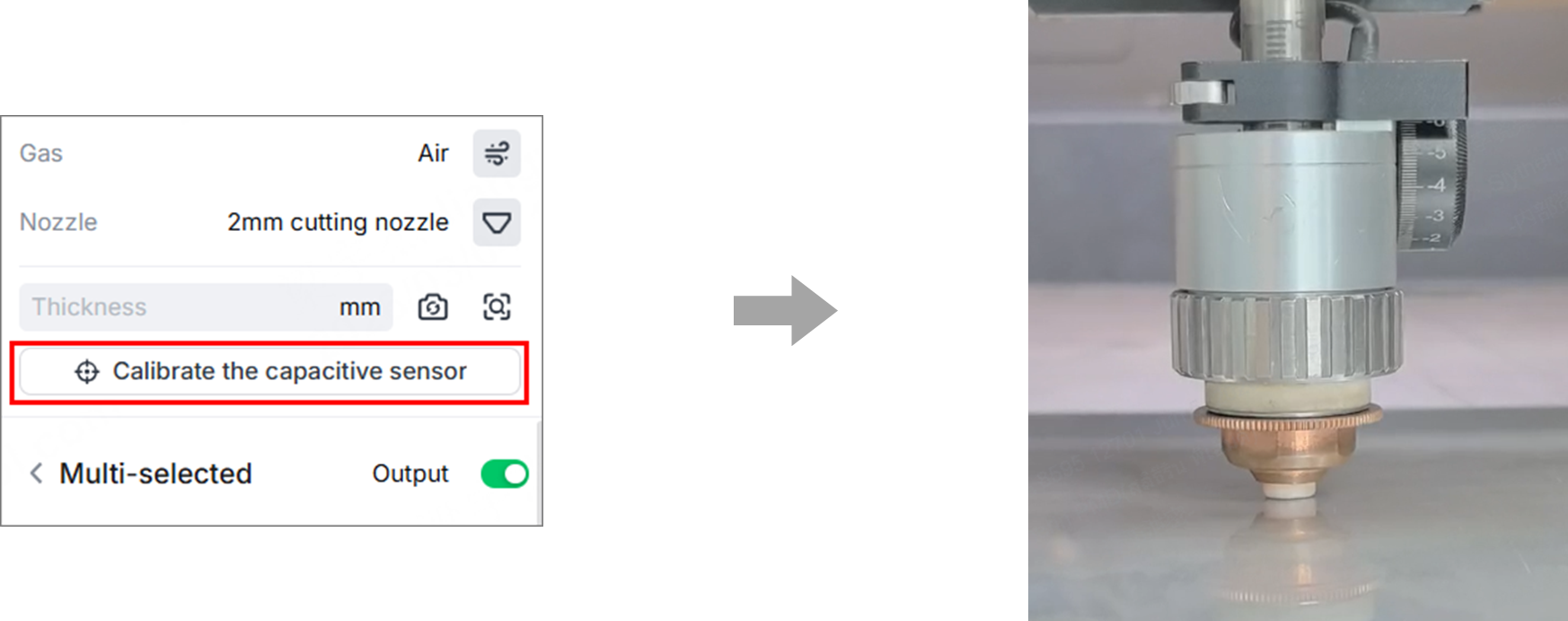
9. Calibrate the capacitive sensor
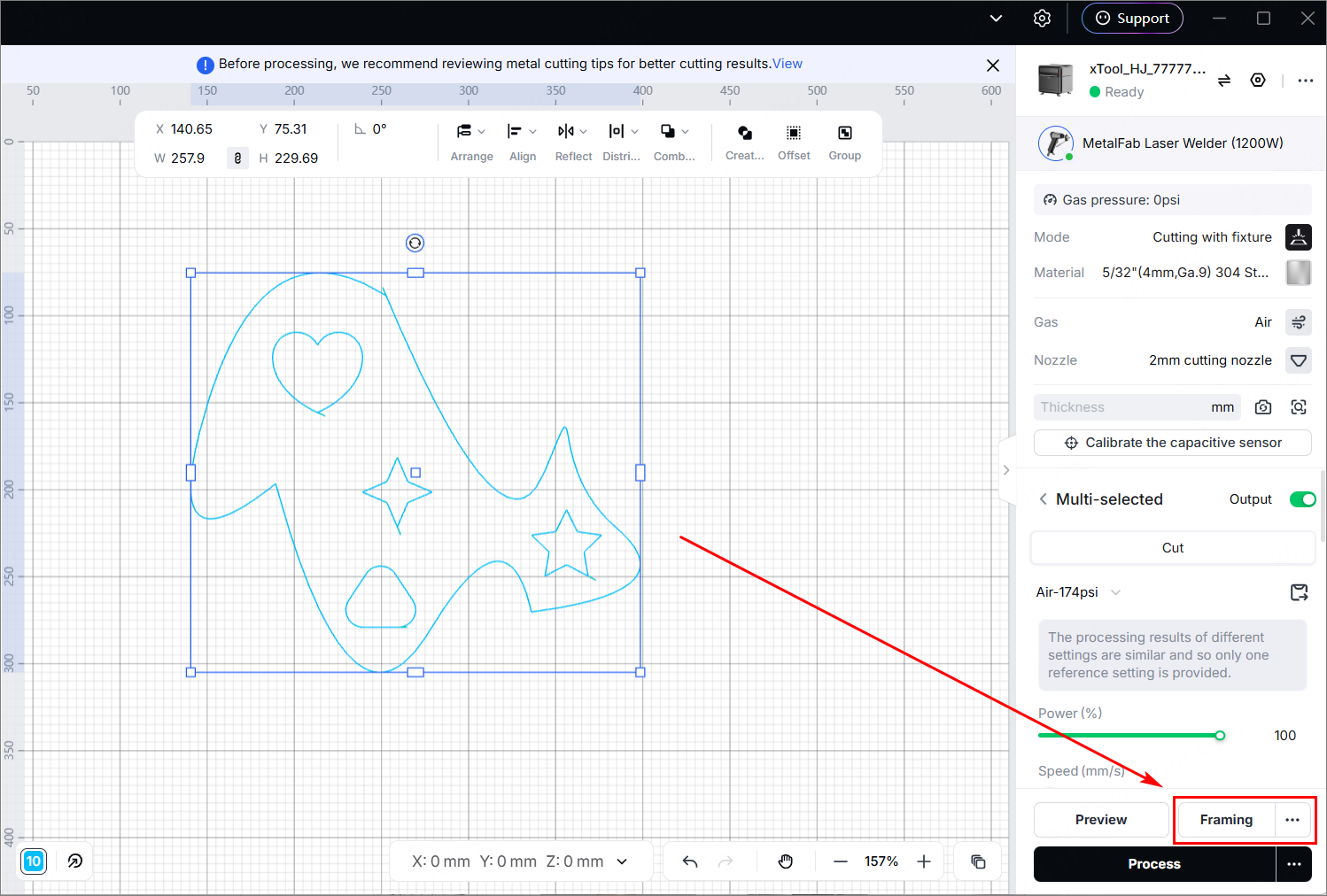
10. Framing
11. Adjust the focus position and processing
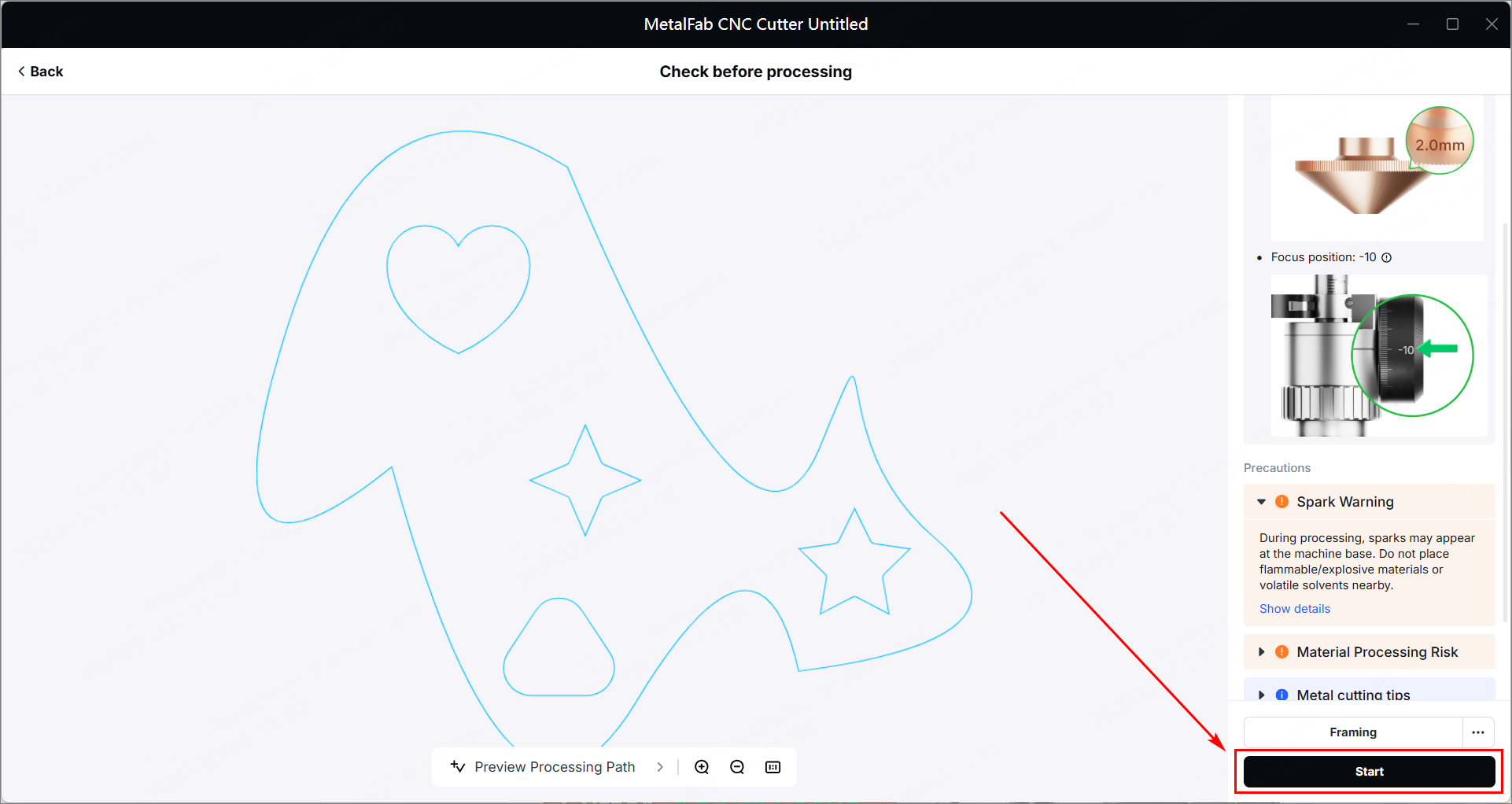
Click Process in the bottom-right corner and adjust the recommended focus position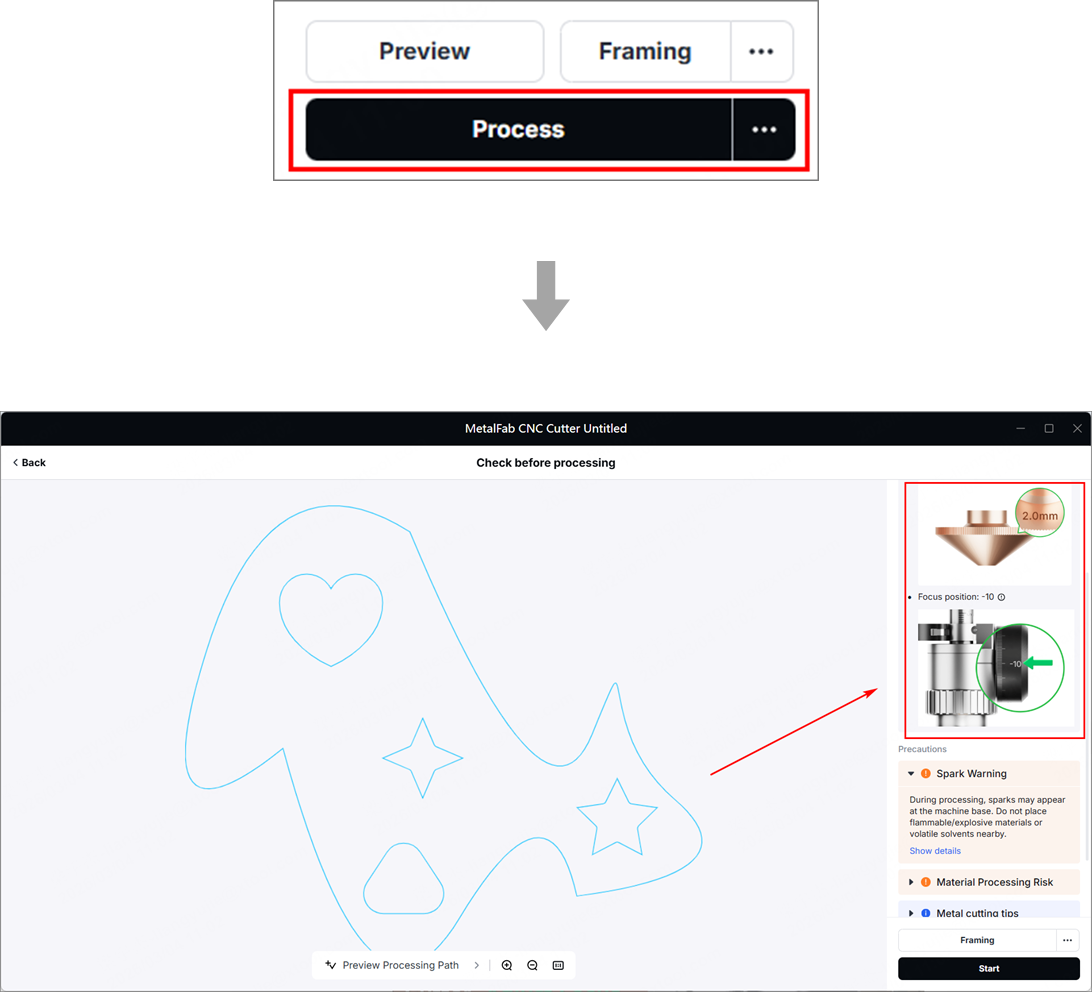
- For focus position from -10 to +5
Follow the video, rotate the knob, and set the scale at the recommended value.
- For focus position beyond the range from -10 to +5
Visit How to Adjust When Cutting Tip Knob Range is Exceeded to gain detailed instructions.
12. Start Processing
Use xTool double-layer nozzle & oxygen cylinder to cut 5mm carbon steel(ASTM 36) :
1. Preparation work
- Connect the oxygen cylinder to the laser welder. Connect the CNC cutter to the laser welder.
- Turn on the gas, set the oxygen pressure at 0.06-0.07 MPa.
- Install the double-layer nozzle and focus extension tube, turn on the laser welder and CNC cutter.
- Calibrate the welding gun light position.
2. Place and secure the material
3. Connect the device with xTool Studio
4. Select the processing mode
In the right panel, click the current processing mode, and then select Cutting with fixture.
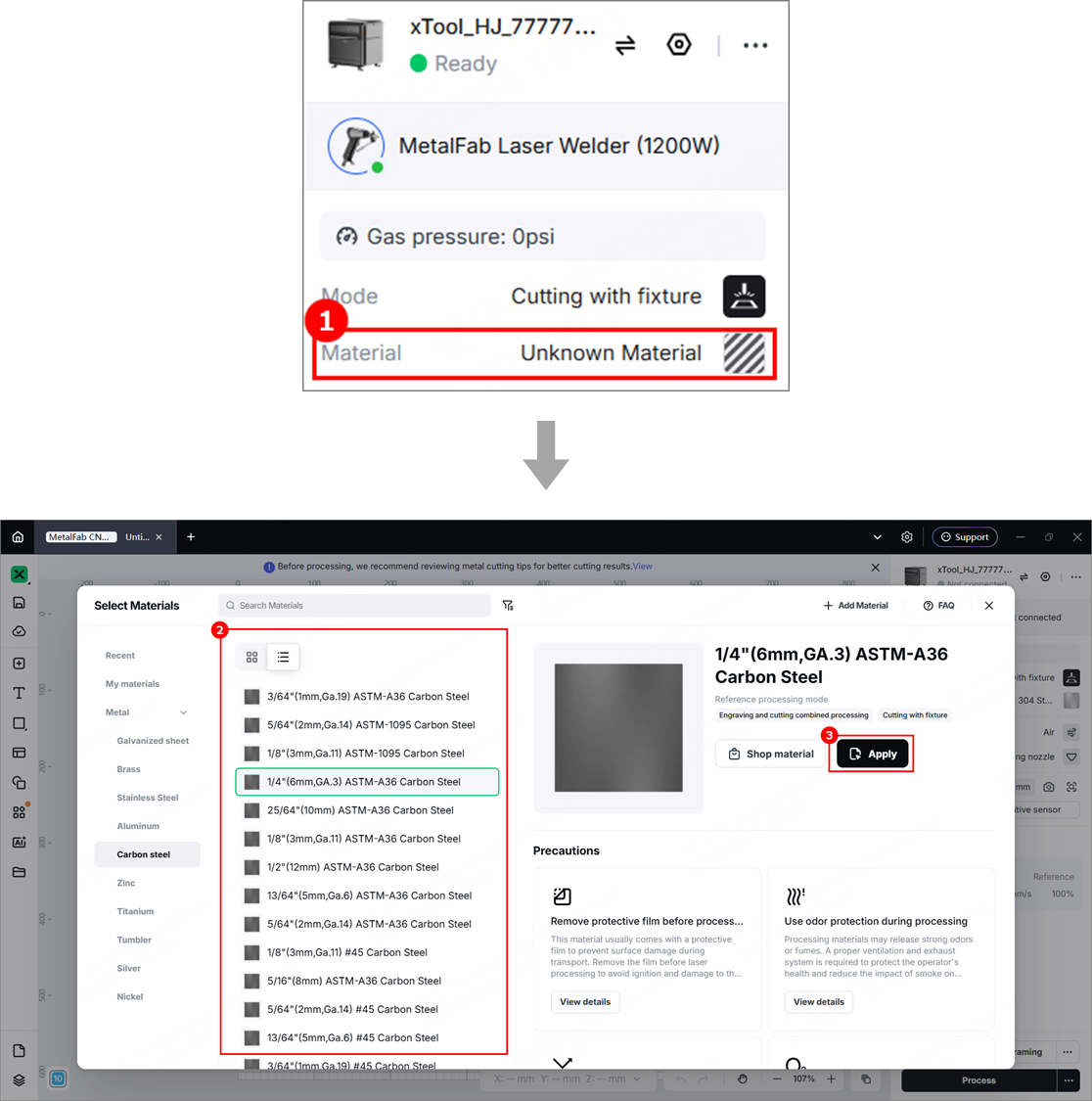
5. Select the material
Click Unknown material, select a desired material, and click Apply.
6. Insert files
7. Add lead-in lines
For thick metals of 2mm and above, to achieve the best cutting results, it's recommended to add lead-in lines.
Click to see when you need to add lead-in lines and how>>
8. Choose cutting parameters
9. Calibrate the capacitive sensor
10. Framing
11. Adjust the focus position and processing
Click Process in the bottom-right corner and adjust the recommended focus position
Note: When using the 20mm focus extension tube, the focus position should be adjusted to -2 for 5mm carbon steel.

