
1. Connect xTool M1 Ultra to xTool Studio
Refer to Connect and Setup xTool M1 Ultra with xTool Studio for instructions on connecting xTool M1 Ultra to xTool Studio.
2. Install the ink module and fine-point blade
(1) Remove the front cover and the lower cover of the ink module.
(2) Press the buttons to open the access door.
(3) Remove the ink cartridge cover, and gently peel off the tape.
(4) Put the ink cartridge into the ink module and close the access door.
Note: Make sure the access door is locked in place.
(5) Reinstall the lower cover on the ink module.
(6) Align the slot of the ink module and the multi-function holder, slide the ink module, and install it on the multi-function holder.
(7) Toggle the locking bar to lock the ink module.
(8) Pull out the connector from the ink module and connect it to the port next to the multi-function holder.
(9) Reinstall the front cover on the ink module.
(10) Remove the cover of the basic carriage and put the fine-point blade into the basic carriage.
(11) Reinstall the cover of the basic carriage
3. Calibrate the ink module
After you install the ink module, you need to calibrate it before processing.
(1) Click Start.
(2) Read the instructions and click Got it.
(3) Prepare items listed on the window. Make sure you have prepared everything and click Ready. Next.
(4) Slide the placing board along the handle to fit it on the baseplate.
(5) Tear one piece of the cleaning sticker and place it on the placing board.
(6) Remove the lower cover from the ink module and place it on the placing board.
(7) Horizontally paste the cardboard on the cutting mat, aligning the top left corner of the cardboard with that of the cutting mat's grid. Close the lid and click Process.
After the auto-measure succeeded, press the Start/Stop button on the device to start the calibration file.
(8) When the ink module inkjets a cross on the paper, manually move the ink module to make the red cross fall on and overlap with the cross.
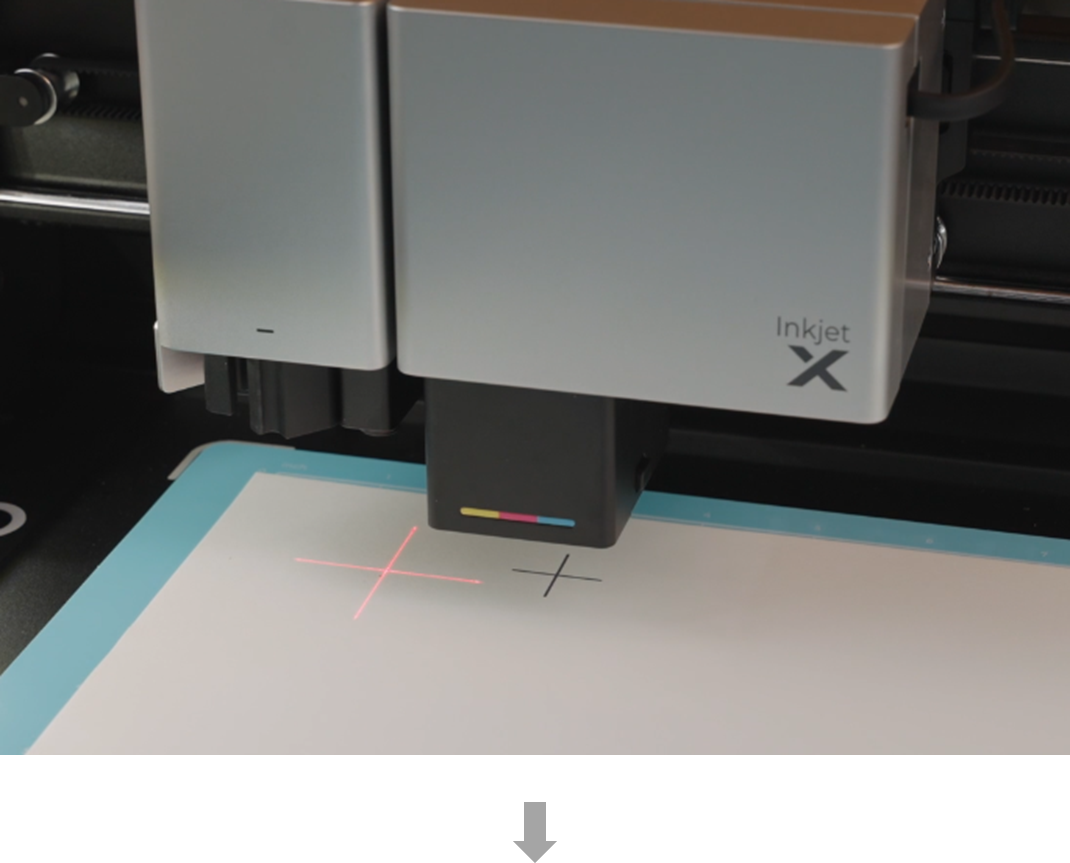
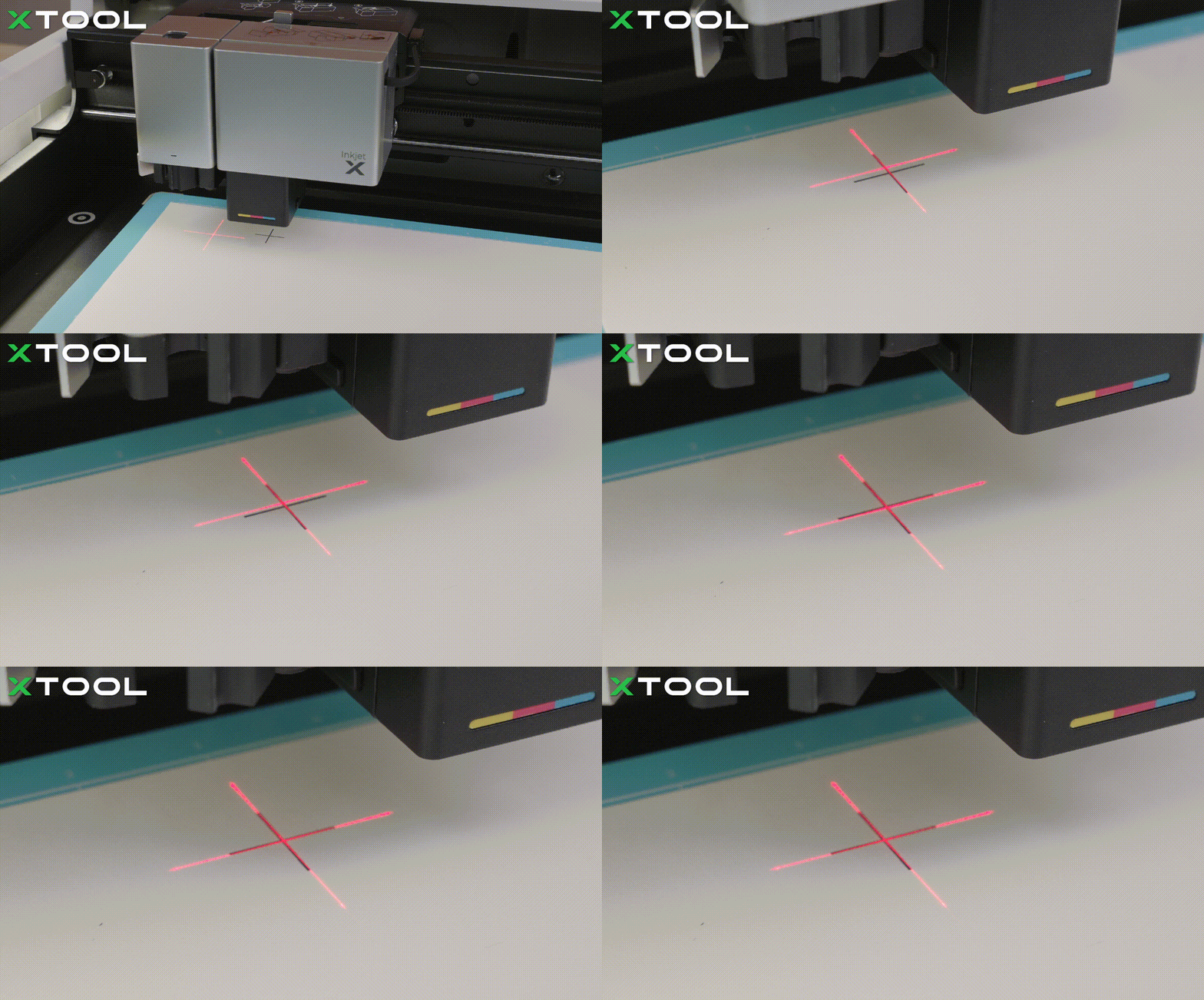
When the red cross falls on the cross processed, close the lid, and click Overlapped. Next.
(9) Place the slatted panel with limit blocks on the baseplate and place the 3 mm basswood on it as follows.
Close the lid and click Process.
After the auto-measure succeeded, press the Start/Stop button on the device to start the calibration file.
(10) When the ink module inkjets a cross on the basswood board, manually move the ink module to make the red cross fall on and overlap with the cross.
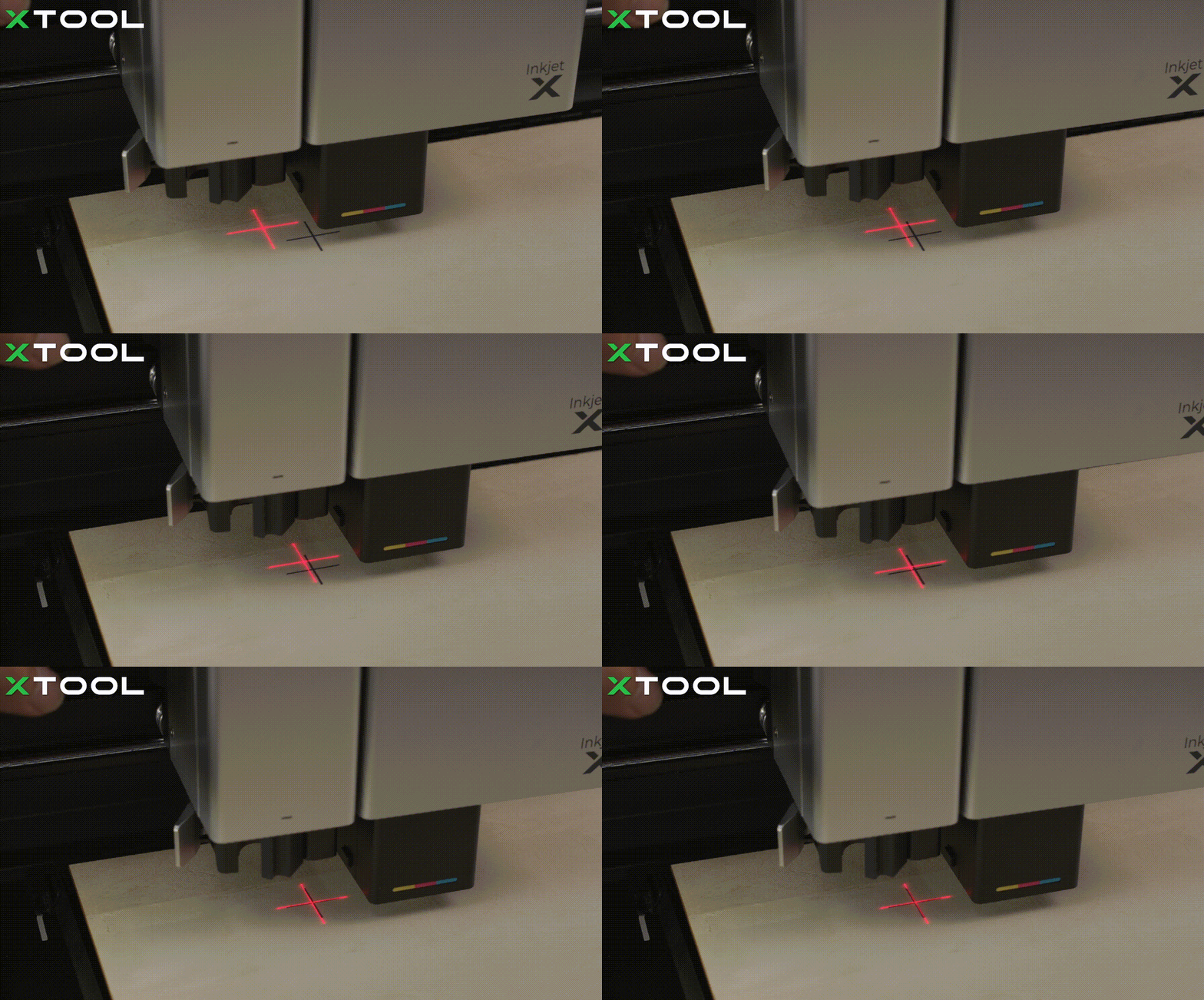
When the red cross falls on the cross processed, close the lid, and click Confirm and upload.
(11) Calibration is completed.
4. Place the material
Open the lid of xTool M1 Ultra, place the LightGrip cutting mat on the baseplate, and place a piece of paper on the cutting mat.
5. Select the processing mode and material
(1) In the right panel of the page, click the current processing mode, and then select Multi-module processing as the processing mode.
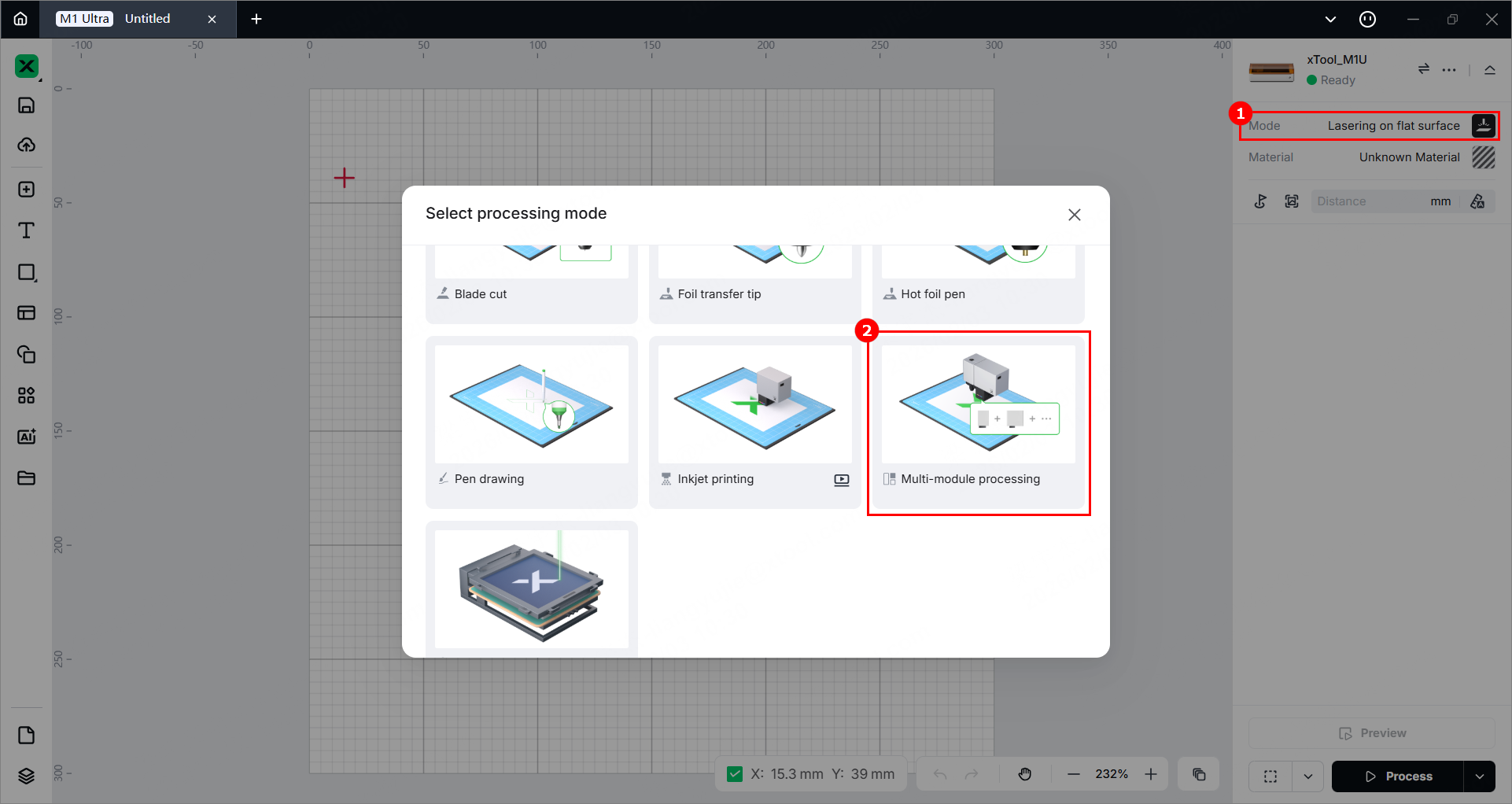
(2) Click Unknown Material, select a desired material, and click Apply.
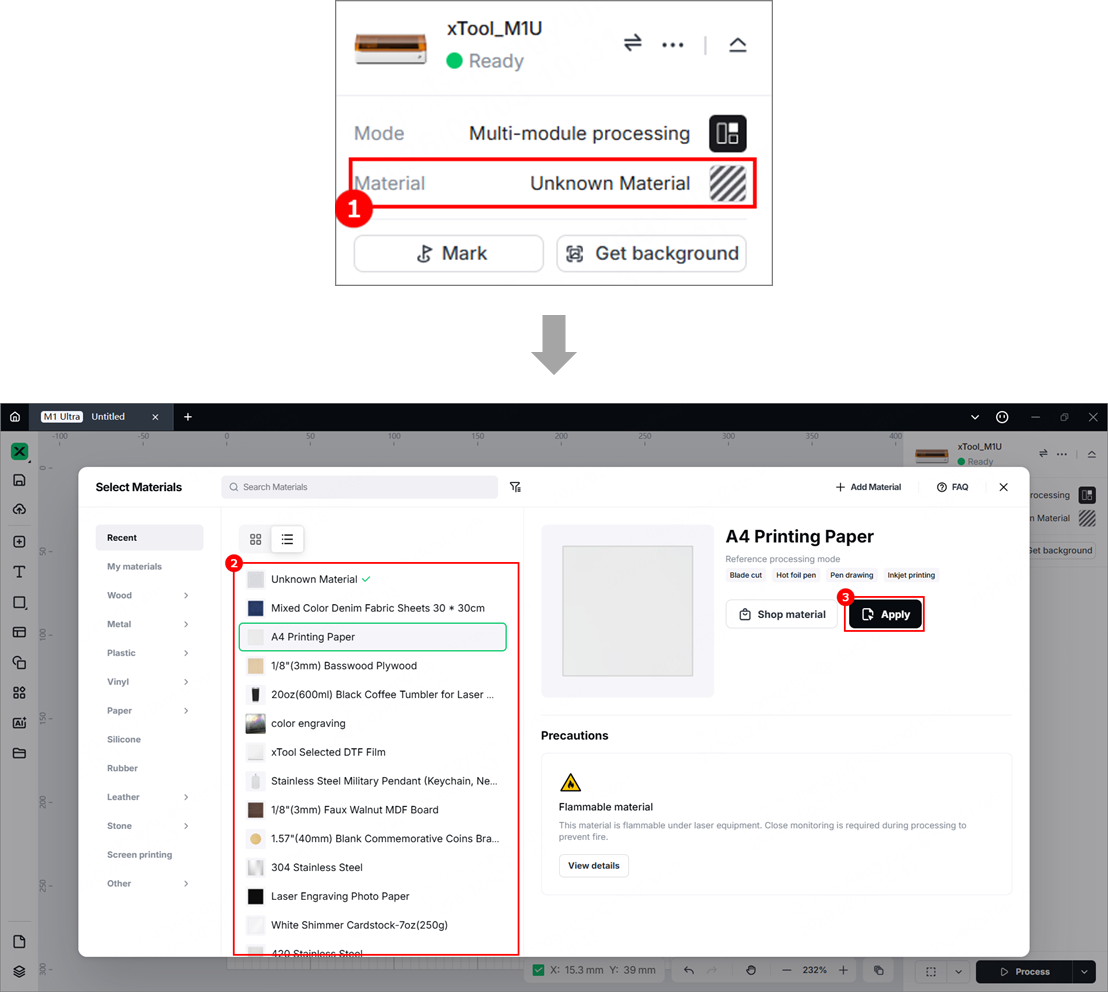
Note: The recommended parameter settings can achieve the best results only when using xTool materials. For third-party materials, it is recommended that you conduct a material test array on your own first to obtain the desired effects and parameters. Meanwhile, make sure that the materials are free from moisture or contamination, as these factors can significantly affect processing quality.
6. Design objects for processing
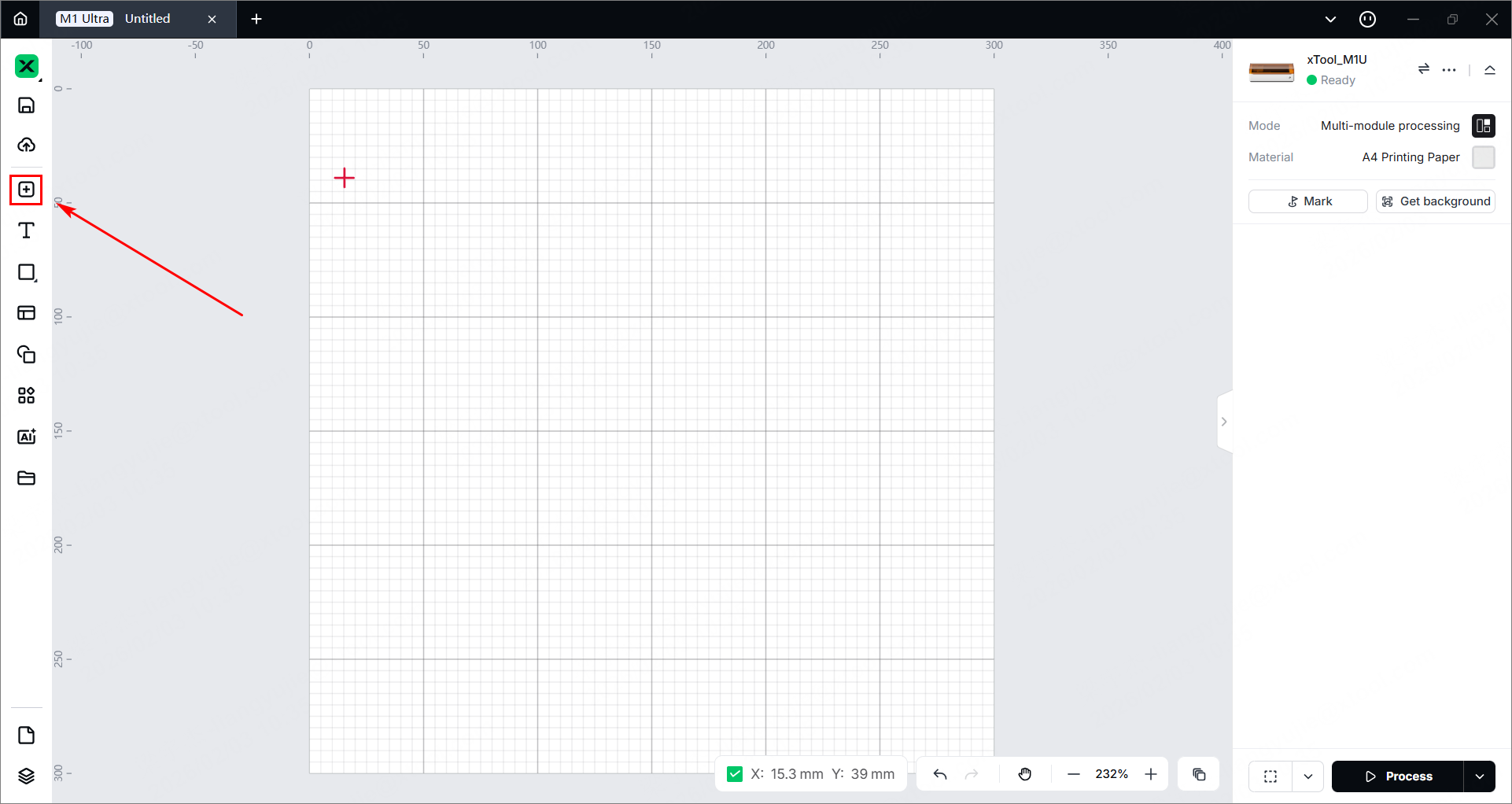
(1) Use the left-side tools to create objects on the canvas.
- For inkjet printing, select an image file and open it.
- For the fine-point blade function, click the image and select Offset in the upper panel. Set the offset parameters and then click Confirm.
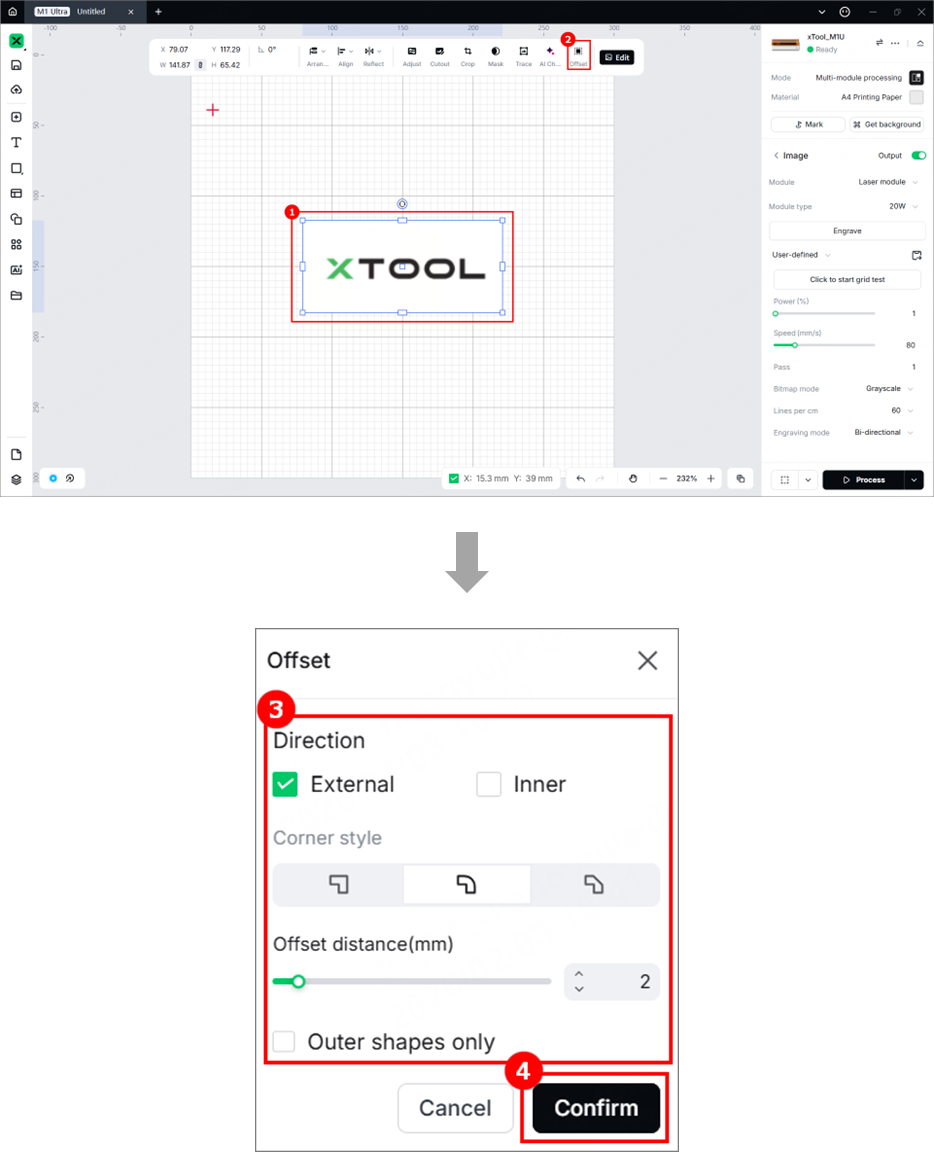
Note: For more information on how to use xTool Studio to design objects, see Software Learning Center.
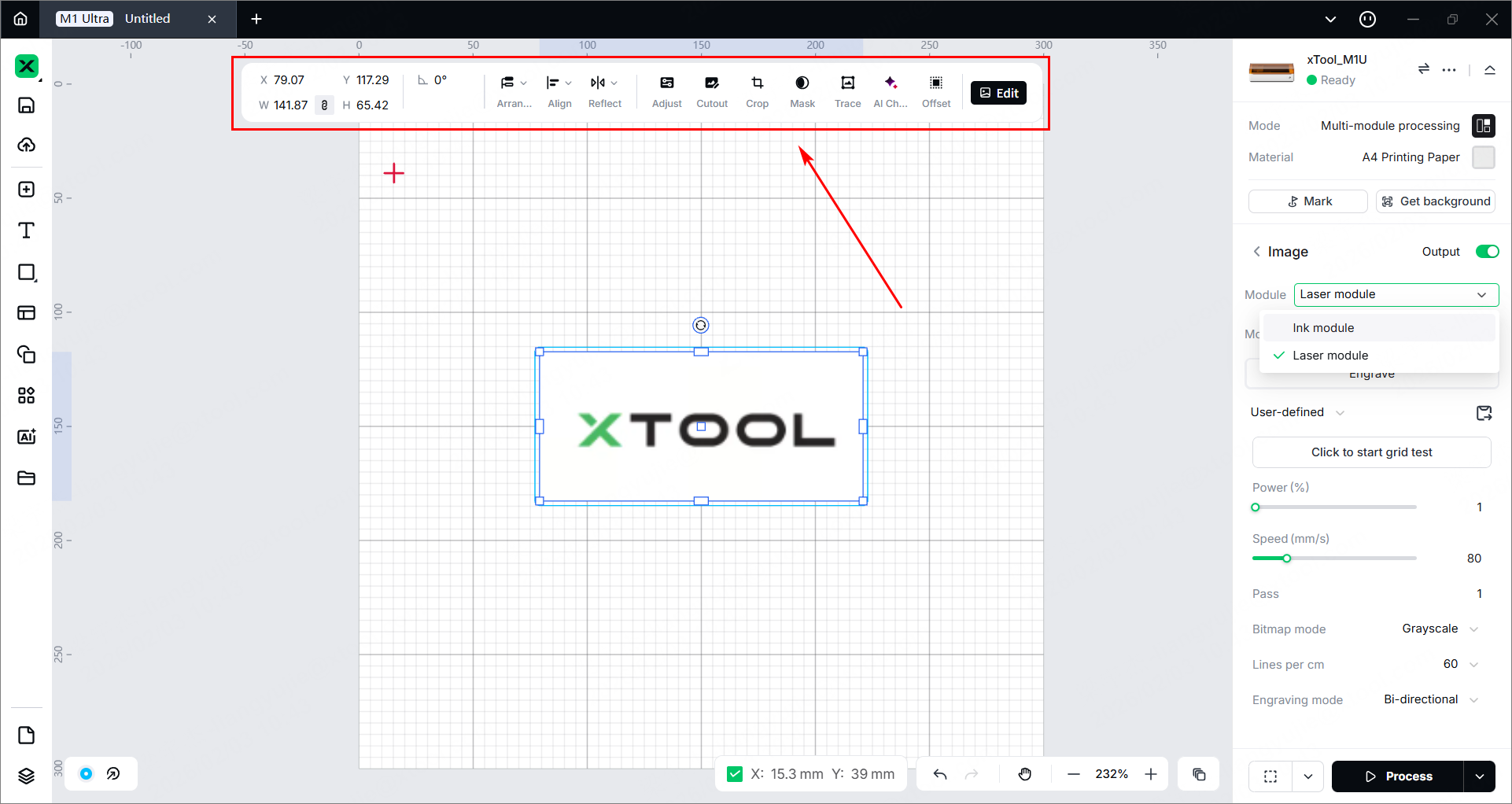
(2) You can use the tools above the canvas for further editing.
7. Set parameters for processing
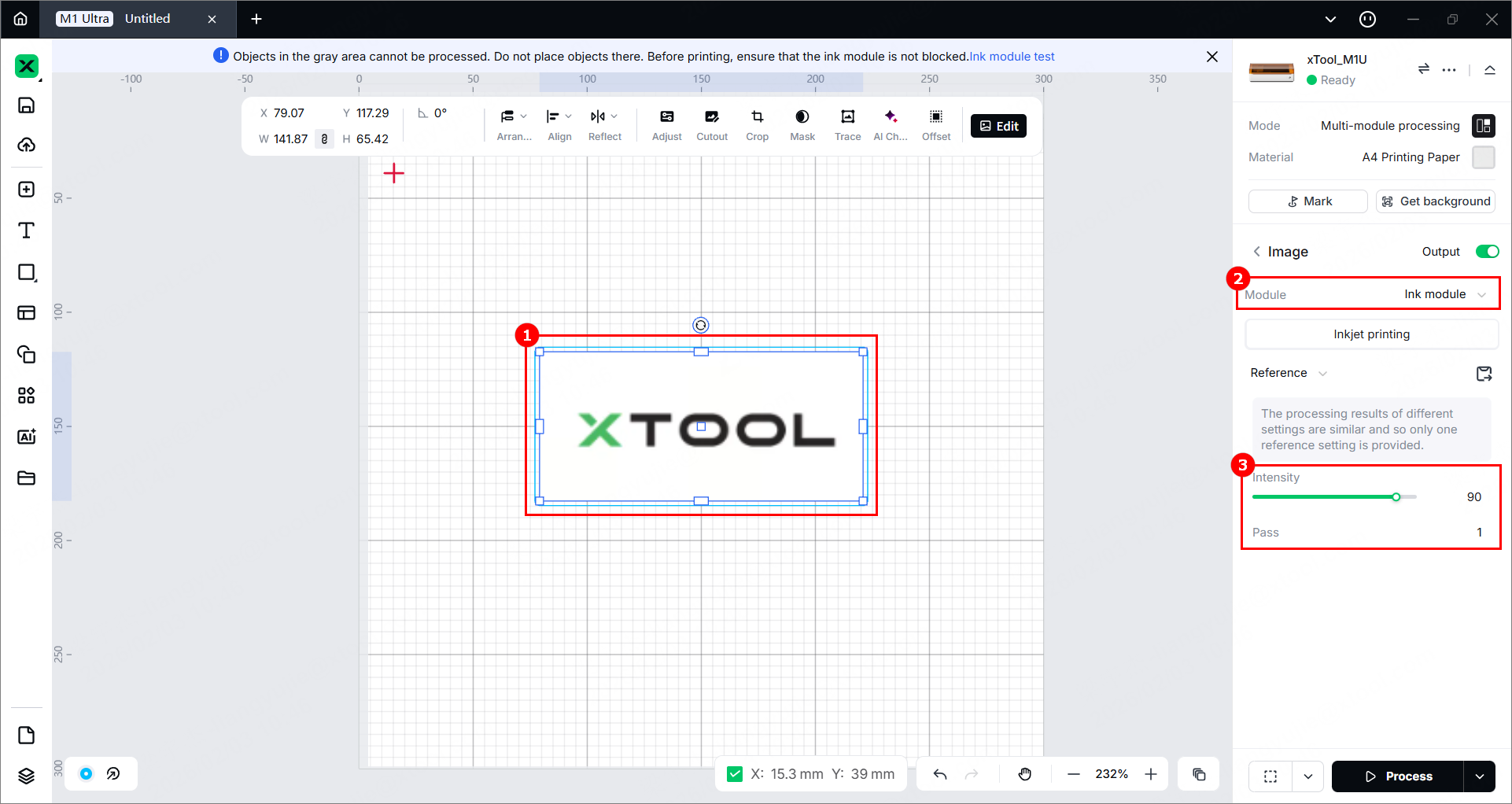
(1) Select one object (image) on the canvas, select Ink module, and set parameters.
(2) Select another object (outline) on the canvas, select Fine-point blade, and set parameters.
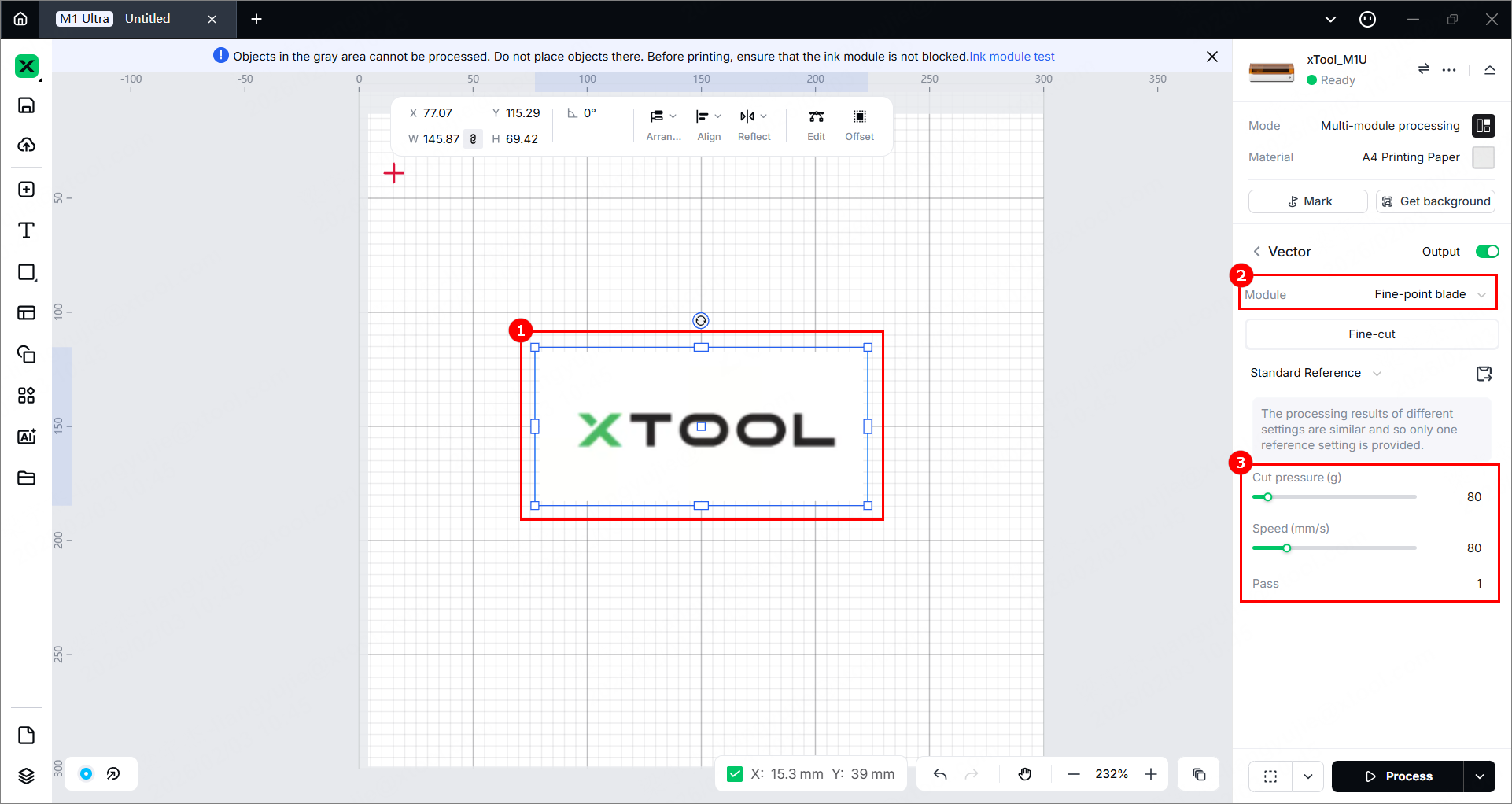
Note: You need to set parameters for every object. A missed object may fail to be processed.
Note:
- If you have selected a material, the software will apply the default settings for the material. The default settings apply best to xTool materials. You can adjust the settings based on your needs.
- For more information on parameter settings, see atomm.com/easyset.
9. Mark the processing area
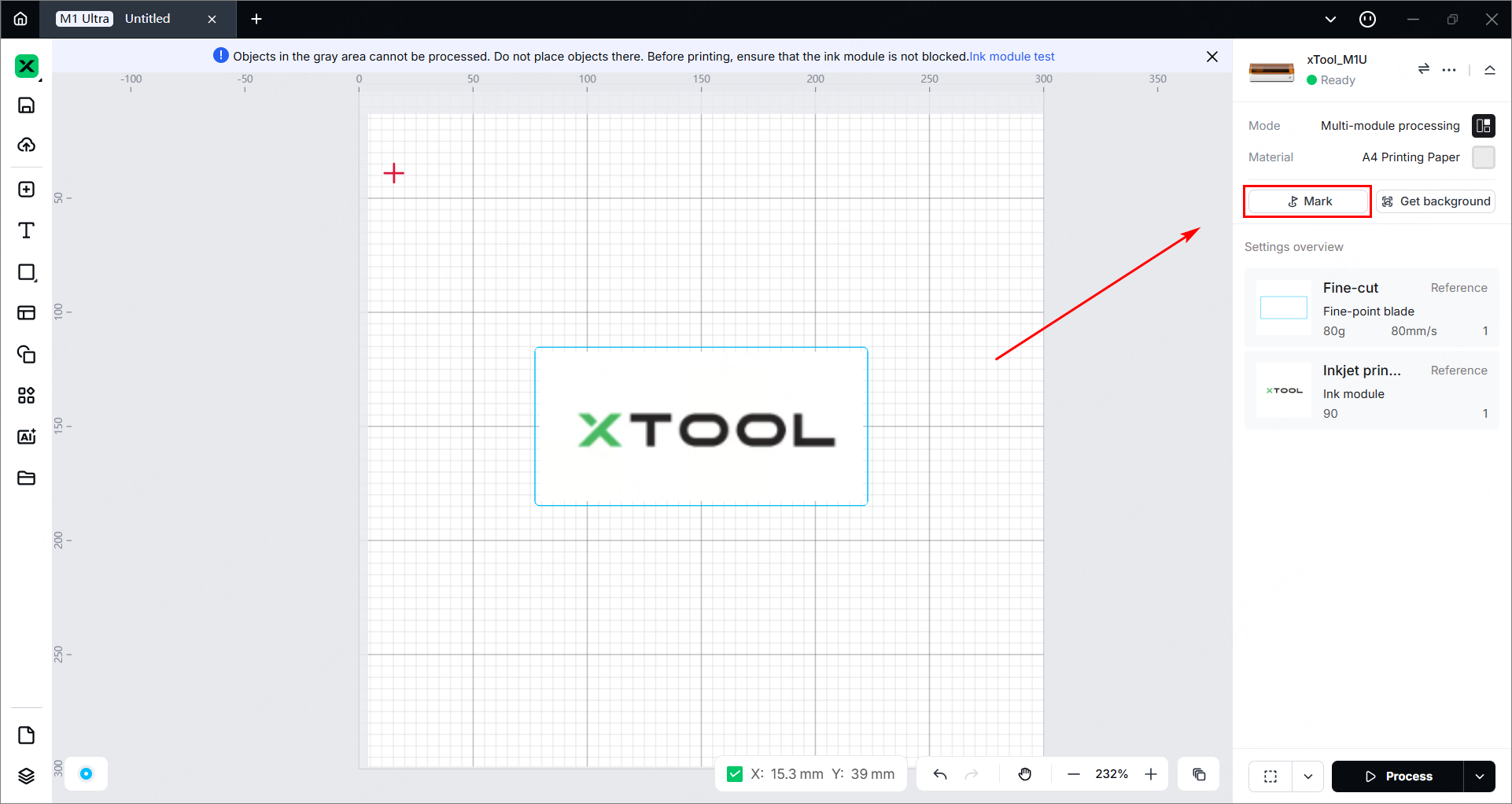
(1) In the right panel of the page, click Mark to mark the processing area.
(2) Select a marking mode based on the shape of the target processing area, and click Start marking.
(3) Manually move the laser module to make the red cross spot fall at a vertex of the target processing area, and press the Point marking button on the device to record the position. Then, repeat the same steps to record the other required vertex(es) for the target processing area.
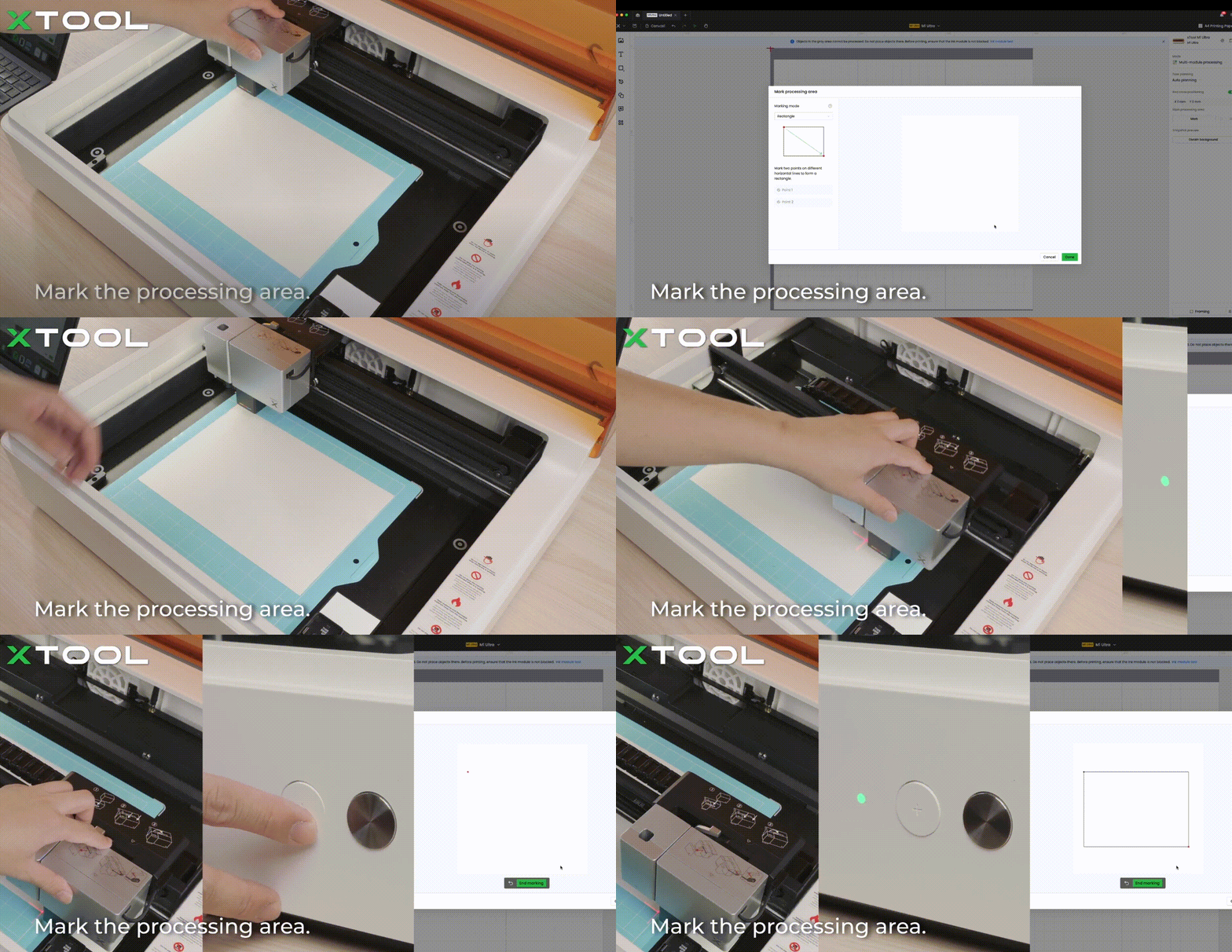
(4) Make sure two points are marked. Click End marking > Done, and then the target processing area will be marked out on the canvas.
10. Preview the processing area
Framing means that the laser module moves along the boundary of the processed object on the material, so that the processed area on the material can be previewed. Perform the following steps to start framing.
(1) Clickin the bottom-right corner of the software to set framing speed.
(2) Clickin the bottom-right corner of the software and press the framing button on xTool M1 Ultra to start framing.
(3) After confirming the processing area is properly set, click Framing completed in xTool Studio.
11. Start processing
(1) In the bottom-right corner of the software, click Process.
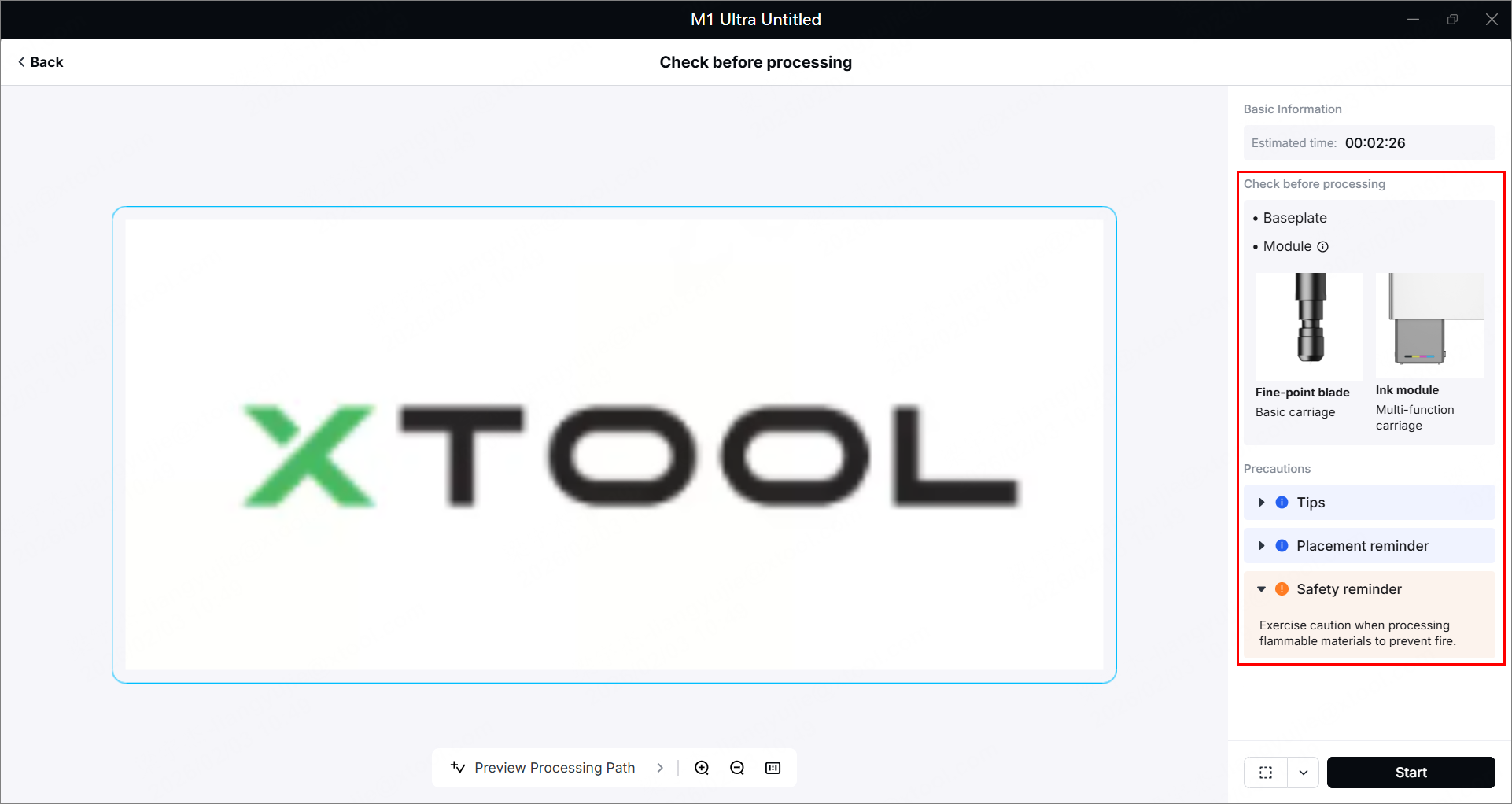
(2) Check whether the accessories or modules are prepared before processing on the right list and read the safety precautions.
(3) Click Preview Processing Path and.
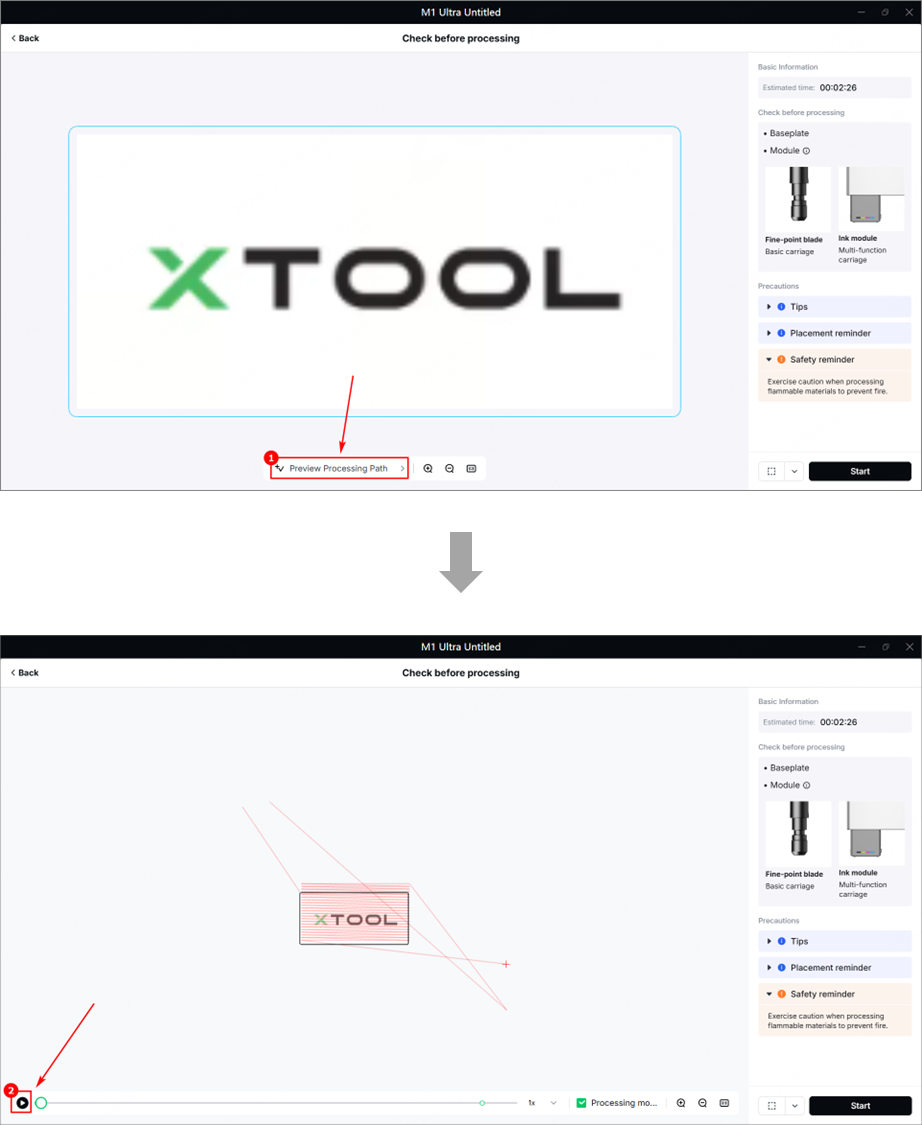
(4) In the bottom-right corner of the software, click Start.
(5) When the software shows Ready, press the button on xTool M1 Ultra to start processing.

