
1. Connect xTool M1 Ultra to xTool Studio
Refer to Connect and Setup xTool M1 Ultra with xTool Studio for instructions on connecting xTool M1 Ultra to xTool Studio.
2. Install xTool Hot Foil Pen
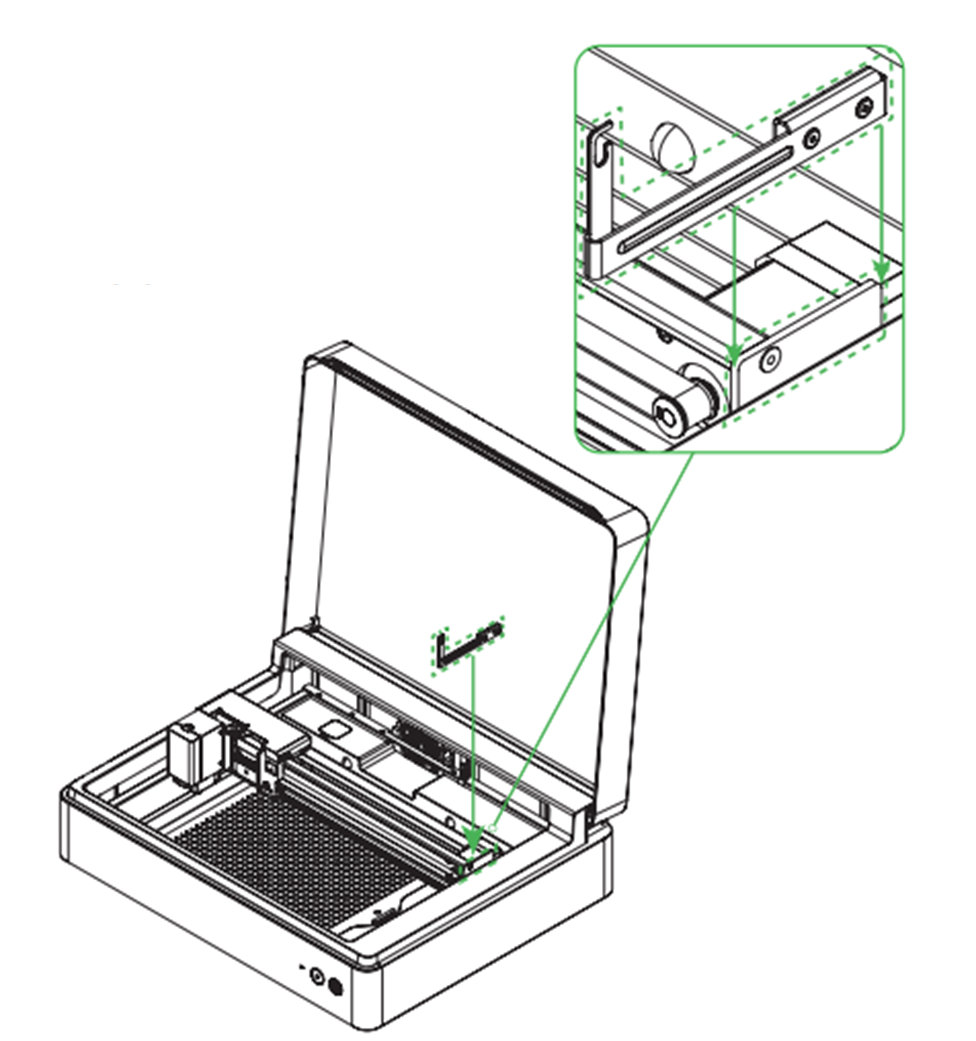
(1) Install the cable bracket first.
(2) Align the parts in the two dashed boxes to the right and fully tighten the two screws.
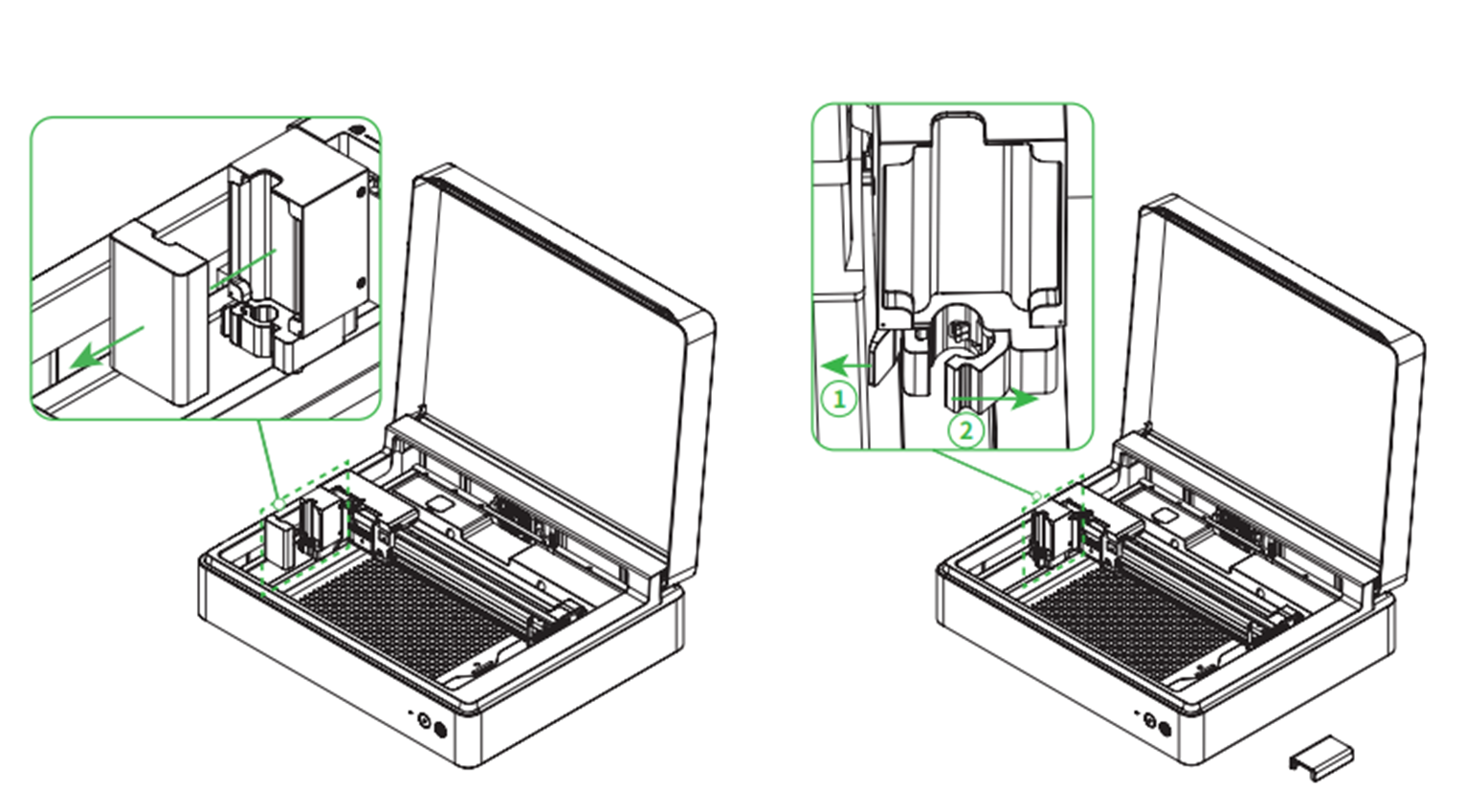
(3) Remove the front cover of the basic carriage and release the locking clamp.
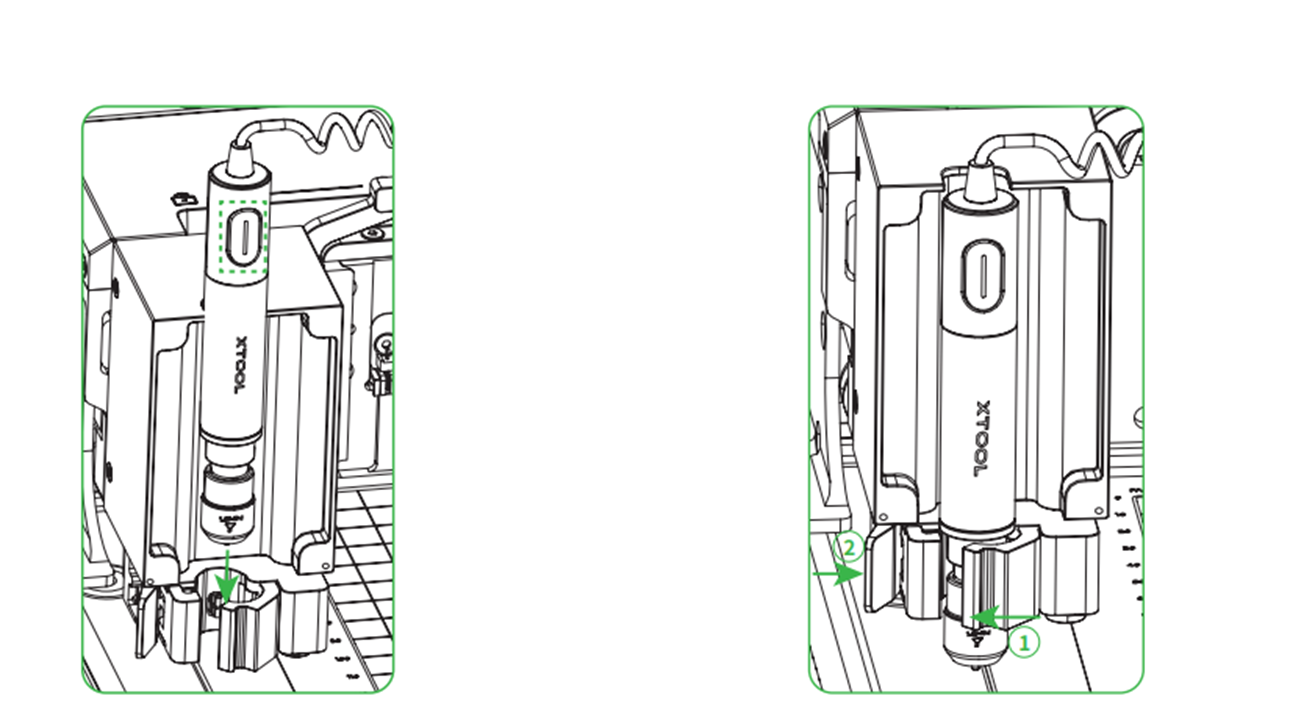
(4) Install the pen into the carriage's locking clamp and secure it. Ensure the button on the pen with the xTool label faces toward you.
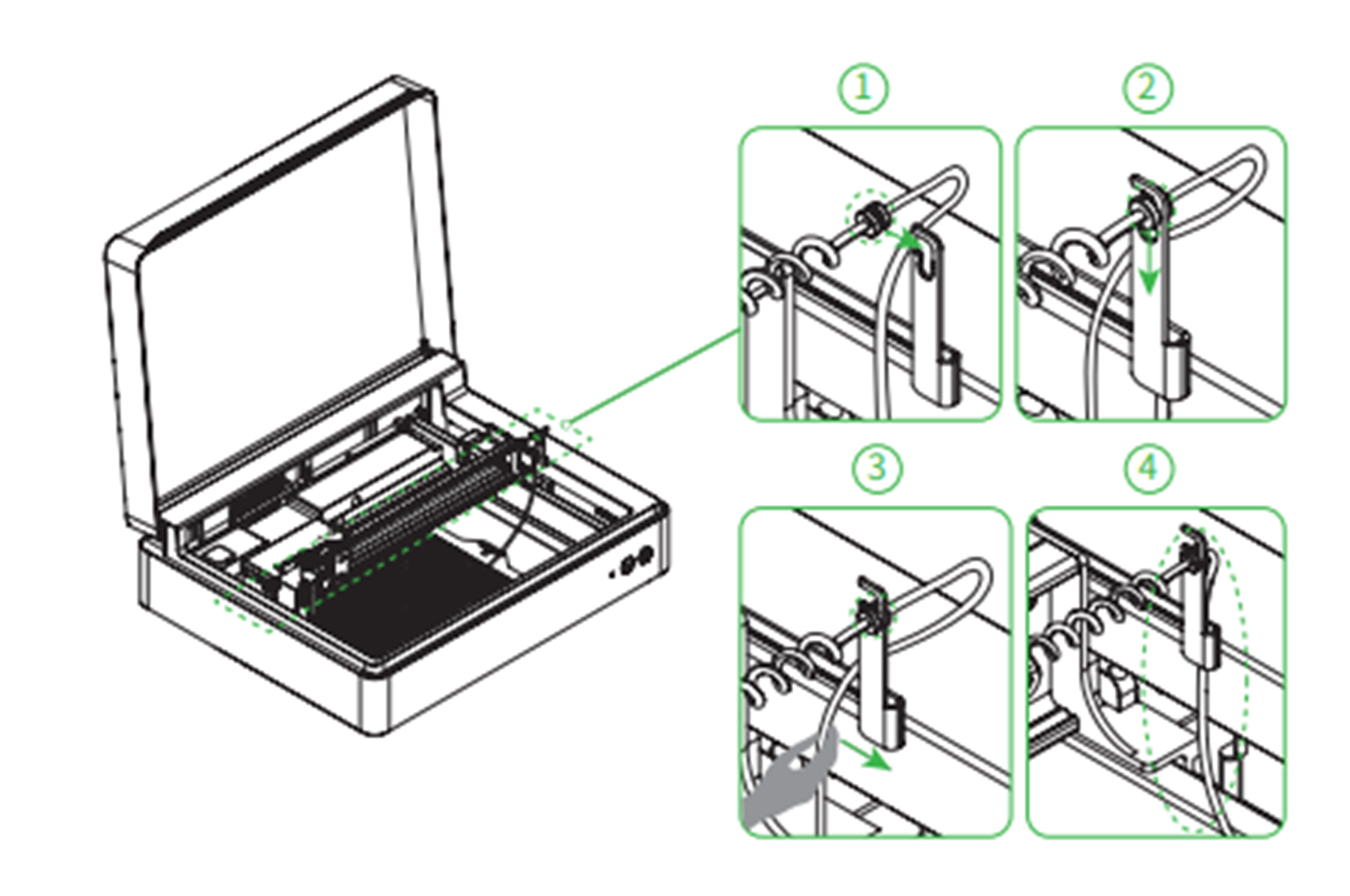
(5) Pass the connection cable of the pen through the cable bracket.
(6) Insert the connection cable of xTool Hot Foil Pen into the Rotary Attachment port inside xTool M1 Ultra.
Note: When using an electrostatic mat, insert the connection cable of the hot foil pen into the extension port of the electrostatic mat.
3. Prepare the material
(1) Open the lid of your xTool M1 Ultra.
(2) You can use either an Electrostatic Mat or a cutting mat as your processing surface.
(3) Place your processing material on the chosen mat, before positioning a piece of foil paper on top of the material. Use included stickers to secure included foil paper to the material.
4. Preheat xTool Hot Foil Pen
(1) Press the button on xTool hot foil pen to start heating the tip.
(2) The heating time may vary depending on the environment. Wait one to two minutes before processing.
Note:
- ⚠️ The hot foil pen tip is hot after heating. DO NOT touch it.
- When using the ink module during processing, avoid intertwining its connection cable with your xTool cable.
5. Select the processing mode and material
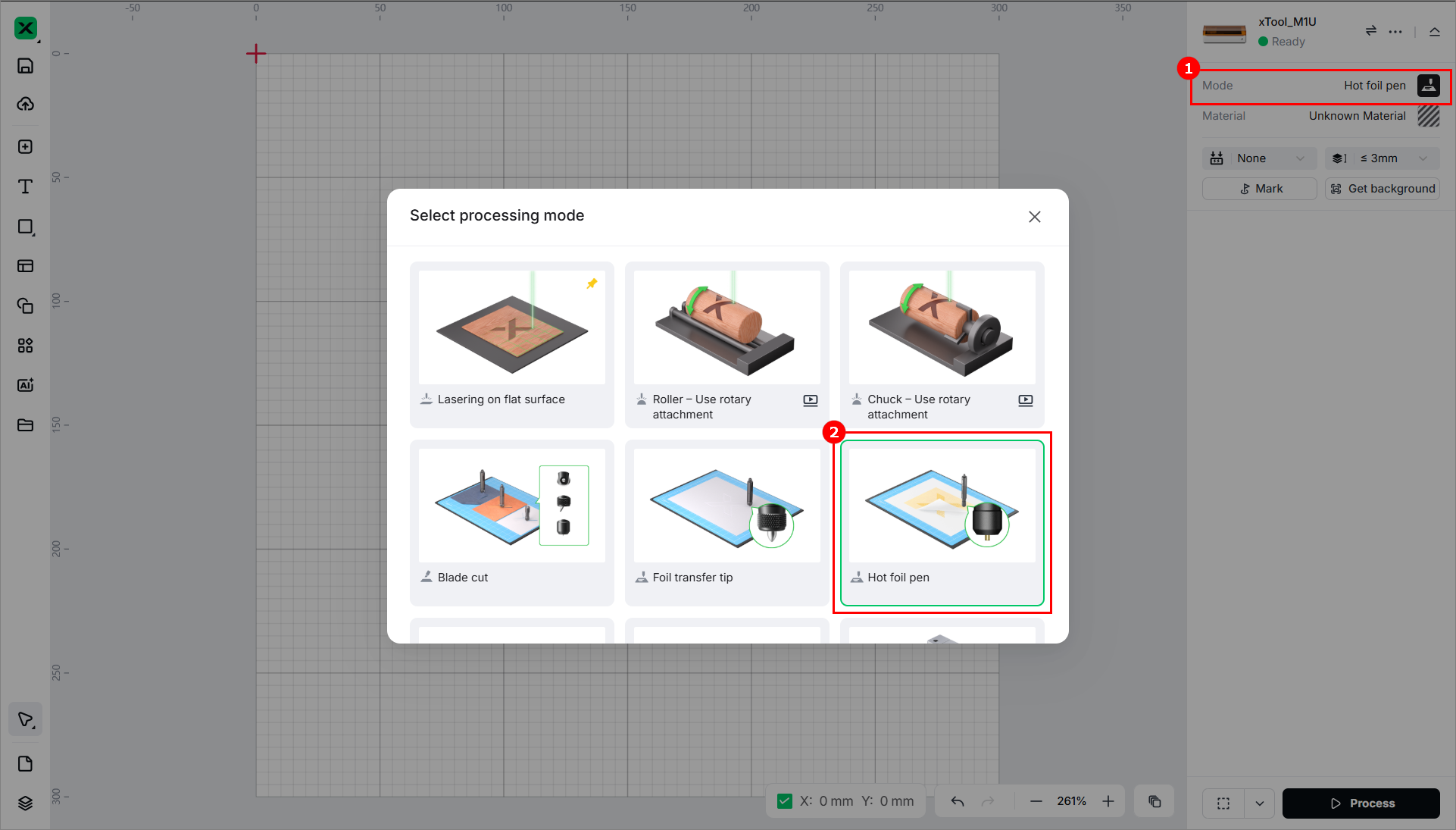
(1) In the top-right corner of the xTool Studio, select Hot Foil Pen as the processing mode.
(2) Choose an appropriate material thickness, either greater than or less than 3 mm.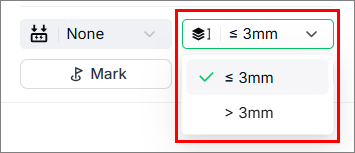
(3) Click Unknown Material, select a desired material, and click Apply.
6. Measure the distance
You can set the distance using Z-axis movement or Auto-measure.
Z-axis movement
(1) Select the material thickness.
(2) Ensure your xTool hot foil pen is positioned over the material.
(3) Click the  icon to begin the measurement process.
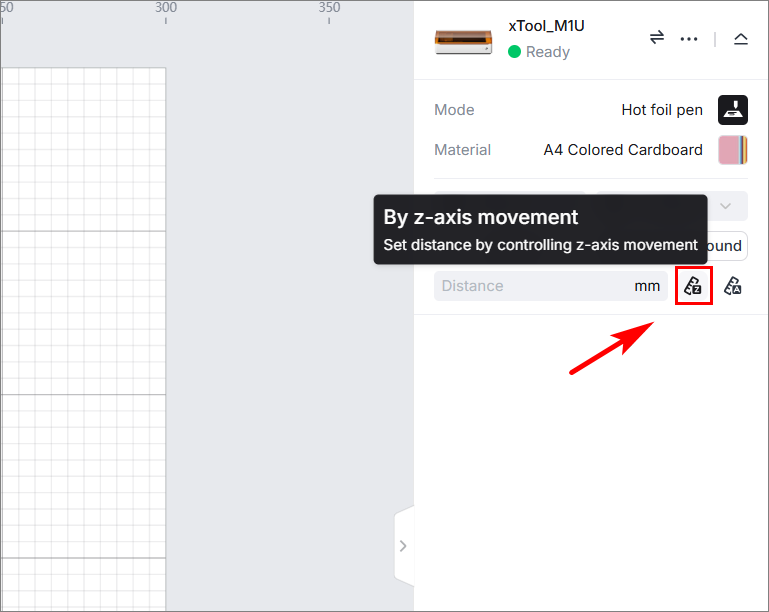
(4) Click the up / down arrow buttons to adjust the distance until the tip of your xTool hot foil pen is just about to touch the surface of the material.
Distance Units:
- Use the slider or enter a value to set the distance unit; or
- Click
or
to adjust the distance.
- Click
to perform the z-axis homing.
(5) When the distance is set correctly, click Confirm. Now your distance setting is complete.
Auto-measure
(1) Select the material thickness.
(2) Ensure you have installed a laser module and move it over the material.
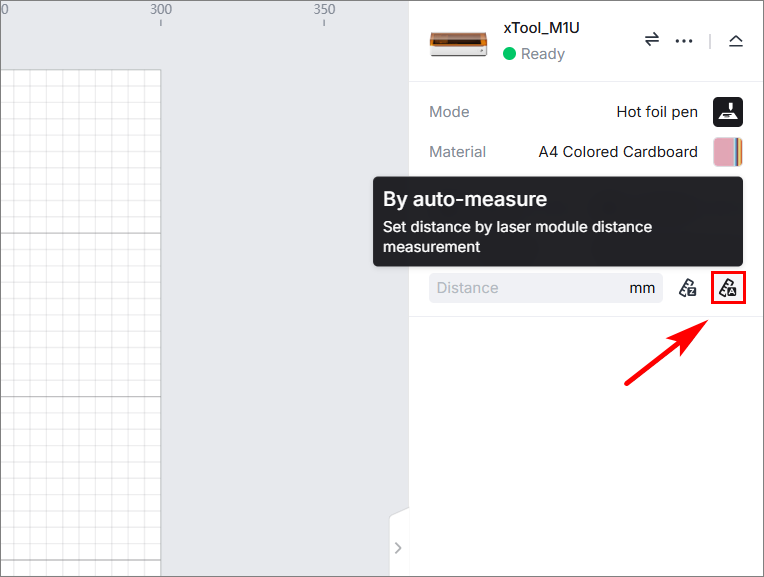
(3) The distance will be set automatically upon successful measurement.
7. Mark the processing area on the canvas
(1) Click the  icon on the toolbar in the right panel to mark the processing area.
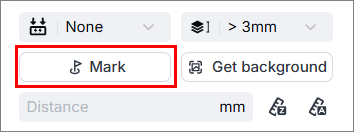
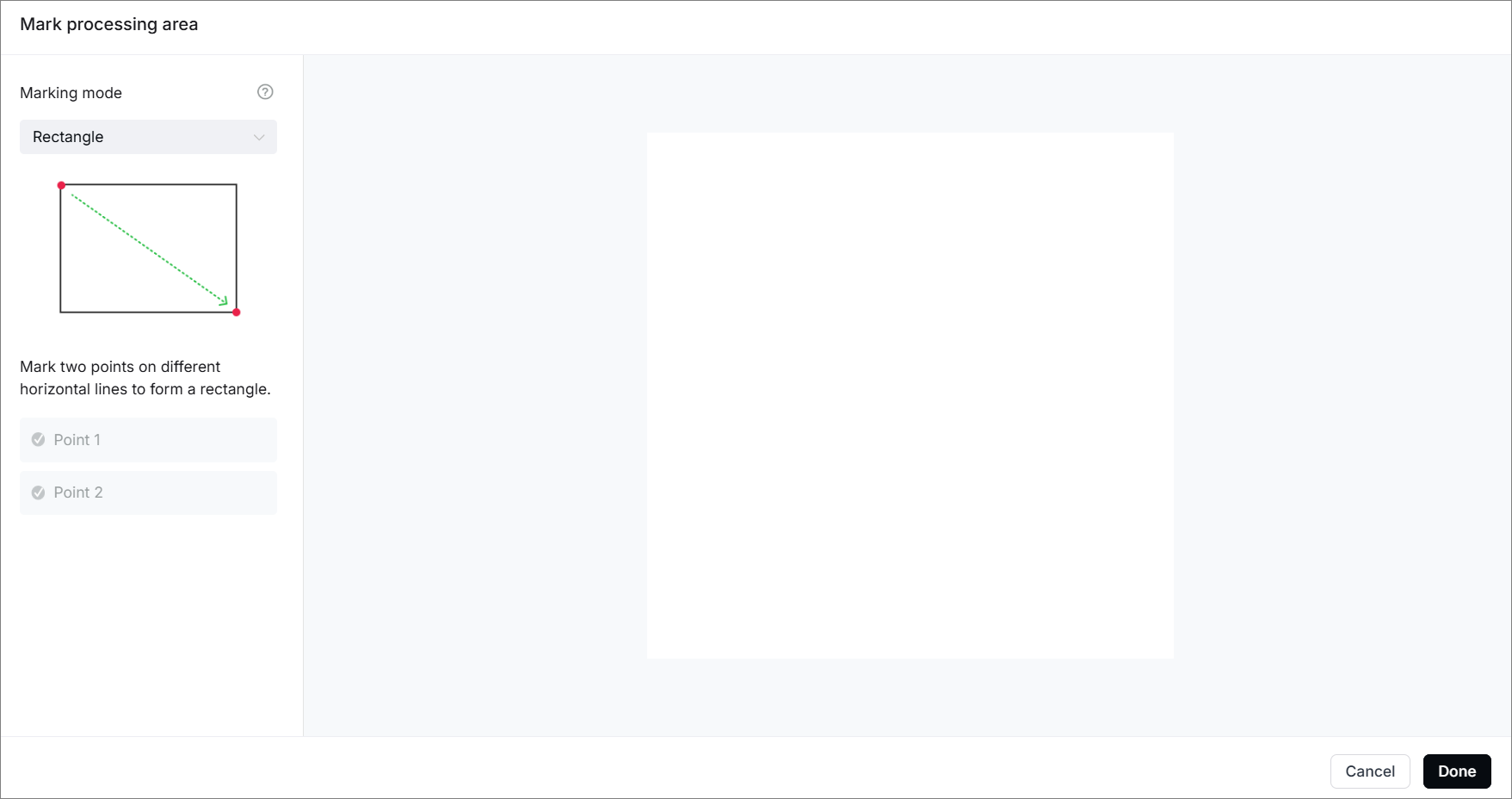
(2) Select a marking mode that corresponds to the shape of your desired processing area and click Start marking.
Subsequently, a pop-up window will appear as follows.
(3) Manually move the laser module to make the red cross spot fall at a vertex of the target processing area, and press the Point marking button on the device to record the position. Then, repeat the same steps to record the other required vertex(es) for the target processing area.
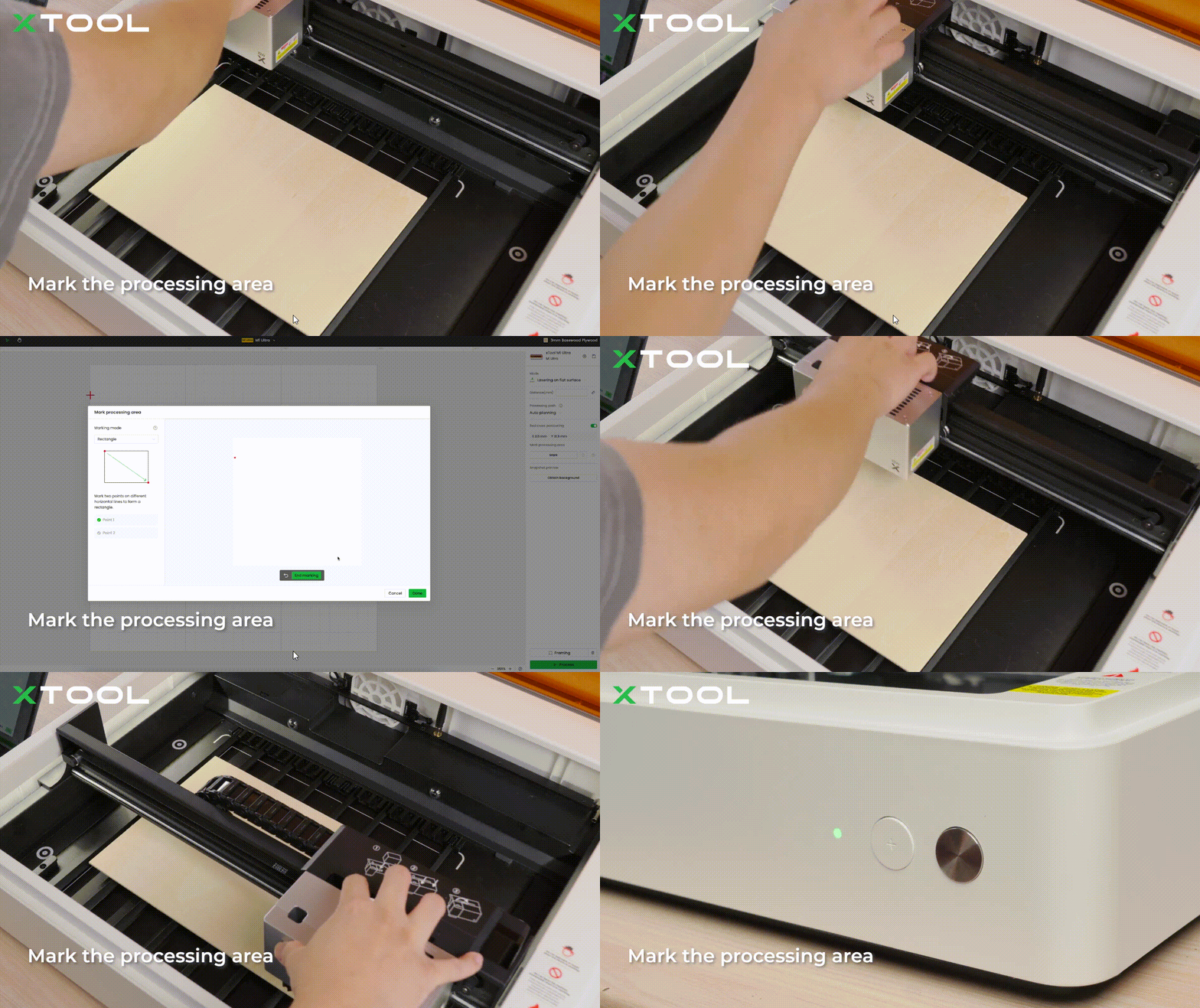
(4) Make sure two points are marked. Click End marking > Done, and then the target processing area will be marked out on the canvas.
8. Design objects for processing
(1) Use the tools on the left side to create objects.
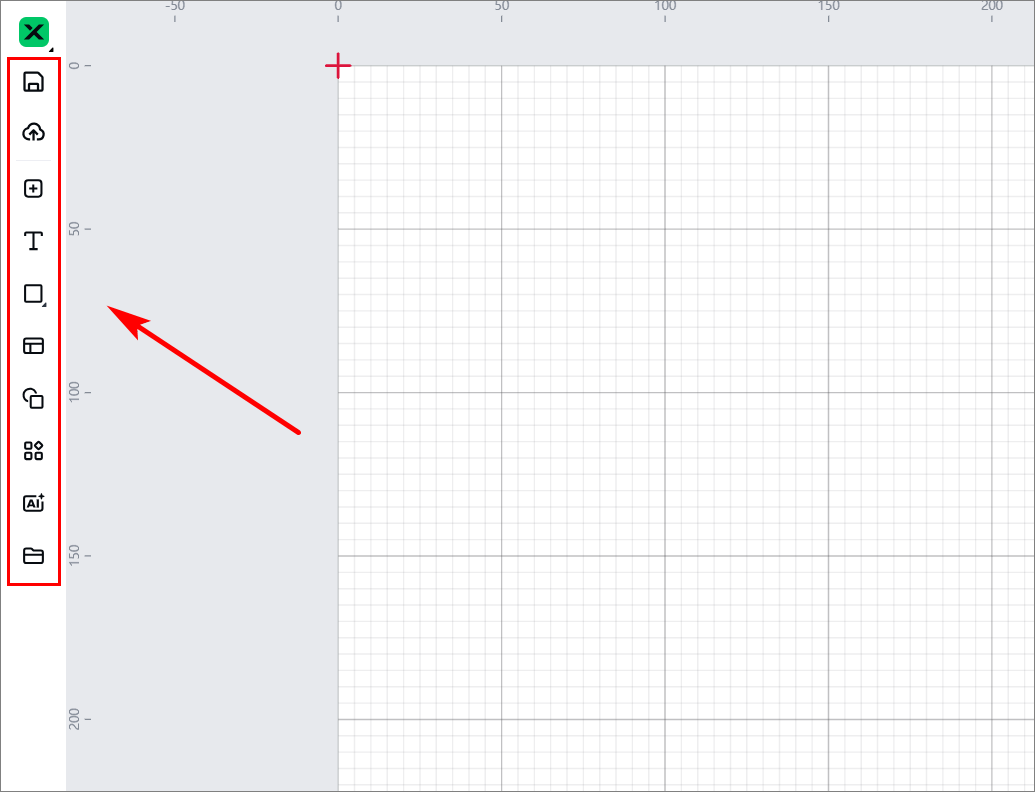
Note: You can import images, insert shapes, enter text, draw vector graphics, and so on. For more information on how to use xTool Studio to design objects, see Software Learning Center.
(2) Select the objects, and use the tools above the canvas for further editing.
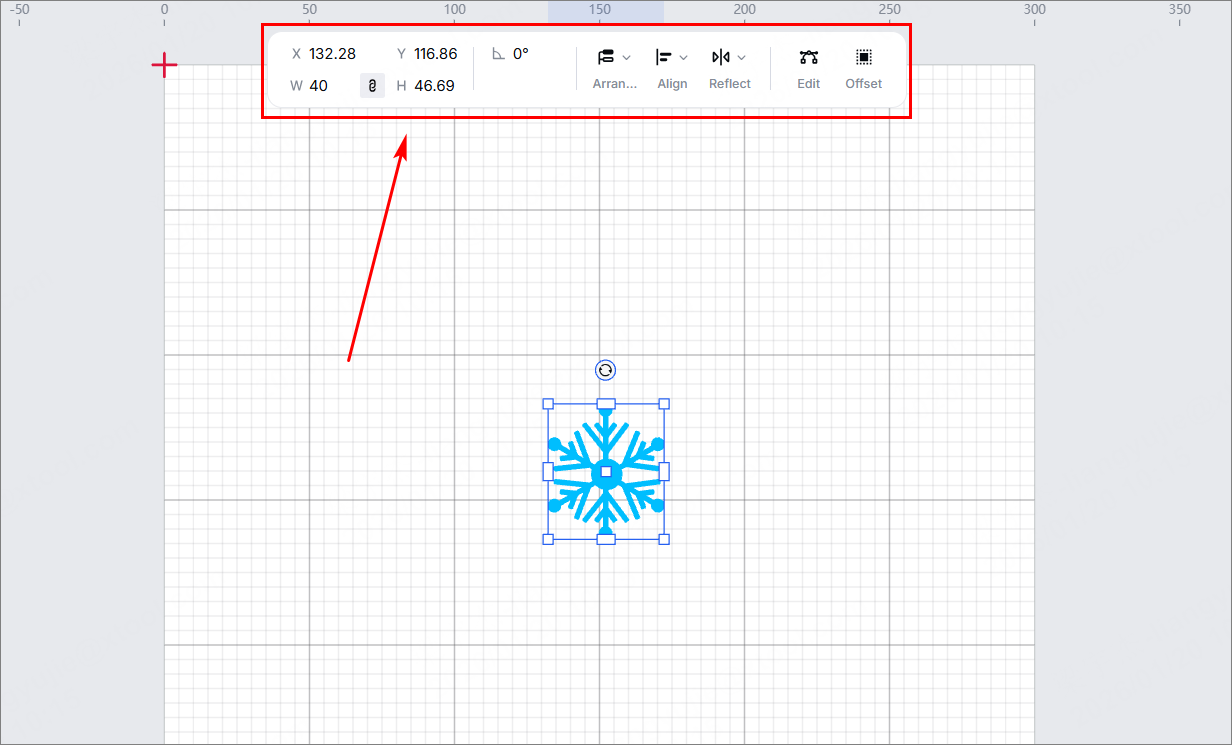
9. Set parameters for processing
Select objects on the canvas and set their parameters in the right panel.
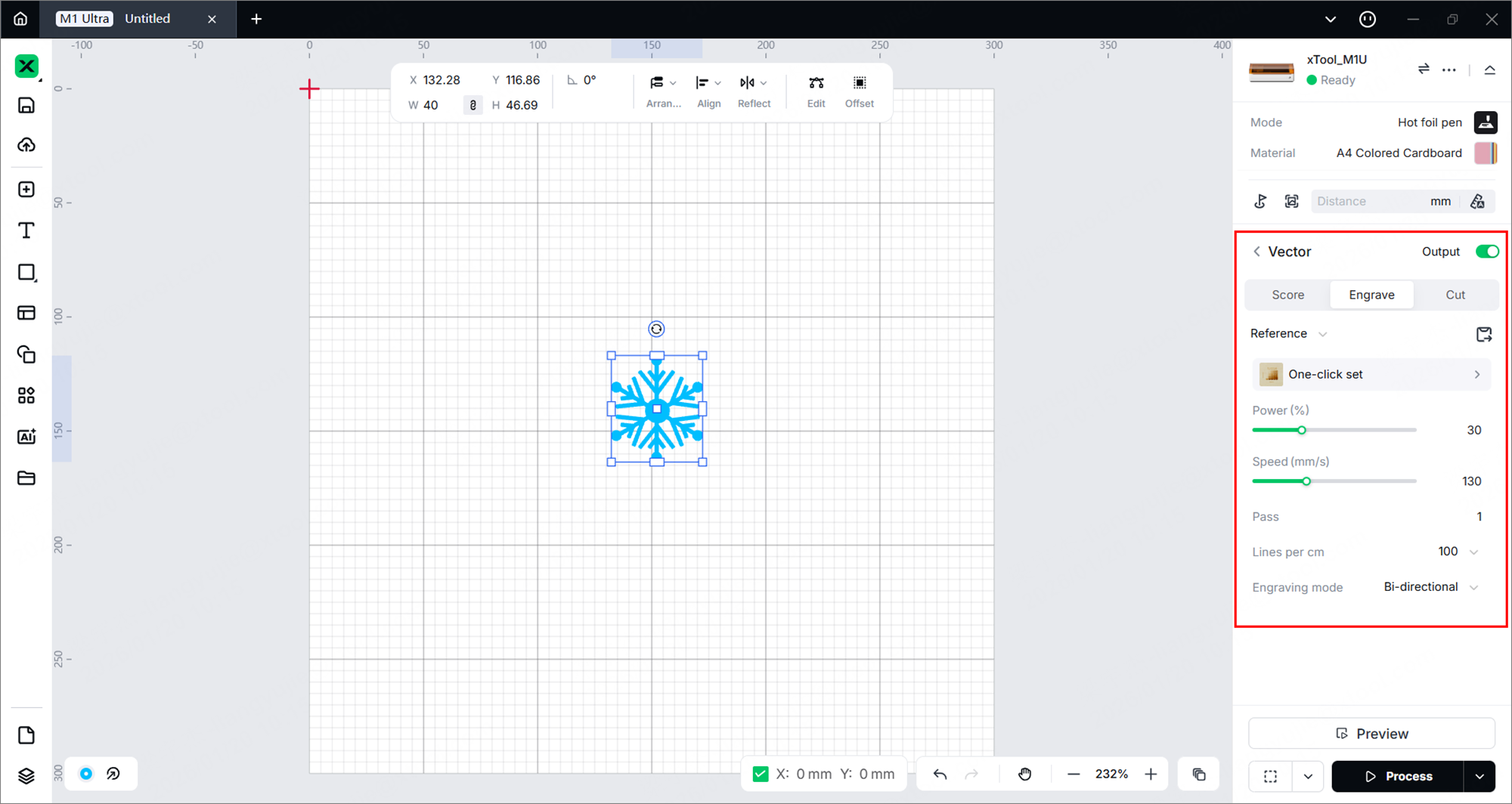
Processing type
- Image - Engrave/C-engrave: Laser beams hit the surface of the material to change the color of the surface. By creating different shades of color on the material surface, xTool M1 Ultra prints an image on the material.
- Vector - Score: Laser beams walk along the path of the vector graphic, drawing the vector on the material with lines.
- Vector - Engrave: Laser beams walk through the entire area enclosed by the vector path, engraving the vector on the material with monochromatic fillings.
- Vector - Cut: Laser beams cut the material along the path of the vector graphic.
Note: You need to set parameters for every object. A missed object may fail to be processed.
10. Preview the processing area
Framing means that the laser module moves along the boundary of the processed object on the material, so that the processed area on the material can be previewed. Perform the following steps to start framing.
(1) Click in the bottom-right corner of the software to set framing speed.
(2) Click in the bottom-right corner of the software and press the framing button on xTool M1 Ultra to start framing.
(3) After confirming the processing area is proper, click Framing completed in xTool Studio.
11. Start processing
(1) In the bottom-right corner of the software, click Process.
(2) Click Preview Processing Path and icon.
(3) Check whether the accessories or modules are prepared before processing on the right list and read the safety precautions.
(4) In the bottom-right corner of the software, click Start.
(5) When the software shows Ready, press the button on xTool M1 Ultra to start processing.

