
Note:
- Handle the honeycomb panel with care. Dropping or crashing the honeycomb panel may deform it, thus cause distance measurement failure and poor processing results.
- Do not place heavy objects on the honeycomb panel. Heavy load may deform it and thus cause distance measurement failure and poor processing results.
- The honeycomb panel has a flatness tolerance of ±0.5 mm due to production limitations, which means that some areas may protrude or sink by 0.5 mm or less. This does not affect the function of the honeycomb panel.
- Residues may remain in the honeycomb panel after material processing. You are advised to take it out and clean it every time after a material is processed.
Thickness of materials supported
Install the honeycomb panel
1. Remove all the slats from xTool P2.
2. Place the honeycomb panel into the device, resting its left side on the slat holders first, then the right side with your hand holding the handle.
3. Lay down the handle of the honeycomb panel, making it parallel to the surface.
Use the material pins
Place the material on the honeycomb panel. Then, use material pins to secure the four corners of the material.
To remove a material pin, lift it with its ring pull.
Start processing with xTool Studio on your computer
1. Connect the xTool P2 to xTool Studio
(1) Use a USB cable to connect your device to computer, and turn on the device.
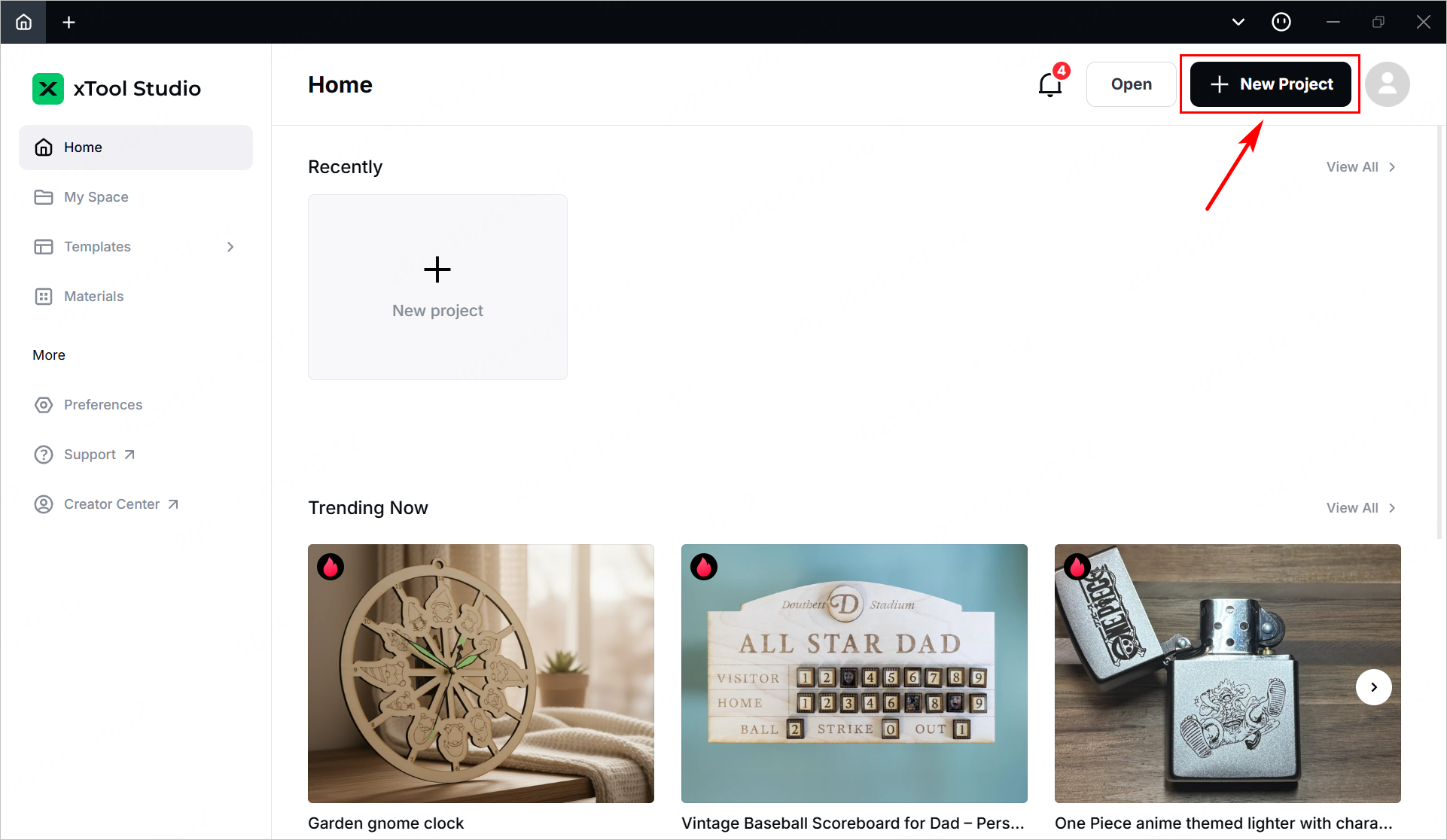
(2) Open xTool Studio on your computer. In the upper-right corner, click +New project.
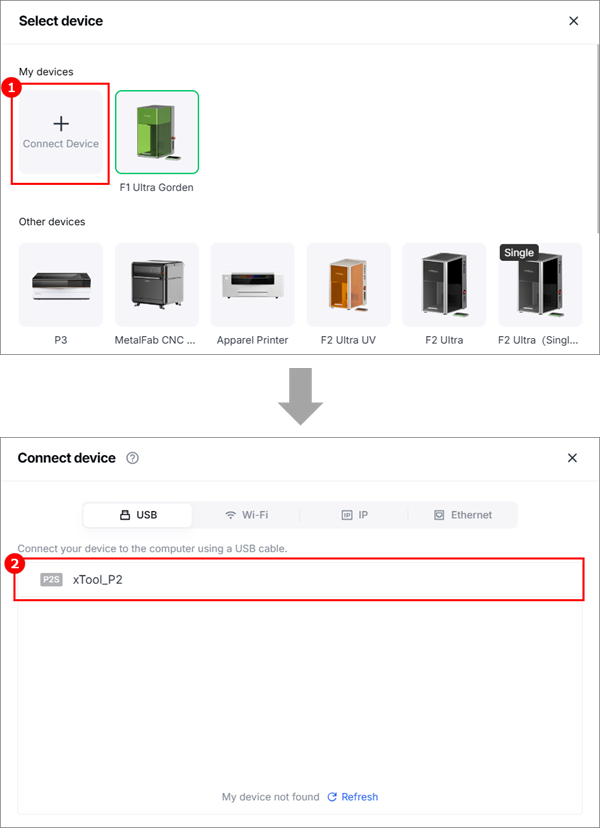
(3) In the upper right corner, click the .png) icon next to the device name.
icon next to the device name.

(4) Click Connect Device. Select the device to connect.
2. Select the processing mode and material name
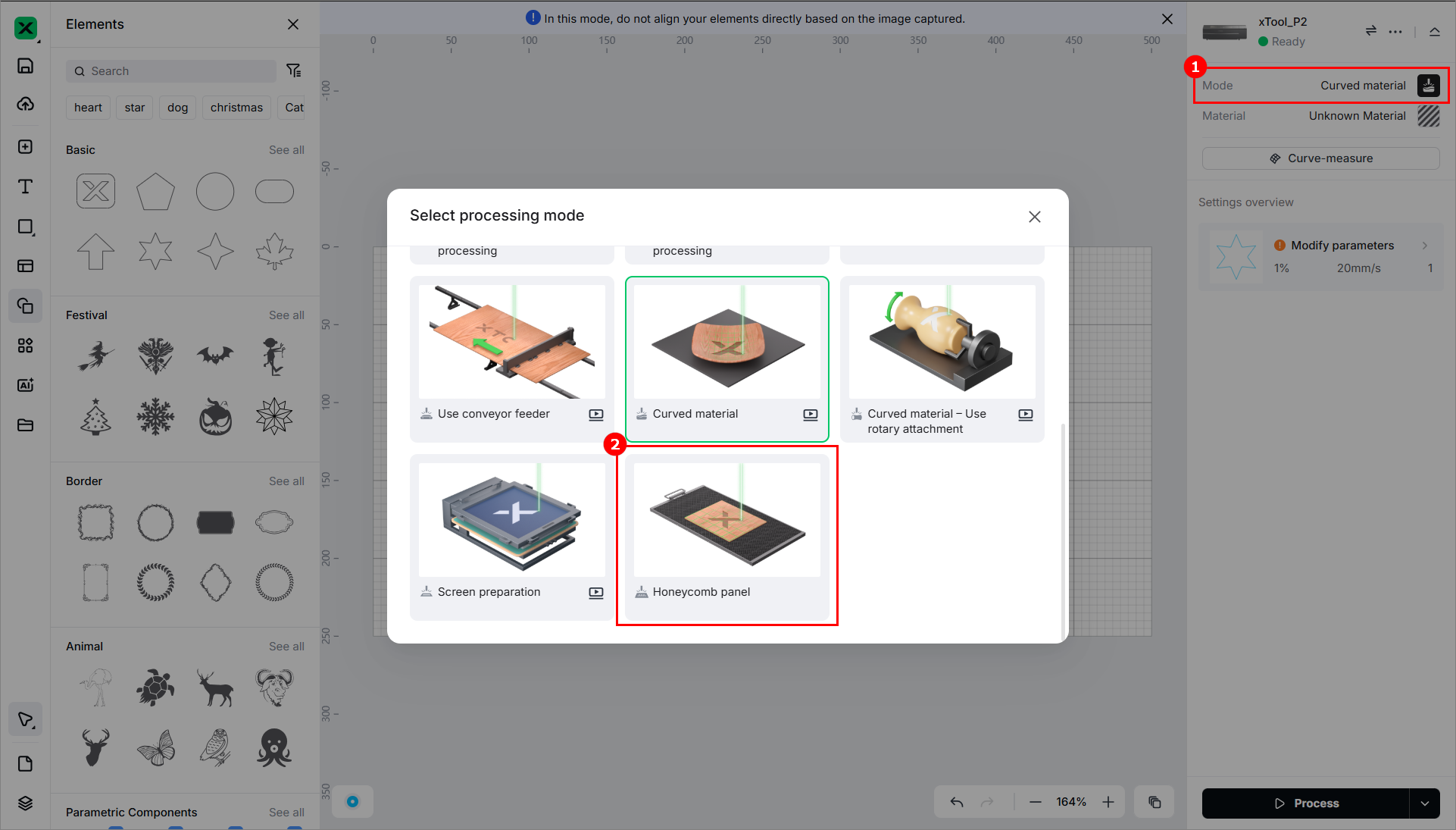
(1) Select Honeycomb panel as the processing mode.
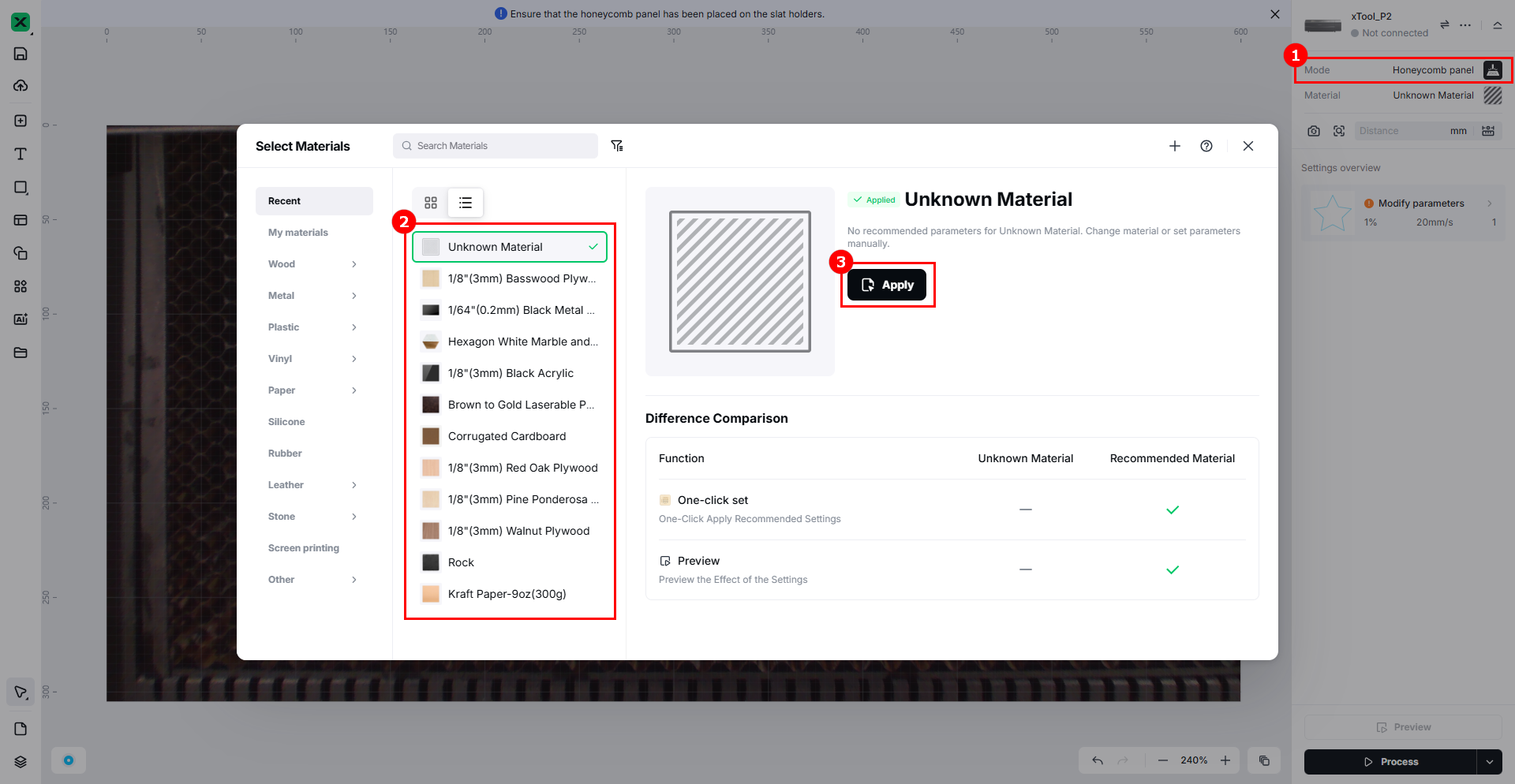
(2) Click Unknown Material, select the desired material, and click Apply.
3. Measure the distance of the material
Before processing, you need to measure the distance between the material and laser module. You can only use the Aimed-measure here to obtain the distance.

4. Shoot the background
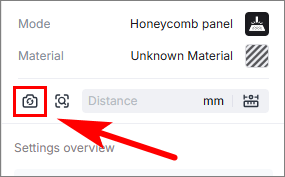
In the top-right corner, click the Refresh background  icon. You can choose to refresh background or take a close shot.
5. Edit objects and set parameters
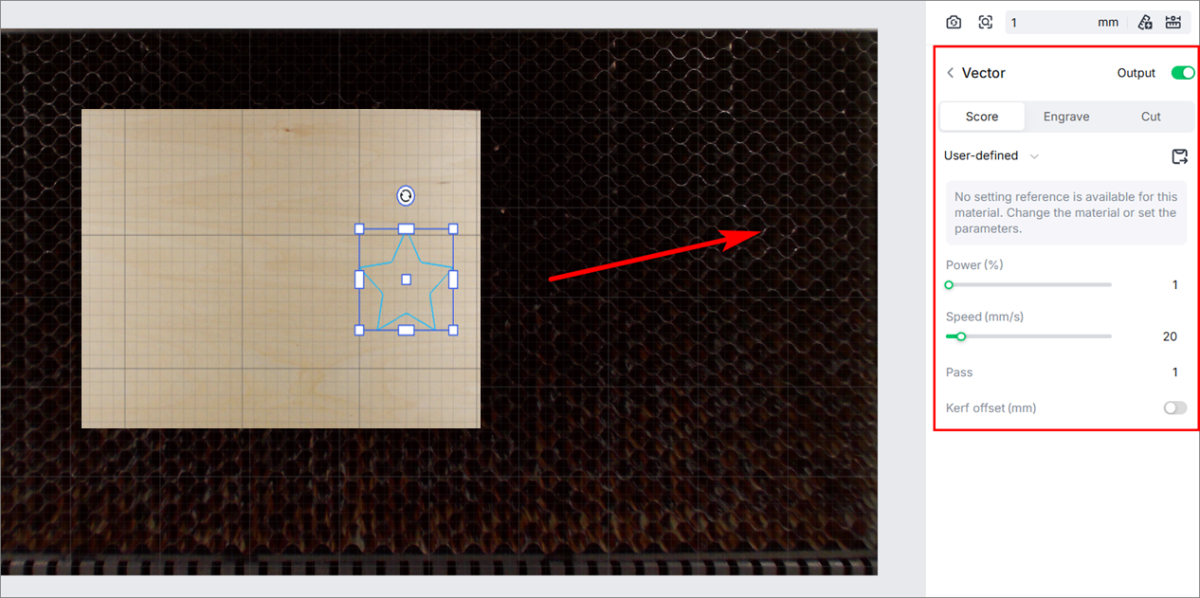
After you select a material on the material list or material library, the software will automatically set parameters for laser processing. The default settings apply to xTool materials. You can adjust the settings based on your needs. If you select Unknown material, you need to set the processing parameters by yourself.
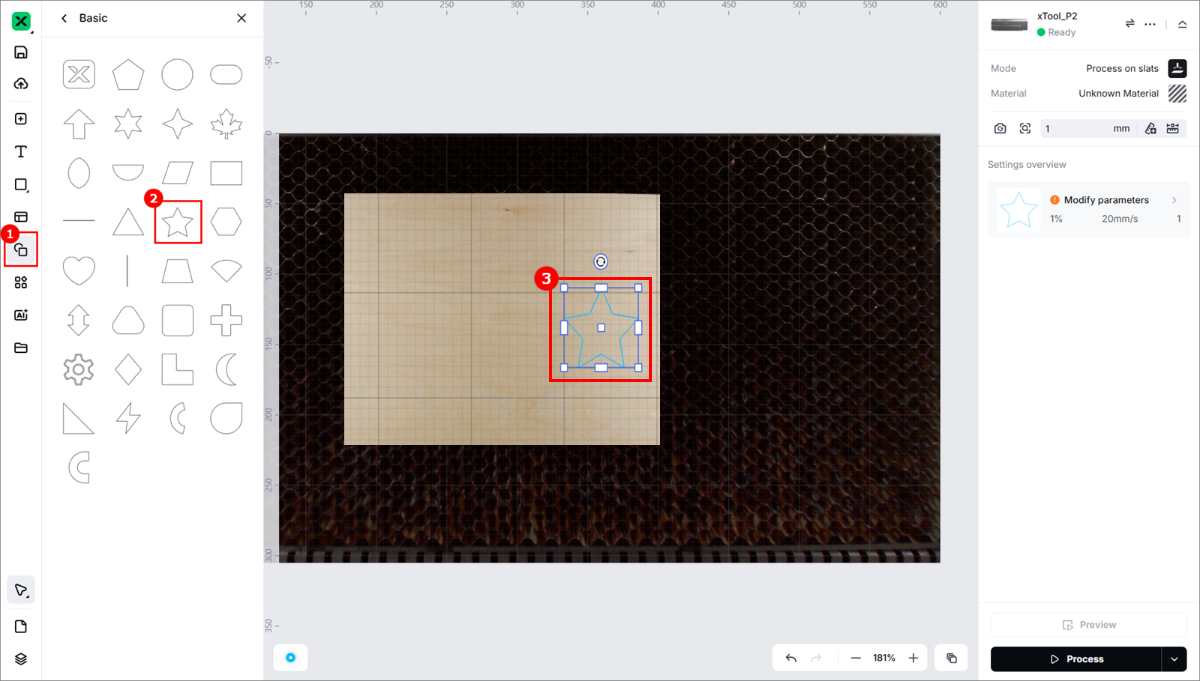
(1) Select objects on the canvas.
(2) Set processing parameters for the object to be processed.
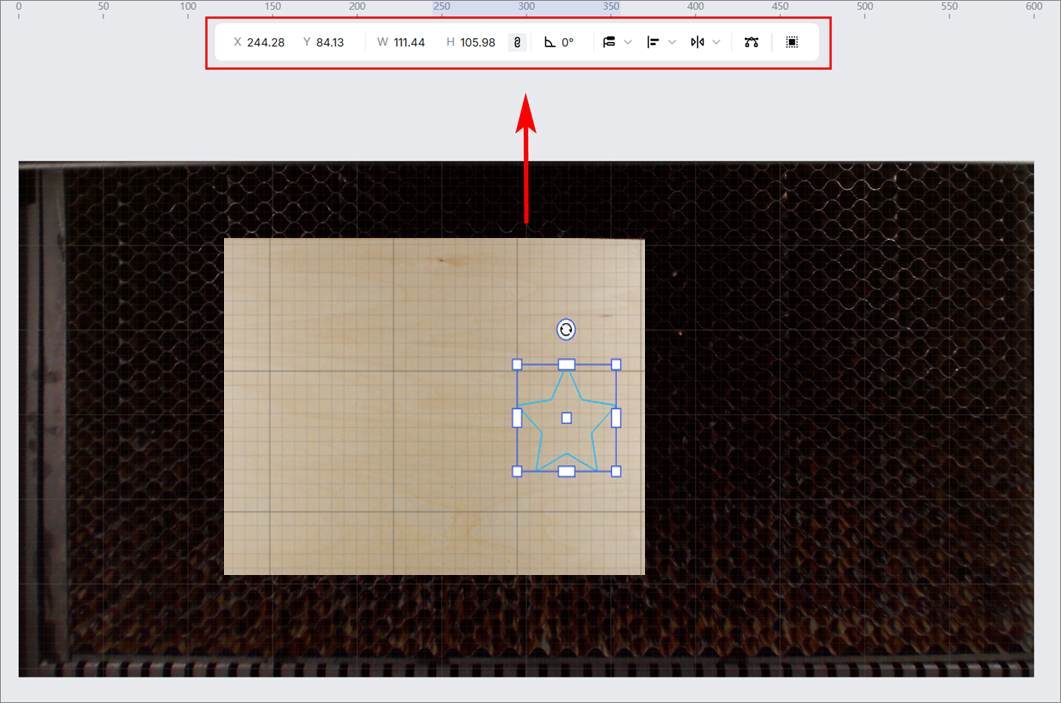
(3) You can further edit the objects by using the other features in the upper panel.
6. Start processing
(1) Set the processing path. This project contains only one object. You can set the processing path to Auto planning.
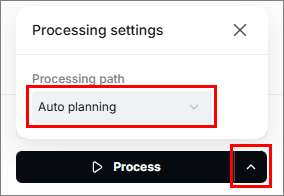
(2) Click Process.

(3) Preview the object and click Start.
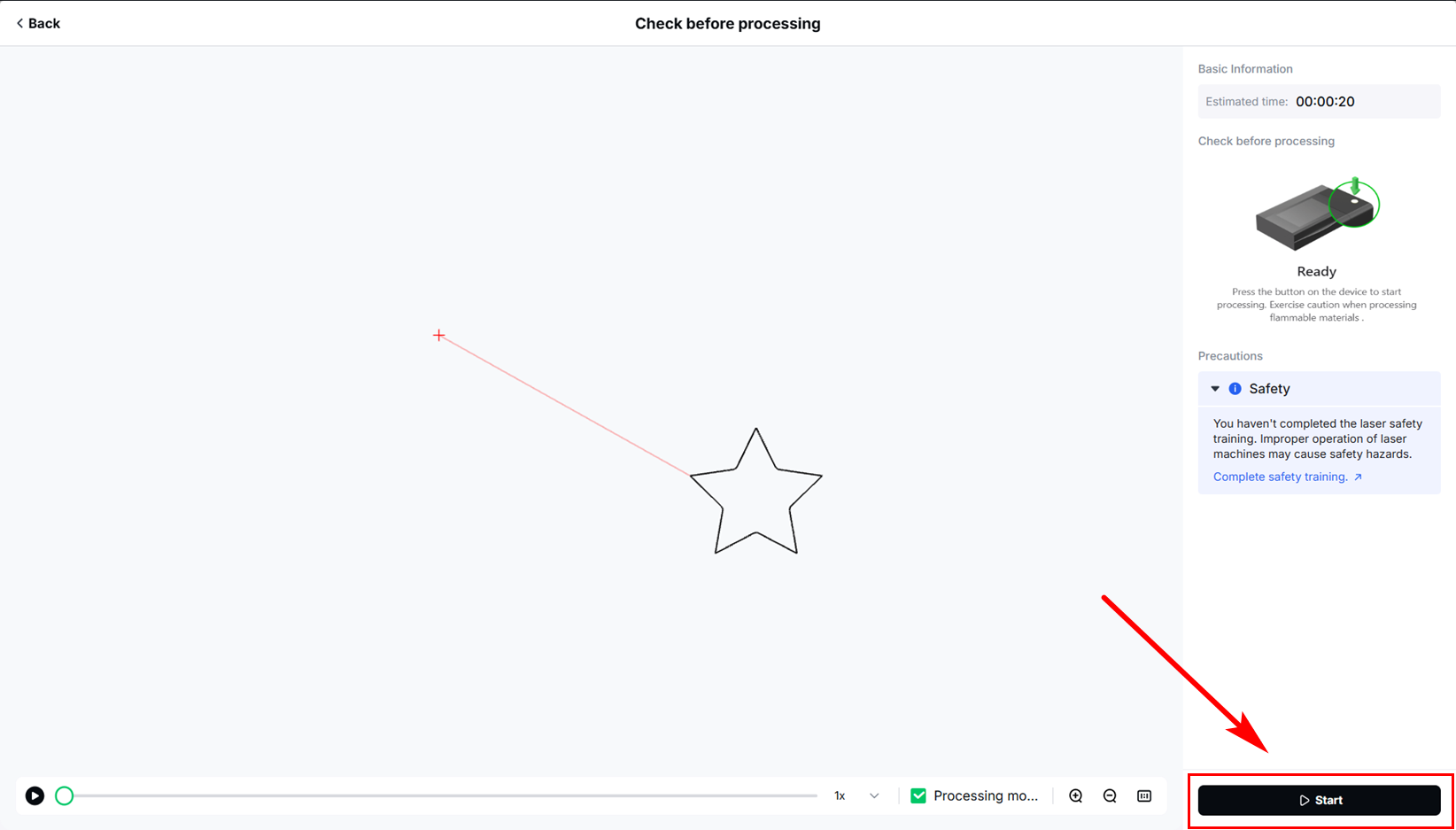
(4) Press the button on xTool P2 to start processing.
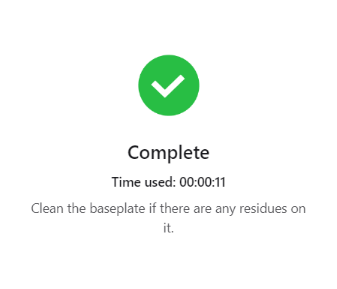
(5) Wait for the processing to complete.
Maintenance
Residues may remain in the honeycomb panel after material processing. It is recommended to take it out and clean it every time after a material is processed, so that the next processing won't be affected. You can use the brush delivered with the honeycomb panel to clean the cells of the honeycomb panel.

Services & Help
Learn & Education

Copyright © 2025 xTool All Rights Reserved.