Download PDF file (multi-language)
|
| ||
|
| ||




Safety instructions
- Recommended operating environment:
Operating temperature: 15-35°C (59°F – 95°F)
Operating humidity: 40-60% RH
- Do not store the ink cartridge in environments with drastic temperature or humidity changes, or in high-temperature/high-humidity areas.
- Keep the ink cartridge and the module out of reach of children.
- Avoid direct sunlight exposure to the ink cartridge.
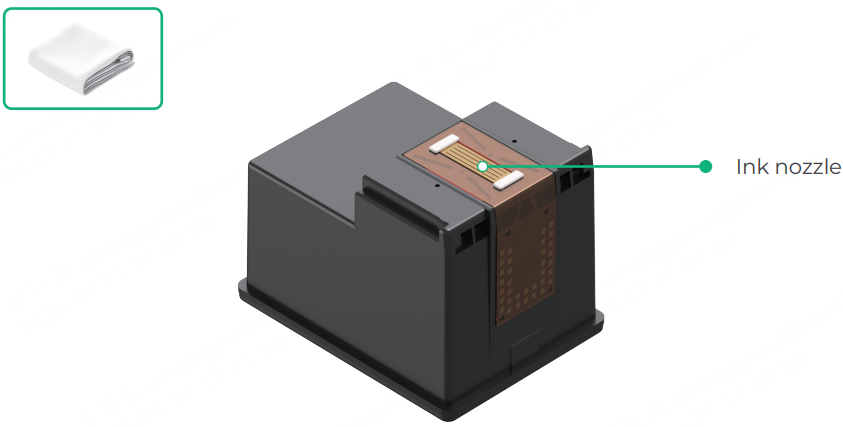
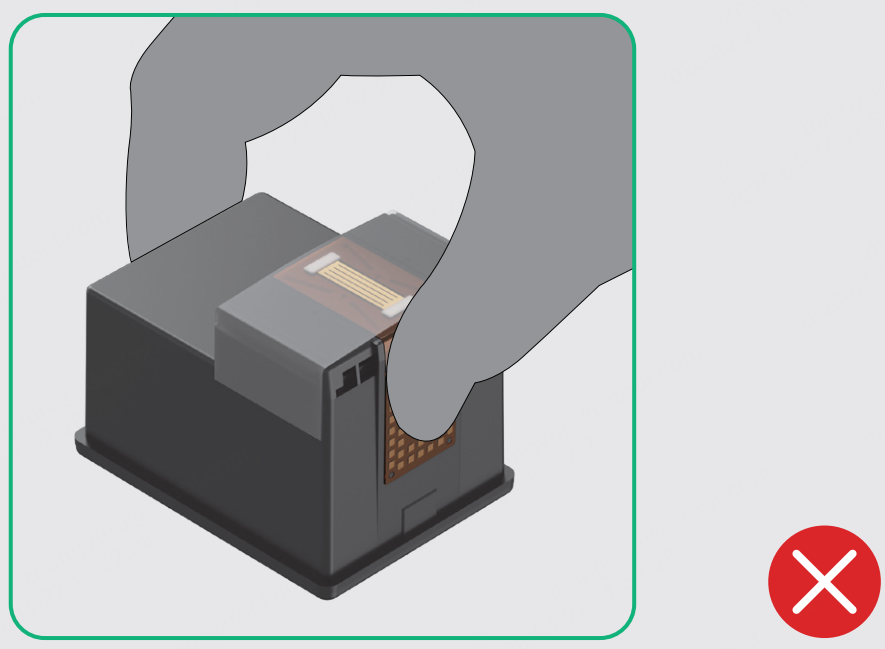
- Do not touch the metal contacts or the ink nozzle on the cartridge.
- Do not peel off the labels on the side of the ink cartridge.
- Do not install or remove the ink cartridge while the device is powered on.
- Ink is not edible.
- If ink contacts the skin or eyes, rinse immediately with plenty of water. Seek medical attention if discomfort persists.
List of items
|
|
|
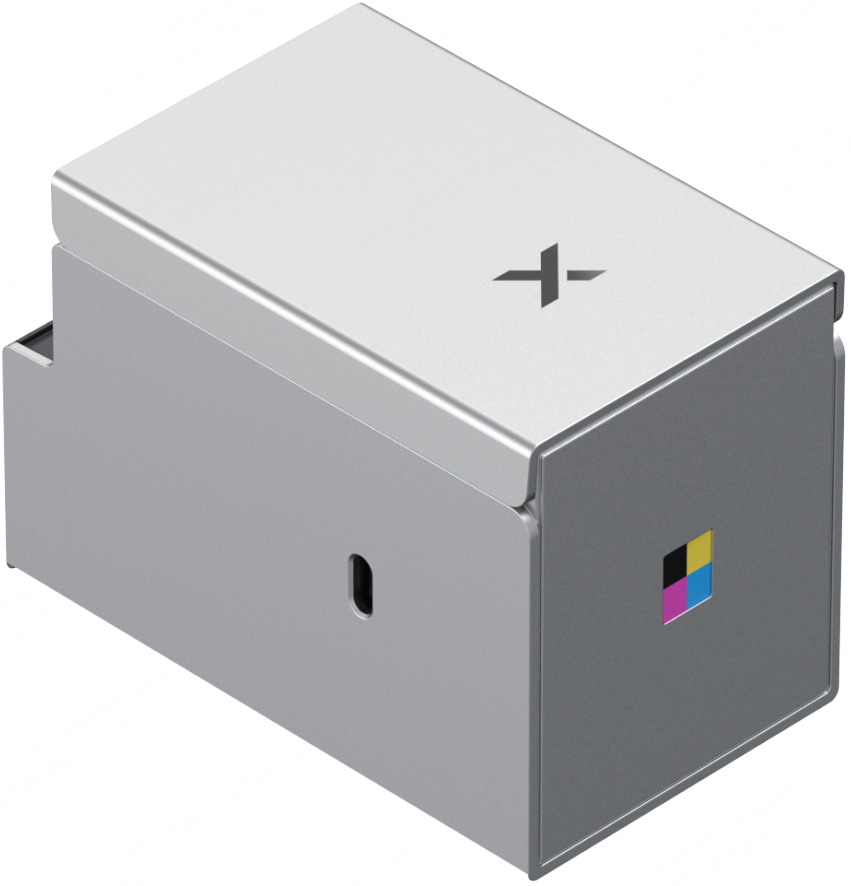
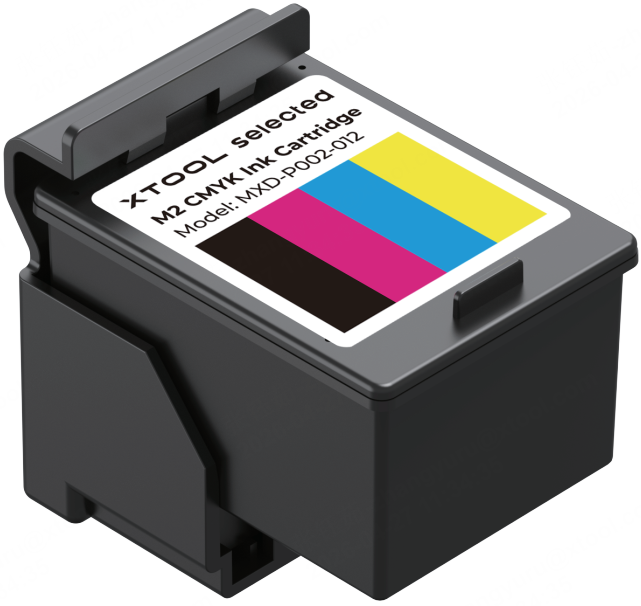
xTool M2 CMYK Inkjet Module | Ink cartridge | Bottom cap |
|
|
|
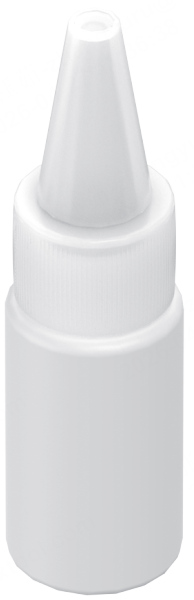
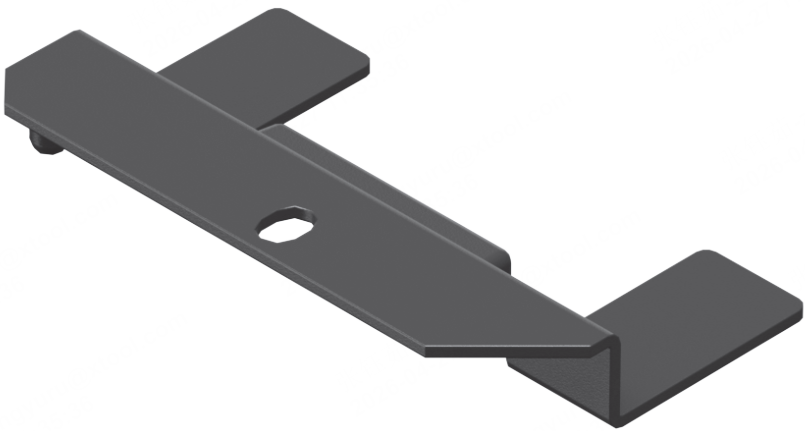
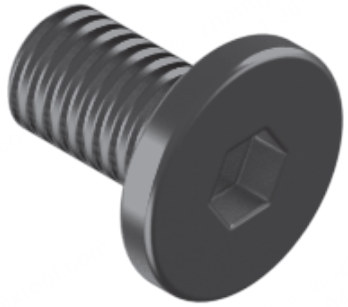
Moisturizing liquid | Bottom cap retainer plate | Screw |
|
| |
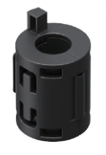
Calibration card (A5) | Ferrite core |

Install the ink cartridge
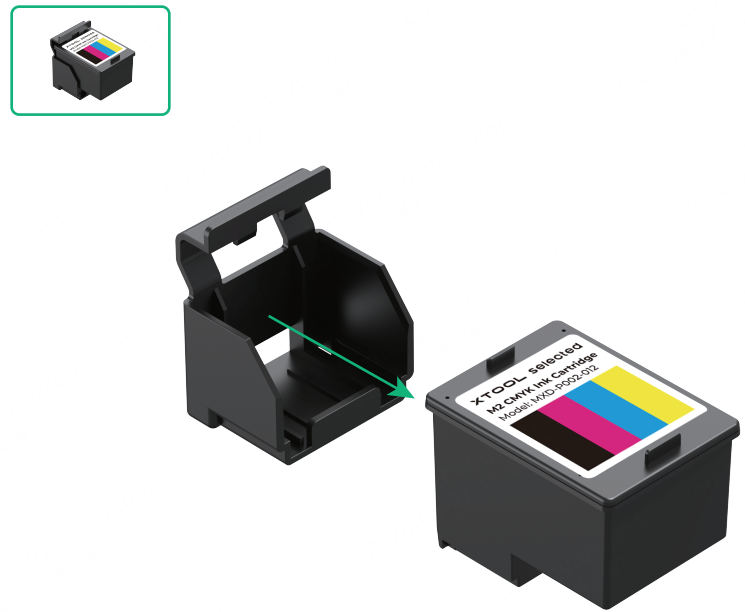
Prepare the ink cartridge
(1) Take out the ink cartridge.
(2) Peel off the protective film.
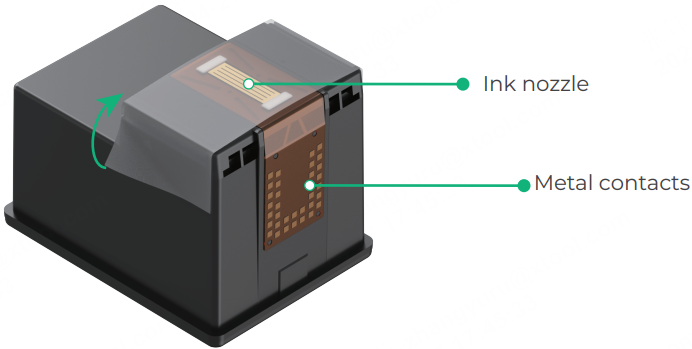
Note: DO NOT touch the metal contacts on the bottom of the ink cartridge.
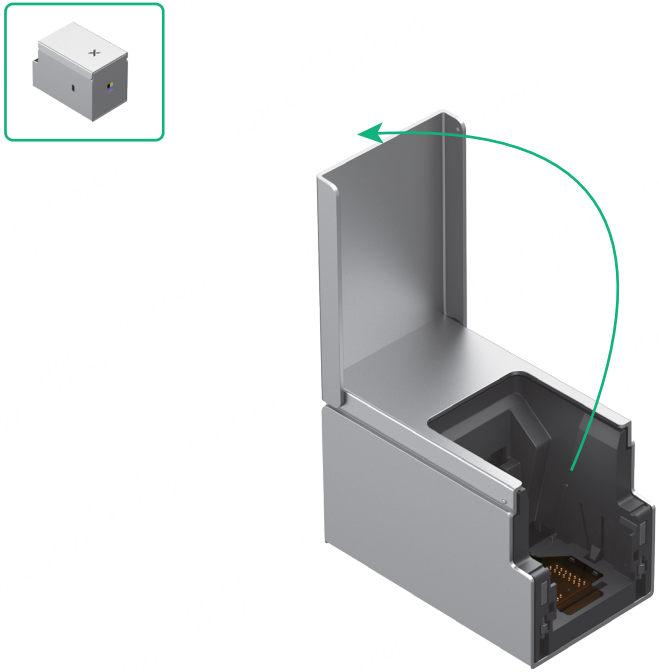
Open the front cover
Install the ink cartridge
(1) Align the ink cartridge with the inner track of xTool M2 CMYK Inkjet Module. Gently push the cartridge in at approximately a 45° angle.
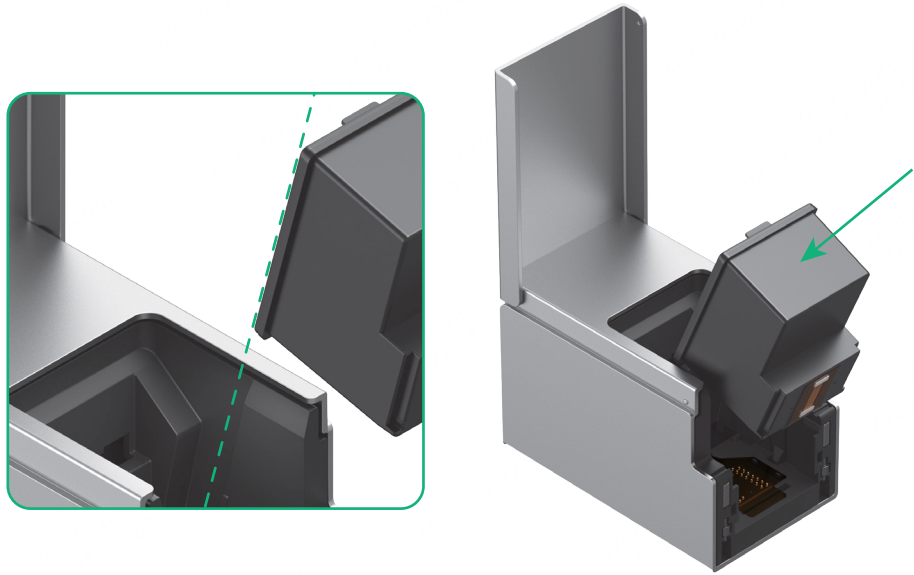
Note:
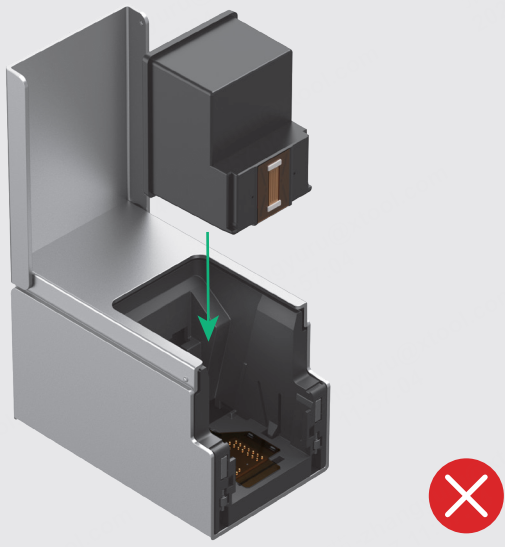
DO NOT insert the cartridge vertically, as this may cause jamming.
DO NOT force the installation. If you encounter resistance, adjust the angle and try again.
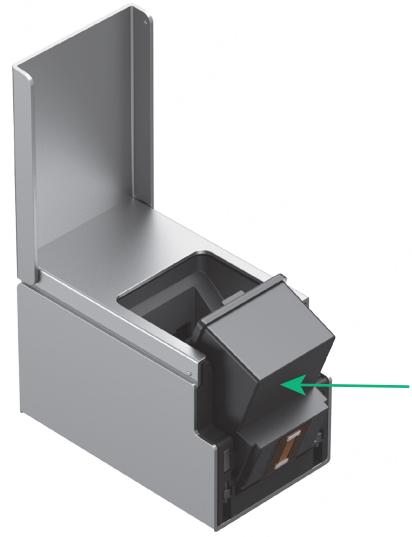
(2) Once the cartridge is fully inserted, press it inward gently. You will hear a "click" sound when the cartridge is properly installed.
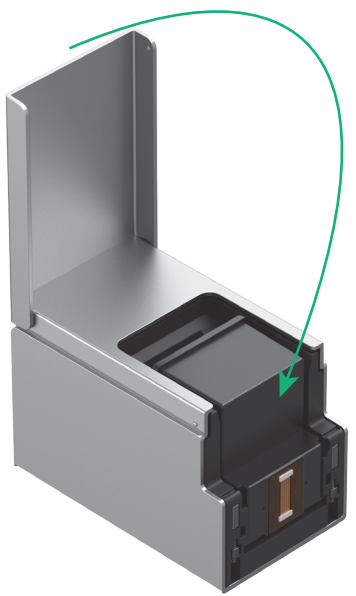
Close the front cover
Install the bottom cap
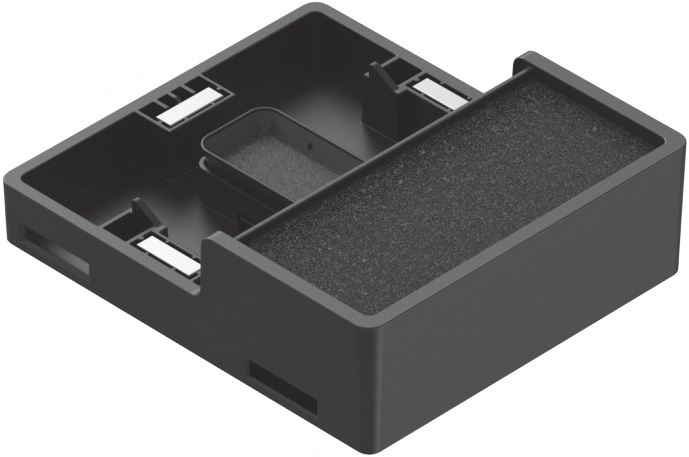
Attach the bottom cap to the bottom of xTool M2 CMYK Inkjet Module, ensuring it is magnetically secured in place.
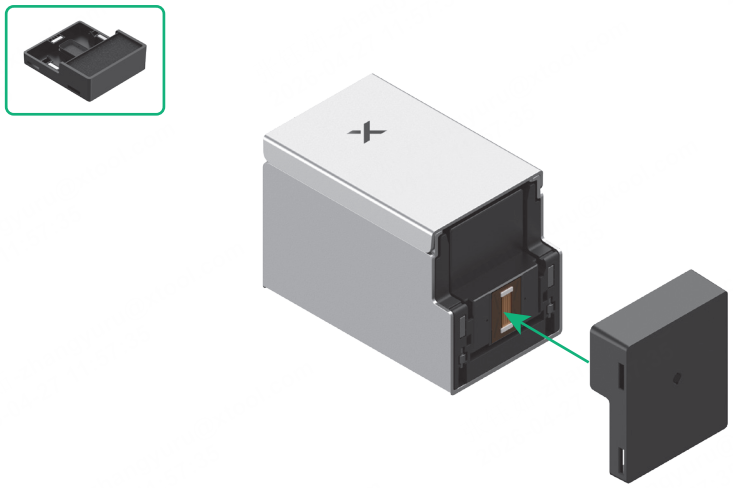
- The bottom cap is secured to the module via built-in magnets
- Material thickness determines whether it can be processed with the inkjet module.
- Material thickness > 2.6 cm: Processing not supported.
- 2 cm ≤ Material thickness ≤ 2.6 cm: Manually remove the bottom cap.
- Material thickness < 2 cm: Manual removal of the bottom cap is not required.
Install xTool M2 CMYK Inkjet Module
Before installing xTool M2 CMYK Inkjet Module, make sure:
■ xTool M2 is turned off.
■ Any other modules are removed from xTool M2.
■ Laser module calibration has been completed in xTool software.
Install the bottom cap retainer plate
(1) Remove the pre-installed screw on the upper-left side of xTool M2's baseplate.
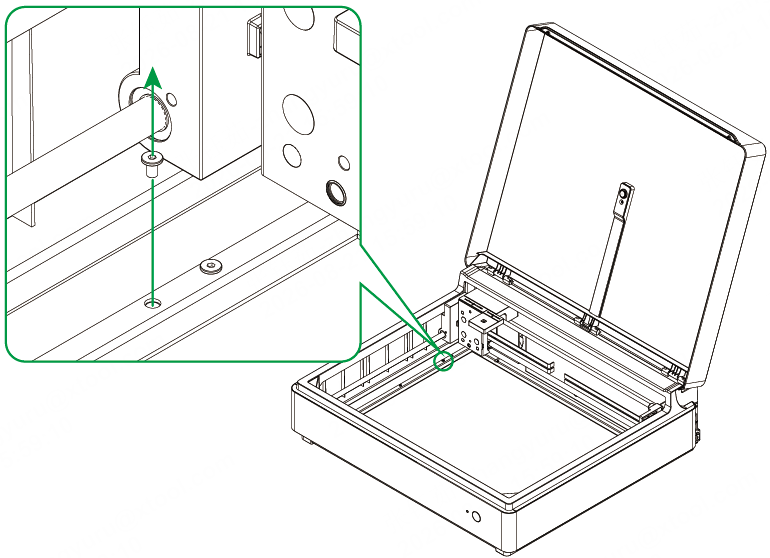
(2) Align the bottom cap retainer plate with the screw hole.
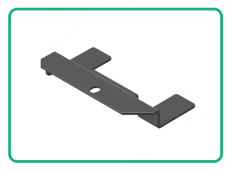
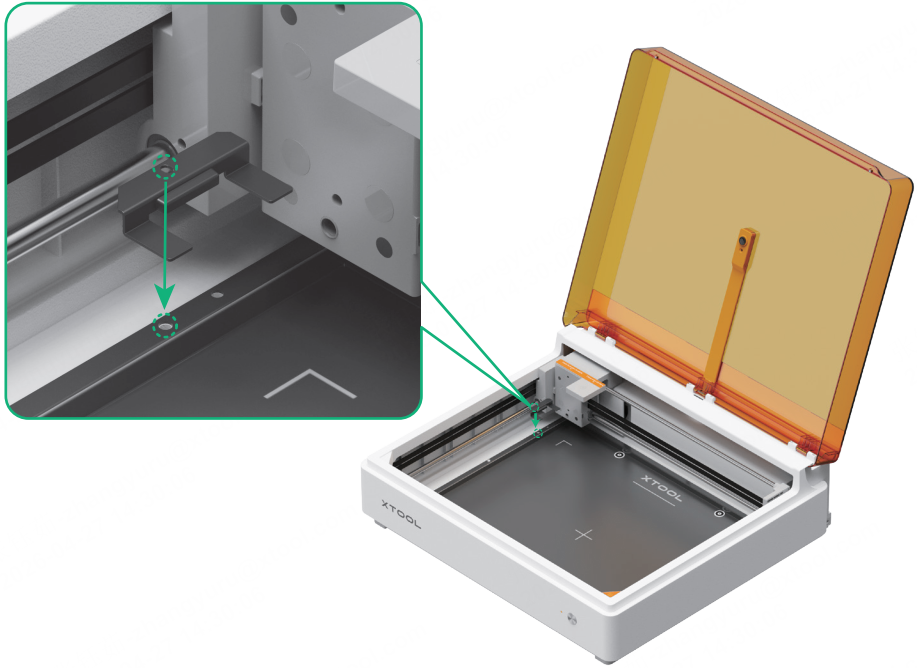
(3) Use a hex screwdriver to securely fasten the retainer plate.
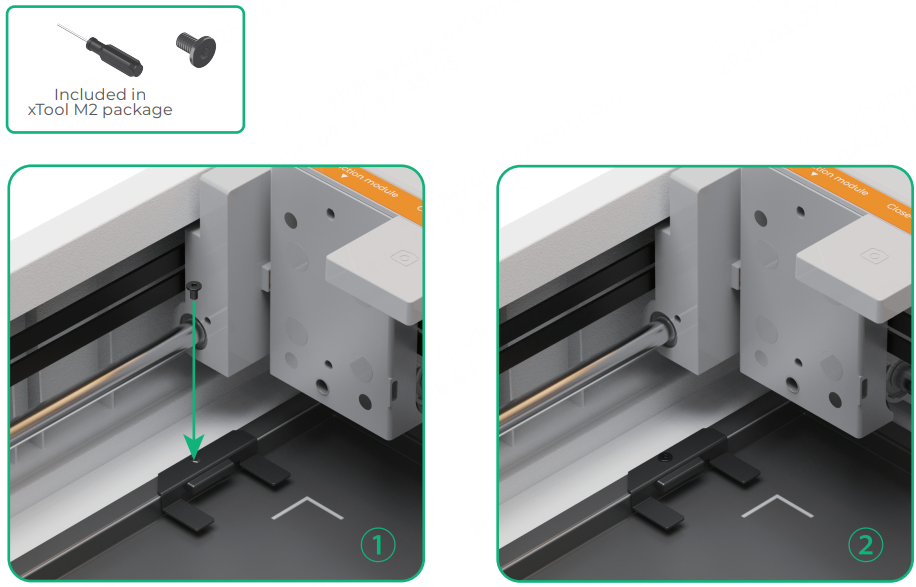
Install the inkjet module
Attach xTool M2 CMYK Inkjet Module to the multi‑function holder of xTool M2, ensuring it is magnetically secured in place.
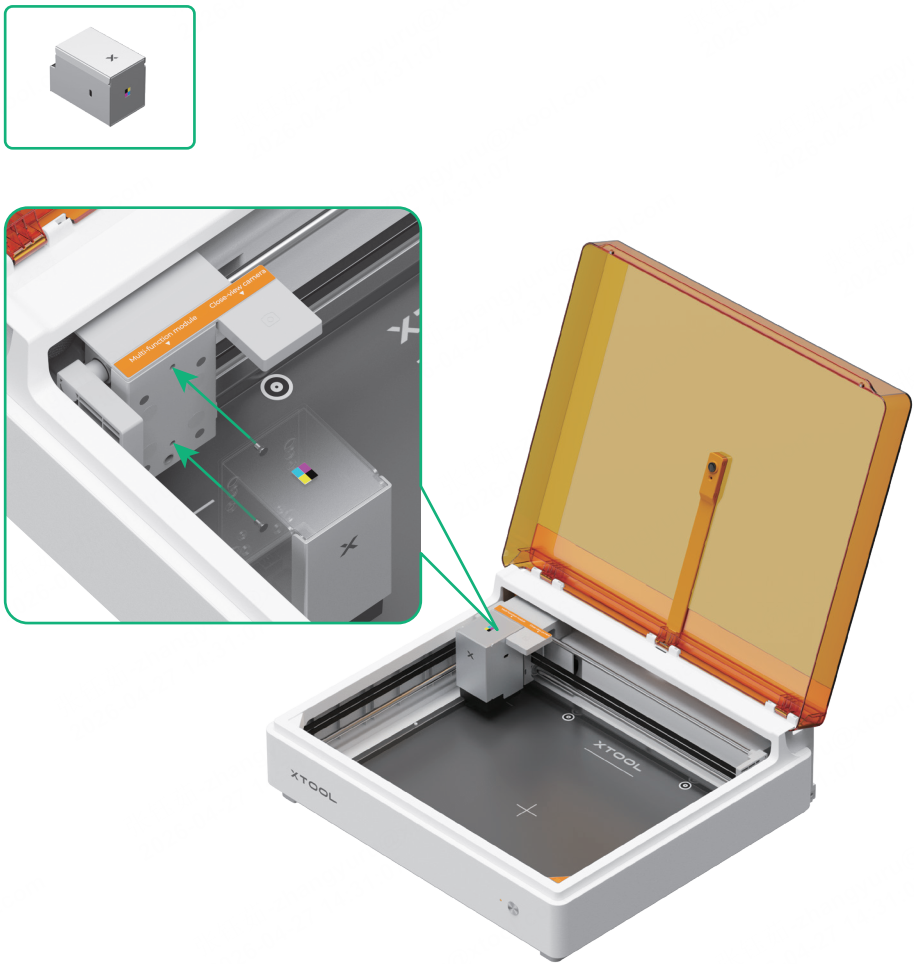
Note: The module attaches to the multi-function holder via built-in magnets.
Connect xTool M2 and the inkjet module
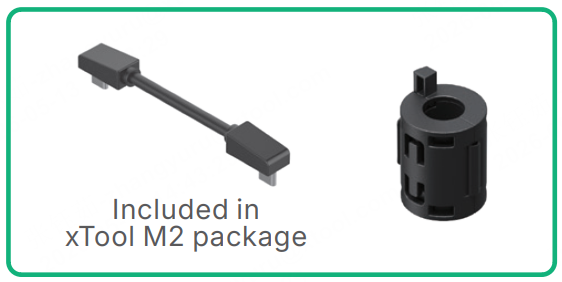
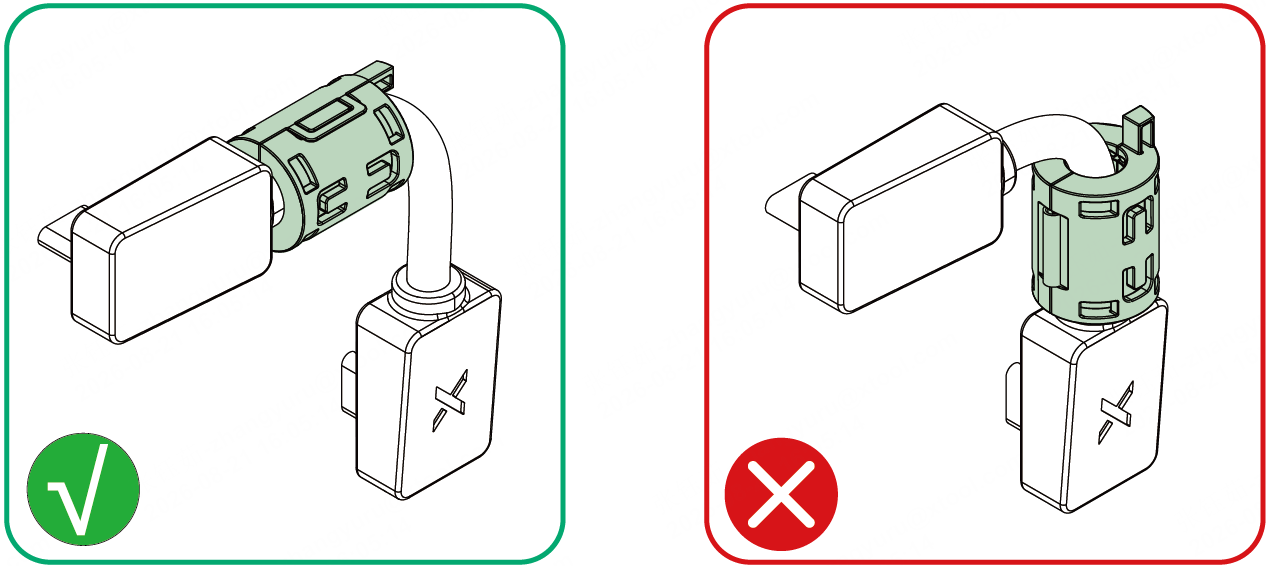
(1) Attach the ferrite core to the module connection cable.
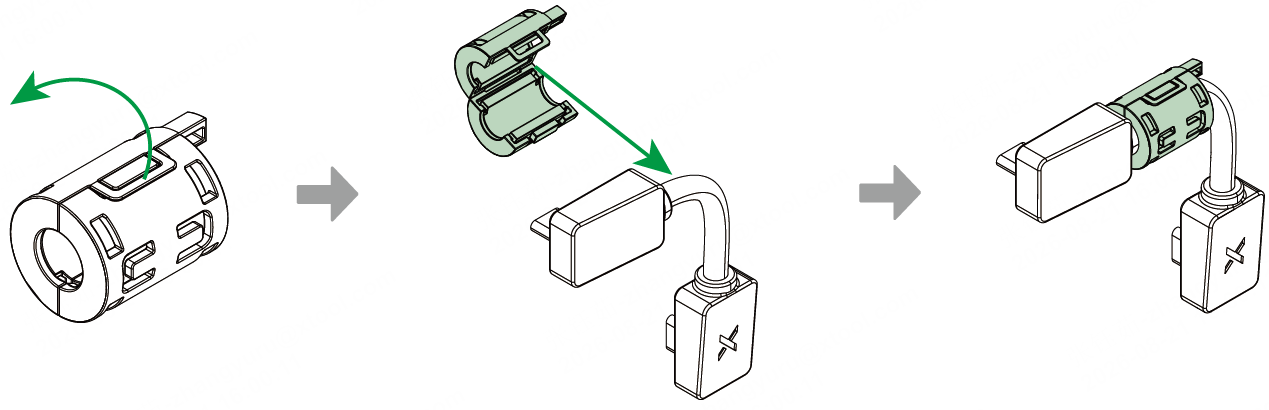
(2) Connect xTool M2 CMYK Inkjet Module to the multi-function module holder via the module connection cable.
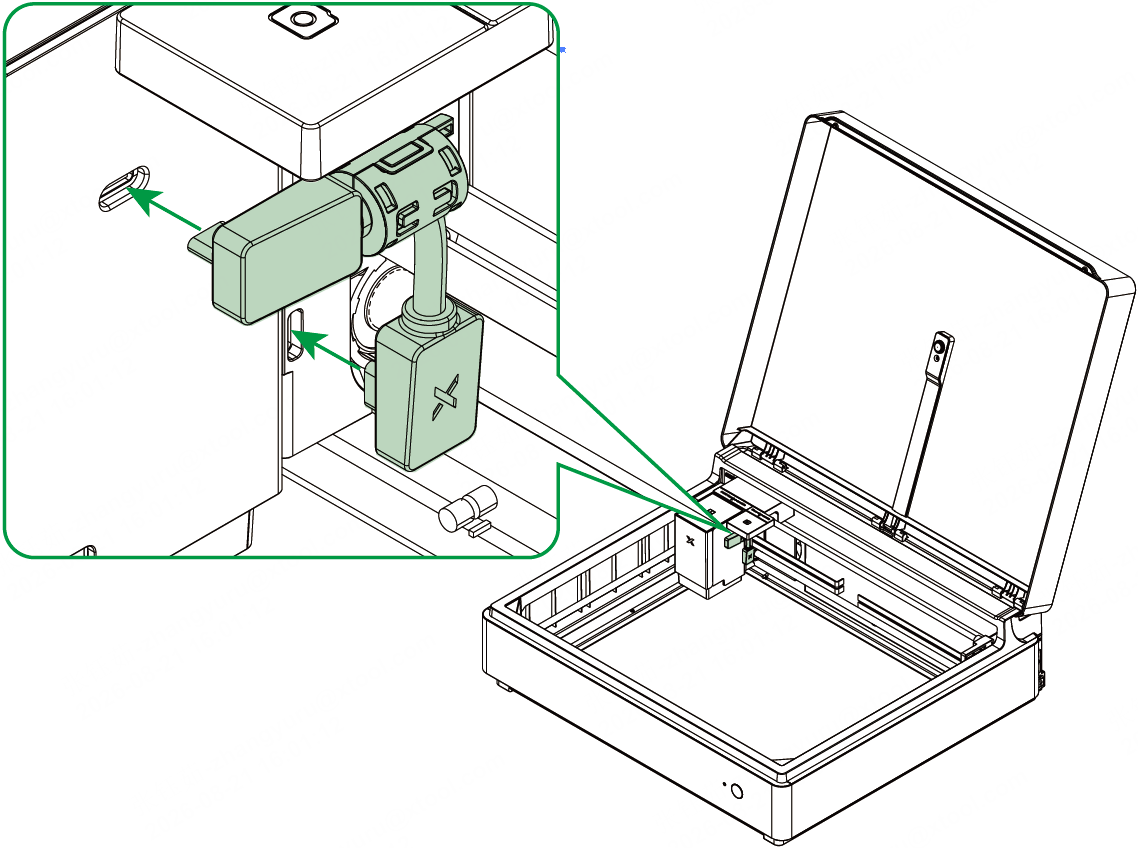
Note: Avoid installing the ferrite core near the belt side to prevent friction between the ferrite core and the belt.
Maintenance and care
Moisturizing sponge
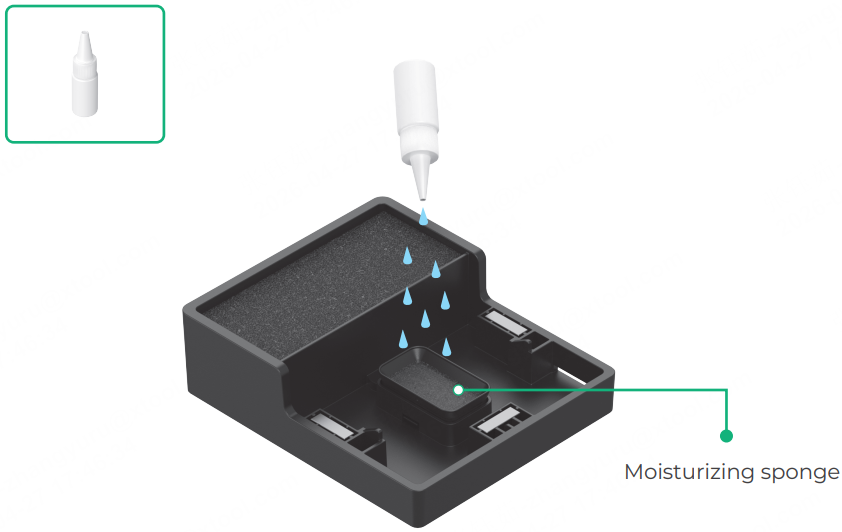
The bottom cap contains a built-in moisturizing sponge. Add moisturizing liquid (or purified/distilled water) regularly.
■ Principle: Keep the sponge moist. Avoid overfilling or accumulation of liquid.
■ Excessive liquid may cause color mixing at the ink nozzle or printing issues.
Cleaning sponge
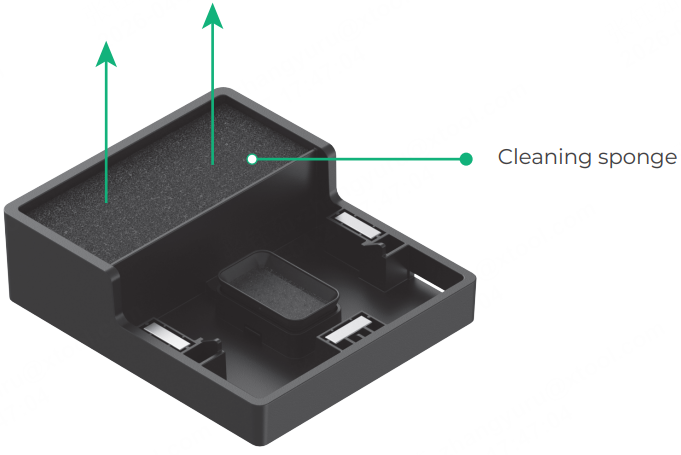
The bottom cap also contains a cleaning sponge. Remove and clean it regularly.
- Rinse the sponge with clean water to remove residual ink.
- Wring out excess water and reinstall the sponge directly—complete drying is not required.
Cleaning frequency:
■ Before use: Check if the sponge is dirty.
■ Extended downtime: Clean at least once per month.
■ Regular operation: Adjust cleaning frequency based on inkjet usage intensity. Excessive ink buildup without timely cleaning may affect print quality.
Ink nozzle
Avoid exposing the ink nozzle to air for extended periods.
- If residual ink or dust is present on the nozzle surface, gently wipe it with a lint-free cloth (not included).