
You can use xTool F2 Ultra UV with xTool Rotary Attachment 3 (RA3) to process cylindrical, spherical, and irregular materials. This page provides a step-by-step guide on how to use xTool F2 Ultra UV with RA3.
Note: No rotary attachment is included in the pack of xTool F2 Ultra UV.
If the rotary attachment you use is xTool Rotary Attachment 2 (RA2) or RA2 Pro, see Use RA2/RA2 Pro with xTool F2 Ultra UV.
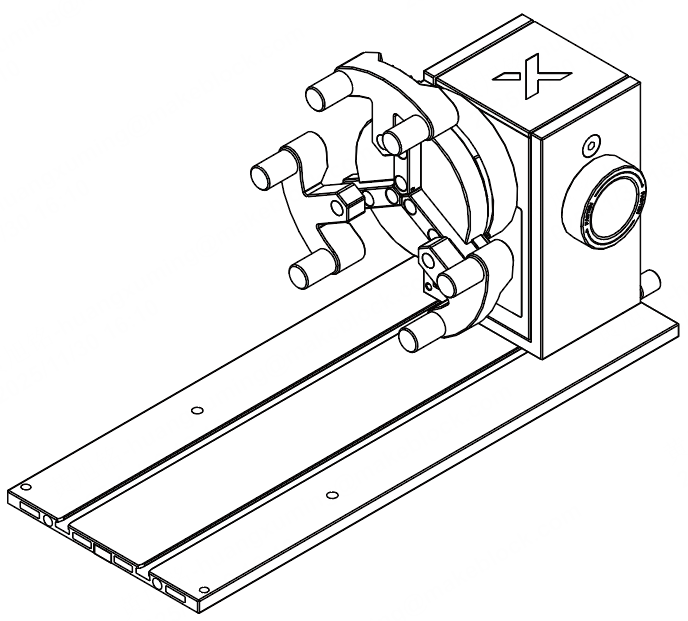
Assemble Rotary Attachment 3
Note: For details on how to assemble RA3, see xTool Rotary Attachment 3 User Guide.
RA3 supports two working modes: Roller mode and Jaw chuck mode.
- If you use the Roller mode, you can set RA3 to Level S, M, or L.
Level S (roller components installed onto shaft A and shaft B) | Level M (roller components installed onto shaft B and shaft C) | Level L (roller components installed onto shaft A and shaft C) |
Diameter of material: 5 mm ≤ d ≤ 45 mm | Diameter of material: 40 mm ≤ d ≤ 70 mm | Diameter of material: 60 mm ≤ d ≤ 100 mm |
- If you use the Jaw chuck mode, you can install jaw chuck components based on your needs.
Cylindrical jaws only | Cylindrical jaws + T-shaped jaws |
|---|---|
|
Connect Rotary Attachment 3 to xTool F2 Ultra UV
1. Ensure that the field lens in xTool F2 Ultra UV is the surface engraving lens.
Note: Check whether the field lens in xTool F2 Ultra UV is the surface engraving lens. If the inner engraving lens is installed, remove it and replace it with the surface engraving lens. Otherwise, xTool F2 Ultra UV cannot process materials when used with RA3.
2. Use the connection cable to connect RA3 to xTool F2 Ultra UV.
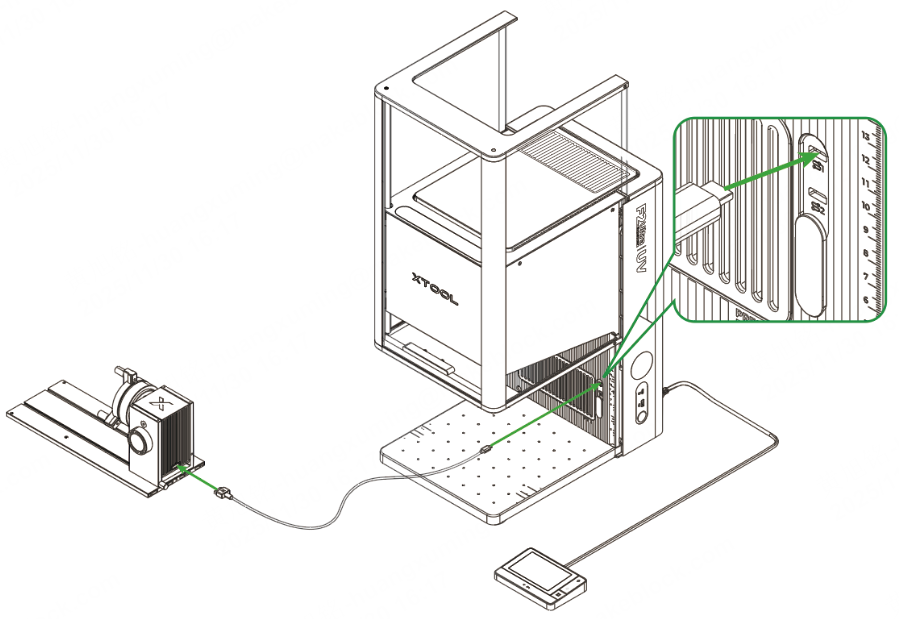
Note: You can connect RA3 to any of these extension ports on xTool F2 Ultra UV.
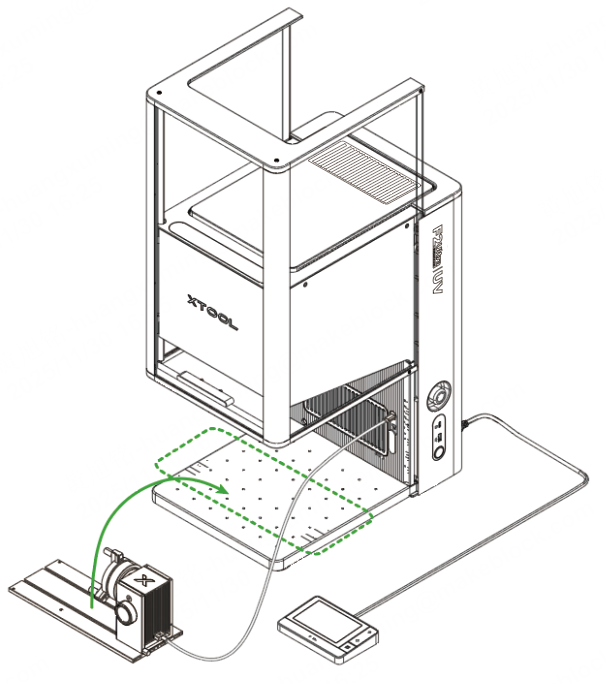
3. Lift the protective enclosure of xTool F2 Ultra UV, and place RA3 on the baseplate of xTool F2 Ultra UV.
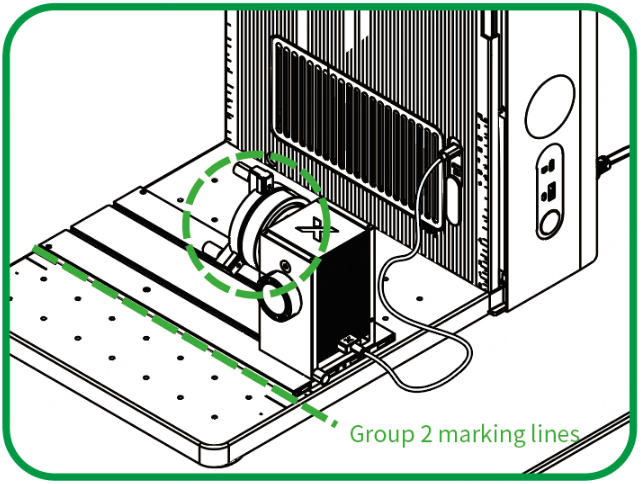
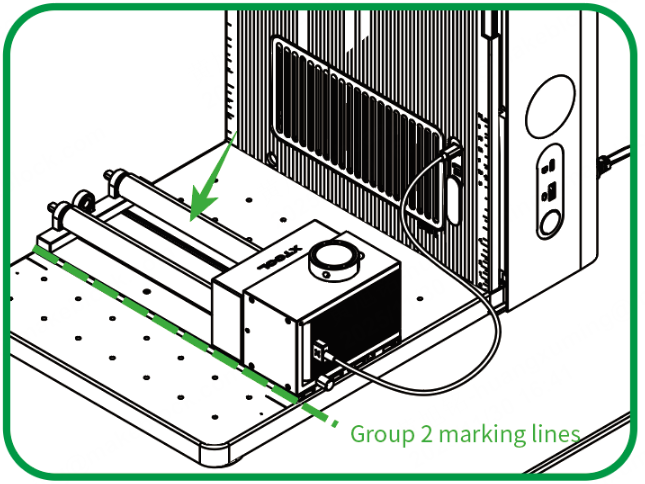
4. Depending on the processing mode and level set for RA3, align its front bottom edge to the corresponding marking lines on the baseplate of xTool F2 Ultra UV.
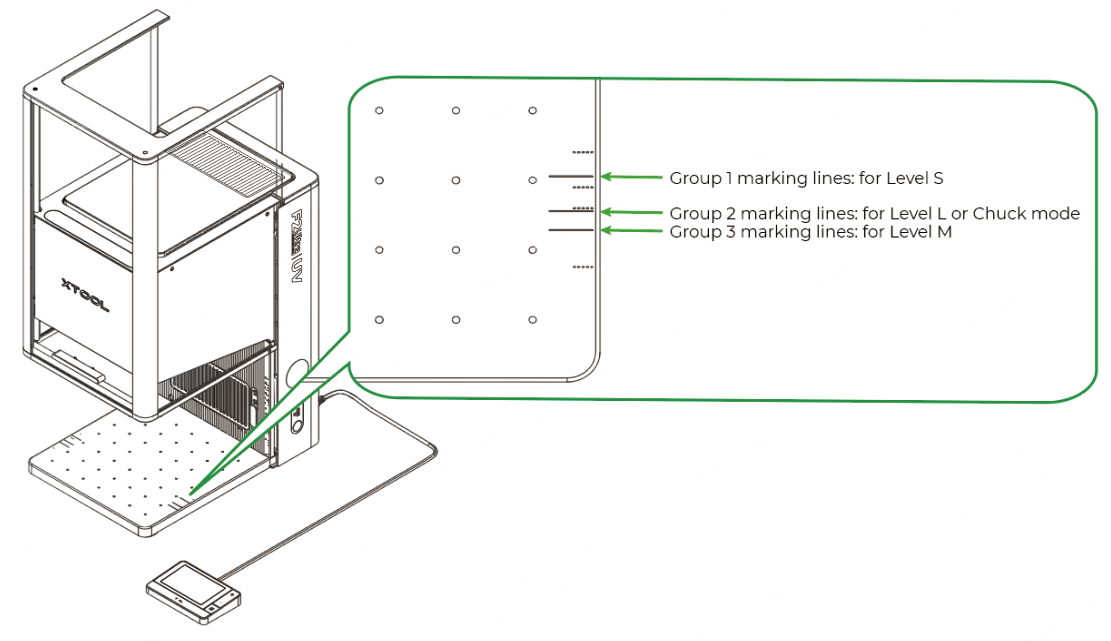
- If you use RA3 in Jaw chuck mode, align its front bottom edge to Group 2 marking lines.
- If you use RA3 in Roller mode, refer to the following table.
Level S: Align RA3's front bottom edge to Group 1 marking lines. | |
|---|---|
Level L: Align RA3's front bottom edge to Group 2 marking lines. |
|
Level M: Align RA3's front bottom edge to Group 3 marking lines. |
Process a material
1. Connect xTool F2 Ultra UV to xTool Studio
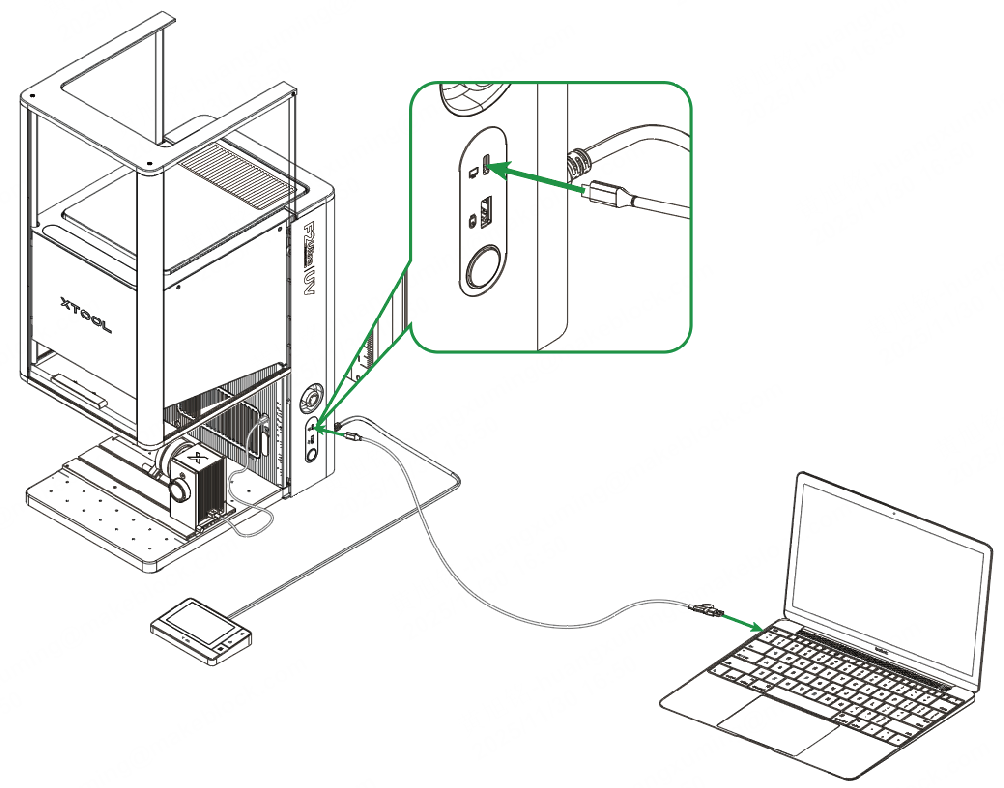
(1) Use the USB cable to connect xTool F2 Ultra UV to your computer, and power on xTool F2 Ultra UV.
(2) Open xTool Studio on your computer. On the top-right corner of xTool Studio, click the + New project button.
(3) In the top-right corner of the project editing page, click the icon.
Note: If you have connected an xTool device in xTool Studio before, click the icon to connect to your new device.
(4) On the pop-up window, click + Add Device.
(5) On the pop-up window, click the name of your device to connect to it.
Note: If you want to connect your device to xTool Studio via Wi-Fi or IP address, see Connect xTool F2 Ultra UV to xTool Studio on the Computer.
2. Place the material
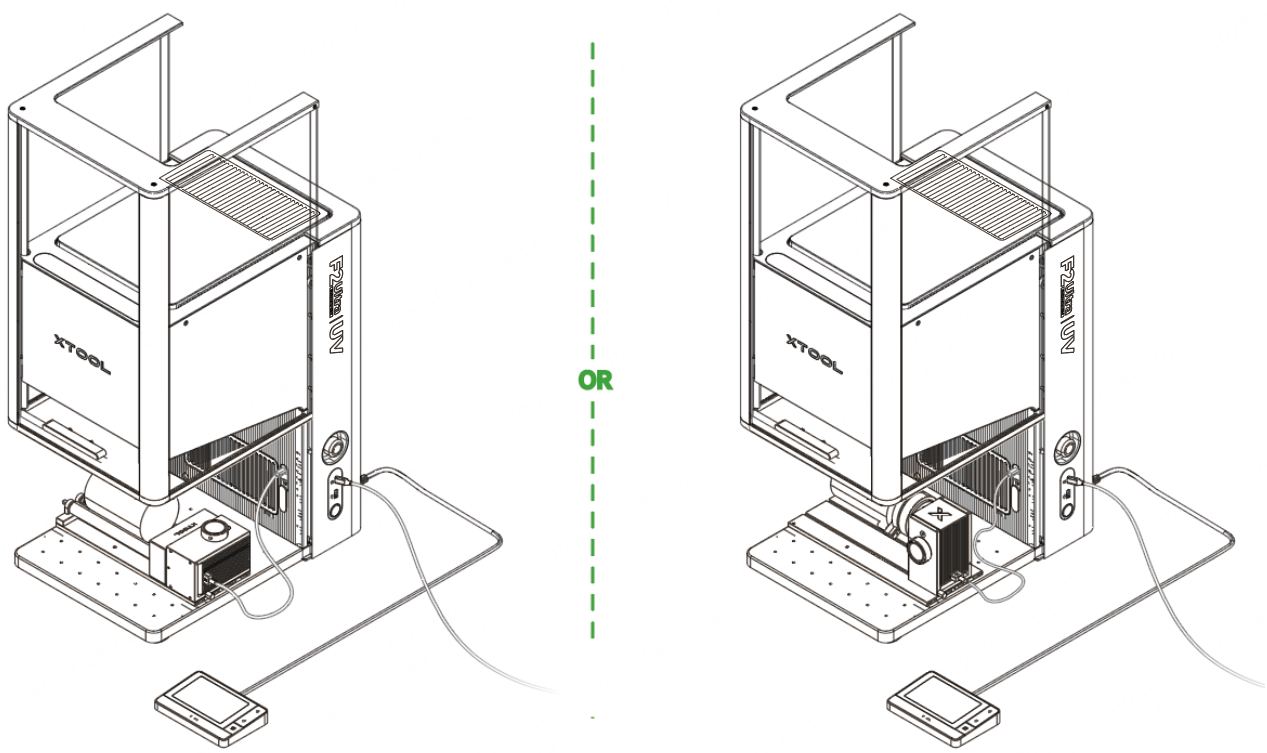
- If you use RA3 in Roller mode, place the material between the two rollers.
- If you use RA3 in Jaw chuck mode, fix the material on the jaws.
Warning: For materials including glass, acrylic, and highly reflective surfaces like stainless steel, after placing RA3 and the material on the baseplate of xTool F2 Ultra UV, masking tape must be applied to the highest point of the material (where the laser beam is located). Otherwise, laser focusing or distance measurement will not be possible.
3. Select the processing mode and material name
(1) In the top-right corner of xTool Studio, click the name of the current processing mode, and then select the processing mode you use for RA3.
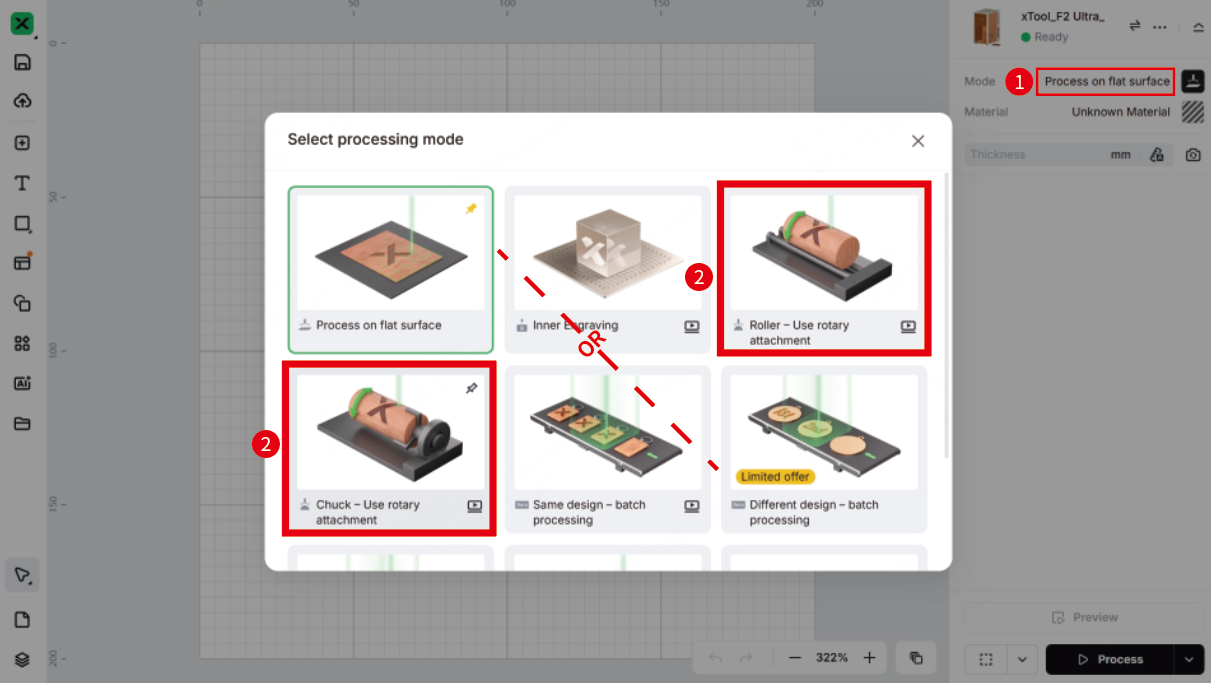
- If you use RA3 in roller mode, select Roller - Use rotary attachment.
- If you use RA3 in jaw chuck mode, select Chuck - Use rotary attachment.
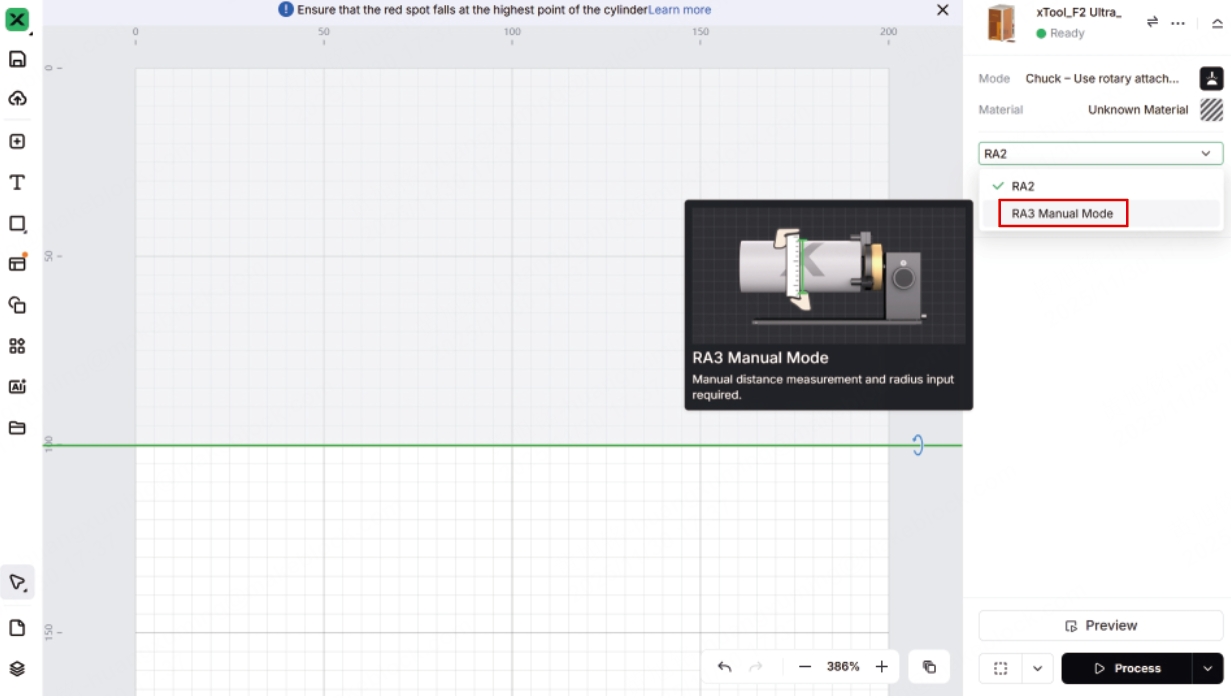
(2) Switch RA2 to RA3 Manual Mode.
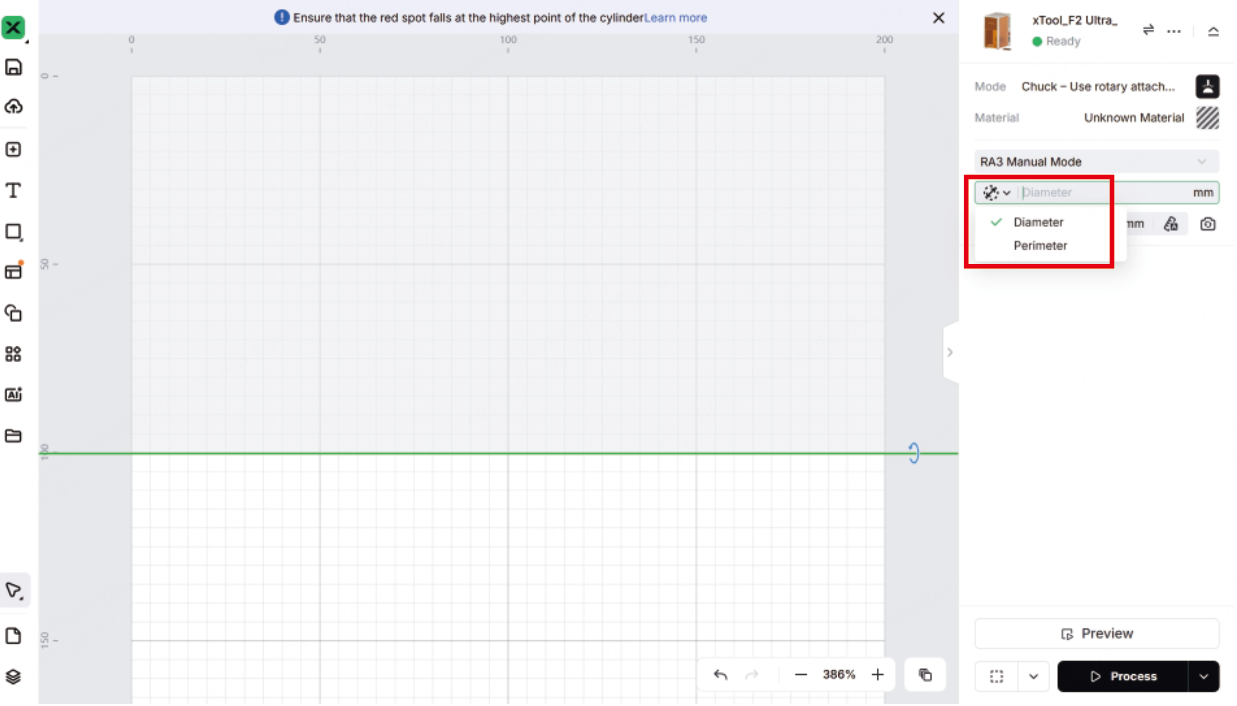
(3) Enter the Diameter or Perimeter of the material.
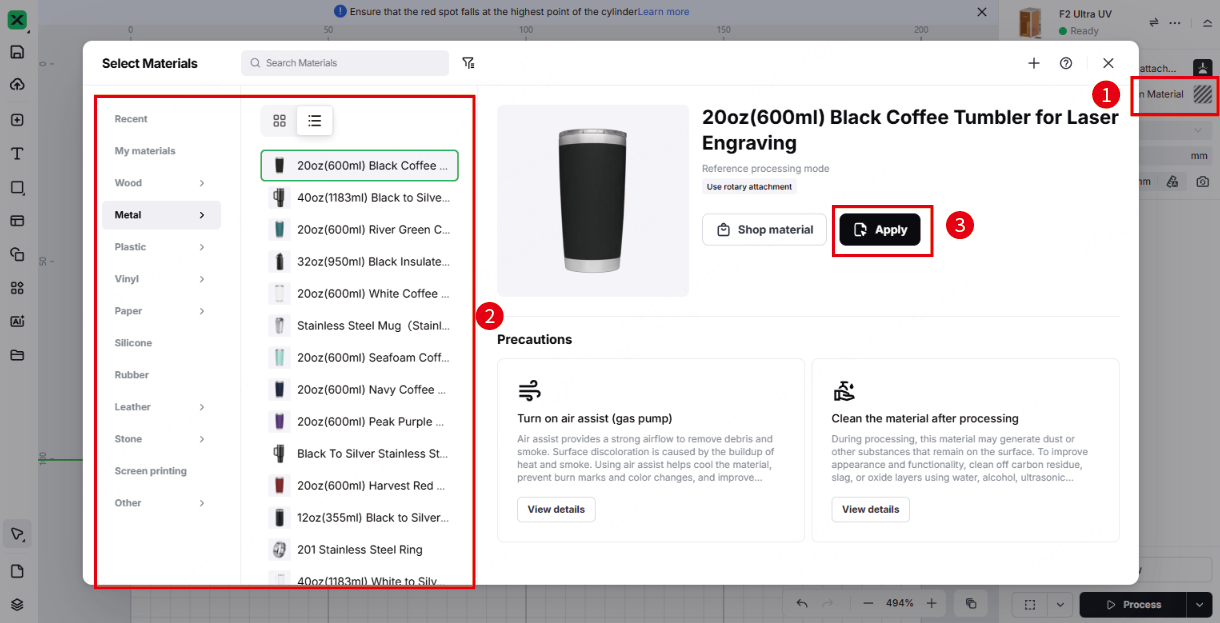
(4) In the top-right corner, click Unknown Material, select the name of your material, and click Apply.
Note:
If you can't find your material in the list, you can leave it as Unknown material and set parameters manually in the later steps.
If you select a material from the material list, the software will automatically set parameters for laser processing. The default settings apply to xTool materials. You can adjust the settings based on your needs.
4. Perform background shooting and laser focusing
(1) In the top-right corner of xTool Studio, click the Refresh background icon.
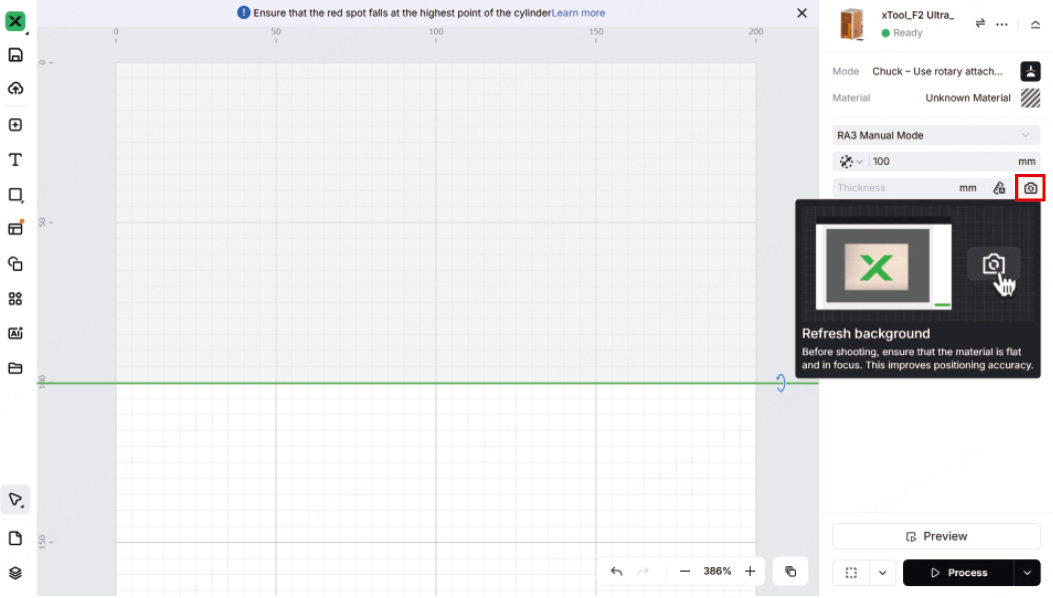
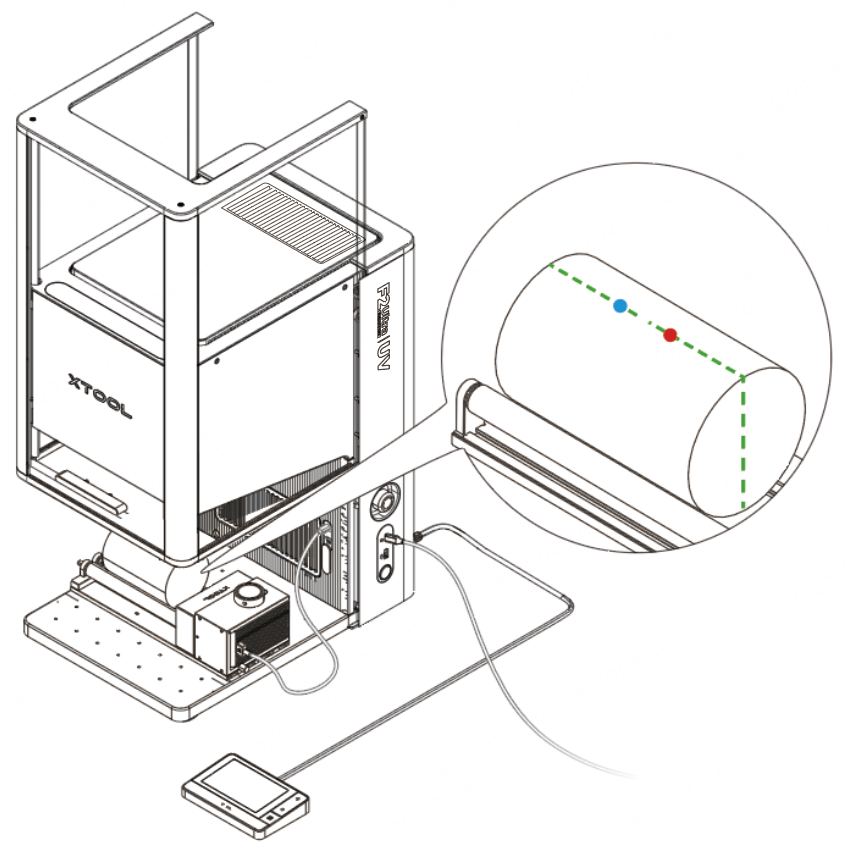
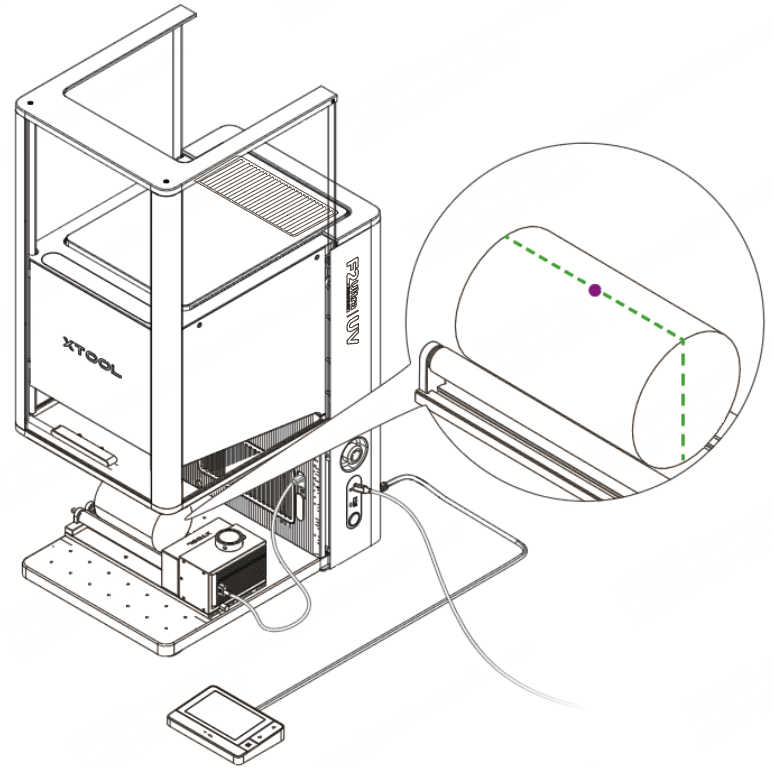
(2) Check whether the red and blue light spots are both at the top of the material. If not, follow the steps in "Connect Rotary Attachment 3 to xTool F2 Ultra UV" to readjust the position of RA3.
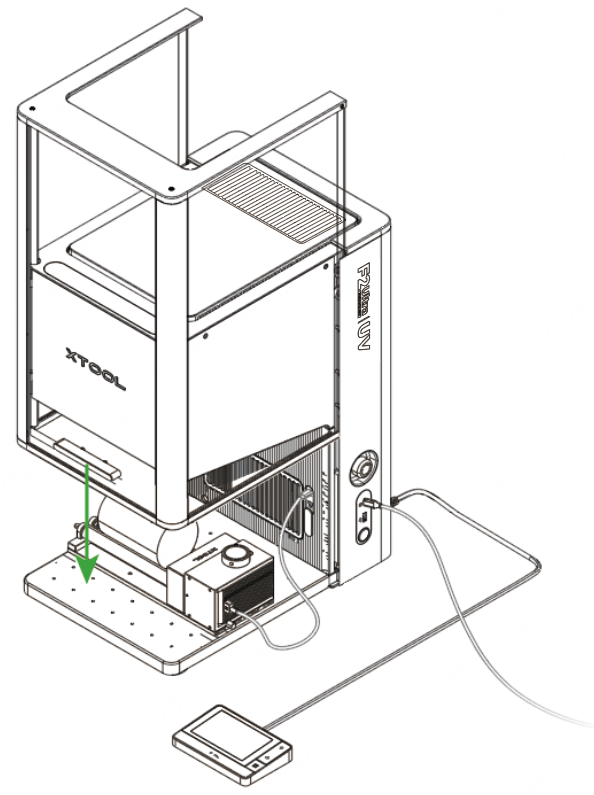
(3) Pull down the protective enclosure as low as possible.
(4) Click the Auto-measure icon. The machine performs auto-focusing.
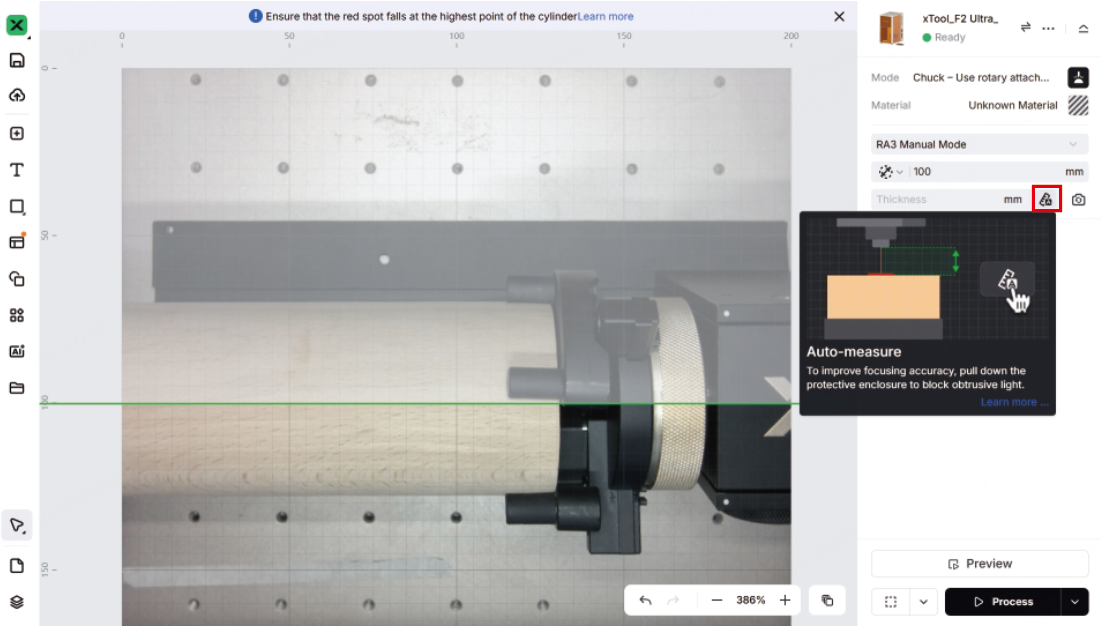
On the material, the red and blue light spots overlap.
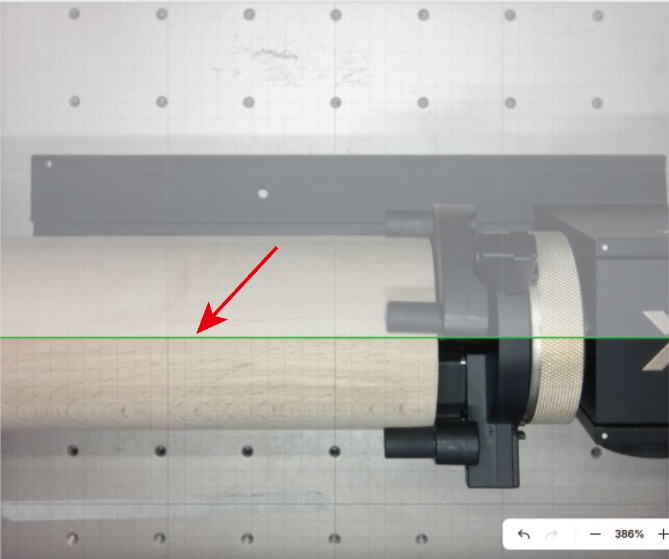
(5) Drag the green line to make it cross the center of the material and the blue and red spots.
Note: The green line indicates where laser processing starts.
5. Design processing objects
(1) Design processing objects on the canvas below the green line.
You can use the tools to the left of the canvas to import images, insert shapes, enter text, draw vector graphics, and so on.
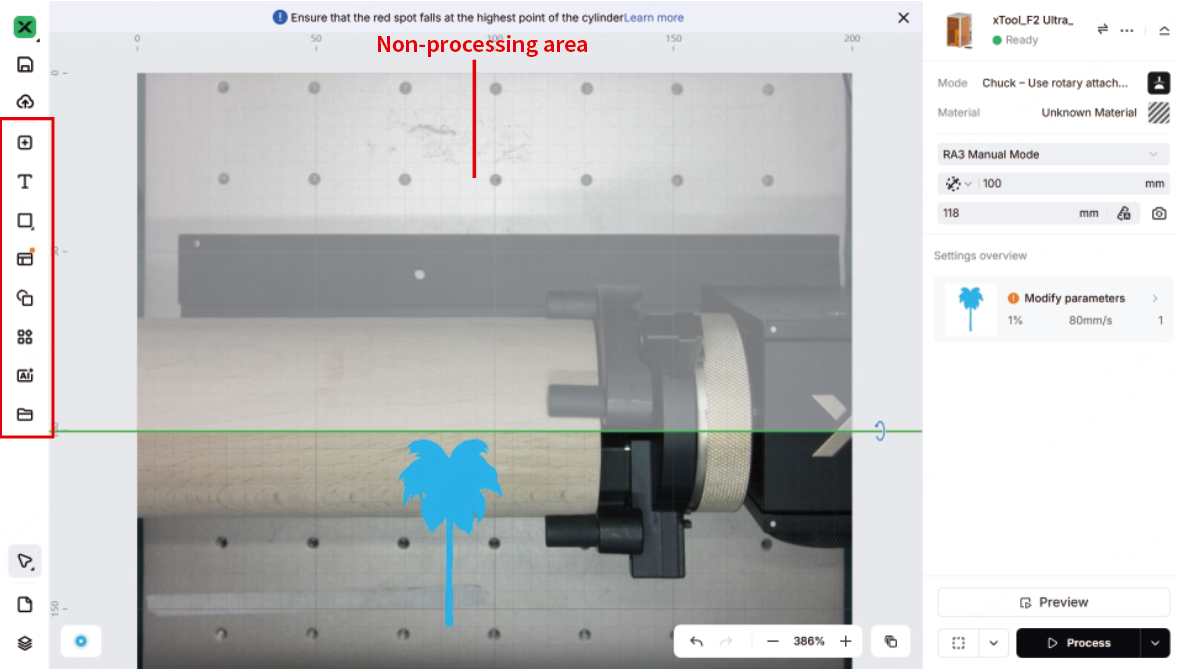
Note: The gray area above the green line is a non-processing area. Do not place processing objects in this area, or the objects cannot be processed.
(2) Select the objects to further edit them using the tools on the top ribbon.
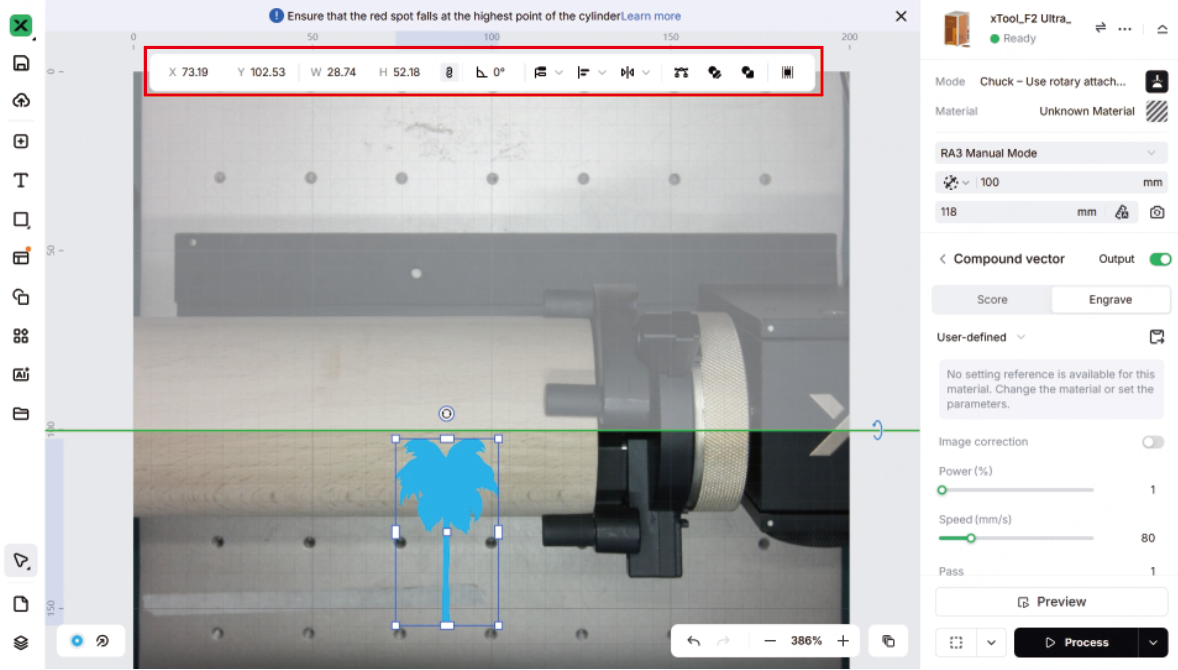
Note: For more information on how to use xTool Studio to design objects, see Software Learning Center.
6. Set processing parameters and processing path
(1) Select objects on the canvas. On the right side of xTool Studio, set parameters for the selected objects.
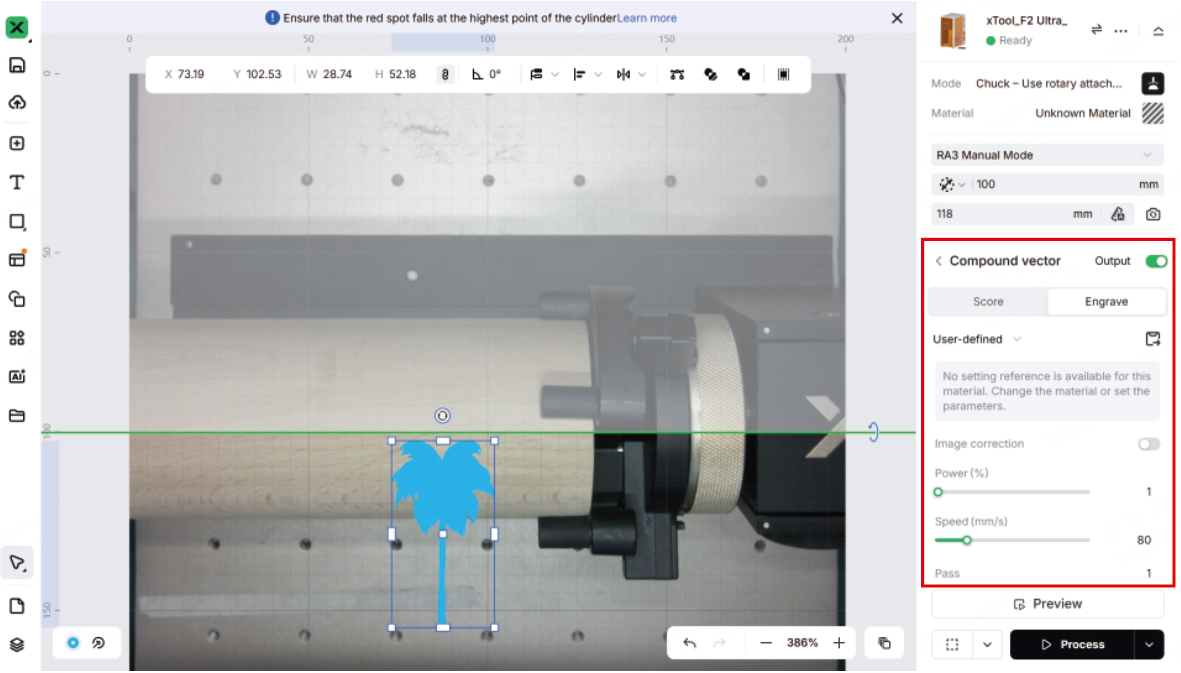
Note:
1. You need to set parameters for every object. A missed object may fail to be processed.
2. The parameters that can be set for bitmap objects and vector objects are different. You can select multiple objects of the same type and set parameters for them at once.
3. For more information about the processing parameters, see Processing Parameters for xTool F2 Ultra UV (Test Matrix).
(2) In the bottom-right corner of xTool Studio, click the icon to set the processing path.
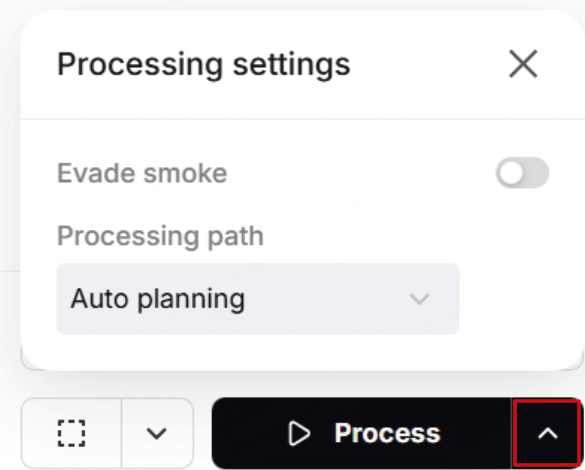
Evade smoke: When this feature is enabled, the device follows a path less affected by the smoke to process the material.
Note: You are advised to enable this feature for scoring on materials such as wood and corrugated paper that produce heavy smoke. Otherwise, the heavy smoke may block the laser beams and interfere with laser processing.
Processing path:
- Auto planning: xTool Studio automatically plans the processing path based on intelligent algorithms.
- User defining: xTool Studio plans the processing path based on your settings.
7. Preview the processing area
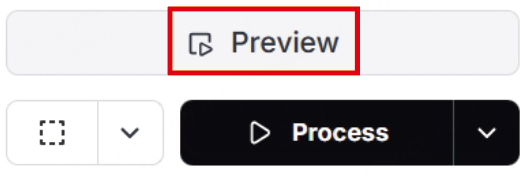
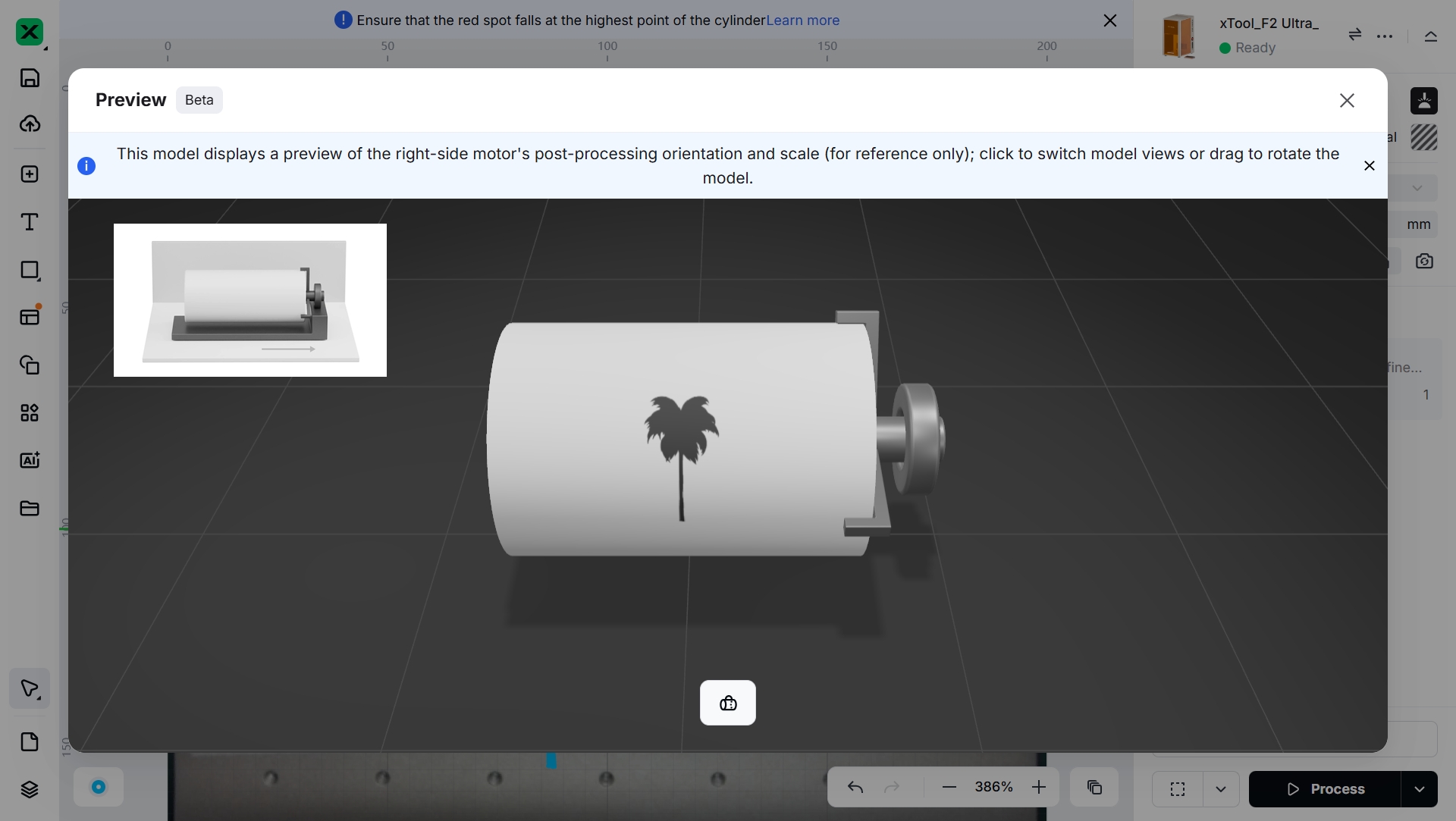
- You can preview the processing area on the material by clicking the Preview button.
- You can also preview the processing area on the material by framing. Framing means laser scanning the processing area on the material. Take the following steps to start framing:
(1) In the bottom-right corner of the software, click the icon next to the framing button to configure framing settings.
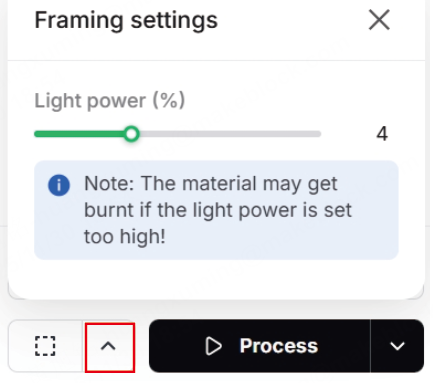
(2) Click the framing button in the software. The laser beams will scan the processing area on the material.
Note: If the processing area is not ideal, adjust the object positions in the software, and the scanning area on the material changes accordingly in real time.
To stop framing, click the framing button again.
8. Start processing
(1) In the bottom-right corner of the software, click Process.
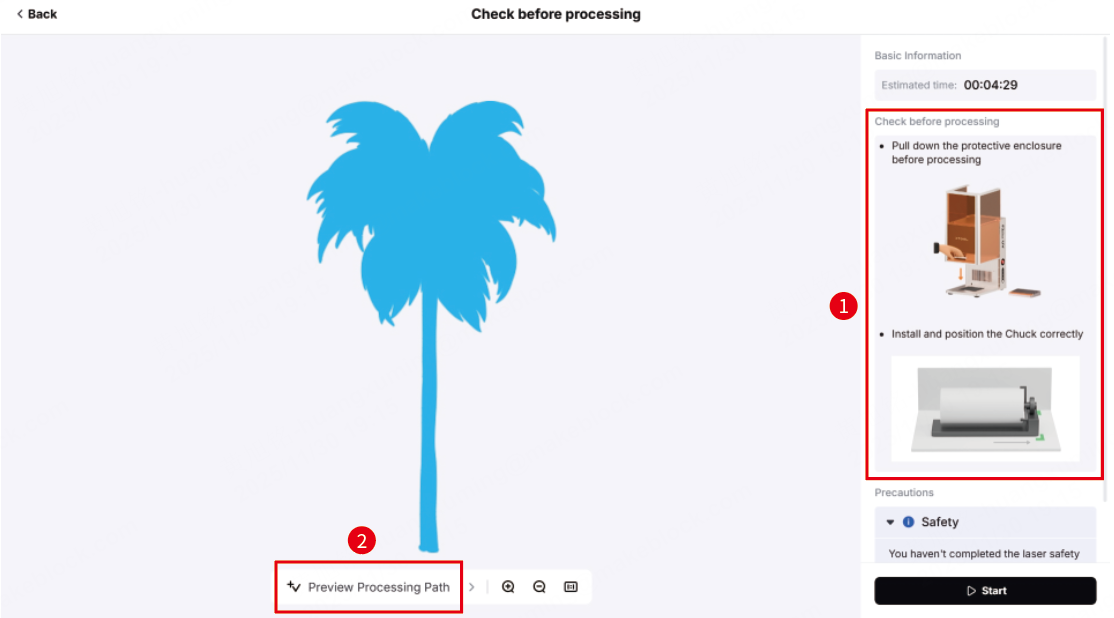
(2) Follow the notes on the right to check whether your F2 Ultra UV and RA3 are ready.
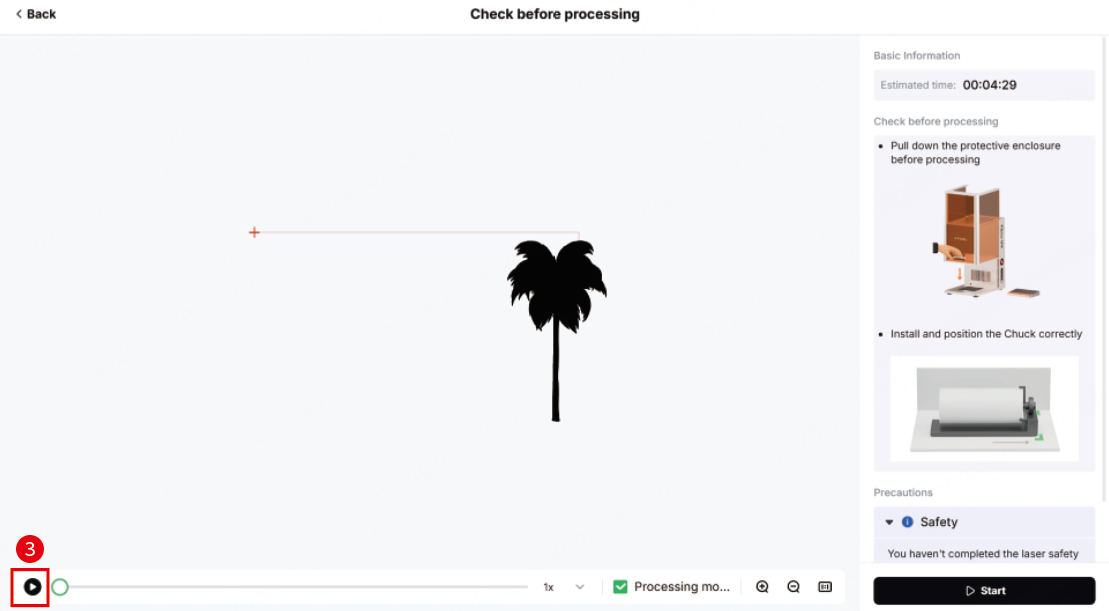
In the bottom, click Preview Processing Path, and then click the icon to check the processing path.
(3) Wear a pair of goggles that can shield laser beams of 355 ± 5 nm wavelengths.
Note: If you purchase goggles from our website, ensure that you select this specific pair.
Note:
When xTool F2 Ultra UV is used with the rotary attachment, its protective enclosure may not be fully closed. For your safety, it is recommended that you wear goggles during processing.
Safety goggles are not included with xTool F2 Ultra UV or RA3. Please purchase them separately.
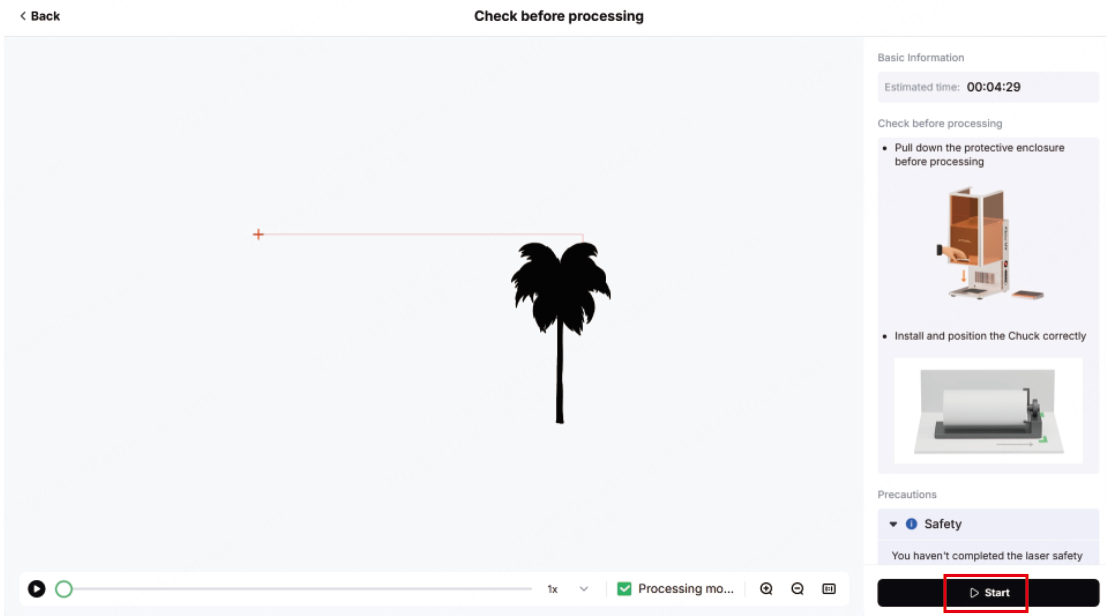
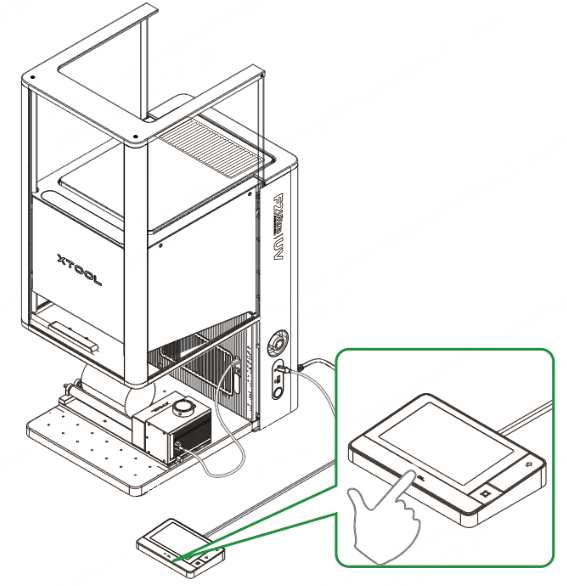
(4) In the bottom-right corner of the software, click Start. When the software shows “Ready”, press the XTOOL Start/Stop button on the touchscreen controller to start processing.
Related links
Lesson 4: How to Use the Rotary Attachment (RA3) to Engrave the Surface of a Cup?
xTool F2 Ultra UV User Guide (EU & UK)

