
Issue description
When processing materials, noticeable blackened or yellowed marks may appear near the processing area. This is commonly seen when cutting materials such as wood and PVC.
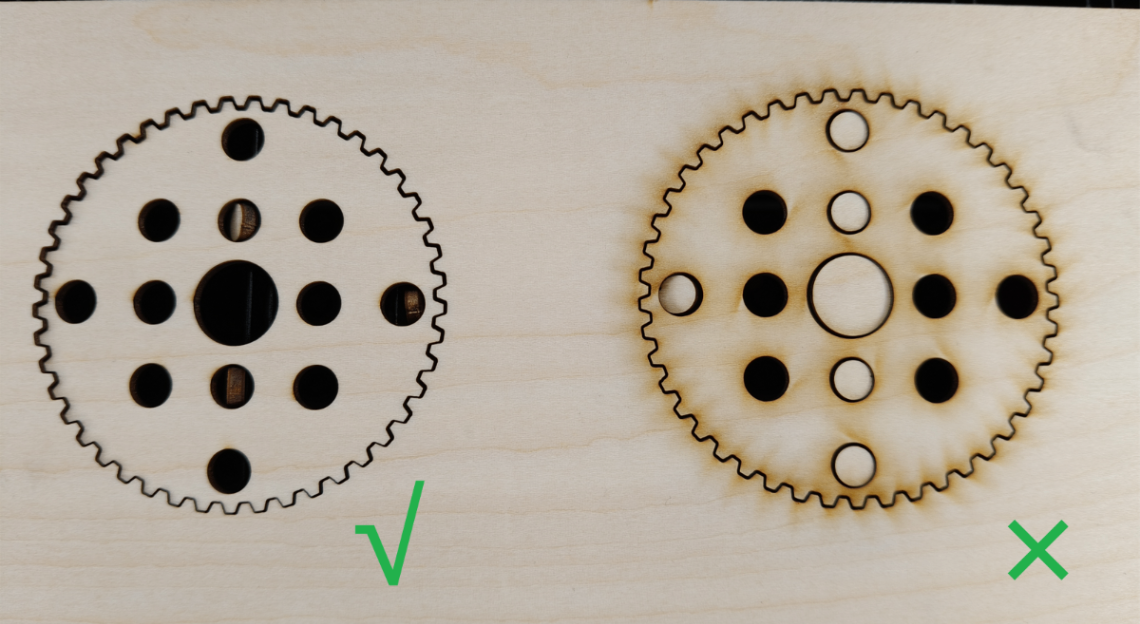
Possible causes
- Incorrect processing parameters
- The air nozzle is not installed.
- Incorrect air pump power settings
- The air pipeline is leaking gases.
- The air pump is faulty.
Troubleshooting procedures
1. Troubleshooting for the operation and device
1.1 Check the software and firmware
Update to the latest software and firmware.
1.2 Check the processing parameters
- For official materials, check whether the material matches the recommended parameters. If not, adjust the parameters.
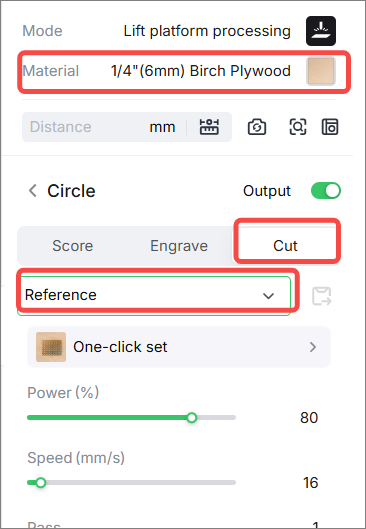
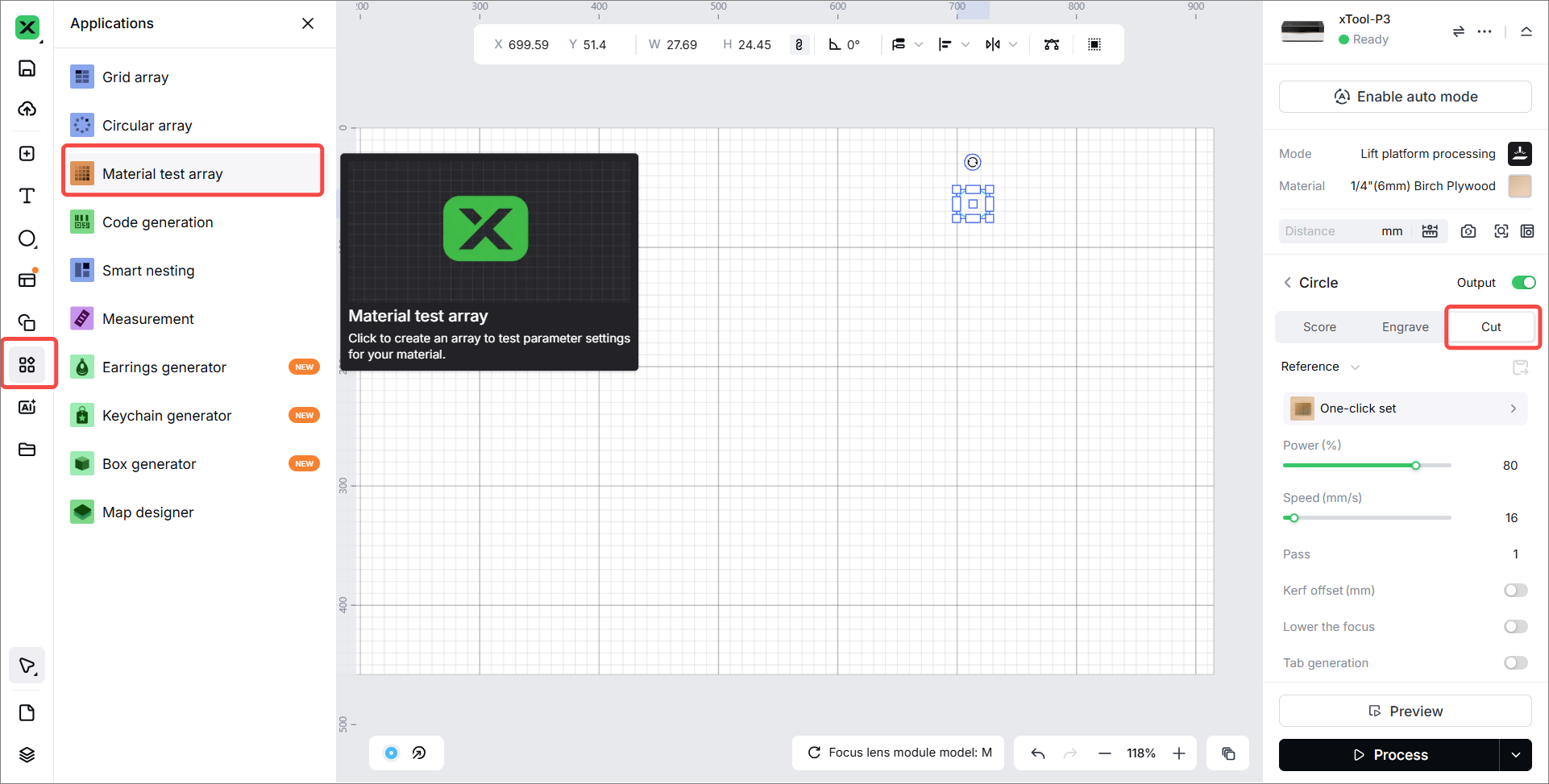
- For unofficial materials, select a proper parameter in Material test array to process. Refer to How to Perform an Array Test on a Material.
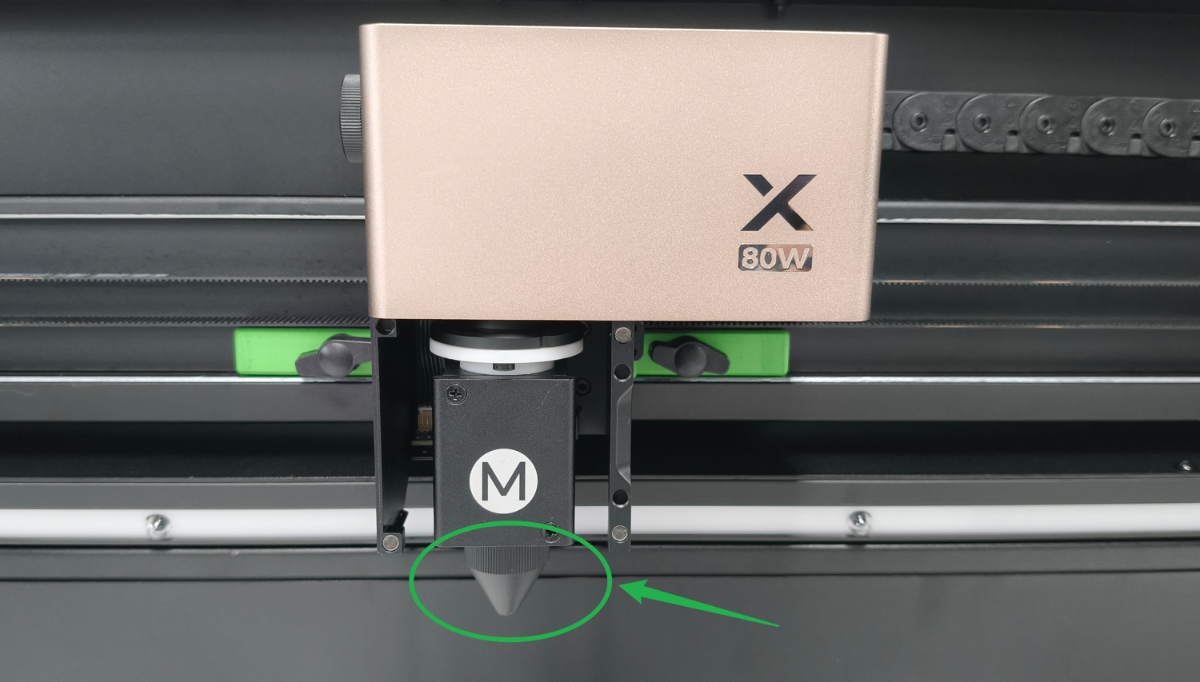
1.3 Check the installation of the air nozzle
- For laser cutting, installing the air nozzle helps quickly blow away smoke.
- For laser engraving, removing the air nozzle helps reduce smoke residue on the material.
If you perform both laser engraving and cutting in the same project, you can choose whether to install the air nozzle based on your specific needs, or perform the engraving and cutting separately.
1.4 Check the power of the air pump
Regarding air pump power, generally:
- For cutting and processing organic materials such as wood and genuine leather, it is usually appropriate to set a higher air pump power so that smoke can be quickly blown away through the cutting gap, reducing its impact on the material surface.
- For cutting and processing meltable inorganic materials such as acrylic and PC (Polycarbonate), high-power airflow may reduce the quality of the cut edges. Hence, a high air pump power setting is generally not recommended. If open flames are likely to occur during cutting or the material becomes severely blackened, consider increasing the air pump power appropriately.
- For engraving most materials, it is usually appropriate to set a lower air pump power to prevent the airflow from dispersing the smoke and causing it to adhere over a large area of the material surface.
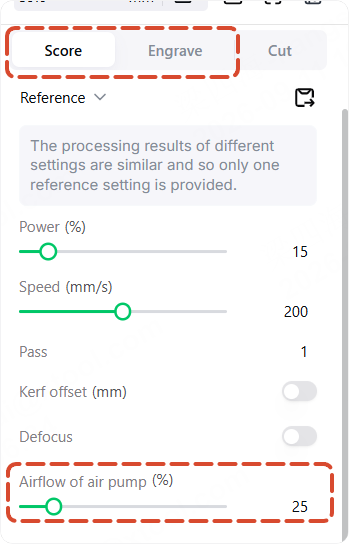
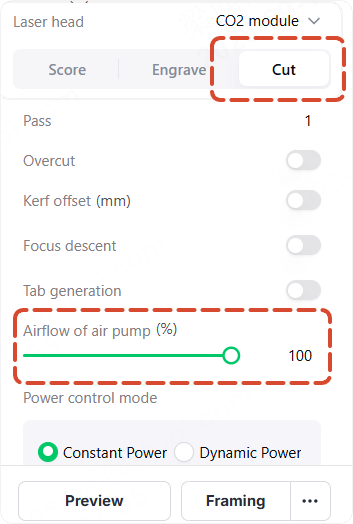
1.5 Check the airflow of the air nozzle
The air pump requires regular maintenance to keep the air inlet and air passages unobstructed. If the air passage becomes blocked, the airflow from the nozzle will decrease.
Read the article (Troubleshoot the Airflow of the Air Pump is Low for xTool P3) to check the airflow of the air nozzle and troubleshoot the issues.
2. Tips for reducing yellowing
2.1 Cut through the material
If the material cannot be cut completely through, the airflow from the air pump may exacerbate yellowing during cutting. Make sure the material can be cut completely.
2.2 Set the dynamic power
Enable Dynamic power in Cut mode. It optimizes the cutting effect during processing at the corner.
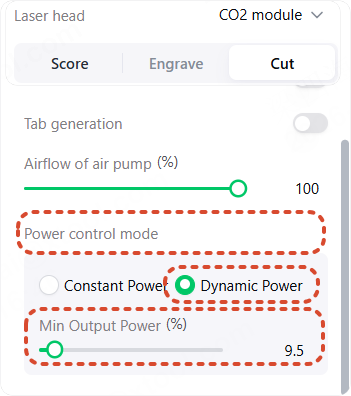
2.3 Wipe the material after laser cutting
Wipe the position that is yellowing with a tissue. This can reduce yellowing.
2.4 Apply the protective tape
Some materials are highly prone to blackening due to their properties, such as white PVC and white plywood.
For this type of material, or materials with high surface finish requirements, you can apply a layer of masking tape to the material, or purchase material with a protective film. After cutting, peel off the masking tape or protective film.
2.5 Use a powerful smoke exhaust device
xTool P3 is not supported for use with xTool SafetyPro™ AP2, as the xTool SafetyPro™ AP2 does not have sufficient power to effectively clear the smoke from xTool P3.
The recommended configurations for better smoke extraction performance with xTool P3 are:
- xTool P3 connects to a xTool SafetyPro™ AP2 Max only
- xTool P3 connects to a xTool SafetyPro™ IF2 2.0 only
Two purification units must not be connected in series, as this can cause airflow turbulence, reduce smoke extraction efficiency, and easily trigger blockage alarms in the purification equipment.
2.6 Adjust the processing parameters
To ensure the material cutting through, you can set a higher speed and lower power during processing to avoid multiple cuts, which can reduce yellowing to some extent.
Still experiencing issues?
Should the issue persist after completing the preceding steps, submit a ticket via the "Submit a Ticket" button in the "Help Ticket" section below. The standard response time for xTool Customer Service is one business day.
For a prompt resolution, please include the following details:
- Issue description: A detailed explanation of the observed problem.
- Video evidence: Attach a video demonstrating the issue, where applicable.
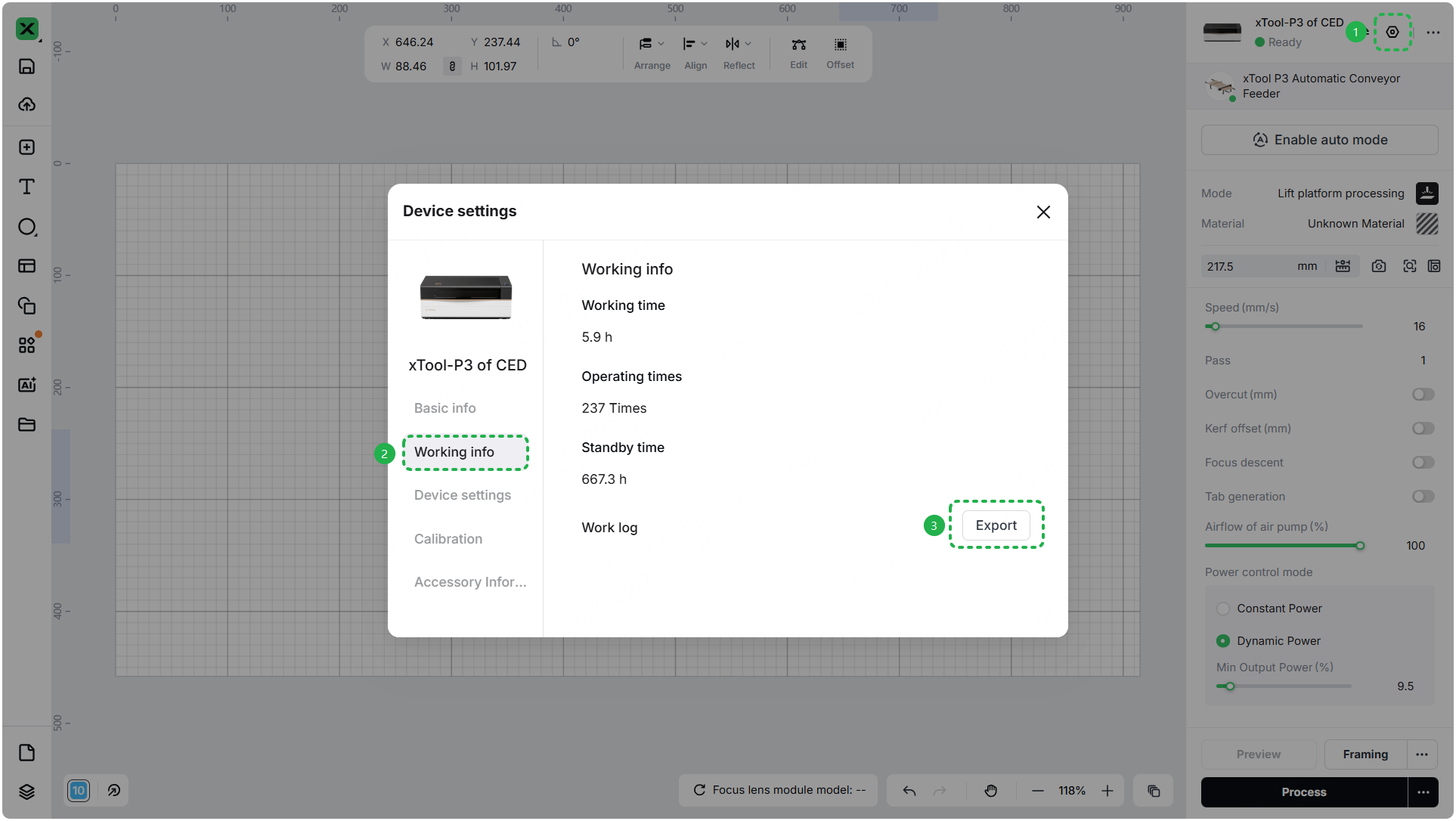
- Device information: Follow the steps to find the SN and export the work log.
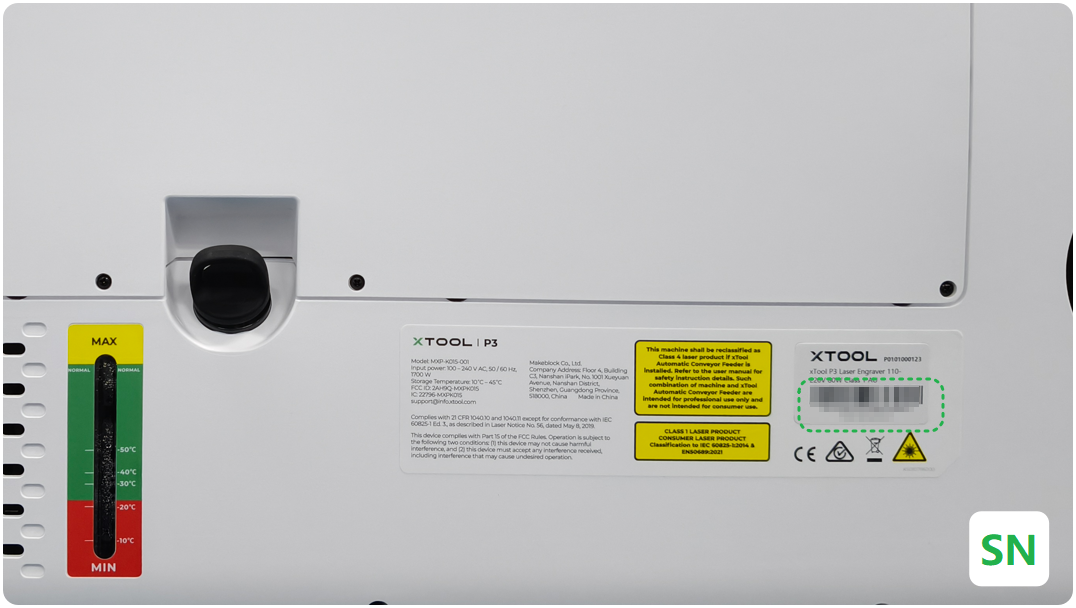
- Troubleshooting performed: Any troubleshooting steps you have already attempted, along with their results.
This information is crucial for xTool technical support engineers to provide timely assistance.
Documentation feedback
Help improve this content by providing feedback. If this content did not meet your requirements, select "No" in the "Was this page helpful?" section below. Include specific details about what was unclear or missing in the pop-up suggestion box. Feedback submissions are reviewed by xTool technical writers to enhance future documentation.

