Download PDF file (multi-language)
List of items
|
|
|
|
xTool P3 5W Infrared Module | Module fixture | Focus block | Cardboard |
|
|
|
|
Grease | Hex key | Screw | User Manual |
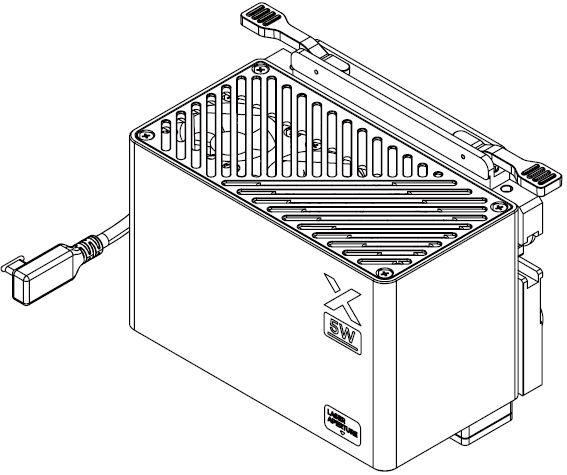
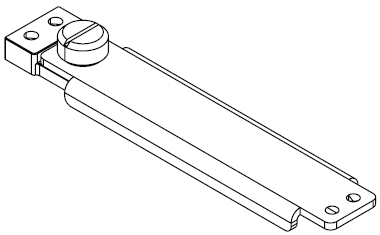
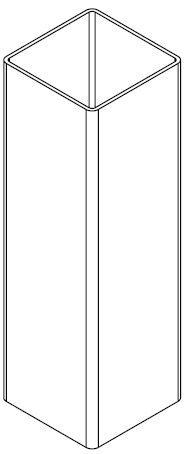
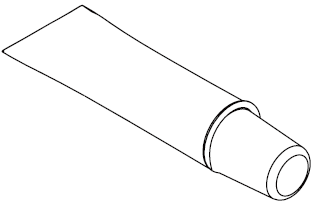
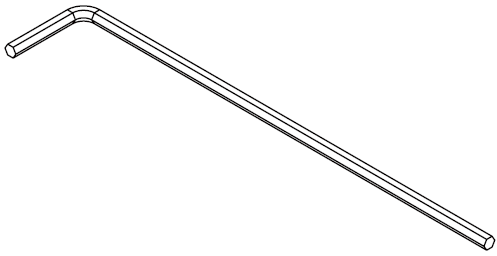
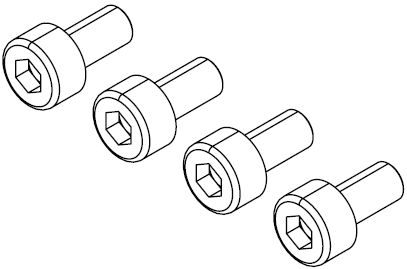
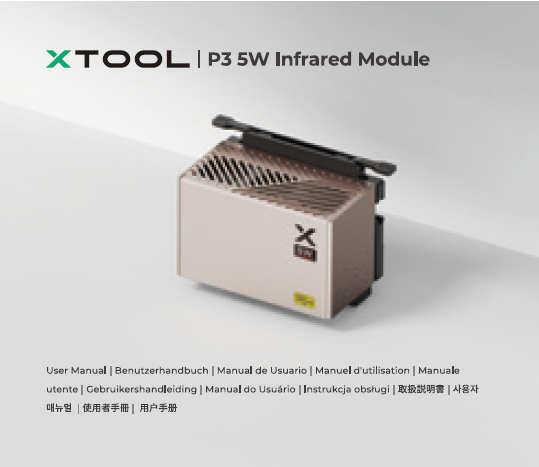
Meet xTool P3 5W Infrared Module
Warning and instruction signs
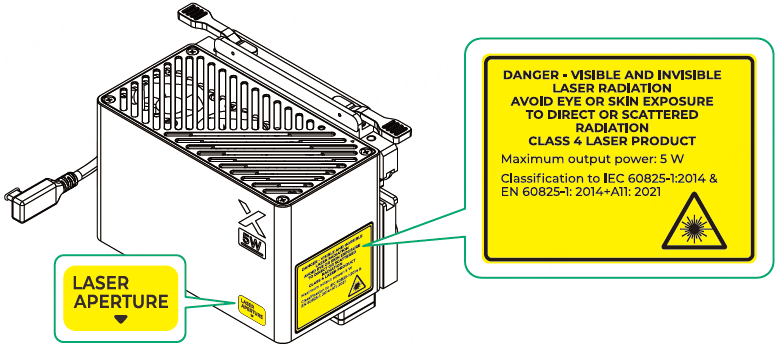
Laser specifications
Laser type | Beam divergence | Maximum output power | |
|---|---|---|---|
Working laser | Infrared light | 1.5 mrad(IEC 60825-1 Default (simplified) evaluation C6=1) | 5 W |
Indicator laser | Red light | / | 0.39 mW |
Working temperature
The infrared module works properly at the temperature of 0°C to 35°C.
Install xTool P3 5W Infrared Module
■ Ensure that xTool P3 is powered off.
■ If any module is connected to the laser module in xTool P3, remove it before installing the infrared module.
■ Use the infrared module only with xTool P3. Before use, read and follow Safety Instructions and Quick Start Guide of xTool P3.
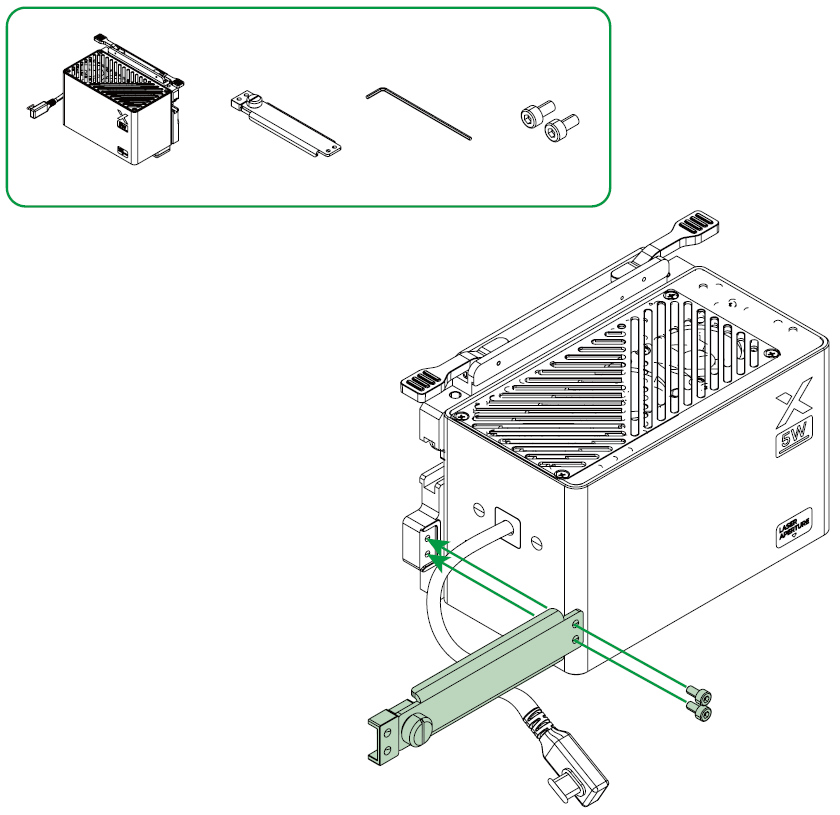
Assemble xTool P3 5W Infrared Module.
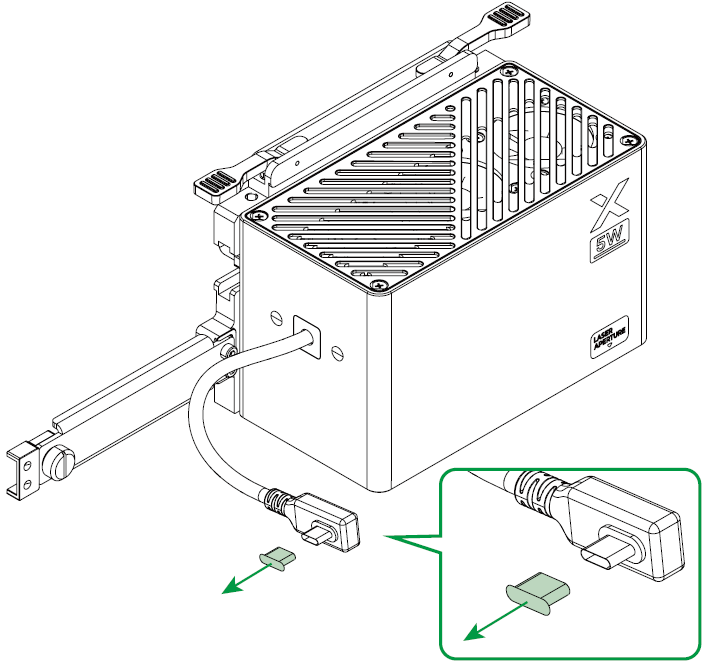
Remove the connector protective cover.
Remove the roller protective cover.
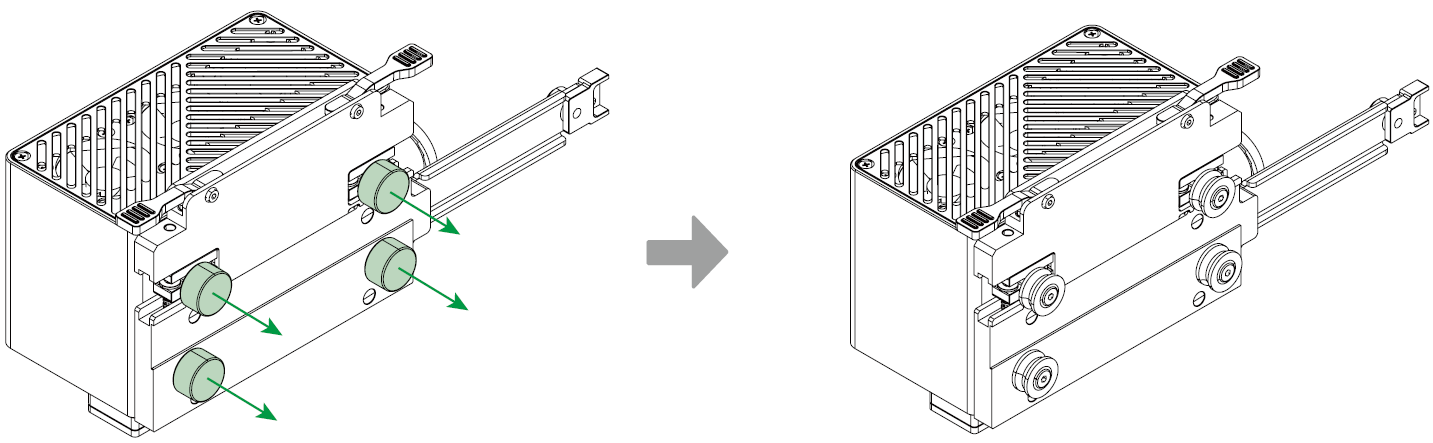
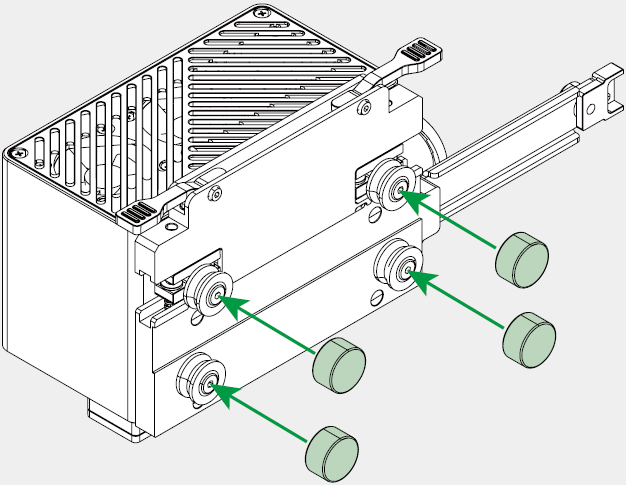
■ Please keep the roller protective cover properly.
■ When not in use, please detach the infrared module from the main unit and attach the protective covers to the rollers.
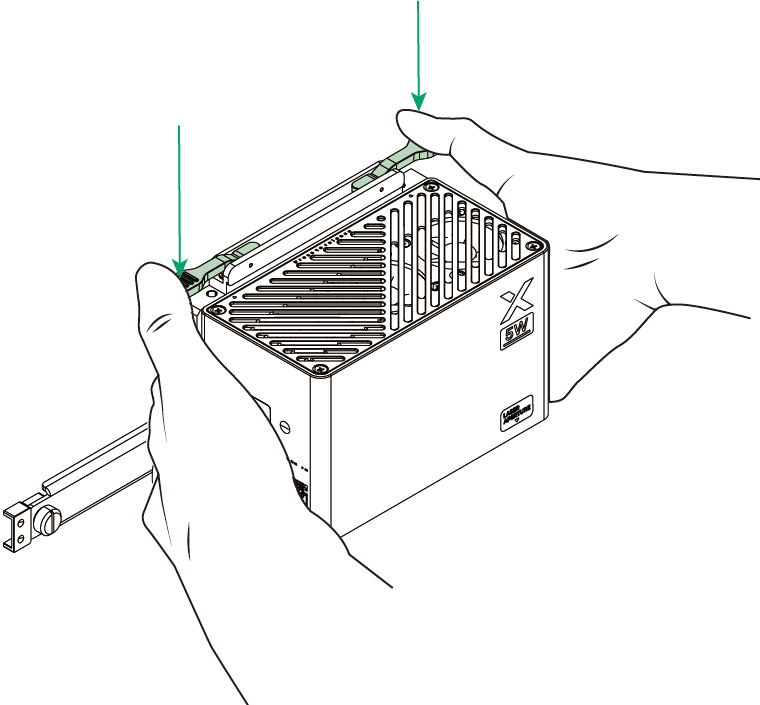
Mount the infrared module onto the guide rail.
(1) Press down the locking bars on both sides as illustrated.
(2) Snap the lower rollers under the belt.
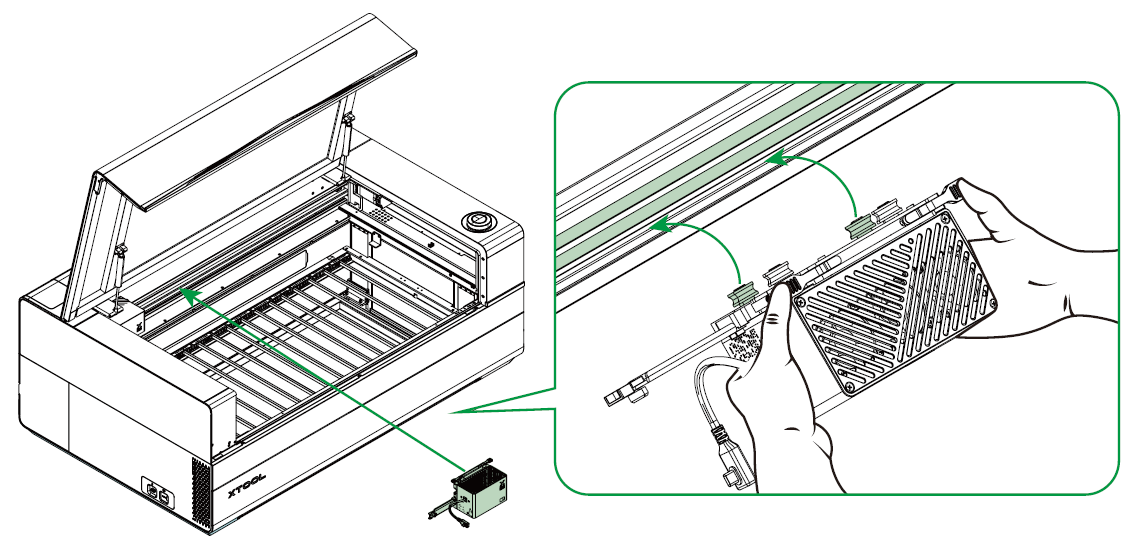
(3) Snap the upper rollers above the belt.
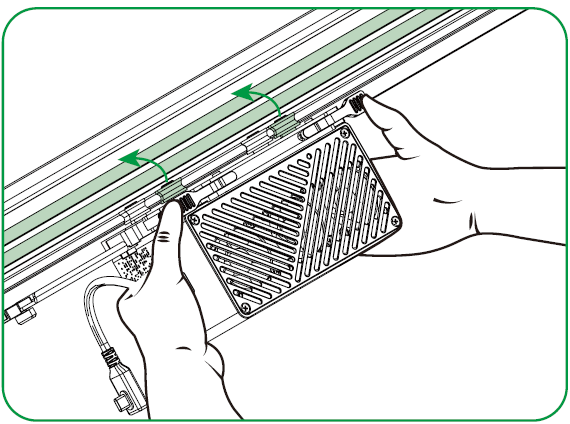
(4) Ensure that the infrared module is well installed. Then, release the locking bars on both sides.
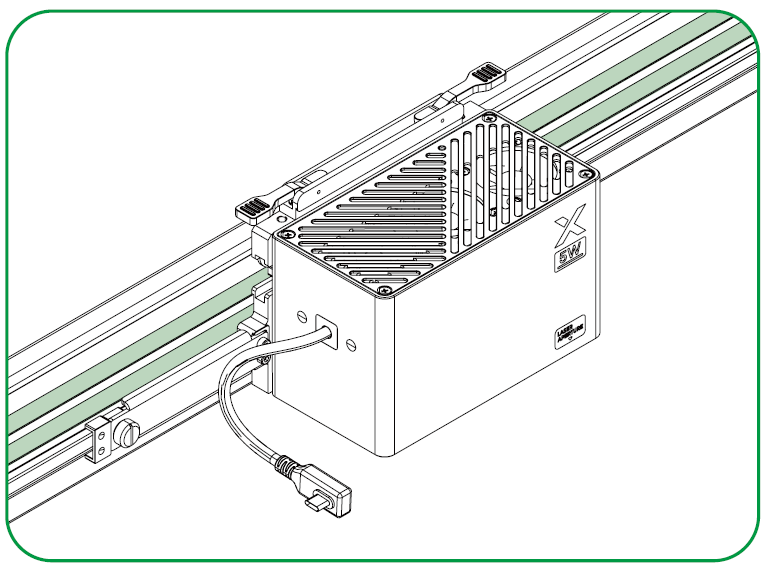
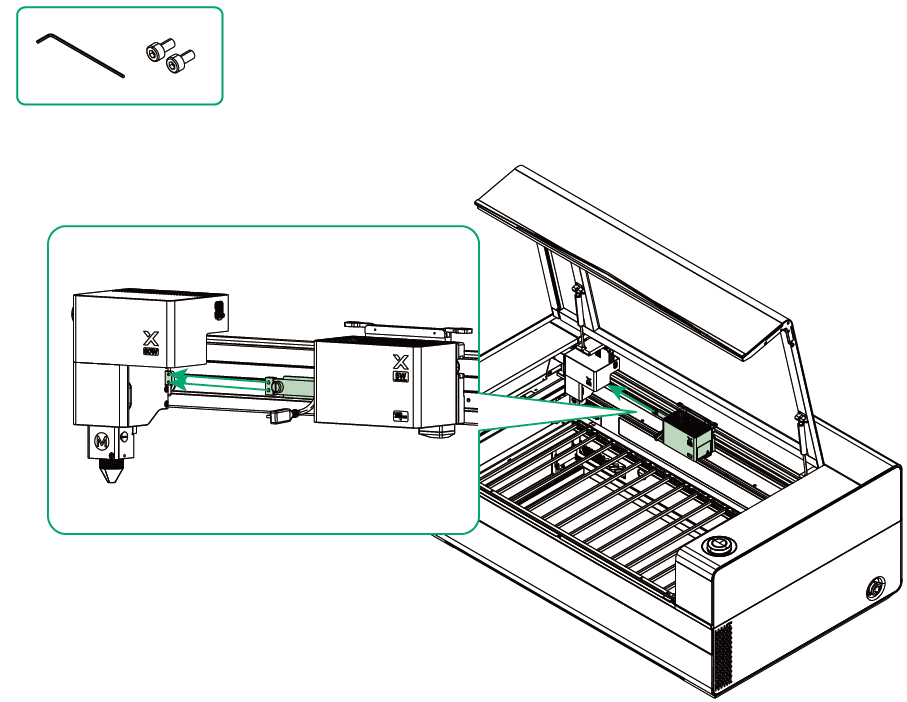
Connect the infrared module with the pre-installed laser module.
(1) Manually move the infrared module to the left.
(2) Use two screws to connect the infrared module with the pre-installed laser module.
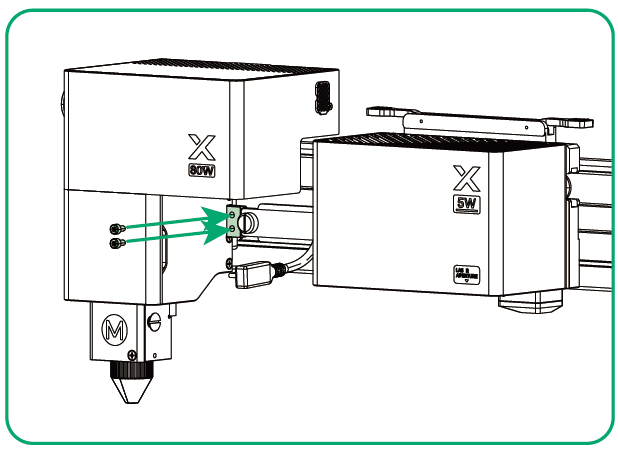
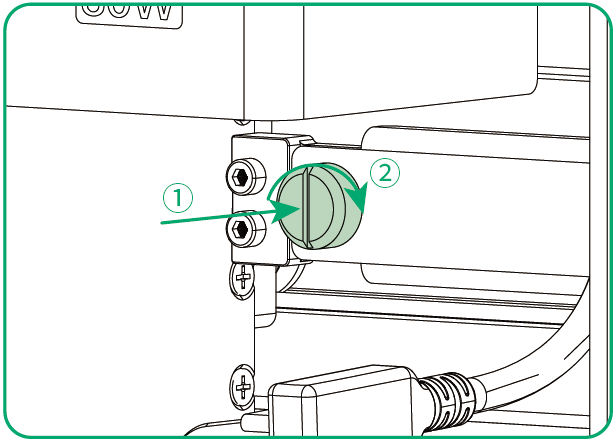
(3) Press the knob and tighten it clockwise.
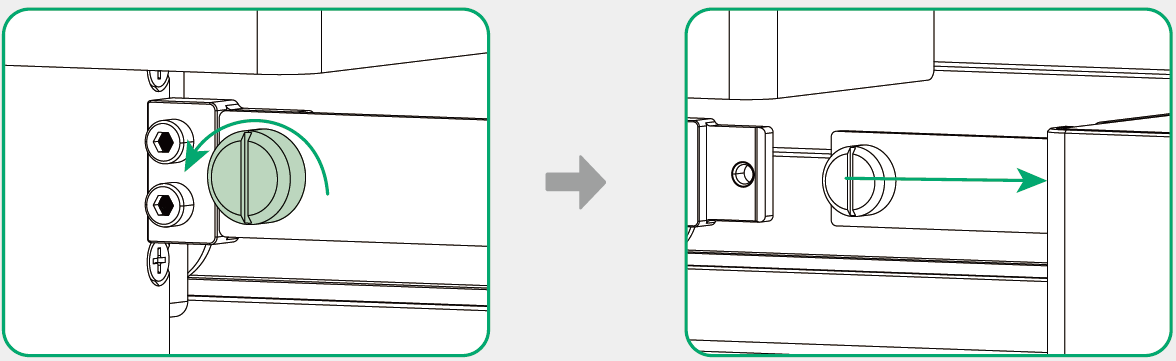
To remove the infrared module, turn the knob on the infrared module counterclockwise.
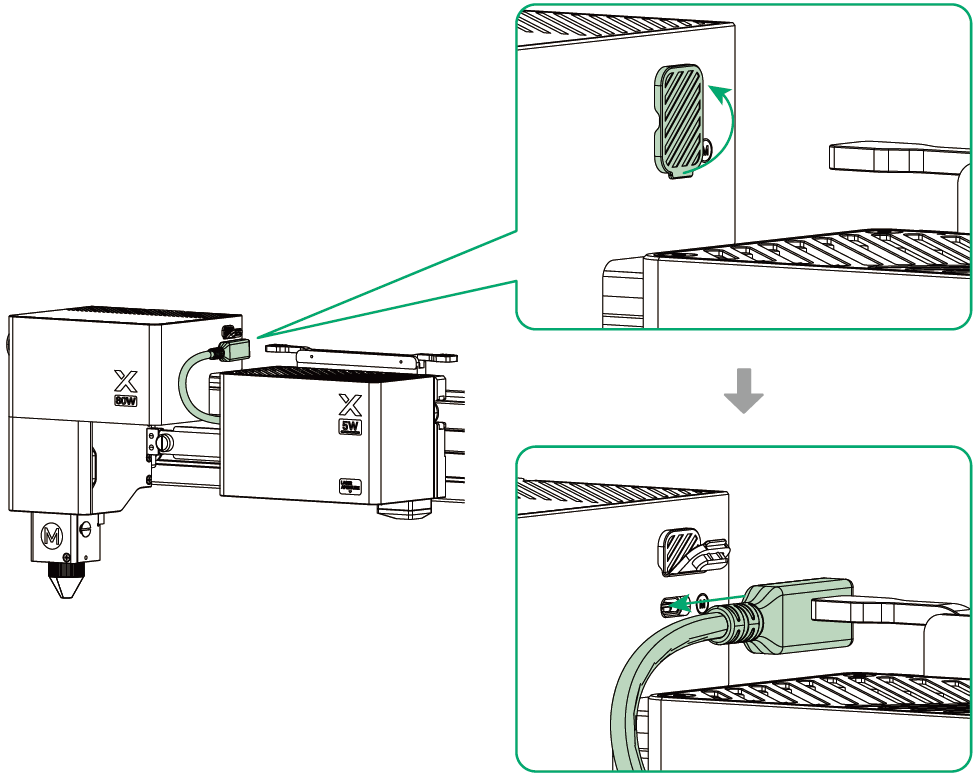
(4) Unplug the dust plug from the laser module and insert the infrared module's connector to the port.
Use xTool P3 5W Infrared Module
Get the xTool software.
Go to s.xtool.com/software to get the xTool software.

Ensure that xTool P3 has connected to your computer
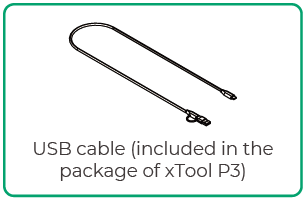
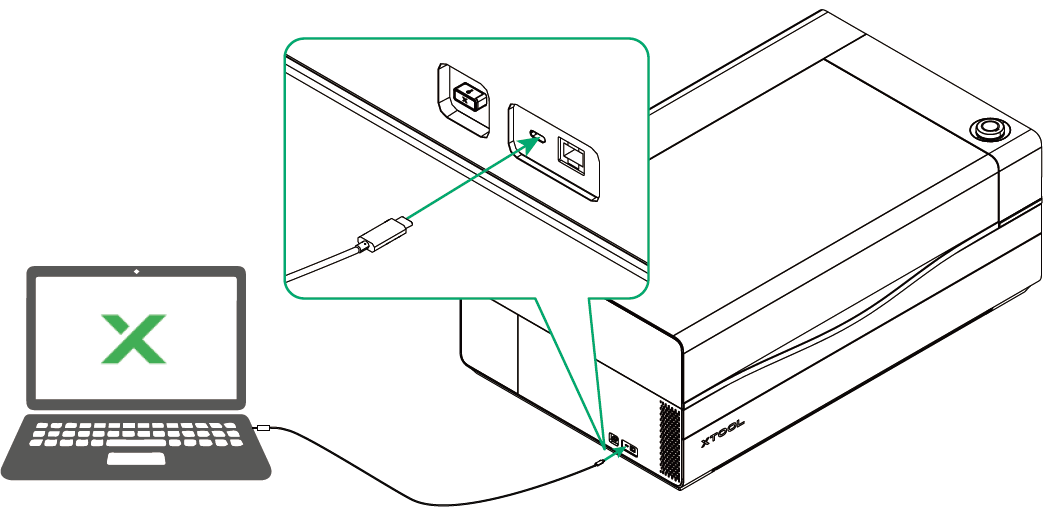
Use with the xTool softwre.
For details, visit Use xTool P3 Infrared Module with xTool Software.
FAQ
■ The infrared module does not produce laser beams during material processing. What can I do?
Possible cause: The temperature of the infrared module is too high, which triggers the overheat protection.
Solution: Pause the current task. Wait until the infrared module cools down, and then continue the processing.
■ The infrared module does not slide smoothly. What can I do?
Possible cause: The rollers may experience insufficient lubrication after long-term use, resulting in increased sliding resistance.
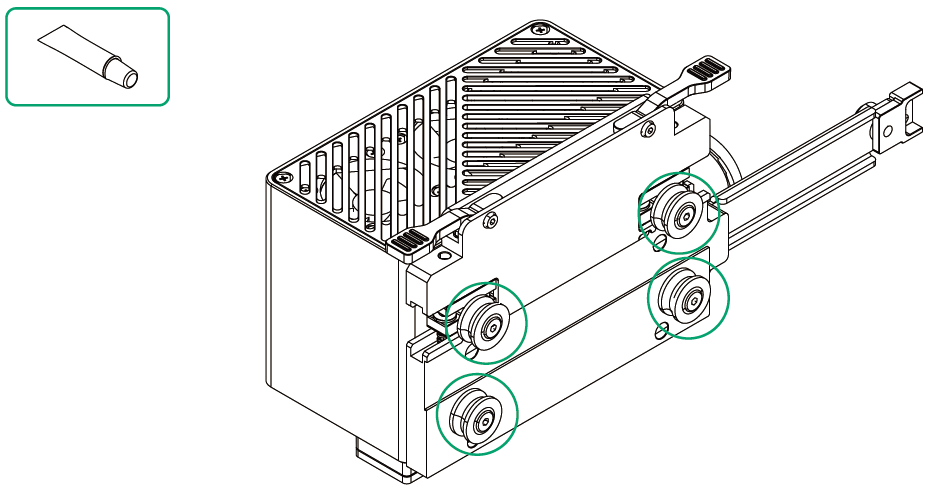
Solution: Pause the current task and turn off the machine. Then, take out the infrared module and evenly apply the included lubricant to the rollers.