
Issue description
Issues with Wi-Fi connectivity while using xTool Apparel Printer include:
- Unable to establish Wi-Fi connection during initial setup;
- Sudden Wi-Fi disconnection during operation; and
- Device not detected through wireless connection.
Possible causes
If no connection methods work (Wi-Fi, USB, Ethernet)
- Outdated xTool Studio software version
- Issues with xTool Studio cache or plugins
If only Wi-Fi connection fails
- Incompatible xTool Studio software on mobile devices (e.g., tablet or phone app)
- Outdated xTool Studio software version
- VPN enabled on the computer
- Devices not on the same network or subnet
- Poor network quality
- Network proxy enabled
- Network permissions not granted (macOS)
Preliminary diagnosis
⚠️ IMPORTANT: Before proceeding, test the USB connection to determine if the issue affects all connection methods.
Connect the printer via USB cable to establish whether this is a Wi-Fi-specific issue or a general connectivity problem.
Scenario A: All connection methods fail (Wi-Fi, USB, and Ethernet)
If you cannot connect to the printer using any method (Wi-Fi, USB, or Ethernet port), follow these steps.
Step 1: Check xTool Studio software version
- Open the xTool Studio software and check if you are running the latest version (e.g., 2.7.22 or higher).
- If not, click "Check for update".
- If the automatic update fails, please download the latest version directly from the official website: https://www.xtool.com/pages/software.
- If your software is already up to date, proceed to the next step.
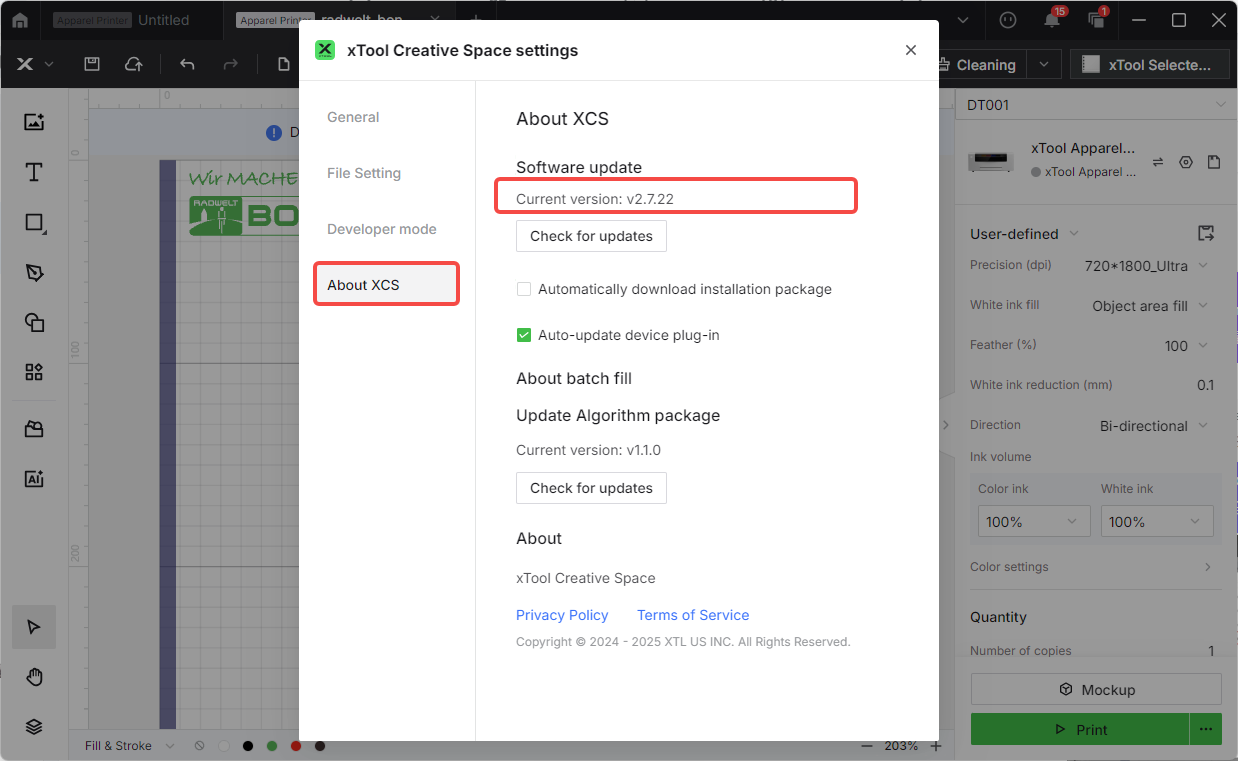
Step 2: Clear xTool Studio software cache & plugins
Corrupted cache or plugin files can sometimes prevent a successful connection.
- Please follow the instructions in the guides below to clear the xTool Studio cache and delete the plugins.
- Clear Cache Guide: xTool Creative Space (XCS) Cache Clearance Guide
- Delete Plugins Guide: Delete XCS Plugins
- After clearing the cache and plugins, restart the xTool Studio software and try to connect again.
- If the issue persists, please proceed to the "Still experiencing issues?" section to contact xTool Customer Service.
Scenario B: Only Wi-Fi connection fails
If you can connect via USB but not via Wi-Fi, follow these steps.
Step 1: Check for mobile/tablet app incompatibility
The xTool Apparel Printer is currently not compatible with the mobile or tablet (iPad) versions of the xTool Studio app.
- If you are trying to connect using a mobile device or tablet, please switch to a desktop or laptop computer.
- If you are already using a computer, proceed to the next step.
Step 2: Check xTool Studio software version
- Ensure your xTool Studio software is updated to the latest version (e.g., 2.7.22 or higher).
- If not, update it via the software prompt or by downloading it from https://www.xtool.com/pages/software.
- If your software is up to date, proceed to the next step.
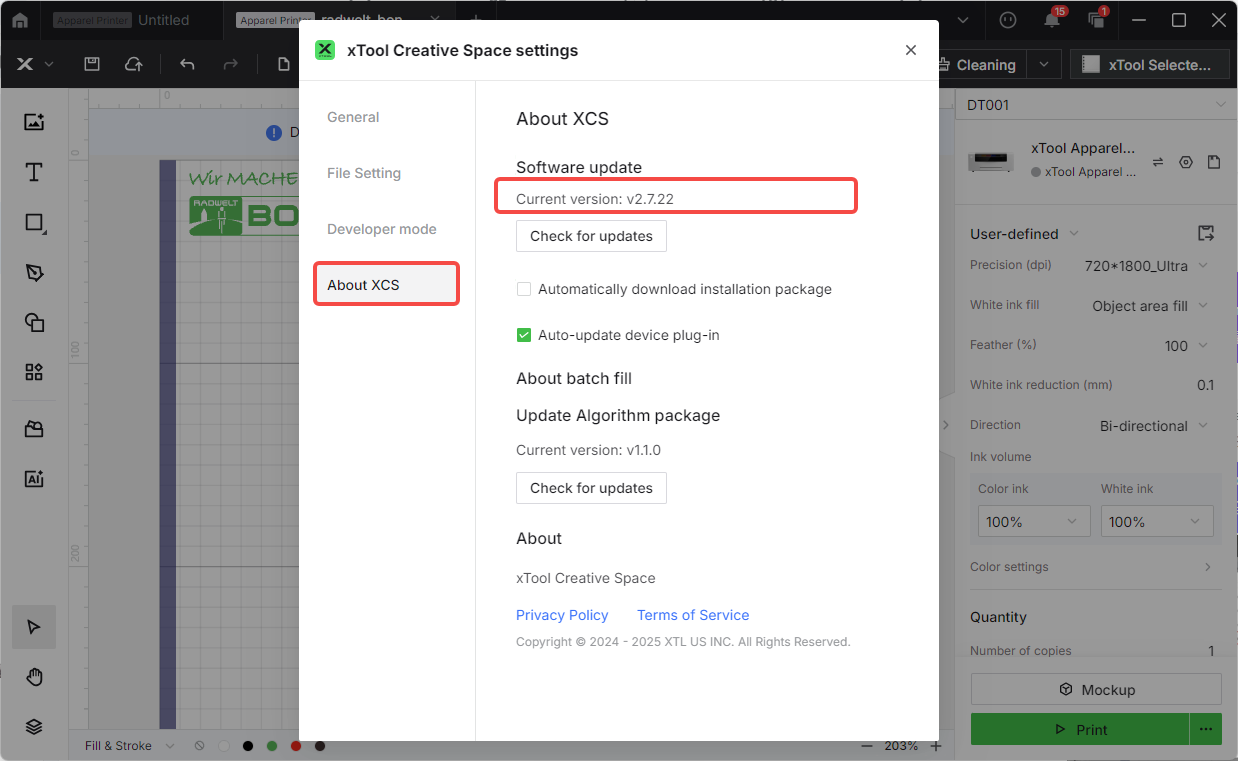
Step 3: Check for active VPN
A virtual private network (VPN) can interfere with the printer's connection to your local network.
- Please check if you have a VPN enabled in your computer's settings or if you have any VPN software running. Disable the VPN and try to connect again.
- If no VPN is active, proceed to the next step.
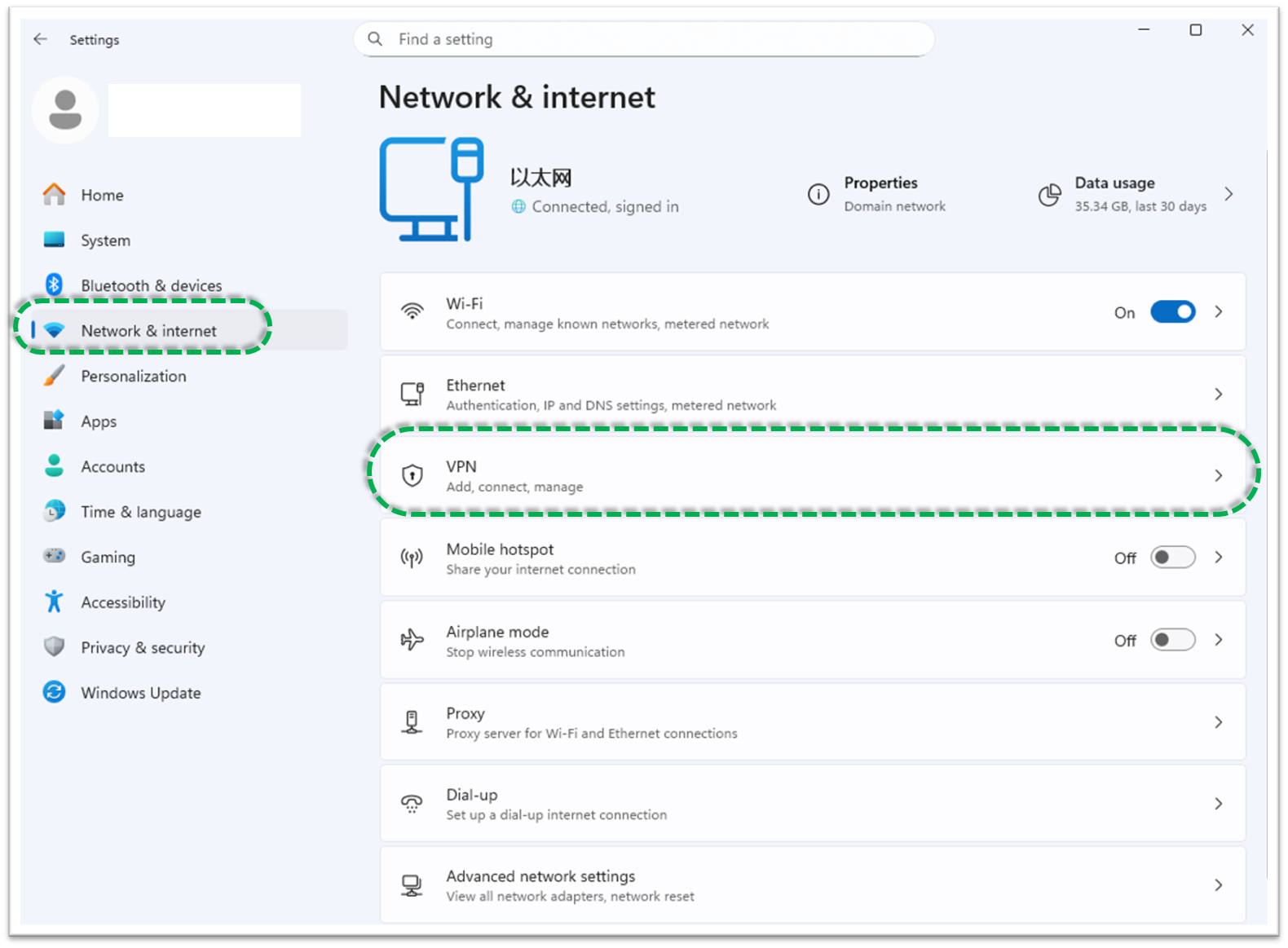
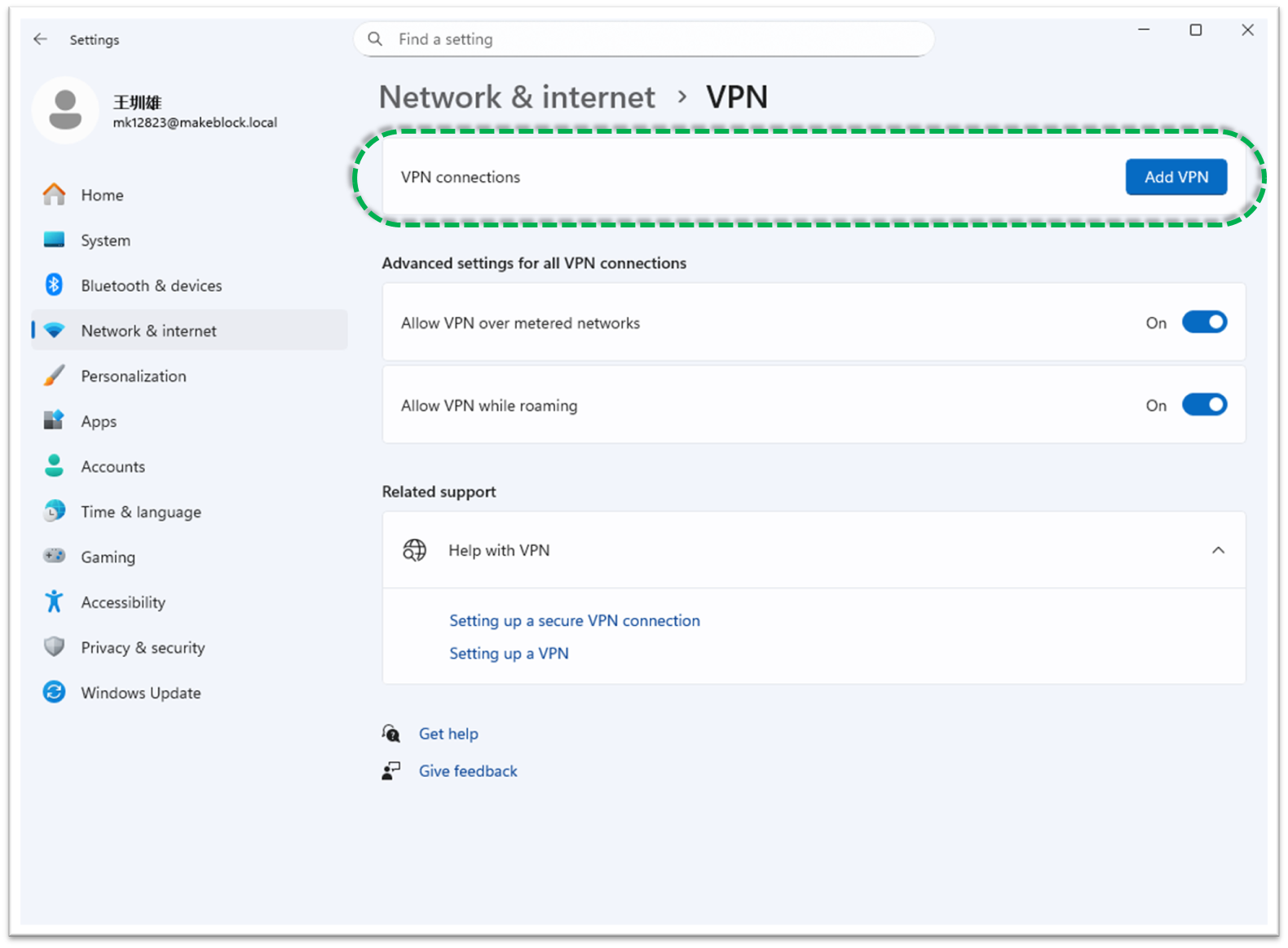
Step 4: Ensure the same Wi-Fi network & subnet
Your computer and the printer must be connected to the exact same Wi-Fi network and be on the same subnet.
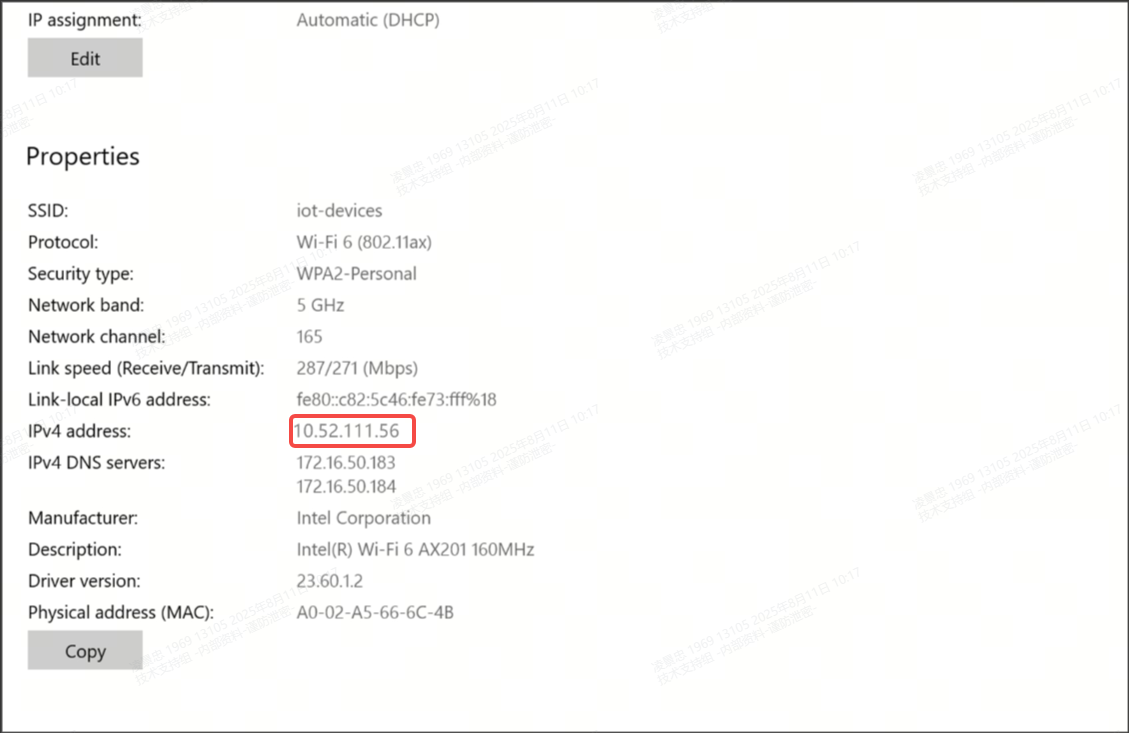
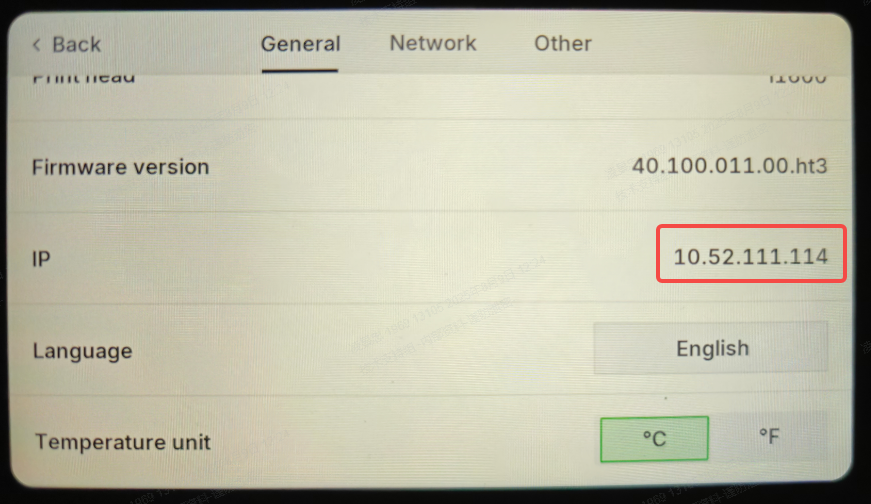
- An easy way to check this is to look at the IP addresses of your computer and the printer. The first three sets of numbers should be identical (e.g.,
192.168.1.xxx). - How to check:
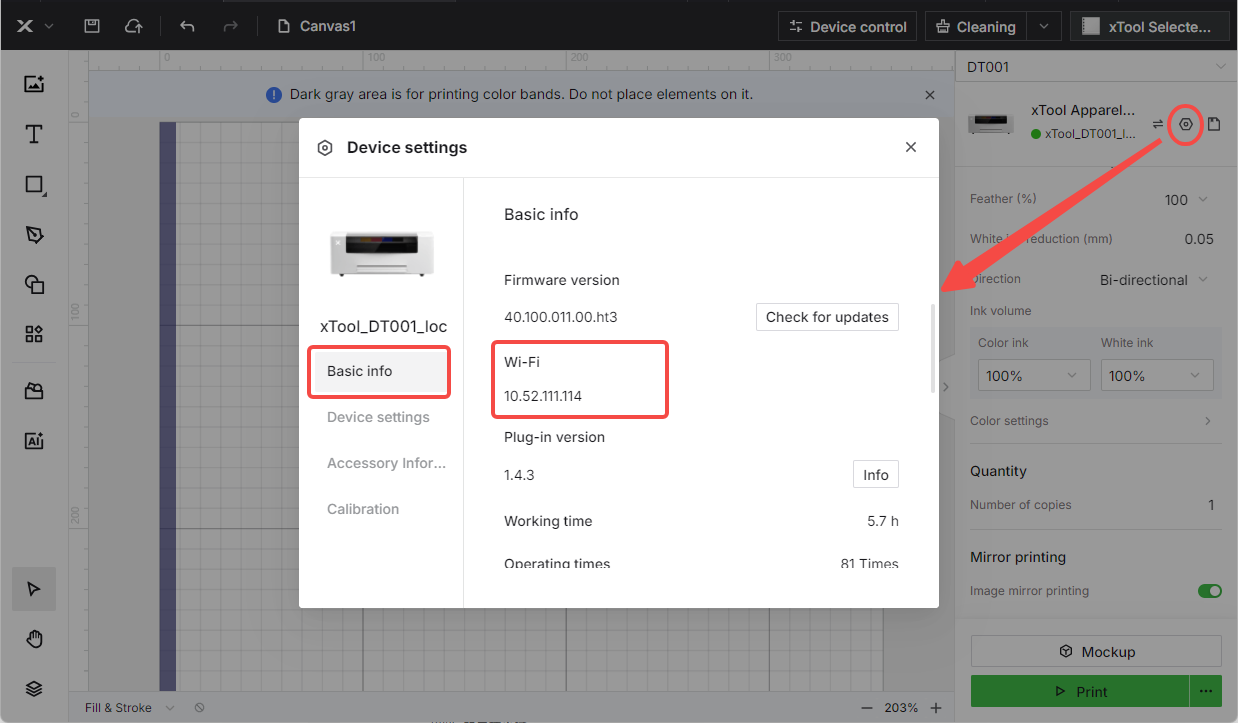
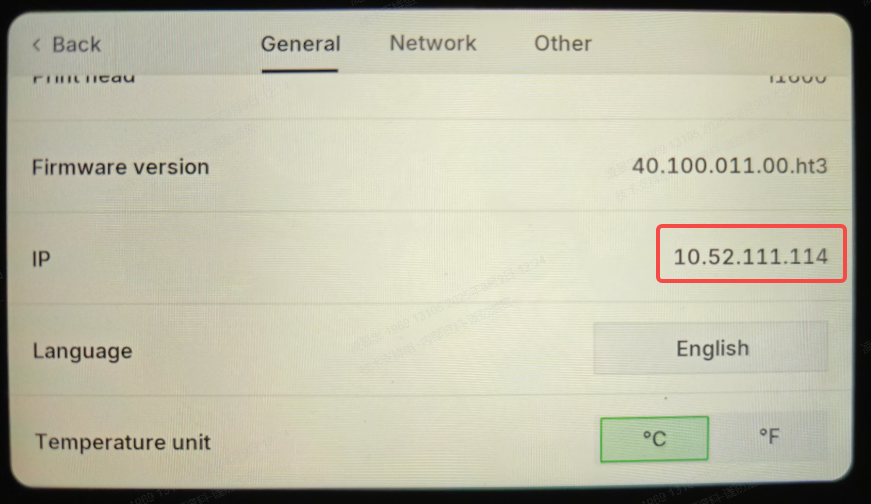
- Printer IP: View on the LCD screen or in xTool Studio software
- Computer IP: Check network settings
- If they are on different networks, connect your computer to the same Wi-Fi network as the printer.
- If this is not the cause, proceed to the next step.
Step 5: Check network quality (Ping test)
A weak network signal can cause connection failures or drops. You can test this using a "ping" command.
Network Testing Procedure:
- Obtain printer IP address: First, find your printer's IP address from its LCD panel or within the xTool Studio software.
- For Windows:
- Open the Command Prompt.
- Type
ping [IP address](e.g.,ping 192.168.1.100) and press Enter. - Poor connection indicator: Response time > 150 milliseconds.
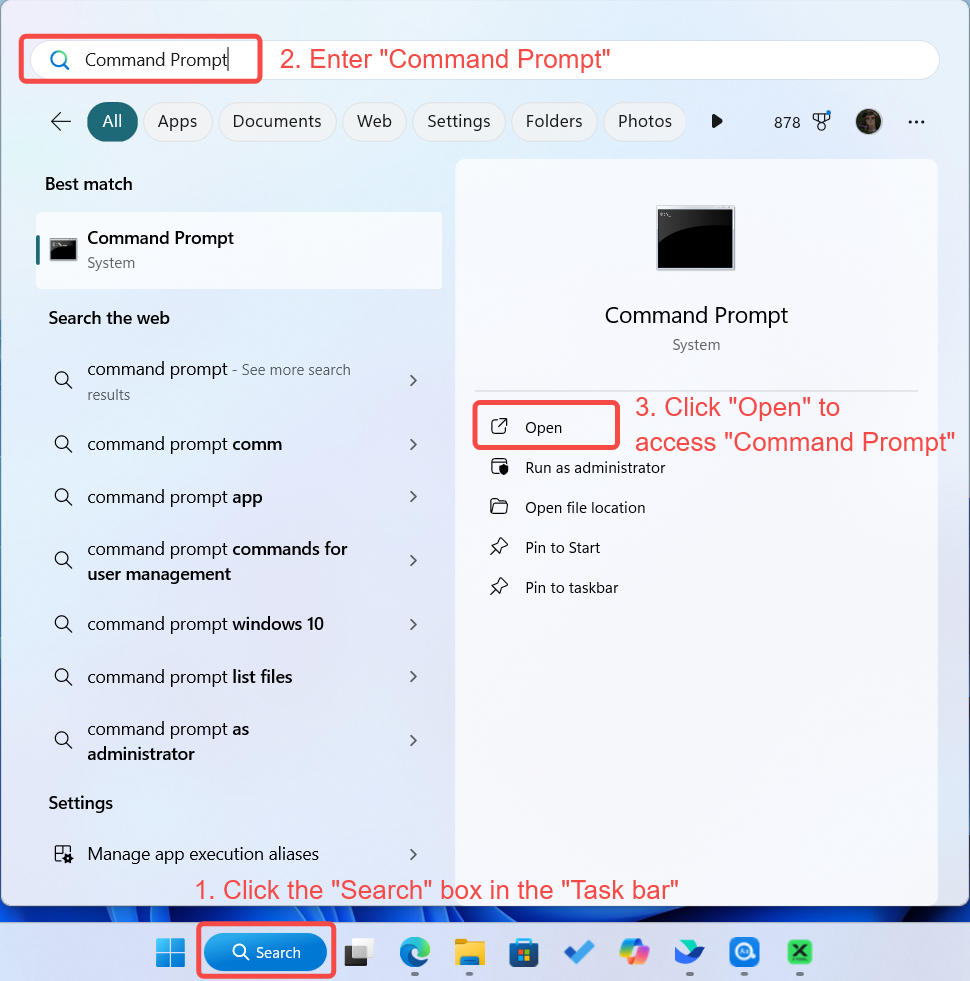
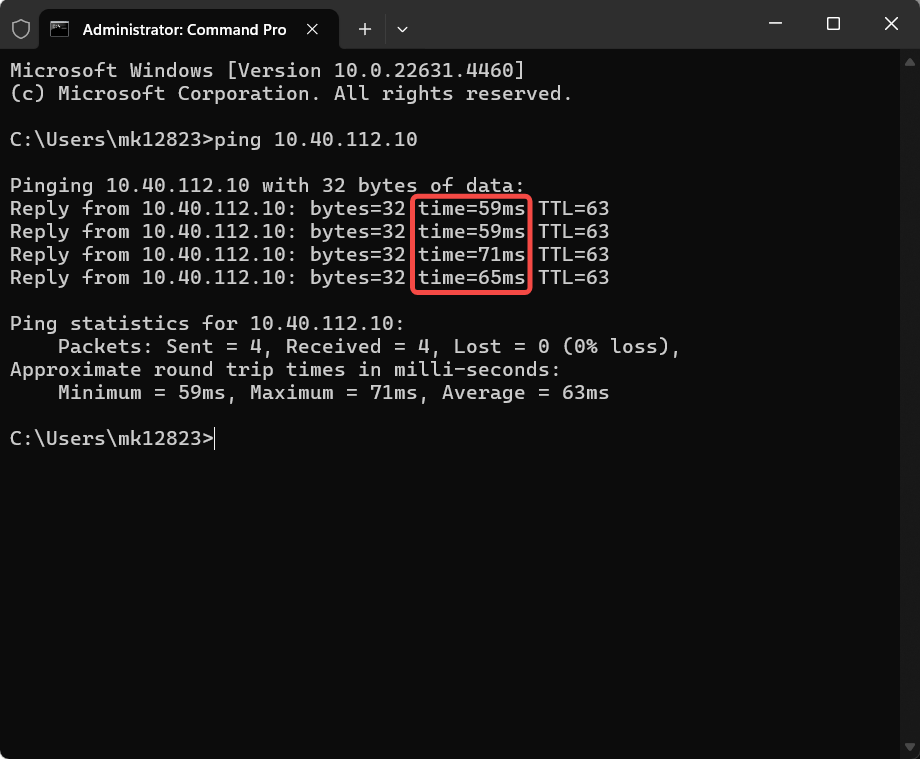
- For macOS:
- Open the Terminal application.
- Type
ping [IP address](e.g.,ping 192.168.1.100) and press Enter. - Poor connection indicator: Response time > 150 milliseconds.
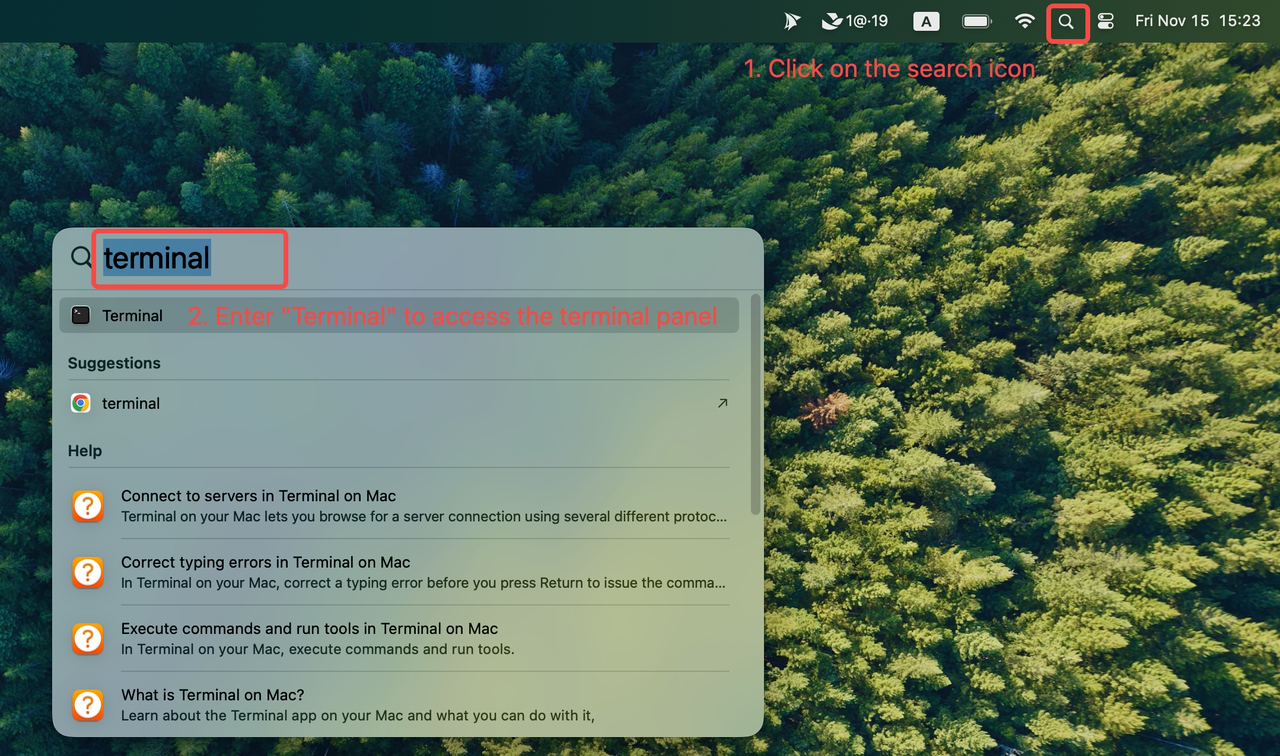
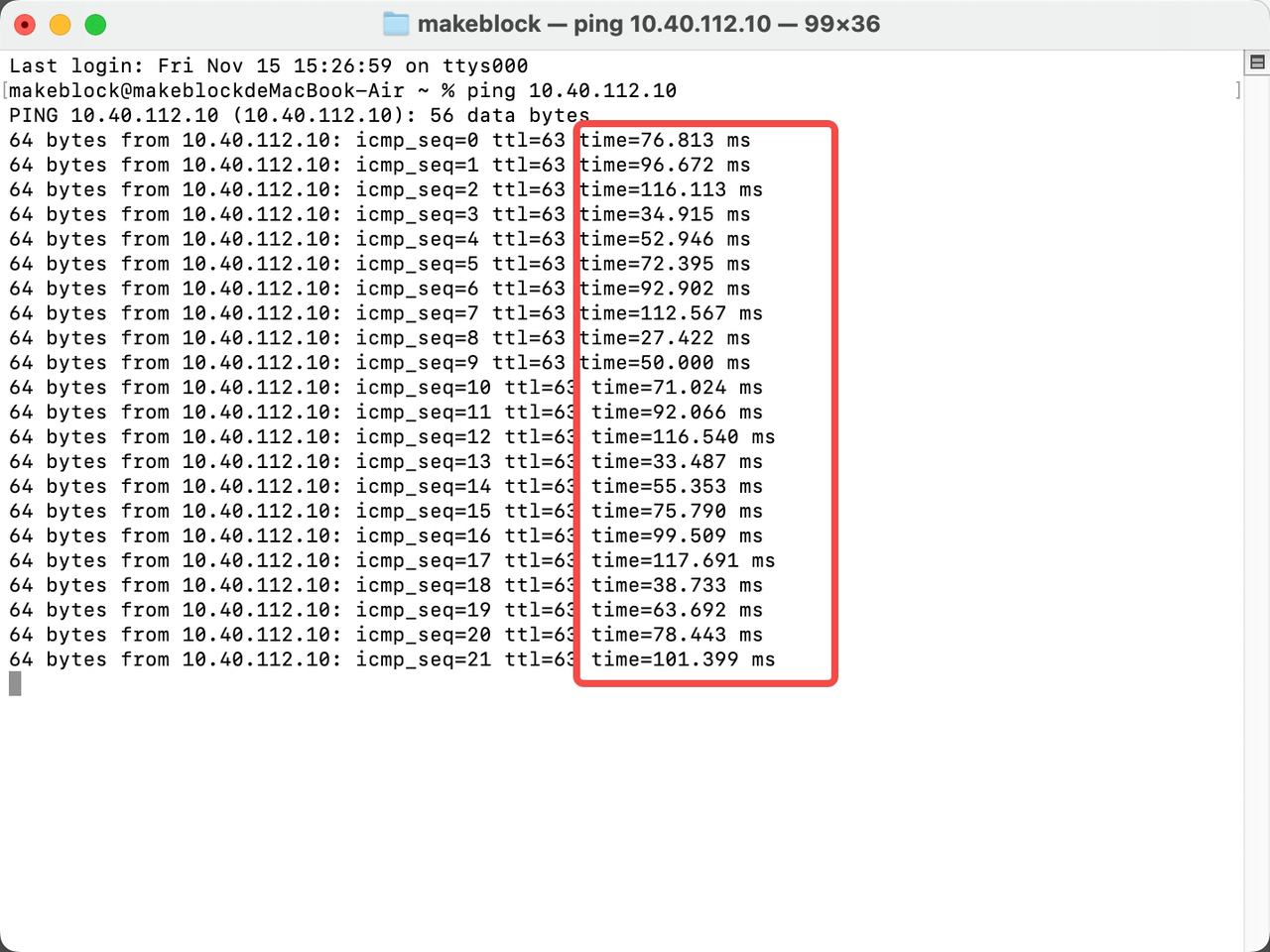
Action Required:
- If the network response is poor, switch to a stronger Wi-Fi network.
- If the network quality is acceptable, proceed to Step 6.
Step 6: Check proxy settings
A network proxy can interfere with device detection.
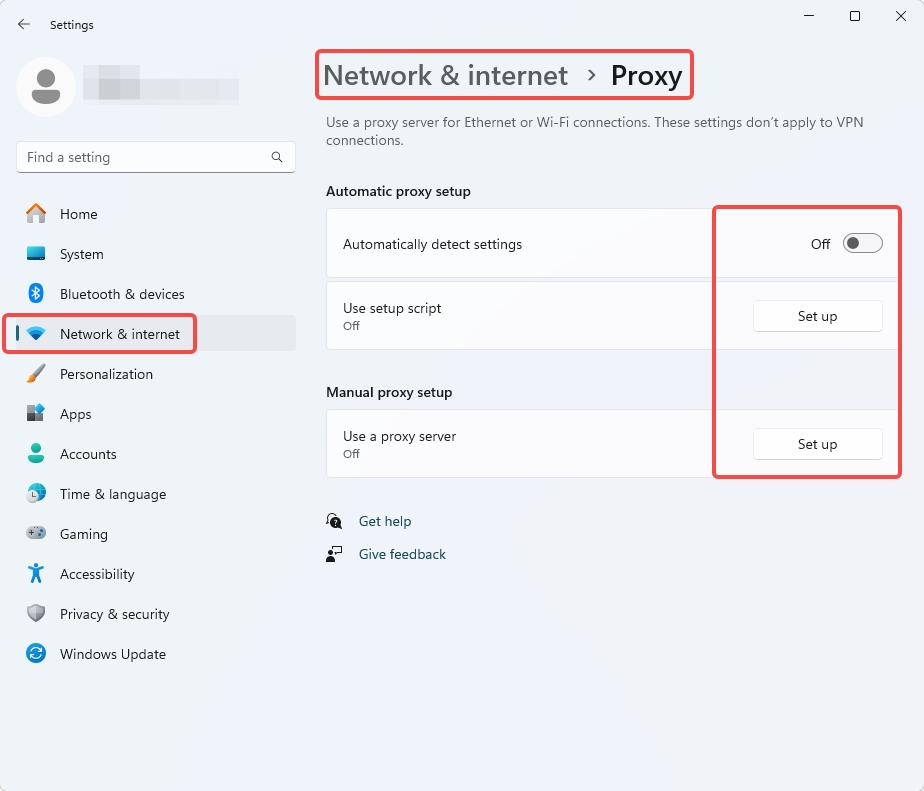
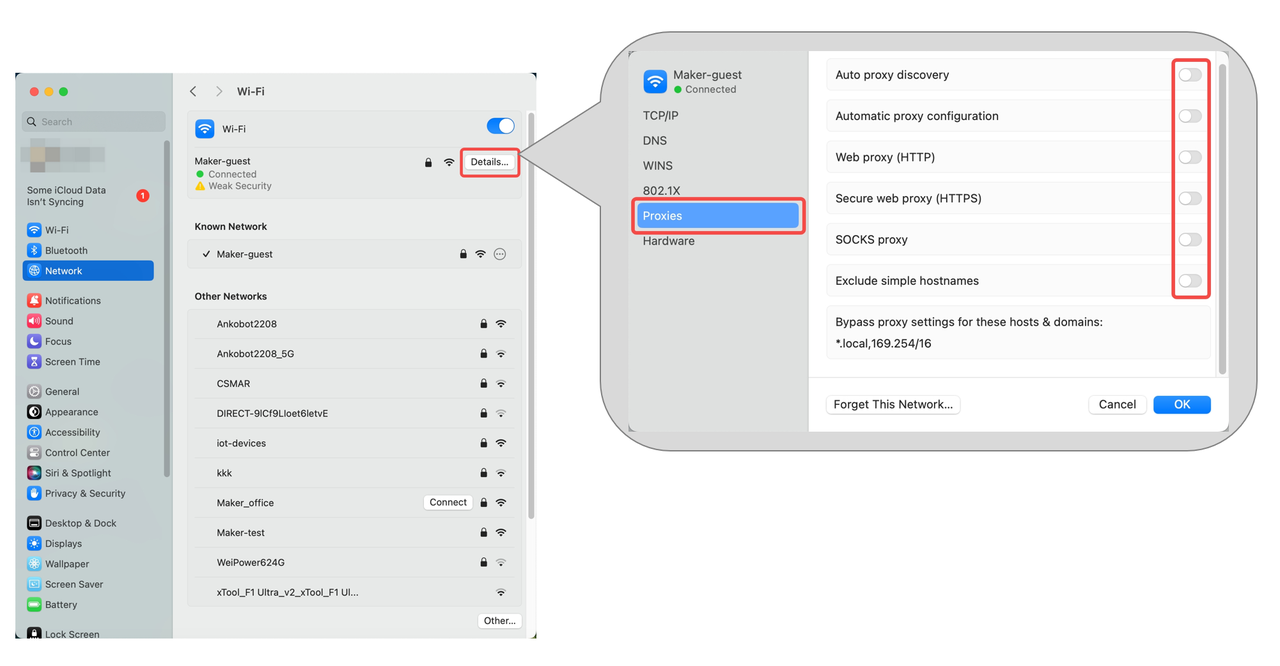
- Ensure your computer is not using a proxy.
- For Windows: Navigate to Settings > Network & internet > Proxy to check and adjust settings.
- For macOS: Navigate to System Settings > Network > Wi-Fi > Details > Proxies to check and adjust settings.
- If a proxy is enabled, disable it and try to connect again.
- If no proxy is enabled, proceed to the next step.
Step 7: Check application permissions (macOS Only)
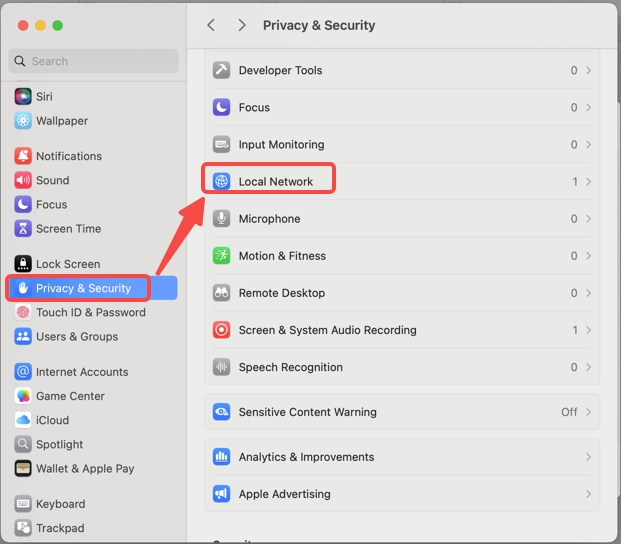
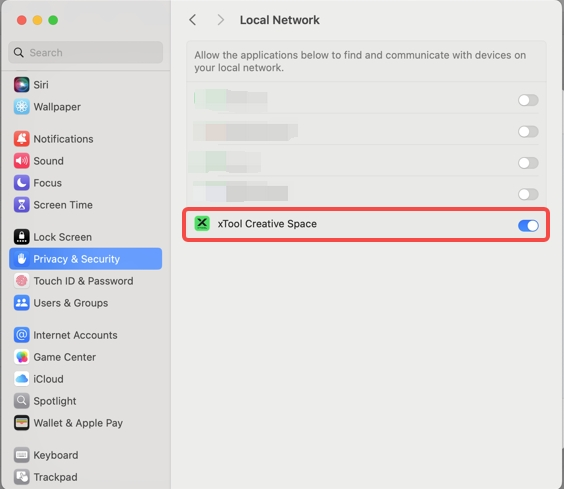
Your macOS security settings may be blocking xTool Studio from accessing the local network.
- Go to System Settings > Privacy & Security > Local Network.
- Ensure that the toggle for xTool Studio is enabled (on). If it is disabled, the software cannot find devices on your network.
Step 8: Advanced diagnostic - Check Wi-Fi channel (for Customer Support)
If all previous steps have failed, the issue may be related to Wi-Fi channel interference. Please gather the following information for the xTool technical support.
Connect printer via USB for testing setup
Download Wi-Fi analysis tools:
- Windows: WiFiAnalyzer_Win_V2.zip
- macOS: WiFiAnalyzer_Mac_V2.tar.gz
Run analysis tools:
- Extract downloaded files
- Run both tools (macOS users: allow execution in Privacy & Security settings)
- Wait for analysis completion
- Tools will automatically save results
Prepare diagnostic information:
- Compress the generated test results folder.
- Additional information to collect:
- Router model (usually found on device label);
- Approximate distances between the computer, router, and printer;
- Computer OS type and version (Check here);
- Wi-Fi signal strength (viewable on printer LCD screen);
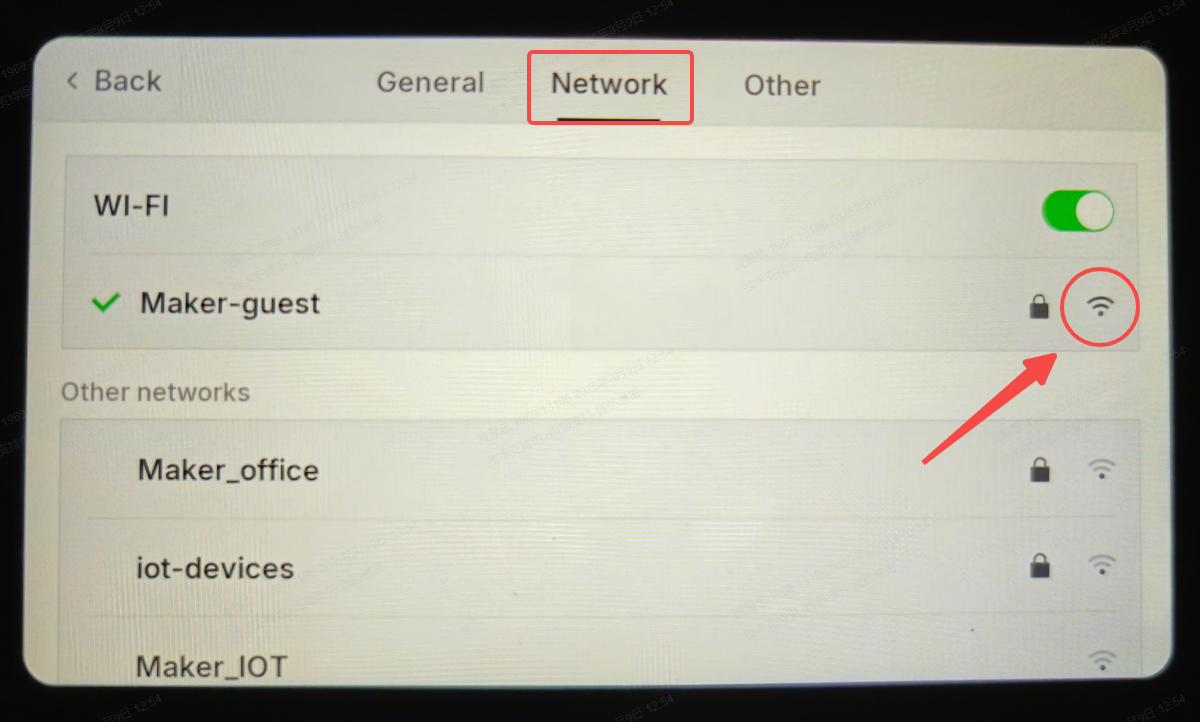
Contact support: Send compressed results and system information to xTool Customer Service.
Still experiencing issues?
Should the issue persist after completing the preceding steps, submit a ticket via the "Submit a Ticket" button in the "Help Ticket" section below. The standard response time for xTool Customer Service is one business day.
For a prompt resolution, please include the following details:
- Issue description: A detailed explanation of the observed problem.
- Video evidence: Attach a video demonstrating the issue, where applicable.
- Troubleshooting performed: Any troubleshooting steps you have already attempted, along with their results.
This information is crucial for xTool technical support engineers to provide timely assistance.
Documentation feedback
Help improve this content by providing feedback. If this content did not meet your requirements, select "No" in the "Was this page helpful?" section below. Include specific details about what was unclear or missing in the pop-up suggestion box. Feedback submissions are reviewed by xTool technical writers to enhance future documentation.

