
Issue description
After curing with the xTool OS1 Automatic Shaker Oven Machine, the PET film surface appears uneven, warped, or deformed instead of maintaining a smooth, flat profile.
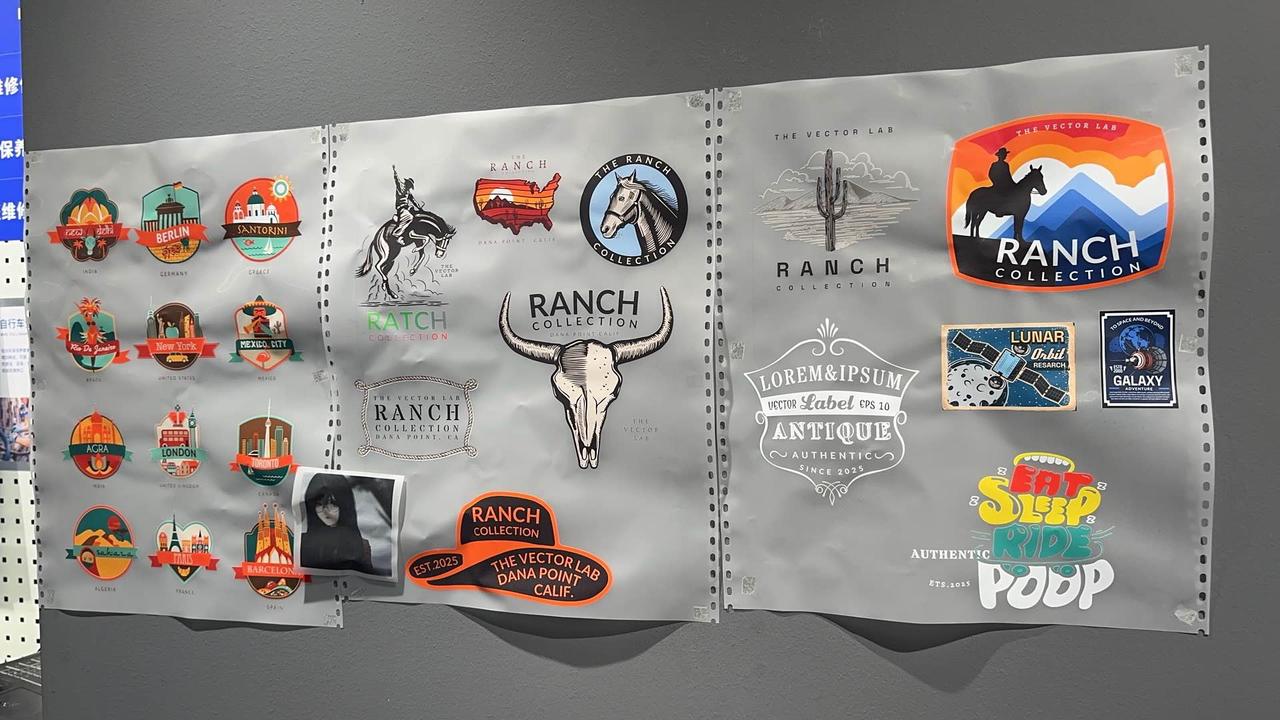
Potential causes
- No compatible fume purifier (xTool SafetyPro™ AP2 or equivalent) is connected to the system.
- The oven's temperature is set too high.
- The oven's temperature was not stable when processing began.
- The teeth on the two conveyor belts inside the oven are not aligned (a rare issue).
- The issue is not with the film itself, but with the heat pressing technique used afterward.
Troubleshooting procedures
Step 1: Verify xTool AP2 purifier connection
💡 Rationale: This procedure was developed and validated in the xTool lab using xTool Apparel Printer and Automatic Shaker Oven alongside the SafetyPro™ AP2 purifier.
- Ensure the OS1 Automatic Shaker Oven is paired with the SafetyPro™ AP2 Purifier set to Auto mode.
- To configure the AP2, follow the instructions at: Connect an Air Purification System to xTool OS1 Shaker Oven
- If you’re not using the AP2—or any equivalent air‐purification system—insufficient ventilation can cause poor curing results.
- With a third-party purifier, aim for an airflow of 120 m³/h and set the oven temperature to 95 °C (203 ℉).
- If the airflow is below or above 120 m³/h, decrease or increase the oven temperature respectively.
- Operating without a purifier or exhaust fan is not recommended.
- If this does not resolve the issue, proceed to the next troubleshooting step.
Step 2: Reduce oven temperature
💡 Rationale: Excessive heat can cause PET film to warp, bubble, or deform during the curing process.
Action Required:
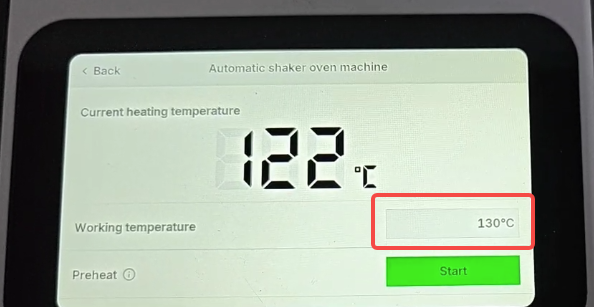
- Access temperature settings via the LCD panel or xTool Creative Space (XCS) software.
- Reduce the oven temperature within the recommended range: 90°C - 100°C (194°F - 212°F).
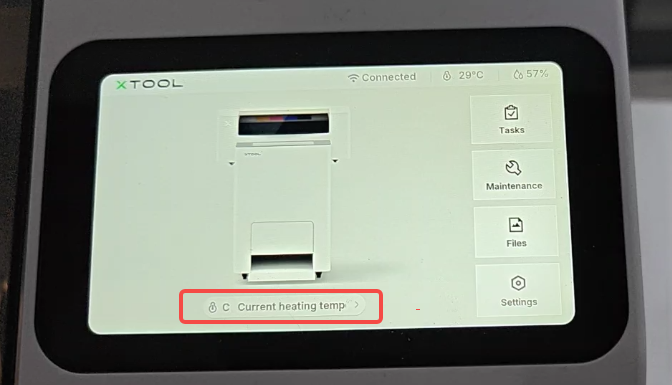
- Tap the temperature icon on the main screen to access and adjust the working temperature.
- Gradual adjustment method: Decrease temperature by 5°C (9°F) increments and test curing results.
- Continue adjusting until optimal results are achieved.
- If multiple temperature adjustments do not resolve the issue, proceed to Step 2.
Step 3: Preheat & stabilize temperature
💡 Rationale: Processing PET film before the oven reaches stable operating temperature can cause uneven curing and deformation.
Preheating Requirements:
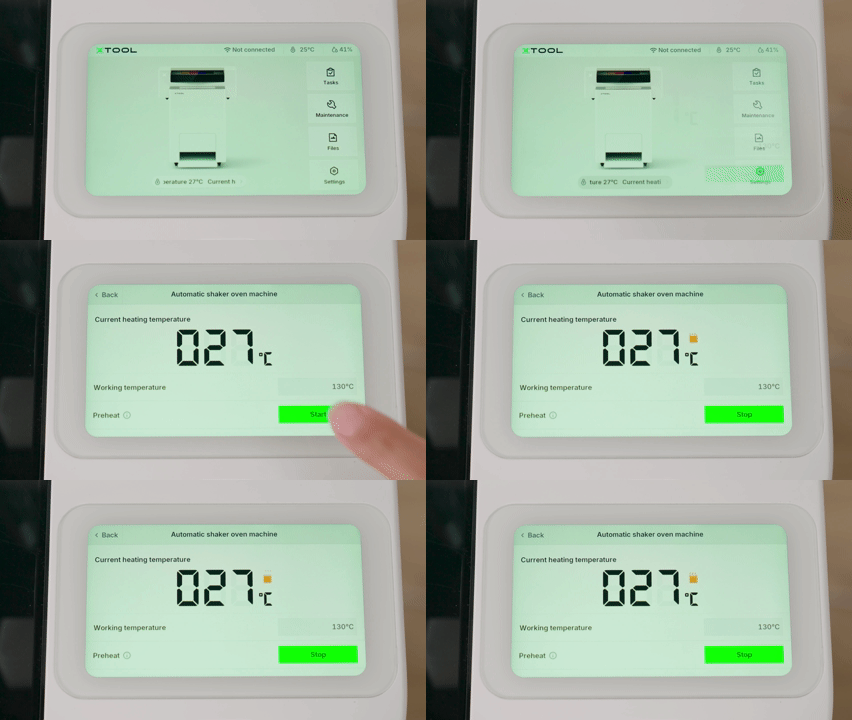
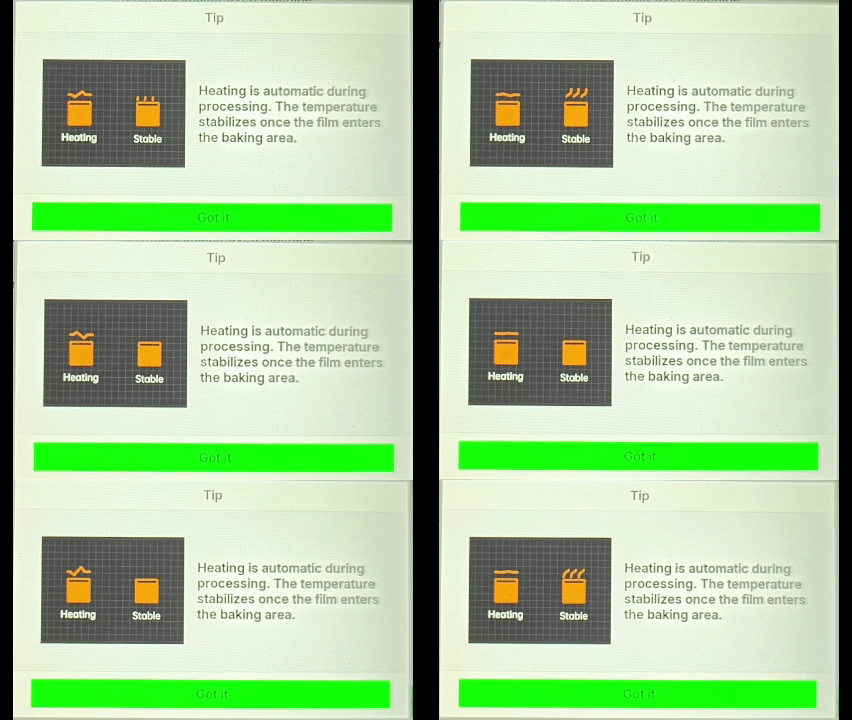
- Before starting a processing task, always preheat the oven. Begin processing only after the temperature stabilizes.
Temperature Status Indicators on LCD Panel:
- Heating icon: Temperature is still rising - wait until this changes.
- Stable icon: Oven has reached optimal processing temperature and is ready to start.
How to Initiate Preheating:
- On the printer's control panel, tap the Current heating temperature icon at the bottom of the screen.
- In the "Automatic shaker oven machine settings" menu, locate Preheat.
- Tap Start up and follow the on-screen prompts to begin preheating.
- Wait for the stable temperature indicator before processing.
Next Step: If the problem persists even with proper preheating and stable temperature, proceed to Step 3.
Step 4: Inspect Conveyor Belt Teeth Alignment
💡 Rationale: In rare cases, misaligned conveyor belt teeth can cause uneven film transport, leading to stretching and deformation.
Inspection Procedure:
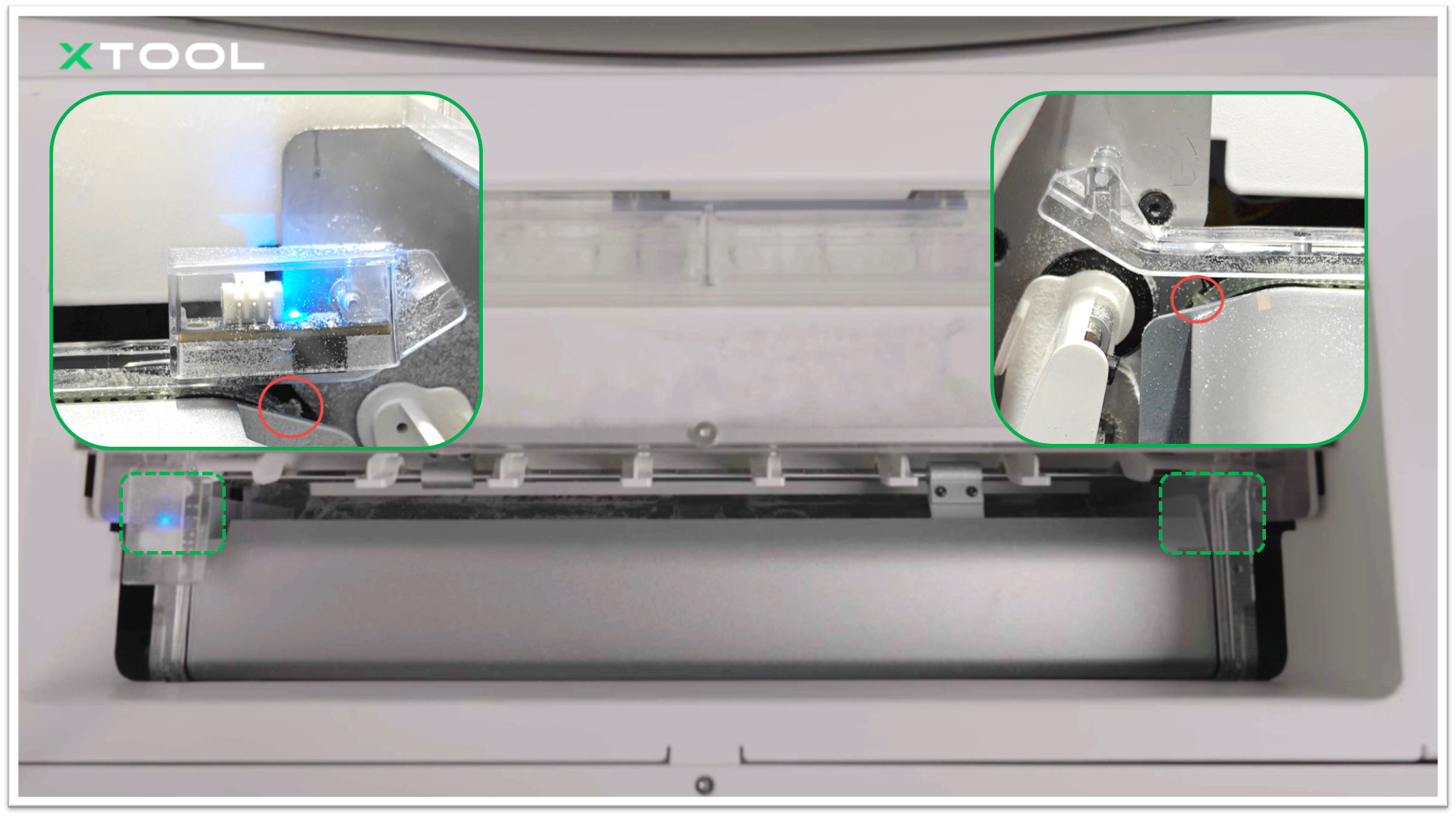
- Visual inspection: Examine both left and right conveyor belt gear teeth.
- Check alignment: Verify that teeth on both sides are positioned at the same horizontal level.
- Identify misalignment: Look for:
- One side positioned forward or backward relative to the other.
- Any offset or misalignment between corresponding teeth.
Problem indicators: If the teeth are not on the same horizontal plane or appear staggered, the film may be pulled or stretched during transport.
Action Required: If misalignment is detected, adjustment is needed. Proceed to the "Still experiencing issues?" section to contact xTool Customer Service for further assistance.
Next Step: If belt alignment is correct, proceed to Step 4.
Step 5: Review heat press technique
💡 Rationale: Issues may arise during the heat pressing stage rather than the curing stage.
Assessment:
- If the PET film appears smooth and even after curing but shows problems after heat pressing.
- The issue may be related to heat press technique rather than oven settings.
Action Required:
- If film deformation occurs during heat pressing, refer to:
If the issue persists after following all troubleshooting steps: Proceed to the "Still experiencing issues?" section to contact xTool Customer Service for advanced diagnosis.
Still experiencing issues?
Should the issue persist after completing the preceding steps, submit a ticket via the "Submit a Ticket" button in the "Help Ticket" section below. The standard response time for xTool Customer Service is one business day.
For a prompt resolution, please include the following details:
- Issue description: A detailed explanation of the observed problem.
- Video evidence: Attach a video demonstrating the issue, where applicable.
- Troubleshooting performed: Any troubleshooting steps you have already attempted, along with their results.
This information is crucial for xTool technical support engineers to provide timely assistance.
Documentation feedback
Help improve this content by providing feedback. If this content did not meet your requirements, select "No" in the "Was this page helpful?" section below. Include specific details about what was unclear or missing in the pop-up suggestion box. Feedback submissions are reviewed by xTool technical writers to enhance future documentation.

Services & Help
Learn & Education

Copyright © 2025 xTool All Rights Reserved.