
Issue description
After completing DTF (Direct-to-Film) printing with your xTool Apparel Printer, curing the PET film with xTool OS1 Shaker Oven, and heat pressing the design onto garments, you notice that the transferred design shows creases or wrinkles while the garment itself remains smooth and undamaged.
- Consult this content for troubleshooting.
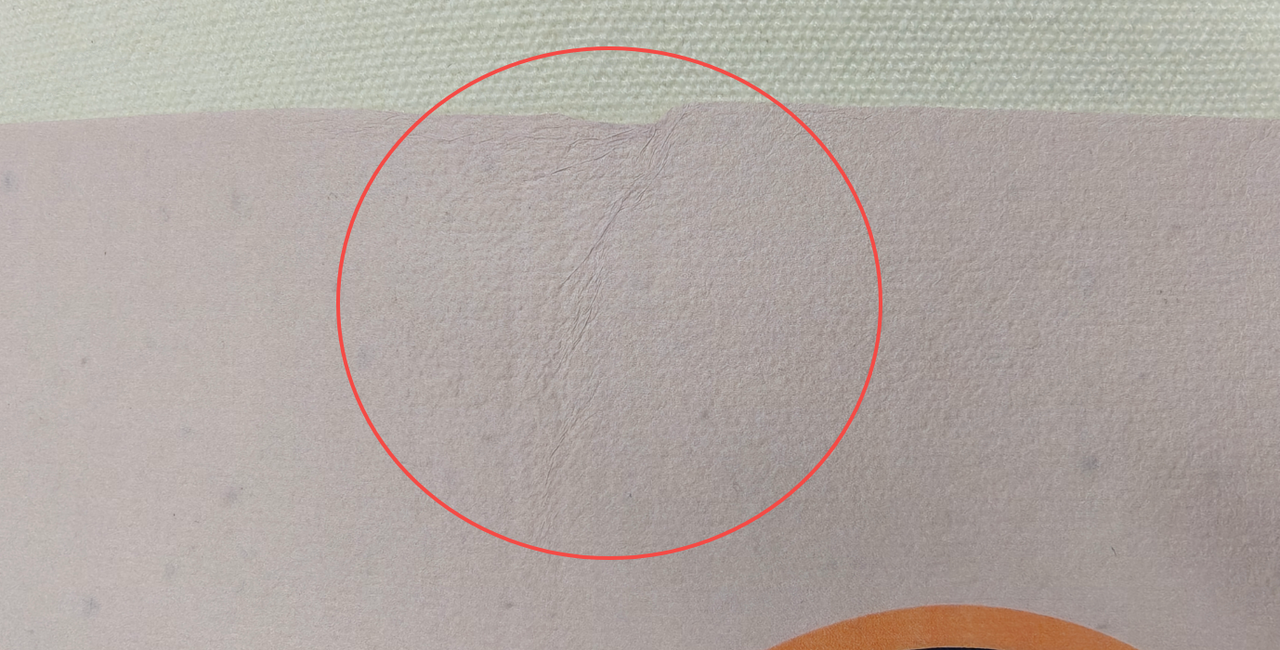
Potential causes
- A foam or sponge heat press mat was not used, leading to uneven pressure.
- The design is too large for the heat press device's processing area, causing uneven heat and pressure distribution.
- The sheet of PET film is significantly larger than the design, causing it to bunch up during pressing.
- The PET film became deformed or warped during the curing process in the oven.
- The heat press parameters (time, temperature, pressure) are inappropriate for the material.
- The heat pressing technique, especially for large designs, is inappropriate.
Troubleshooting Steps
Step 1: Use a foam heat press mat
💡 Rationale: Foam heat press mats provide better cushioning and accommodate uneven garment surfaces more effectively than hard surfaces.
Action Required:
- Check if you are currently using a foam-type heat press mat.
- If not using a foam mat, replace your current mat with a foam heat press mat.
- If already using a foam heat press mat, proceed to Step 2.
Step 2: Adjust design size or heat press capacity
💡 Rationale: When the design exceeds the heat press working area, it's impossible to apply even heat and pressure across the entire graphic at once, which can easily lead to creasing.
Action Required:
- Compare your design dimensions to your heat press working area.
- Option A: Reduce the print design size to fit within the heat press capacity.
- Option B: Use a heat press machine with a larger working area.
- If the design size is appropriate for your heat press, proceed to Step 3.
Step 3: Trim PET film to size
💡 Rationale: An excessively large sheet of PET film around a smaller design can get pinched or bunched up during the pressing process, which can transfer wrinkles to the design itself.
Action Required:
- Use scissors to trim the PET film, leaving only the necessary film area around your design.
- Remove excess film material before heat pressing.
- If film size is not the issue, proceed to Step 4.
Step 4: Check for deformed PET film after curing
- If the PET film itself is warped or deformed after coming out of the oven, these deformities can be pressed into the final design
- Consult the troubleshooting guide: xTool Apparel Printer & OS1 Troubleshooting: Warped or Uneven PET Film After Curing
- If your film is not deformed, please proceed to the next step.
Step 5: Select appropriate heat press parameters
💡 Rationale: Using the improper time, temperature, or pressure can cause a variety of issues, including poor adhesion that can lead to creasing.
Action Required:
- Review your current heat press settings (temperature, pressure, time).
- For xTool Heat Press Series: Consult xTool Smart Press Platform Material Settings for optimal parameters
- For third-party heat presses: Refer to your fabric-specific guidelines.
- Adjust parameters as needed and test with a small sample.
- If parameters are correct, proceed to Step 6.
Step 6: Apply proper heat press technique
💡 Rationale: Proper technique is crucial, especially for large-format designs, to ensure even adhesion and prevent wrinkles.
Action Required:
- For large designs or if unsure about proper technique, review heat pressing technique guidance.
- Pay special attention to:
- Proper garment positioning
- Edge re-pressing techniques
- Cooling procedures
If the issue persists after following all troubleshooting steps:
- Contact xTool Customer Support for further assistance with your specific case.
Still experiencing issues?
Should the issue persist after completing the preceding steps, submit a ticket via the "Submit a Ticket" button in the "Help Ticket" section below. The standard response time for xTool Customer Service is one business day.
For a prompt resolution, please include the following details:
- Issue description: A detailed explanation of the observed problem.
- Video evidence: Attach a video demonstrating the issue, where applicable.
- Troubleshooting performed: Any troubleshooting steps you have already attempted, along with their results.
This information is crucial for xTool technical support engineers to provide timely assistance.
Documentation feedback
Help improve this content by providing feedback. If this content did not meet your requirements, select "No" in the "Was this page helpful?" section below. Include specific details about what was unclear or missing in the pop-up suggestion box. Feedback submissions are reviewed by xTool technical writers to enhance future documentation.

