
Troubleshoot Baseplate (Drawer) Detection Malfunction for xTool MetalFab CNC Cutter
Updated Jul 7,2025
Updated Jul 7,2025
Issue description
If XCS alerts that the baseplate (drawer) of your xTool MetalFab CNC Cutter is not placed properly and therefore prevents processing, please refer to this guide for troubleshooting.
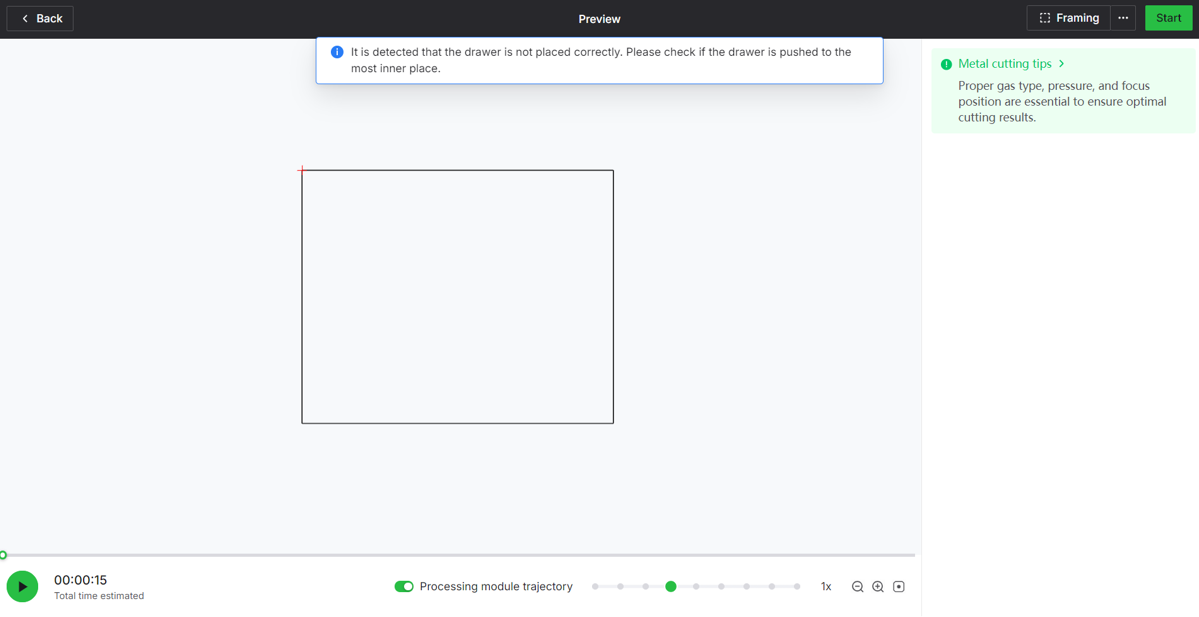
Possible causes
- Improper baseplate installation: The baseplate is not fully inserted into the mian unit.
- Baseplate deformation: The baseplate is deformed, preventing itself from proper sensor contact.
- Sensor cable disconnection: The sensor cable is disconnected to the main control board.
- Sensor malfunction: The sensor may malfunction.
- Sensor connector malfunction: The sensor connector on the main control board may malfunction.
Troubleshooting flowchart
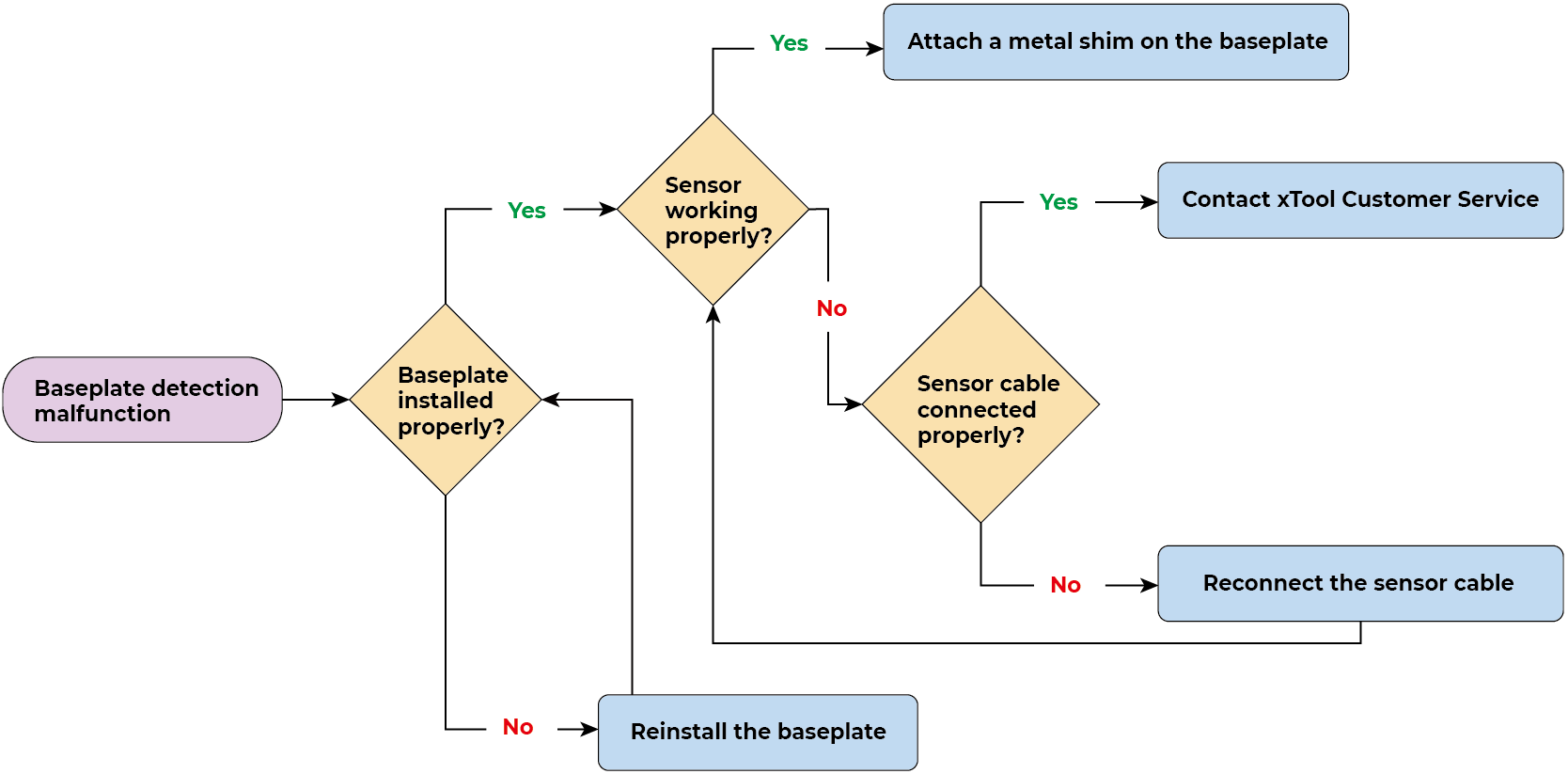
Detailed procedure
Step 1: Check the baseplate installation
- Ensure that the baseplate is fully inserted into the main unit without visible gaps.
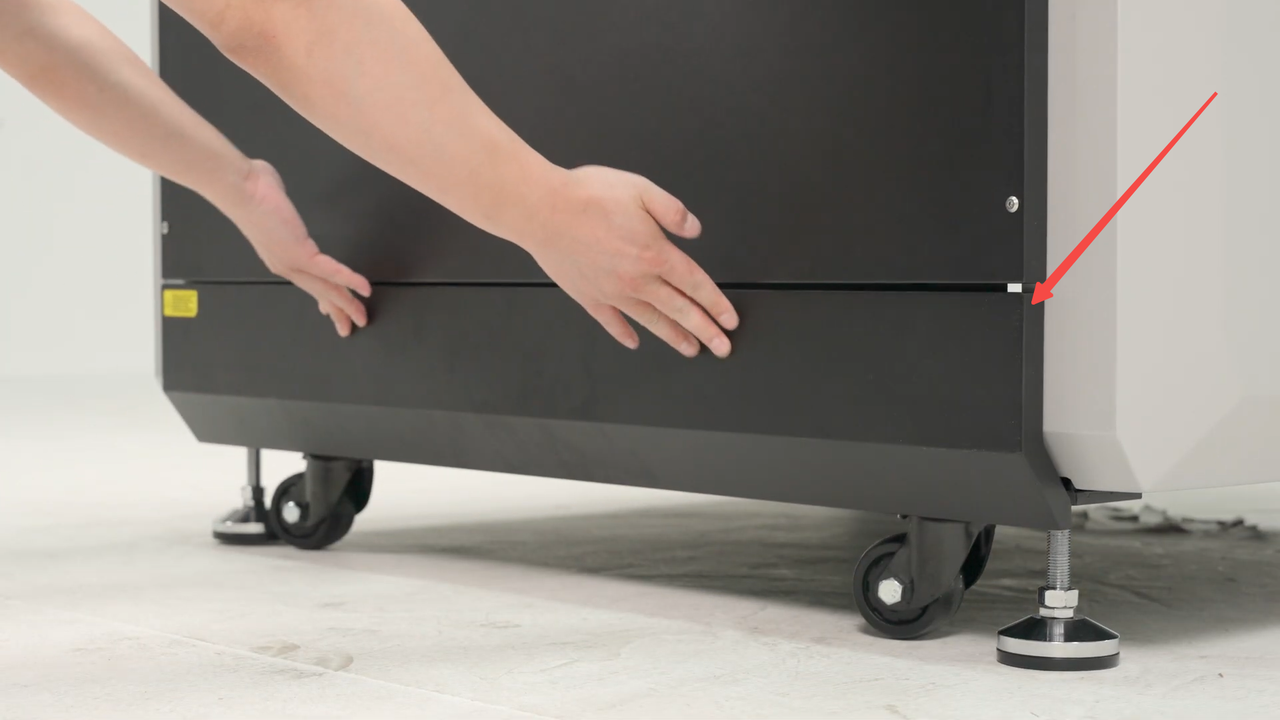
- If this does not resolve the issue, proceeed to the next step.
Step 2: Check the sensor
- Remove the five screws and the back plate.
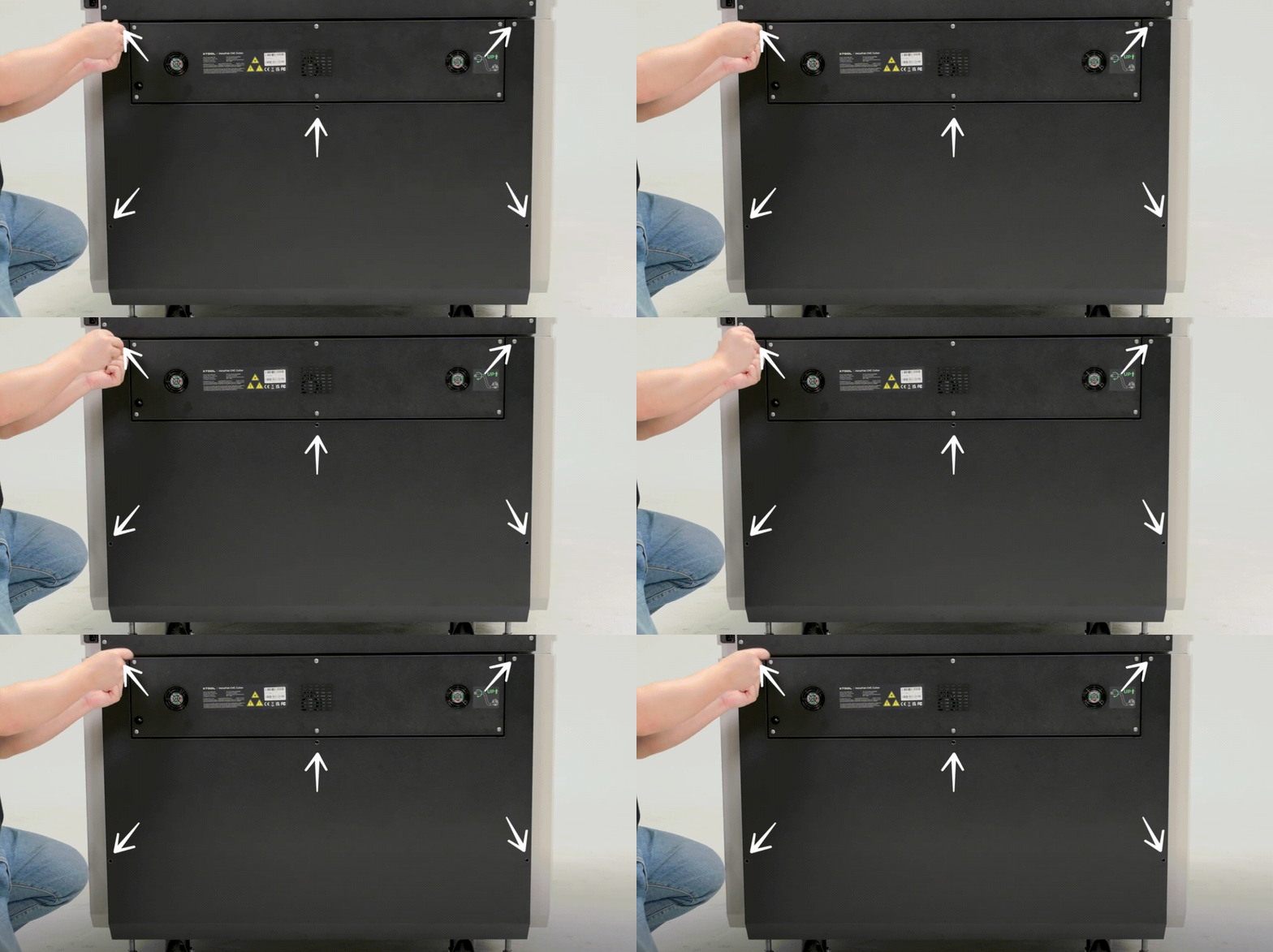
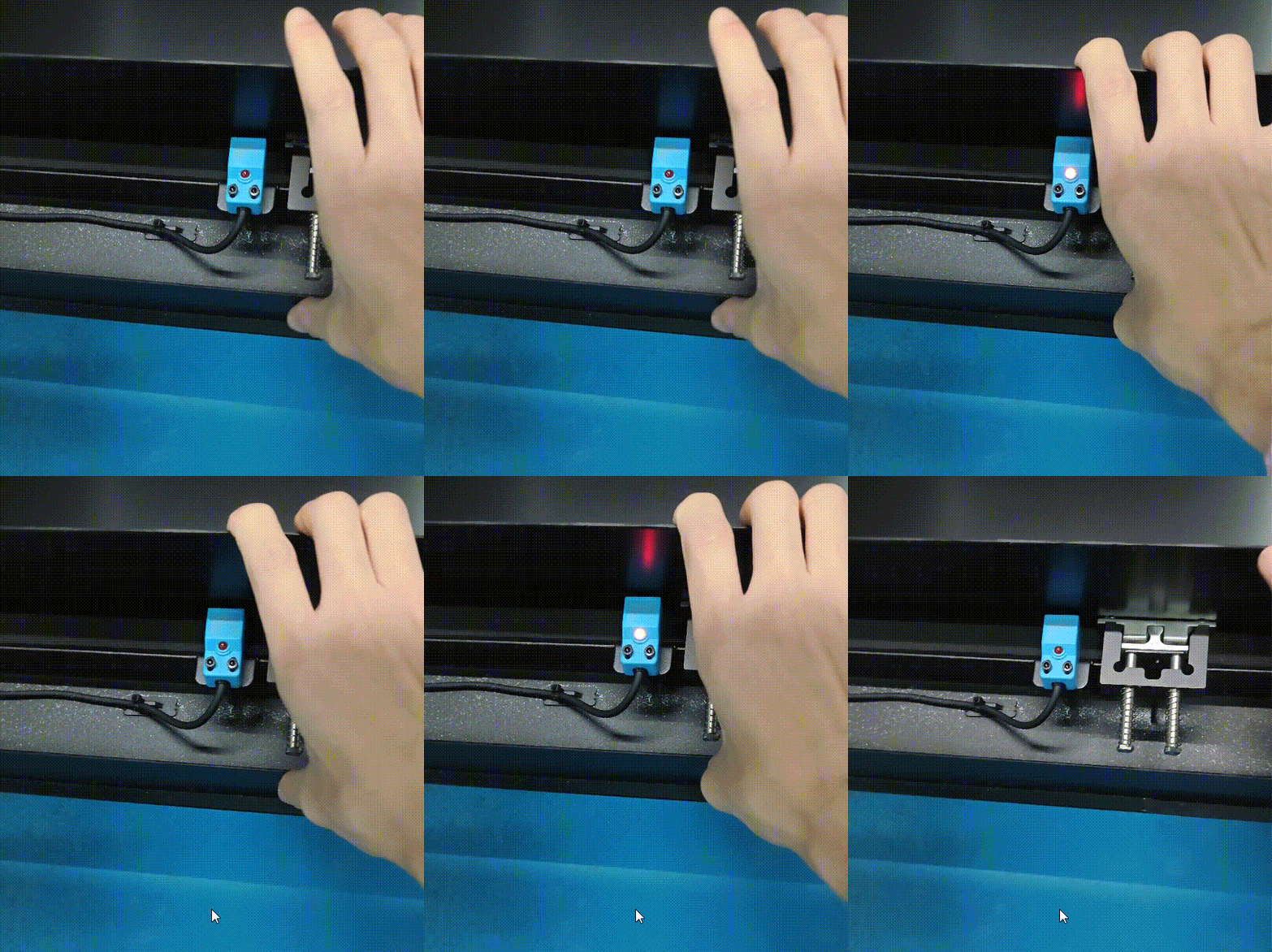
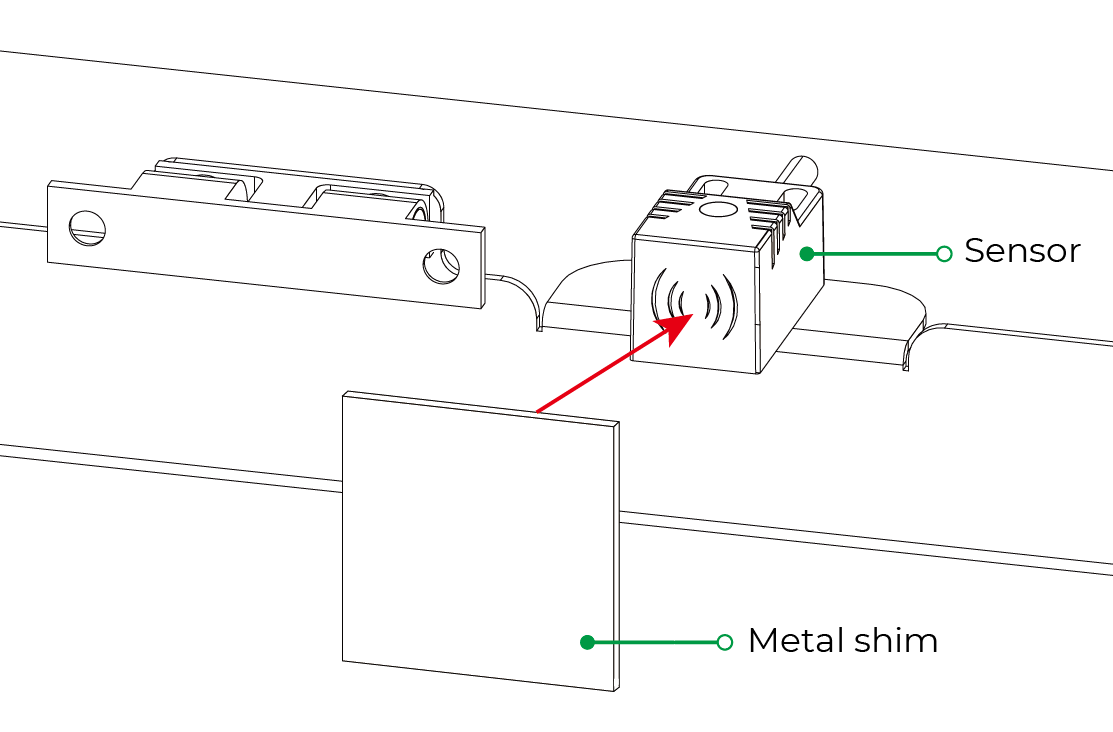
- To check whether the sensor works properly, turn on the machine and activate the sensor by either:
 |  |
|
|
- Observe the sensor indicator status.
- Normal operation: The red light turns ON when the panel/metal shim is near and OFF when it is moved away.
- Malfunction: The indicator doesn't illuminate.
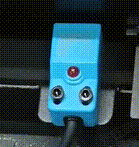 | 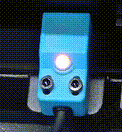 |
Red light OFF | Red light ON |
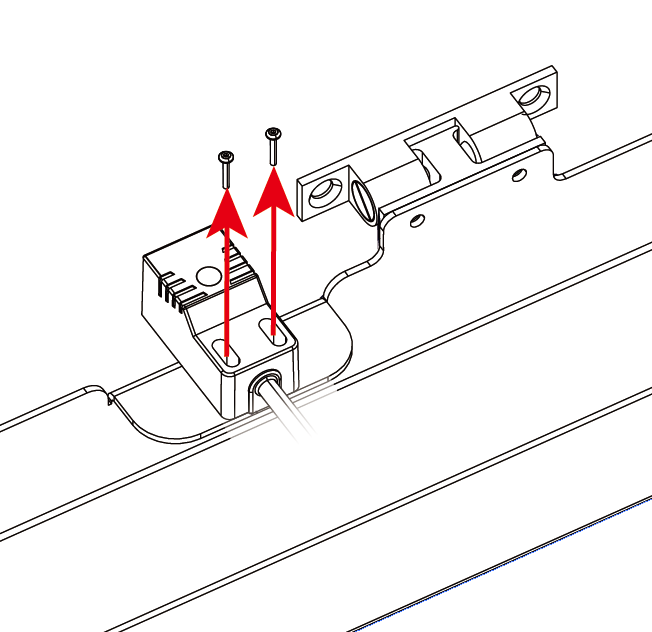
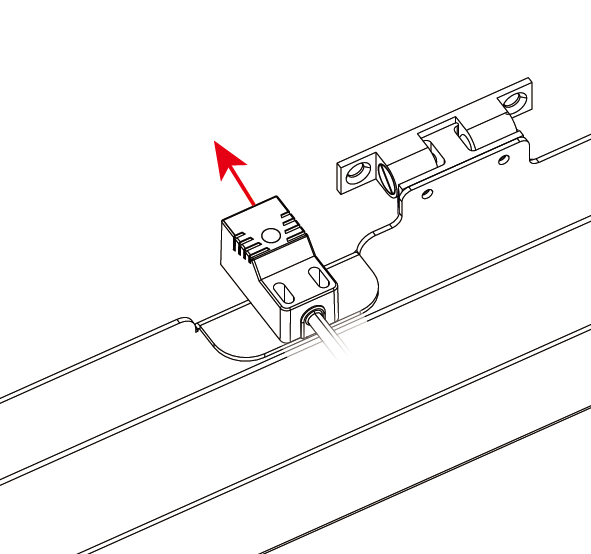
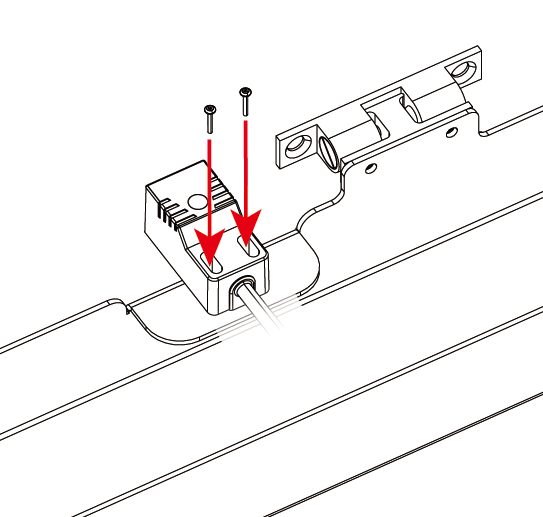
- If the sensor works properly, the issue may be caused by baseplate deformation or misalignment, preventing the baseplate from reaching the sensor. To resolve this:
- Option 1: Loosen the two sensor screws and pull the sensor outwards a bit. Then, tighten the screws.
 |  |  |
- Option 2: Attach a 1 mm thick, 25 mm × 25 mm stainless steel shim (using adhesive tape) to the baseplate at the same height as the sensor.
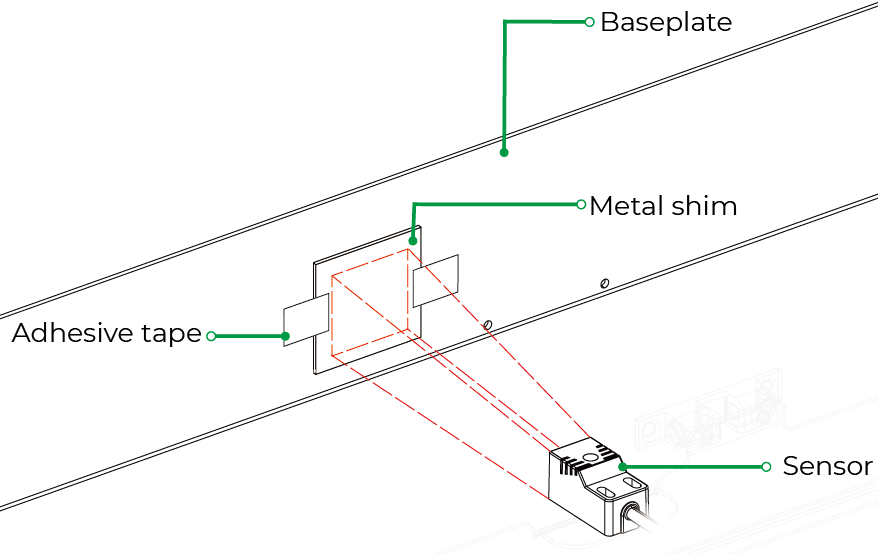
- If the sensor indicator doesn't illuminate, proceed to the next step.
Step 3: Check the sensor cable connection
- Ensure that the machine is powered off, then remove the screws and the plate at the rear.
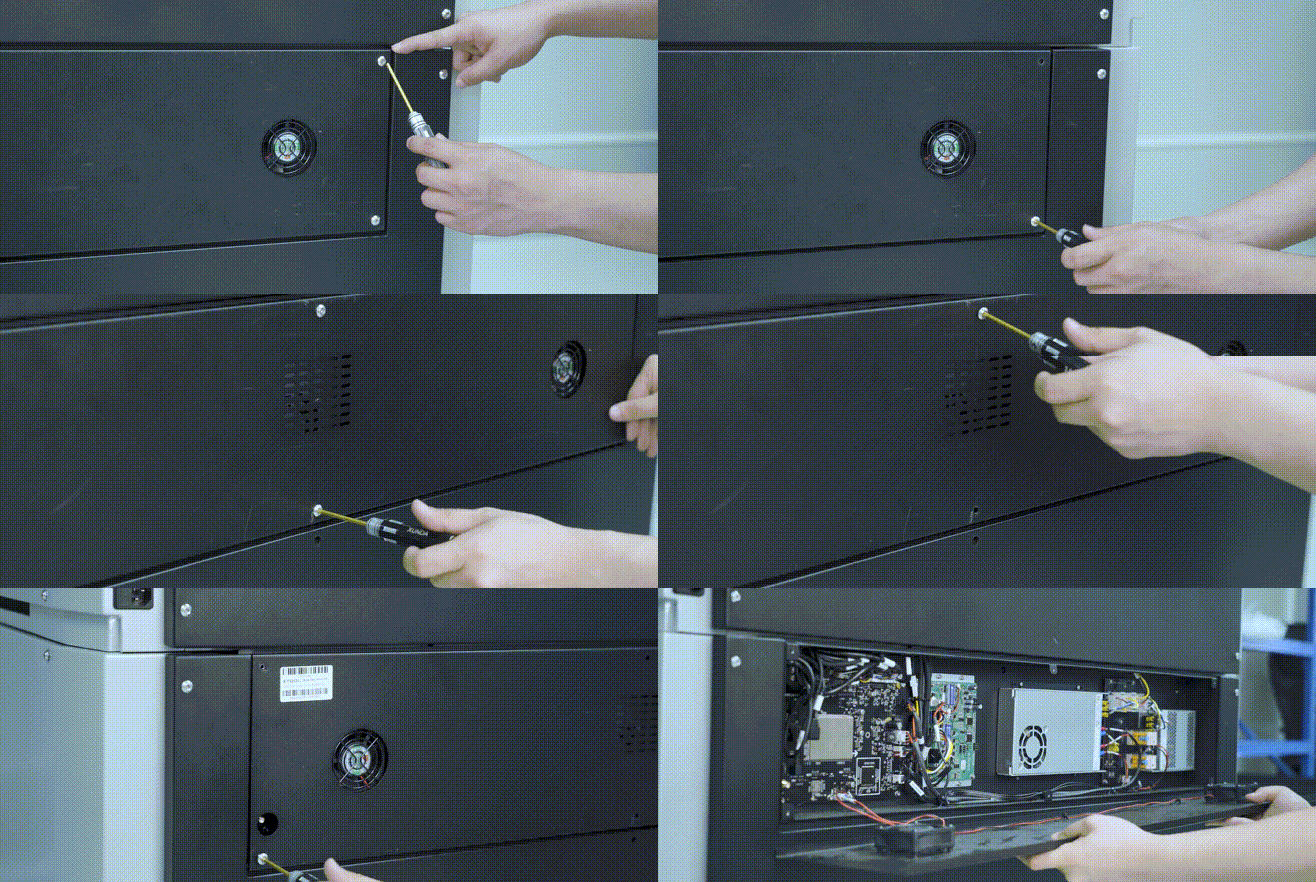
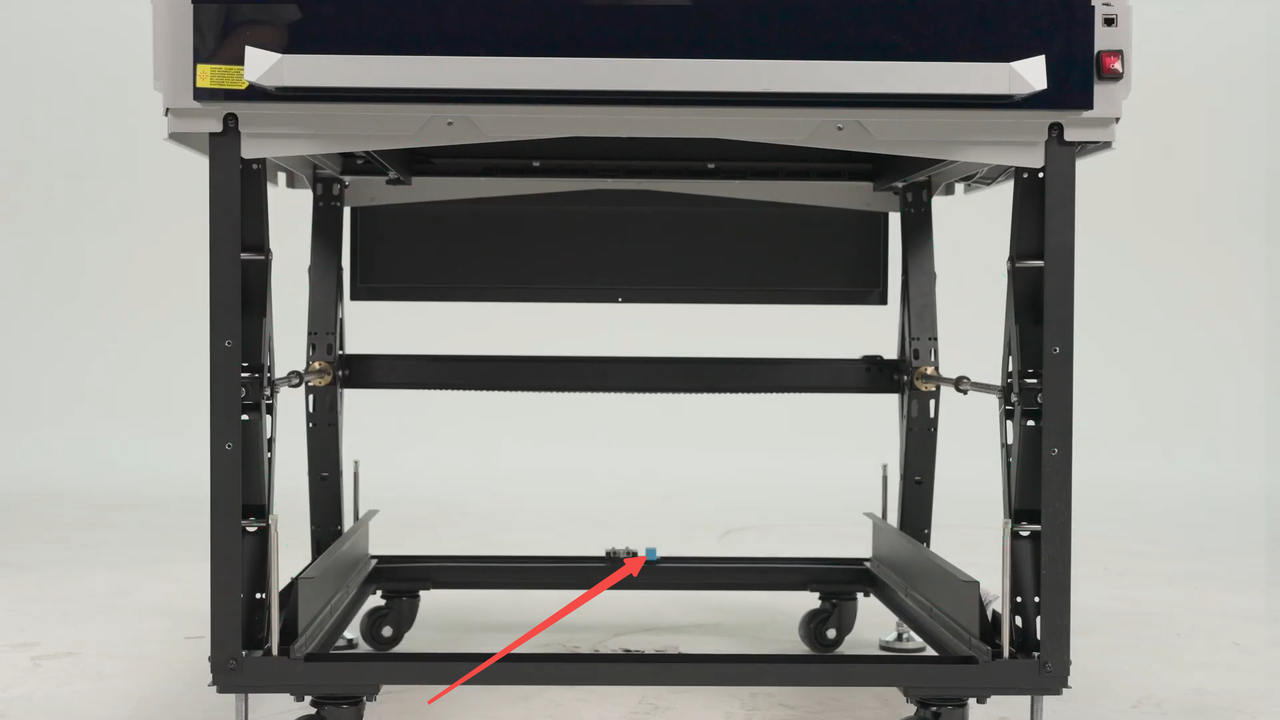
- Disconnect the sensor cable from the blue connector indicated by the red arrow.
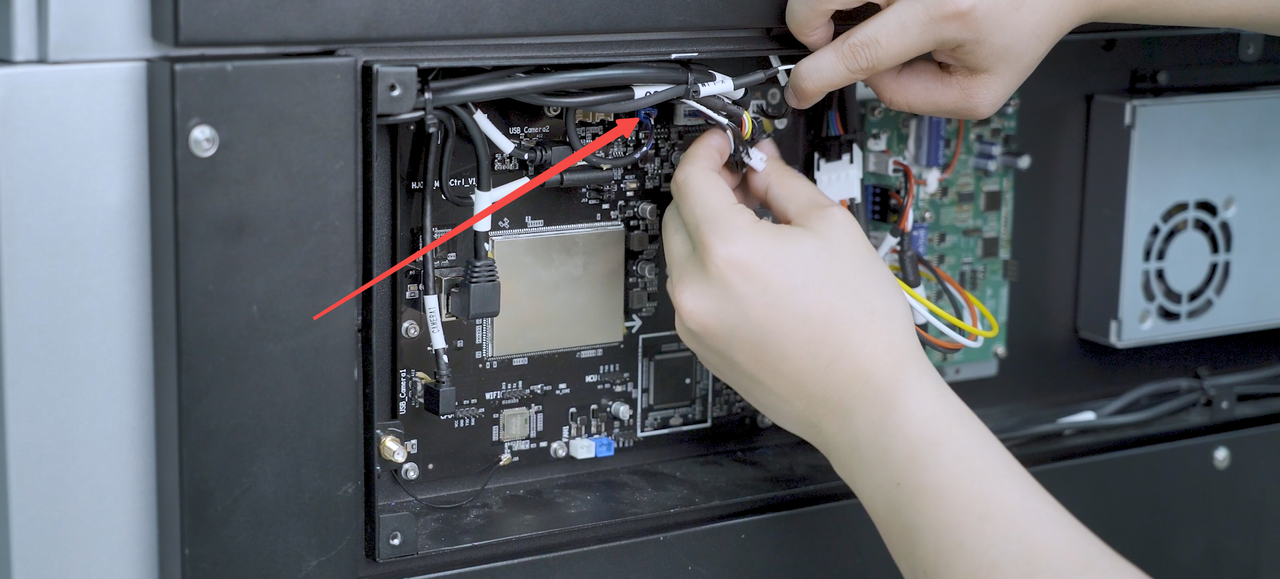
- Restart the machine and check the sensor again.
- If the sensor works properly, the issue is resolved.
- If none of these steps resolve the unexpected detection issue, the sensor or its connector on the main control board may be malfunctioning. Please prepare a video recording your troubleshooting process and results and contact xTool Customer Service for further assistance.
Help us improve
If this article or video doesn't effectively assist you in resolving the issue, please let us know by clicking the “No” button in the “Was this page helpful?” section below, and leave your feedback in the pop-up suggestion box. Our knowledge base team will review it and consider it for future updates.
Still need help?
If you need any human assistance, please create a ticket by clicking the “Submit a Ticket” button in the “Help Ticket” section below. Our service team will get back to you in 1 business day via E-mail.
Preview
Was this page helpful?
2 out of 2 found this helpful
Help Ticket
Use this help ticket to submit your issue. We will respond within 1 business day
Submit a Ticket 
