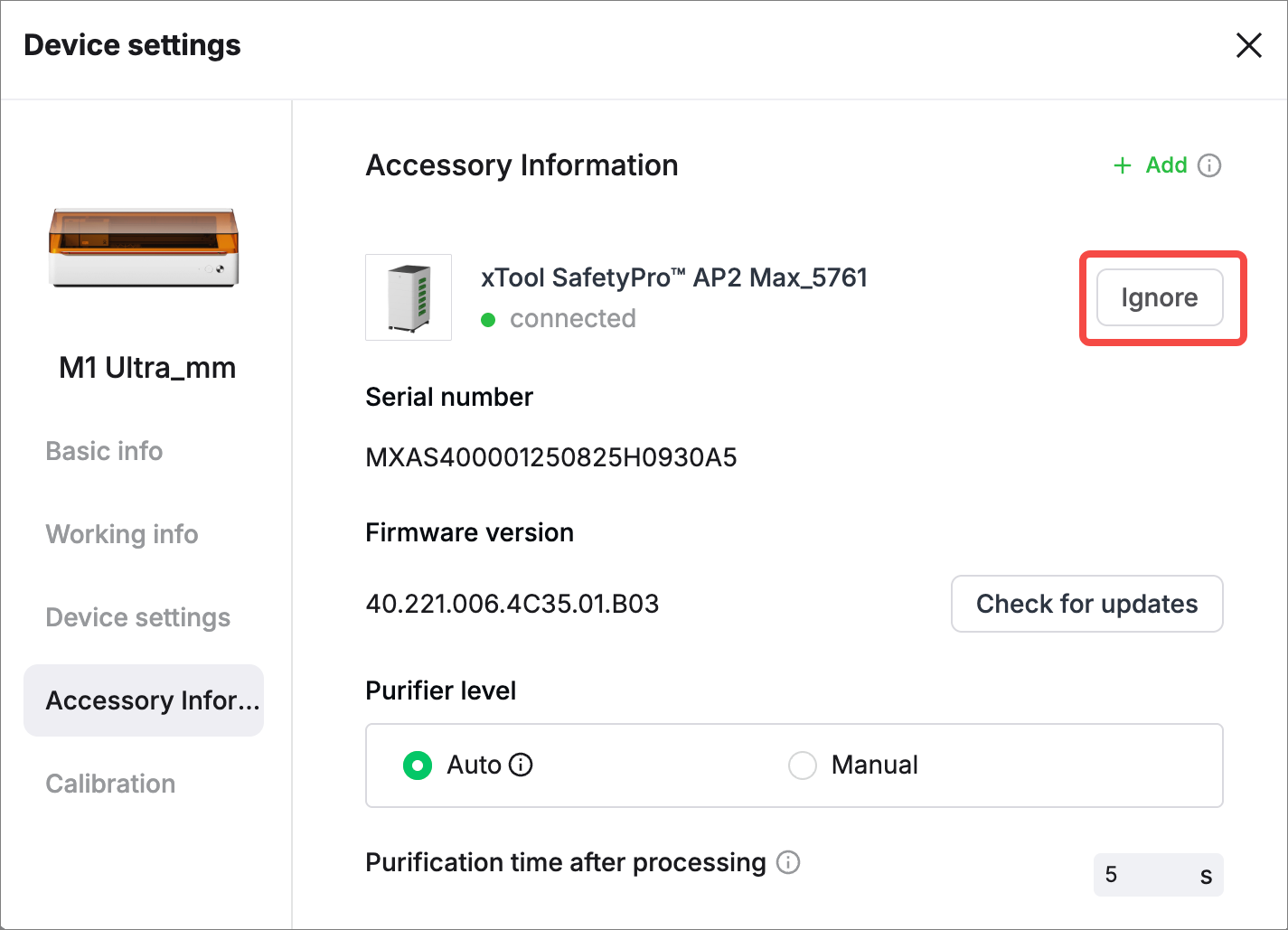
After you connect AP2 Max to your laser machine and insert the Bluetooth dongle of AP2 Max into the extension port of the xTool laser machine, you can view AP2 Max information on the xTool software and manually set the airflow level.
Note:
- One xTool laser machine supports only one Bluetooth dongle.
- When you use AP2 Max with a laser machine that has a built-in Bluetooth chipset, you do not need to connect the Bluetooth dongle. You can set up the connection through the xTool software.
Prerequisites
- You have installed AP2 Max. See Install xTool SafetyPro™ AP2 Max.
- You have downloaded and installed xTool software on your computer.
- You have connected the xTool laser machine to your computer properly.
- You have upgraded the firmware of your laser machine (xTool Studio > Device settings > Basic info > Check for updates). To use AP2 Max, the following xTool laser machines must meet the firmware version requirements listed below.
xTool laser machine | Minimum firmware version required |
|---|---|
P2S | 40.22.008 |
S1 | 40.32.015 |
M1 Ultra | 40.41.014 |
F1 Ultra (class 4) | 40.52.013 |
F1 Ultra (class 1) | 40.53.005.01 |
MetalFab | 40.70.010.1 |
Pair AP2 Max with your laser machine
AP2 Max can establish Bluetooth connection with the following machine models: xTool P3, P2S, S1, M1 Ultra, F1 Ultra, F2 Ultra series, and MetalFab CNC Cutter. Among them, you can connect AP2 Max with xTool P3 and F2 Ultra series without using a Bluetooth dongle.
Scenario 1: Bluetooth dongle not required
Applicable to xTool P3 and F2 Ultra series
Step 1: Long press AP2 Max's power button for at least 5 seconds until the Bluetooth status indicator blinks white. At this time, AP2 Max enters pairing mode.
Step 2: Connect AP2 Max in the xTool software.
Choose Device settings > Accessory Information. Click Add in the upper-right corner. Then click Connect.
Scenario 2: Bluetooth dongle required
Applicable to xTool M1 Ultra, P2S, F1 Ultra, S1, and MetalFab CNC Cutter
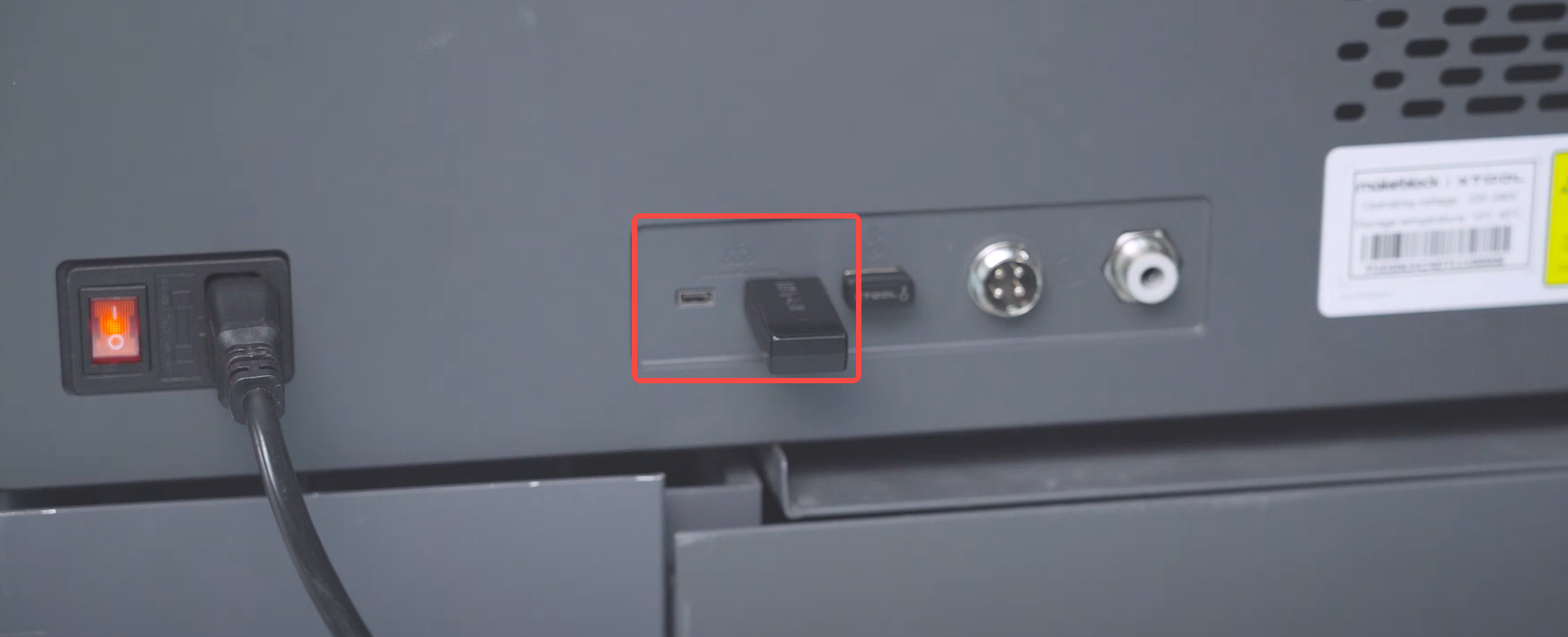
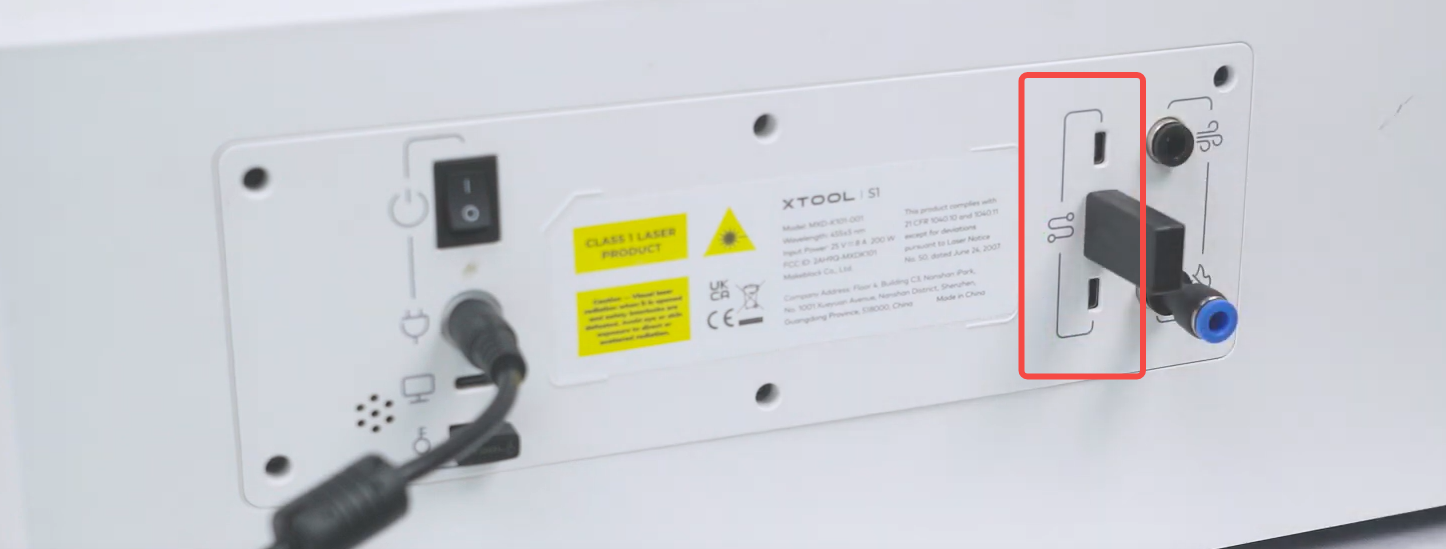
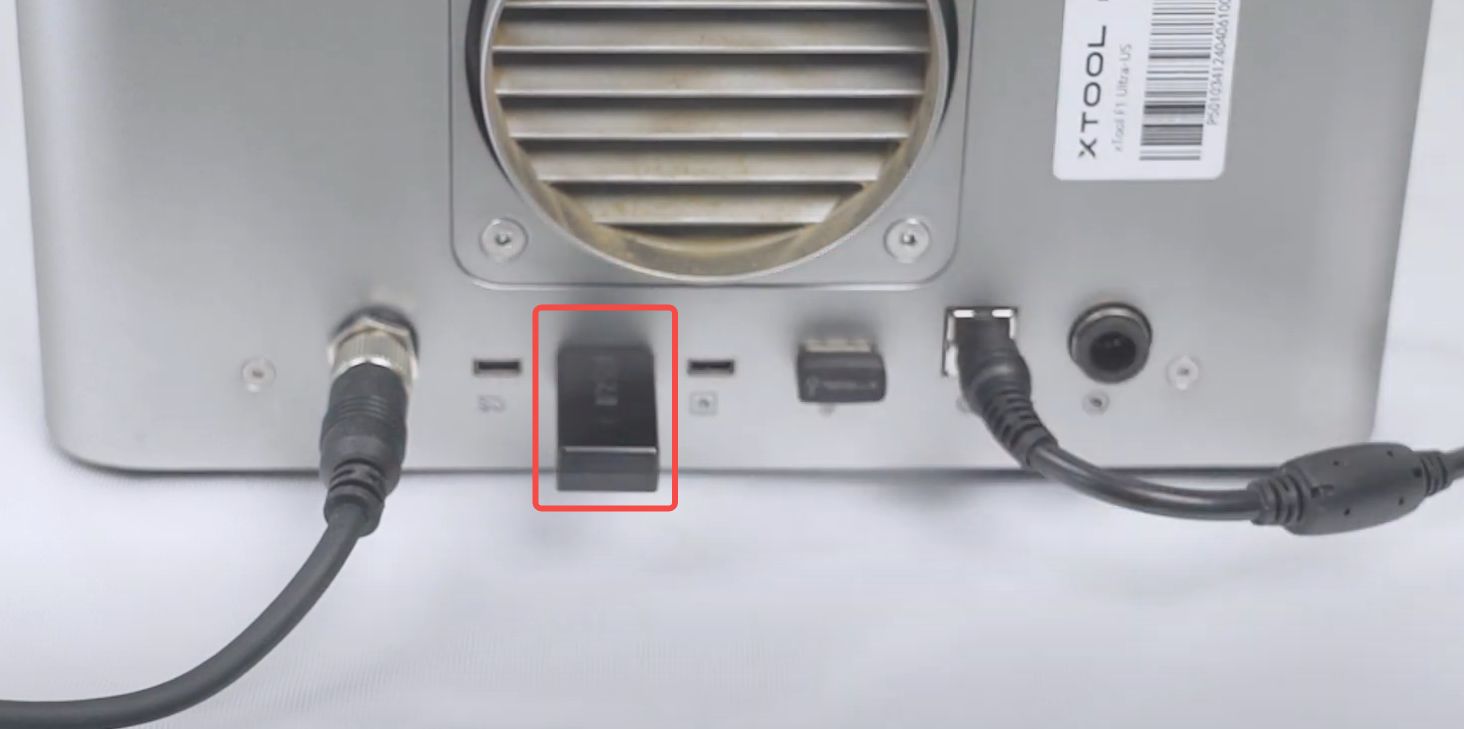
Insert the Bluetooth dongle into the extension port of your laser machine. After that, AP2 Max automatically establishes a connection with your xTool machine. The machine's device settings page on the xTool software displays information about AP2 Max.
- xTool P2S
- xTool S1
- xTool M1 Ultra
- xTool F1 Ultra
- xTool MetalFab CNC Cutter
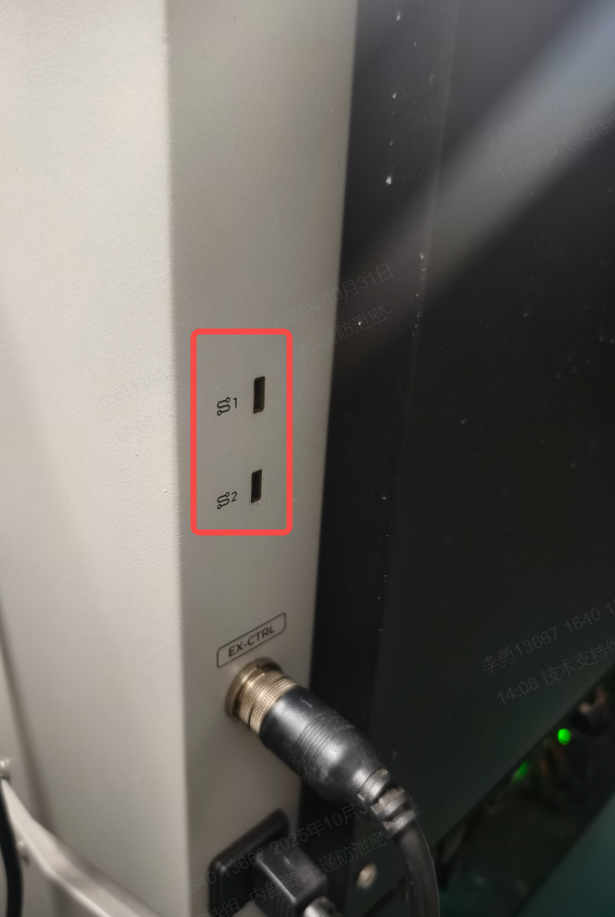
(Optional) If a Bluetooth dongle has been connected to the machine already or you need to pair again, press and hold AP2 Max's power button for at least five seconds to enable AP2 Max to enter pairing mode. Then connect AP2 Max in the xTool software. The software operations are the same as those for xTool P3.
View AP2 Max information
Step 1. Create a project.
Step 2. On the right panel, select AP2 Max you have connected.
The Accessory Information page is displayed, showing details about AP2 Max.
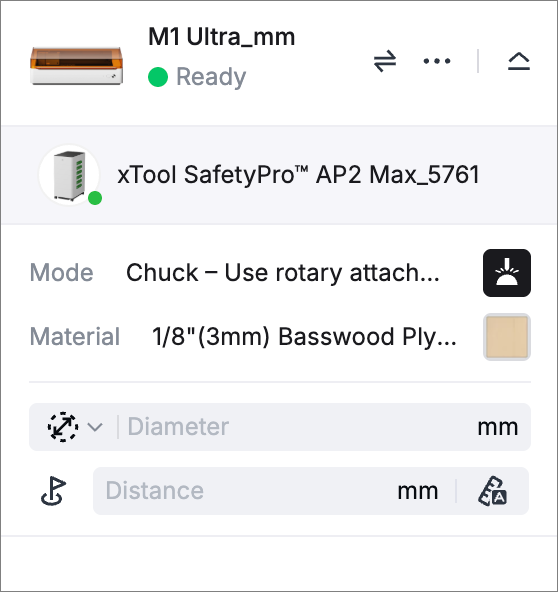
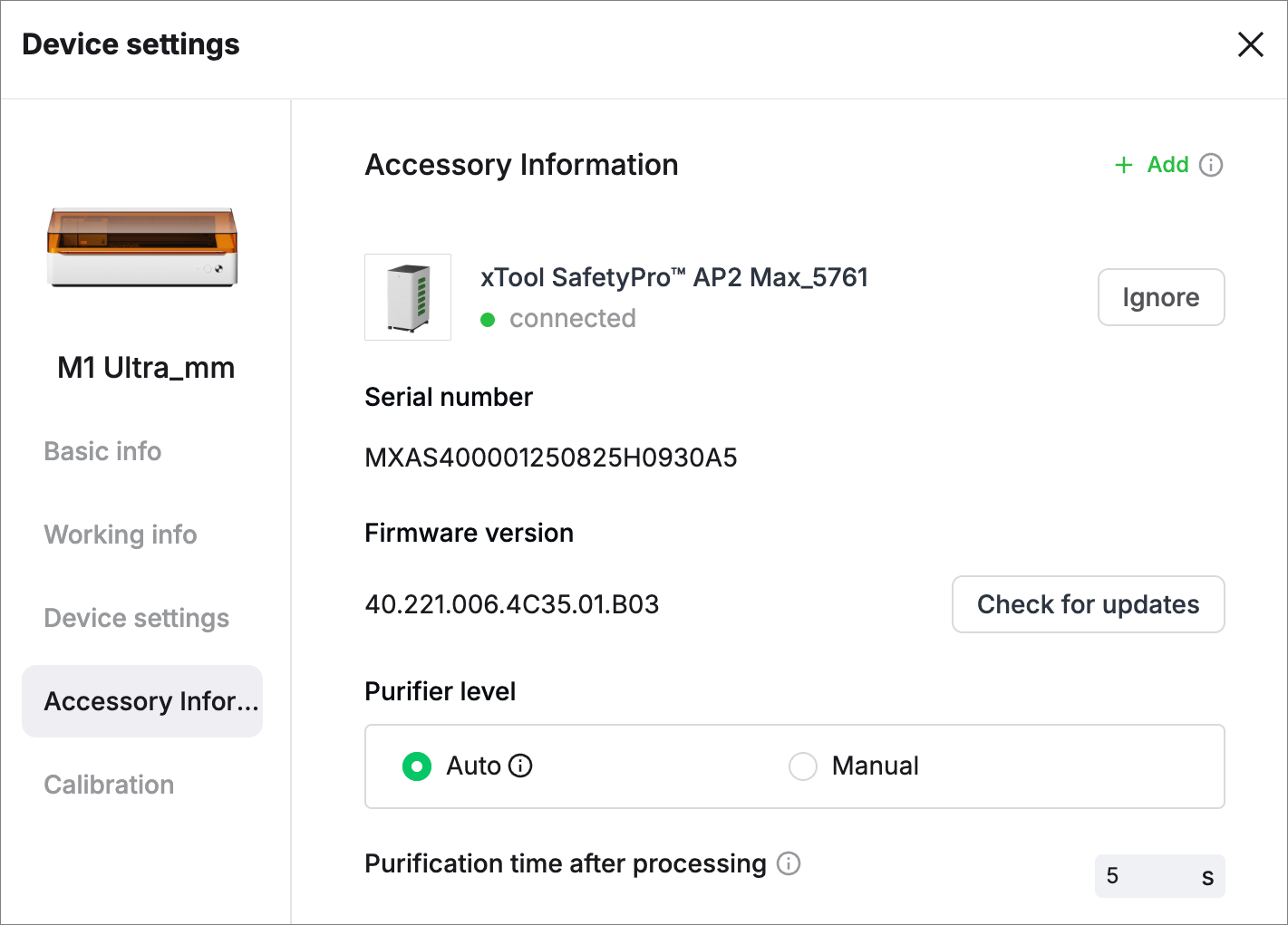
If AP2 Max does not appear in the software, you can troubleshoot by following the instructions in Bluetooth connection failure solutions.
Operate AP2 Max
Switch on and off
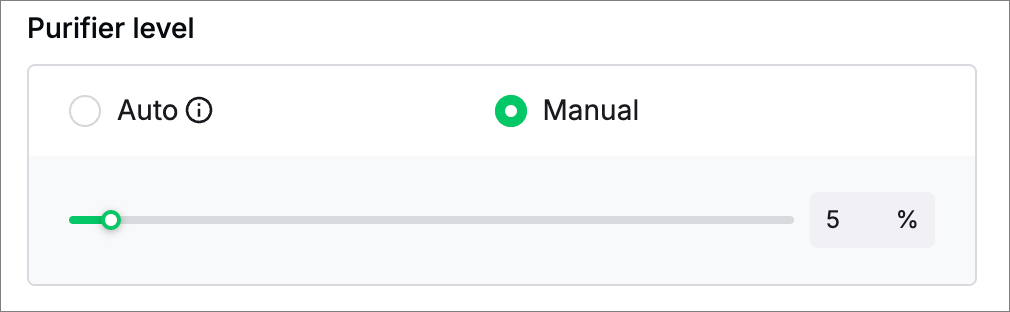
Switch on: Set Purifier level to Auto or any level (not 0%) in Manual mode.
Switch off: Set Purifier level to 0% in Manual mode.
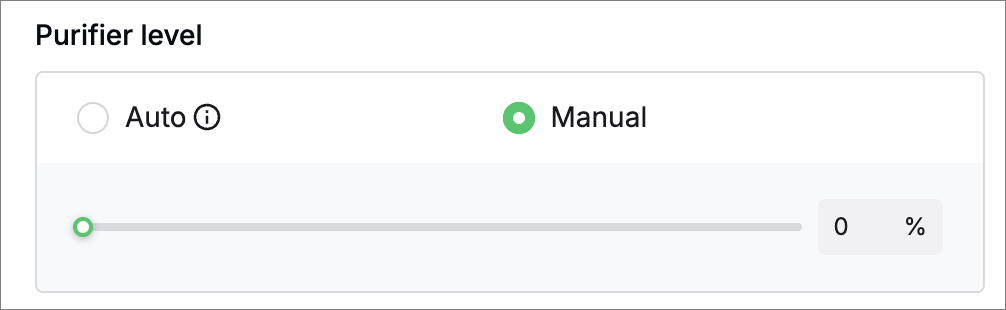
Set airflow level
Auto: AP2 Max will adjust its airflow volume based on the material being processed. This function is applicable to xTool laser machines with Bluetooth functionality.
Manual: Set to a higher level when the smoke is heavy and to a lower level when it is too noisy.
Set purification time after processing
When AP2 Max works in Auto mode, you can specify Purification time after processing. The value range is 0-600s and the recommended value is 10s. After the laser machine completes processing, AP2 Max will continue purifying for the period specified by this parameter.
.png)
Check filter life
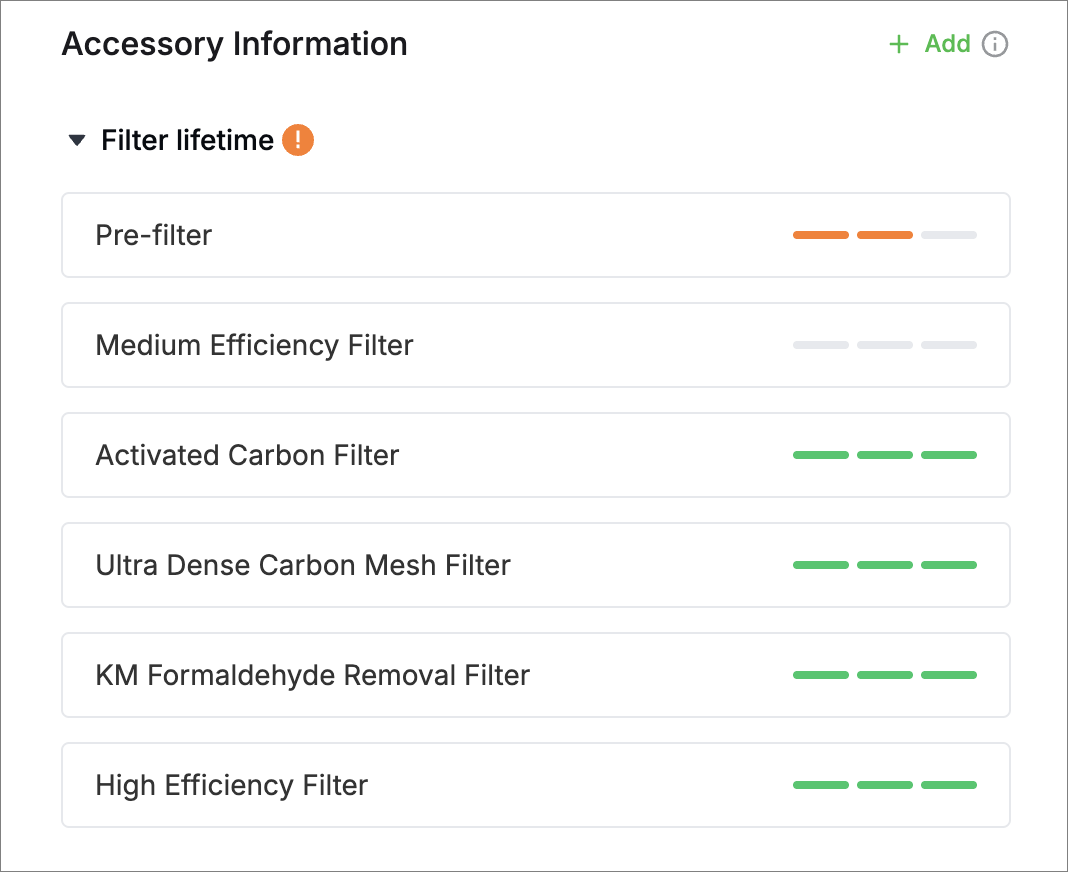
 The filter is in good condition and has plenty of life left.
 Half of the filter life has been depleted.
 The filter is nearing the end of its lifespan and should be replaced as soon as possible.
 The filter is either not installed or its life has been completely depleted.
Remove AP2 Max
Click Ignore on the Accessory Information page. After being ignored, AP2 Max will be deleted from the Accessory Information page.