
Issue description
When printing a test sample or a design, you may find that one or more CMYK colors (Cyan, Magenta, Yellow, Black) are not printing correctly, or there is no color output at all. This issue can also manifest during the initial setup process, where CMYK inks fail to be drawn into the print head (i.e., no colored ink is seen flowing through the ink tubes to the CMYK ink dampers).
- This guide provides troubleshooting steps for these issues.
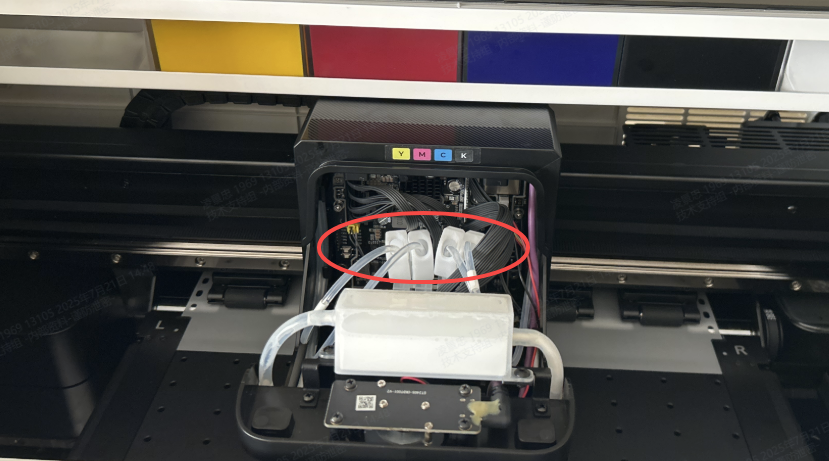
No CMYK Inks Drawn into Ink Dampers
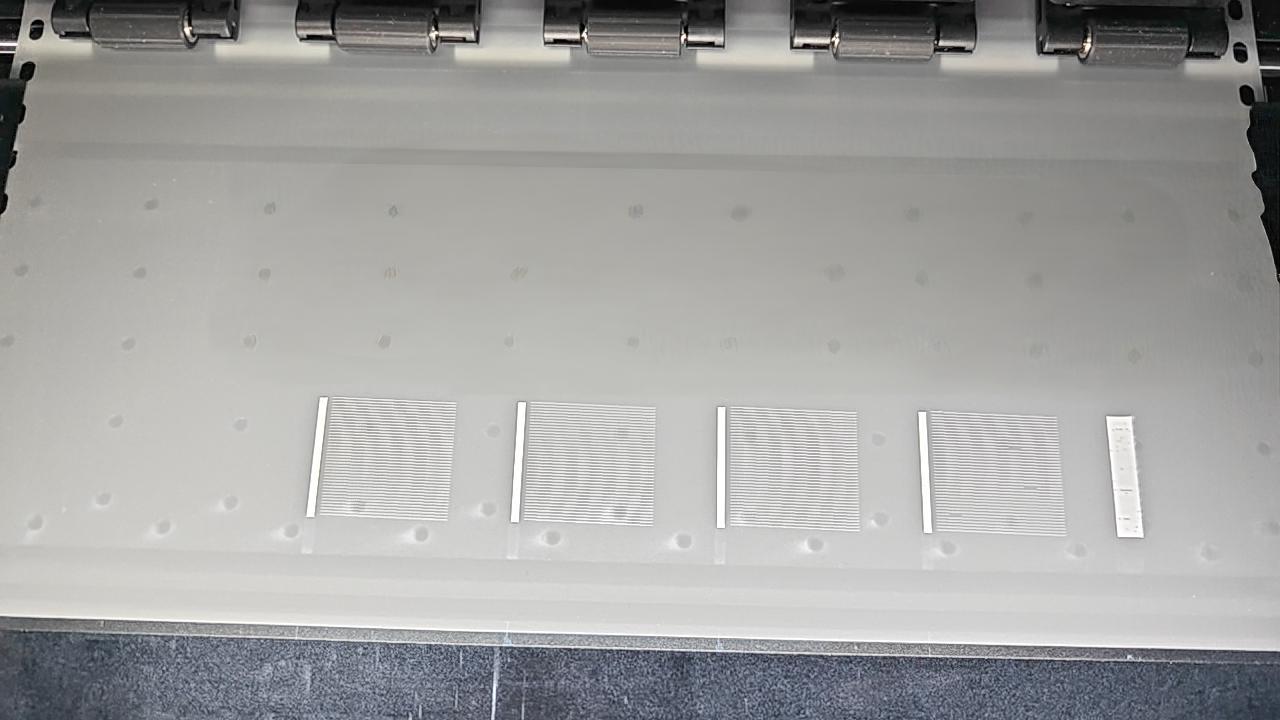
No Color Output in Sampe Print Test
Common causes
Occurs when first powered on:
- Print head protective film not removed
- CMYK ink tube clips not released
- Ink capping top cover installed incorrectly
- Startup procedure executed incorrectly
- Ink tube kinked between CMYK ink dampers and CMYK print head (only in rear cases)
- Poor ink stack seal condition (most likely)
Occurs after extended use:
- Insufficient CMYK ink levels
- CMYK ink clips not released
- Ink capping top cover installed incorrectly
- Waste ink extraction malfunction
- Poor ink stack seal condition
- Inlet ink tube blockage
- Waste ink tube blockage
- Severe print head blockage
Scenario identification
This troubleshooting guide is separated into two scenarios. Please identify which scenario best matches your situation and follow the corresponding steps.
- Scenario A: No color ink output during the very first-time setup of the machine.
- Scenario B: No color ink output after the machine has been used for a period of time.
Scenario A: No color ink on initial startup
If you are setting up your printer for the first time and encounter this issue, please follow these steps.
Step 1: Remove the print head protective film
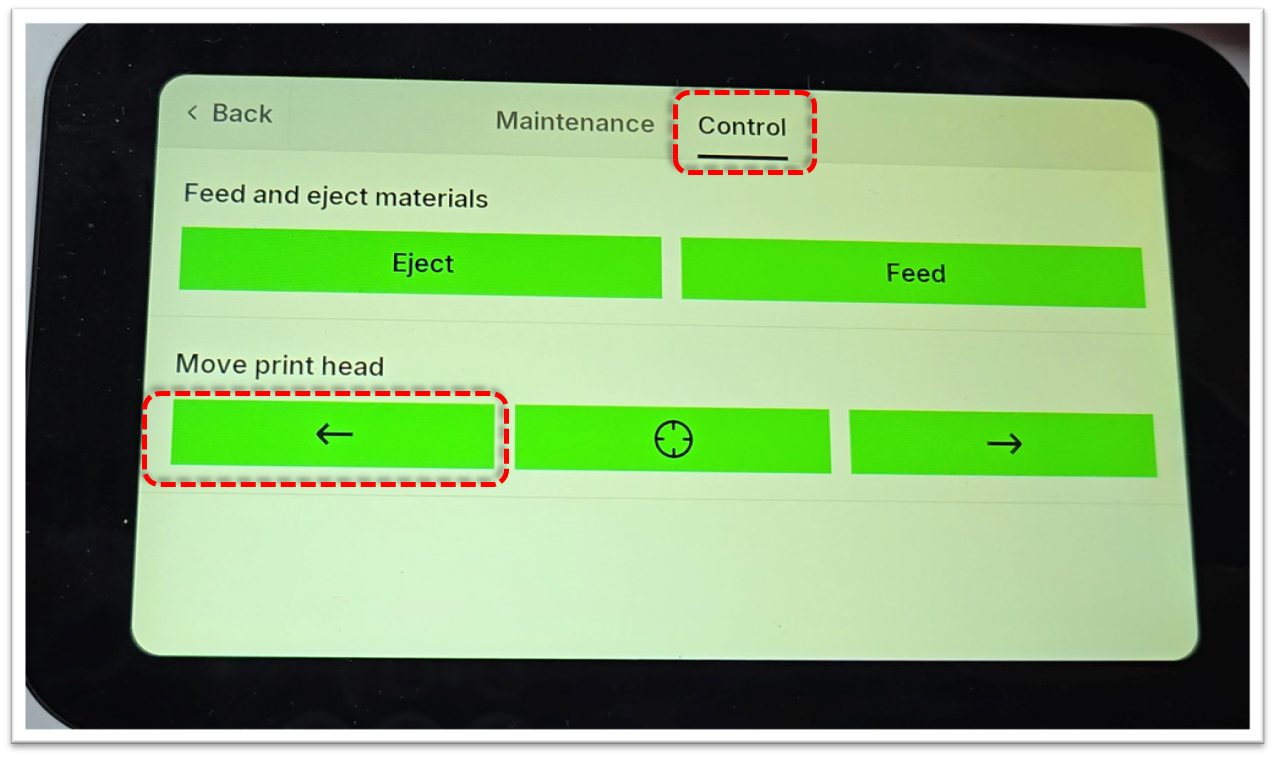
- Move the print carriage to the far left.
- On the LCD control panel, tap: Maintenance > Control, and the left arrow button at the "Move print head" tab.
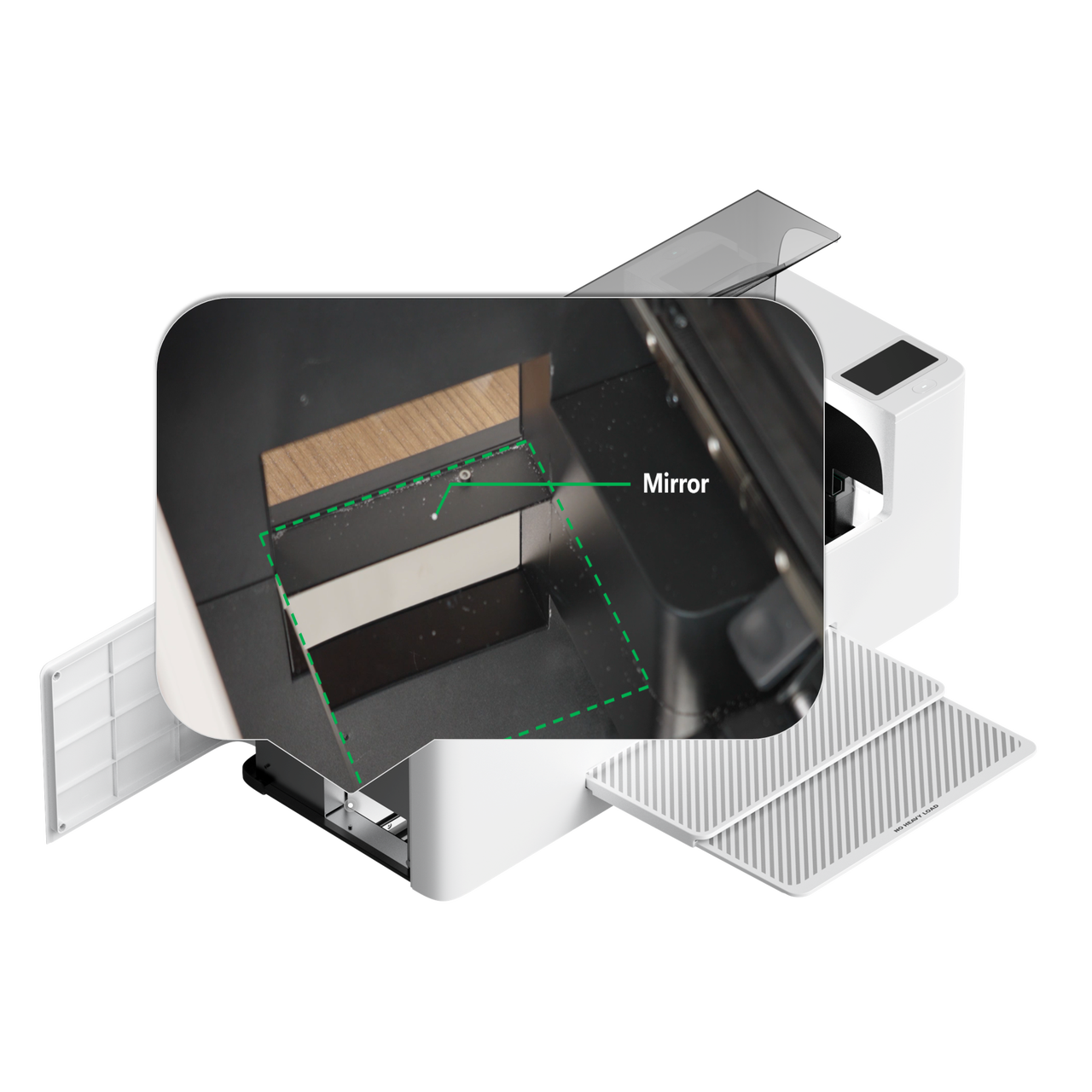
- Using the mirror on the baseplate, look up at the bottom of the print head and confirm the thin plastic protective film has been peeled off.
- If the film is still present, peel it off.
|
|
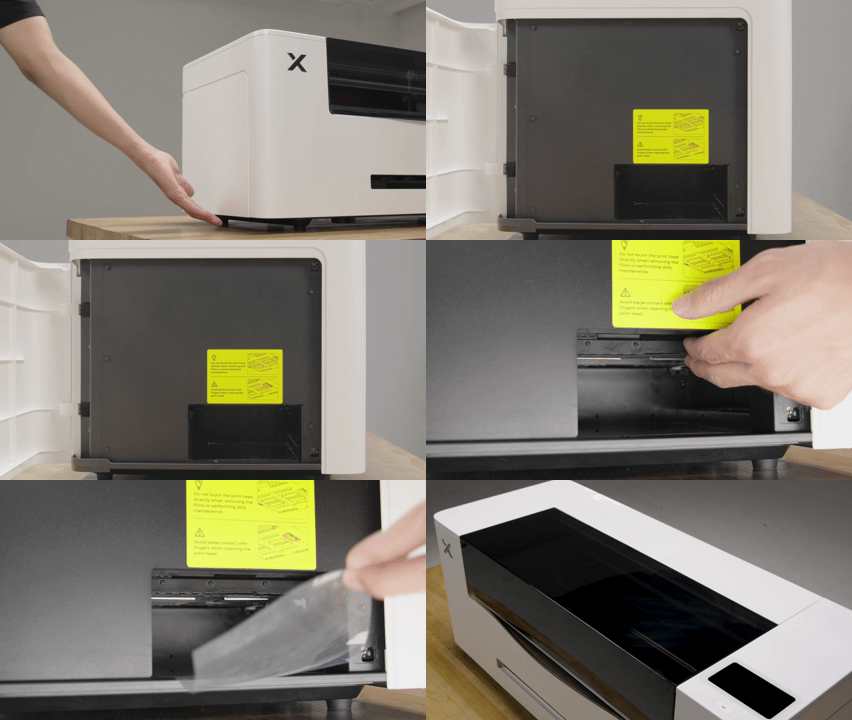
- If the film has already been removed, proceed to the next step.
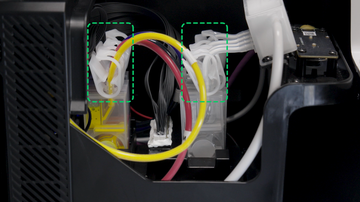
Step 2: Check all ink clips
- Ensure all ink clips are in the open/released position.
- If you find any clips that were closed during the initial ink priming process, open them. You may now need to manually draw ink into the lines using a syringe.
- Video Guide: For instructions on manual ink drawing, please refer to the video tutorial (specifically from 2:51 to 3:20): Replace the White & CMYK Ink Damper in xTool Apparel Printer
- If all clips are confirmed to be open, proceed to the next step.
Step 3: Check the ink capping top cover installation
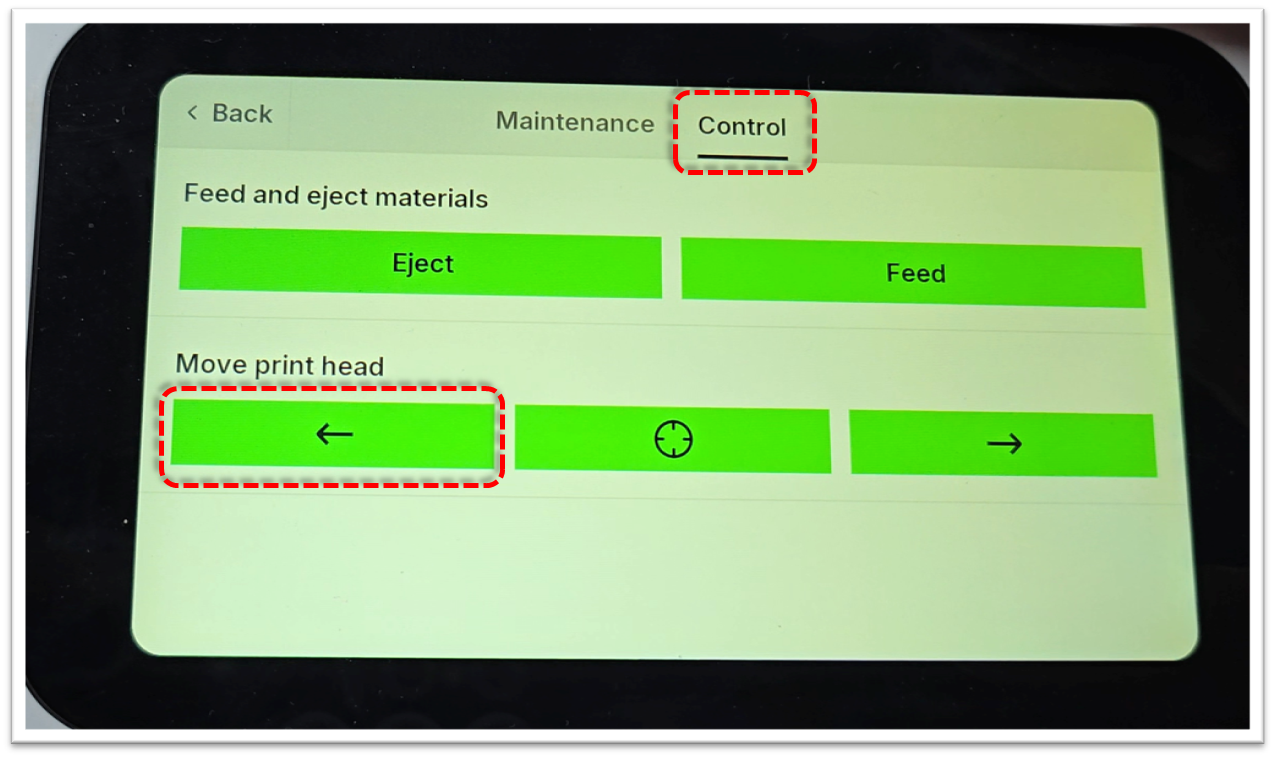
- Move the print head to the center of the printer.
- On the LCD control panel, tap: Maintenance > Control, and the Left Arrow button until the carriage is centered inside the printer.
- Observe the ink capping station top cover. Ensure it is not installed upside down. The correct orientation has the anti-slip strips facing upwards.
- Correct installation: Anti-slip strips face upwards.
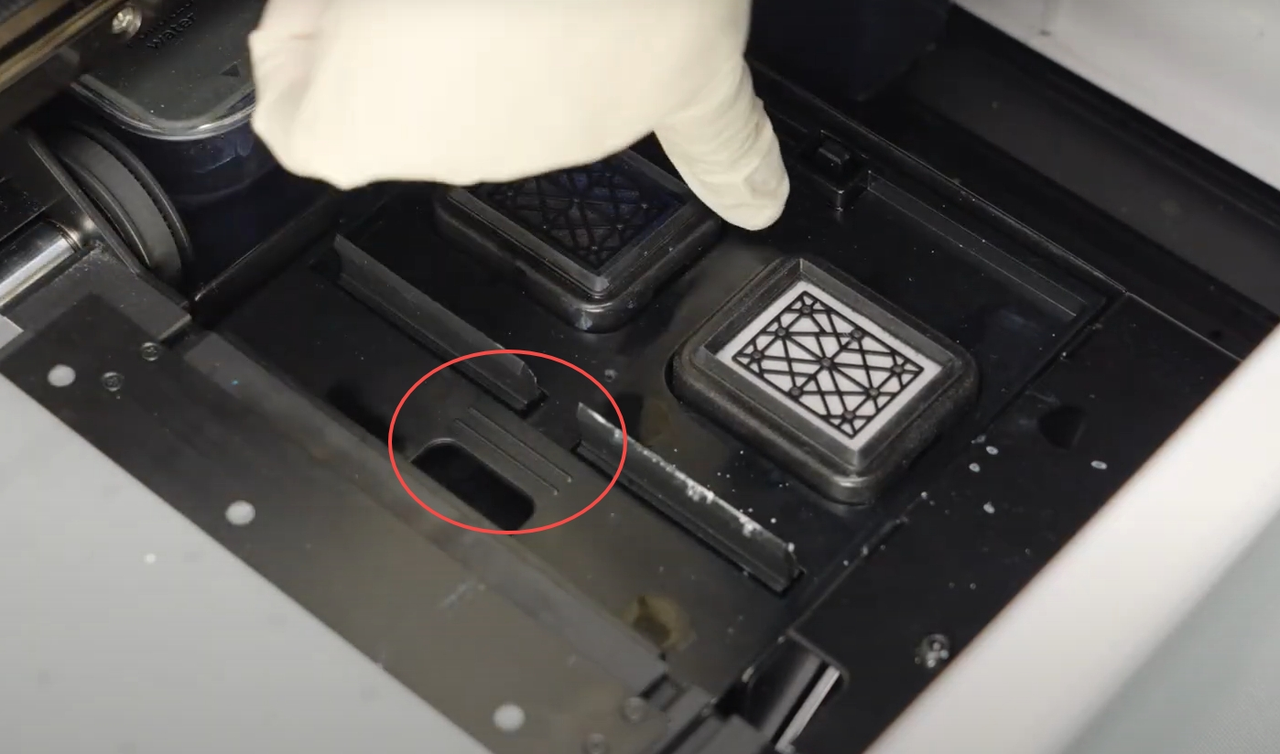
- If the cover is installed incorrectly, you can gently lift it up and place it back in the correct orientation.
- Video Guide: For visual reference, see the video tutorial below (from 0:34 to 0:46).
- If the cover is installed correctly, proceed to the next step.
Step 4: Calibrate ink stack position
- Initiate Calibration: On the control panel of the printer, go to Settings > Other and tap the "Start up" button at the Ink stack calibration tab to begin.
- After Calibration: Once calibration is completed, either perform a thorough Deep cleaning or multiple standard auto Cleaning cycles to restore performance. Test the printer to confirm whether the issue is resolved.
- If the issue persists after calibration, continue to the next step.
Step 5: Check the ink tube for obstructions
‼️ Important: Record a video of this entire procedure for potential submission to xTool Customer Service.
- Move the print carriage to the middle and detach the print carriage top cover.
- On the LCD control panel, tap: Maintenance > Control, and the crosshair button at the "Move print head" tab.
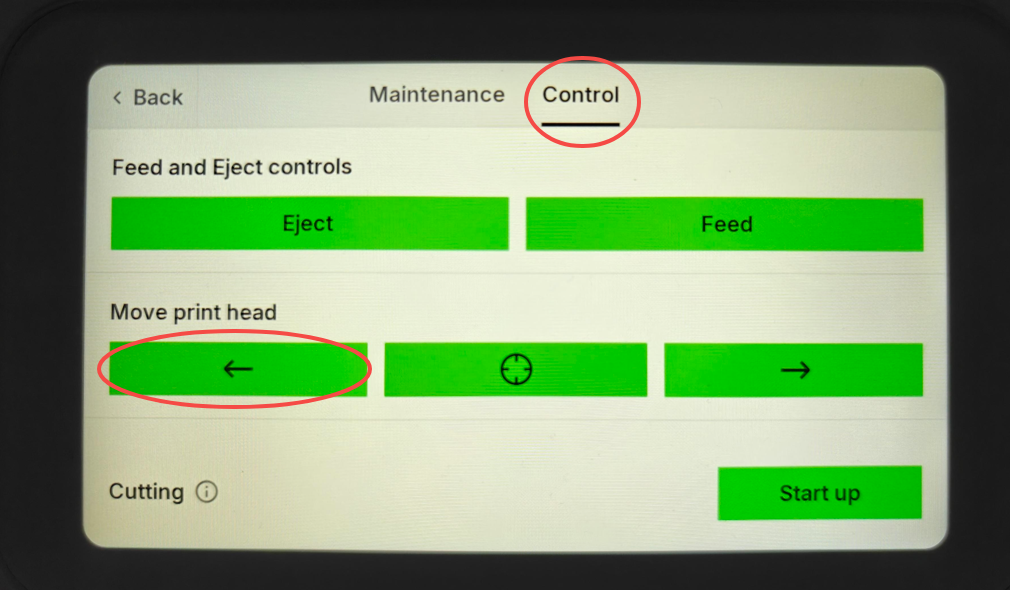
- On the LCD control panel, tap: Maintenance > Control, and the crosshair button at the "Move print head" tab.
- Using a syringe, attempt to manually draw white ink from the ink damper, as shown in the video guide.
- Position the ink damper diagonally upward while drawing ink. See the image below for visual reference.
- Video Guide: Refer to the video tutorial (sections 1:25-1:55 and 2:51-3:20): Replace the White & CMYK Ink Damper in xTool Apparel Printer
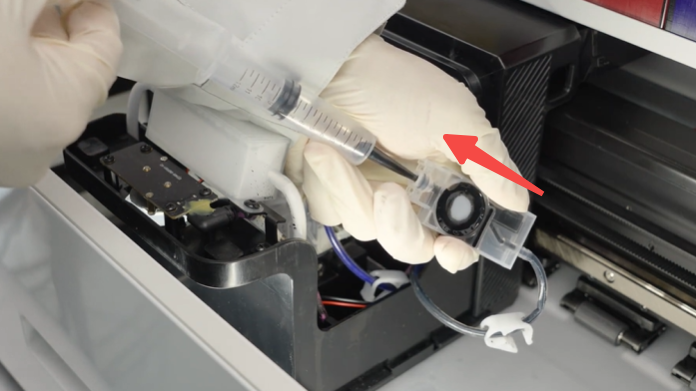
- Results Interpretation:
- Smooth Flow: Ink draws easily → tubing is clear; no obstruction; proceed to the next step.
- Resistance or No Flow: Significant pull-back resistance indicates a kink or blockage in the ink tube.
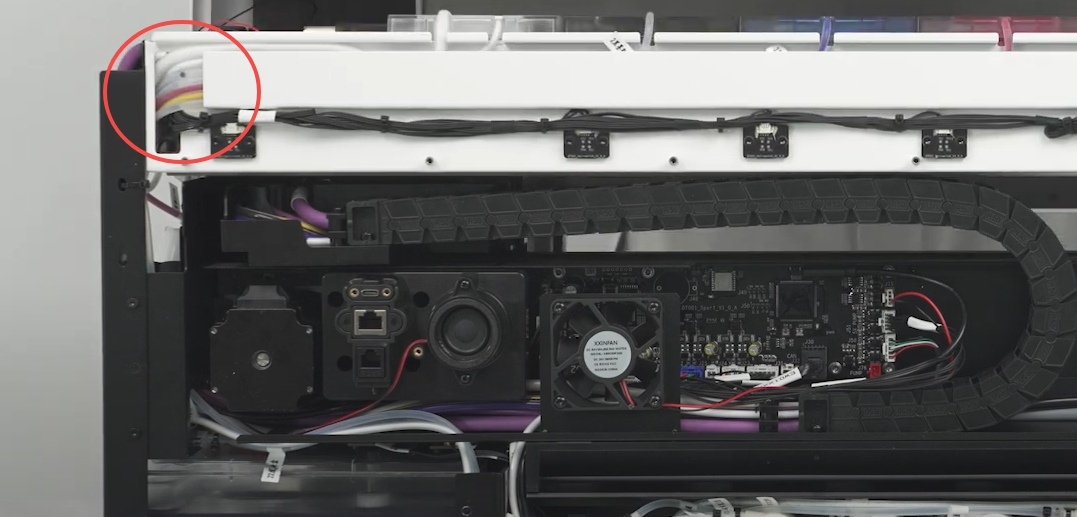
- If you encounter significant resistance, the ink tube is likely bent or kinked. This requires removing the printer's outer casing to inspect the tube routing. This is a complex step; please only proceed after all other steps have been exhausted.
- Video Guide for removing casing: Disassemble & Assemble the Casing for xTool Apparel Printer
Step 6: Check for incorrect startup procedure
If you performed the initial setup ink priming steps out of order (e.g., did not release all clips before starting), air may have entered the system.
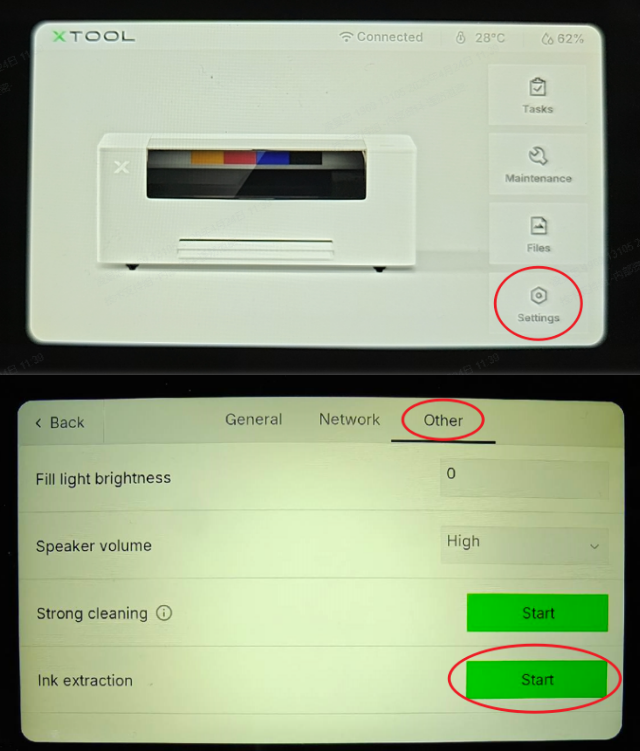
Solution: Perform an auto ink extraction to re-prime the system.
- On the LCD control panel, tap Settings > Other and the Start button at the Ink extraction tab to initiate the process.
Scenario B: No color ink after extended use
If your printer was working correctly but has recently stopped printing white ink, follow these steps.
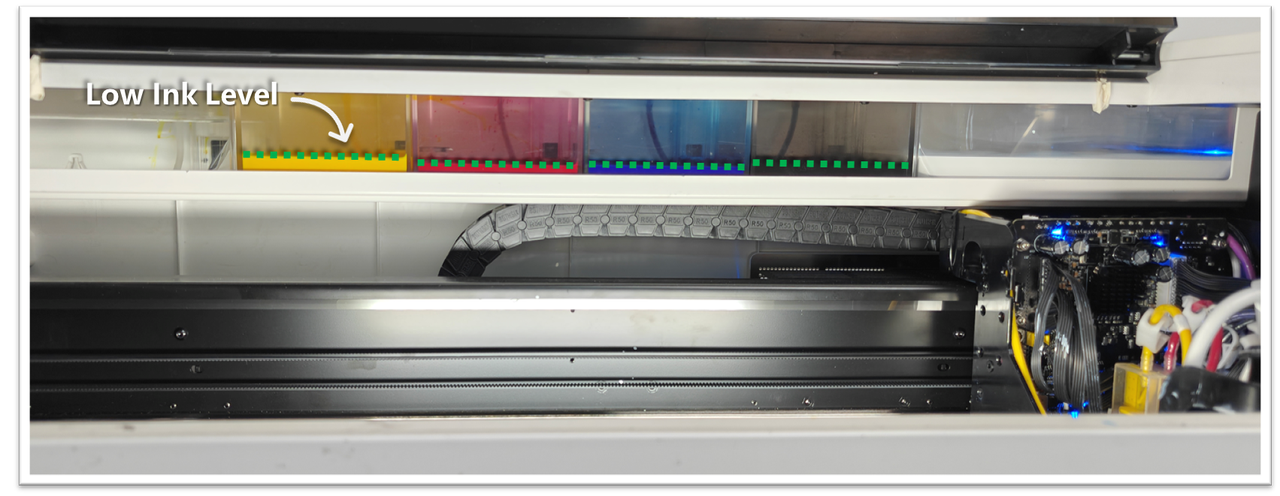
Step 1: Check CMKY ink levels
⚠️ Note: Wear nitrile gloves before handling inks.
- Open the printer's lid to check the ink levels.
- Check levels visually:
- CMYK Inks: Ensure all tanks are ≥30% full.
- If low: Refill with xTool ink.
- If levels are sufficient, proceed to the next step.
Step 2: Ensure released ink clips
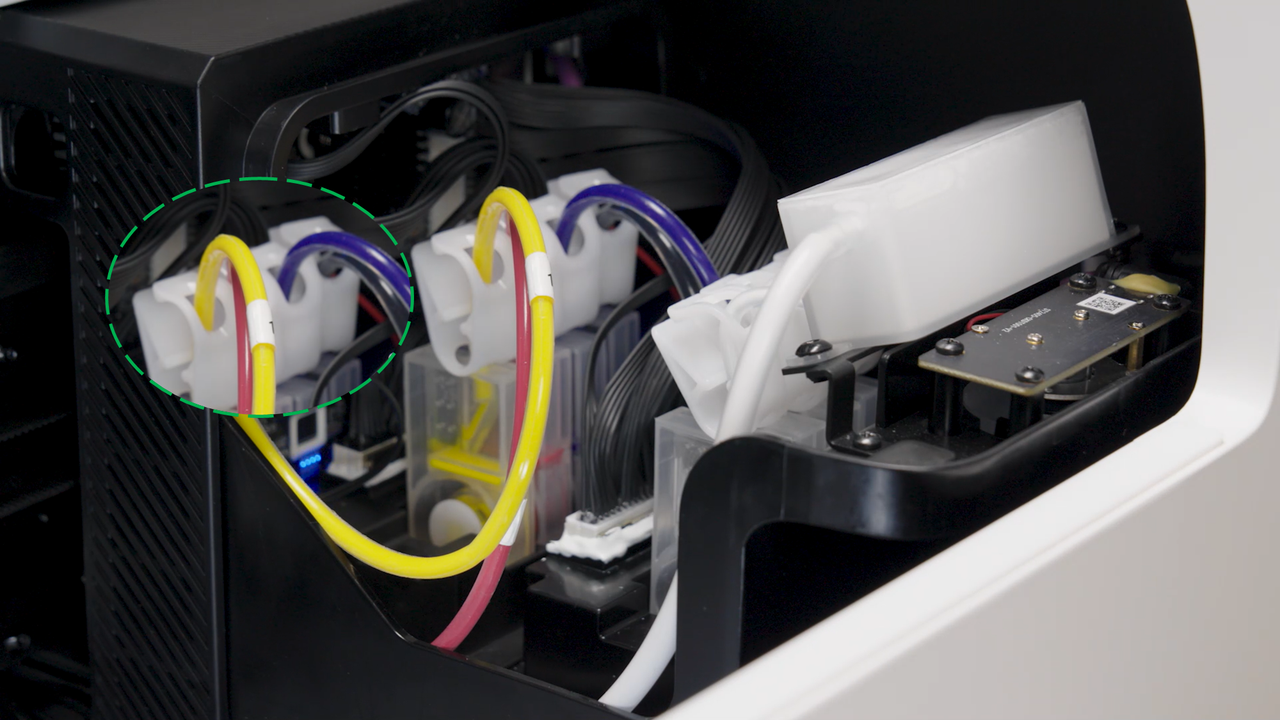
- Ink Clips: Ensure all CMYK ink tube clips are in the open/released position.
- If a specific CMYK color is missing from your print output, pay close attention to the corresponding ink tube clip.
- If these are released, proceed to the next step.
Step 3: Check the ink capping top cover installation
- Move the print head to the center of the printer.
- On the LCD control panel, tap: Maintenance > Control, and the Left Arrow button until the carriage is centered inside the printer.
- Observe the ink capping station top cover. Ensure it is not installed upside down. The correct orientation has the anti-slip strips facing upwards.
- Correct installation: Anti-slip strips face upwards.
- If the cover is installed incorrectly, you can gently lift it up and place it back in the correct orientation.
- Video Guide: For visual reference, see the video tutorial below (from 0:34 to 0:46).
- If the cover is installed correctly, proceed to the next step.
Step 4: Test the waste ink recycling function
‼️ Important: Record a video of this entire procedure for potential submission to xTool Customer Service.
- Open the printer's lid. Move the print carriage to the middle to get a clear view of the ink pad inside the ink capping station.
- On the LCD control panel, tap: Maintenance > Control, and the crosshair button at the "Move print head" tab.
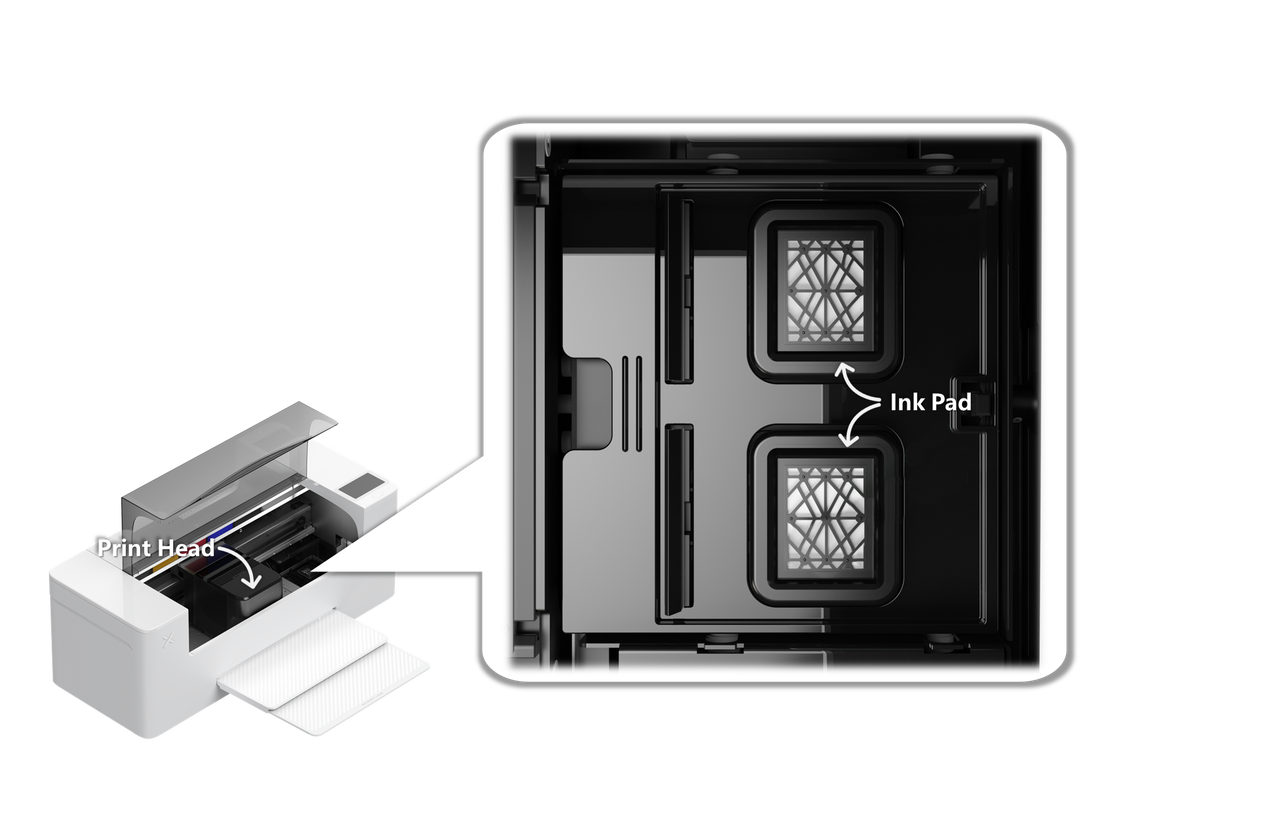
- Fill the Ink Pad with Water
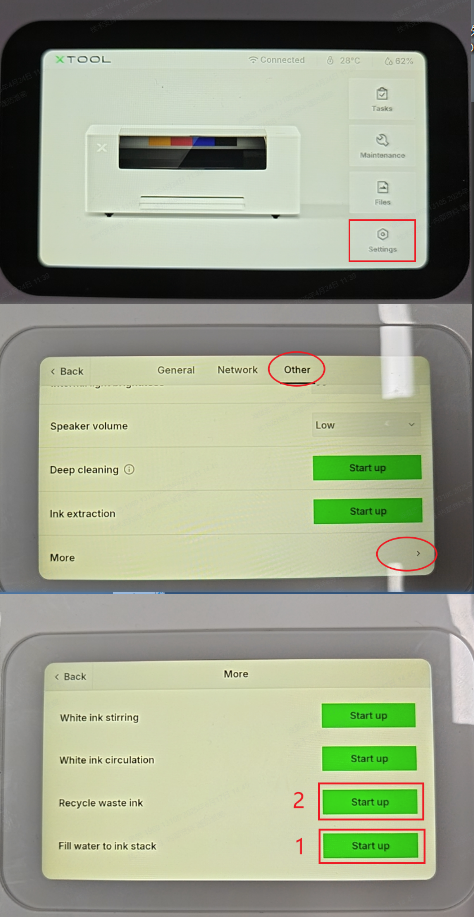
- On the LCD panel, navigate to Settings > Other > More.
- Tap Start Up for Fill Water to Ink Stack.
- Let it run for about 2 seconds—just enough to form a small water pool on the ink pad.
- Recycle Waste Ink
- Immediately tap Start Up for Recycle Waste Ink.
- Observe whether the water drains away quickly.
- Results Interpretation:
- Normal: Water extracts smoothly → Continue to Step 6.
- Malfunction: Very slow or no extraction → Proceed to the "Still experiencing issues?" section to contact xTool Customer Service and include your video recording of this test.
Step 5: Calibrate ink stack position
- Initiate Calibration: On the control panel of the printer, go to Settings > Other and tap the "Start up" button at the Ink stack calibration tab to begin.
- After Calibration: Once calibration is completed, either perform a thorough Deep cleaning or multiple standard auto Cleaning cycles to restore performance. Test the printer to confirm whether the issue is resolved.
- If the issue persists after calibration, continue to the next step.
the
Step 6: Check the ink tube for obstructions
‼️ Important: Record a video of this entire procedure for potential submission to xTool Customer Service.
- Move the print carriage to the middle and detach the print carriage top cover.
- On the LCD control panel, tap: Maintenance > Control, and the crosshair button at the "Move print head" tab.
- Using a syringe, attempt to manually draw white ink from the ink damper, as shown in the video guide.
- Position the ink damper diagonally upward while drawing ink. See the image below for visual reference.
- Video Guide: Refer to the video tutorial (sections 1:25-1:55 and 2:51-3:20): Replace the White & CMYK Ink Damper in xTool Apparel Printer
- Results Interpretation:
- Smooth Flow: Ink draws easily → tubing is clear; no obstruction; proceed to the next step.
- Resistance or No Flow: Significant pull-back resistance indicates a kink or blockage in the ink tube.
- If you encounter significant resistance, the ink tube is likely bent or kinked. This requires removing the printer's outer casing to inspect the tube routing. This is a complex step; please only proceed after all other steps have been exhausted.
- Video Guide for removing casing: Disassemble & Assemble the Casing for xTool Apparel Printer
Step 7: Check for print head clogging
Severe ink nozzle clogs can cause ink flow issues.
Perform a standard print head "Deep cleaning" cycle 3 times before trying to print a print test sample.
- Auto cleaning: On the LCD panel of the printer, navigate to Settings → Other → Deep cleaning, and Start.
- If there's a noticeable improvement, the issue arises from print head clogging; perform 2-3 more print head auto cleaning cycles.
- If there's some improvement but the issue persists, consider performing a print head soaking procedure.
- If the soaking procedure doesn't resolve the issue, perform a manual deep cleaning procedure on the print head.
Learn more about print head cleaning by visiting: Troubleshoot Missing Strip Lines / Failed Printing Sample Test for xTool Apparel Printer
If print head cleanings do not resolve the issue: Proceed to the "Still experience issues?" section to contact xTool Customer Service for further assistance.
💡 Important Note After Clearing a Clog: To prevent future clogs, ensure your printer remains powered on to allow for automatic maintenance cycles. Also, inspect the capping station (ink pad where the print head rests). If it appears damaged or worn, it may need replacement.
Still experiencing issues?
Should the issue persist after completing the preceding steps, submit a ticket via the "Submit a Ticket" button in the "Help Ticket" section below. The standard response time for xTool Customer Service is one business day.
For a prompt resolution, please include the following details:
- Issue Description: A detailed explanation of the observed problem.
- Video Evidence: Attach a video demonstrating the issue, where applicable.
- Troubleshooting Performed: Any troubleshooting steps you have already attempted, along with their results.
This information is crucial for xTool technical support engineers to provide timely assistance.
Documentation feedback
Help improve this content by providing feedback. If this content did not meet your requirements, select "No" in the "Was this page helpful?" section below. Include specific details about what was unclear or missing in the pop-up suggestion box. Feedback submissions are reviewed by xTool technical writers to enhance future documentation.

