
Issue description
When operating xTool Apparel Printer, you may receive an error message stating "Cutting exceptions". This message may appear as a pop-up window in xTool Creative Space (XCS) software or directly on xTool Apparel Printer's LCD panel.
- Please follow these steps to identify and resolve the issue.
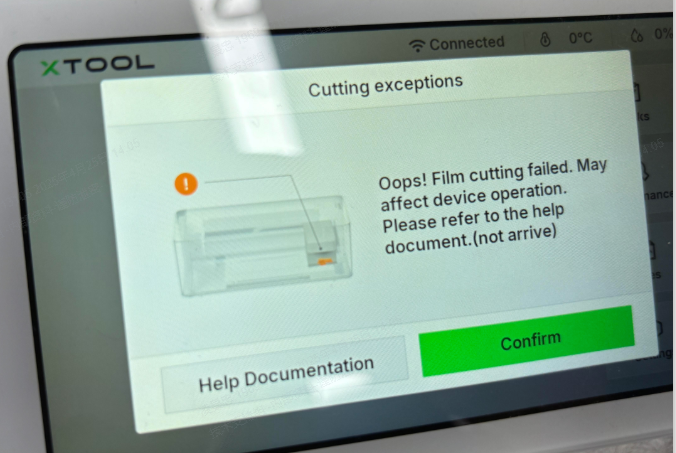
Potential causes:
- A film jam or obstruction is interfering with the cutting process.
- The cutting module itself has malfunctioned.
- The cutting blade is dull or damaged (less likely on a brand-new machine, but possible with extended use).
Troubleshooting
STEP1: Check & prepare the film
Film Inspection:
- Carefully examine the PET film currently loaded.
- Look for any wrinkles, creases, folds, or damaged edges.
|
|
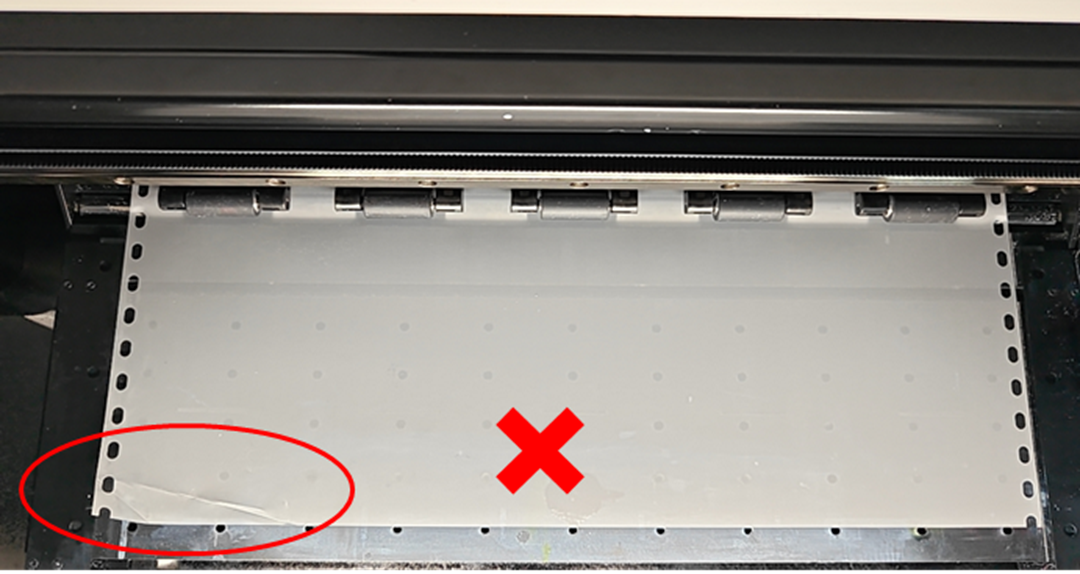
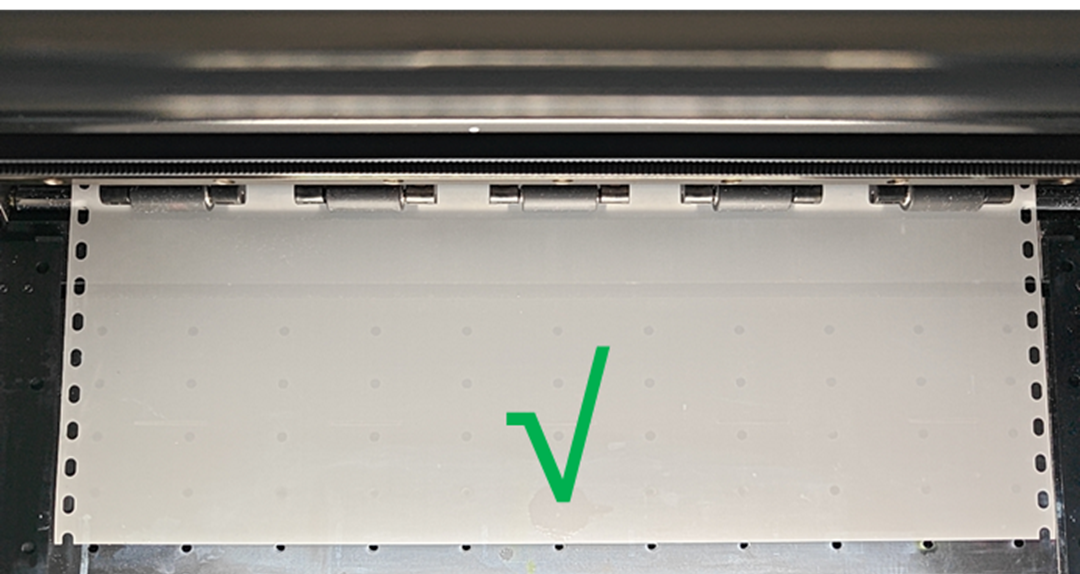
Remove Wrinkled Film:
If the film has wrinkles or wasn't cut properly:
- Use scissors or a cutter to carefully remove any wrinkled sections of the film.
- Ensure the remaining film is completely free of wrinkles or creases.
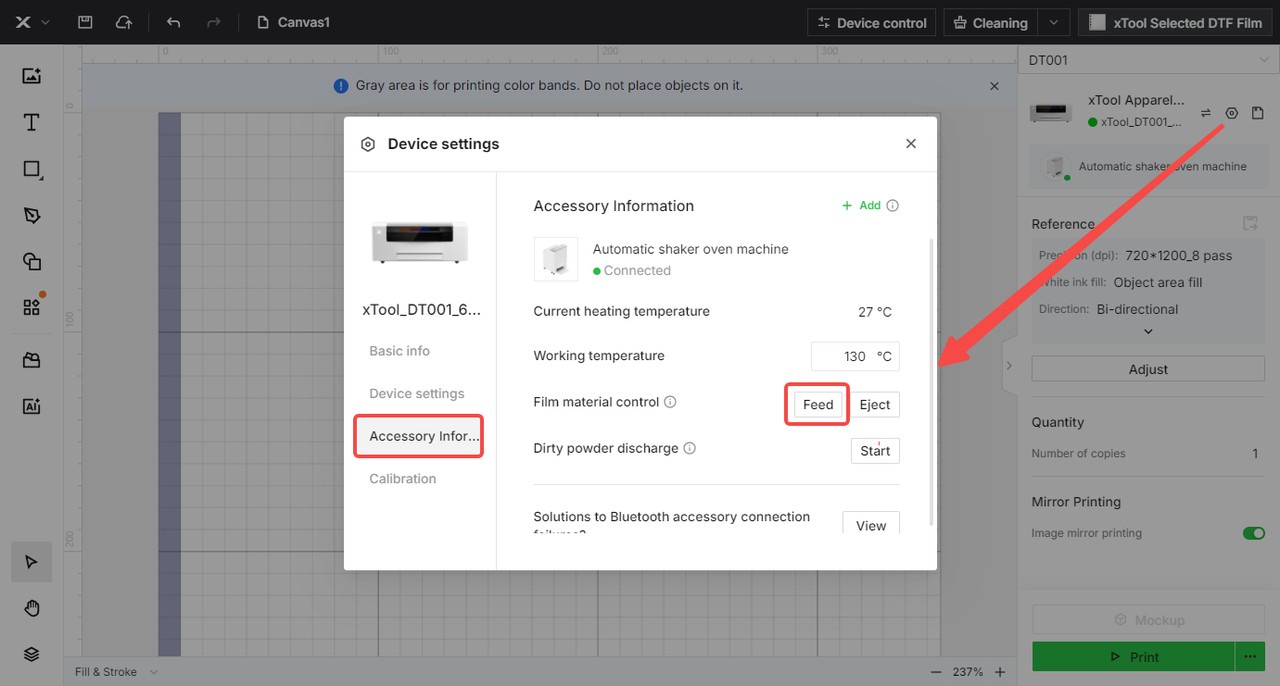
Use the Film Feed Function:
- In xTool Creative Space, navigate to: Device settings > Accessory information > Film material control.
- Click the "Feed" button to force the PET film out of the delivery slot.
Manual Removal (if needed):
- If automatic feeding fails, allow the shaker oven to cool completely.
- Open the maintenance door and carefully remove the jammed film by hand.
|
|
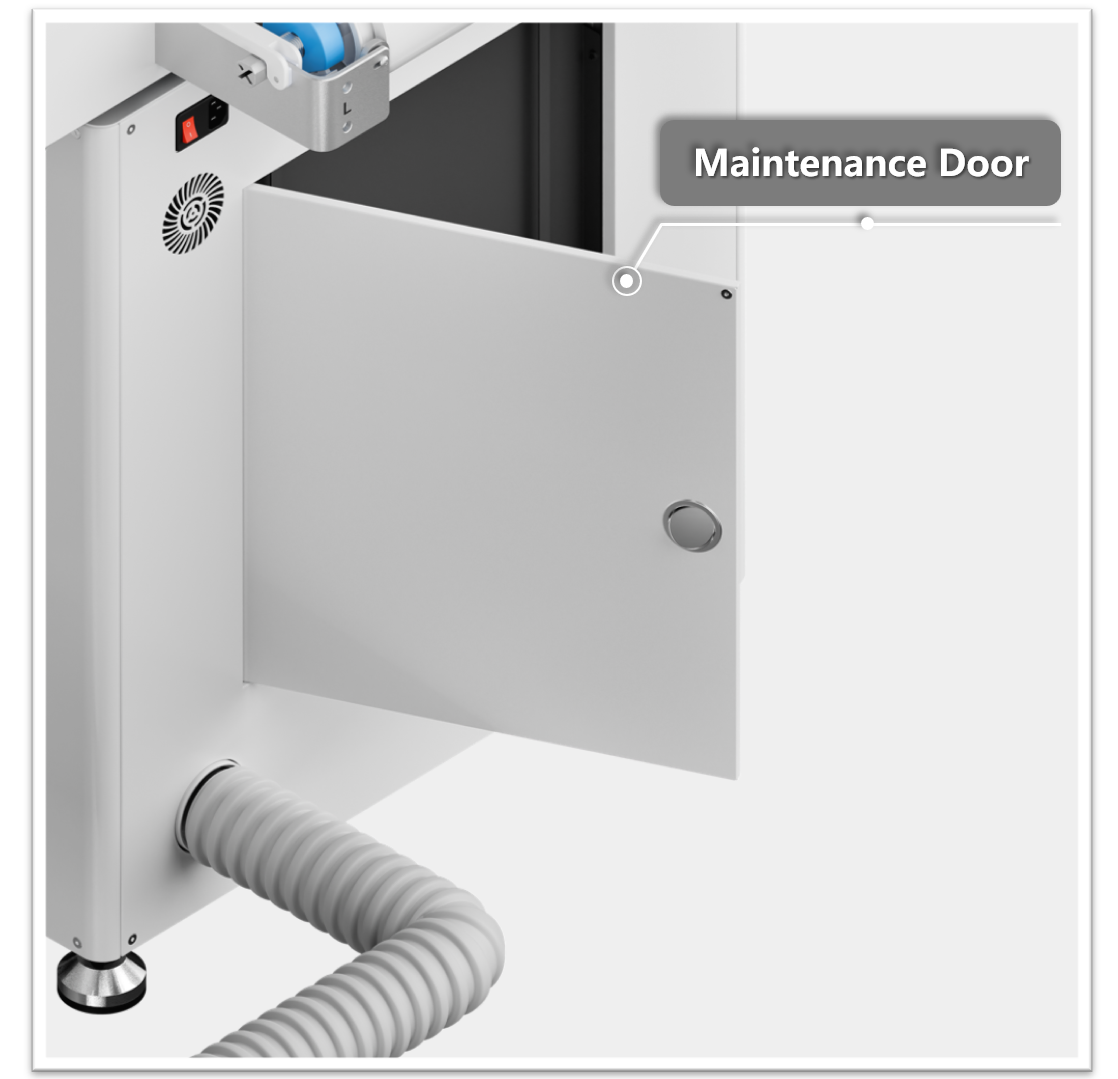
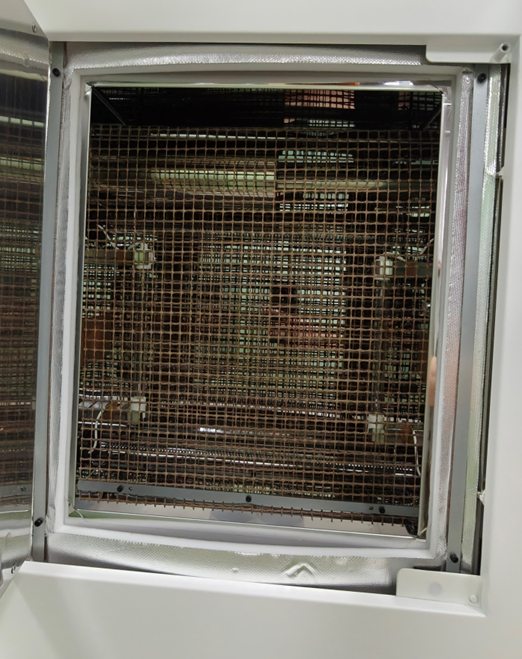
After Film Correction: Once film issues have been addressed, proceed to Step 2.
STEP2: Test the blade module function
Initiate Cutting Test
Choose one of the following methods:
- Via xTool Creative Space: Navigate to Device control > Cutting > Start
- Via Printer's Control Panel: Navigate to Maintenance > Cutting > Start
|
|
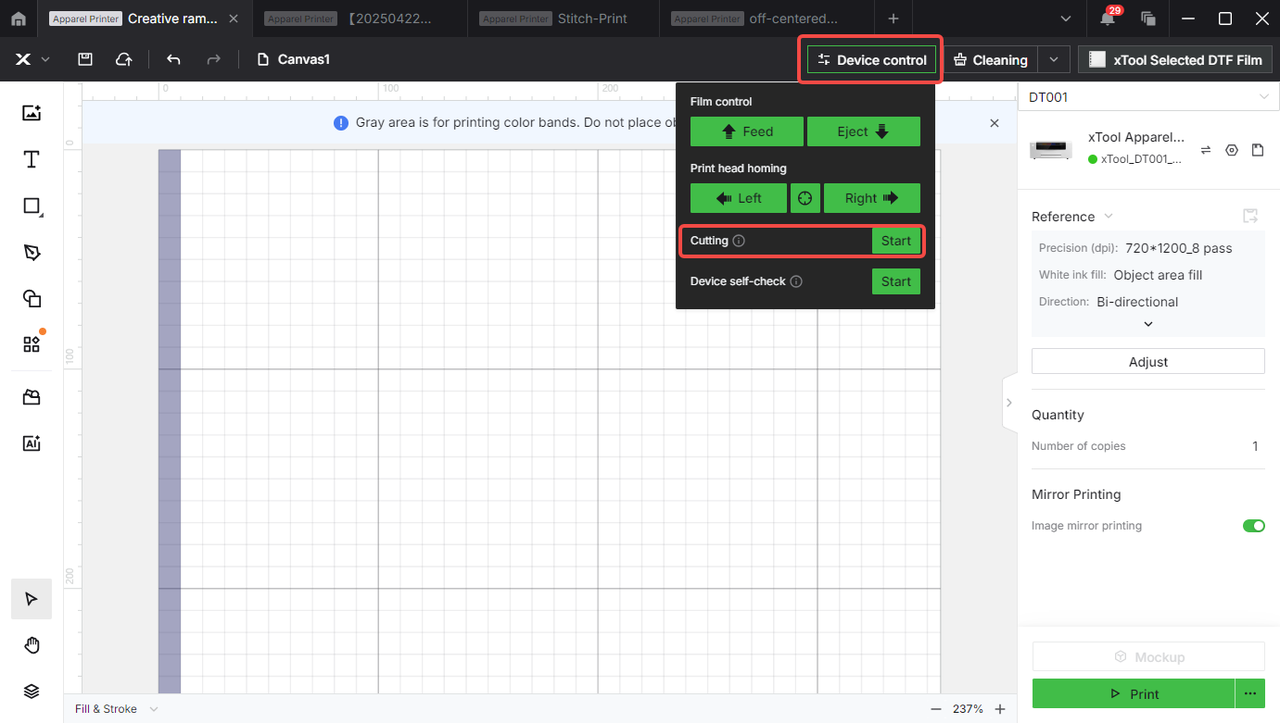
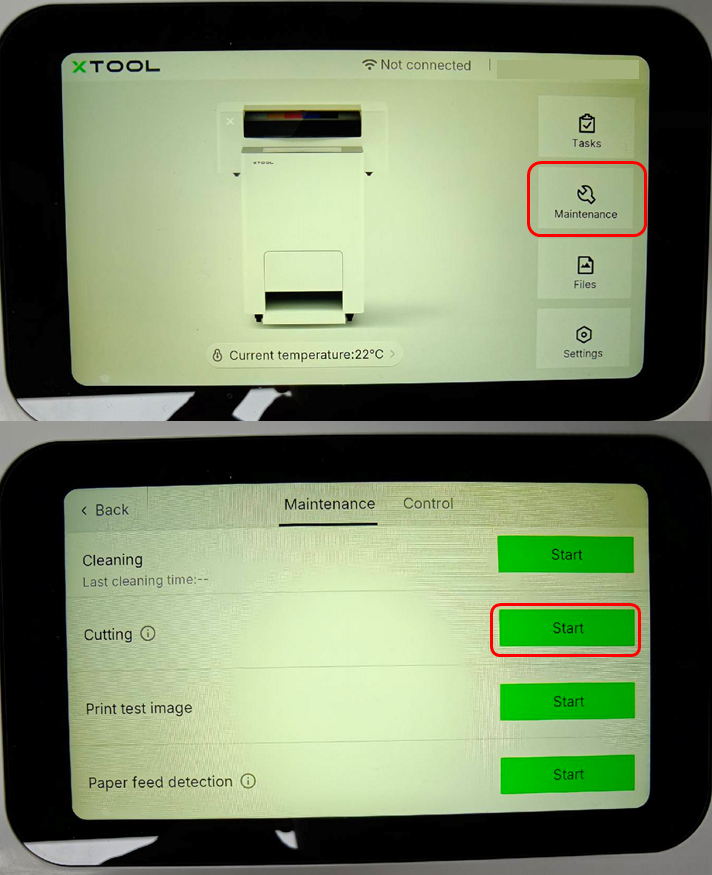
Evaluate Test Results
- If scratch marks appear on film: The blade may be dull; proceed to Step 3.
- If no marks appear on the film:
- Move the print head to the center position.
- Power off the machine (disconnect power at the outlet).
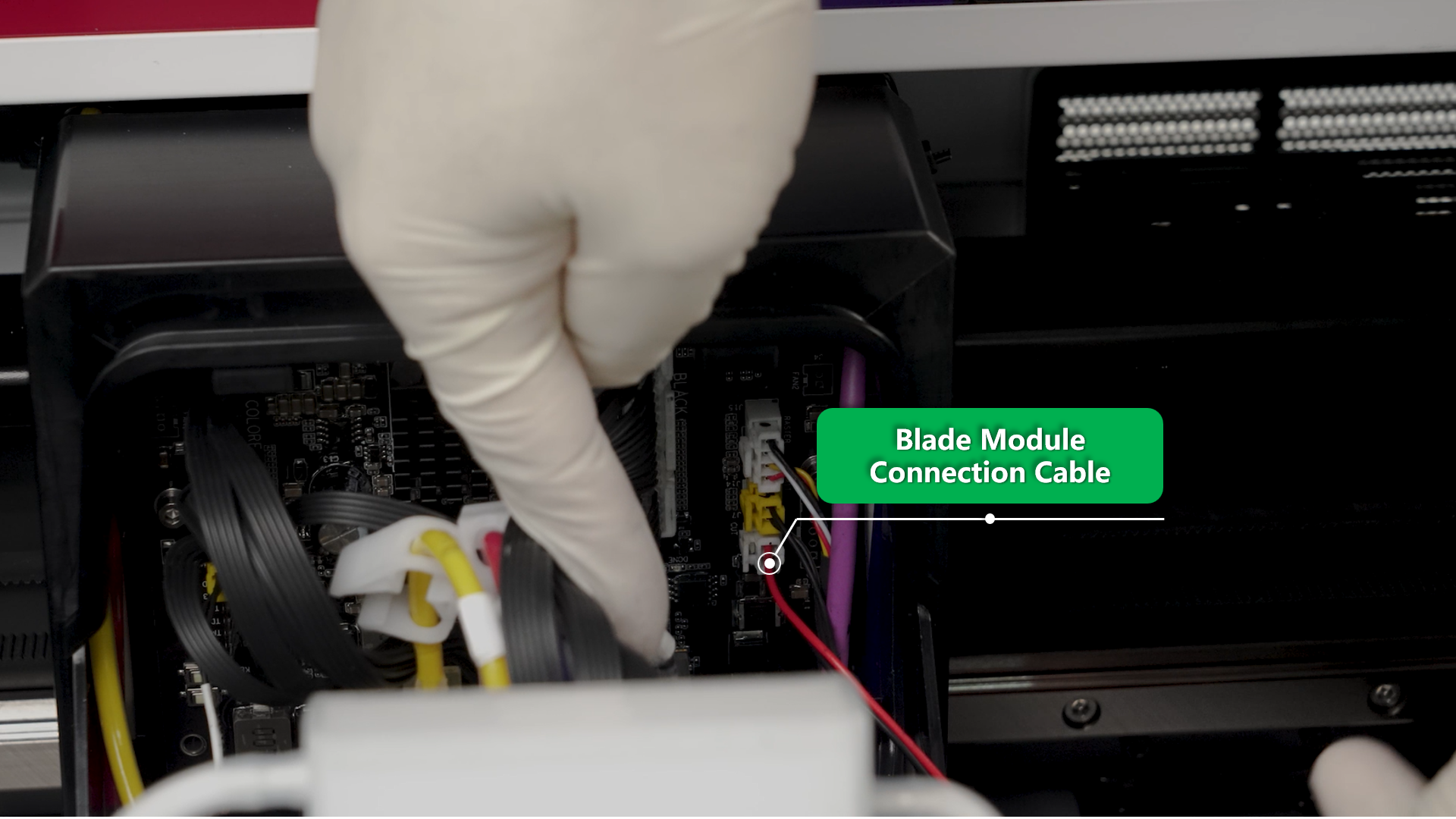
- Detach the print head top cover to access all connection cables on the carriage controller board.
- Disconnect and reconnect the blade module connection cable to check if the issue persists.
- If reconnecting cable doesn't resolve the issue: Proceed to Step 3.
- If cutting functions normally: The module may be installed incorrectly.
- If the cutting module seems properly installed and the film shows no cutting marks, yet the error persists, disassemble the cutting module for a visual inspection. Disassemble the cutting module to check for proper installation. Follow the video tutorial to reinstall the blade module: Replace the Cutting Blade for xTool Apparel Printer
- If no installation abnormalities are found but the problem recurs, proceed to Step 3.
STEP3: Replace the blade module
If issues persist after completing the previous steps:
- The cutting blade may be worn out.
- Replacement of the blade module is necessary.
- Follow the video tutorial to learn how to replace the entire blade module: Replace the Cutting Blade for xTool Apparel Printer
- Contact xTool Customer Service for assistance (see "Still experiencing issues" section).
Still experiencing issues?
Should the issue persist after completing the preceding steps, submit a ticket via the "Submit a Ticket" button in the "Help Ticket" section below. The standard response time for xTool Customer Service is one business day.
For a prompt resolution, please include the following details:
- Issue Description: A detailed explanation of the observed problem.
- Video Evidence: Attach a video demonstrating the issue, where applicable.
- Troubleshooting Performed: Any troubleshooting steps you have already attempted, along with their results.
This information is crucial for xTool technical support engineers to provide timely assistance.
Documentation feedback
Help improve this content by providing feedback. If this content did not meet your requirements, select "No" in the "Was this page helpful?" section below. Include specific details about what was unclear or missing in the pop-up suggestion box. Feedback submissions are reviewed by xTool technical writers to enhance future documentation.

