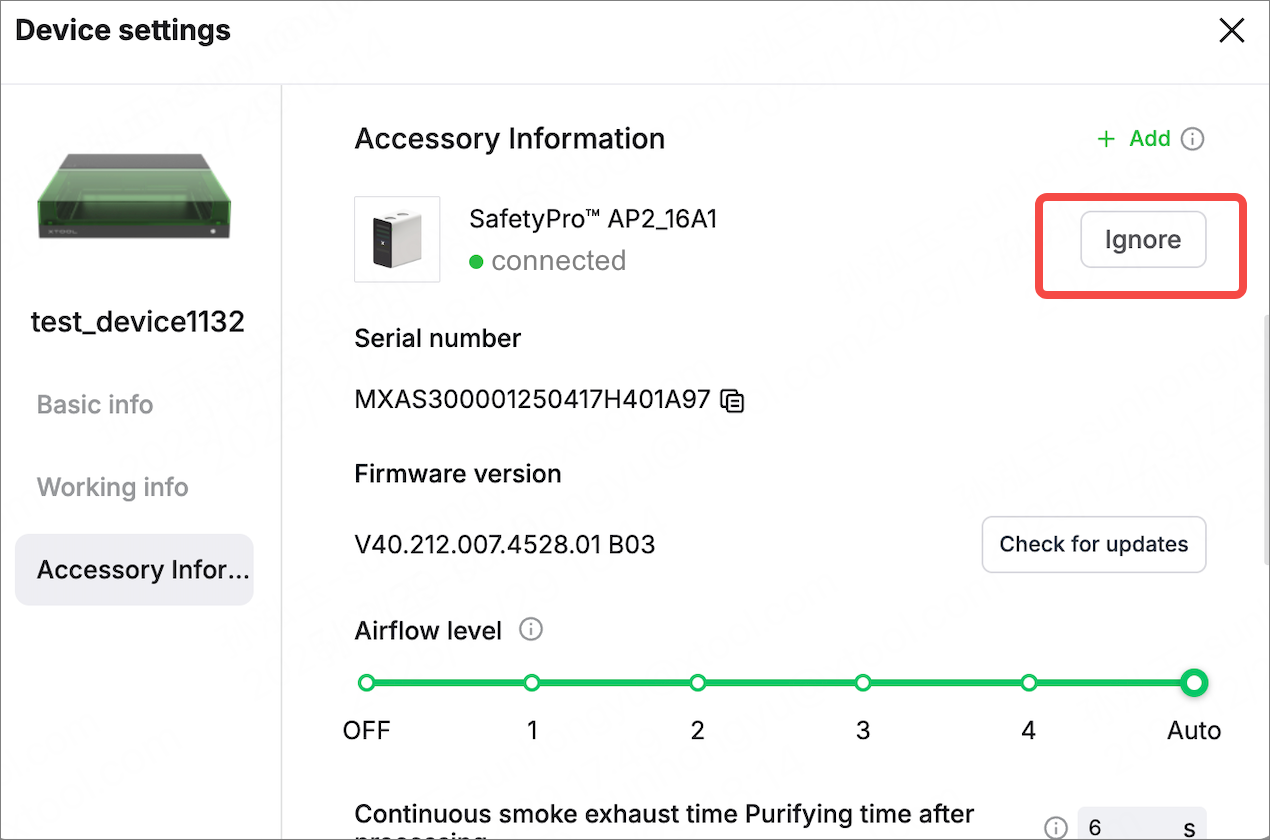
After you insert the Bluetooth dongle of the air purifier into the extension port of the xTool laser machine, you can view the purifier information on the xTool software and manually set the airflow level.
Note:
- One xTool laser machine supports only one Bluetooth dongle.
- When you use the air purifier with xTool laser machines with built-in Bluetooth, such as xTool P3, F2, F2 Ultra series, or OS1 Shaker Oven, you do not need to insert a Bluetooth dongle. The connection step is the same as Connect another Bluetooth accessory.
- The xTool software has iterated from XCS to xTool Studio. However, the operations of AP2 on the software are roughly the same. This document uses the xTool Studio as an example.
Prerequisites
- You have downloaded xTool Studio on your computer and the version is v1.0 and above.
- You have connected the xTool machine to your computer properly.
- You have upgraded the firmware of your laser machine (xTool Studio > Device settings > Basic info > Check for updates).
View purifier information
Step 1. Open xTool Studio and create a project.
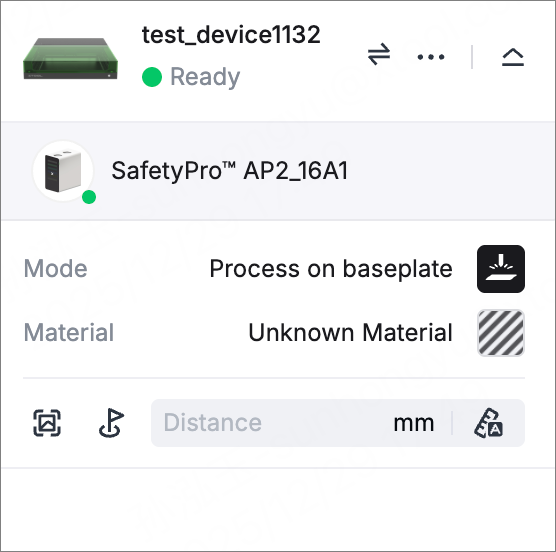
Step 2. On the right panel, select the air purifier you have connected.
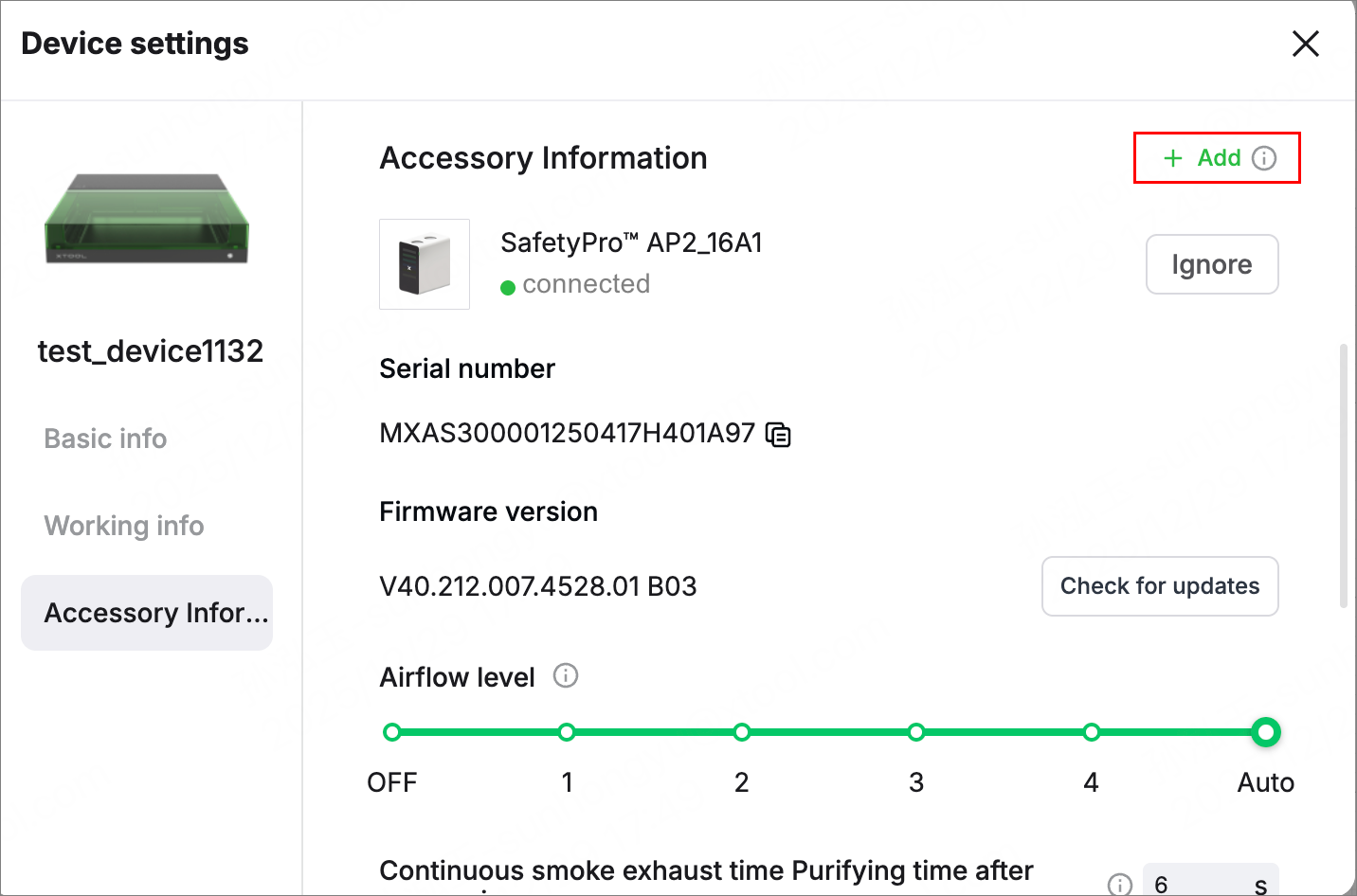
The Accessory Information page is displayed, showing details about the purifier.
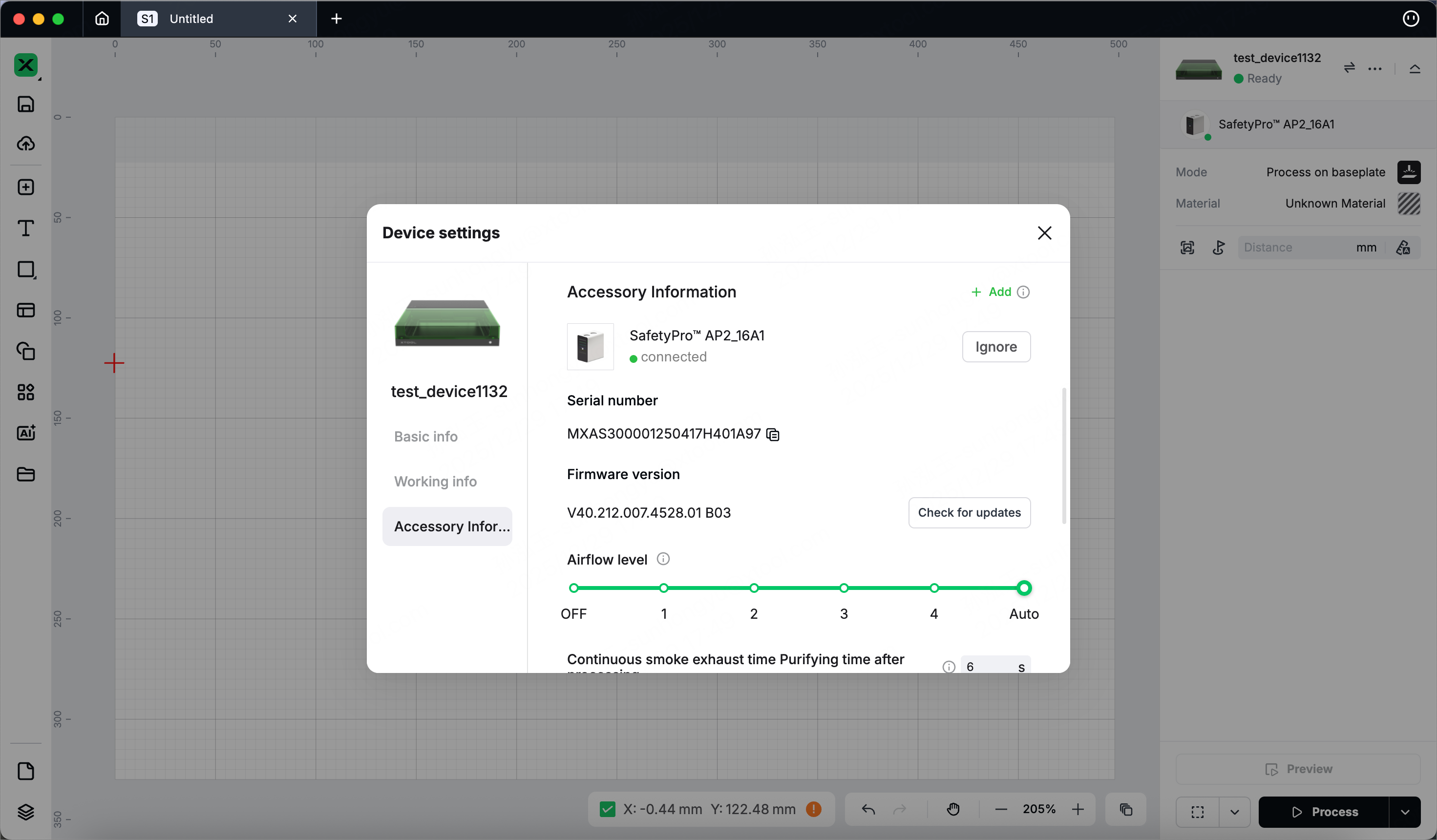
If AP2 does not appear in the software, you can troubleshoot by following the instructions in Bluetooth connection failure solutions.
Operate the air purifier
Switch on and off
Switch on: Slide the Airflow level bar from OFF to any level or Auto mode.
Switch off: Slide the Airflow level bar to OFF.

Set airflow level
Set the airflow to a higher level when the smoke is heavy and to a lower level when the smell is strong. In Auto mode, the purifier automatically sets the level based on the material to be processed.
When you use the air purifier with xTool OS1 Shaker Oven, it is recommended that you leave the purifier working at its default level (Auto level). Otherwise, the purifying performance may be affected.
Set purification time after processing
When AP2 works in Auto mode, you can specify Continuous smoke exhaust time Purifying time after processing. AP2 continues purifying for the period specified by this parameter after the laser machine completes processing.

Check filter life
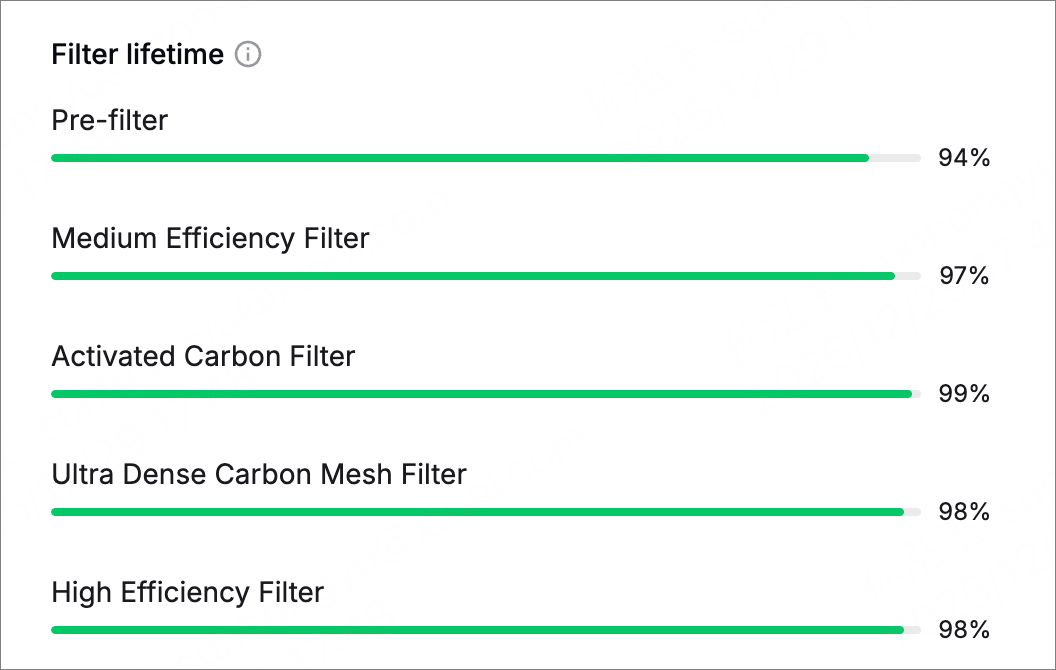
When the filter life is less than 10%, you will be prompted to buy a new one for replacement.
Connect another Bluetooth accessory
xTool Studio supports connecting more than one Bluetooth accessory via the Bluetooth dongle. Assume that you have connected AP2 to xTool Studio via the Bluetooth dongle. To connect another accessory:
- Press and hold the power button of the air purifier for 5 seconds to enter the "Waiting for connection" mode. The wireless connection indicator will blink blue.
- On the Accessory Information page, click +Add. Ensure that the target accessory is close to the machine during the connection process.
Delete the air purifier
Click Ignore on the Accessory Information page. After being ignored, the air purifier will be deleted from the Accessory Information page.