
Calculating the Taper Angle
Before editing, you'll need to acquire your tumbler's taper. Here we have 3 routes to calculate the angle:
- Online Calculator: If apps aren't your cup of tea, try an online calculator like this one.
- DIY Calculation: For the mathematically inclined, here's the formula to calculate it yourself: Taper angle=atan(D1−D22×L)
D1: Diameter of the tumbler's larger end
D2: Diameter of the smaller end
L: Length of the tumbler
atan: The arctangent function
This formula yields the cone angle in radians. Convert it to degrees by multiplying by (180/π)
Deform Your Design in Photoshop
With the angle in hand, it's time to mold your design into a tapered tumbler masterpiece in Photoshop.
Preparation
New Canvas: Open Photoshop and create a new document. Set the width to the larger of the tumbler's circumferences and the height to the tumbler's length.
Design within Bounds: Sketch your design. Remember, it'll stretch to fit the taper.
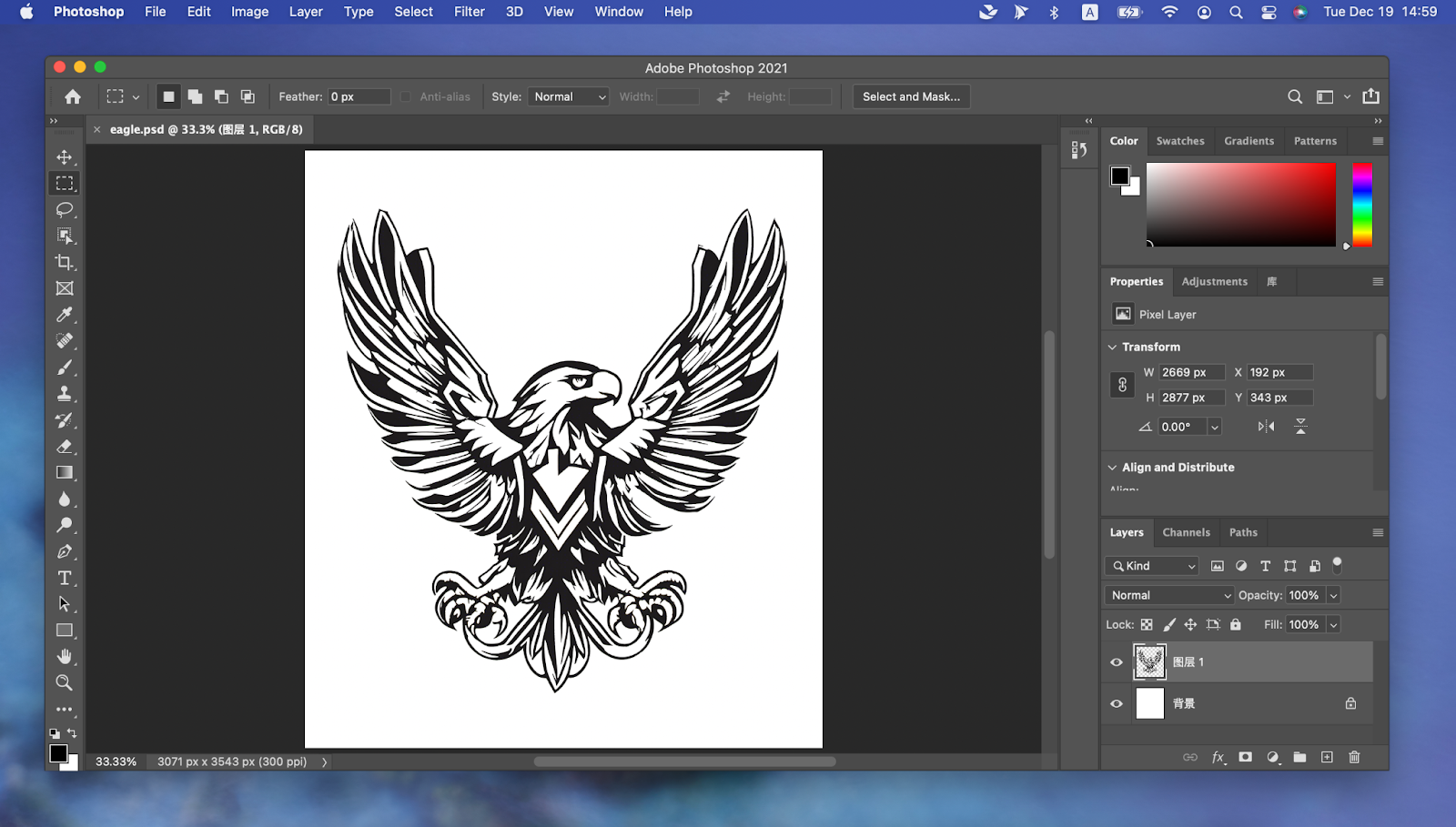
Transform and Twist
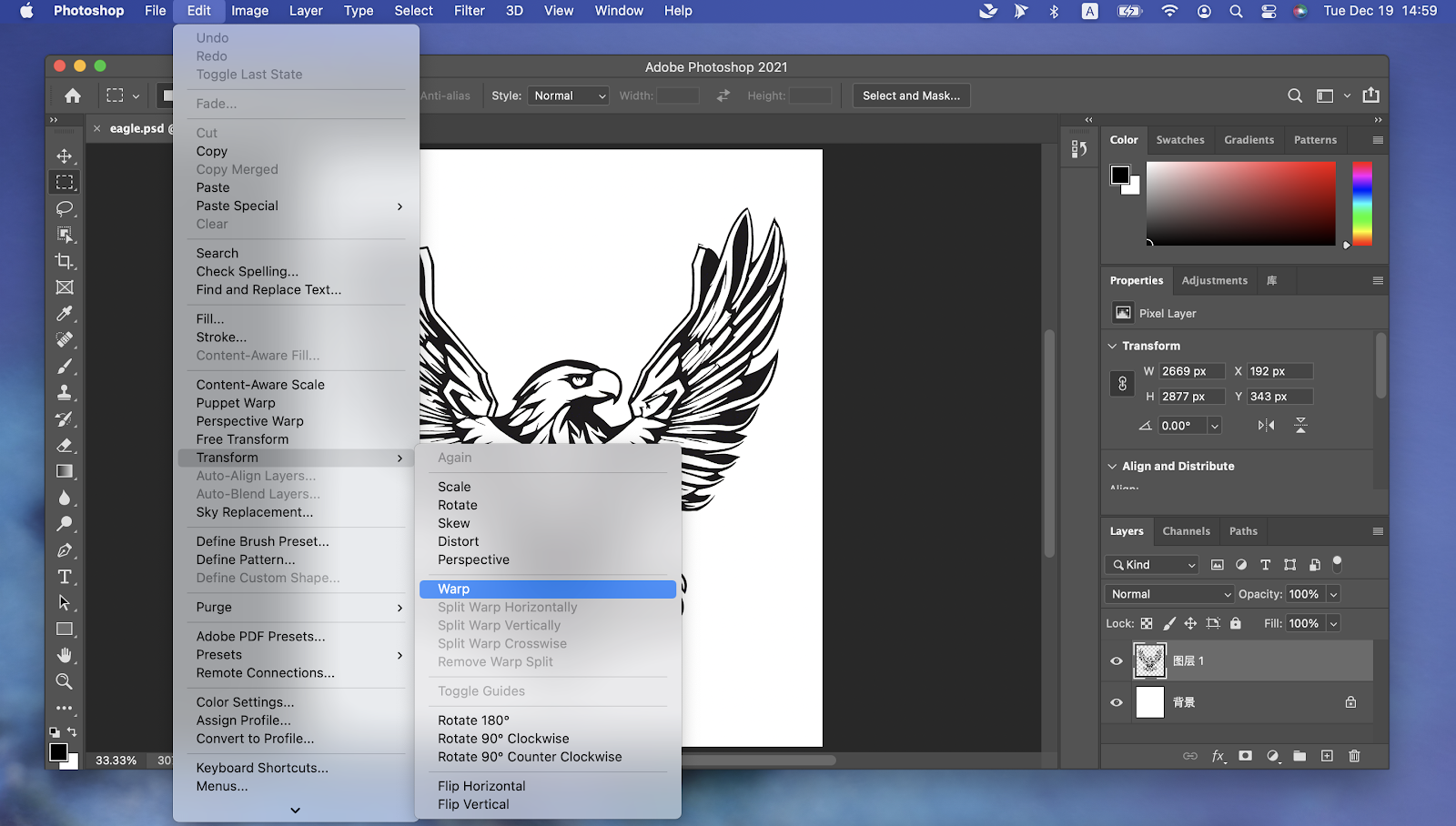
Distort and Warp: Navigate to Edit > Transform > Distort> Warp. This lets you non-uniformly deform the image, a must for that tapered look.
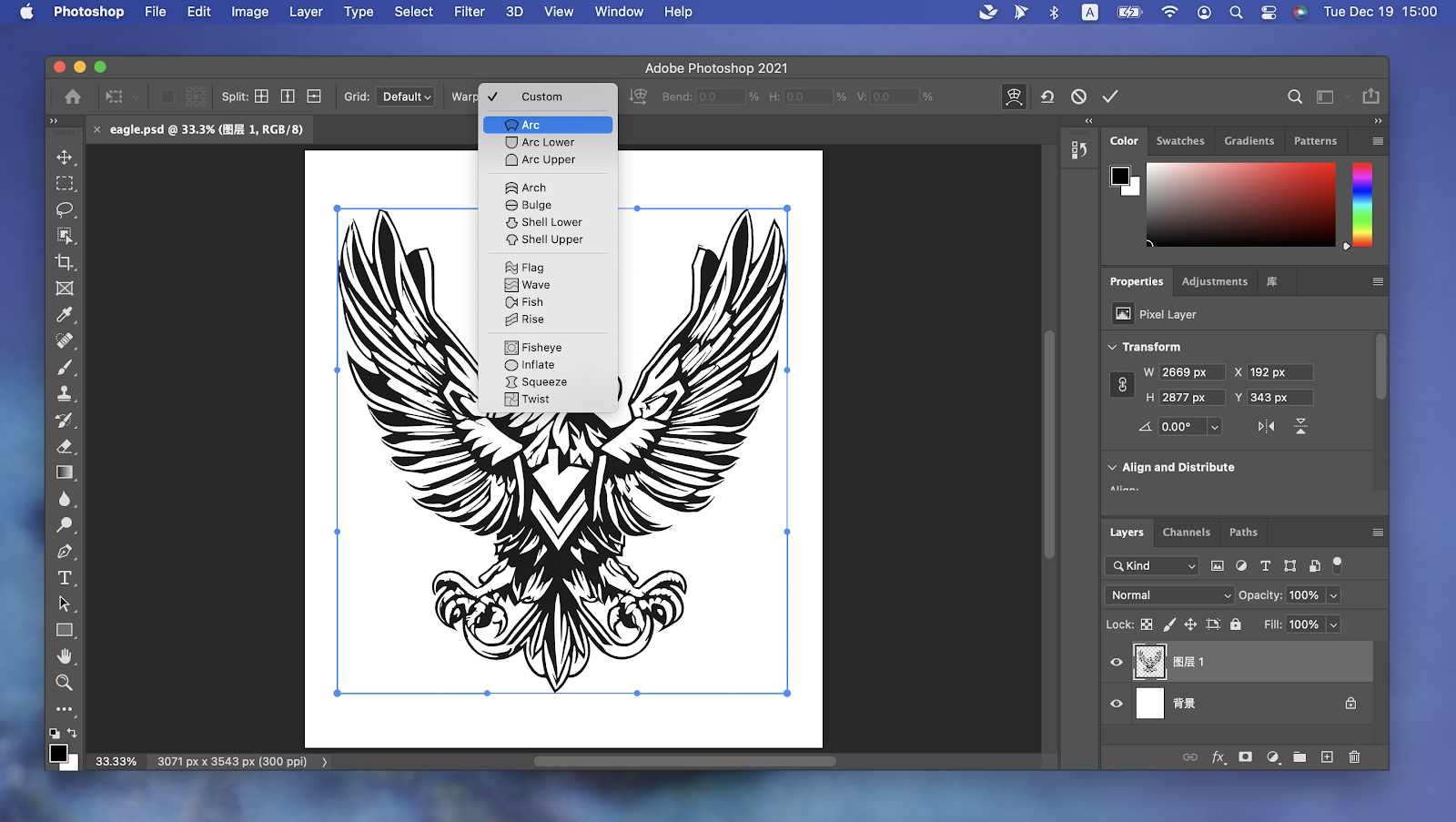
Arc Style: Switch to Arc style. It lets you curve the image, adapting it to the taper.
Input the Values
Bend & V-Values:
- Set
Bendto 0 to avoid initial distortion. V-valueis the warp percentage, not an angle. The formula here is (2×angle)−2.22
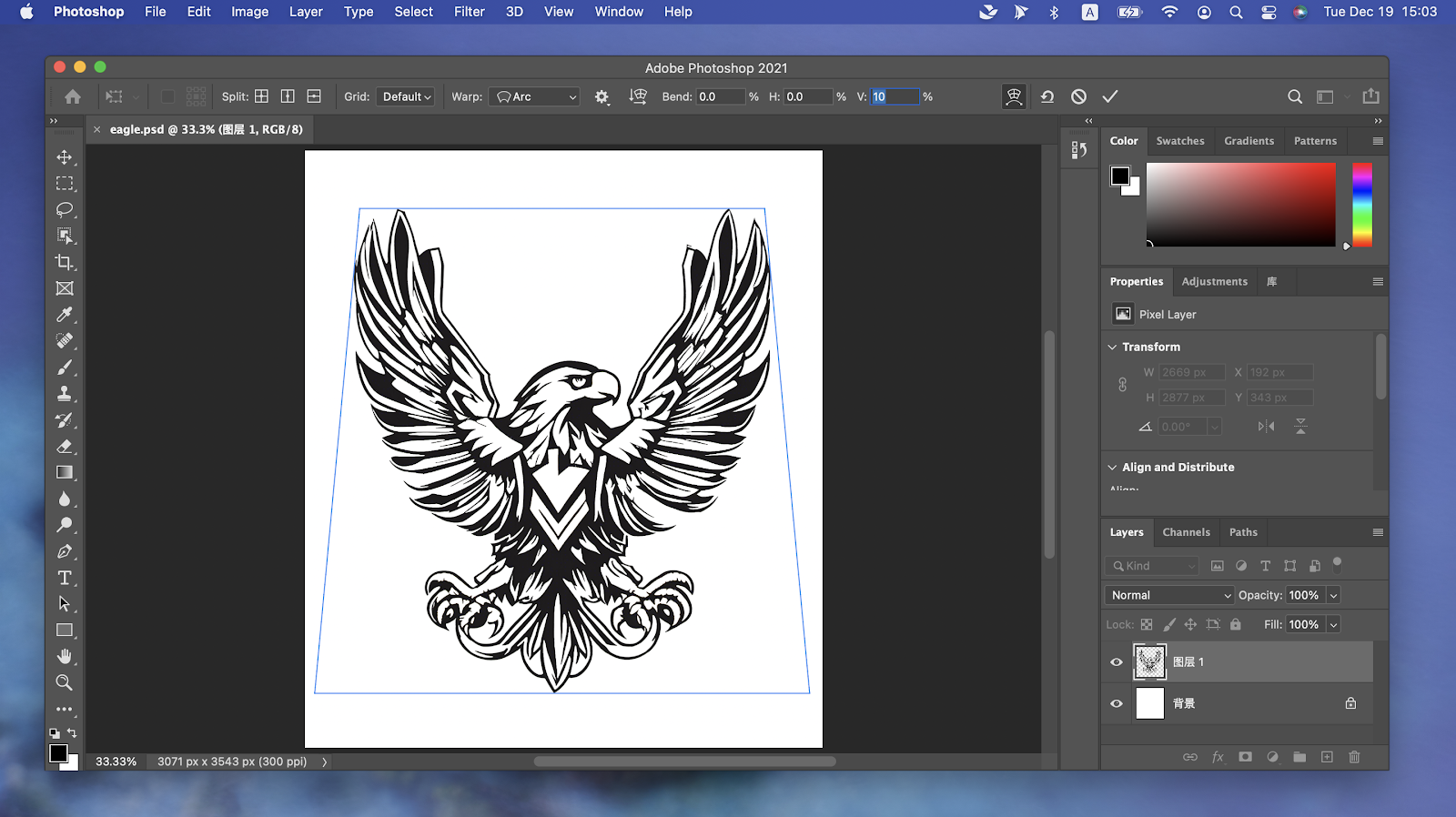
- Apply the Warp: Input your calculated V value and apply the transformation. Your round logo now compensates for the taper.
- Check and Adjust: After warp, ensure the size is right. Keep the aspect ratio intact to avoid any new distortions. If needed, resize it to match the dimensions of your engraving target.

