
If you're just getting started, it's completely normal to feel a little unsure when you first open the software. But don't worry, we've got you covered! In this guide, we'll walk you through the basics of the XCS vertical toolbar to help you kick off your editing journey.
Let's dive in and discover the key aspects of the XCS vertical Toolbar:

Image
 Click to import an image. Currently, XCS supports the importing of only JPG, JPEG, GIF, PNG, BMP, SVG, DXF, and WEBP files.
- Mac: Command+o
- Windows: Ctrl +o
Note: Currently, text objects can't be properly parsed on XCS. If you are to import an SVG file including texts, please convert the texts into paths and then import the SVG file into XCS, so that the SVG image can be properly processed. If you have more questions regarding this process, please refer to FAQs on Importing Images
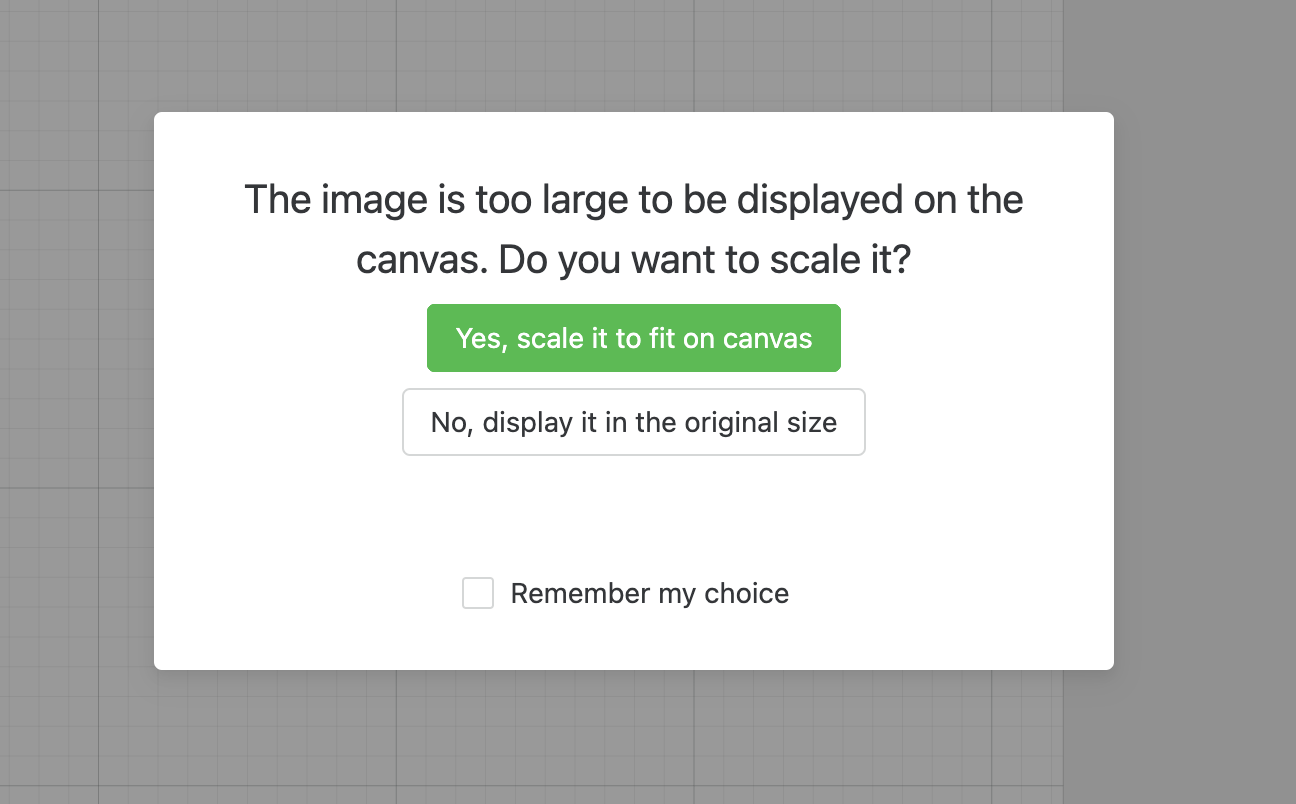
If your image is bigger than the canvas, a pop-up window may appear. We recommend scaling it down to get a complete view of the image on the canvas.
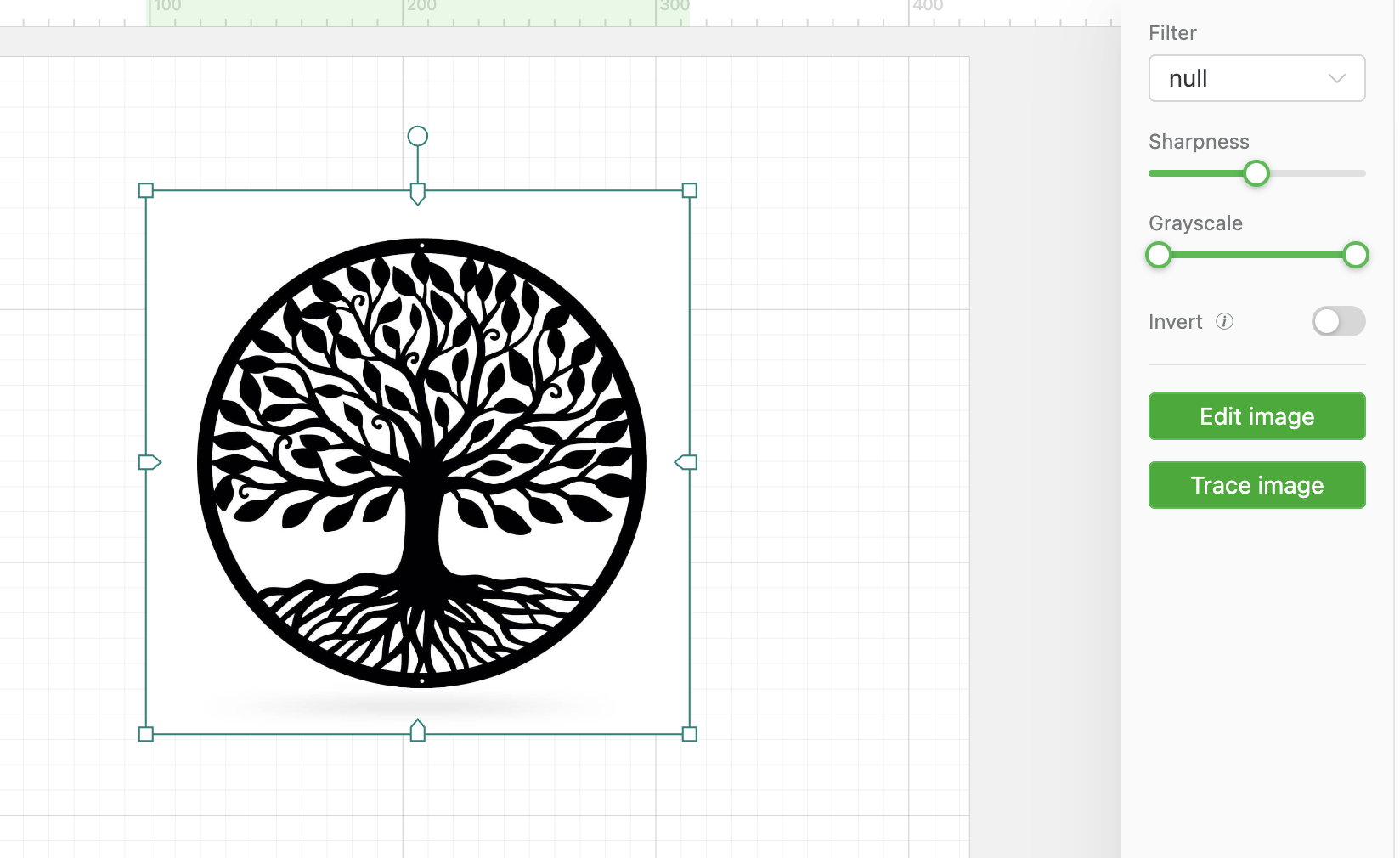
After importing, you can set the properties of the image or edit it.
| 
 |
Edit Image
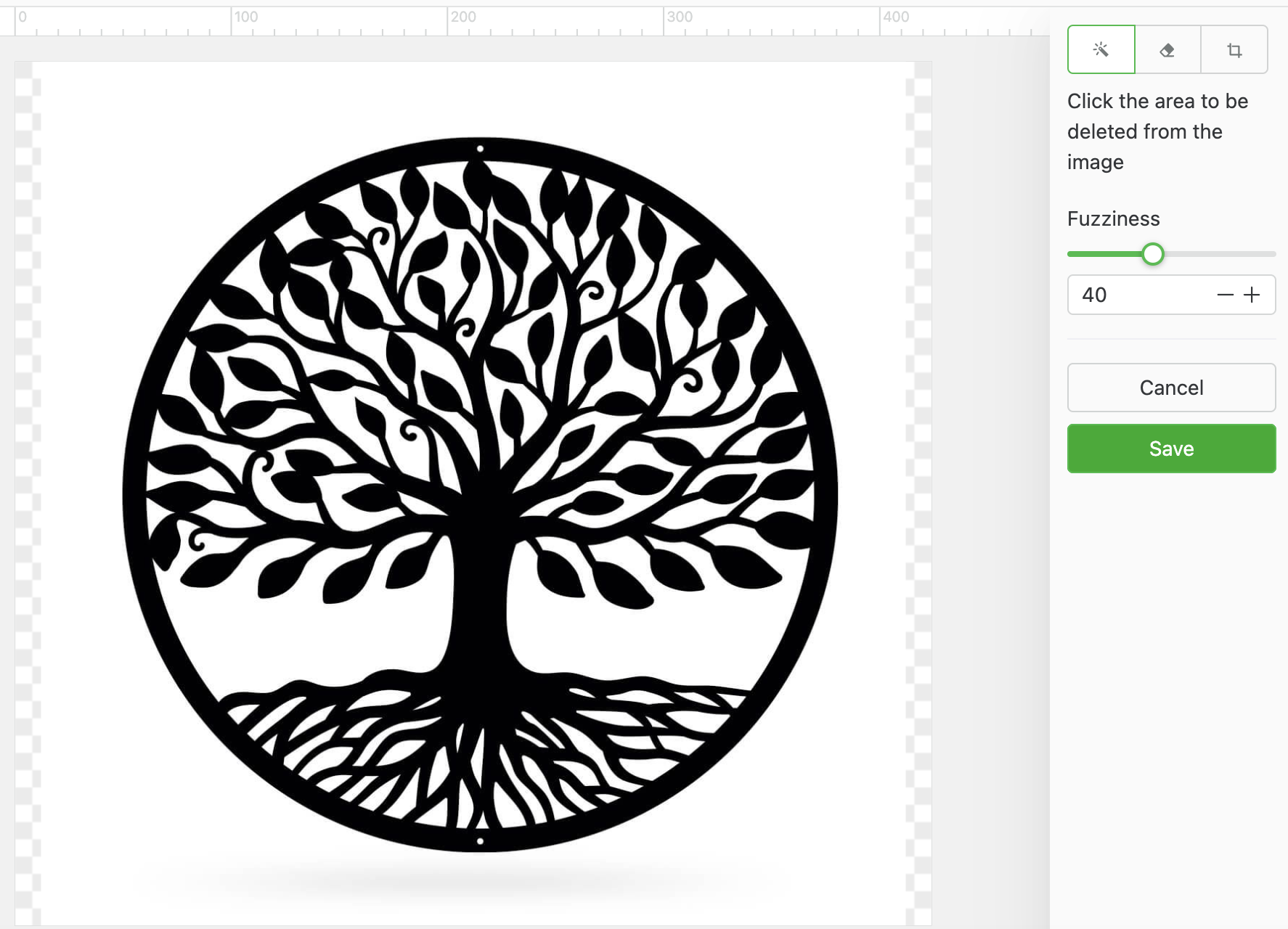
In addition to the preceding settings, you can further edit an image.
|  |
Trace Image
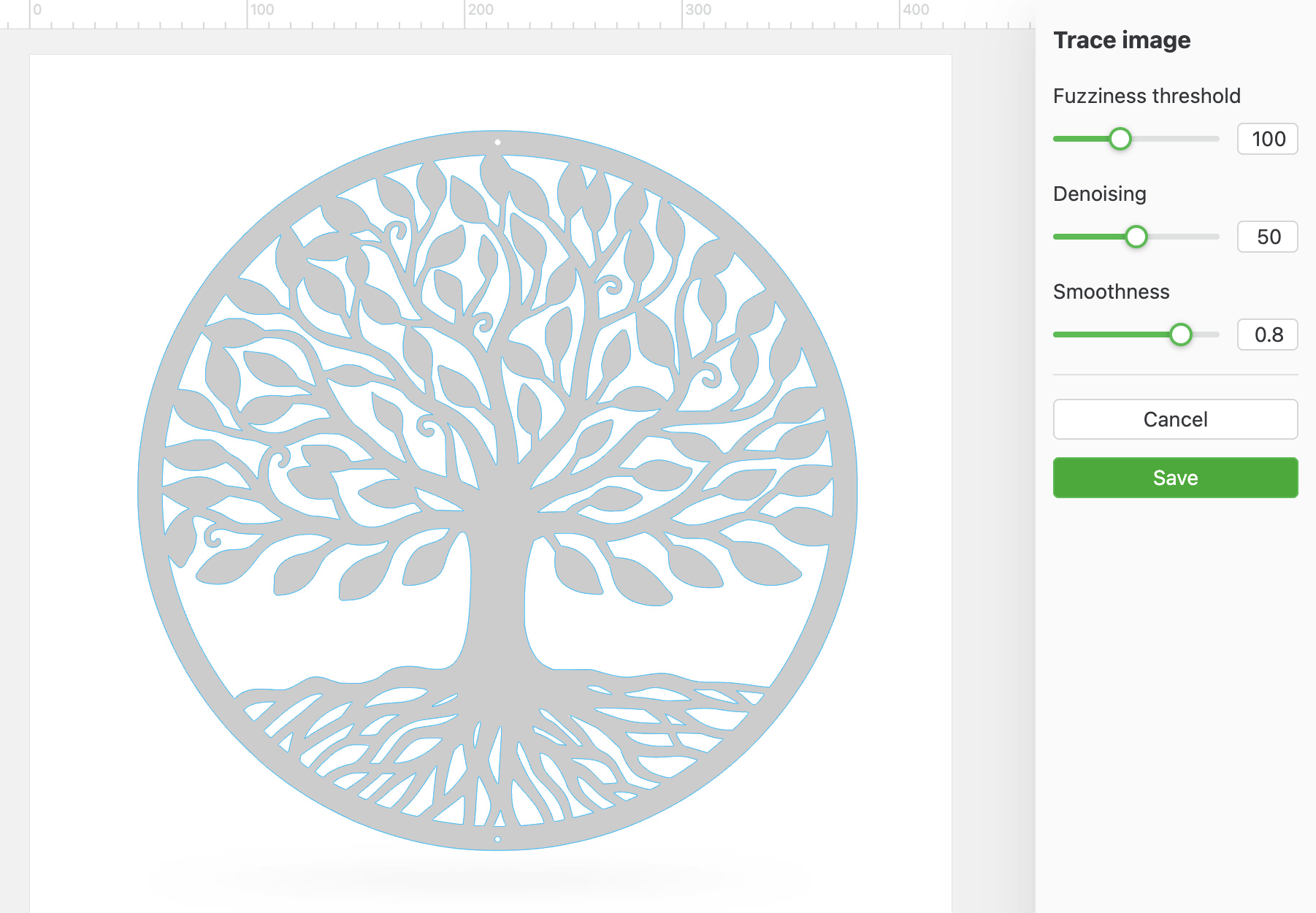
- Click the 'Trace Image' button to extract vector lines from bitmaps. The resulting SVG supports engrave/cut/score processing.You can adjust Fuzziness Threshold, Noise Ignorance, and Smoothness to get the ideal result. Learn more
|   |
Insert
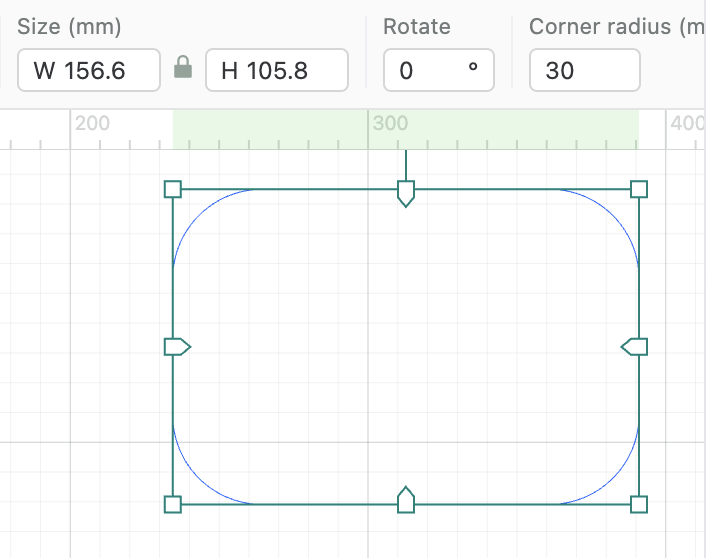
Click to insert Line, Rectangle, or Circle, or press L, R, or C on keyboard. You can adjust the corner curvature of rectangle shapes.
- Perfect Circle: Shift+C
- Square: Shift+R
- Vertical/horizontal Line: Shift+L
 |  |
Shape Library
 Shape library contains different types of shapes, categorized under Border, Plant, Animal, and Festival, etc.
Note: these shapes cannot be edited.

Text
 Click here or press T on the keyboard to insert text. The default text is "Hello." After inserting the text, you can change the words, set the font size, typeface, style, spacing, leading, aligning mode, and test welding. You can also add your own font to the software. Learn more

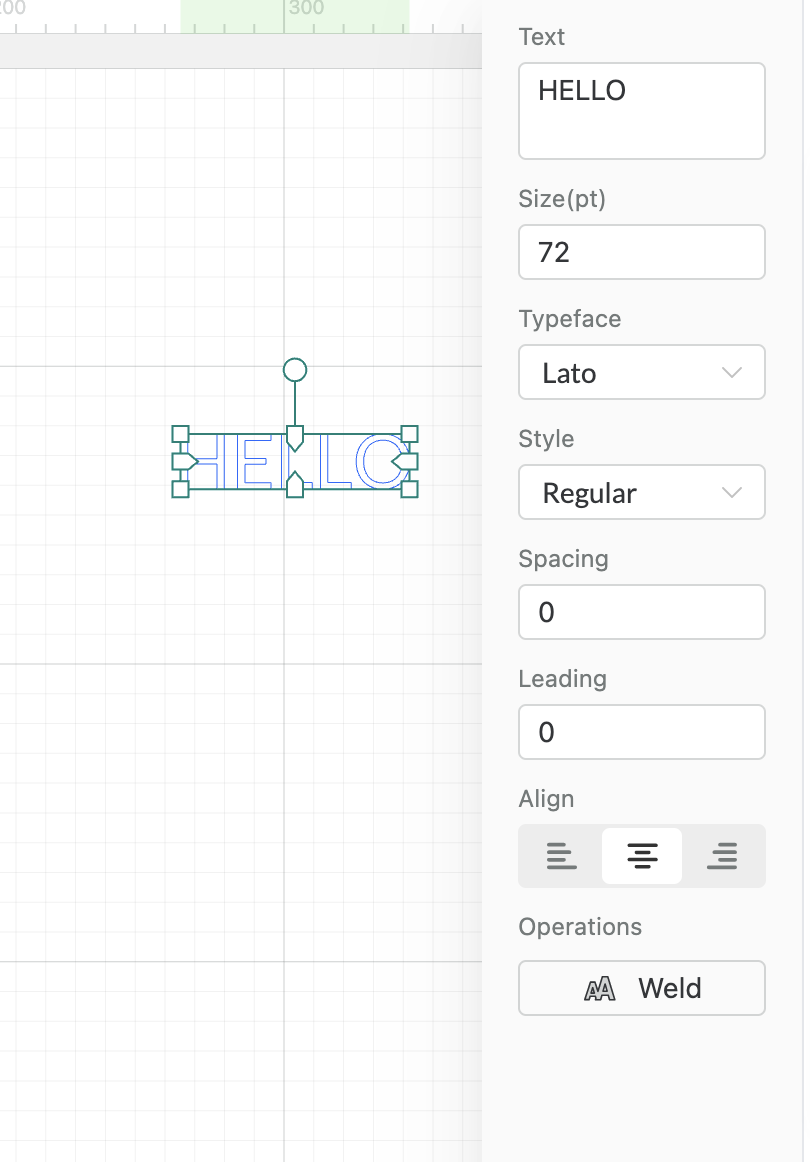
Weld
When the outline of a character overlaps with another, click the [Weld] button, and the overlapping parts will be ‘United’ together. Learn more
Curve
After inserting a text, you can see a controller on the right of the text. You can curve the text by dragging the control.
Vector
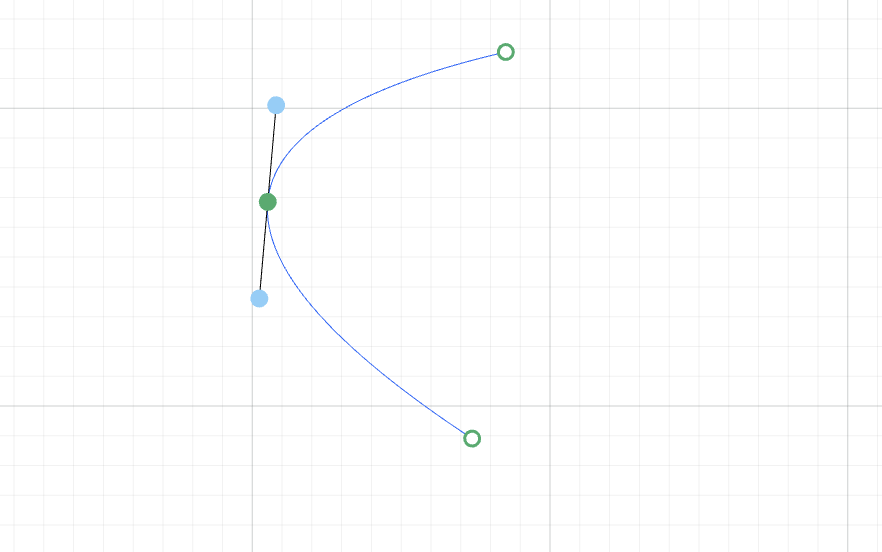
 selected to draw a vector path. Press S/ESC on the keyboard to stop drawing.
After drawing, you can double-click an anchor point to convert it to a rounded corner or back to a corner, and adjust the curvature.
xArt
Note: If you use xArt for the first time, you'll need to sign up an account and get your initial 500 points, and every time you use xArt to generate an image, 5 points will be spent.
Code
- QR code: supporting Chinese and English characters, digits, punctuations, and special symbols
- Barcode: supporting English characters and digits
- Advanced settings allow you to adjust QR code fault tolerance, preset to 15%.

Select
 Click and select one or more items
- Select one element: click an item to select it
- Select multiple elements:
- Way 1: drag the mouse pointer over all the elements to be selected
- Way 2: hold down the Shift key on the keyboard and click the elements to be selected. When holding down the Shift key, you can click an element again to deselect it.
Note: When multiple elements are of the same type, you can set processing parameters for them at a time. But for those of different types, you need to set processing parameters for them separately.
Hand
 Selected to move the canvas by dragging the mouse. Or you can hold down the Space key and drag.

Services & Help
Learn & Education

Copyright © 2025 xTool All Rights Reserved.