
xTool Studio Desktop V1.9 Release Notes
- Download link:
Windows Version macOS-Intel Version macOS-M Version
General
1.Performance Optimization
This release brings systematic performance improvements to importing, editing, dragging, and duplicating large or complex vector files, along with a new automatic merge feature for complex vector imports.
- Complex vector imports now automatically merge same-style objects to reduce object count, making editing and dragging smoother (can be turned off in settings)
- Import speed for large SVG/DXF files is significantly faster
- Copying, dragging, and resizing large complex objects is now more responsive, with drag lag largely eliminated
- Improved memory usage and stability — fixed freezes and crashes caused by repeatedly resizing or dragging very large shapes
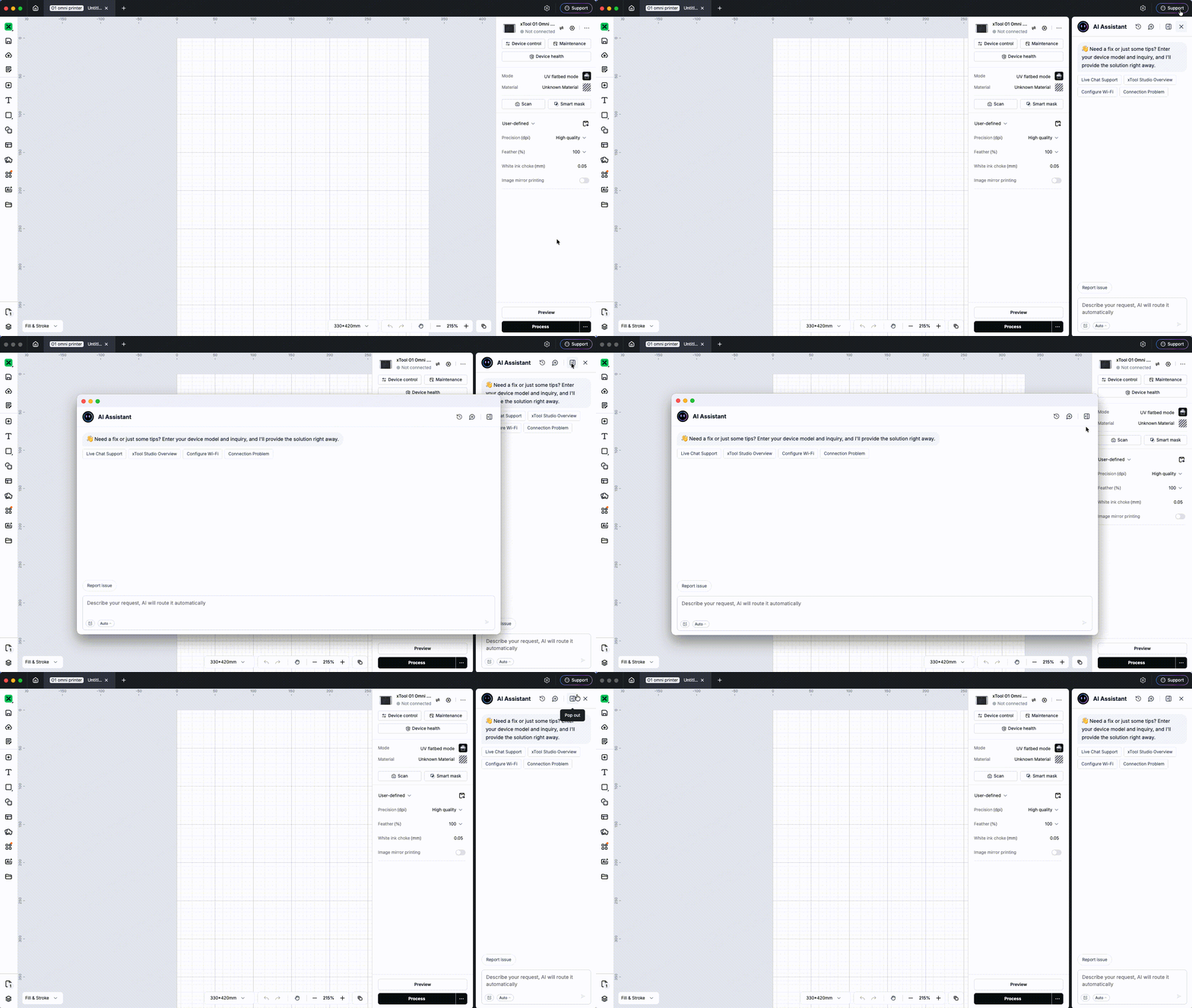
2.Support two modes for the AI Assistant
Docked in the side panel, or as a standalone window. Switch between them at any time, and move the standalone window to a second display.
3.Added User Improvement Plan
Editor
1.Adobe Illustrator (.ai) file import
Adds direct Adobe Illustrator (.ai) file import without converting to SVG first, with a choice of whole-image or element-level import that preserves layer structure.
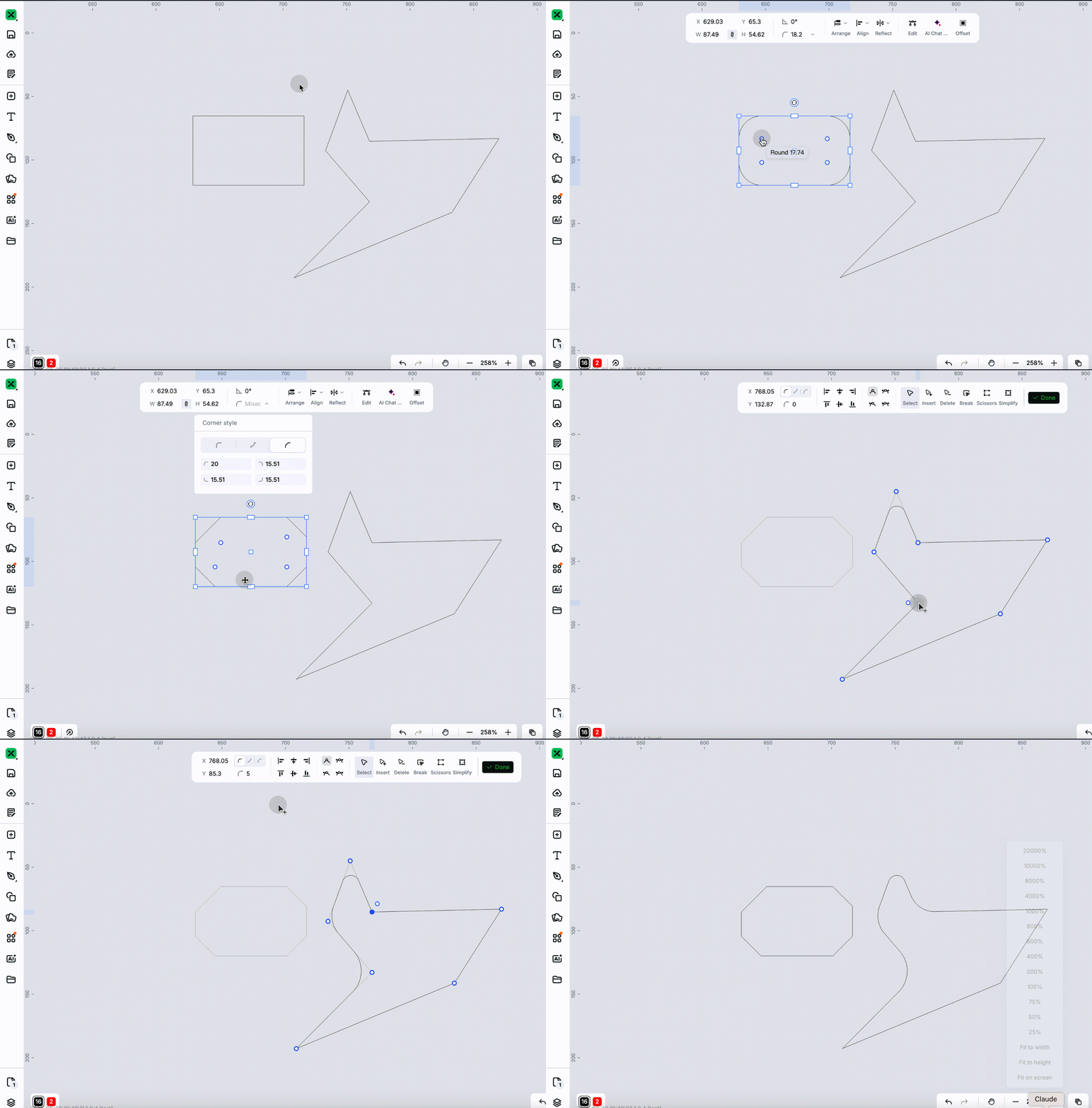
2.Corner radius
The new Corner Radius feature lets you apply corner effects to any vector shape, with three styles to choose from: Round, Inverted Round, and Chamfer. You can set a corner radius for the entire object to adjust all corners at once, or enter node editing mode and use the control points to fine-tune the radius of each individual node for more flexible and precise editing.
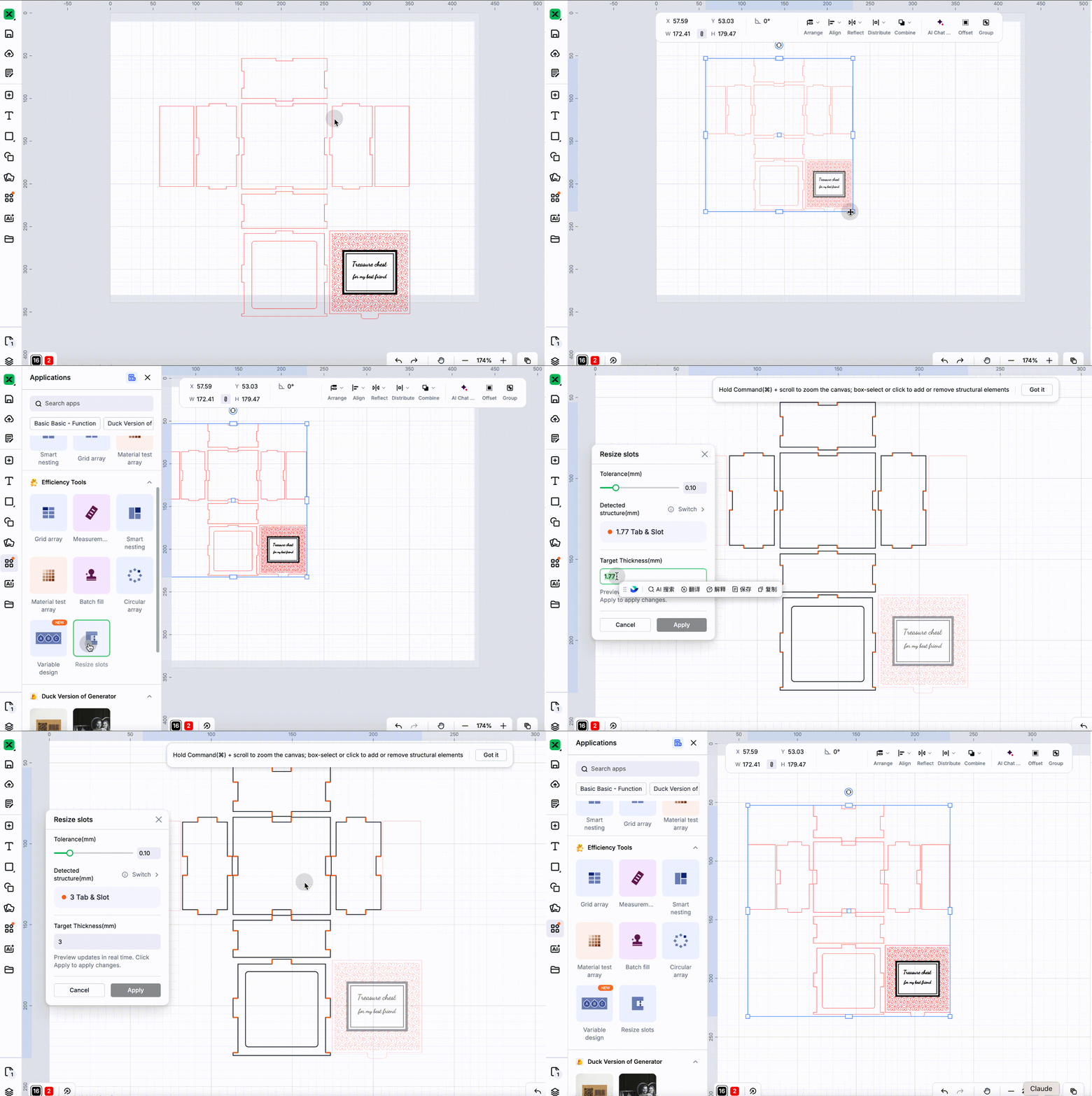
3.Resize slots
Tired of manually adjusting tabs and slots? The new Resize Slots feature can automatically detect Tabs & Slots and Cross Joints in your design and batch-adjust them to your target material thickness. Whether you've scaled your design or switched to a material with a different thickness, Resize Slots makes it easy to resize these joints without having to edit them one by one.
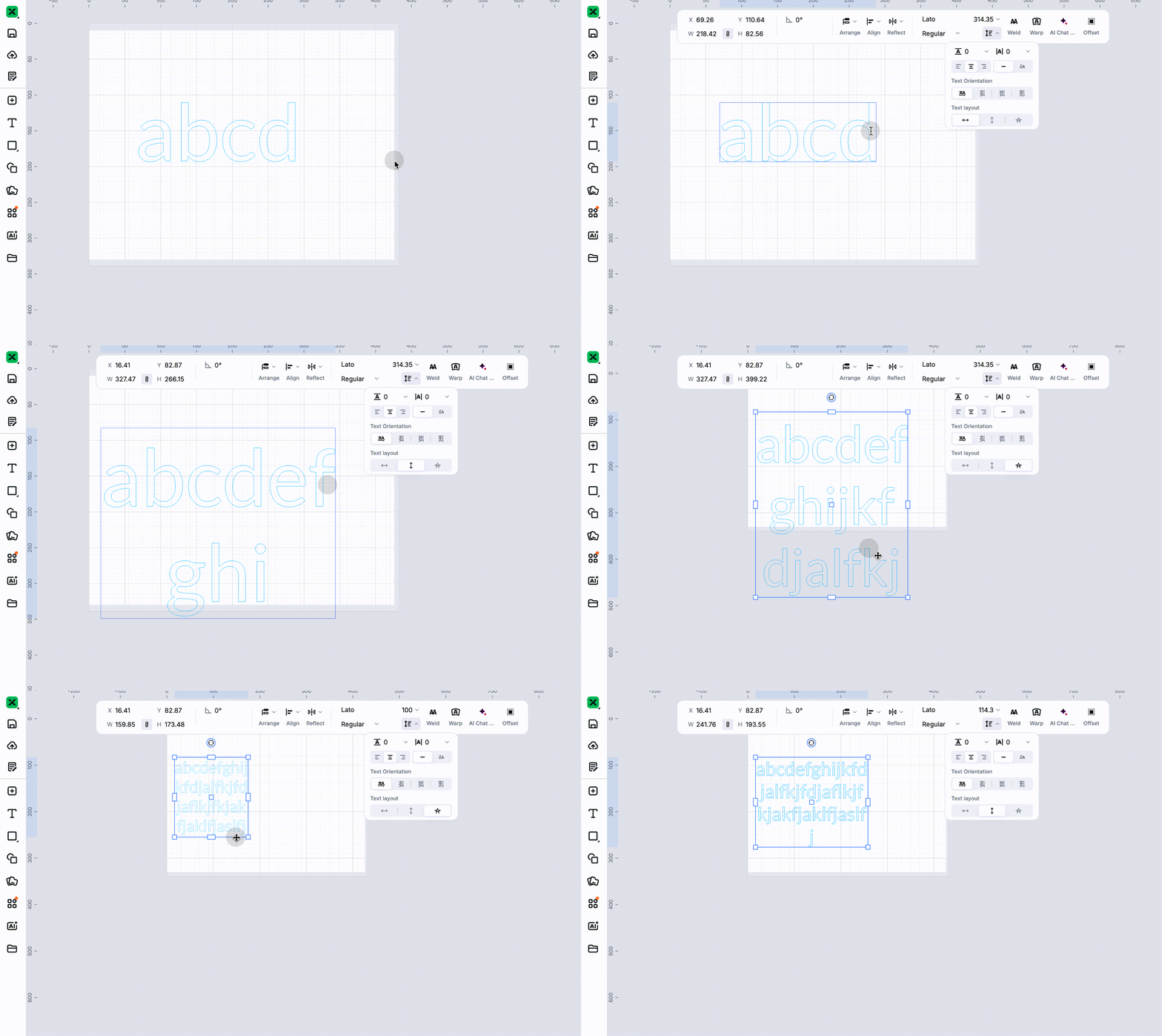
4.Text Layout (Auto Width / Auto Height / Auto Fit)
Adds three text box layout modes — Auto Width, Auto Height, and Auto Fit — controlled by resizing the bounding box.
- Auto Width (default): fixed height, text expands horizontally
- Auto Height: fixed width, text wraps and grows vertically
- Auto Fit: fixed size, font auto-scales to fill the box
5.Added Command(Ctrl) + D for quick duplication in place, and added the action to the menu bar.
6.Added the V shortcut to quickly switch to the Select tool while in node editing mode.
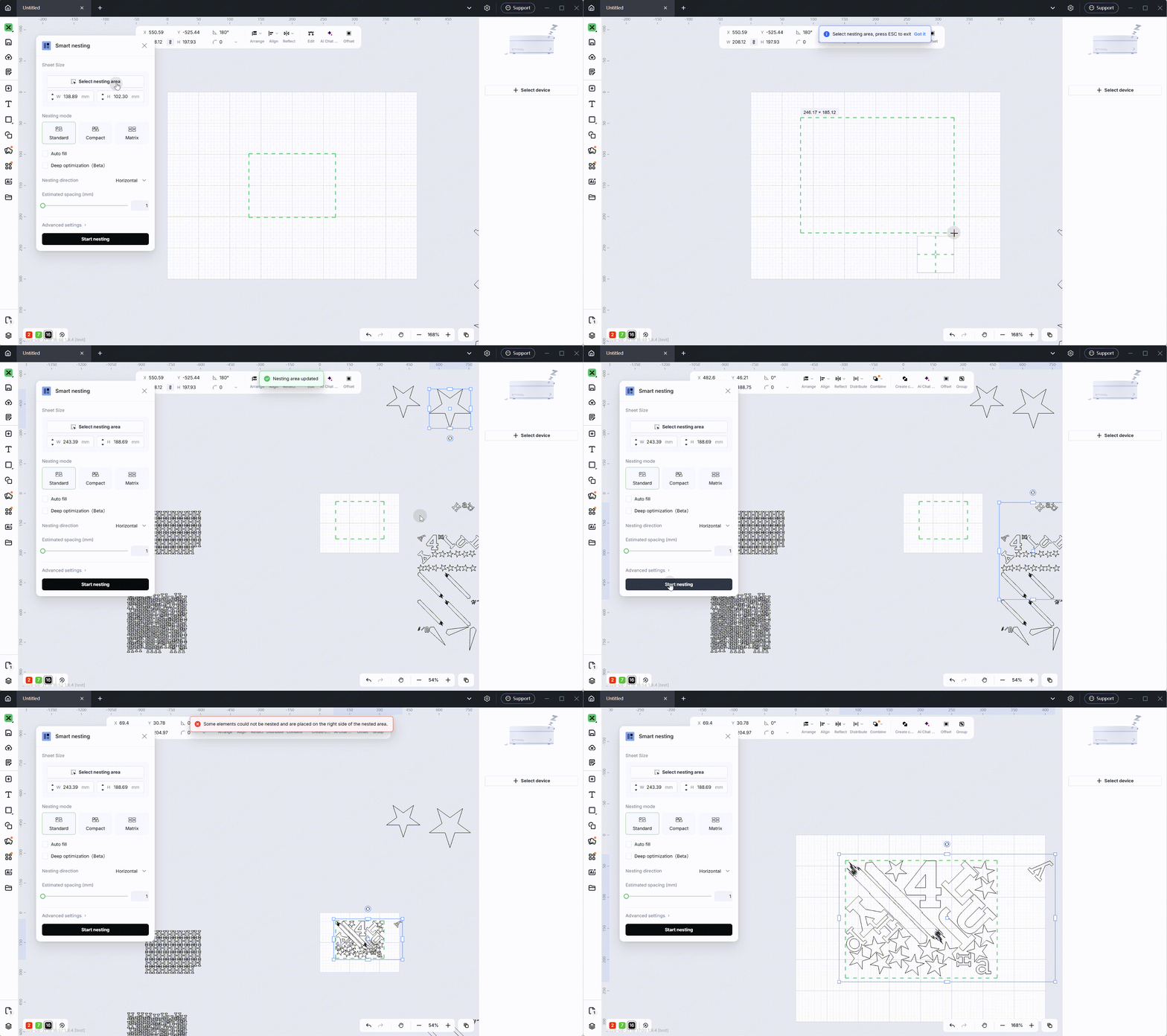
7.Smart Nesting
Adds nesting modes, choose the mode that best fits your needs:
- Standard Mode: Strikes a balance between a tidy layout and material utilization by grouping parts by similarity. Perfect for most daily processing tasks.
- Compact Mode: Prioritizes maximum material utilization using precise rotation. Ideal for high-density, tight nesting of irregularly shaped parts.
- Matrix Mode: Aligns objects into rows and columns with uniform spacing.
Want to save even more material? Enable Deep Optimization, and the software will repeatedly test different arrangements, automatically keeping the most efficient version. The material utilization rate updates every second, allowing you to watch the layout improve in real time.
8.In Print mode, newly added text and drawn shapes are now filled by default.
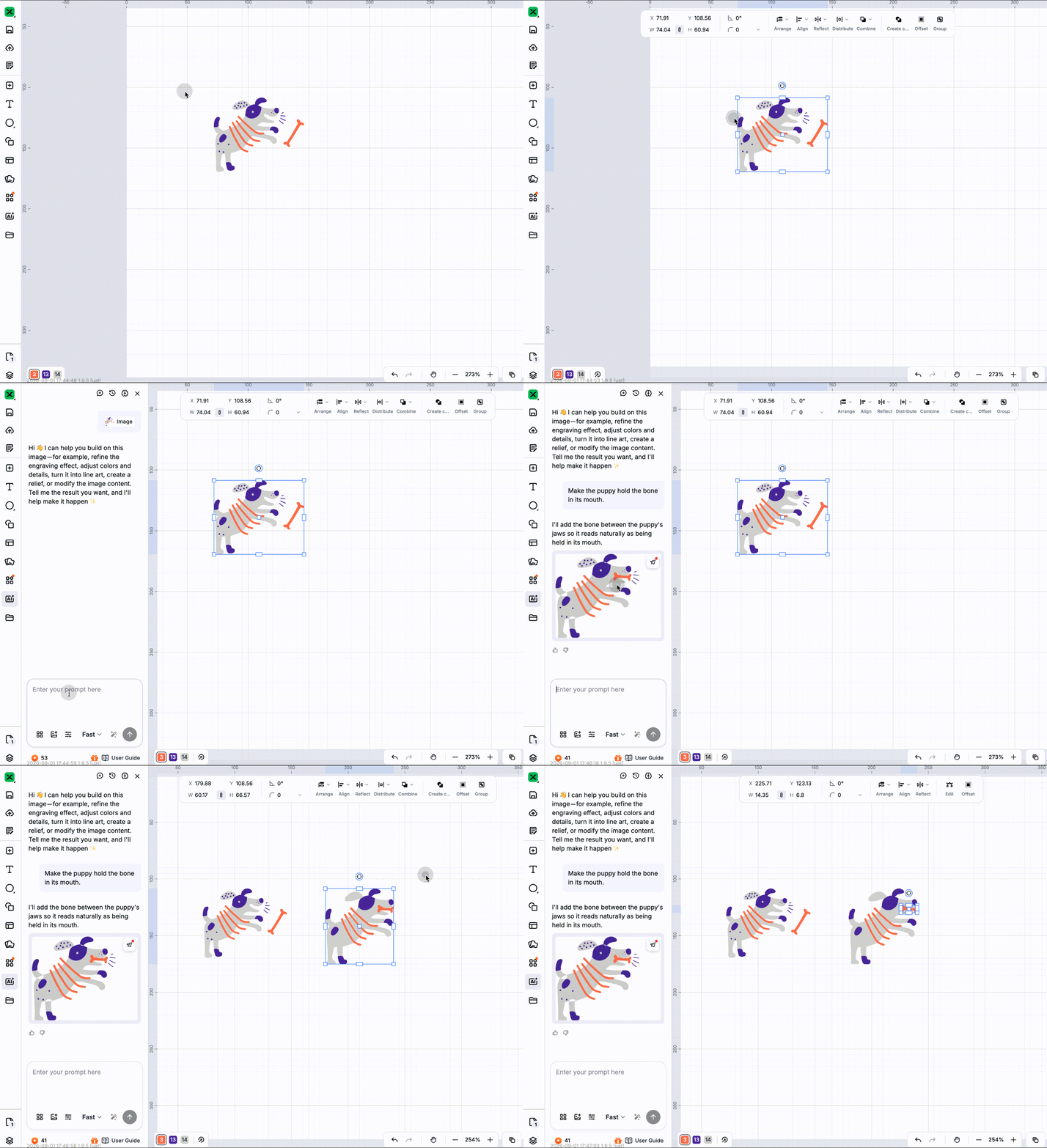
9.AI Chat Edit
Supports AI editing on any object on the canvas — open the right-click menu to launch AImake for conversational editing; results are added as a new object, leaving the original content untouched.
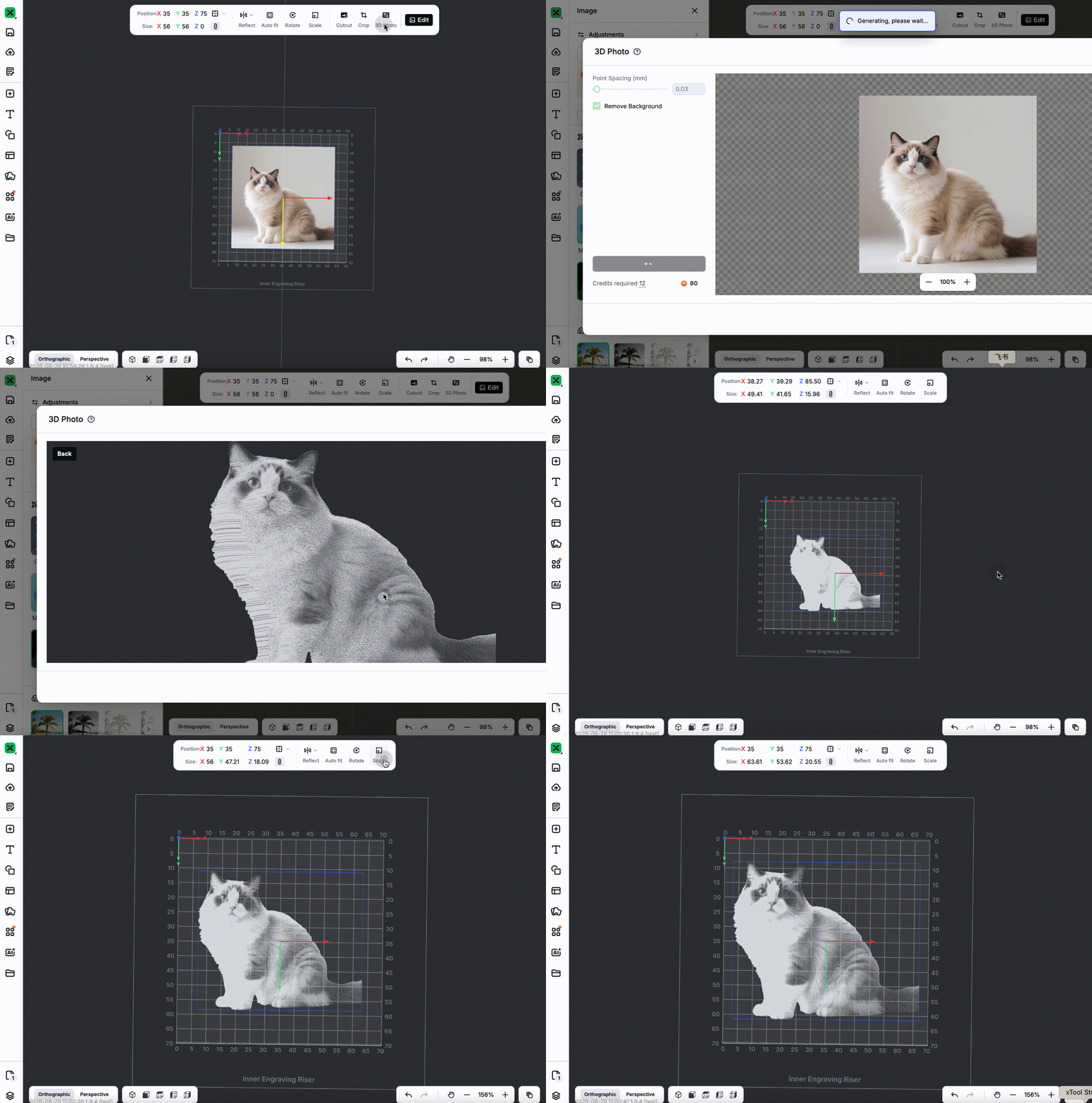
10.3D Photo Improvements
Optimized 3D Photo: clearer point clouds, free scaling on the canvas, significantly faster processing, and better engraving results.
Material Parameters
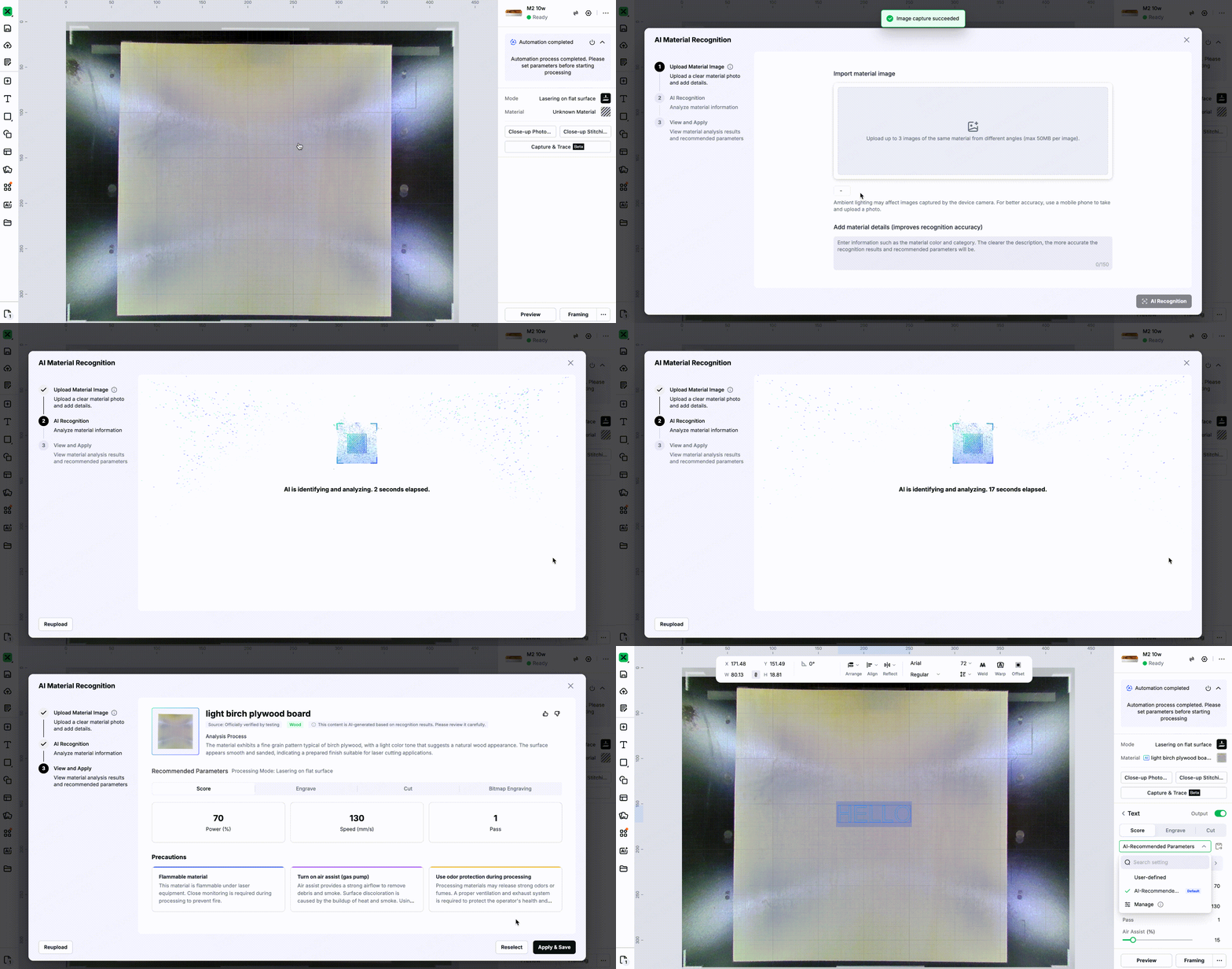
1.AI Material Recognition
(Currently supported on M2, P3, P2S, P2, F2, F2 Ultra, F2 Ultra UV, F2 Ultra (Single))
Upload an image of your material, and AI will automatically identify the material type and recommend suitable processing parameters (currently supports flat laser processing only), along with important tips to help you get started quickly. If multiple highly similar materials are identified, you can manually select the correct one.
2.AI Recognition for Material Test Arrays
(Currently supported on M2, P3, P2S, P2, F2, F2 Ultra, F2 Ultra UV, F2 Ultra (Single))
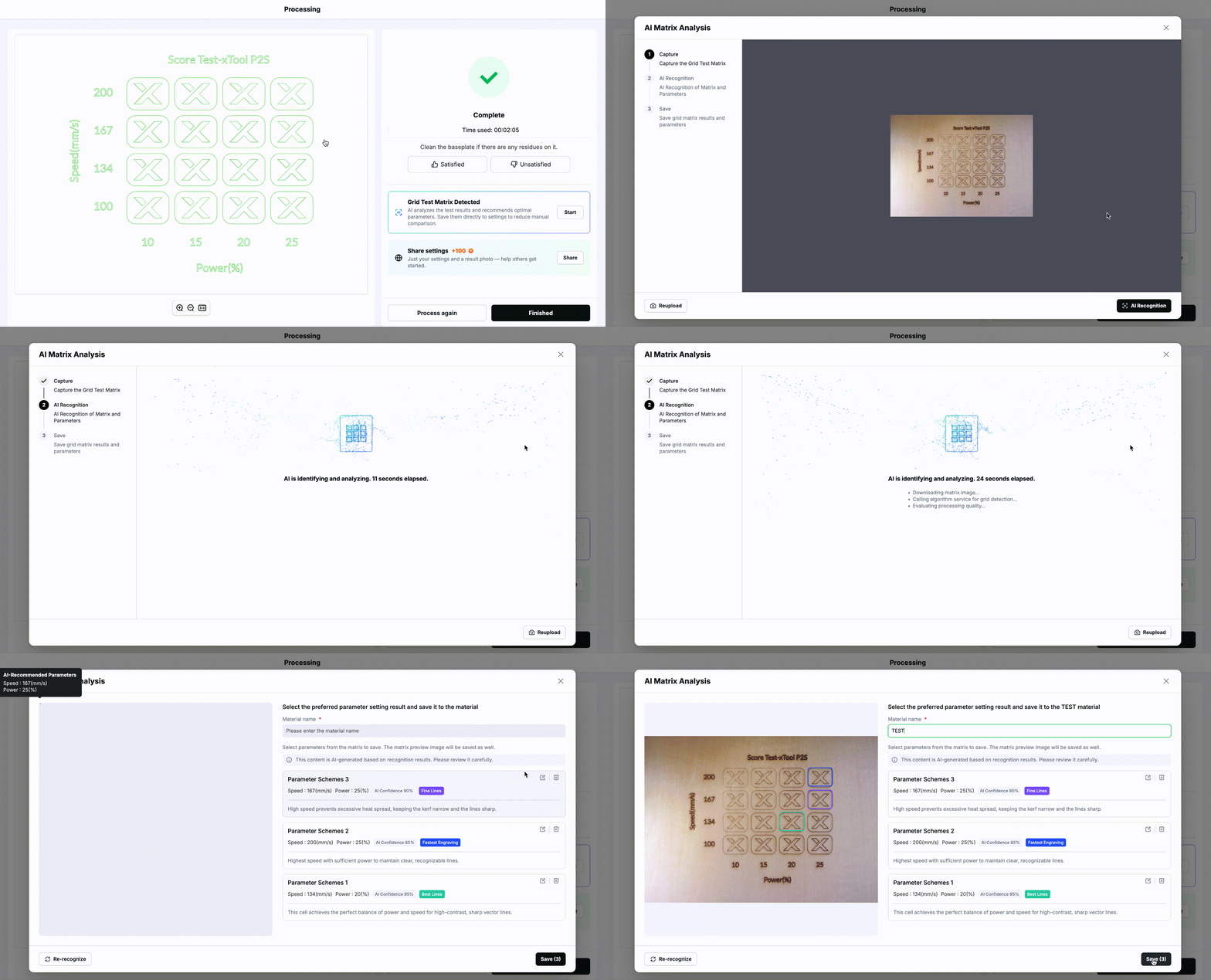
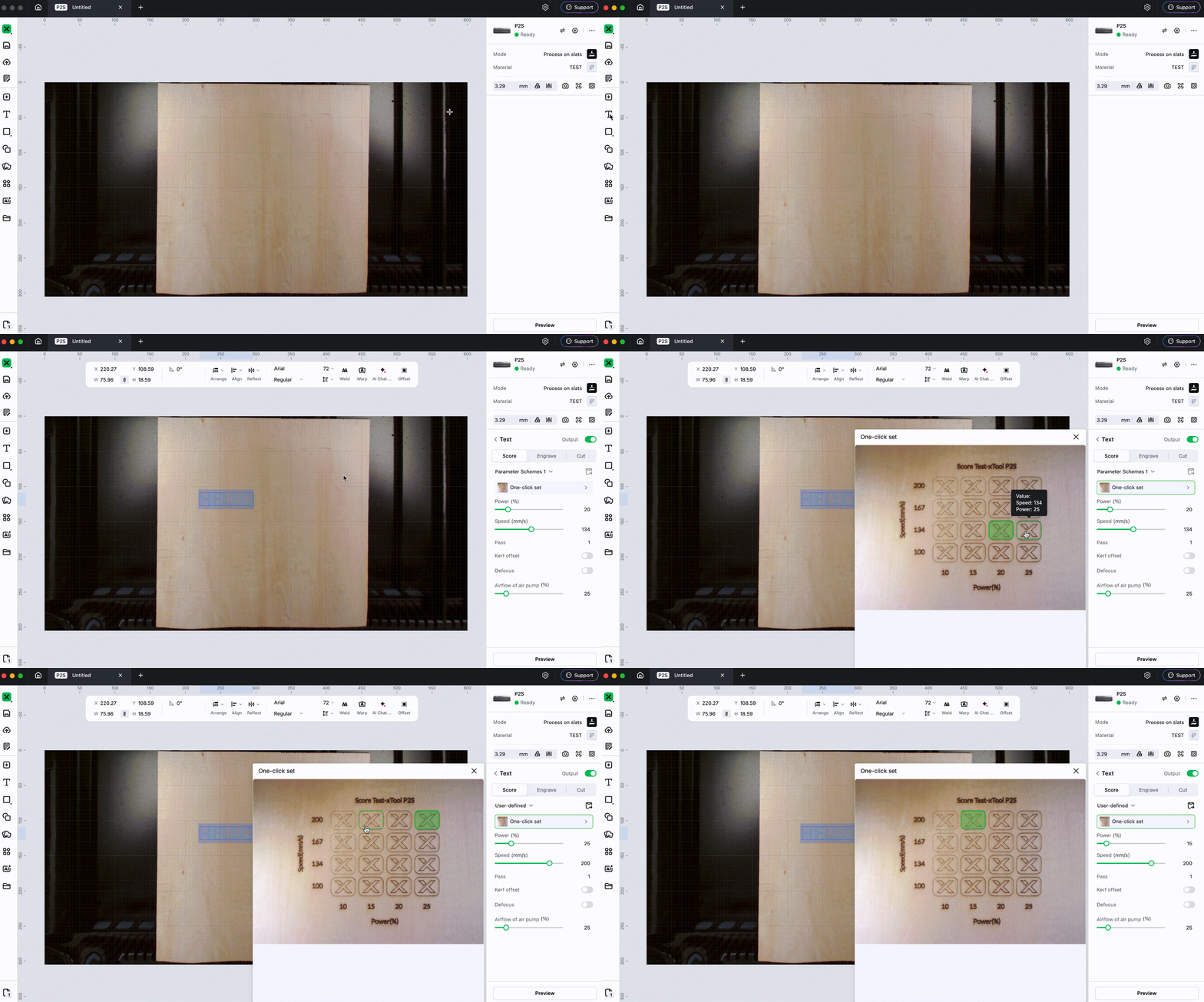
After processing a Material Test Array, AI can recognize and analyze the results of each test cell with one click, helping you quickly find the best parameter combination.
- AI Recognition & Analysis: Automatically recognizes the test array and analyzes the processing results for each parameter combination.
- Save with One Click: Save the recognized results as a dedicated test matrix for the material.
- Apply with One Click: The next time you use the same material, directly apply the saved matrix without repeating the testing process.
Devices
1.Laser machines
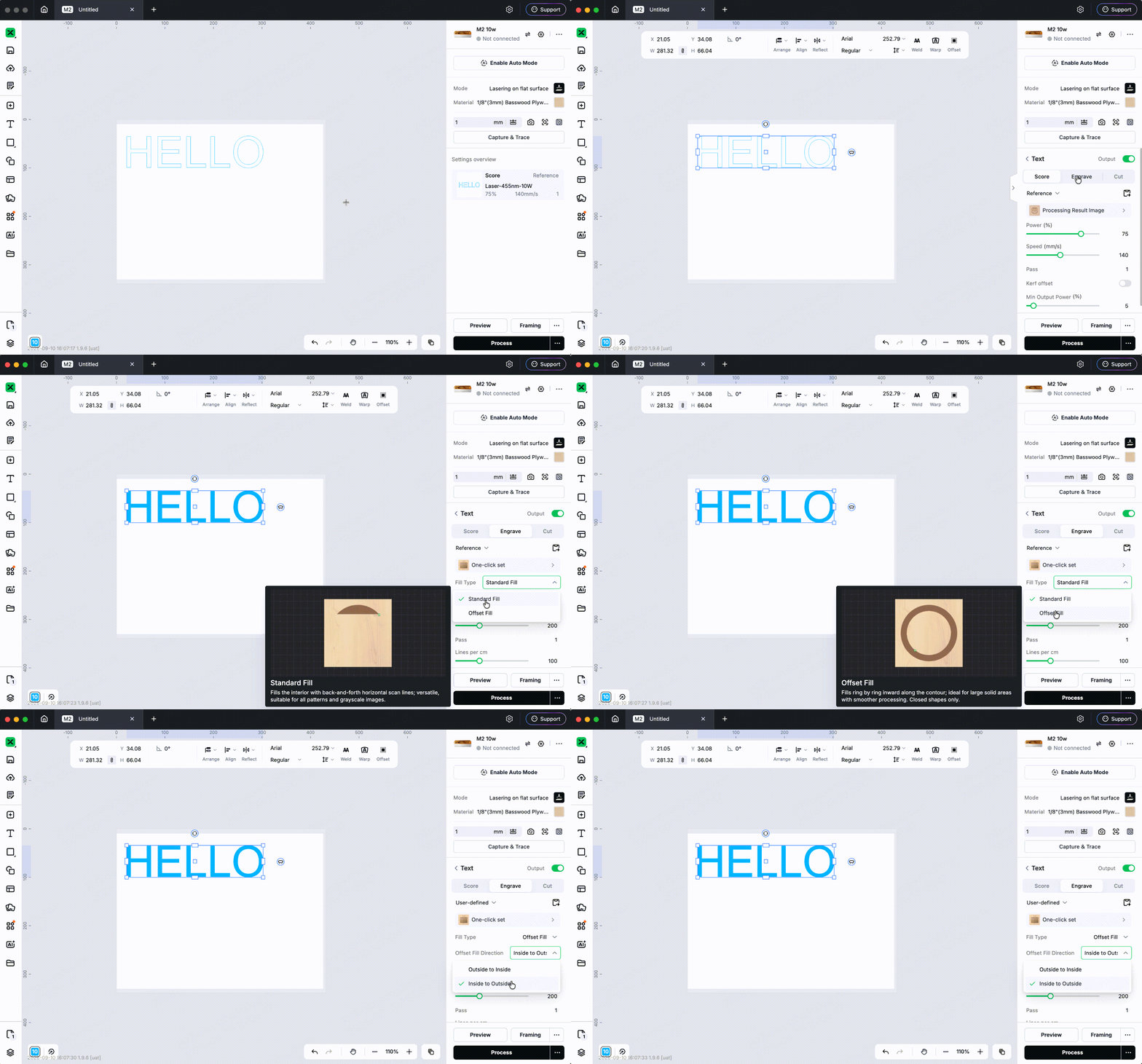
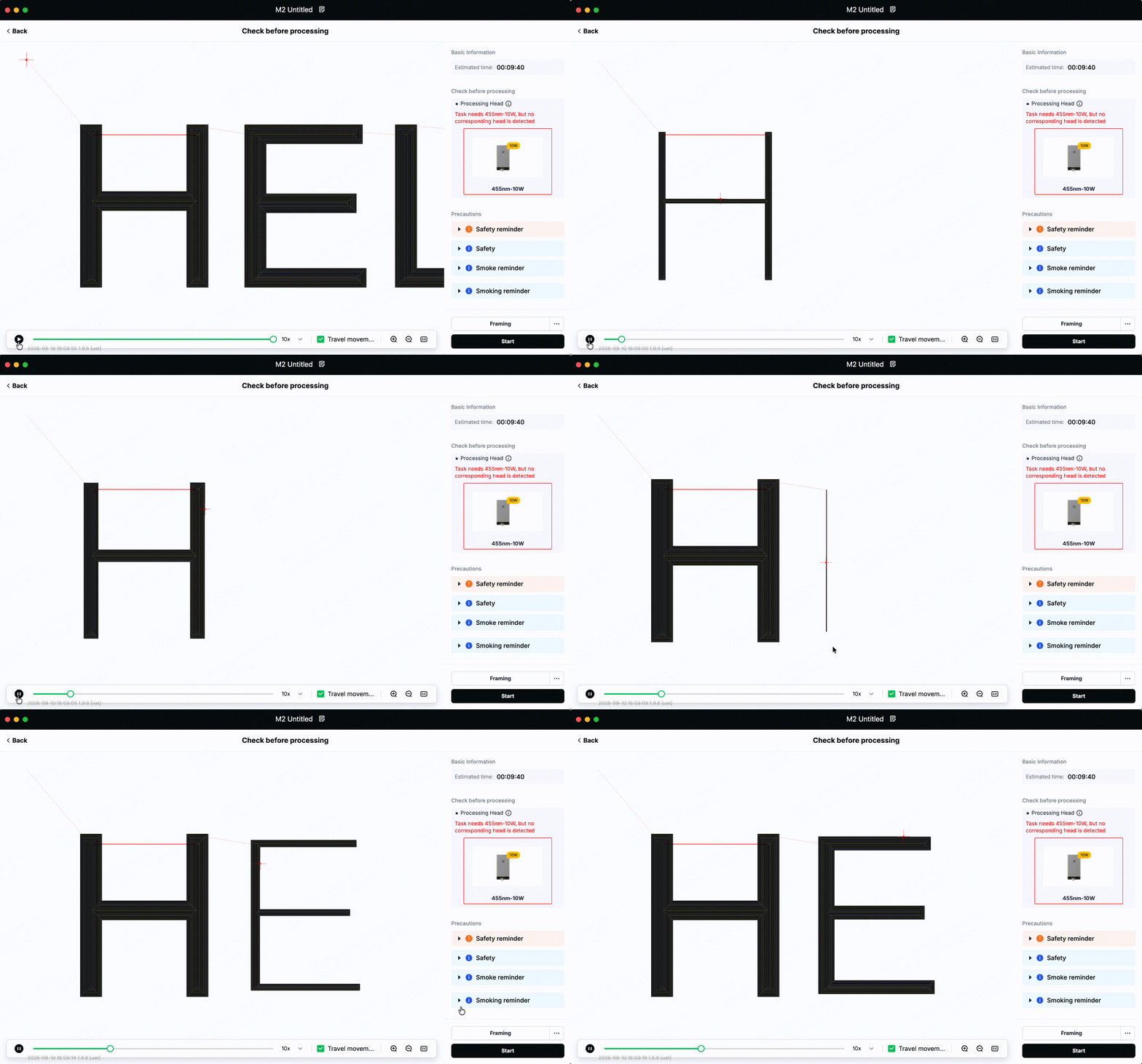
- Add Offset fill, which follows the outline of a shape ring by ring instead of scanning back and forth across it, noticeably improving efficiency on hollowed vector fills.
- Add scan angle and crosshatch settings to set the fill direction for vector shapes. When engraving materials with a visible grain, such as wood, align the scan angle with the grain for a more even finish. (P series, S series, M series)
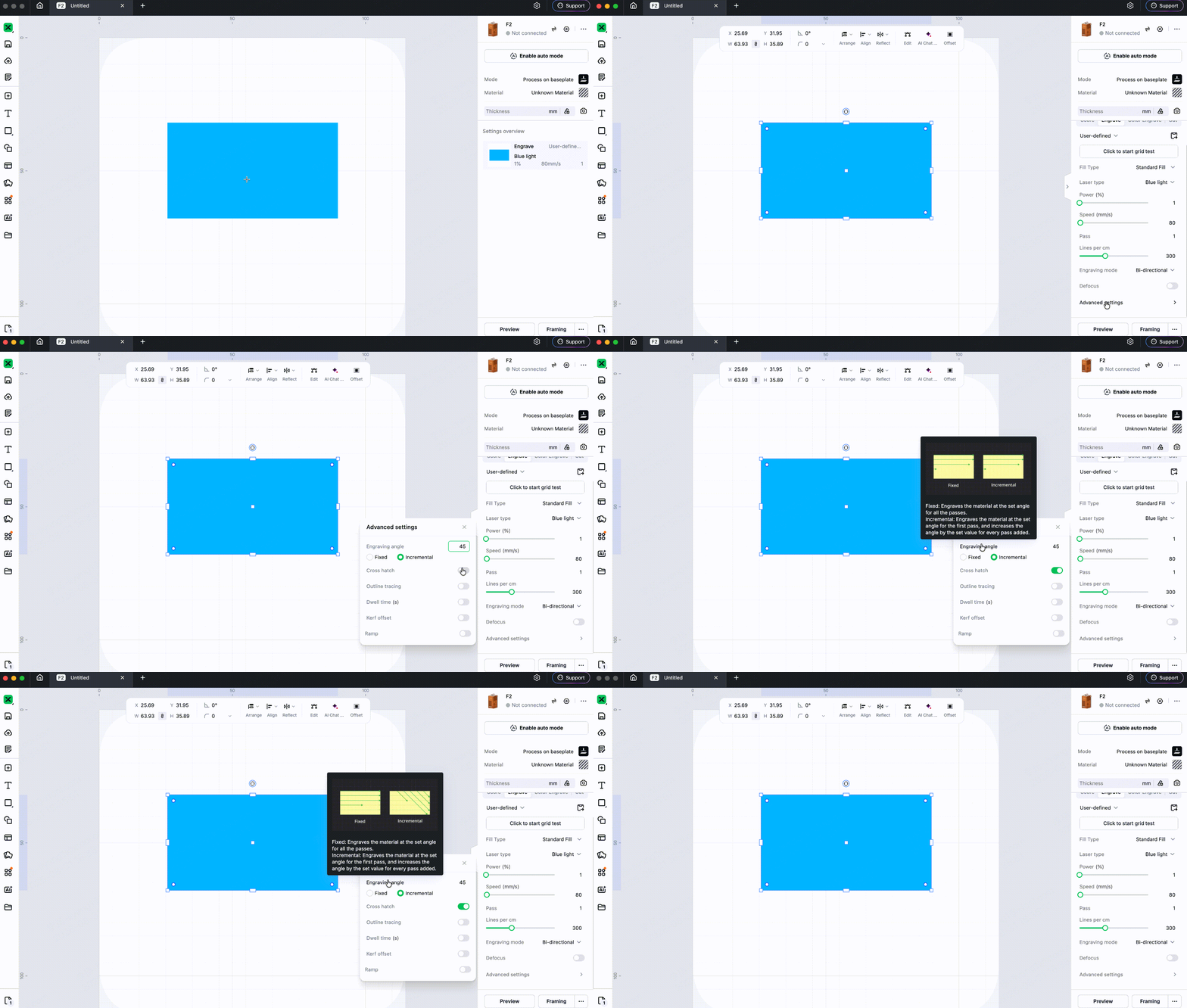
- Add Ramp, for sharper and longer-lasting engraved stamps. (P, S and M series)
2.O1 Omni Printer
- Add Roll Film Mode for batch-producing transfer stickers, wall art and more.
- Optimize device health information, with clearer ink level details and maintenance steps.
- Add default ink prices, so you can estimate what a print will cost.
- Support resuming a print after it has been interrupted.
- Support setting white ink reduction per element.
3.M2
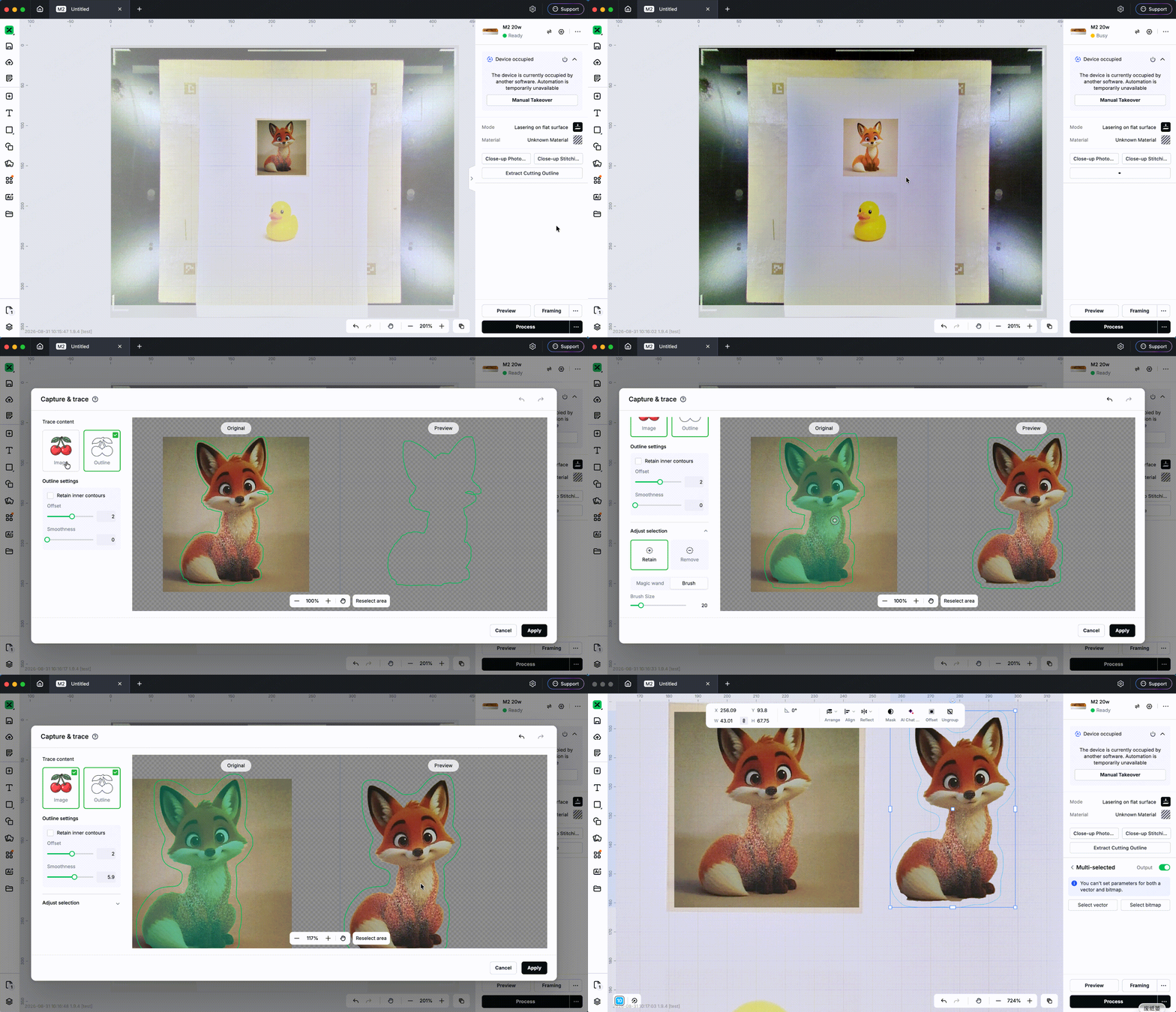
[Currently available on M2 only] Place a patterned item inside the machine, and the built-in camera automatically captures and recognizes the pattern — extracting a ready-to-cut outline in one tap, with no need to redraw it on a computer.Works with hand drawings, printed artwork, magazine clippings and more. Once extracted, you can adjust the outline shape and offset distance before cutting.
4.F2 Ultra UV
Upgrade the internal engraving algorithm: visibly finer detail, and jobs now take about half the time on average.
5.F1 Ultra / F2 / F2 Ultra
The maximum fill engraving density has been increased to 800, enabling higher-density and finer engraving results.
Bug Fixes
- Fix an issue where nodes could not be deleted one after another. You can now hold Delete to remove adjacent nodes.
- Fix various other known issues.

