
How to Design Heat Transfer Patterns with Aimake
Updated Jul 24,2026
Updated Jul 24,2026
Design Elements & Patterns
- Go to: https://www.atomm.com/craftlab/generator/heat_transfer/index.html
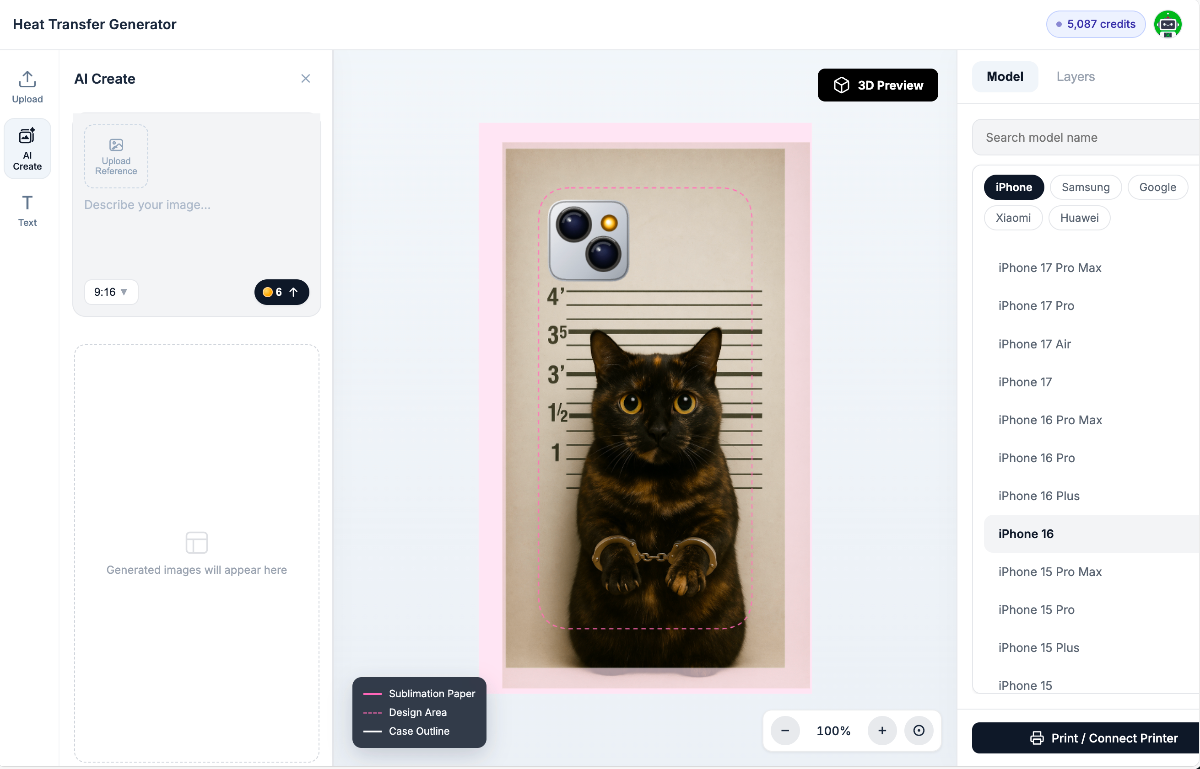
- Left panel — Design tools
- Upload your own photo or generate one with AI
- Add custom text using the text tool
- Middle — Canvas
- The pink area represents the printing paper size. We use a film of 148mm × 254mm (this size must be followed strictly).
- The white area represents the part that will actually be transferred onto the phone case, including the side edges.
- The pink dashed border indicates the phone case dimensions.
- Right panel — Phone case mold selection. Pick the mold that matches your case. (See screenshot of the editor layout)
Printing
- Once your design is in place, click the black button in the bottom-right corner to start printing. (See screenshot)
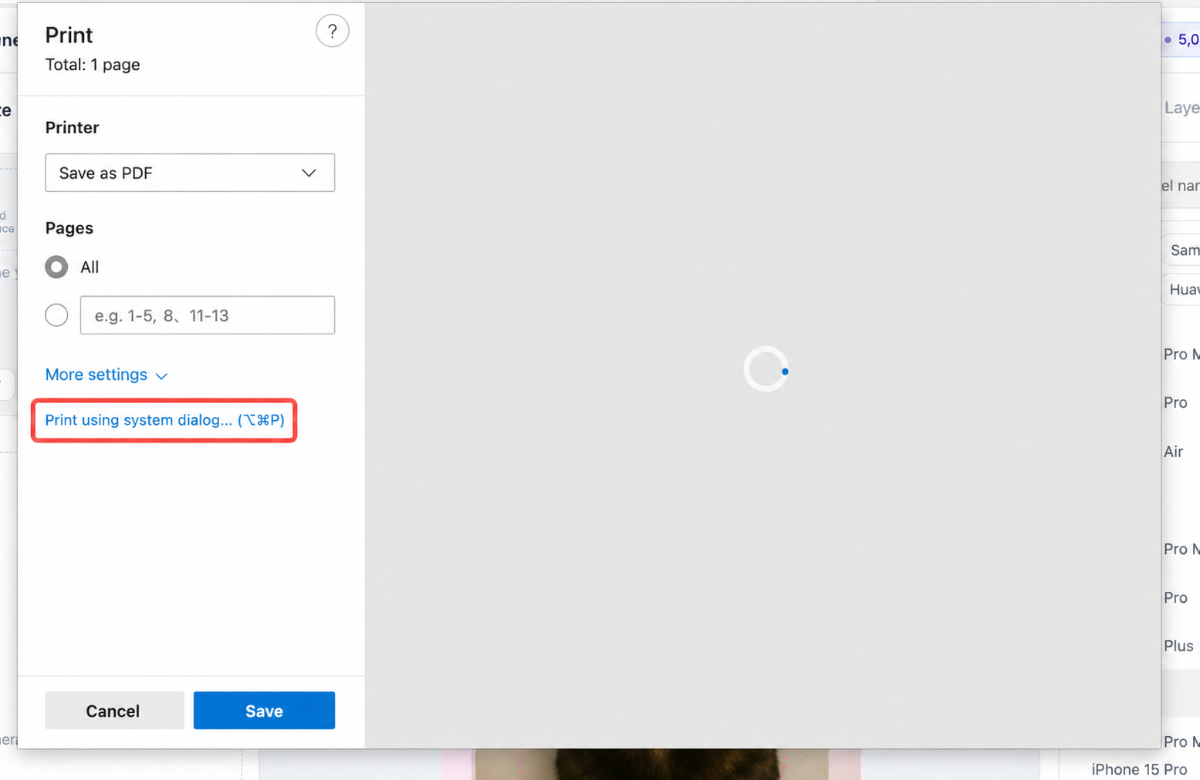
- Click "Print / Connect Printer". (See screenshot)
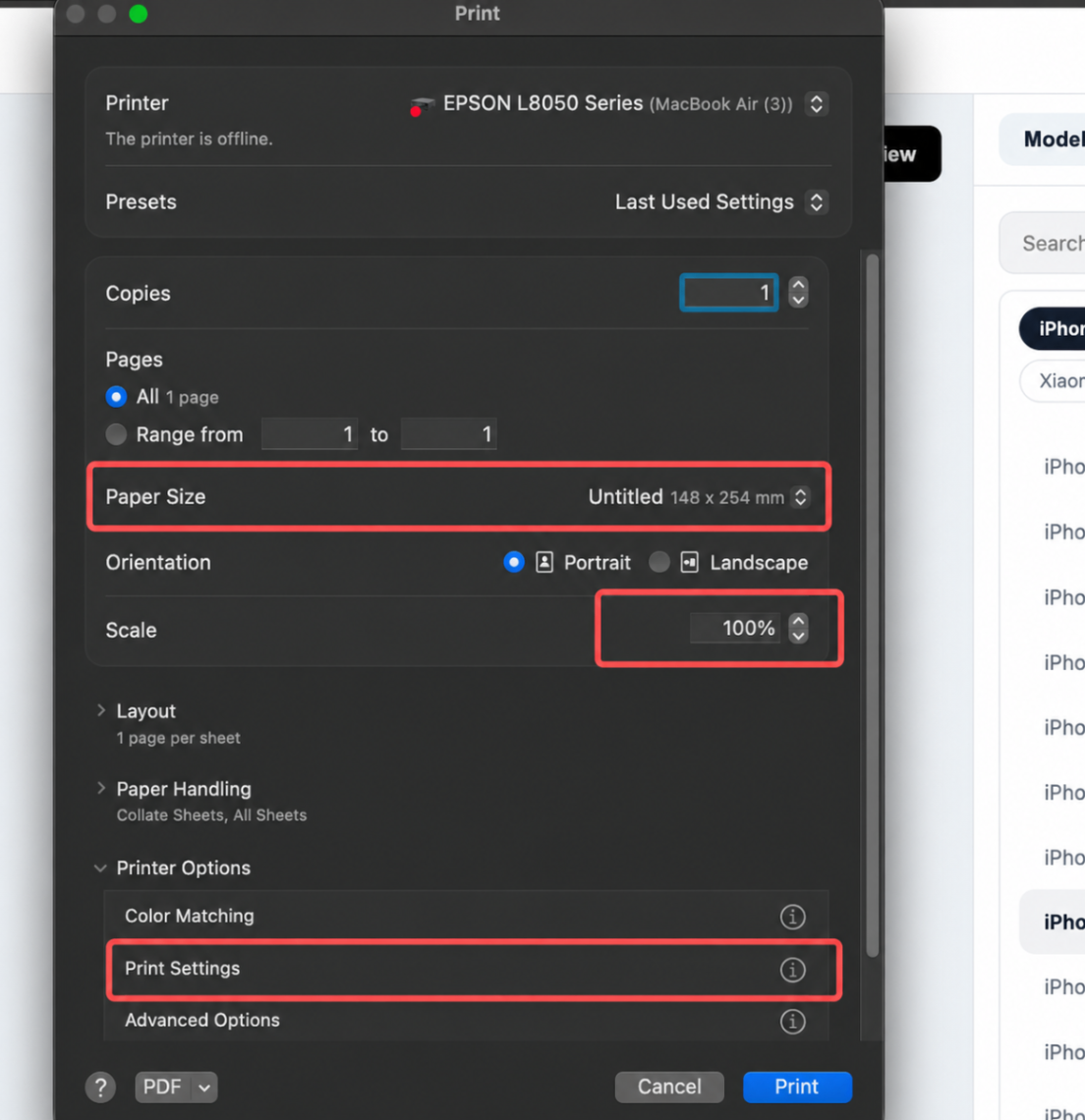
- Select the printer and paper size.
- Important: the paper size must match the film size (148 × 254 mm), otherwise the printed pattern will be distorted.
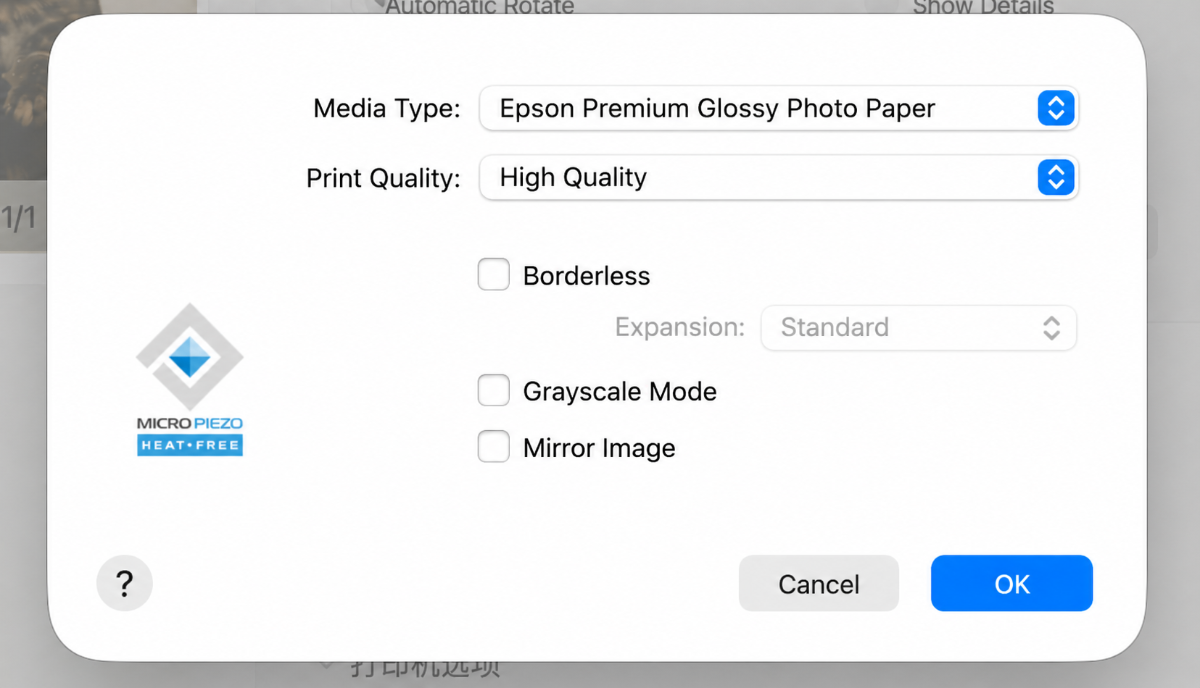
- At the bottom, choose print quality. The film is Epson high-quality matte paper, so set print quality to High. (See screenshot)
- If you plan to use the printed vacuum sublimation film immediately after printing, dry the film before processing, as shown below. If the film has been stored in a clean, dry environment for at least 24 hours, this step is not necessary.
6. After printing, let the film rest for a while — ideally air-dry it with a fan for about 10 minutes — before transferring it on the WonderPress. Transferring immediately may produce poor results.
The screenshots in this guide are taken on macOS for illustration. If you're on Windows, the steps are essentially the same — please refer to the equivalent options in your system's print dialog and settings.
Preview
Was this page helpful?
0 out of 0 found this helpful
Help Ticket
Use this help ticket to submit your issue. We will respond within 1 business day
Submit a Ticket 
