
Issue description
White ink cratering: During solid white printing, the white ink does not fully cover some areas, resulting in incomplete white ink coverage.
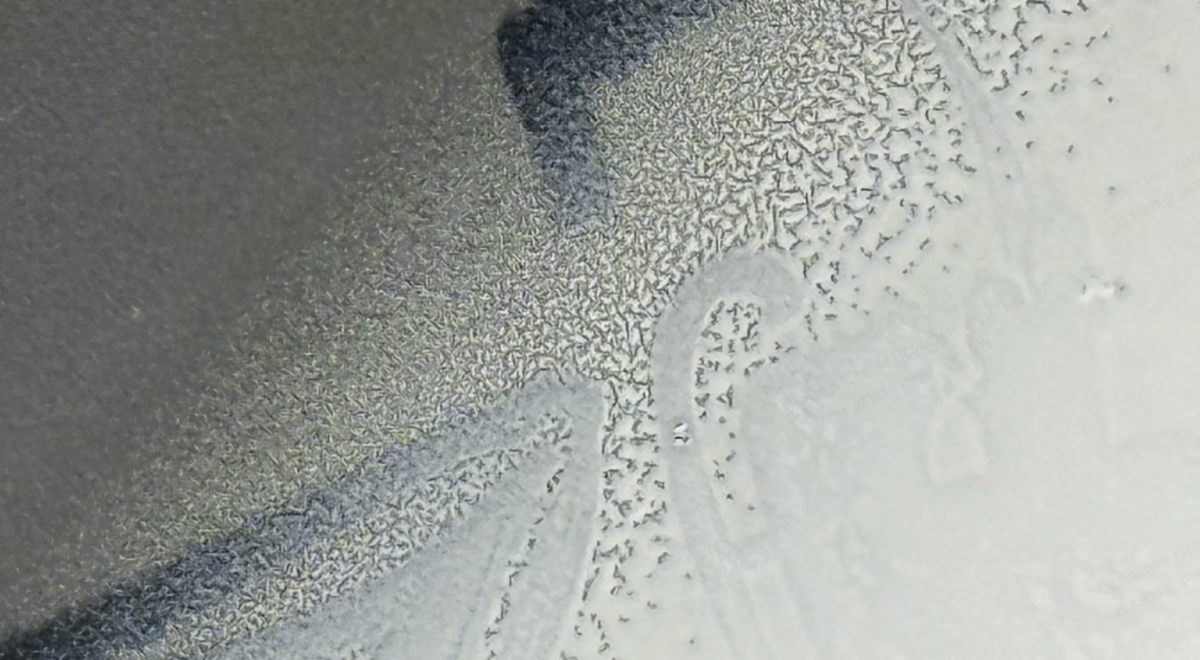
White ink flow (before or after heat pressing): Before heat pressing, hot melt powder or white ink accumulates on the film. After heat pressing, visible white granules appear on the printed image.
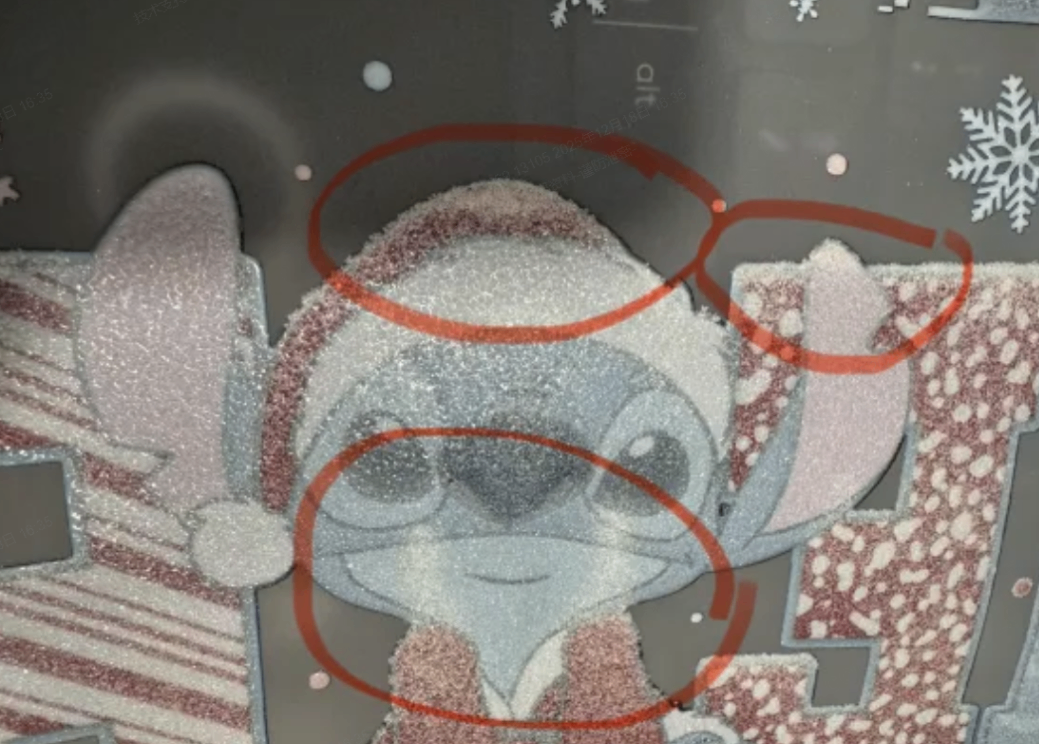
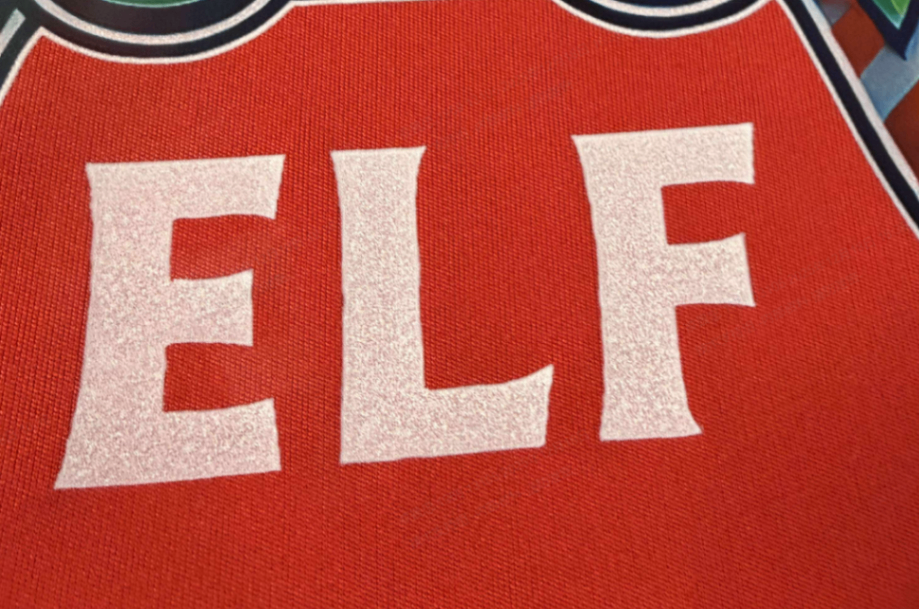
Possible causes
- Low-temperature and high-humidity environment (main cause)
- The film has already absorbed moisture
Troubleshooting procedures
This issue is usually caused by an excessively low ambient temperature, which results in insufficient ink temperature and thereby affects printing or heat-pressing results; low-temperature and high-humidity conditions can further worsen the issue. It is recommended to inspect and resolve it by improving the working environment.
(1) Raise the working environment temperature to above 25°C and wait at least 30 minutes before starting to print, while also controlling the ambient humidity. The officially recommended operating temperature for the device is 20 – 30°C. You can increase the ambient temperature by turning on an air conditioner, space heater, or similar equipment.
(2) Adjust the white ink level to 75% or 50%, and set the Feather parameter to Super.
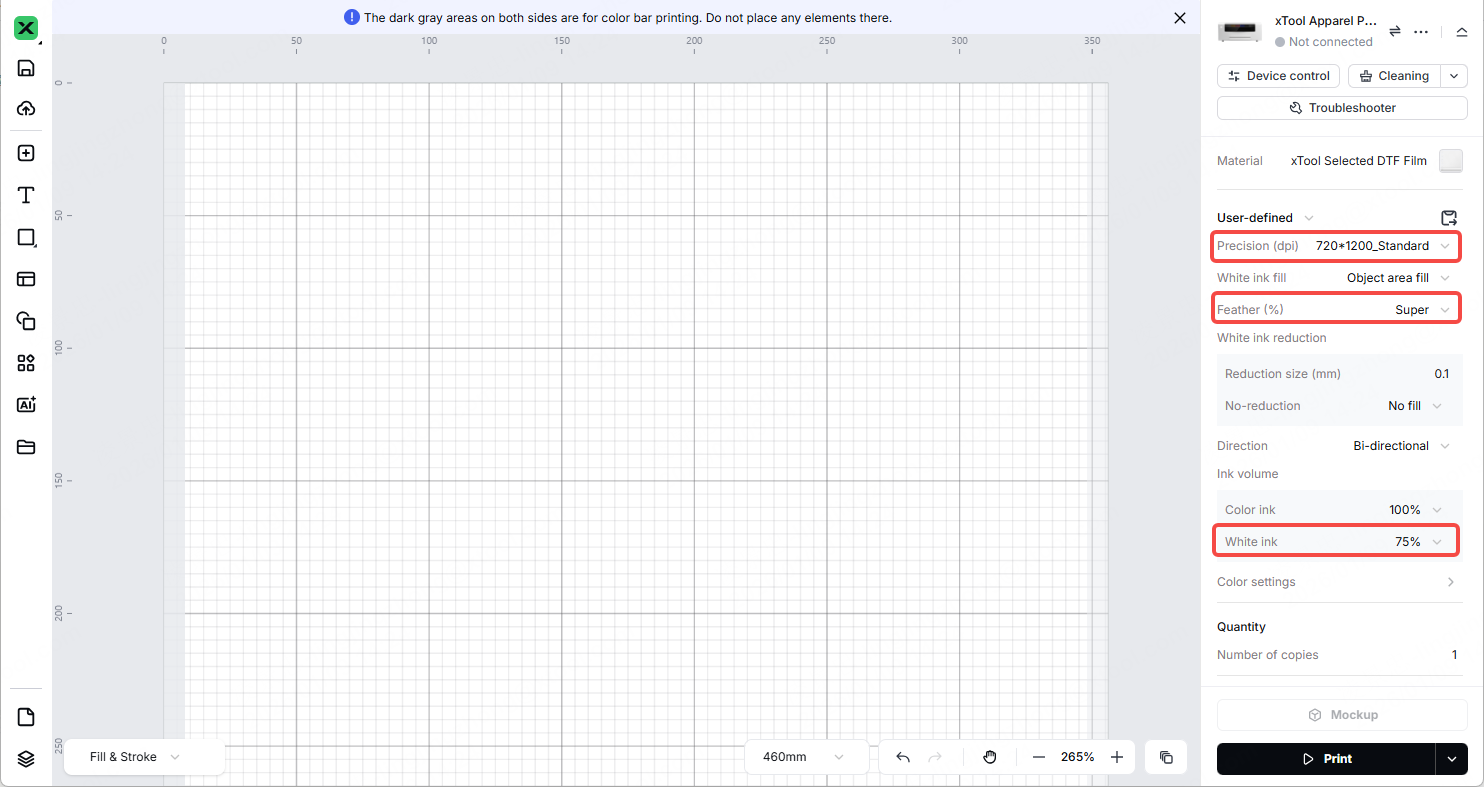
(3) Before printing, turn on the shaker oven at least 30 minutes in advance to allow it to preheat. In cold environments, as a remedial measure, you can slightly raise the ambient temperature around the printer to gently remove moisture from the film surface and improve print quality.
(4) When the film is not in use, it is recommended to store it in an airtight container overnight. To prevent low temperatures and high humidity at night from affecting the film performance, wrap it tightly with stretch film or pallet wrap to minimize the impact of external conditions.
Still experiencing issues?
Should the issue persist after completing the preceding steps, submit a ticket via the "Submit a Ticket" button in the "Help Ticket" section below. The standard response time for xTool Customer Service is one business day.
For a prompt resolution, please include the following details:
- Issue description: A detailed explanation of the observed problem.
- Video evidence: Attach a video demonstrating the issue, where applicable.
- Troubleshooting performed: Any troubleshooting steps you have already attempted, along with their results.
This information is crucial for xTool technical support engineers to provide timely assistance.
Documentation feedback
Help improve this content by providing feedback. If this content did not meet your requirements, select "No" in the "Was this page helpful?" section below. Include specific details about what was unclear or missing in the pop-up suggestion box. Feedback submissions are reviewed by xTool technical writers to enhance future documentation.

