Applicable scenarios
- There are some compatibility issues between the new firmware and the computer, causing problems with the device after the new firmware is installed.
- Other special cases where the xTool technical team determines that a firmware downgrade is necessary.
Important notes
- A stable USB and network connection must be maintained throughout the entire firmware downgrade process.
- After downgrading the firmware, please restart the software and xTool P3 to ensure optimal compatibility.
- After downgrading the firmware, you may need to reconfigure the Wi-Fi.
- The file processed immediately before the firmware downgrade must not exceed 800 MB; otherwise, the downgrade will fail due to insufficient xTool P3 storage space. You can create a new, smaller file to overwrite the larger one before proceeding with the downgrade—for example, by cutting a circle.
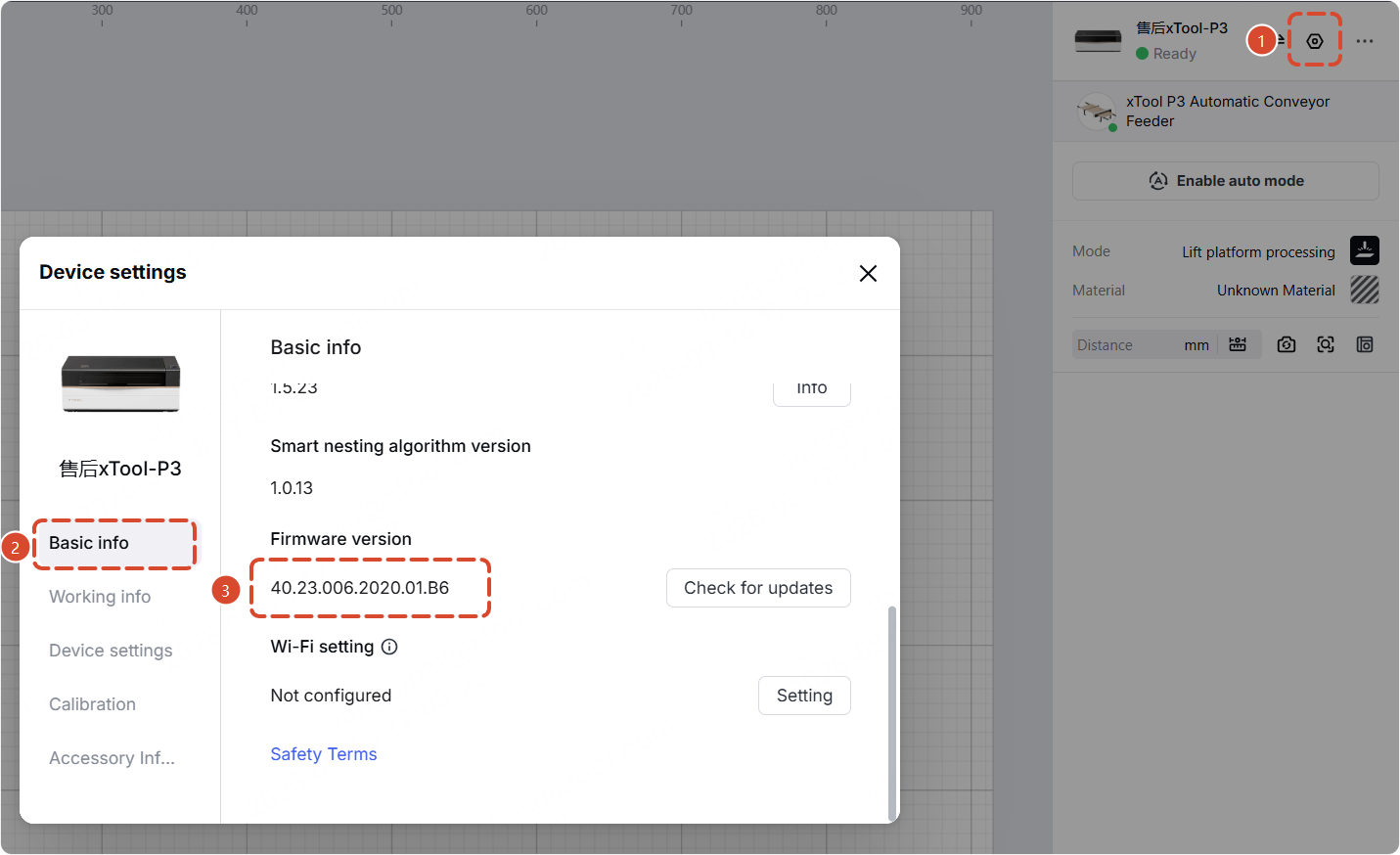
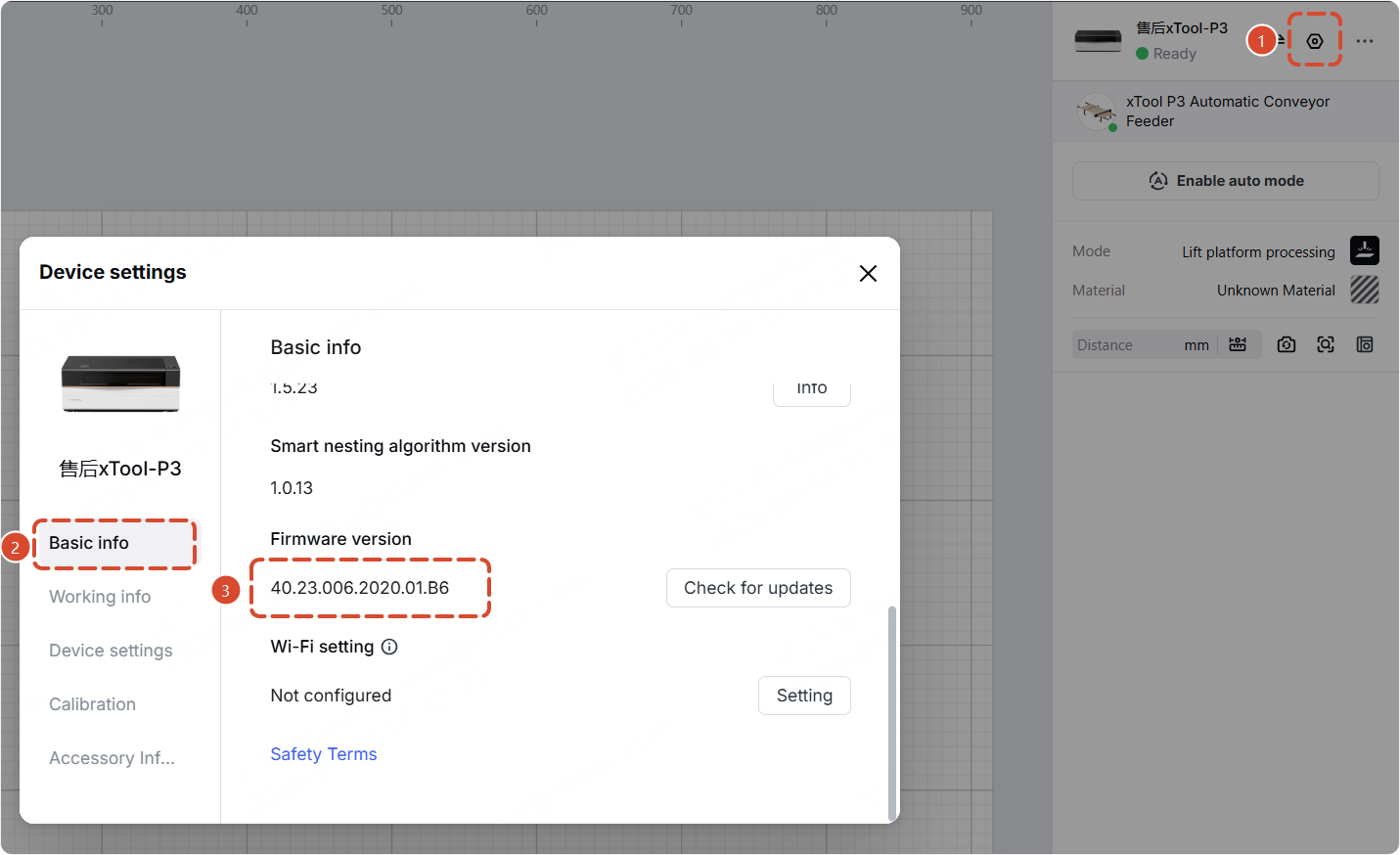
- If your firmware version is lower than the firmware version in this tutorial (the firmware package filename indicates its version), there is no need to downgrade. To check your device’s firmware version:
Firmware package instructions (Important)
xTool P3 has two different main control board versions, and each version has a corresponding firmware package. Please follow the instructions below to determine your device’s main control board version and download the matching firmware package to your local computer. Be sure to note the location where you saved the firmware package so you can downgrade the firmware later.
If you use the wrong firmware package, xTool P3 may display an error message upon startup. In this case, no further action is needed. Follow this tutorial to verify the main control board version, select the correct firmware package, and perform the downgrade again.
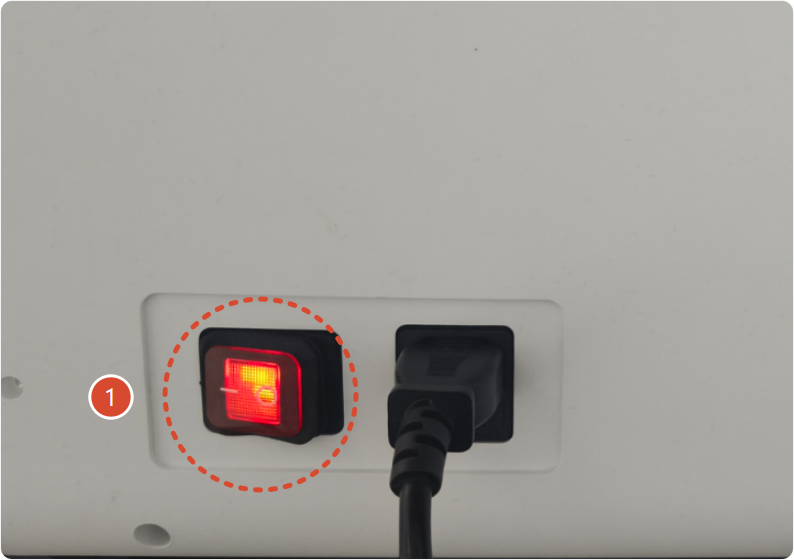
①: If the power switch is red, download the firmware package:
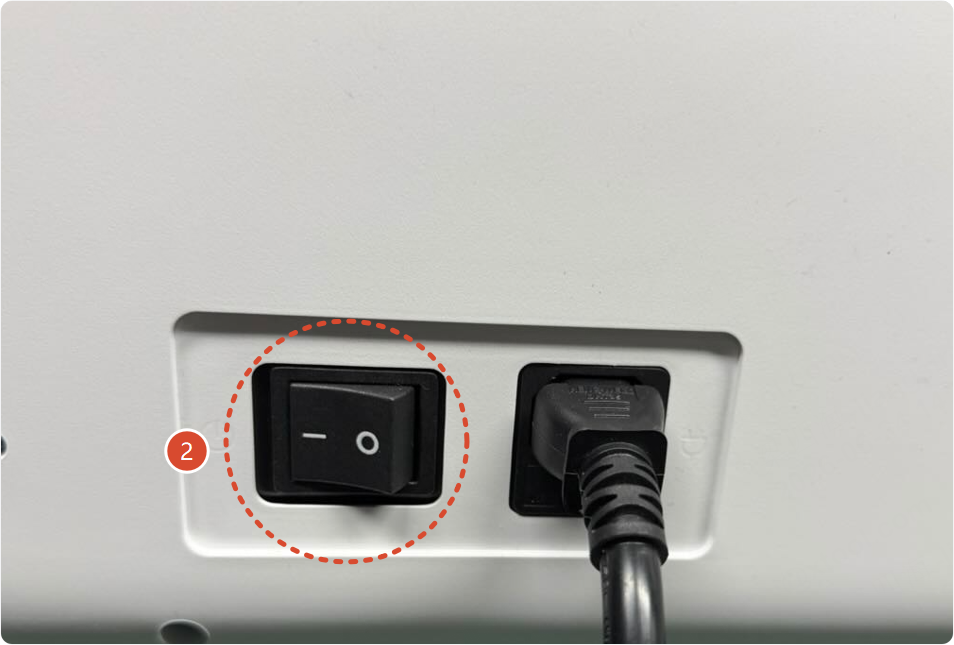
②: If the power switch is black, download the firmware package:
Procedures
- Use a USB cable to connect the software (supports USB connection downgrade only).
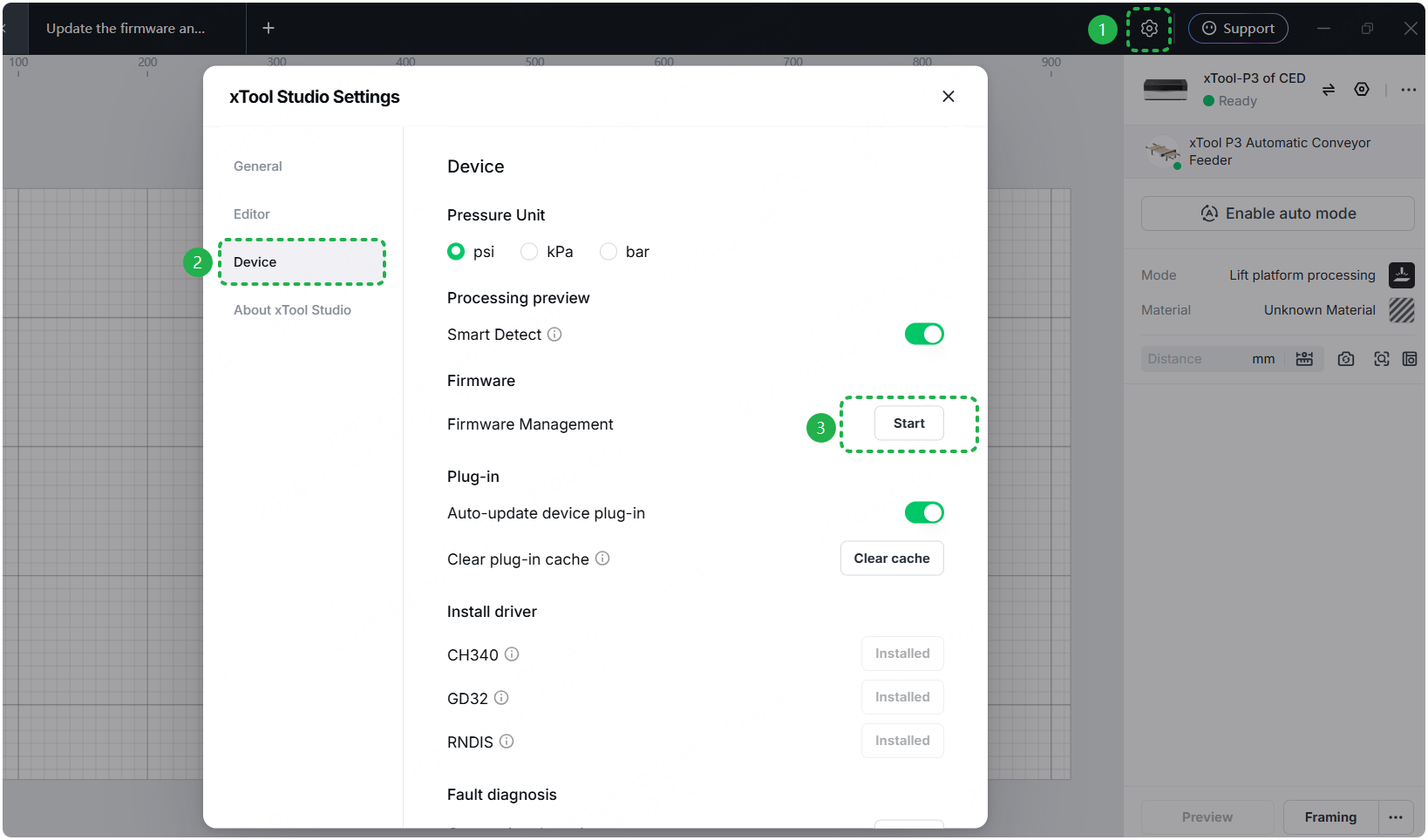
- Go to Settings > Device > Firmware Management, and click Start.
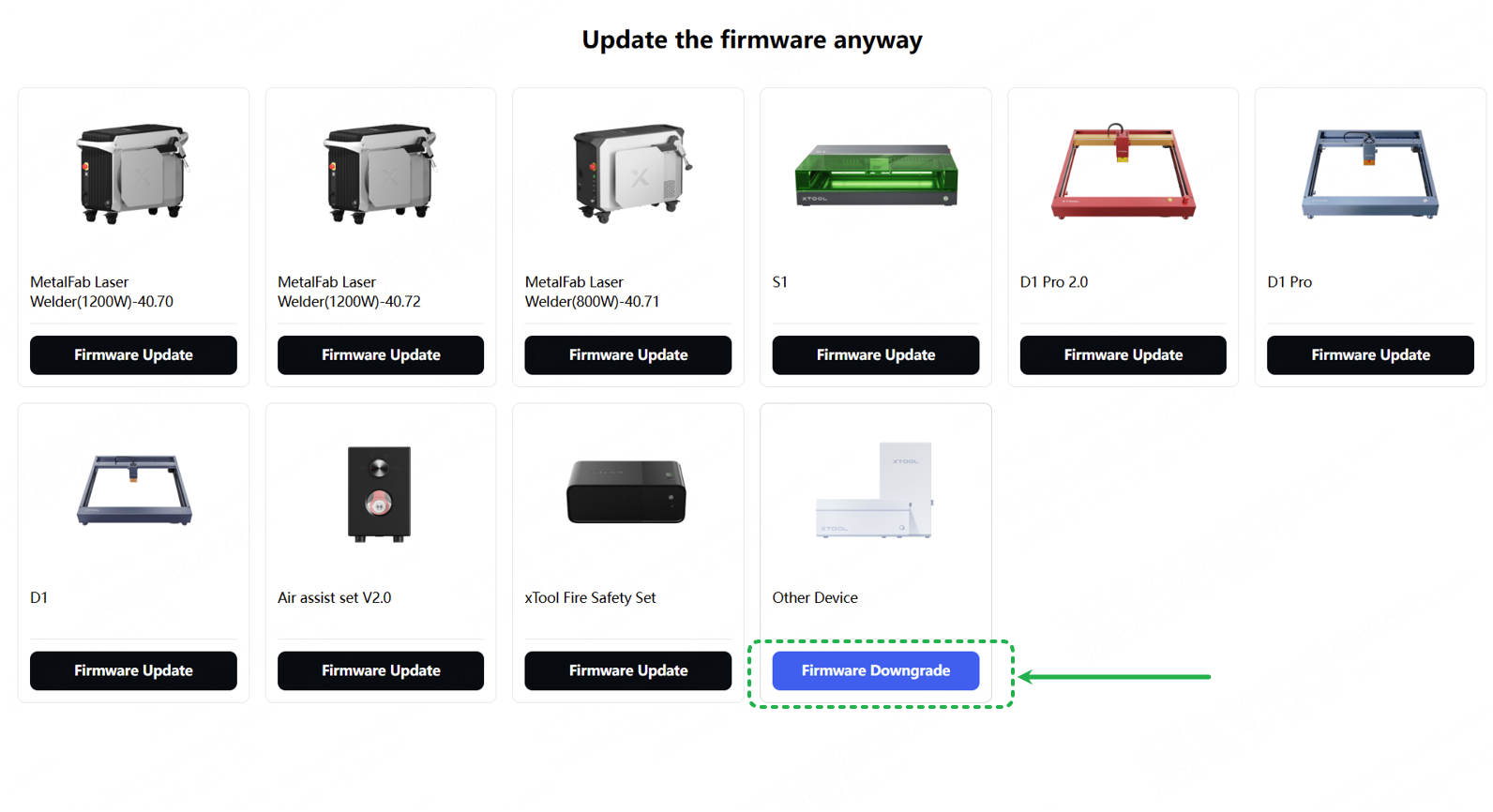
- Select Other Device > Firmware Downgrade.
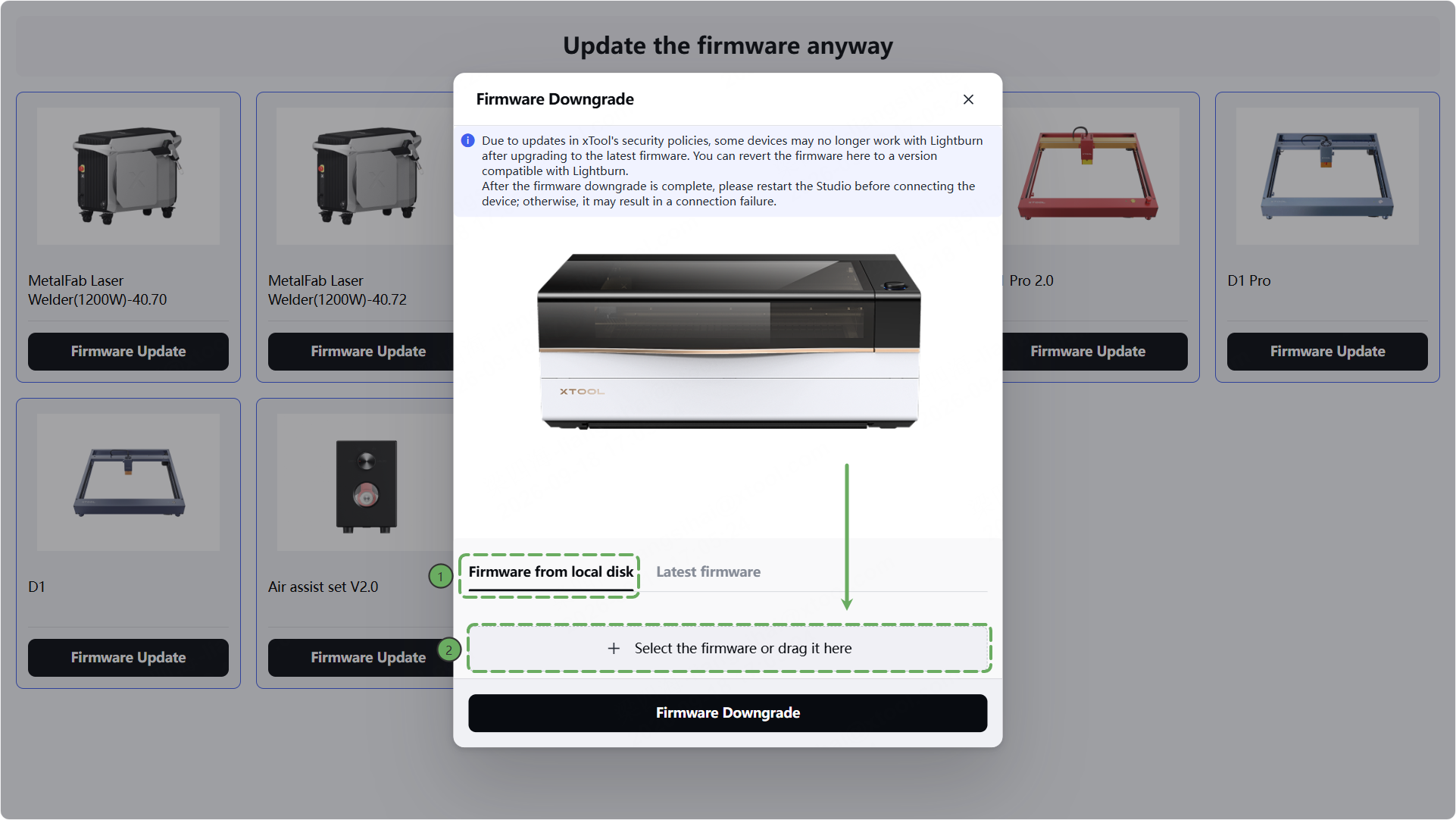
- Select Firmware from local disk > Select the firmware or drag it here.
The firmware does not support online downgrades. You must download the installation package and perform an offline upgrade.
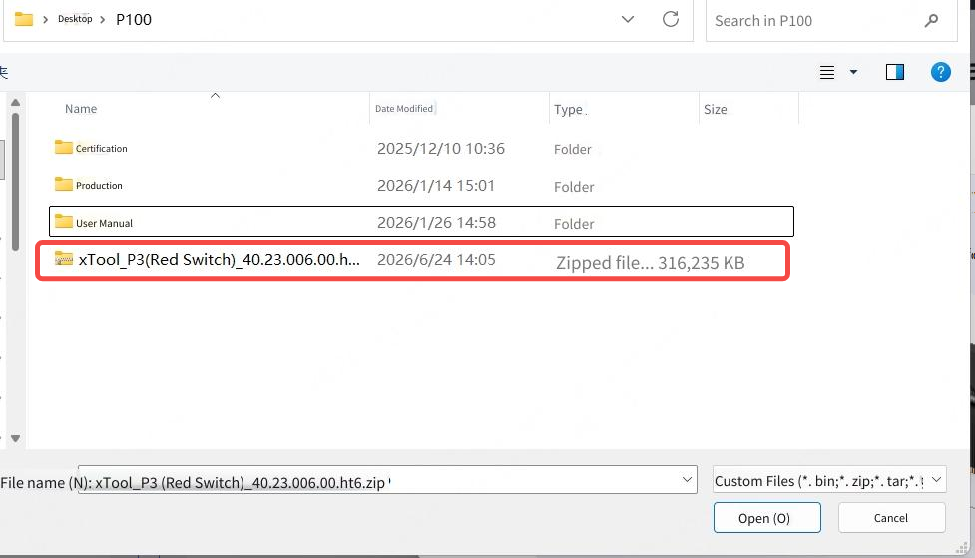
- Select the local firmware package and double-click to open it.
- Click Firmware Downgrade to downgrade.
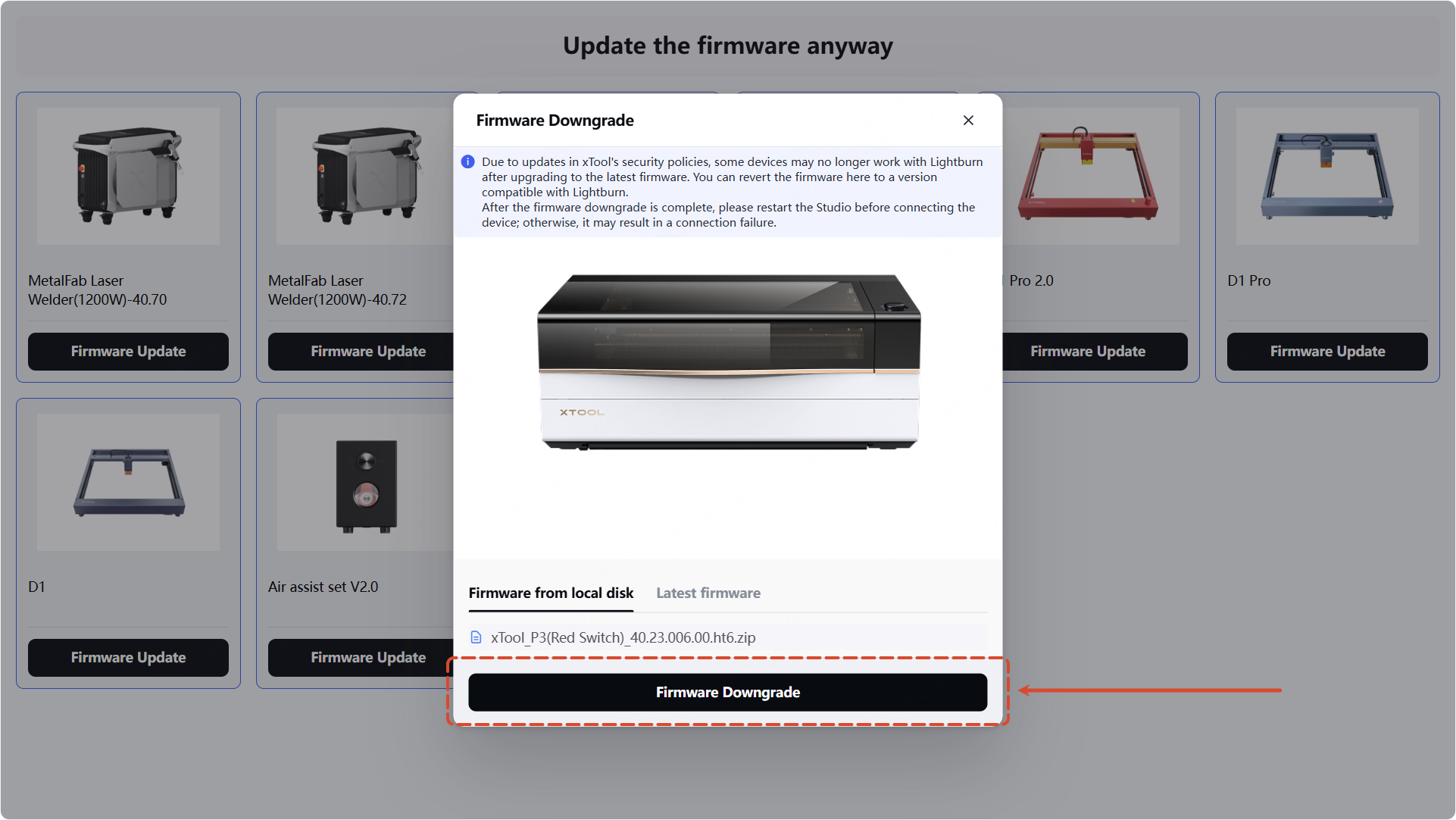
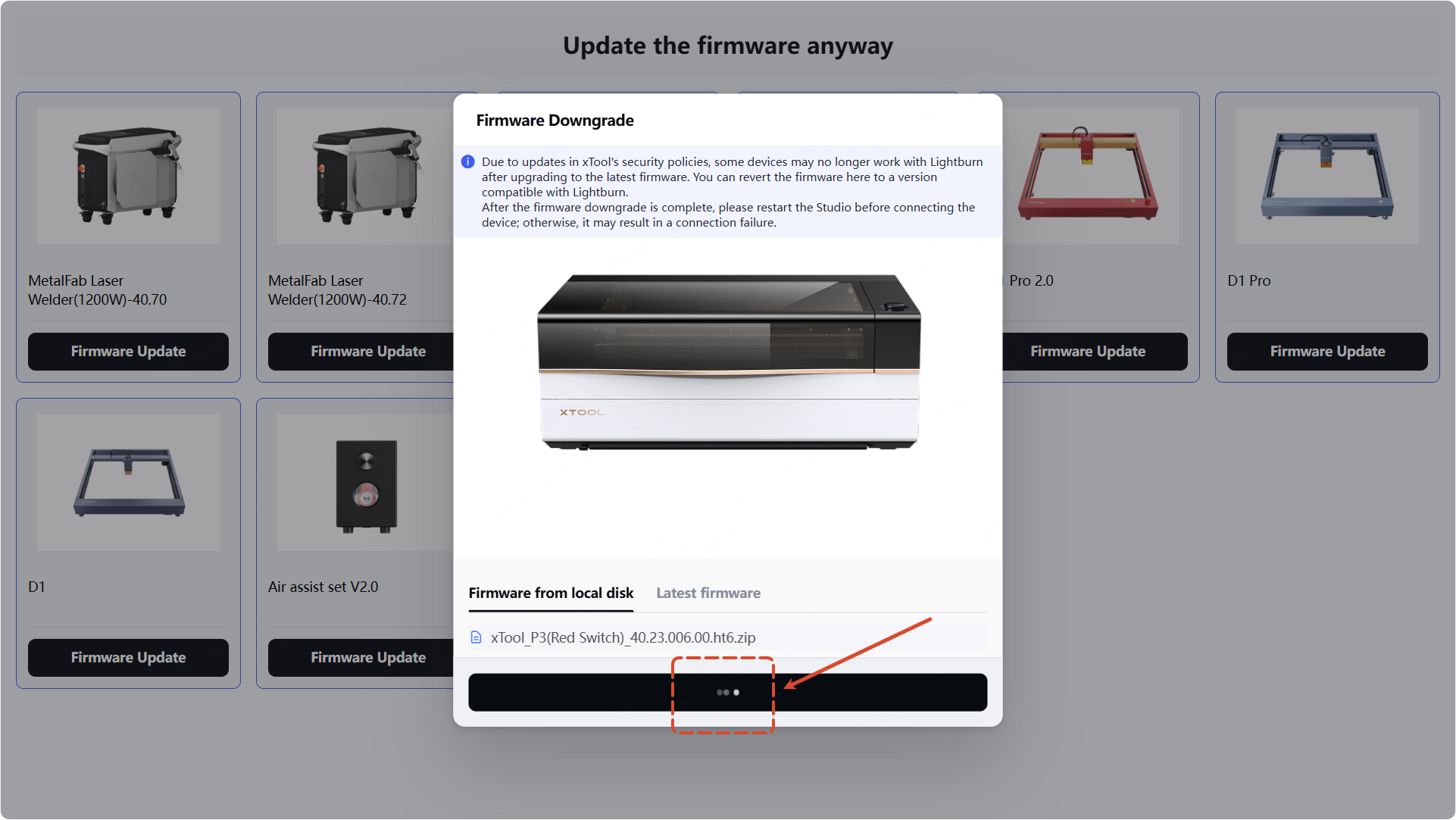
7. Once the firmware downgrade begins, it cannot be canceled. The icon in the software will also change to an animated dot that cannot be clicked. Do not turn off xTool P3 during this process.
• During the downgrade process, the device will lose connection with the software, exit the downgrade interface, and emit a few beeps. This is normal.
• Once the downgrade is complete, xTool P3 will automatically reboot; the downgrade is complete after the reboot.
• The entire downgrade process takes about 2 to 4 minutes. Please be patient.
- After the downgrade is complete, reconnect the device and go to Device Settings. Check the firmware version to confirm that the downgrade was successful. If it failed, try downgrading again.