List of items
Desktop smoke purifier: | ||
Desktop smoke purifier | Pipe adapter | Connection cable for xTool F1 |
Connection cable for xTool M1 Ultra/ xTool M2 | Power adapter & power cable |
Filter pack |
Pre-filter | Pipe |
User manual |
xTool M2 kit: | ||
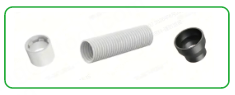
Pipe adapter (white)/Pipe/Pipe adapter (black) | ||
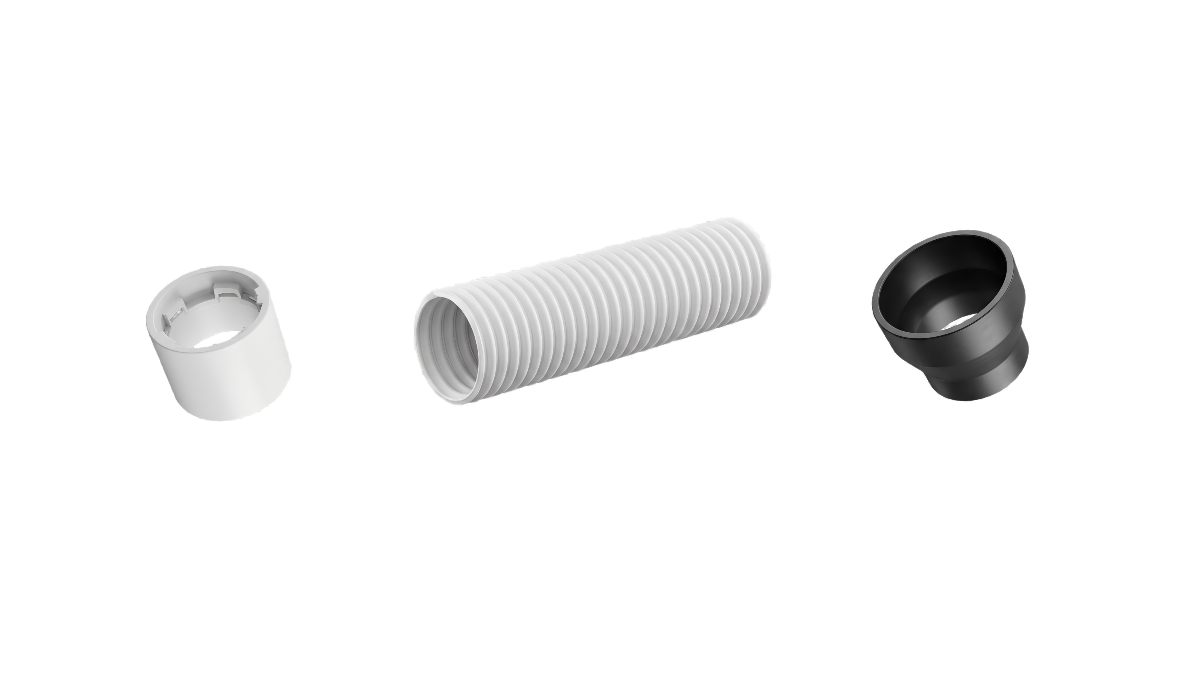
If you have purchased the desktop smoke purifier, visit the link to apply the pipe adapters.
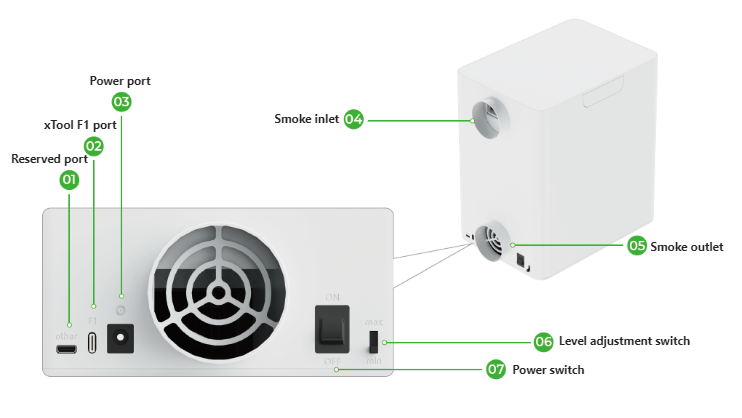
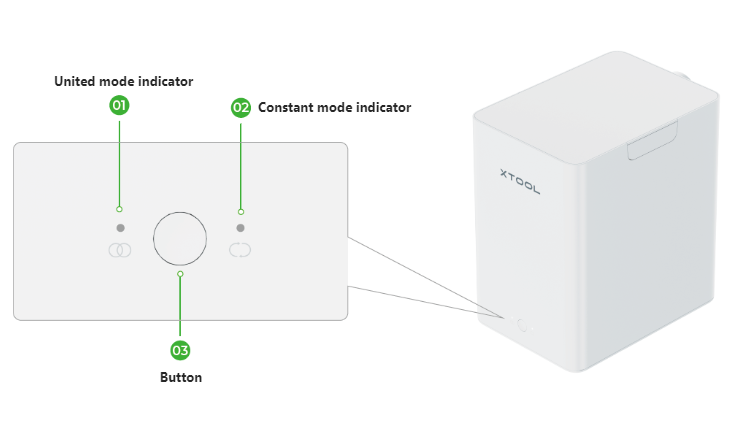
Meet the desktop smoke purifier
Connect the desktop smoke purifier to xTool M2
(1) Connect xTool M2 to the purifier.
Plug the pipe adapter 2 (black) into the smoke outlet of xTool M2. And plug the pipe adapter (white) into the smoke inlet of the smoke purifier.
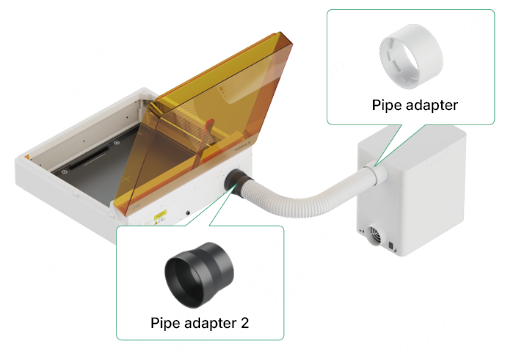
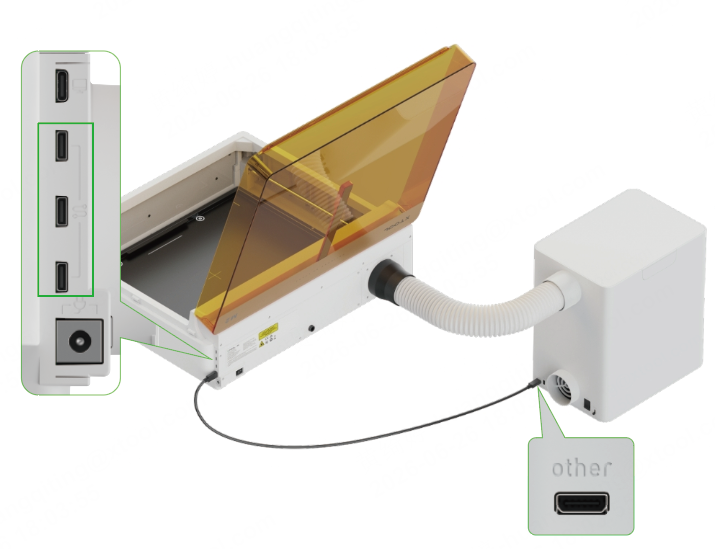
(2) Connect one end of the connection cable to the extension port on xTool M2. And connect the other end to the other port on the smoke purifier.
(Optional) Install the pipe to the smoke outlet of the smoke purifier
💡 Tips: This step is optional. You can decide whether to install the pipe included in the desktop smoke purifier pack based on your needs.
How to install the pipe adapter?
To install the pipe adapter, stretch the end of the pipe first, and tighten the pipe adapter to the pipe clockwise.
Use the desktop smoke purifier
Desktop smoke purifier level recommendation
💡 Tips: There are 3 levels of power, including low, middle, and high.
If the laser module emits blue rays, it is recommended to select the high level. If the laser module emits infrared rays, it is recommended to select the middle or low level.
Turn on the smoke purifier and select the power level by shifting the level adjustment switch.
xTool M2 supports adjusting the exhaust fan speed. When the exhaust fan is set between 50% and 100%, the desktop air purifier can only operate at certain levels.
xTool M2 exhaust fan level | Desktop smoke purifier level recommendation | ||
|---|---|---|---|
50% | Max ✔ | Mid ✖ | Min ✖ |
60% | Max ✔ | Mid ✔ | Min ✖ |
70% | Max ✔ | Mid ✔ | Min ✖ |
80% | Max ✔ | Mid ✔ | Min ✖ |
90% | Max ✔ | Mid ✔ | Min ✔ |
100% | Max ✔ | Mid ✔ | Min ✔ |
If you connect the desktop smoke purifier to xTool M2
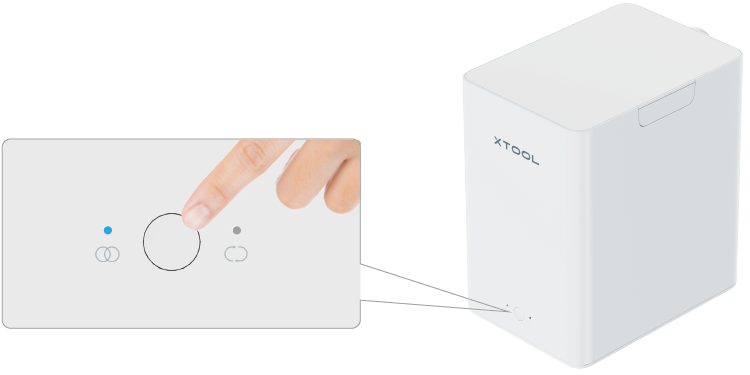
- United mode: When xTool M2 is detected, the smoke purifier automatically switches to the United mode.
The smoke purifier starts working when xTool M2 starts processing and continues working for a while, long after xTool M2 stops processing, so as to purify the air.
The continued working time can be set on the XCS software.
- Press: The smoke purifier starts/stops working. When the smoke purifier accepts the united commands from xTool M2, it executes the commands from xTool M2 in priority.
If you disconnect the desktop smoke purifier from xTool M2
💡 Tips: When the smoke purifier is under the Constant mode, and xTool M2 is detected, it automatically switches to the United mode.
- Constant mode: You can only press the button to switch the working status of the smoke purifier when xTool M2 is not detected.
- Press: The smoke purifier starts/stops working.
Indicator status description
Indicator status | Buzzer status | Explanation |
|---|---|---|
Light on for 3 seconds, and light off |
Three times | The device is powered on. |
The indicator of the united mode lights on. |
Once | The device is working in united mode. |
The indicator of the constant mode lights on. |
Once | The device is working in constant mode. |
Blink rapidly |
Twice, at an interval of three seconds | The motor has been damaged. Please replace the filters in a timely manner or check whether something is blocking the smoke inlet. |








Maintenance
Meet the filter pack
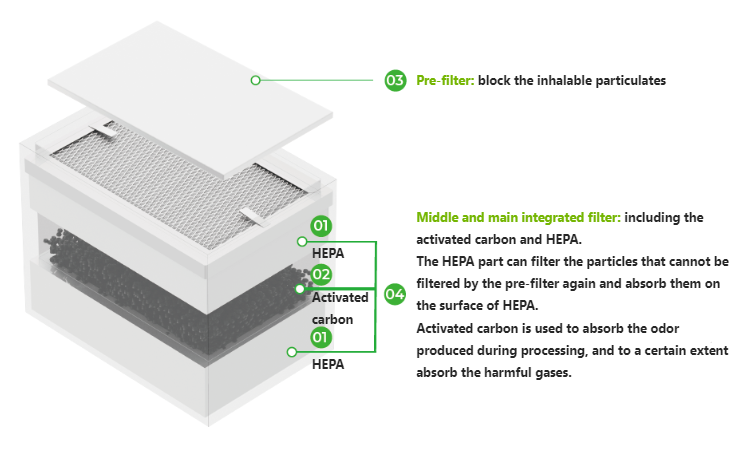
Replace the filter pack
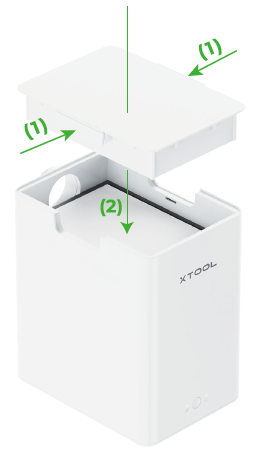
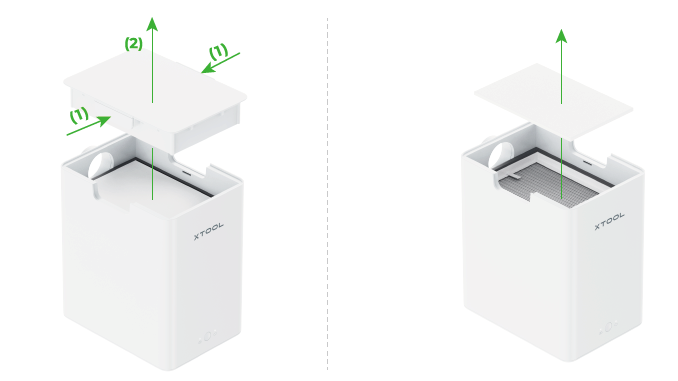
(1) Press two sides of the lid, open the lid and take out the pre-filter.
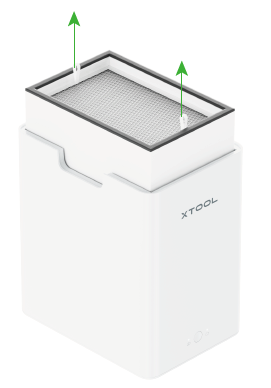
(2) Hold the strap of the two sides up and take out the used filter pack.
(3) Put the new filter pack and pre-filter into the smoke purifier.
💡 Tips: You can visit xtool.com to purchase the filter pack.
(4) Close the lid.
💡 Tips: Press the lid down and make sure the lid is installed properly.