
About specifications
1. What are the specifications of xTool M2 CMYK Inkjet Module?
Colors | CMYK (Cyan, meganta, yellow, black) |
Ink capacity | 40 mL |
Maximum printable area |
|
Maximum material thickness | 26 mm |
Supported mateirals | Basswood plywood, printing paper, adhesive labels, photo paper, acrylic, canvas |
Color density adjustment | 10 levels, adjustable from 10% to 100% |
Print resolution | 1200 DPI |
Droplet size | 6 pL (CMY) / 9 pL (K) |
Ink type | Water-based dye ink |
Print speed | 150 mm/s |
Combined processing accuracy | ≤ 0.3 mm |
Automation Features | Automatic removal and installation of the bottom cap during processing to prevent ink from drying out |
Input voltage | 24 V |
Weight (module only) | 320 g |
Product dimensions | 77 × 65 × 114 mm |
Standard page yield | ISO/IEC 24712, 5% coverage, 400 pages |
About using the inkjet module
1. Why should the inkjet module be calibrated before processing?
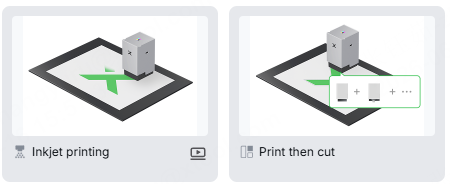
The inkjet module calibration is required in the Print then cut processing mode. This helps to align the print and laser cut processing positions, so as to achieve optimal results.
2. How can I secure the material in the Inkjet printing or the Print then cut processing mode?
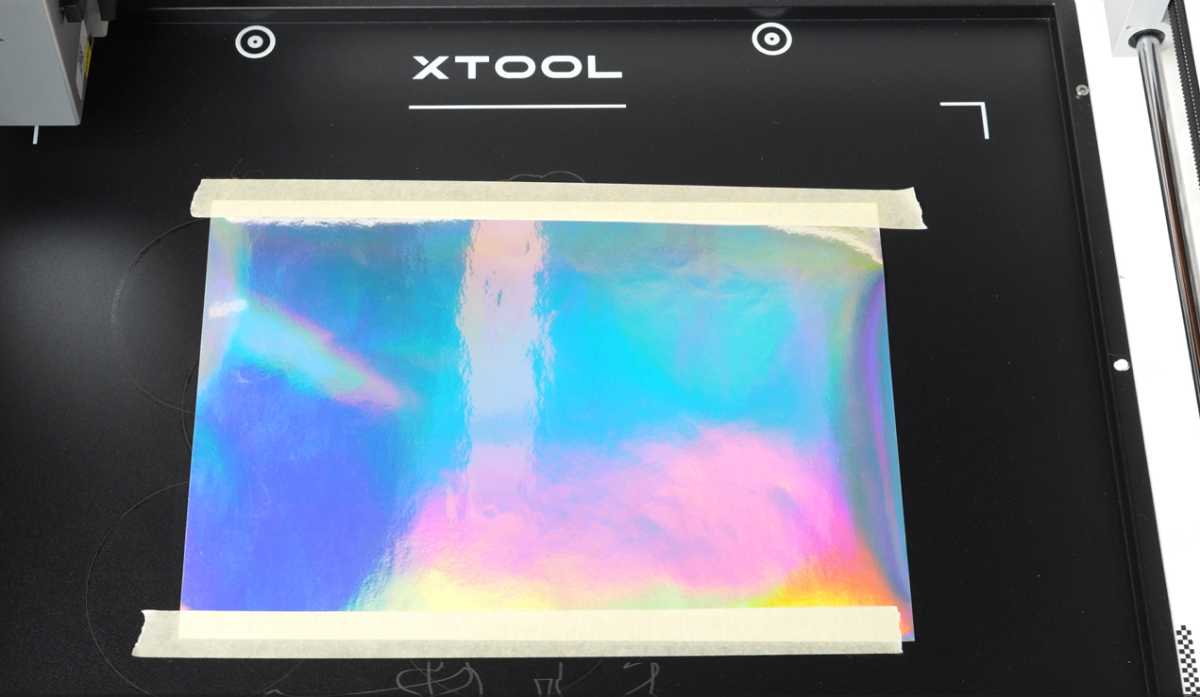
It is recommended that a material is secured with the masking tape when being printed.
The inkjet module is close to the material during processing. If the magnetic fixtures in the xTool M2 package are used for securing the material, the ink nozzle may get hit. Therefore, it'd be better to use masking tape instead.
3. What materials can be processed by the inkjet module?
Materials supporting direct printing
Material | Performance |
|---|---|
Glossy adhesive vinyl | Excellent print quality; rich surface finish; highly recommended; vibrant colors. |
Holographic adhesive vinyl | Excellent print quality; outstanding visual appearance. |
Matte adhesive vinyl | Good print quality; slightly lower color saturation than glossy vinyl; minor visible grain. |
Matte cardstock | Good print quality; minor visible grain. |
Pearlescent paper | Excellent print quality; pearlescent surface helps conceal minor grain. |
Photo paper | Excellent print quality; vibrat colors; slight grain visible upon close inspection. |
Tattoo transfer paper | Suitable for a wide range of applications; clear colors; no noticeable grain. |
Tracing paper | Clear print quality; fast drying; slight texture visible but generally unobtrusive. |
Satin fabric (Glossy finish) | Waterproof surface; no ink bleeding; vibrant colors; no noticeable grain. |
Shrink plastic (White) | Fast drying; no ink bleeding; good colors. |
Shrink plastic (Transparent) | Fast drying; no ink bleeding; good colors. |
White felt | Clear print quality; no ink bleeding; slightly reduced color saturation due to material absorbency. |
Napkin tissue | No ink bleeding; slightly reduced image sharpness. |
Corrugated cardboard | Good print quality. |
A3 / A4 Paper | Good print quality. |
Materials requiring pretreatment
Material | Performance without pretreatment | Suggestion |
|---|---|---|
Wood | Ink bleeding; reduced color saturation. | Apply a waterproof spray or glue coating before printing to improve color reproduction and reduce ink absorption. |
Burlap / Canvas tote bag | Poor print quality due to high ink absorption. | Apply a waterproof spray before printing to create a non-absorbent surface and improve print quality. |
Satin fabric (Back side, matte finish) | Ink bleeding and color spreading; poor print quality. | Apply a waterproof spray before printing to prevent ink absorption and improve image sharpness. |
Canvas | Ink absorption causes color bleeding and reduced image quality. | Apply a waterproof spray or glue coating before printing to improve print quality. |
Acrylic | Ink does not dry properly and cannot adhere reliably. | Apply a suitable coating to improve ink adhesion and color performance. |
Pearlescent adhesive vinyl | Slow drying; prone to smudging; low color saturation. | |
Metal sheet | Ink does not dry properly and cannot adhere reliably. | |
Stone | Ink does not dry properly and cannot adhere reliably. |
4. What sprays are recommended for pre- and post-print treatment?
Scenario | Example material | Target | Recommended spray |
|---|---|---|---|
Before printing absorbent materials | Wood / canvas bag / burlap / ... | To add a waterproof film to the material surface | Example: Wood Printing Fixative Spray |
Before printing smooth materials | Acrylic / metal / stone / ... | To allow ink adhesive to the material surface | Example: Transparent Print Primer Spray |
After printing smooth materials | Acrylic / metal / stone / ... | To achieve a matte finish effect | Example: Clear Matte Paint Spray |
5. What is the maximum processing speed of the inkjet module?
150 mm/s
6. Can I add other brands' ink to the inkjet module?
No.
Because different manufacturers' inks have different colors, refilling with third-party ink may cause severe color shifts or color mixing in the patterns printed by the inkjet module.
Ink flowing inside requires a good pressure balance to be maintained; after refilling ink, the pressure balance in the cartridge chamber may be affected, which can affect the processing stability of the inkjet module.
7. Why do the colors printed by the inkjet module on wood or other materials differ from the expected output?
The inkjet module uses dye-based inks that are optimized for vibrant color reproduction on light-colored and absorbent materials. Since the inkjet module uses cyan, magenta, yellow, and block inks, it produces no white underbase layer. Therefore, the printed colors interact with the color of the underlying material and the final appearance may vary when printing on dark-colored or highly saturated surfaces.
8. What type of ink does the inkjet module use?
The inkjet module uses water-based dye ink.
9. What is the ink level detection function in xTool software?
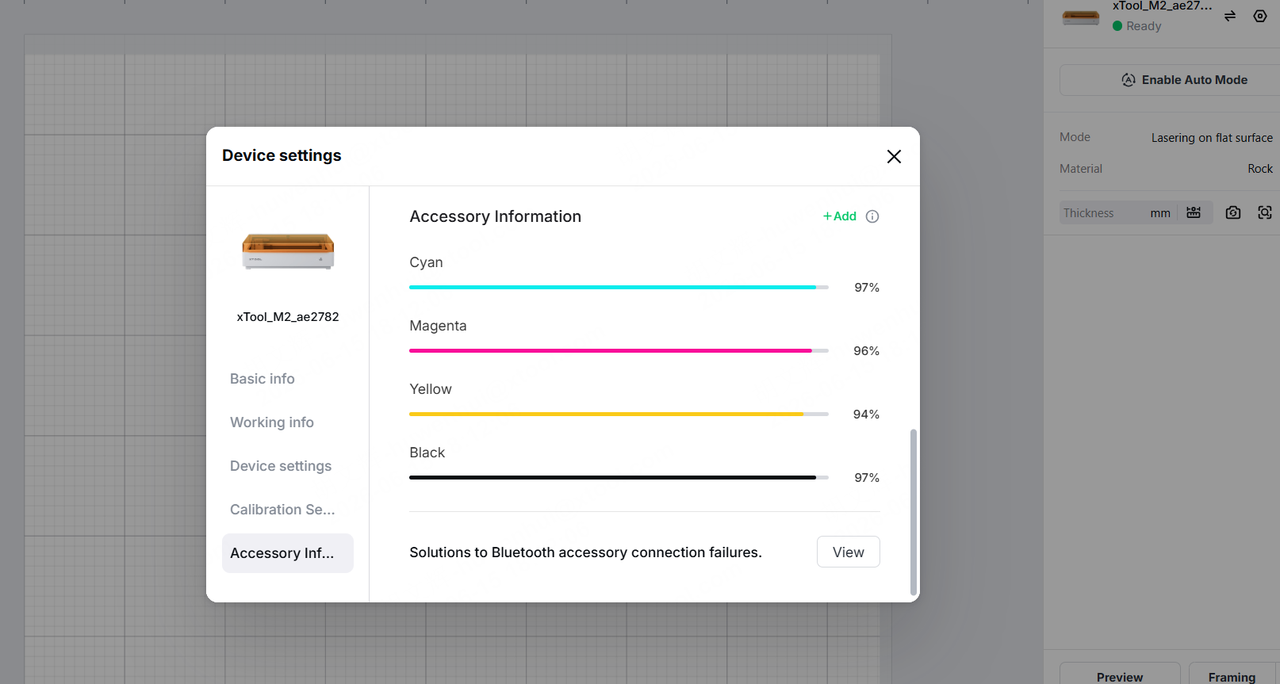
The ink level detection function provides an estimated ink level based on ink consumption during printing. Actual ink usage may vary depending on maintenance activities such as inkjet module cleaning and print test, which are not included in the estimation. Therefore, the displayed ink level should be used as a reference.
10. Does the inkjet module support ejecting white ink?
No.
The ink cartridge only consists of CMYK colors (cyan, magenta, yellow, black), and it cannot produce white-filled prints.
11. What should I do when the xTool software detects that the ink cartridge is empty?
If only a single color indicates that the ink is depleted while the remaining levels of other colors are normal, it is usually because that color was used heavily in past print jobs, resulting in faster consumption.
Please note that the ink cartridge for the inkjet module do not support user-refilling. If the ink runs out, it is recommended that you visit the official website to purchase and replace it with a brand new cartridge.
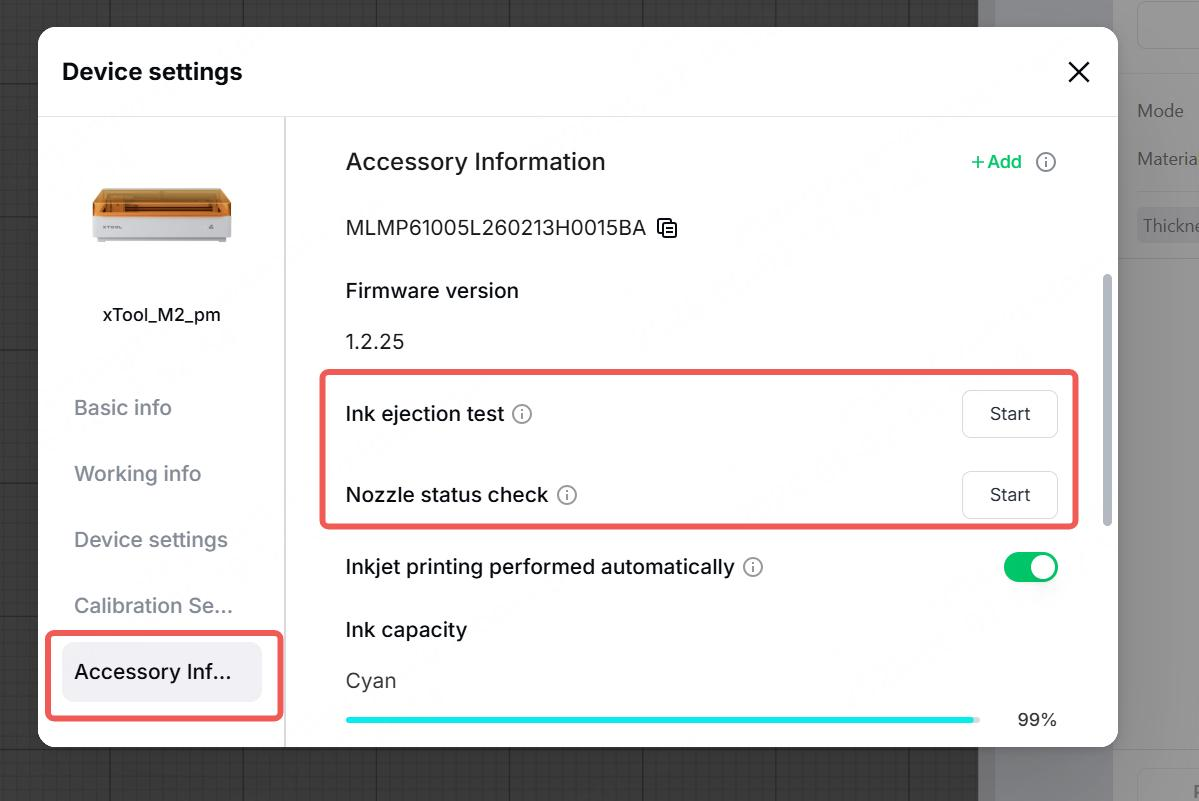
12. Is it normal for the inkjet module to have a few lines missing in the nozzle check pattern?
Since the inkjet module operates at 1200 DPI, the nozzle check pattern may show some missing lines, which is normal. As long as there're not a large number of missing lines, the inkjet module can still work properly.
However, if there're plenty of missing lines—for example, more than three missing lines in a single color that are not consecutive—please perform a inkjet module cleaning. For details, visit Cleaning Guide for xTool M2 Inkjet Module.
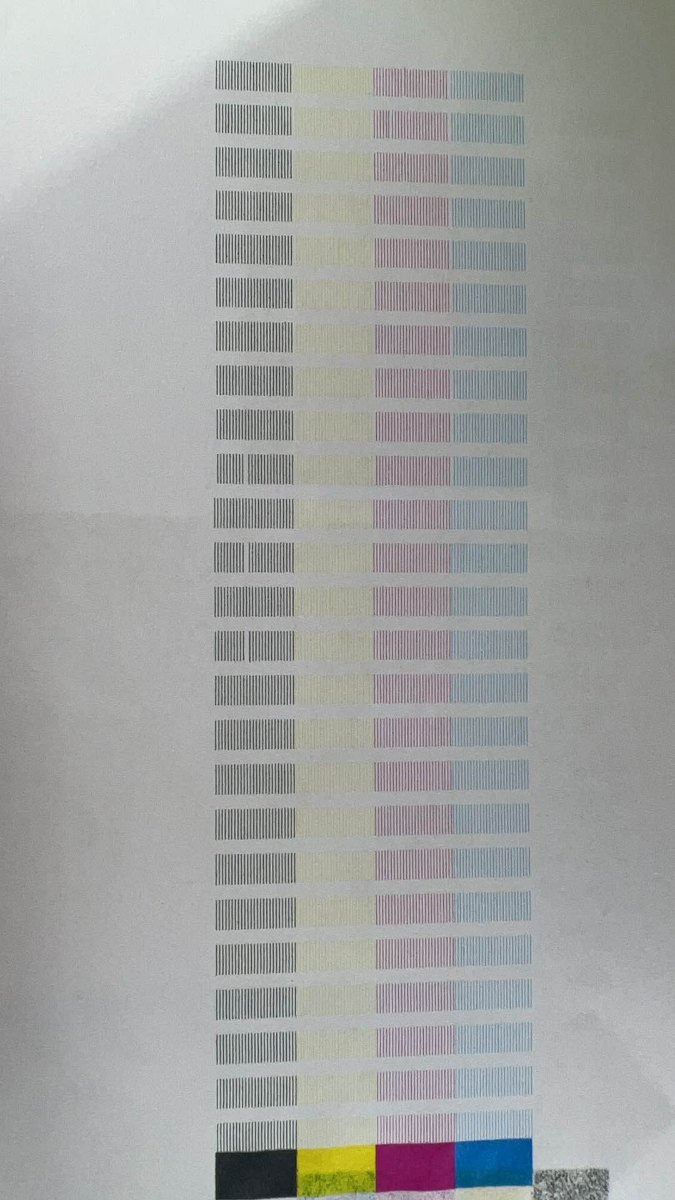
Nozzle check pattern
13. What is the routine maintenance for the inkjet module?
Routine maintenance for the inkjet module includes three components:
- Moisturizing sponge
- Cleaning sponge
- Ink nozzle
Visit xTool M2 CMYK Inkjet Module User Guide and follow the Maintenance and care chapter for more detailed instructions.
14. How can I clean the inkjet module when the ink nozzle is clogged?
- Use a lint-free cloth to gently clean ink nozzle from top to bottom as shown in the image. Do not scrap the ink nozzle forcibly.
- If the nozzle is severely clogged, follow Cleaning Guide for xTool M2 Inkjet Module to immerse the ink nozzle in purified water for about 10 seconds.
Note: Be careful not to soak any other parts of the ink cartridge.
- Use a dry lint-free cloth to absorb any excess liquid at the ink nozzle and ensure that there's no fibers left at the ink nozzle.
15. How often should I clean the inkjet module?
There is no fixed cleaning interval for the inkjet module. We recommend checking the nozzle status before printing and cleaning the inkjet module only when print quality issues are detected.
If the inkjet module remains unused for an extended time, the ink may dry in the nozzle and affect print quality. In this case, run a Nozzle Status Check to verify nozzle performance and clean the inkjet nozzle if needed. To ensure optimal performance, use the ink cartridge within its recommended shelf life of 1 year.
16. What's the function of the ferrite core?
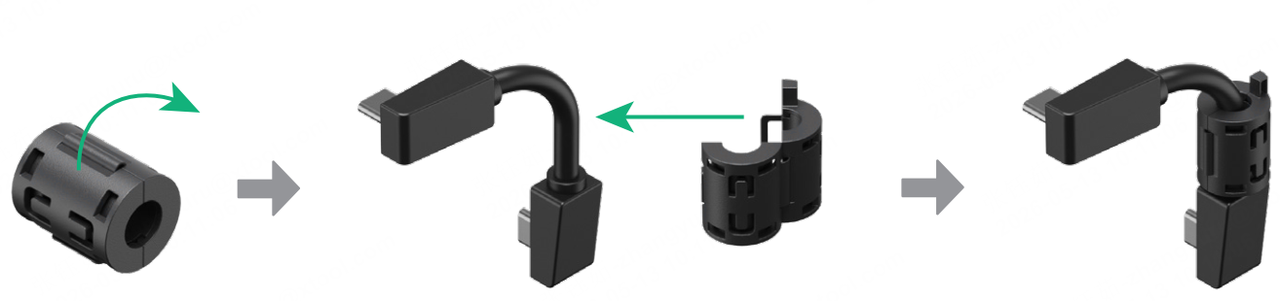
The ferrite core helps reduce electromagnetic interference (EMI) on the module connection cable. In certain environments with elevated electrical interference, it can help improve signal stability and reduce the likelihood of communication interruptions.
For best performance, install the ferrite core on the module connection cable as instructed.
17. Why wasn't a ferrite core included in my package?
Some production batches of the inkjet module were shipped without a ferrite core. Based on extensive testing, signal transmission remains stable in normal operating environments, and no noticeable differences in print quality or performance have been observed.
The ferrite core provides additional EMI suppression in uncommon high-interference environments (for example, near high-power variable-frequency drives or strong radio transmitters) while the device is running with the lid open. In normal use, you are unlikely to experience print quality issues or communication errors due to the absence of a ferrite core. Product functionality, accuracy, and service life are not affected.
18. Why does the ferrite core interfere with the belt's movement?
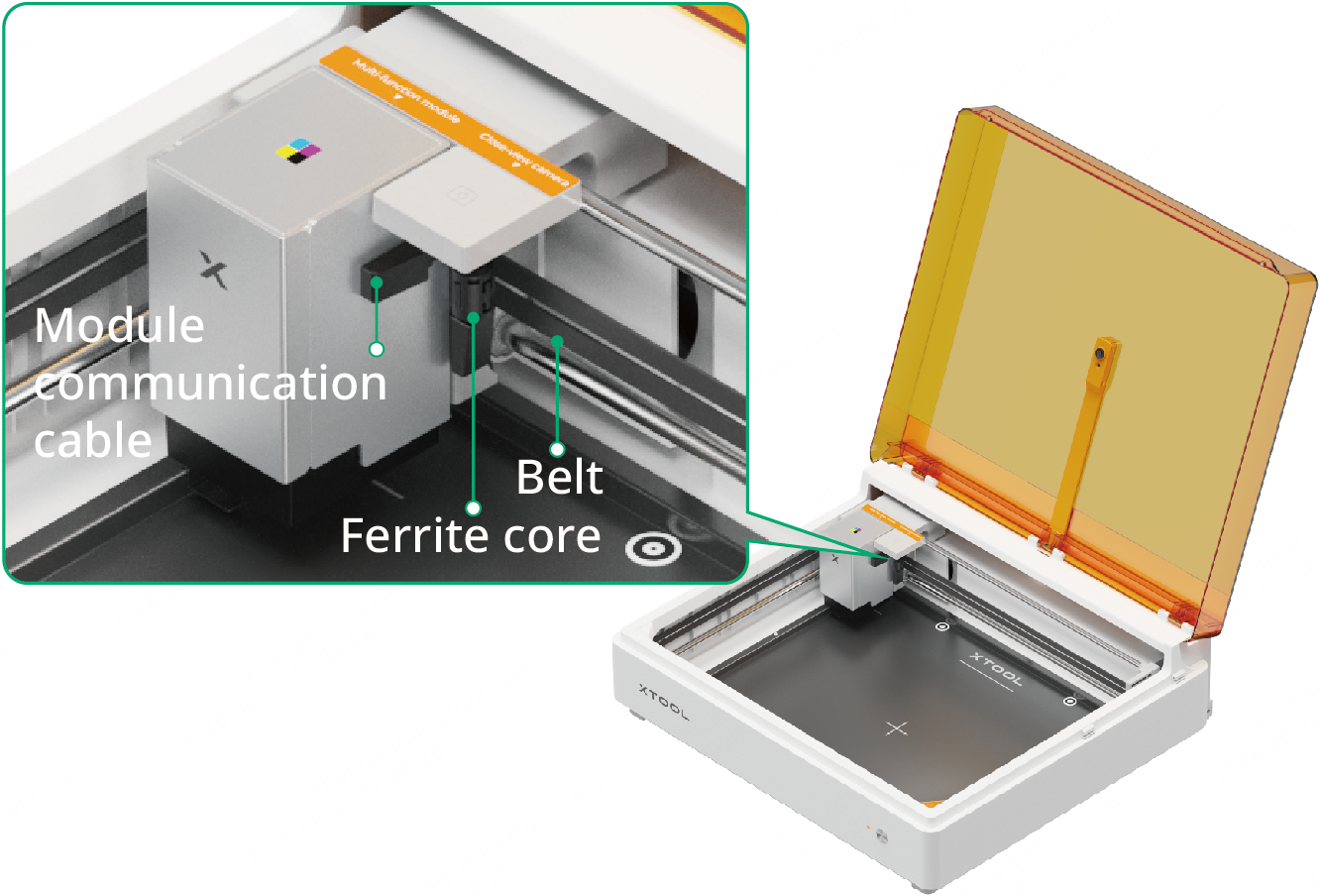
xTool M2 has a compact internal design. If the ferrite core is installed on the module connection cable and the cable routing is not optimized, the ferrite core may slightly rub against the belt.
As we've mentioned in the previous FAQ, the ferrite core is used to suppress electromagnetic interference (EMI) and improve signal stability. It is primarily intended for environments with strong electromagnetic interference and is not required under normal operating conditions.
Will the rubbing affect print performance?
Generally, no. Since there is no continuous friction between the belt and the cable, minor rubbing will not cause noticeable wear or affect print quality
Solutions:
If the ferrite core interferes with the belt after reinstallation, try one of the following solutions:
Option 1: Remove the ferrite core (recommended)
Removing the ferrite core from the cable will eliminate the rubbing immediately and will not affect normal device operation.
Option 2: Adjust the installation position
- Secure the ferrite core as close to the inkjet module as possible.
- Arrange the module connection cable to keep the ferrite core away from the belt path.
- If interference persists, Option 1 is recommended.
Note: The ferrite core is not required for normal operation of the device. Removing it will not affect device performance or warranty coverage.
19. What's the main ingredient of the included moisturizing liquid?
100% deionized water.
Deionized water is purified through an ion-exchange process to remove dissolved ions. Its high purity and non-conductive properties help protect the inkjet module's precision circuitry and reduce the risk of nozzle clogs and circuit malfunctions.
20. If the included moisturizing liquid runs out, what can I use instead?
We recommend using 100% deionized water.
Purified or distilled water can be used as a temporary alternative in an emergency. However, they are not recommended for long-term use, as they may contain trace ions or impurities that can remain after the water evaporates, increasing the risk of nozzle clogs.

