
Issue description
No print output exists when xTool M2 CMYK Inkjet Module is used to process a material or perform a calibration:
- When performing a printing task, there are no ink marks on the material.
- When performing a calibration task, the test pattern does not appear on the material or the material is completely blank.
- Even though ink flows out when the nozzle is pressed manually, the module still fails to eject ink during actual processing or calibration.
Possible causes
- The ink cartridge runs out of ink.
- The communication is abnormal.
- Module connection cable is loose.
- The ink cartridge is not installed properly.
- The inkjet module malfunctions.
Troubleshooting procedure
Step 1: Check if the ink cartridge runs out of ink
- Remove the inkjet module from xTool M2.
- Use a lint-free cloth or other soft material to gently press the ink nozzle.
If no ink or only a very small amount comes out when you press the ink nozzle, the cartridge needs to be replaced.
Note:
- The ink cartridge is an official consumable, you can purchase it at xtool.com.
- The ink cartridge typically contains CMYK four-color inks. Therefore, the cartridge needs to be replaced as a whole rather than being refilled with an individual color.
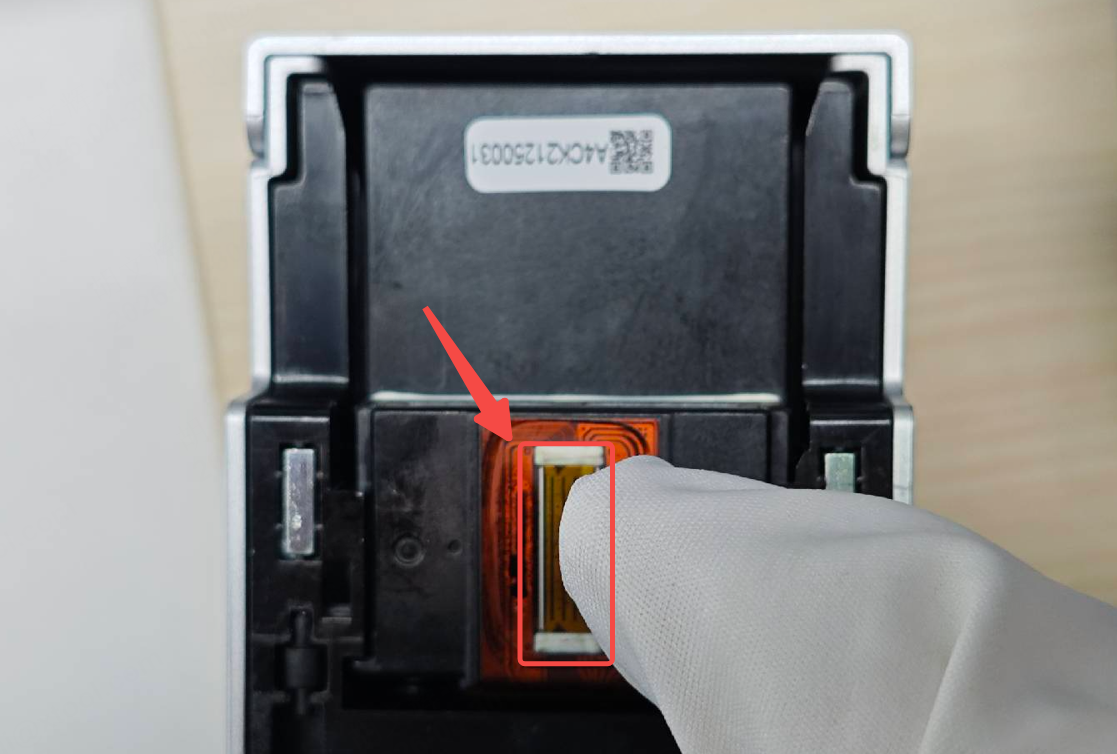
- If there's a certain amount of ink in the ink cartridge but the issue persists, proceed to the next step.
Step 2: Restart xTool M2
- Turn off xTool M2 and wait about 10 seconds.
- Turn on xTool M2 and wait for it to finish the self-check and initialization.
- Restart the xTool software.
- Perform a new print task or a calibration task to check if the issue is resolved.
- Proceed to the next step if the issue persists.
Step 3: Check whether the cartridge latch is damaged
- Turn off xTool M2 and remove the inkjet module. Then, take out the ink cartridge.
- Check if the cartridge latch is broken, deformed, or loose. The cartridge latch is highlighted in the red box in the following figure.
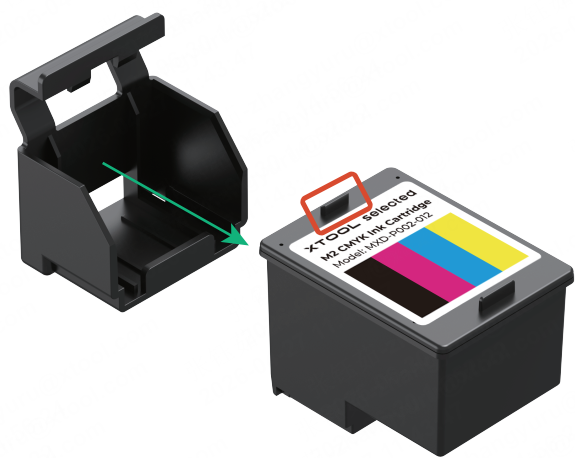
- If the latch is broken, deformed, or loose, the ink cartridge may not be securely installed, resulting in poor contact or ink supply issues. In this case, replace the ink cartridge.
- If the latch is normal but the issue persists, proceed to the next step.
Step 4: Check the connection between the inkjet module and xTool M2
- Turn off xTool M2.
- Unplug the module connection cable connecting the inkjet module and xTool M2. Then, check if the cable is damaged.
- If yes, replace the cable.
- If not, proceed to the next step.
- Replug in the cable and ensure it is well seated.
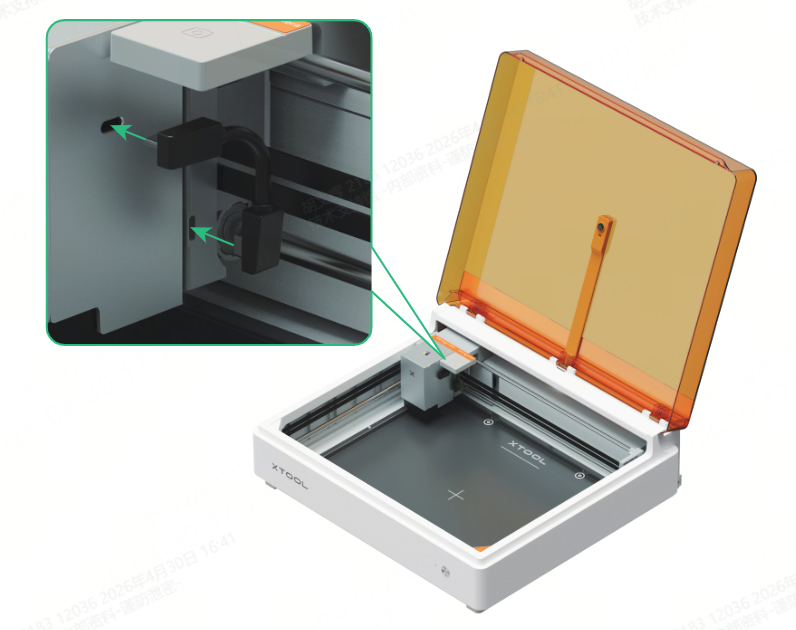
- Turn on xTool M2 and run a print test.
- Proceed to the next step if the issue persists.
Step 5: Check the module connection cable
- Remove the inkjet module from xTool M2.
- Install the laser module onto xTool M2.
- When you install the laser module, the two location pins on its back and the multi-function module holder should be aligned.
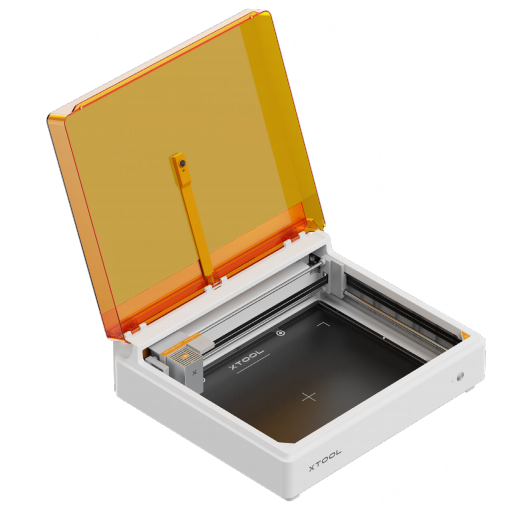
b. Connect the laser module and the multi-function holder via the module connection cable.
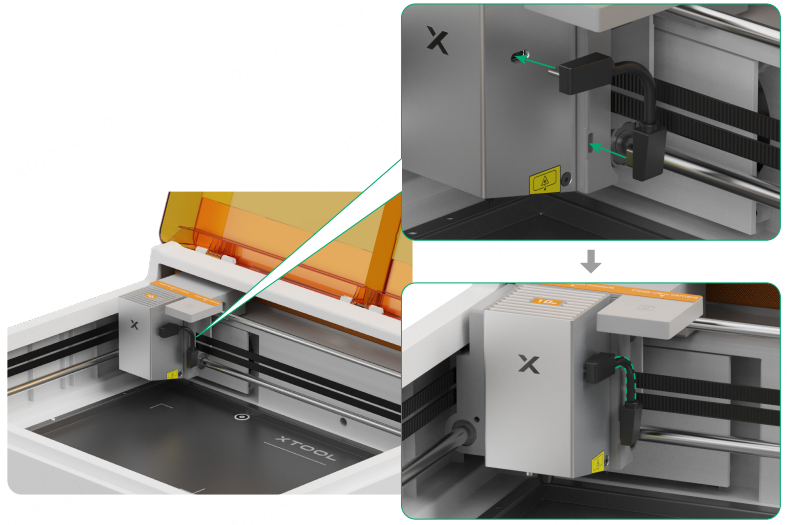 3. Run a simple laser-processing task. For example, engrave a simple pattern on a material.
4. Check the processing result.
- If the material does not have the engraving mark, the module connection cable may malfunction and needs replacement. In this case, contact xTool Support Team.
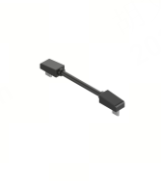
b. If the engraving result is normal, it indicates that the module connection cable and the port of xTool M2 works properly, and that the issue lies with the inkjet module. Proceed to the next step for more solutions.
Step 6: Reinstall the ink cartridge
- Turn off xTool M2.
- Remove the ink cartridge from the inkjet module.
- Check the metal contacts of the module and the cartridge for dirt, oxidation, or tape residue. If there is any, gently wipe them with a cotton swab or a clean and lint-free cloth slightly dampened with anhydrous alcohol, then wait until they are completely dry.
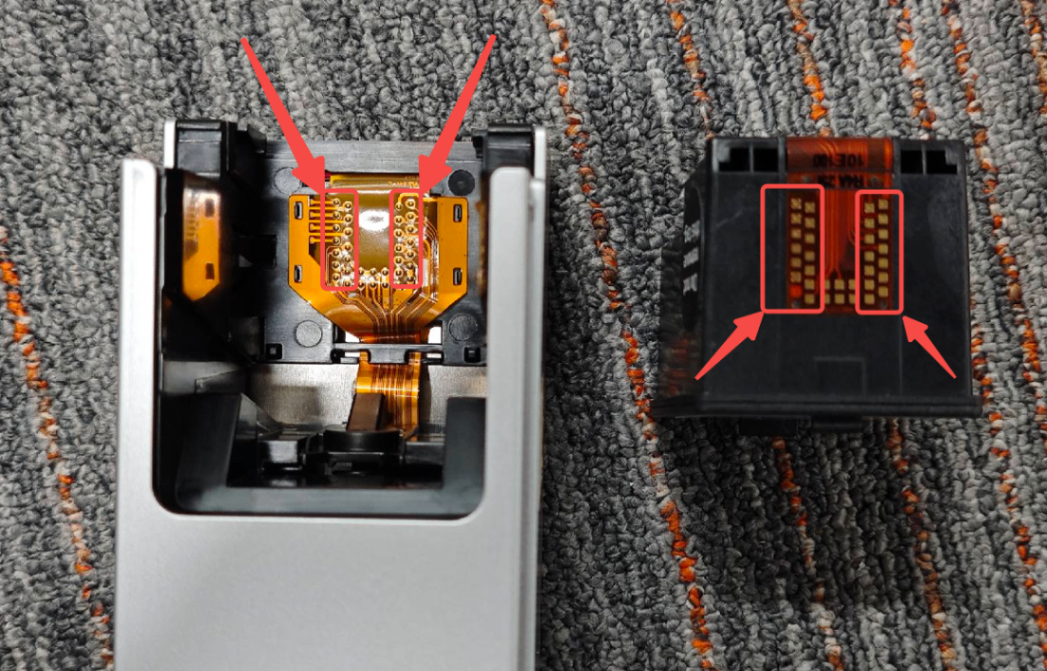
- Reinstall the ink cartridge into the inkjet module and ensure that it is securely seated.
- Turn on xTool M2 to run a print test.
Step 7: Contact xTool Support Team
If the inkjet module still yields no ink, the inkjet module may malfunction. In this case, please contact xTool Support Team with the following information:
- xTool M2 SN (at the back of the device)
- Video of the whole troubleshooting process and results
- Work log from xTool software
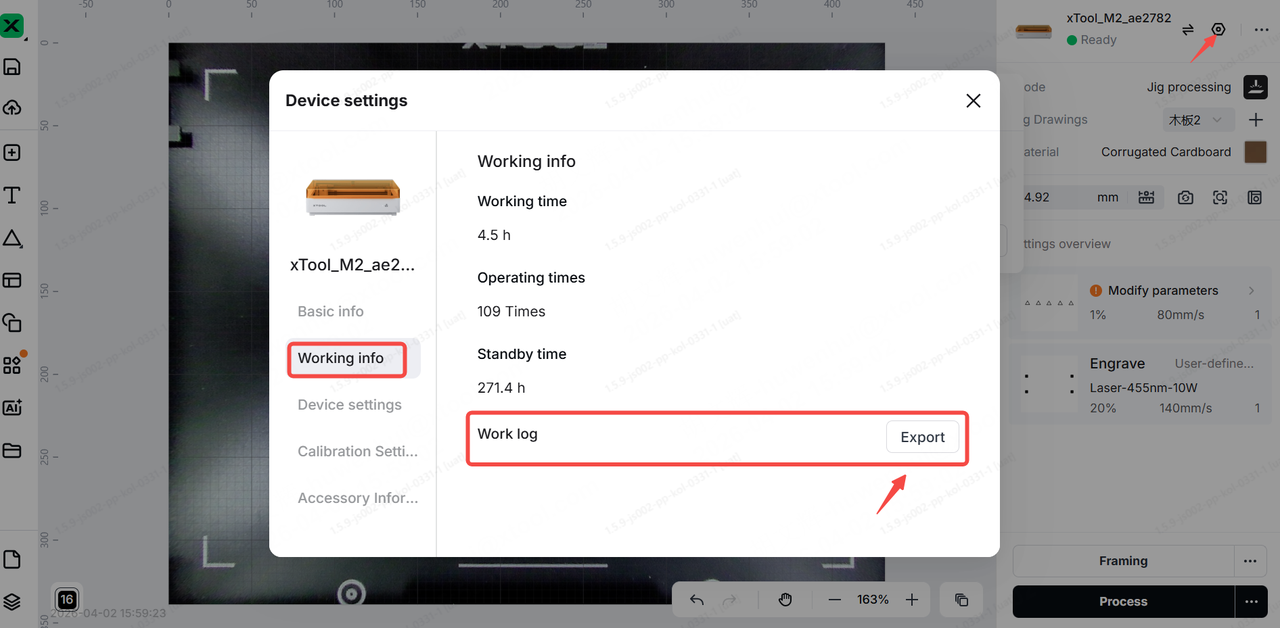
Still experiencing issues?
Should the issue persist after completing the preceding steps, submit a ticket via the "Submit a Ticket" button in the "Help Ticket" section below. The standard response time for xTool Customer Service is one business day.
For a prompt resolution, please include the following details:
- Issue description: A detailed explanation of the observed problem.
- Video evidence: Attach a video demonstrating the issue, where applicable.
- Troubleshooting performed: Any troubleshooting steps you have already attempted, along with their results.
This information is crucial for xTool technical support engineers to provide timely assistance.
Documentation feedback
Help improve this content by providing feedback. If this content did not meet your requirements, select "No" in the "Was this page helpful?" section below. Include specific details about what was unclear or missing in the pop-up suggestion box. Feedback submissions are reviewed by xTool technical writers to enhance future documentation.

