
Issue description
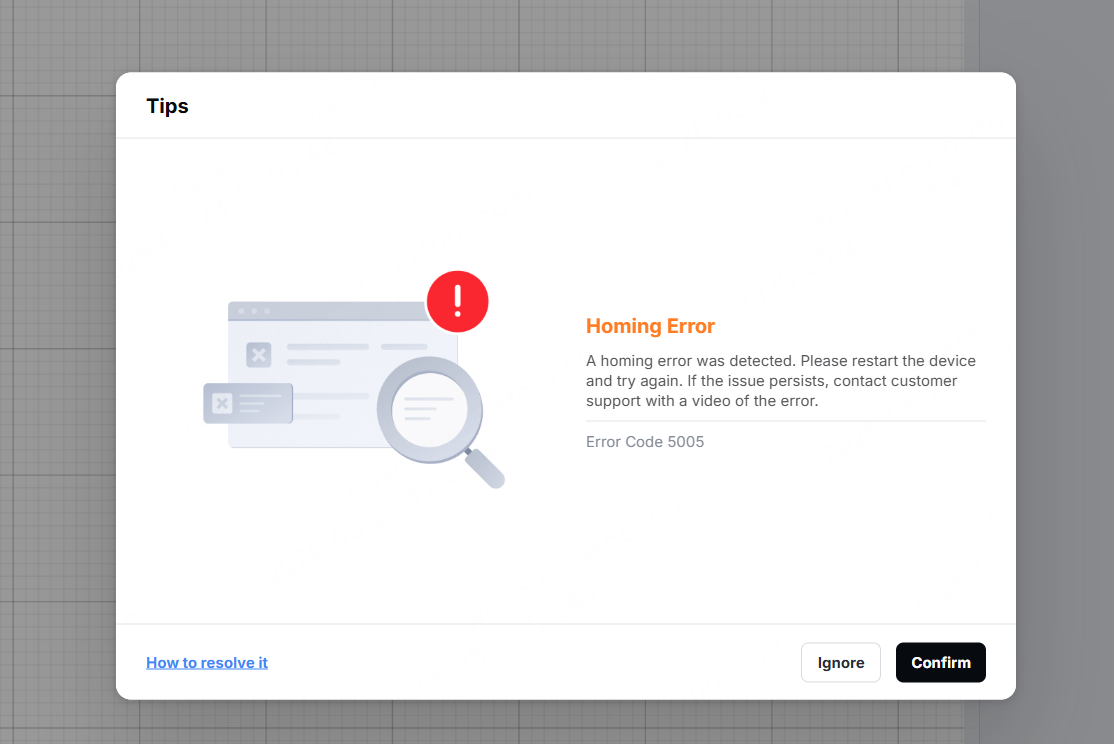
An error code "Homing Error" appears on the software.
Possible causes
The module holder plate moves unsmoothly.
Troubleshooting procedures
1. Update to the latest firmware version
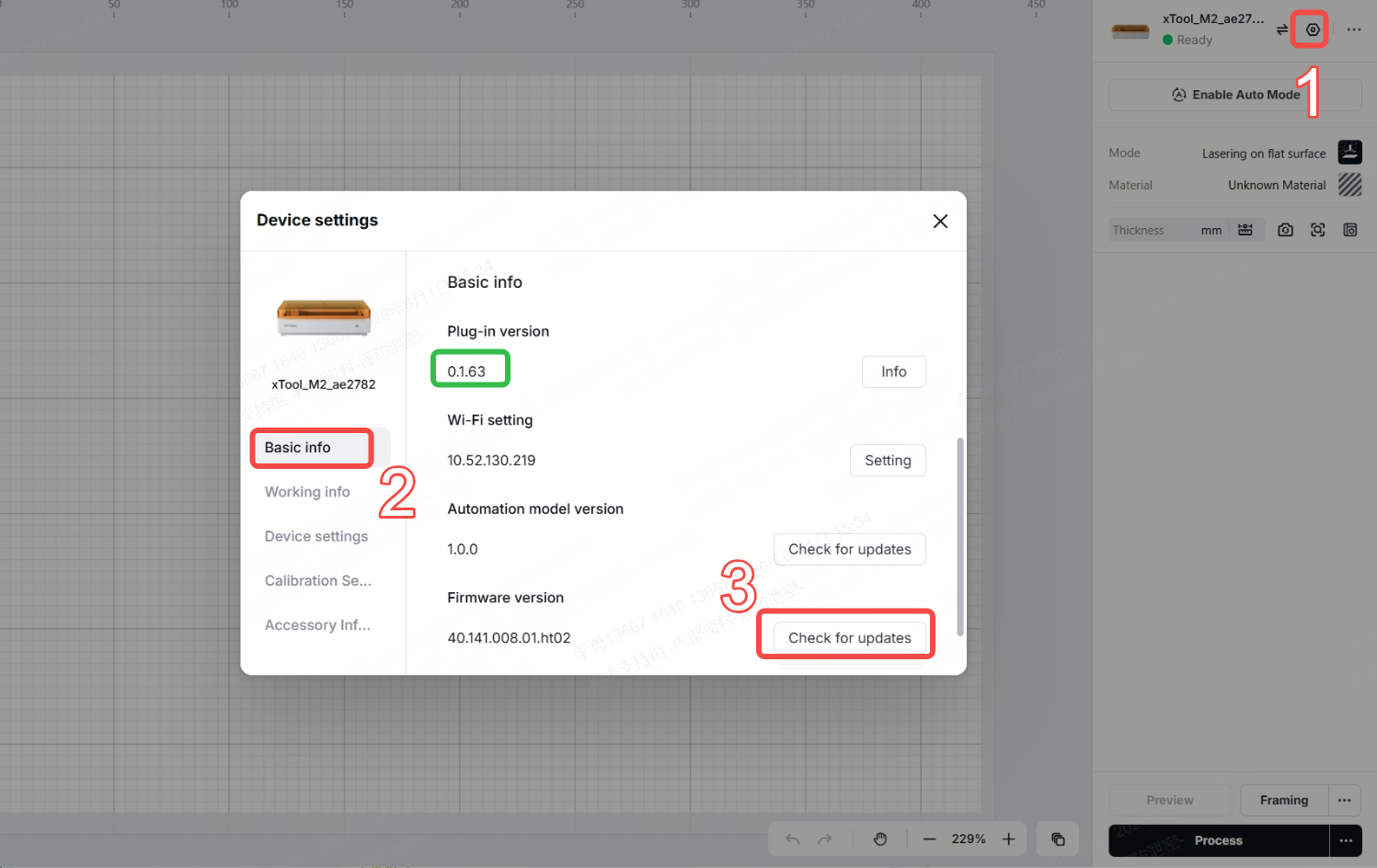
- Go to Settings icon > Basic info > Plug-in version to update the plug-in version to 0.1.63.
- Click Check for updates to update the firmware version to 40.141.008.01.ht02.
2. Check and maintain the module holder plate
Check the module holder plate
- Keep the device powered on and remove the laser module.
- Pull the module holder plate down slightly.
- Hold the bottom of the module holder plate with your finger, gently push it upward, then let go (be careful not to apply too much force).
- If the module holder plate is observed to return to its original position on its own, there are no obvious abnormalities in the slider mechanism. Otherwise, there is a problem with the plate getting stuck.
Maintain the module holder plate
You can refer to the video tutorial.
- Power off the device, and move the laser module to the bottom-right of the device.
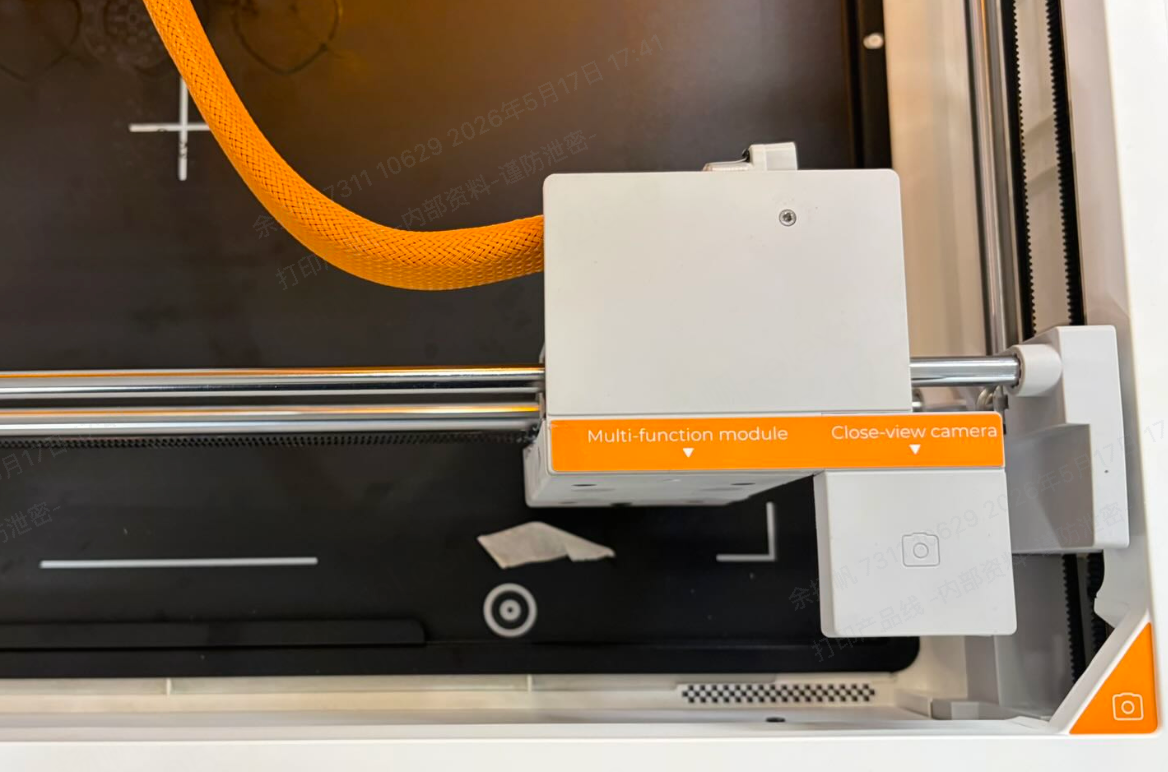
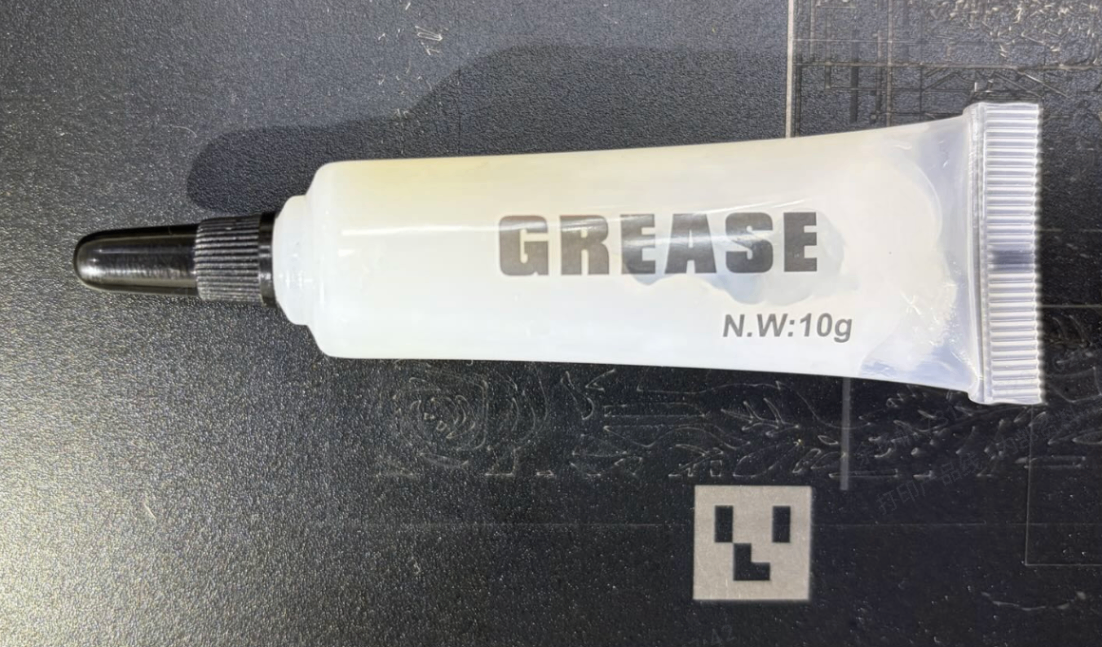
- Find the grease in the toolbox of xTool M2.
- Apply grease evenly to the linear shafts at the two locations shown in the figure below. After applying the grease, slide the module holder plate up and down by hand to ensure the grease is evenly distributed.
After the lubricating, perform the Z-axis calibration again. Check whether the error code has been solved.
3. Contact xTool after-sales team
If the error code persists after completing Step 1, there may be an issue with the spring assembly inside the module holder plate. Please contact xTool after-sales team.
Still experiencing issues?
Should the issue persist after completing the preceding steps, submit a ticket via the "Submit a Ticket" button in the "Help Ticket" section below. The standard response time for xTool Customer Service is one business day.
For a prompt resolution, please include the following details:
- Software and firmware version: The software version of xTool Studio and the firmware of xTool M2 that you use.
- Video evidence: Attach a video demonstrating the issue, where applicable.
- Device information: Find the SN number on the back of xTool M2. Follow the steps to export the work log.
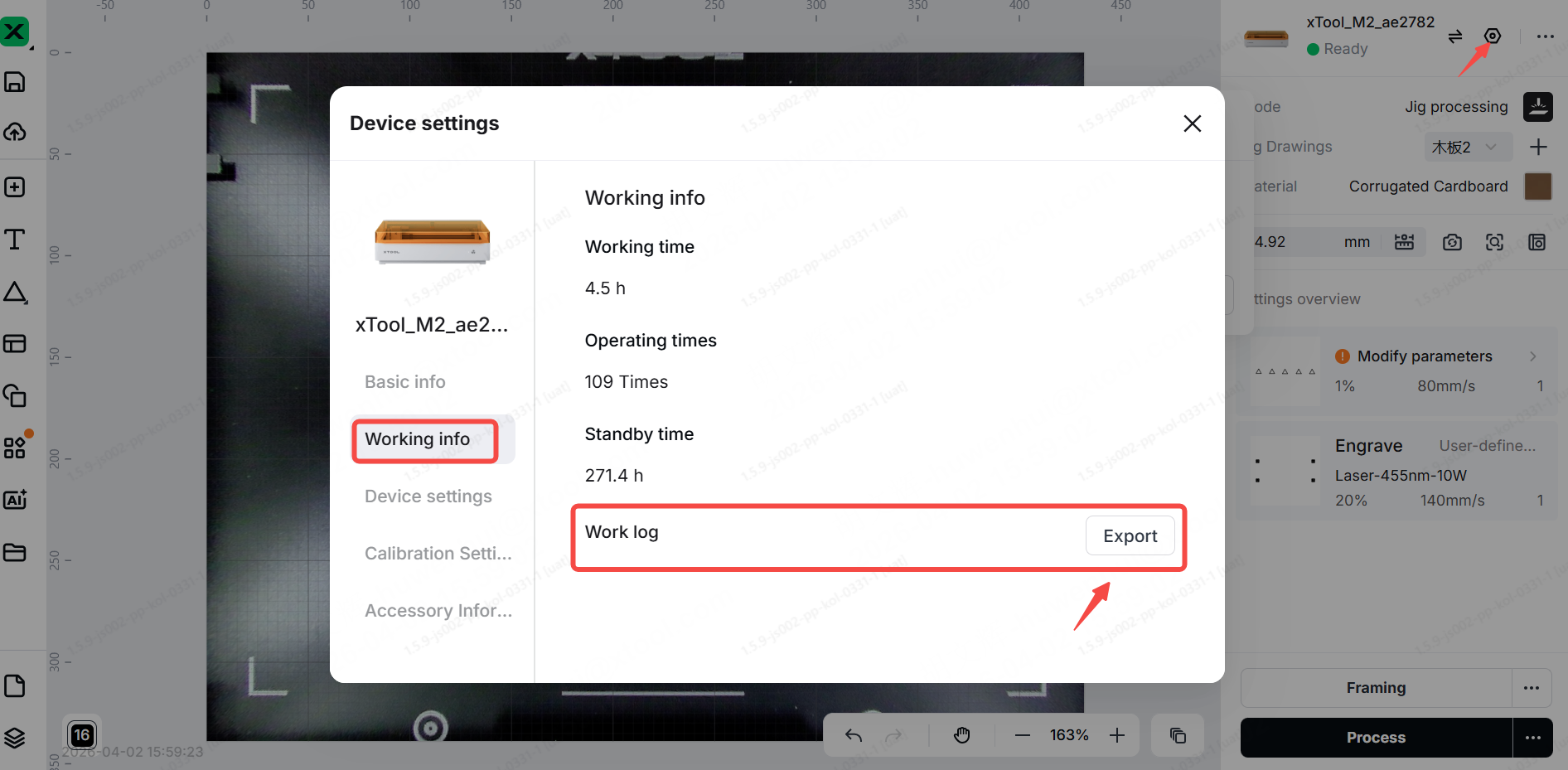
This information is crucial for xTool technical support engineers to provide timely assistance.

Services & Help
Learn & Education

Copyright © 2025 xTool All Rights Reserved.