
1.What the AI Assistant Is
1.1 In One Sentence
Studio Assistant is an AI assistant built into the side panel of the xTool Studio desktop app. Powered by xTool's official knowledge base and real-time device status, combined with officially maintained troubleshooting flows, it helps you with error code self-service troubleshooting, machining failure diagnosis, device usage Q&A, project inspiration search, and feature requests. For complex or safety-related issues, it will guide you to a human agent.
It is not a general-purpose chatbot, not a replacement for human support, and it will never change your machining parameters or control your device without your explicit confirmation.
1.2 What the Assistant Can Help With
Capability | Example scenarios |
Self-service troubleshooting | Device shows E01, laser not firing, connection timeout, alignment off, etc. — walks you through the official xTool troubleshooting flow step by step |
Knowledge Q&A | "How thick of basswood can my F1 cut?" / "How do I replace the lens?" — Q&A based on the official knowledge base |
Error code analysis | When an error code shows up on the device screen or in the client, the AI automatically considers your current situation and suggests next steps |
Machining result analysis | Upload a photo of a failed cut (burnt / not cut through / bad edges), and the AI offers possible causes |
Project search | "Find me some acrylic projects" / "Got any earring inspiration?" — pulls project cards from the xTool community |
Feature requests | ⭐ Wishlist — collects feature requests via conversation |
Handoff to human support | When troubleshooting fails or the topic involves account / repair, you'll be guided to a human agent |
1.3 The Assistant Already Knows Your Current Context
Because the assistant lives in the top bar of xTool Studio, whenever you start a conversation it automatically brings along what's currently going on in the app. You don't have to keep saying "I'm using an F1", "the error code is E01", or "my material is 3mm basswood" — the AI can answer based on your actual situation directly.
This typically includes: the connected machine model and its connection state, any error code shown on the device screen or in the client, the machining parameters and material on your canvas, any image you drag into the chat, the current assistant mode and chat history, your client version and language setting; and if you're signed into your xTool account, your account email is also attached for support records.
This information is only used while the assistant answers your current conversation — see §3.2 item 7 for more detail on privacy.
2.Feature-by-Feature Walkthrough
This chapter only covers features you can actually see and use inside xTool Studio. Each section follows the same shape: what it helps you do → where to click → what you'll see.
2.1 Opening and Managing Conversations
2.1.1 How to Open the Assistant
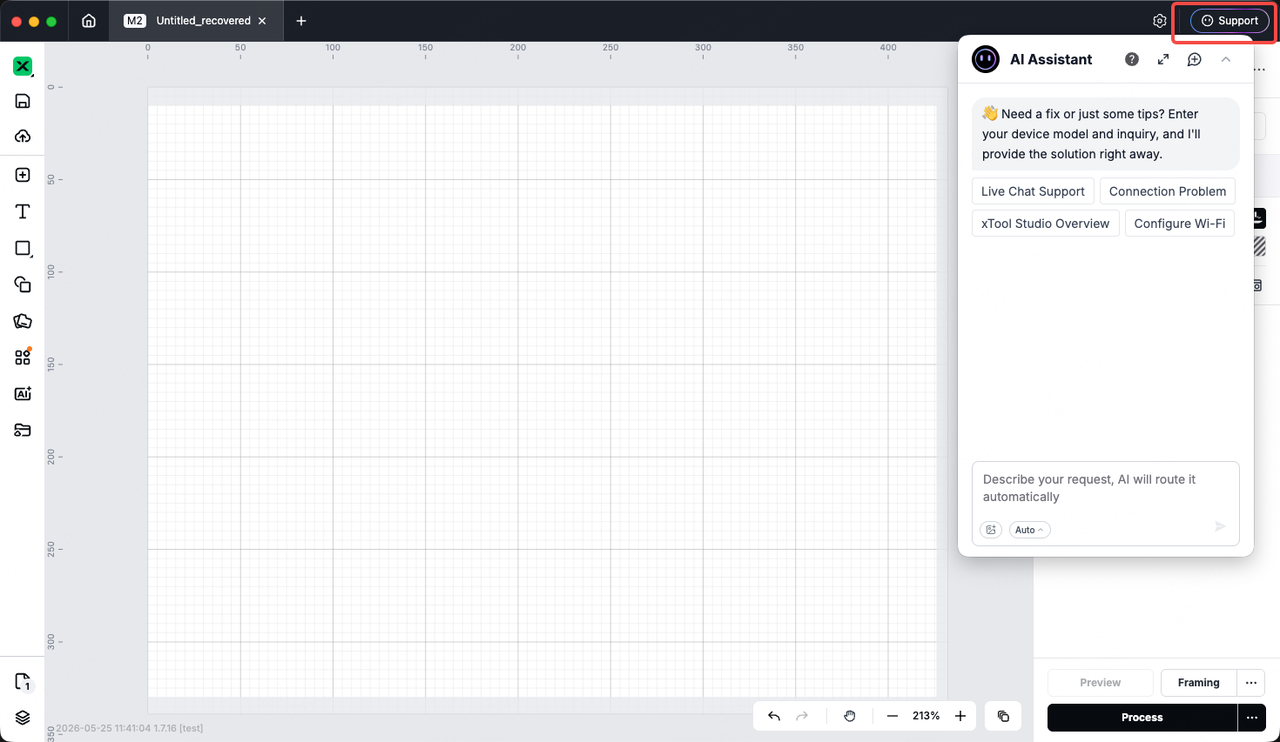
- Open any workspace in xTool Studio → find the AI Assistant icon in the side panel → click to expand the assistant panel.
- The panel can be dragged to resize (width / height), and supports full-screen mode filling the whole app window. Even in a narrow panel, the text, project cards, and forms inside all adjust their size automatically.
2.1.2 New Conversation
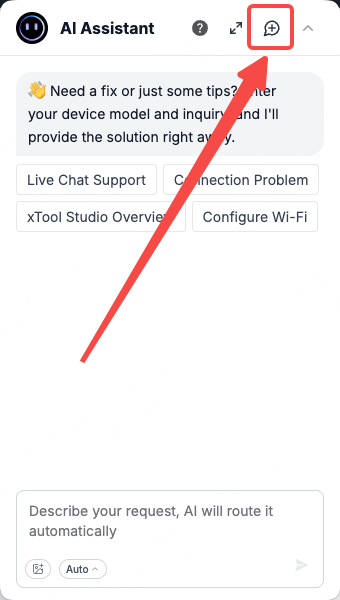
- When to use it: You've finished the current topic and want to ask something new, without earlier messages biasing the AI.
- How: Click the 「New Conversation」 button at the top of the assistant panel. The previous conversation is cleared instantly and a fresh one starts.
- Your old conversation isn't lost — the AI just won't look at it anymore. If you need to retrieve it, you can contact xTool support.
2.1.3 Regenerate
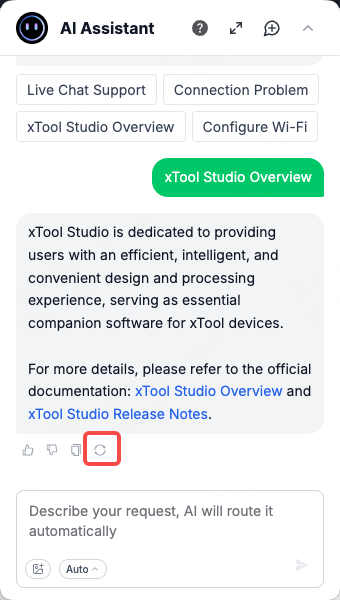
- How: Every AI reply has a 「Regenerate」 button at the bottom. Click it and the AI will generate a new reply.
- The input box is briefly locked while regenerating, so you don't accidentally fire two requests at once.
2.1.4 Scrolling Back Through History
- Scroll up within the current session to see all earlier messages.
- After you close and reopen xTool Studio, the assistant doesn't auto-restore history — each time you open it, you start fresh.
2.1.5 Seeing What the AI Is Doing
- Whenever the AI is doing work that takes multiple steps (looking things up in the knowledge base, searching for projects, asking the client to run a device check, walking through a troubleshooting flow, etc.), a status bar appears above the message bubble, for example:
- "Looking it up in the knowledge base…"
- "Searching for projects…"
- "Fetching device state…"
- "Found error code E01 → searching for solutions…"
- Tap to expand if you want to see what each step did; tap again to collapse.
- You're never stuck staring at a blank screen — any processing that takes more than a second or two will have this status bar telling you "the AI is still working, it's not frozen".
2.2 Picking an Assistant Mode
2.2.1 Where to Click
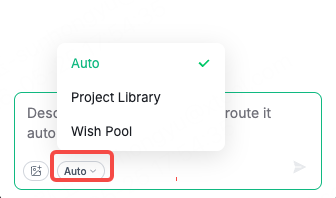
There's a tool button at the bottom-left of the input box. Click it to open a dropdown menu and tell the assistant "this is the kind of thing I want to do right now".
2.2.2 Available Modes
Mode | Best for | What happens after you pick it |
Auto (default) | Not sure which path / just throwing out a question | The AI figures out your intent and routes to the right capability |
🎨 Project Search | Looking for inspiration / wanting to see similar projects others made | Ask in natural language, and the AI pulls a set of project cards for you to browse |
⭐ Wishlist | You have a feature suggestion or want to flag a pain point | The AI walks you through describing your need conversationally |
The exact mode names, order, and welcome text may change between releases — what you see in the assistant always wins.
2.2.3 What Changes After You Pick a Mode
- The tool button becomes highlighted, and the placeholder text in the input box changes to a hint matching that mode.
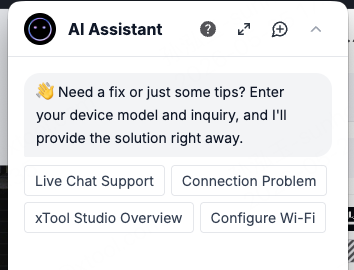
2.2.4 First-Time Welcome Bubble
- The very first time you open the assistant, you'll see a welcome line + 4 quick-start buttons below it.
- Tapping a quick-start button = instantly sending that common question — saves you from typing.
2.3 Self-Service Troubleshooting
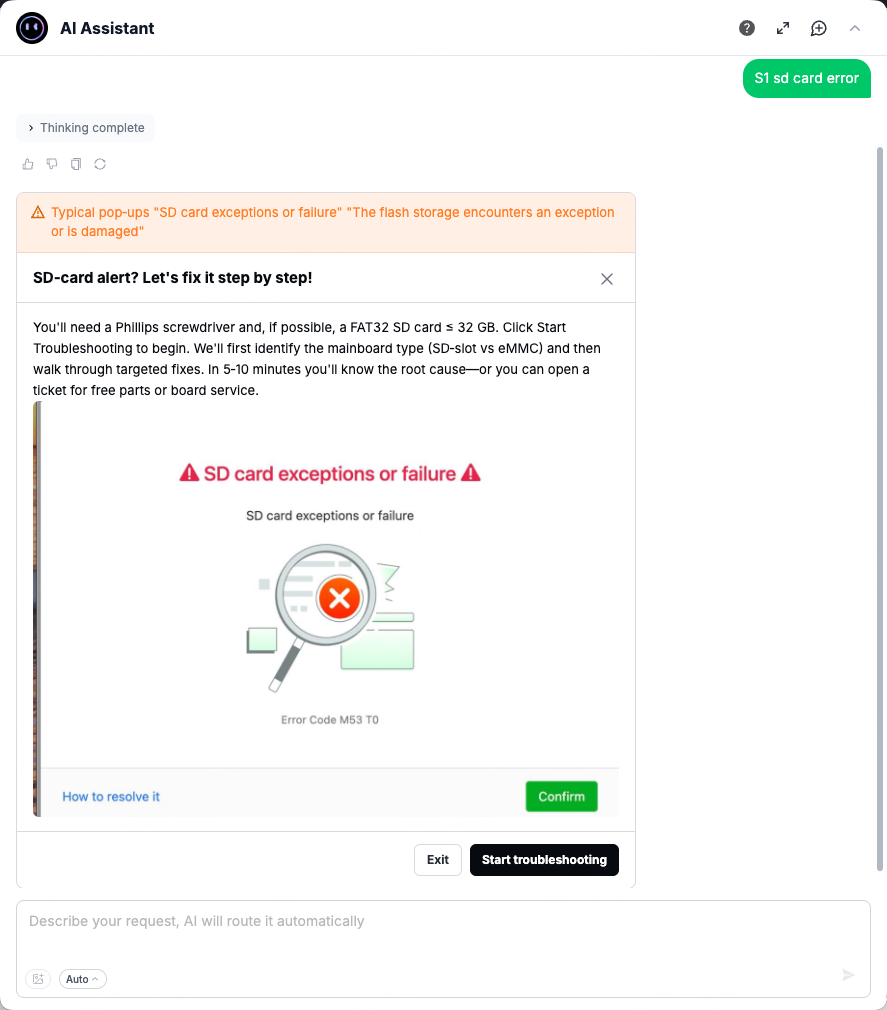
This is the assistant's most important and most trustworthy capability. Every troubleshooting step, button, instruction, and branching path is written and reviewed by the official xTool team before going live. During execution, the AI follows the flow strictly — it doesn't skip steps and doesn't improvise.
2.3.1 Three Ways to Enter
What triggers it | What you'll see |
An error code shows up on the device screen / in the client | The client carries the error code into the assistant automatically; the AI immediately matches the corresponding flow |
In Auto mode you describe the issue in natural language (e.g. "my laser isn't firing") | The AI recognizes the intent and enters the matching flow |
2.3.2 What You'll See During Troubleshooting
A troubleshooting flow is a sequence of steps; each one is one of these three types:
Step type | What it looks like | What you do |
Instruction step | A block of text + image (title + body + image + 「Next」 / 「Previous」 buttons) | Read the instruction → tap 「Next」 |
Device check | The assistant asks the client to check device state (power, connection, magnet, limit switches, etc.) and shows a live "Checking…" progress | Wait a few seconds — the flow automatically routes based on the result |
Form | A set of fields: single-choice / multi-choice / text input / dropdown / image or video upload, etc. | Fill in the fields and submit |
2.3.3 Example Reference When Uploading Material
- When a troubleshooting flow asks you to upload an image or video, there's usually an xTool-official example shown above (a green highlighted block with a "Please upload following the example below" hint).
- Tap the example to enlarge it → see exactly what framing / angle we need → then upload your own.
- This is to avoid the "you uploaded it but the shot was off / the key area is missing" back-and-forth.
2.3.4 Exiting Mid-Flow
- Every troubleshooting card has a close button in the top-right corner. Tap it to exit the flow and go back to regular chat.
2.3.5 When Troubleshooting Doesn't Resolve It
- If you go through the whole flow and still aren't unblocked, the AI guides you to a human agent, and brings the recent conversation along — so you don't have to re-explain everything.
- For account / refund / hardware repair issues, the AI will recommend a human agent directly rather than struggle on its own.
2.4 Daily Device / Software Questions (Knowledge Q&A)
2.4.1 Just Ask
For example:
- "How thick of basswood can my xTool F1 cut?"
- "How do I replace the lens on the D1 Pro?"
- "What power and speed do you recommend for cutting acrylic?"
2.4.2 Where the Answer Comes From
- Answers are grounded in the xTool official knowledge base — the AI does not fabricate device parameters.
- If your question isn't covered, the AI will say so plainly ("No matching reference found") and guide you to a human agent or suggest you rephrase — it won't hard-answer.
2.5 Finding Project Inspiration (Project Search)
2.5.1 How to Use
- Pick 「🎨 Project Search」 from the tool menu, or just say it naturally in Auto mode: "Find me some acrylic projects" / "Any earring inspiration?" / "找一些木质手机支架的案例" (any language is ok).
- The AI appends a set of project cards to the conversation:
- Each card shows: cover image + title + author + usage count
- Drag left or right with your mouse to browse
- Tap any card → opens the project detail dialog (the same dialog you see when you tap a project in xTool Studio's template library or home page). You can view details, favorite it, or apply the project to your canvas.
- Want more? Scroll to the end and tap the 「Browse all on the community」 button.
2.5.2 When Nothing Matches / Something Errors
- No results: The AI suggests a broader keyword, or invites you to browse the full community.
- Slow response / something goes wrong: The AI gives you a one-line "please try again later" message — no big red error popup to disturb you. Just resend your question.
2.6 Show It a Photo (Image Recognition)
2.6.1 How to Upload an Image
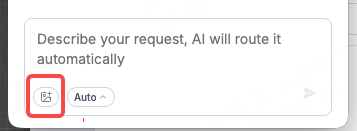
The 「+ Attachment」 button next to the input box supports three methods:
- Tap 「+」 → pick a local image file
- Paste directly (a screenshot from the clipboard)
- Drag an image onto the chat box
After uploading, an image thumbnail appears above the input box. You can delete or replace it. When you send the next message, the image goes with it.
2.6.2 Supported Image Specs
Item | Limit |
Format | jpg / png / webp |
Per message | One image (multiple images not supported yet) |
Image size | Recommended ≤ 5MB / longest side 1920px (the assistant will auto-compress for you) |
If your file exceeds the limit, you'll get a clear message at upload time — you won't find out after the fact that the upload failed.
2.6.3 How the Assistant Treats Different Types of Images
The assistant can't read every kind of image. This table tells you: which kinds it'll just answer directly, which kinds it'll ask a clarifying question about first, and which kinds it'll redirect you elsewhere (like to AI Make or to typing it out).
What you upload | What kind of reply you'll get |
✅ Client / device screen error screenshots | Direct answer: recognizes the error code, looks it up in the knowledge base, tells you what the problem is and how to troubleshoot |
✅ Photos of failed machining results (burnt, not cut through, bad edges, etc.) | Direct answer: analyzes why the result turned out this way and suggests possible causes and adjustments |
🟡 Photos of hardware components (lens, belt, exhaust port, etc.) | Asks first: "I see this is a photo of [part]. What specifically are you running into?" — give a bit more context and the AI will continue |
🟡 Screenshots of the client UI | Asks first: "This looks like [a rough region]. Which specific button / parameter are you asking about?" — be more specific and the AI will then answer |
⛔ "Generate something like this / restyle this / cut out the background" — image generation intent | Tells you straight up: the assistant doesn't do image generation, but xTool's AI Make does, and routes you there |
🛑 Other (material ID / object ID / tutorial screenshots / unrelated photos / blurry photos, etc.) | Replies: "Sorry, I can't reliably read this kind of image yet. What I can read fairly well: client error screenshots / device screen errors / photos of failed machining results. Try one of those, or just describe your issue in text." |
2.6.4 Seeing the Image You Already Uploaded
- Your own message bubble keeps a small image preview — tap to enlarge.
- The AI's reply may reference it like "Based on the image you uploaded, I can see…"
2.7 Smart Pickup on Machining Failures / Errors
2.7.1 You Don't Have to Do Anything
When xTool Studio detects any of the situations below, it automatically brings the relevant information into the conversation, and the AI replies based on your current situation:
- An error code pops up on the device screen / in the client → the error code is carried into the assistant automatically
- You tap "Ask AI" in a machining-failure popup → your machining parameters / failure screenshot are carried in
- A preflight check spots an anomaly in the machining preview → your parameters / mode info are carried in
2.7.2 What You'll Get
- The AI combines your device model, error code, machining parameters, etc., and gives you a direction to investigate or a suggestion.
- For known error codes, it'll route you directly into the matching self-service troubleshooting flow (see §2.3).
2.8 Send Us a Feature Request (⭐ Wishlist)
2.8.1 How to Use
- Pick 「⭐ Wishlist」 from the tool menu.
- The AI walks you through describing your request conversationally (up to 10 natural follow-ups — it won't grill you forever):
- What problem are you trying to solve?
- How are you working around it today?
- What would the ideal solution look like?
- Want to bail mid-way? Just say "never mind, drop it" — the AI politely ends the session. You're not forced to finish.
- At wrap-up:
- If you're signed into your xTool account → your account email is attached automatically, no follow-up needed.
- If you're not signed in → the AI asks once for your email (you can decline; it won't block the submission).

2.8.2 After You Submit
- Your request enters the official wishlist queue and is reviewed manually by the xTool team. We'll reach out directly if we need to discuss details.
- Review states include: Pending review → Planned → Shipped → Closed.
- We do not currently send in-app notifications or automated emails about state changes.
2.9 Tell Us If This Answer Was Good (Feedback)
Entry point | Purpose |
👍 / 👎 buttons | At the bottom of every AI reply — one tap |
Text feedback | After tapping 👎, you can add a line saying "why it wasn't useful" — helps us improve |
Top notification bar | The assistant proactively shows a one-line message for things like a network drop (dismissable) |
Your feedback is reviewed regularly by the xTool team and used to improve AI answer quality, fill knowledge base gaps, and fix frequently-downvoted answers.

2.10 Help Menu
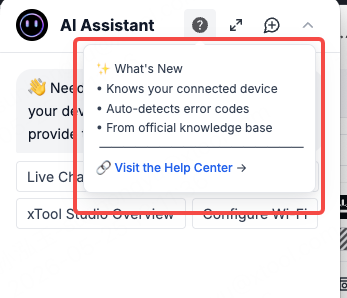
- Click the
?icon in the top-right of the assistant panel to open a dropdown: - What's new: see what capabilities have been added recently (e.g. the new "+ Attachment" button, new tool modes).
- Help Center: jumps to the full official help portal (external link).
2.11 Multi-Language Support
- The assistant's UI text, troubleshooting step descriptions, and AI reply language automatically follow your client's language setting.
- After you switch the client language, the UI refreshes in sync, and new conversations' AI replies also switch.
- You can also just ask in a different language directly in the chat — the AI will try to reply in the same language you asked in.
3.Disclaimer & Limits
3.1 What You Can Trust, What's Only a Reference
The principle: «Content written by xTool ≈ trustworthy; content the AI generates on the fly ≈ reference only».
Part | Trust level | Explanation |
Troubleshooting flow content (step text, buttons, form fields, device checks, the messages shown for various situations) | ✅ Trustworthy | Authored by the official xTool team, tested and reviewed before going live. What you see while walking through a troubleshooting flow is identical to the published version — the AI does not rewrite it on the fly |
The flow's branching (when you enter / exit a step / which path you take) | ✅ Trustworthy | Flow steps and paths are pre-authored by the official xTool team; the AI doesn't skip steps or improvise paths during execution |
The AI's free-form text replies (knowledge Q&A / error code explanations / machining result analysis / image recognition / project descriptions / multi-lingual translation / human-handoff prompts / wishlist follow-ups, etc.) | ⚠️ Reference only | xTool constrains the knowledge sources and reply rules, but the actual wording is generated by a large language model on the fly, and it can drift: it may misread your question, phrase things imprecisely, or "confidently get it wrong" when the knowledge base doesn't cover something |
Image recognition results | ⚠️ Reference only | The assistant grades images by type (see §2.6.3), but visual recognition has its limits. Do not base hardware-repair or high-risk operations on what the AI says about a photo. |
Machining parameter suggestions (material / power / speed, etc.) | ⚠️ Reference only | Grounded in the official xTool knowledge base, not invented out of thin air — but actual machining depends on your material batch / device state / environment, so the final call is yours |
The AI changing your parameters / controlling the device | ❌ Never | The assistant will not change your machining parameters / will not press Start for you / will not disassemble anything. Even if a "one-click apply" style button is added later, the final confirmation will always be yours |
3.2 Things to Keep in Mind
- All answers are reference only. For machining parameter or device setting suggestions, decide whether to apply them after checking your actual material and device state.
- Don't run dangerous operations based on the AI's reply (e.g. high-power cutting on un-validated materials, disassembling the laser head, altering the laser path).
- Safety-related issues — cut power first, call a human agent immediately (fire, smoke, unusual smell, etc.). Do not rely on the AI for these.
- The AI sometimes misunderstands or answers incorrectly. When you spot an obvious error, please tap 👎 under the answer and leave a one-line comment — we use these to improve.
- Image recognition is only safe to act on in the two "✅ direct-answer" cases listed in §2.6.3 (error screenshots / photos of failed machining results). For everything else, treat the AI's image interpretation as a clarifying prompt or fallback message — don't take it as a conclusion.
- Complex or hardware issues → human agent: hardware repair, account / after-sales / refunds / warranty, and anything outside the official knowledge base will be routed to a human agent. Please cooperate by providing the requested materials.
- About your privacy: your conversations are used only for internal xTool product improvement (e.g. measuring common questions, filling knowledge base gaps). They are not used to train external large language models, and personally identifiable information is not exposed.
3.3 What the Assistant Is NOT
- ❌ Not a general-purpose chatbot — quality is not guaranteed for questions outside the xTool use case.
- ❌ Not a replacement for human support — complex issues still need a human.
- ❌ Not a device control tool — it won't press Start for you / change your parameters / disassemble anything.
- ❌ Not an image generator — for image generation, please use xTool's AI Make. The assistant will only point you there in text; it won't generate images itself.
4.Where to Send Feedback
- In-chat: the 👍 / 👎 buttons under every reply + the text feedback box
- In-client: the
?icon at the top-right of the assistant panel → Help & Updates menu → Help Center - Feature requests: the tool menu next to the assistant's input box → ⭐ Wishlist

