
Issue description
When using the automatic distance measurement to measure material thickness, an error code, "Thickness exceeds the maximum limit and cannot be processed" or "Excessive material thickness detected with Error Code 1000003", appears on the software. Specifically:
- The laser module appears to move slightly downward along the Z-axis, but it is unable to perform a complete measurement.
- The laser module does not move down noticeably, and the software immediately reports an error code.
You may encounter one of the following two pop-up windows.
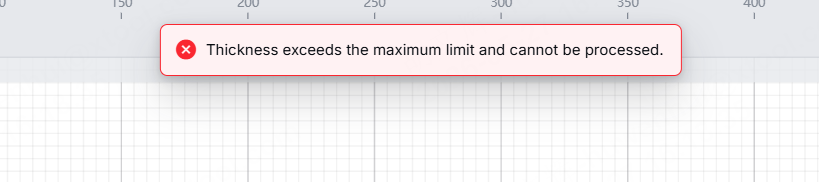
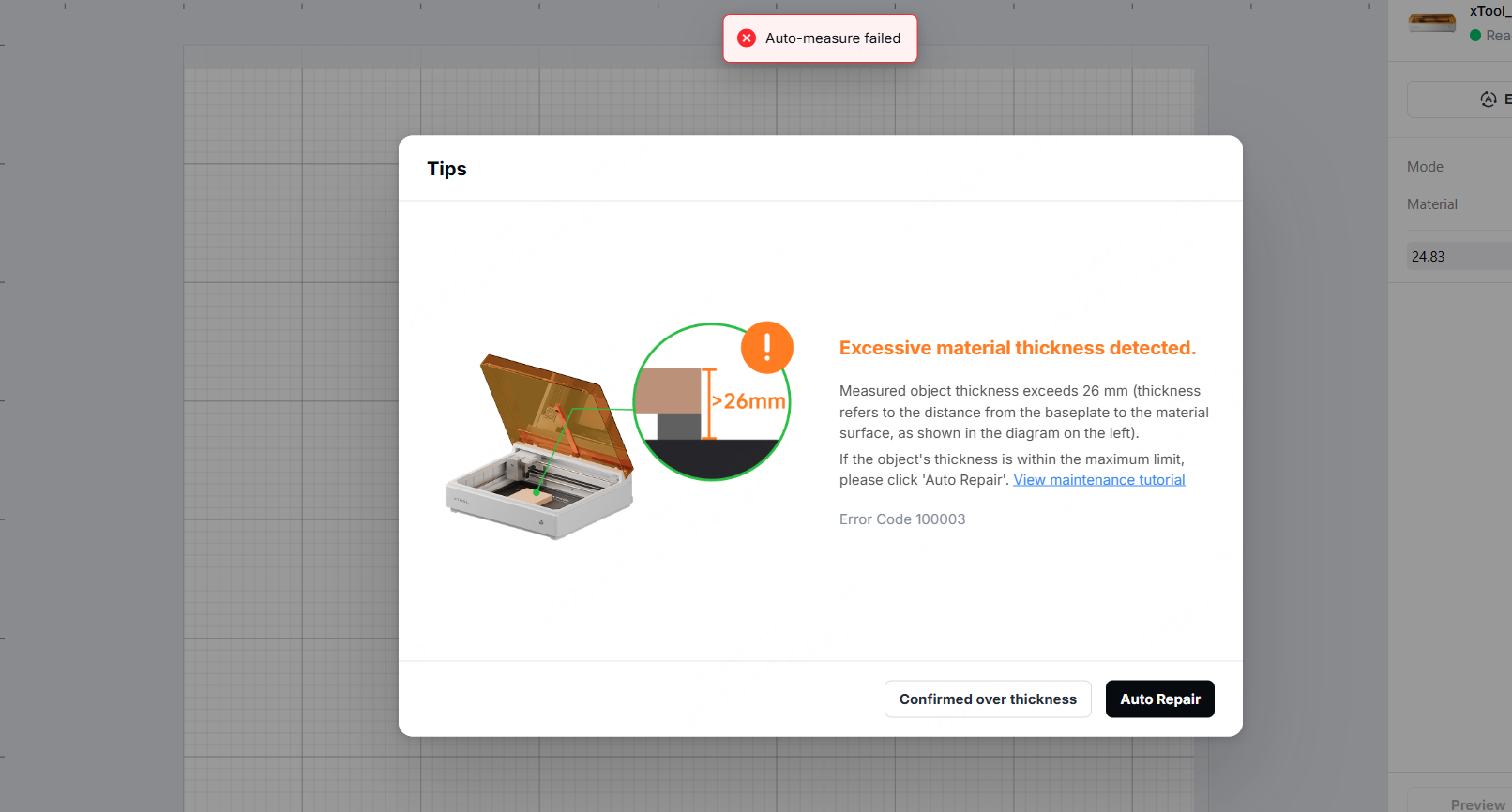
Possible causes
- Insufficient grease. The module holder plate slide rail or linear shaft is not lubricated, resulting in increased resistance to motion, which the software misinterprets as the material thickness exceeding the measurement range.
- There is an issue with the spring assembly inside the module holder plate. The module holder plate contains a spring that assists with retraction. If the spring is improperly installed, loose, or damaged, it will interfere with the laser module’s normal downward movement and retraction.
Troubleshooting procedures
1. Try the Auto Repair function
(1) When the software displays the error message Excessive material thickness detected, please carefully review the error window.
(2) Click Auto Repair. The system will attempt to automatically detect and fix issues that may cause errors (such as Z-axis movement jamming).
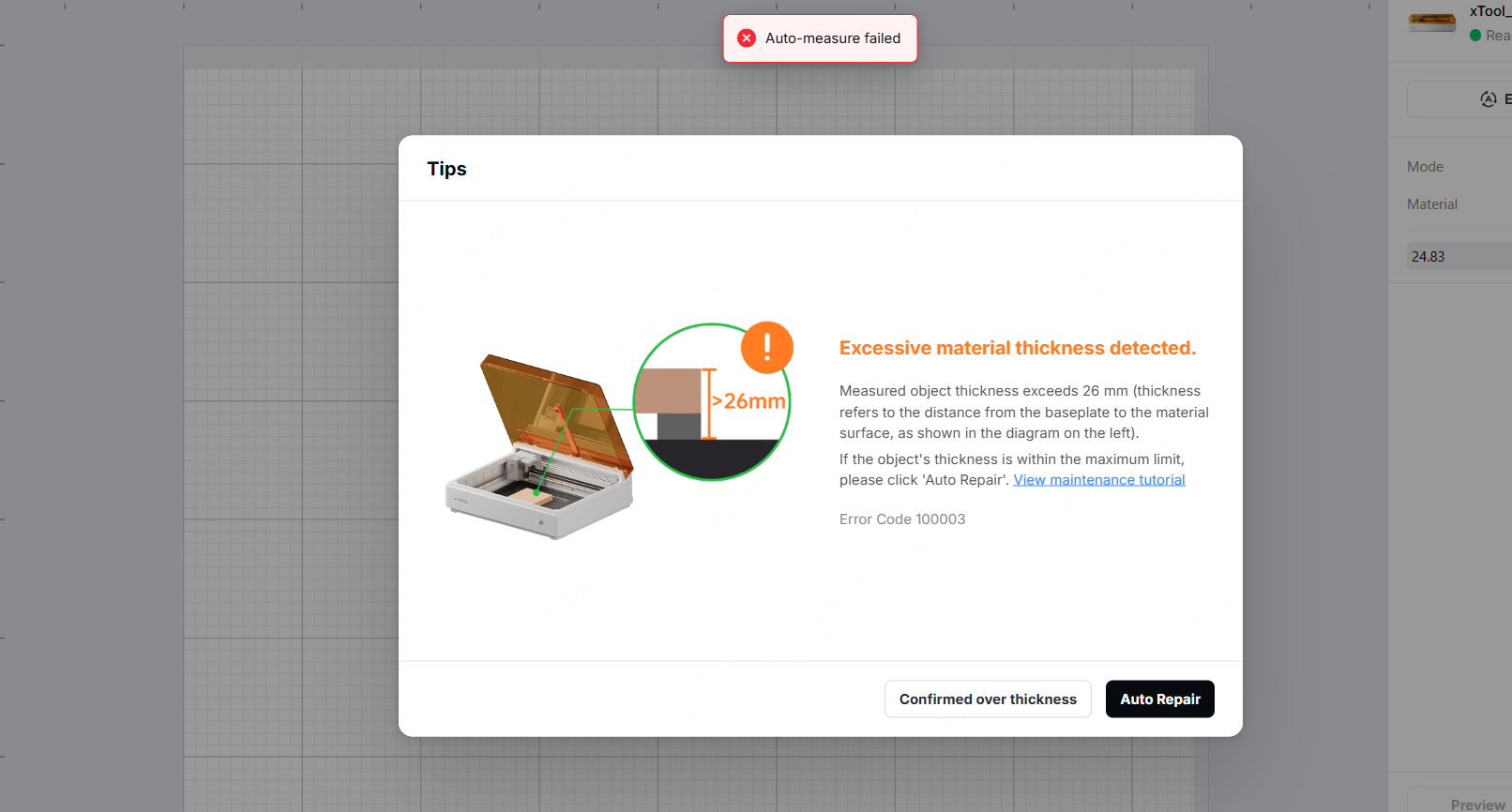
(3) Once the automatic repair is complete, perform the automatic distance measurement again to see if the error has been resolved.
(4) If the issue persists, proceed to the next steps.
2. Check and maintain the module holder plate
Note: If you have already clicked View maintenance tutorial in the software and applied grease following the video tutorial, please skip this step.
- Check the module holder plate
- Keep the device powered on and remove the laser module.
- Pull the module holder plate down slightly.
- Hold the bottom of the module holder plate with your finger, gently push it upward, then let go (be careful not to apply too much force).
- If the module holder plate is observed to return to its original position on its own, there are no obvious abnormalities in the slider mechanism. Otherwise, there is a problem with the plate getting stuck.
.gif)
- Maintain the module holder plate
You can refer to the video tutorial.
- Power off the device, and move the laser module to the bottom-right of the device.
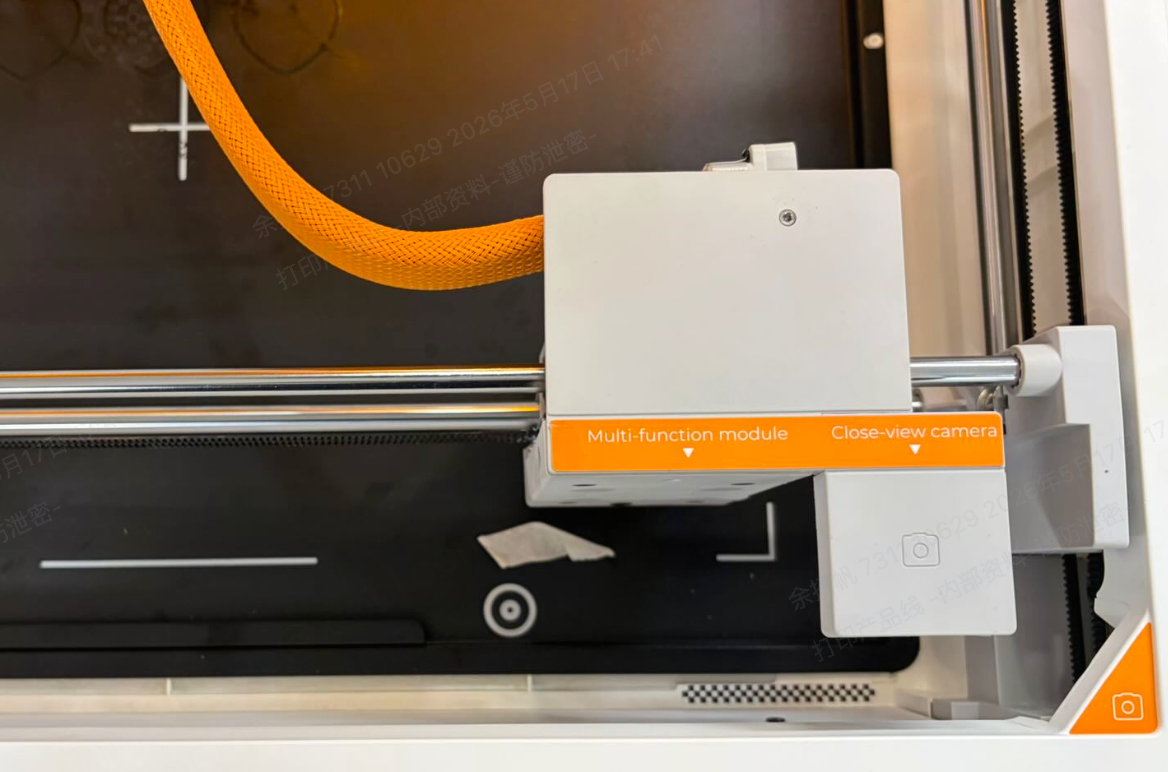
- Find the grease in the toolbox of xTool M2.
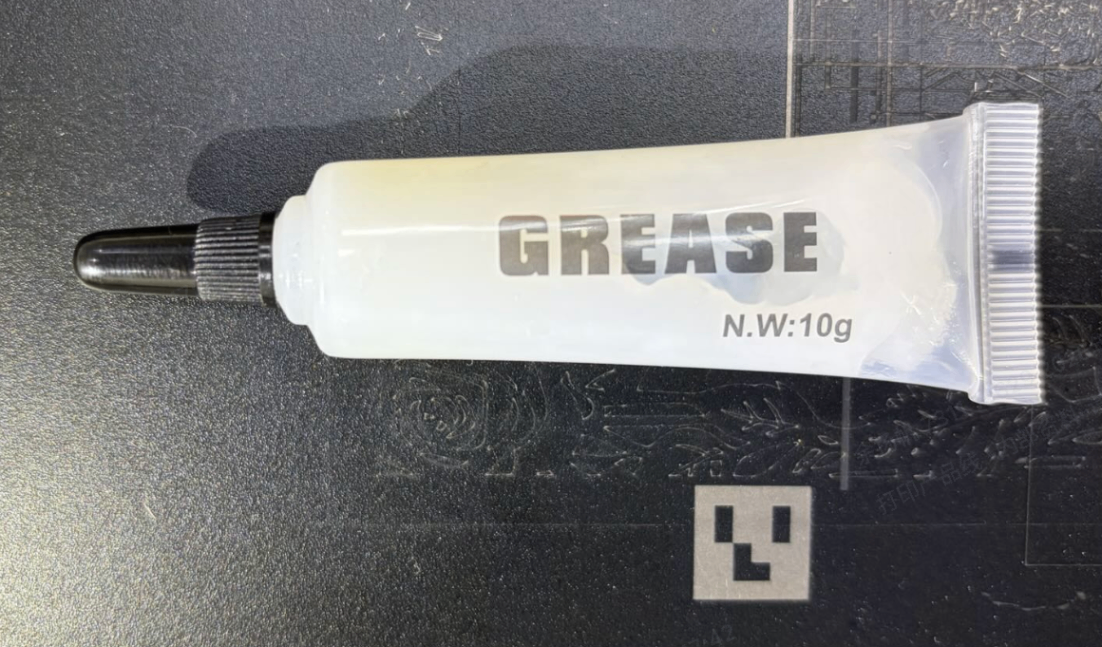
- Apply grease evenly to the linear shafts at the two locations shown in the figure below. After applying the grease, slide the module holder plate up and down by hand to ensure the grease is evenly distributed.
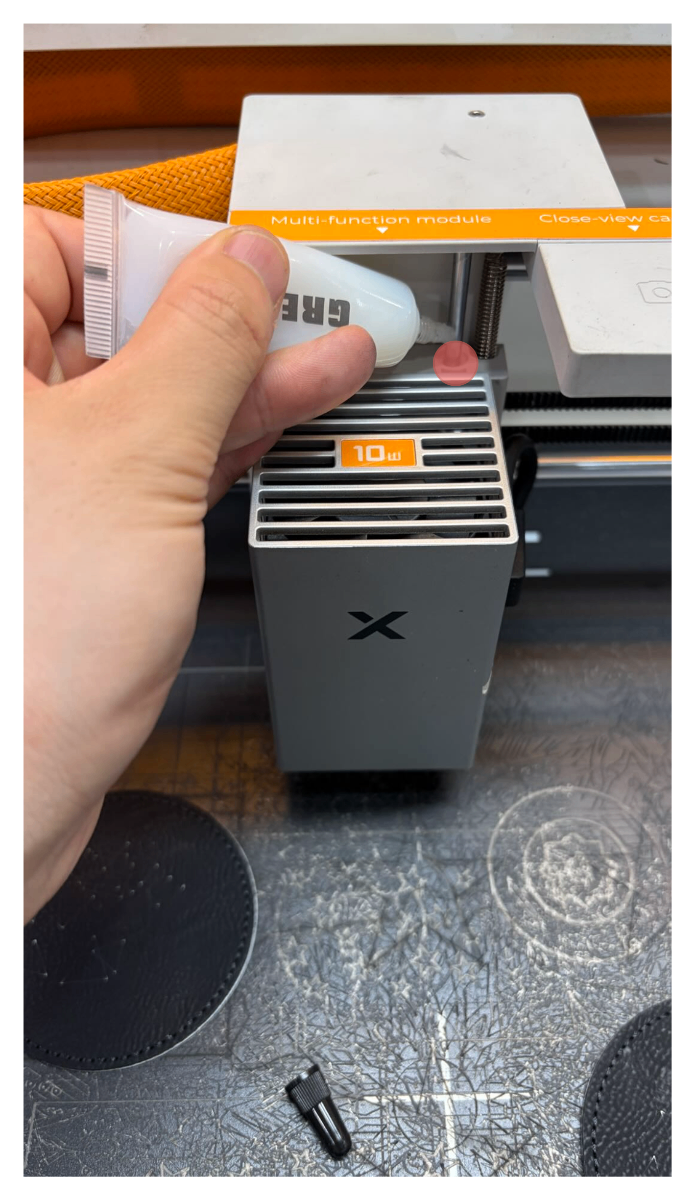
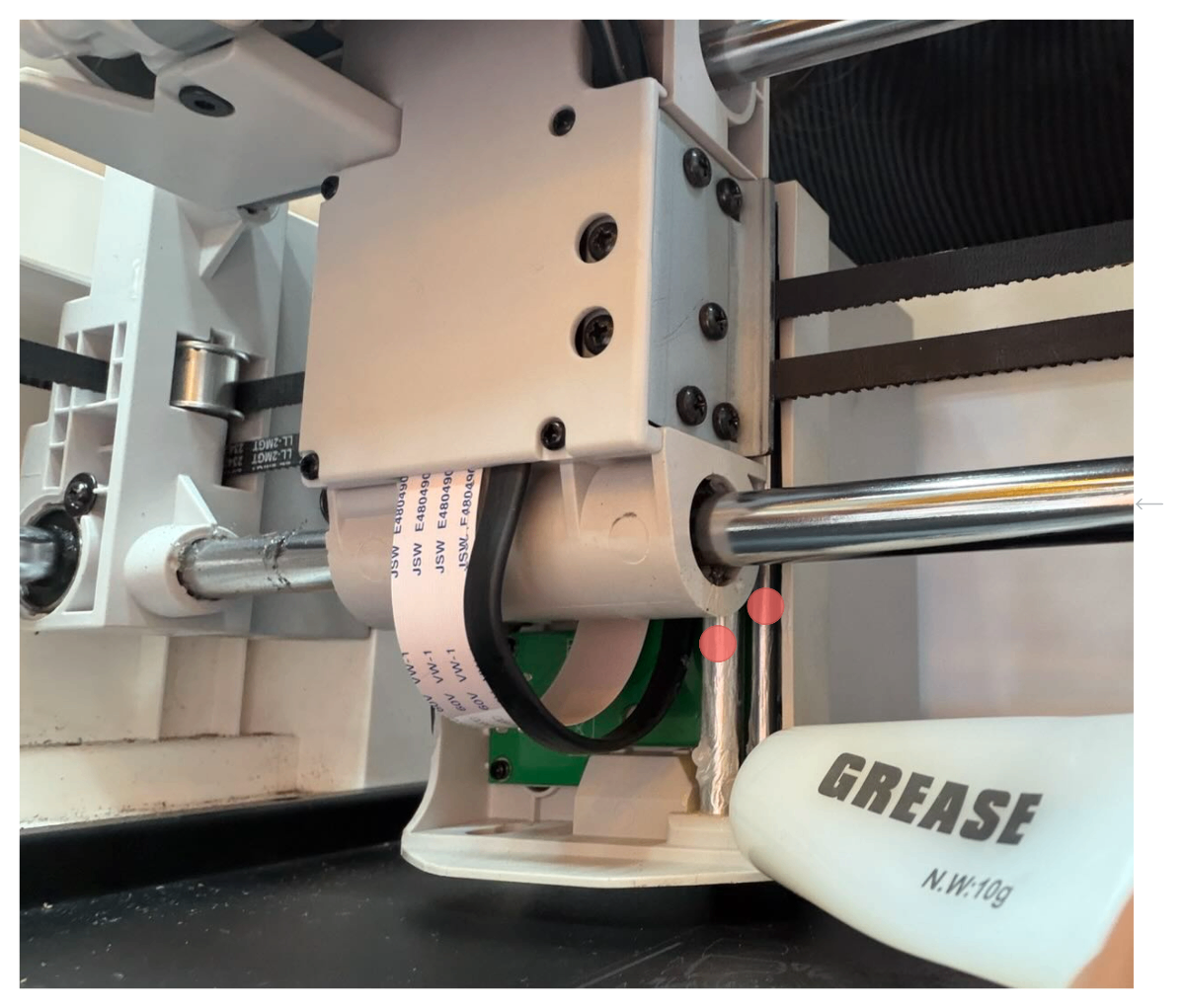
After the lubricating, perform the Z-axis calibration again. Check whether the error code has been solved.
3. Contact xTool after-sales team
(1) If the Z-axis reset still fails after completing the above steps, it may be due to a damaged or swollen Z-axis rubber O-ring or another hardware malfunction.
(2) Contact the xTool after-sales team and provide the device's serial number. We will offer you two options:
- Replacement parts option: We will send you the replacement parts you need, such as rubber O-rings, and provide replacement instructions. You can follow the replacement video to do it yourself.
- Repair option: If you do not wish to replace the parts yourself, you can send the device back to xTool's after-sales service team for repair.
When contacting us, please provide the information listed in the “Still experiencing issues?”.
Still experiencing issues?
Should the issue persist after completing the preceding steps, submit a ticket via the "Submit a Ticket" button in the "Help Ticket" section below. The standard response time for xTool Customer Service is one business day.
For a prompt resolution, please include the following details:
- Software and firmware version: The software version of xTool Studio and the firmware version of xTool M2 that you use.
- Video evidence: Attach a video demonstrating the issue, where applicable.
- Device information: Follow the steps to export the work log.
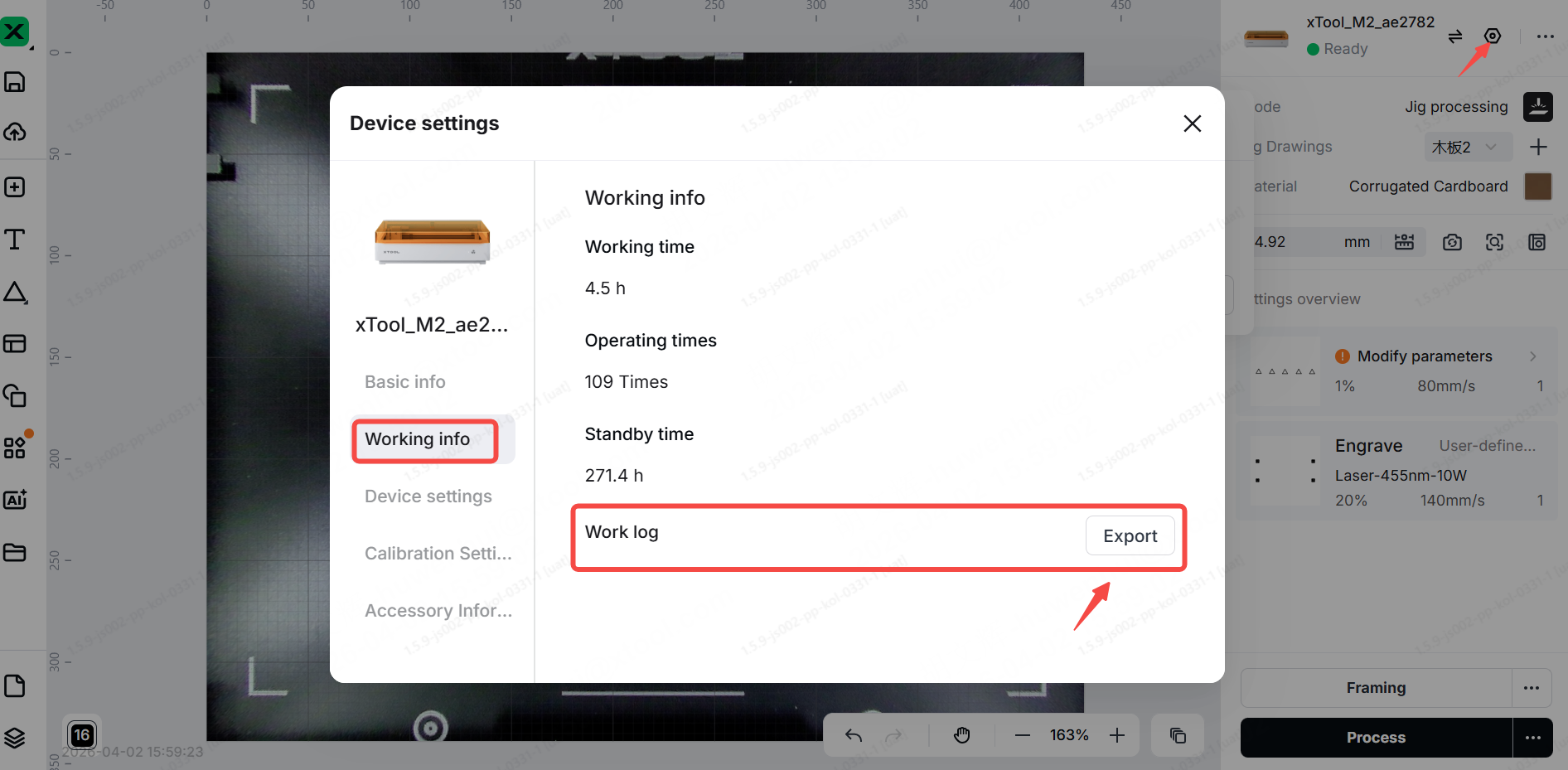
This information is crucial for xTool technical support engineers to provide timely assistance.

